How to Capture High-Quality Screenshots with html2canvas Scale
Learn how html2canvas scale controls sharpness, pixel dimensions, canvas limits, CORS, long pages, and reliable screenshot exports.
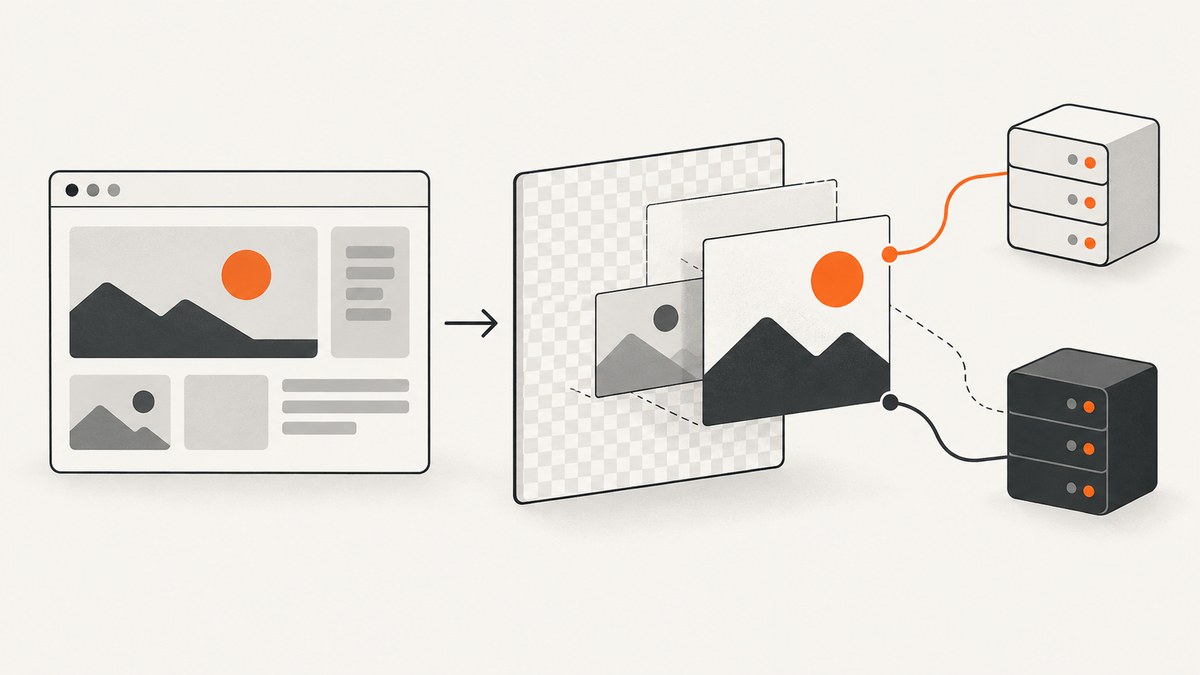
Short answer: pass an explicit scale to html2canvas when you need predictable output dimensions. For sharp screenshots on a high-DPI display, the project’s documented pattern is scale: window.devicePixelRatio. A larger scale creates more output pixels, but it also consumes more memory, takes longer, and can hit browser canvas limits. It cannot repair unsupported CSS, cross-origin image restrictions, or the fact that html2canvas rebuilds an image from the DOM instead of taking a literal browser screenshot.
This guide shows a complete workflow for capturing an element or page, choosing a scale, exporting PNG/JPEG/WebP, handling long content and remote images, and diagnosing blank or blurry results. It also explains when a browser-side DOM renderer is the wrong tool.
1. What html2canvas scale actually controls
scale is the multiplier used while html2canvas renders CSS pixels into canvas pixels. If an element is 800 CSS pixels wide and you use scale: 2, the canvas is approximately 1,600 pixels wide. The element’s layout size does not change; only the bitmap resolution changes.
If you omit the option, html2canvas defaults to window.devicePixelRatio. The official high-DPI example passes that value explicitly to produce a sharp result on retina displays. See the configuration reference and official examples.
| Goal | Suggested approach | Trade-off |
|---|---|---|
| Match the current screen | scale: window.devicePixelRatio |
Output size changes between monitors and phones. |
| Predictable asset dimensions | Use a fixed value such as scale: 2 |
Higher values increase memory use and processing time. |
| Small download | Use a lower scale and JPEG/WebP where suitable | Fine text and thin lines may lose detail. |
| Print-quality or very large output | Render at a controlled size, then consider a server-side browser screenshot | Very large canvases can fail or become slow. |
2. A complete high-resolution capture
Install html2canvas with npm or load it in your page, select the element, render it, and download the returned canvas:
import html2canvas from 'html2canvas';

const element = document.querySelector('#invoice');
if (!element) throw new Error('Missing #invoice element');

const canvas = await html2canvas(element, {
  scale: window.devicePixelRatio,
  backgroundColor: '#ffffff',
  useCORS: true
});

const link = document.createElement('a');
link.download = 'invoice.png';
link.href = canvas.toDataURL('image/png');
link.click();
This follows the project’s documented device-pixel-ratio and PNG export pattern. The capture runs in the user’s browser; no server is involved. The documentation explains that html2canvas traverses the DOM and builds a canvas representation from information available to the browser.
Use a fixed scale when dimensions must be stable
const canvas = await html2canvas(element, {
  scale: 2,
  backgroundColor: '#fff'
});

console.log({
  cssWidth: element.getBoundingClientRect().width,
  cssHeight: element.getBoundingClientRect().height,
  bitmapWidth: canvas.width,
  bitmapHeight: canvas.height
});
Use the logged bitmap dimensions in tests or downstream upload validation. Do not assume that a scale of 2 always means a particular final size: responsive CSS, fonts, zoom, and the selected element’s dimensions all affect the result.
3. Capturing a full page or a long element
For a component, pass the component itself. For a page-length capture, use the document root or a wrapper and set the rendering window to its scroll dimensions. The html2canvas FAQ shows this pattern for tall elements:
const target = document.querySelector('#report');
const width = target.scrollWidth;
const height = target.scrollHeight;

const canvas = await html2canvas(target, {
  scale: 1,
  windowWidth: width,
  windowHeight: height,
  width,
  height,
  scrollX: 0,
  scrollY: 0,
  useCORS: true
});
Start with scale: 1 for a long page, confirm that the complete content renders, then increase the scale only if the browser can handle the resulting bitmap. Lazy-loaded images may not exist in the DOM yet. Scroll through the page first, trigger the application’s image-loading logic, or wait for the relevant images before calling html2canvas.
Canvas limits vary by browser and device. The html2canvas FAQ lists approximate, platform-dependent examples: Chromium and desktop Firefox are shown at roughly 32,767 pixels per dimension, with approximate maximum areas of 268 megapixels and 472 megapixels respectively; desktop Safari is also shown near 32,767 pixels per dimension, while iOS Safari depends more heavily on device RAM. Treat these as rough guidance, not guarantees. A long page at scale 2 can exceed an area limit even when neither dimension looks unusually large.
4. Choosing a scale without wasting memory
Canvas memory grows with pixel count, approximately width × height × 4 bytes for an RGBA bitmap, before temporary buffers and encoded output are added. Doubling both width and height creates about four times as many pixels. That is why scale is a quality control and a resource control at the same time.
- Measure the target’s CSS width and height.
- Multiply each by your proposed scale.
- Check that the resulting dimensions and total area are reasonable for your target browsers.
- Capture a representative page on the least capable device you support.
- Lower the scale, split the capture into sections, or use a server-side browser if the canvas becomes blank or partially rendered.
For thumbnails, scale 1 is often sufficient. For a two-times export, scale 2 is a practical starting point. Matching devicePixelRatio is useful when the image should look as sharp as the current display. There is no universal “best” multiplier because the correct value depends on output dimensions, device memory, and the content’s detail.
5. Exporting PNG, JPEG, and WebP
const pngUrl = canvas.toDataURL('image/png');
const jpegUrl = canvas.toDataURL('image/jpeg', 0. quality);
const webpUrl = canvas.toDataURL('image/webp', 0. quality);
Replace 0. quality with a number such as 0.85; the space above is intentional only to keep the example readable, so production code should use 0.85. PNG is lossless and preserves text and transparency. JPEG is smaller for photographic content but has no transparency. WebP can provide a smaller file where your target browsers and pipeline support it.
function downloadCanvas(canvas, filename, type = 'image/png', quality) {
  const link = document.createElement('a');
  link.download = filename;
  link.href = canvas.toDataURL(type, quality);
  link.click();
}

downloadCanvas(canvas, 'capture.webp', 'image/webp', 0.85);
6. Cross-origin images and CORS
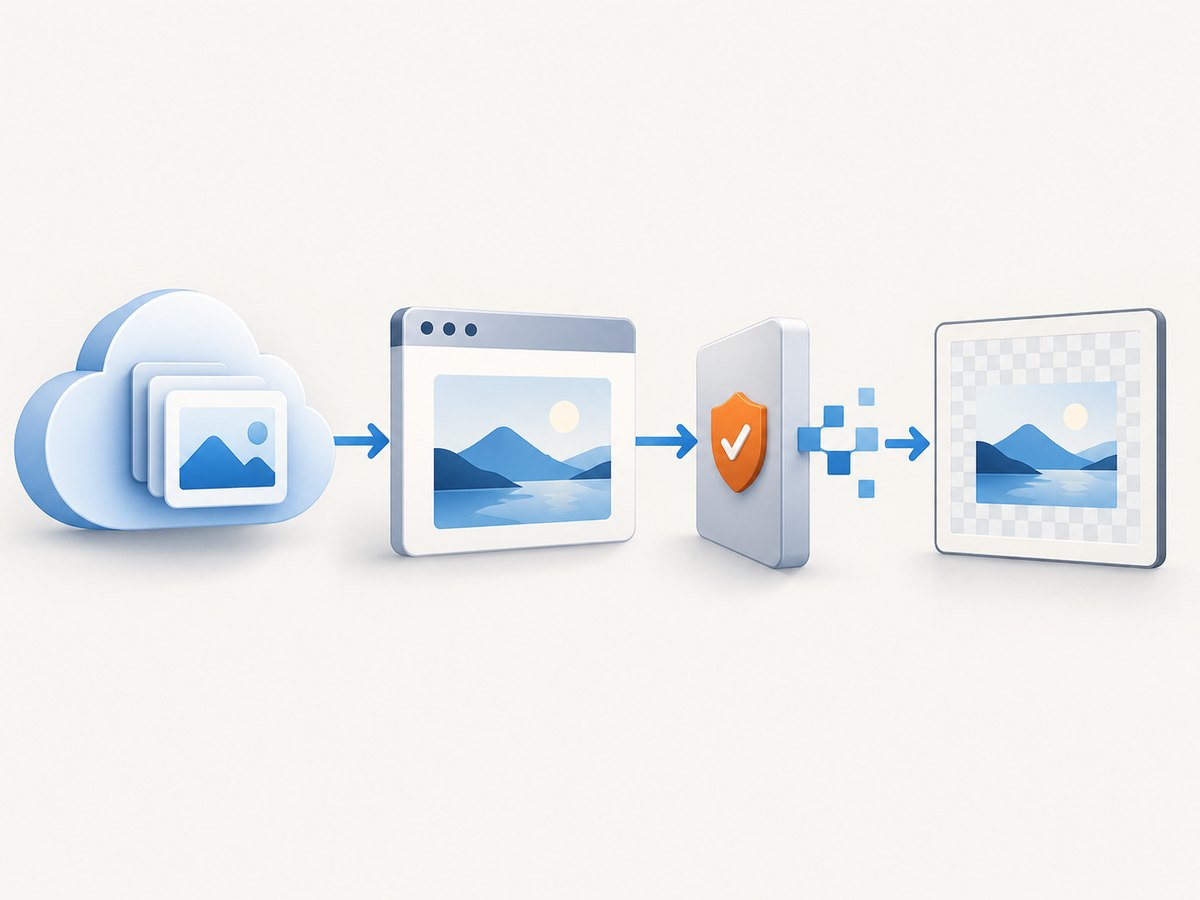
Remote images are a frequent cause of missing content or a “tainted” canvas. Set useCORS: true, but remember that this only asks the browser to make a CORS-enabled request. The image server must return an appropriate Access-Control-Allow-Origin header. Scaling does not bypass browser security.
const canvas = await html2canvas(element, {
  scale: 2,
  useCORS: true,
  imageTimeout: 15000
});
When you control the image server, configure it to allow the origin that serves the page. When you do not, use a same-origin proxy where that is appropriate and permitted. Cross-origin iframes cannot be rendered by html2canvas because of browser security restrictions. Check the browser console and the Network panel to identify the exact image or iframe that failed.
7. Options that affect screenshot quality
| Option | Use | Important detail |
|---|---|---|
scale |
Controls bitmap resolution. | Defaults to window.devicePixelRatio. |
backgroundColor |
Sets the canvas background. | Use null for transparency when the rendered content supports it. |
useCORS |
Requests remote images with CORS. | Requires server response headers; default is false. |
windowWidth/windowHeight |
Defines the virtual browser viewport. | Useful for long or responsive layouts. |
width/height |
Sets the render area. | Match the target’s scroll dimensions for a complete element. |
scrollX/scrollY |
Controls the virtual scroll position. | Set explicit values for repeatable captures. |
imageTimeout |
Limits image loading time. | Use 0 only when you deliberately want no timeout. |
onclone |
Changes the cloned document before rendering. | Hide controls or replace animations without changing the live page. |
Freeze animations and hide capture-only elements
const canvas = await html2canvas(element, {
  scale: 2,
  onclone: clonedDocument => {
    const style = clonedDocument.createElement('style');
    style.textContent = `*, *::before, *::after {
      animation: none !important;
      transition: none !important;
      caret-color: transparent !important;
    }
    .no-export { display: none !important; }`;
    clonedDocument.head.appendChild(style);
  }
});
Fonts should be loaded before capture. If the page uses web fonts, wait for document.fonts.ready and for important images to complete. Otherwise the clone may render fallback fonts or empty image boxes.
8. Why a larger scale cannot make every screenshot perfect
html2canvas is a DOM-based reconstruction, not a camera pointed at the browser. It only supports the CSS properties implemented by the project. Unsupported filters, blending, complex effects, some pseudo-elements, plugins, and cross-origin frames may differ from what you see on screen. A higher scale gives supported pixels more detail; it does not add support for missing CSS.
If you need a literal browser screenshot, server-side automation with Puppeteer or Playwright is a better fit. The html2canvas FAQ also points to native browser-extension screenshot APIs when you need reliable capture without canvas size limits.
9. Troubleshooting common failures
| Symptom | Likely cause | Fix |
|---|---|---|
| Image is blurry | Scale is 1 on a high-DPI display, or the source asset is low resolution. | Try window.devicePixelRatio or a fixed scale such as 2; verify the source image dimensions. |
| Canvas is blank | Canvas dimension or area limit was exceeded. | Lower scale, reduce the capture area, split a long page, or use a browser screenshot service. |
| Remote images are missing | No CORS permission or useCORS is disabled. |
Enable useCORS and configure Access-Control-Allow-Origin, or proxy the image. |
toDataURL throws a security error |
The canvas was tainted by a cross-origin resource. | Fix the image request’s CORS headers; scale cannot bypass this restriction. |
| Bottom of page is cut off | The virtual window or target height is too small. | Use scrollWidth/scrollHeight for the target and set windowWidth/windowHeight. |
| Text looks different | Fonts were not loaded, or CSS is unsupported. | Await document.fonts.ready, wait for font requests, and check supported CSS. |
| Capture changes between runs | Animations, transitions, blinking carets, or live data. | Disable motion in onclone and capture after the page reaches a stable state. |
| Cross-origin iframe is empty | Browser security prevents DOM access. | Capture that frame from its own origin or use a server-side browser with appropriate access. |
10. A repeatable capture checklist
- Select the smallest element that contains the content you need.
- Wait for fonts, images, and application data.
- Disable animations and transient UI in the cloned document.
- Choose scale from the required output dimensions, not from a universal rule.
- Enable CORS for remote images and verify response headers.
- Measure long pages before multiplying their dimensions.
- Test on the slowest and lowest-memory browser you support.
- Prefer a server-side browser when you need literal pixels, cross-origin frames, or very large pages.
11. Or skip the browser setup
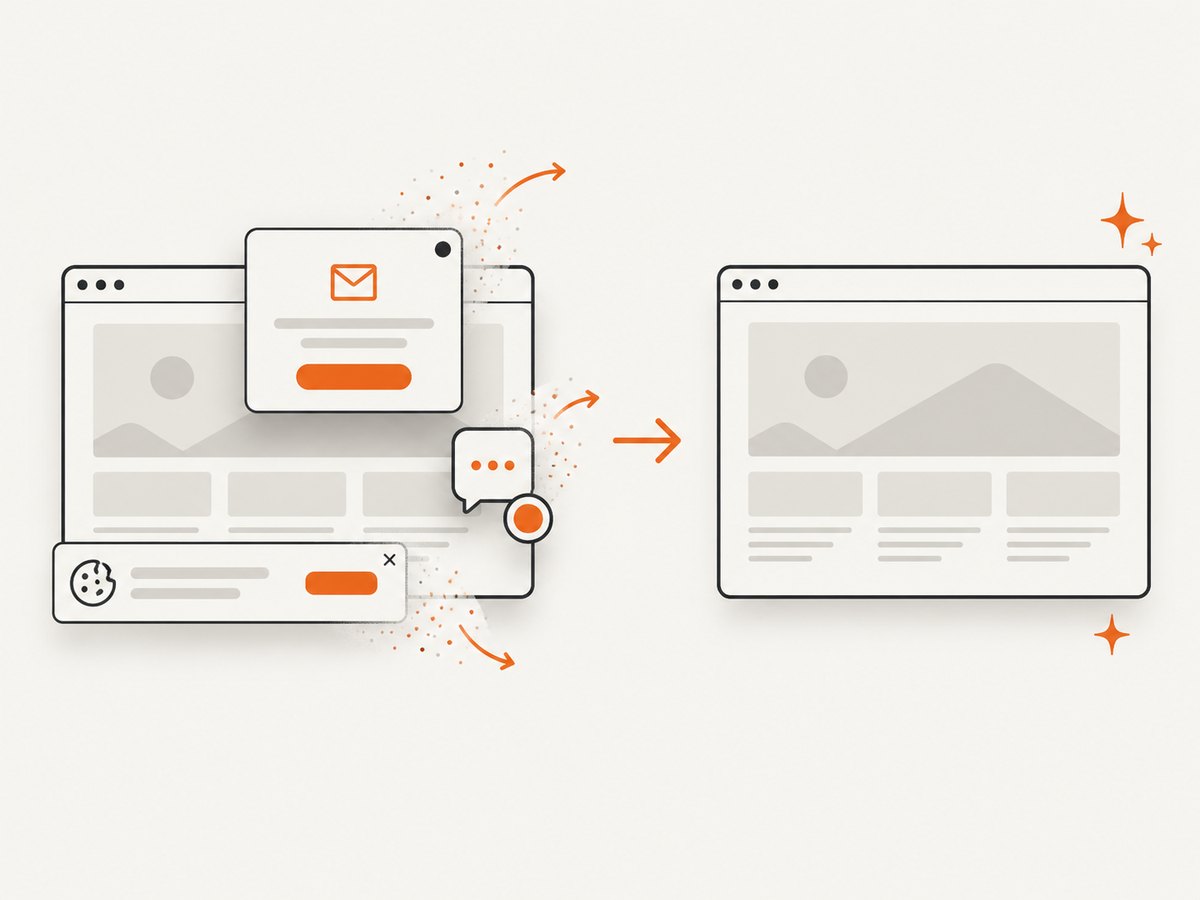
If you need a repeatable screenshot from a URL rather than a canvas reconstruction, ScreenshotNeo provides a website screenshot API. The request is a single GET call and supports PNG, JPEG, WebP, or PDF output. Before capture, it accepts cookie and consent banners and removes more than 60 known consent platforms, newsletter popups, and chat widgets; each step can be turned off.
Only clean shots are billed. Bot checks and CAPTCHAs, blank pages, timeouts, failed loads, and cache hits cost nothing, and response headers identify the page verdict and whether it was billed. ScreenshotNeo also offers an MCP server with take_screenshot, get_page_info, and capture_pdf tools for Claude, Cursor, and other MCP clients.
See the ScreenshotNeo API documentation for all options, including full-page and element capture, device presets, custom viewports, retina scale, custom CSS and JavaScript, waits, request blocking, headers, cookies, geolocation, caching, signed links, asynchronous jobs, bulk capture, and usage reporting.
cURL
curl -G 'https://api.screenshotneo.com/v1/shot' \
  -d access_key=YOUR_API_KEY \
  --data-urlencode url=https://stripe.com \
  -o shot.webp
Python
import requests

r = requests.get(
    'https://api.screenshotneo.com/v1/shot',
    params={
        'access_key': 'YOUR_API_KEY',
        'url': 'https://stripe.com'
    },
    timeout=90
)
r.raise_for_status()
open('shot.webp', 'wb').write(r.content)
Node.js
const q = new URLSearchParams({
  access_key: 'YOUR_API_KEY',
  url: 'https://stripe.com'
});
const res = await fetch(`https://api.screenshotneo.com/v1/shot?${q}`);
if (!res.ok) throw new Error(`HTTP ${res.status}`);
const data = Buffer.from(await res.arrayBuffer());
require('node:fs').writeFileSync('shot.webp', data);
The Free plan includes 1,000 screenshots per month with no card. Paid plans start at $5 for 3,000 shots; every feature is available on every plan, and yearly billing gives two months free. Create a free ScreenshotNeo account and start with the 1,000 included screenshots.
12. FAQ
Should I always use scale 2?
No. Use the device pixel ratio when matching the current display, or a fixed value when output dimensions must be predictable. Validate memory and canvas limits for your target browsers.
Does scale change CSS layout?
No. It changes the number of bitmap pixels used to represent the same CSS layout.
Can scale capture cross-origin images?
No. The image server still needs CORS permission, and cross-origin iframes remain restricted.
Can html2canvas run on a server?
It depends on browser APIs and is intended for client-side use. For server-side generation, the project FAQ recommends considering Puppeteer or Playwright.
Why is my high-scale export slower?
There are more pixels to paint, copy, and encode. Large canvases also increase memory pressure and may exceed browser limits.


