html2canvas Tutorial: Capture and Download DOM Elements
Learn to capture DOM elements with html2canvas, handle CORS images, crop and export PNGs, troubleshoot blank canvases, and choose a browser tool for server-side jobs.
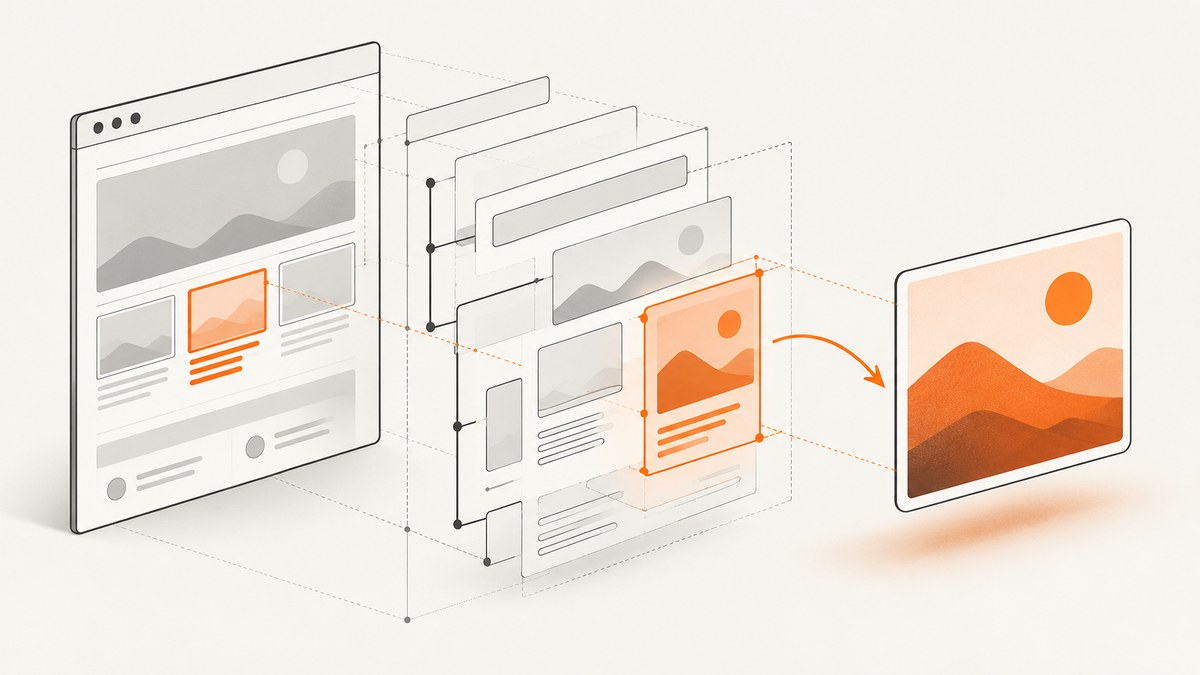
html2canvas lets browser JavaScript render a DOM element into a canvas that you can display or export as an image. Install the package, select an element, await html2canvas(element, options), then append the returned canvas or download it with toDataURL(). It reconstructs the page from DOM and styles; it does not take a native pixel screenshot, so unsupported CSS and browser policy can affect the result.
1. Install html2canvas and take your first capture
Install the maintained package using your project’s package manager:
npm install @html2canvas/html2canvas
# or
yarn add @html2canvas/html2canvas
# or
pnpm add @html2canvas/html2canvas
Then import it in a browser module and pass an element:
import html2canvas from '@html2canvas/html2canvas';

const element = document.querySelector('#capture');
if (!element) throw new Error('Capture element #capture was not found');

const canvas = await html2canvas(element);
document.body.appendChild(canvas);
The API is html2canvas(element, options?), and it returns a Promise resolving to a canvas. Run this after the target exists in the DOM. In an application with asynchronous data, wait until the content is rendered and any required images have loaded before calling it. See the official getting started guide and API documentation.
2. Download the canvas as a PNG
To prompt a browser download, create a temporary anchor and set its data URL as the link:
const element = document.querySelector('#capture');
if (!element) throw new Error('Capture element was not found');

const canvas = await html2canvas(element);
const link = document.createElement('a');
link.download = 'screenshot.png';
link.href = canvas.toDataURL('image/png');
link.click();
For JPEG or WebP, pass the desired MIME type to toDataURL() where the browser supports it, for example canvas.toDataURL('image/jpeg', 0.9). The quality argument applies to lossy formats and is ignored for PNG. Exporting a very large canvas as a data URL can consume substantial memory; for large outputs, use canvas.toBlob() and an object URL:
const canvas = await html2canvas(document.querySelector('#capture'));
const blob = await new Promise(resolve => canvas.toBlob(resolve, 'image/png'));
if (!blob) throw new Error('Canvas export failed');

const objectUrl = URL.createObjectURL(blob);
const link = document.createElement('a');
link.href = objectUrl;
link.download = 'screenshot.png';
link.click();
URL.revokeObjectURL(objectUrl);
In interfaces where the download may be blocked, trigger it directly from a user action such as a button click, and retain the object URL until the browser has started using it before revoking it.
3. Capture a region, control scale, or render a long element
Use the options object to control the output area and dimensions. For example, crop a 400 by 300 CSS-pixel region and render it at the device pixel ratio:
const canvas = await html2canvas(document.querySelector('#capture'), {
  x: 100,
  y: 100,
  width: 400,
  height: 300,
  scale: window.devicePixelRatio,
});| Option | Use | Practical note |
|---|---|---|
x, y |
Set the crop origin for the render. | Use coordinates relative to the document render; check the target’s position and scroll state if the crop appears offset. |
width, height |
Set the output region dimensions. | Keep the requested dimensions within browser canvas limits. |
scale |
Change output pixel density. | Higher scale increases pixel dimensions and memory use. The documented default is the browser’s device pixel ratio. |
windowWidth, windowHeight |
Set the viewport dimensions used while rendering. | Useful for tall or wide content that otherwise clips at the visible viewport. |
backgroundColor |
Set the canvas background. | Set to null to request transparency. |
For a long element, pass its scroll dimensions as the render window. This can help with clipped output, but does not remove browser canvas size and area limits:
const element = document.querySelector('#long-report');
if (!element) throw new Error('Long report was not found');

const canvas = await html2canvas(element, {
  windowWidth: element.scrollWidth,
  windowHeight: element.scrollHeight,
  scale: 1,
});
There is no universal maximum safe canvas size. The project FAQ gives rough guidance of about 32,767 pixels per dimension for Chrome/Chromium, Firefox, and desktop Safari, while area limits and iOS Safari behavior vary by device. Treat these as platform guidance, not a guarantee. Consider capturing sections separately and stitching or presenting them as multiple files when a single canvas is too large.
4. Customize a cloned page and omit unwanted content
onclone receives the cloned document used for rendering, so you can adjust it without changing the live page. Use it to hide interactive controls or apply capture-only styles. You can also mark an element with data-html2canvas-ignore or supply an ignoreElements predicate.
const canvas = await html2canvas(document.querySelector('#receipt'), {
  backgroundColor: null,
  onclone(clonedDocument) {
    const controls = clonedDocument.querySelectorAll('.capture-control');
    controls.forEach(node => node.remove());
    const receipt = clonedDocument.querySelector('#receipt');
    if (receipt) receipt.classList.add('capture-mode');
  },
  ignoreElements(element) {
    return element.matches('[data-skip-capture]');
  },
});
Alternatively, place data-html2canvas-ignore on specific controls in your markup. Keep capture-only changes narrowly scoped: removing layout-affecting elements can change the positions of everything below them. For a transparent output, pair backgroundColor: null with styles that do not paint an opaque background on the target itself.
5. Resolve missing images and cross-origin CORS problems
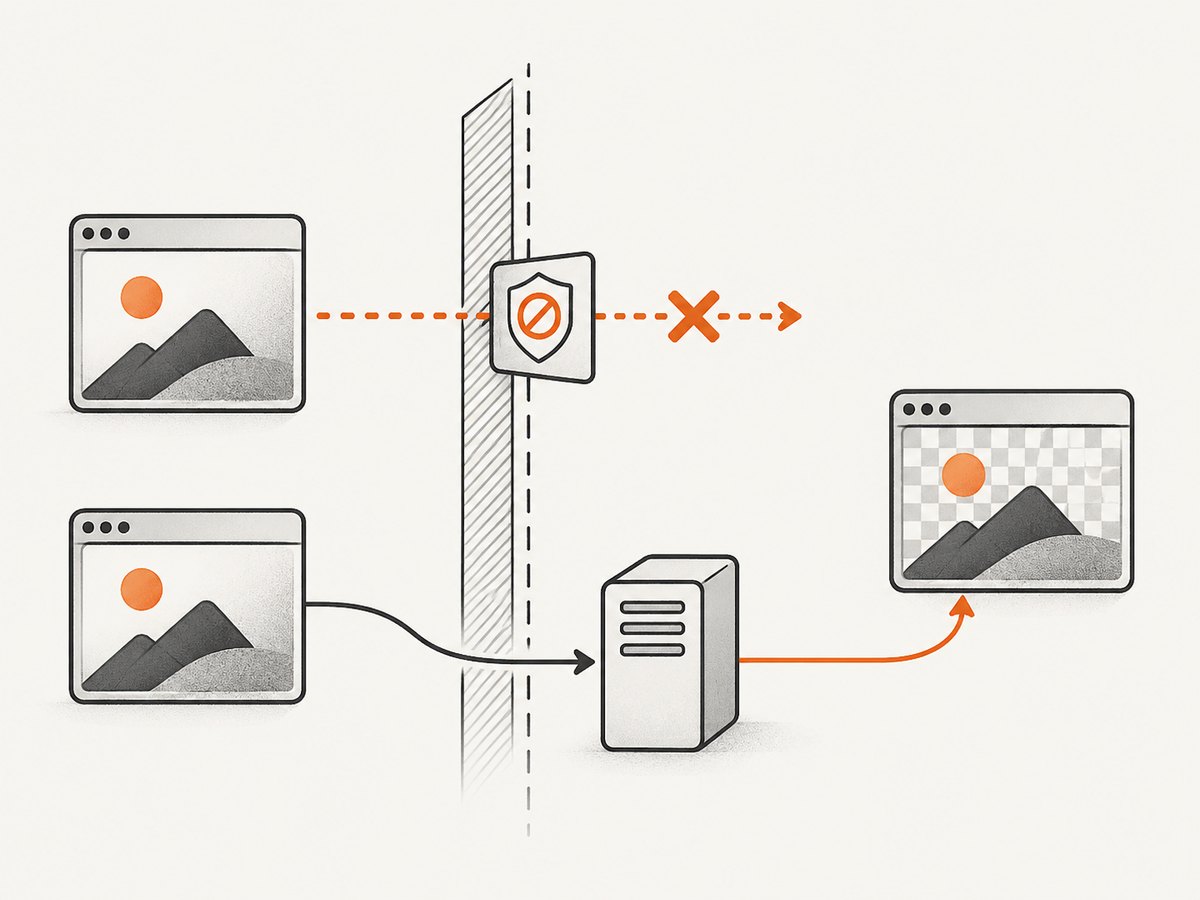
Images served from another origin may be omitted or may taint the canvas. A tainted canvas cannot be read back with toDataURL() or toBlob(). Set useCORS: true only when the image server responds with the required CORS headers and the request is allowed:
const canvas = await html2canvas(document.querySelector('#capture'), {
  useCORS: true,
});
If the remote host does not permit cross-origin access, browser code cannot bypass that policy. Use a same-origin proxy that fetches permitted resources and returns them safely, or host the assets on an origin configured for CORS. Avoid open proxies: restrict allowed hosts, validate URLs, and apply appropriate size and content controls. The allowTaint option controls whether tainted images may be drawn; it does not make a tainted canvas exportable or override browser security.
Other image checks:
- Wait for image loading before capture; inspect
img.completeandimg.naturalWidth. - Confirm lazy-loaded images have entered the viewport or otherwise loaded before rendering.
- Check CSS background images as well as
imgelements; both may involve cross-origin resources. - For iframes, same-origin content can be traversed recursively, but cross-origin and sandboxed frames without
allow-same-origincannot be read.
6. Understand fidelity and browser limitations
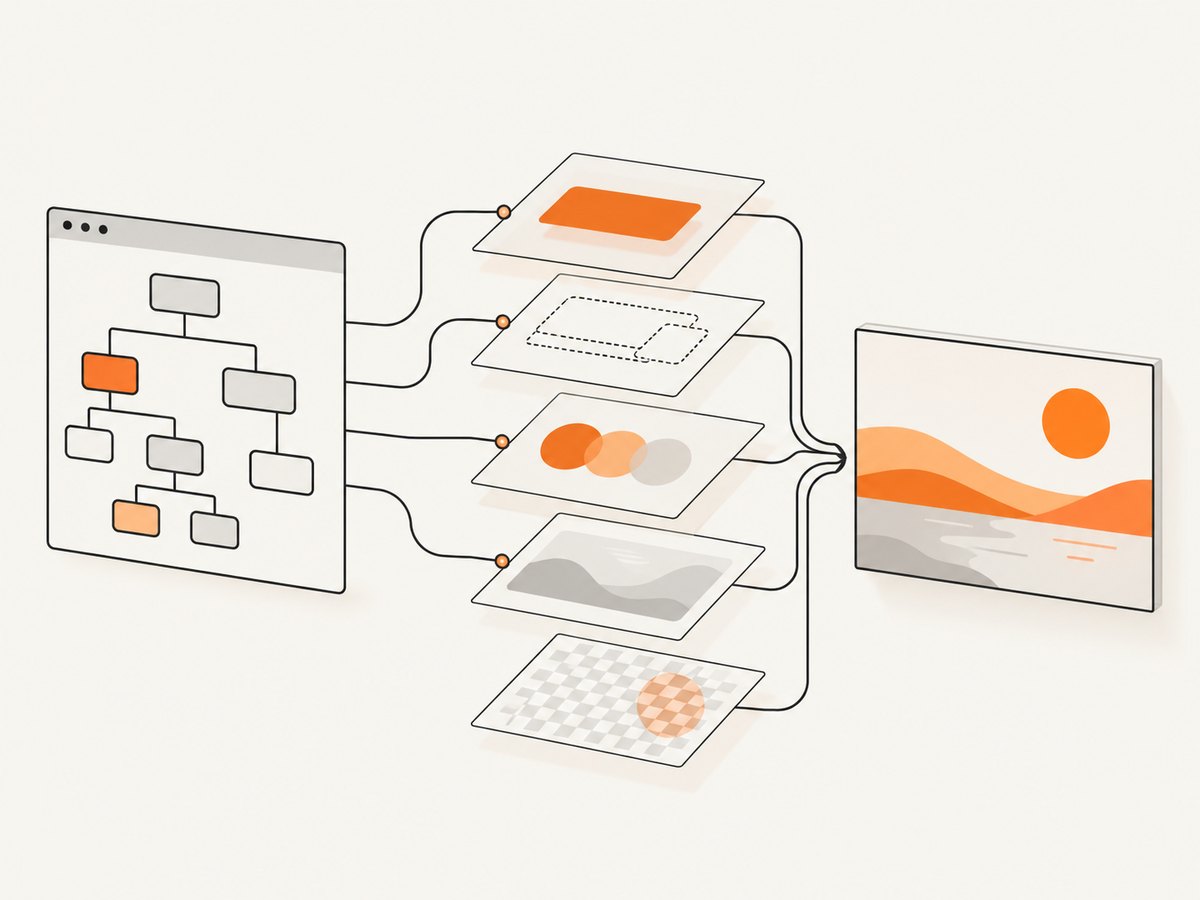
html2canvas traverses the DOM and interprets styles to draw a representation. Its own documentation explains that it does not make an actual screenshot of browser pixels. CSS support is partial because styles are implemented individually, so some effects can differ from what the browser displays. Compare the result against your target browser if pixel fidelity matters.
It targets modern evergreen browsers, including Firefox, Chromium-based browsers, and Safari, and depends on browser APIs. Flash and Java applets are not rendered. Browser policies also restrict cross-origin resources and frame access. For workflows where the rendered result must match the browser’s actual pixels, drive a real browser with Puppeteer or Playwright instead. See the project’s documentation and FAQ for current supported behavior.
7. Run screenshot jobs from Node.js
html2canvas itself is not suitable for Node.js. It depends on browser APIs and a live DOM. A server-side job needs a browser automation tool such as Puppeteer or Playwright, which launches or connects to a browser, navigates to a page, and captures its rendered pixels.
Use this approach when capture must run on a server, in a scheduled job, or without the user’s browser. Plan for browser installation, memory, concurrency, navigation timeouts, authentication, and cleanup of browser pages. The project FAQ points to Puppeteer and Playwright for server-side screenshots. There is no official universal performance benchmark in the reviewed documentation; measure your own page and deployment conditions rather than assuming a fixed speed.
8. Troubleshooting common html2canvas failures
| Symptom | Likely cause | Fix |
|---|---|---|
| Canvas is blank or partly rendered | Output dimensions or total area exceed a browser/device limit. | Reduce scale, capture smaller sections, and avoid a single extremely tall canvas. Limits vary by browser and device. |
| Remote images disappear | The image host does not allow the browser’s cross-origin request, or the image has not loaded yet. | Wait for loading; enable useCORS when the server sends suitable headers; otherwise use a controlled same-origin proxy. |
toDataURL throws a security error |
A cross-origin resource tainted the canvas. | Serve the resource with CORS permission or proxy it same-origin. allowTaint does not bypass policy. |
| Output differs from visible page | A CSS property is unsupported or rendered differently by the library. | Check documented CSS support, simplify capture-specific styles in onclone, or use a real-browser screenshot tool for pixel fidelity. |
| Lower content is cut off | The effective render window is smaller than the element’s full scroll size. | Set windowWidth and windowHeight from the element’s scroll dimensions; split captures if limits are reached. |
| Iframe content is absent | The iframe is cross-origin or sandboxed without same-origin access. | Capture that page separately if you control it, or use a browser automation workflow with suitable access. |
| Target selector is null | The capture ran before the component rendered or the selector is incorrect. | Verify the selector and wait for the application’s render/data-ready condition. |
| Download is empty or missing | Export failed, the canvas is tainted, or the browser blocked a scripted download. | Check for CORS errors, verify the blob is non-null, and initiate the download from a user action. |
9. Performance, reliability, and cost considerations
For client-side work, capture only the required element, keep scale and dimensions appropriate, and avoid holding several huge canvases in memory. Higher pixel density multiplies the number of pixels, which increases memory and export work. Wait for the page state you need, and provide a visible error path if rendering or export fails. Large canvases can fail without a useful exception, so test representative page sizes and target browsers.
html2canvas runs in the visitor’s browser, so the cost is not a per-shot service charge, but the visitor’s device performs the rendering and uses its memory. Server-side browser jobs add infrastructure and concurrency considerations. The official material reviewed does not publish an authoritative speed benchmark or universal capture-size guarantee; test under your own content, browser, and device constraints.
10. Or skip the browser setup
If you need a hosted screenshot instead of rendering the current DOM, ScreenshotNeo is a website screenshot API and MCP server. One GET request accepts a URL and returns PNG, JPEG, WebP, or PDF. Its clean-shot flow accepts cookie consent and removes more than 60 known consent platforms, newsletter popups, and chat widgets before capture; each step can be turned off. Bot checks, CAPTCHAs, blank pages, timeouts, failed loads, and cache hits cost nothing, with the result identified by X-Page-Verdict and X-Billed headers. An MCP server provides take_screenshot, get_page_info, and capture_pdf tools for Claude, Cursor, and other MCP clients.
For the full API options, see the ScreenshotNeo documentation. Example request:
curl -G "https://api.screenshotneo.com/v1/shot" \
  -d access_key=YOUR_API_KEY \
  --data-urlencode url=https://stripe.com \
  -o shot.webp
There are 1,000 screenshots per month free with no card; paid plans start at $5 for 3,000 screenshots. Create a free ScreenshotNeo account to get started.
11. FAQ
Can html2canvas capture the whole browser window?
It renders a selected DOM element. Choose a page-level element and set the window dimensions to its scroll size for a long capture, subject to canvas limits.
Does html2canvas work with React or other frameworks?
Yes, call it in the browser after the target component has rendered. Use a ref or stable selector, and wait for asynchronous content and images before capturing.
Can it capture a page that is behind a login?
It can render content available to the current browser page. The capture inherits that page’s session state and browser access; it cannot read content hidden by cross-origin restrictions.
Should I use html2canvas or a browser automation tool?
Use html2canvas for convenient client-side DOM rendering when its CSS and resource behavior fit. Use Puppeteer or Playwright when the job runs in Node.js or requires an actual browser screenshot.


