Why html2canvas Adds White Space at the Top and How to Fix It
Find the real cause of a blank band in html2canvas captures and fix scroll offsets, element geometry, clipping, media queries, and canvas limits.
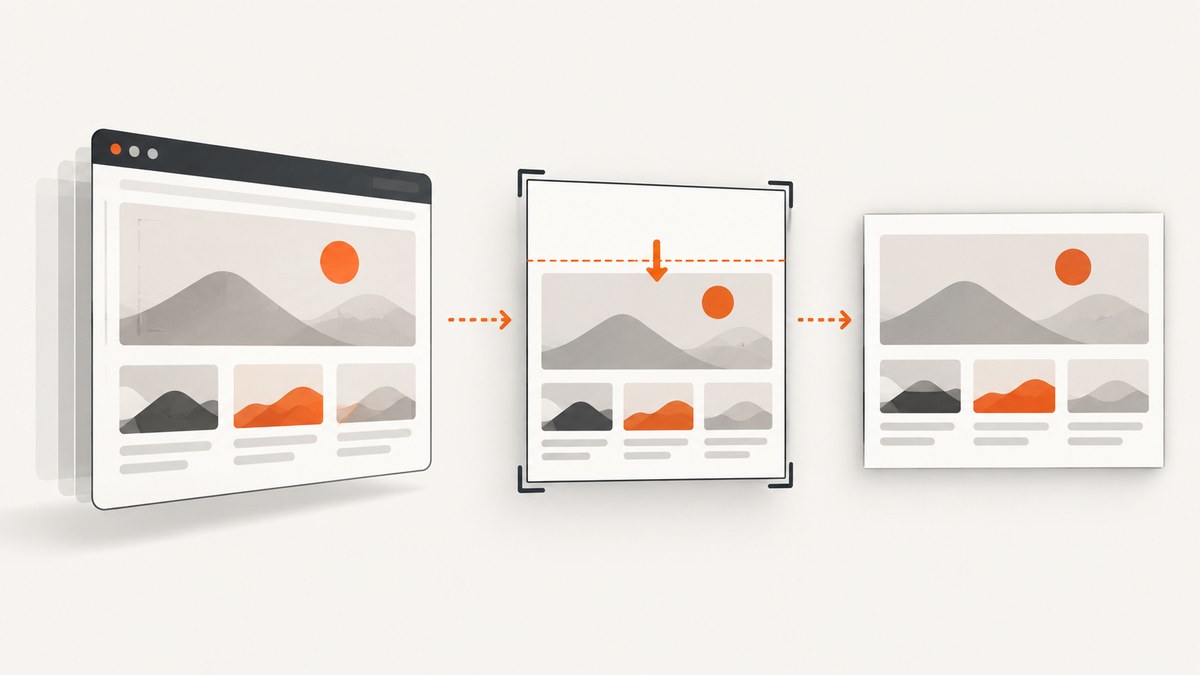
A blank band at the top of an html2canvas image usually means the renderer’s scroll position, the target element’s geometry, or the capture dimensions do not match the page state. Measure the element first, then test scrollY, and use the target’s scrollWidth and scrollHeight only when the problem is clipping or an undersized render window.
What the top white space usually means
“White space” describes several different symptoms:
- A true blank band: pixels above the target are rendered before the element begins.
- An offset capture: the element is shifted down because the render scroll position differs from the page’s scroll position.
- Clipping: the output starts correctly but cuts off content, making the remaining area look empty.
- A layout change: changing the render window activates different media queries, moving content or adding space.
- A canvas-limit failure: very large captures can be blank or partially rendered without a useful JavaScript error.
Do not apply a negative scroll value blindly. The correct setting depends on whether you capture ordinary flow content, fixed-position content, a scrolled page, or a full document.
How html2canvas positions the render
The configuration reference documents scrollY as the vertical scroll position used while rendering. Its default follows the browser’s current page offset. This matters for fixed elements and for captures taken after the page has been scrolled.
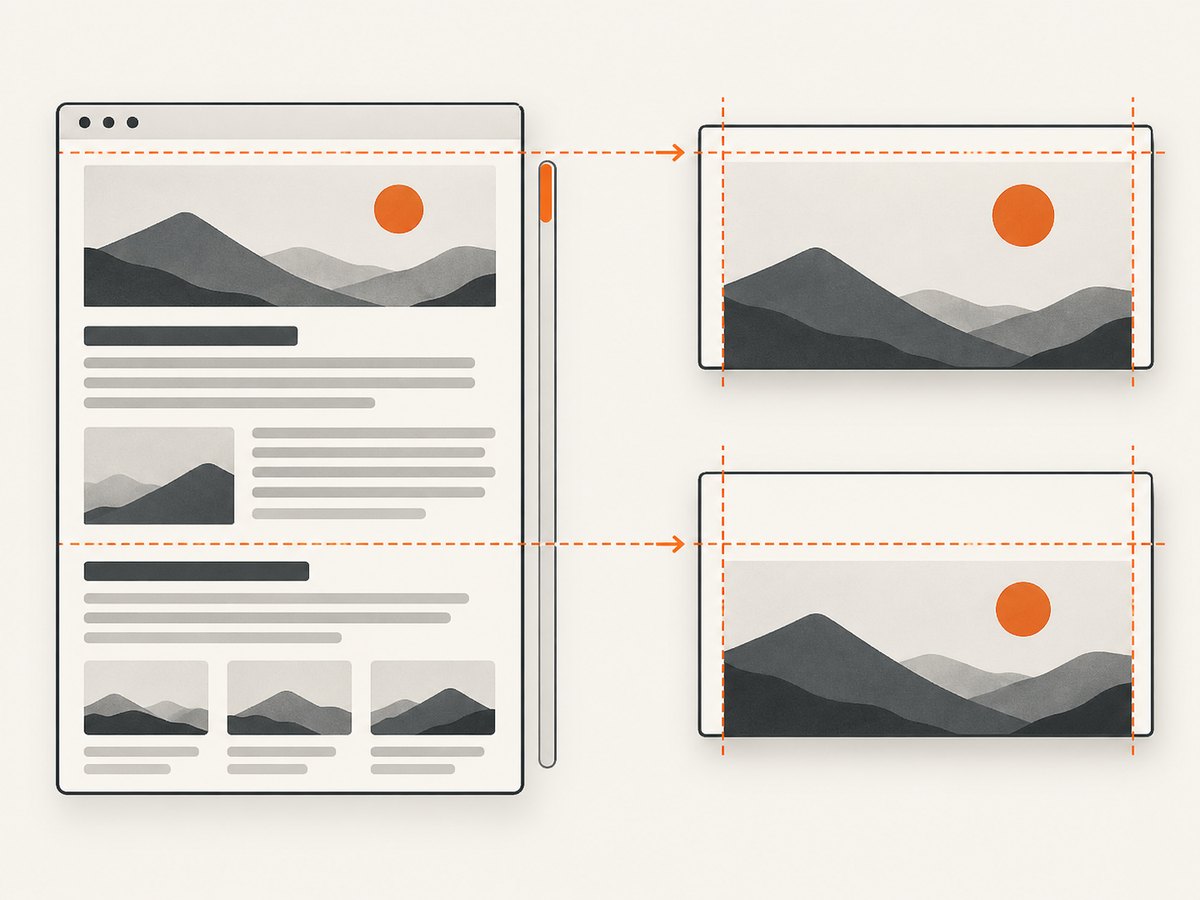
In practical terms, there are two coordinate systems:
- Document coordinates: where the element exists in the page.
- Viewport/render coordinates: what the renderer treats as the visible scroll position.
If those systems disagree, the result can contain a top gap or a shifted fixed descendant. A reported issue used scrollY: -window.scrollY as a workaround for one SVG capture, but the same report also describes scrolling making the offset worse. Treat that value as a controlled diagnostic, not a universal fix.
A minimal diagnostic capture
Run this in the page that contains the element. It records the values needed to distinguish geometry problems from renderer coordinates.
<script type="module">
  import html2canvas from "https://cdn.jsdelivr.net/npm/html2canvas@1.4.1/+esm";

  const target = document.querySelector("#capture");
  if (!target) throw new Error("#capture was not found");

  const rect = target.getBoundingClientRect();
  const style = getComputedStyle(target);
  console.table({
    html2canvasVersion: html2canvas.version ?? "check your package lock",
    pageYOffset: window.pageYOffset,
    scrollY: window.scrollY,
    rectTop: rect.top,
    rectLeft: rect.left,
    rectWidth: rect.width,
    rectHeight: rect.height,
    scrollWidth: target.scrollWidth,
    scrollHeight: target.scrollHeight,
    marginTop: style.marginTop,
    paddingTop: style.paddingTop,
    transform: style.transform,
    position: style.position
  });

  const canvas = await html2canvas(target, {
    backgroundColor: "#ffffff",
    scrollX: window.scrollX,
    scrollY: window.scrollY
  });
  document.body.appendChild(canvas);
</script>
Record the browser, html2canvas version, scroll position, exact selector, and whether the target or any descendant uses position: fixed, position: sticky, transforms, or large margins.
Fix 1: verify the target’s real geometry
A CSS margin or positioned child can look exactly like renderer-added whitespace. Inspect the target before changing options.
const el = document.querySelector("#capture");
const rect = el.getBoundingClientRect();
console.log({
  topInViewport: rect.top,
  topInDocument: rect.top + window.scrollY,
  marginTop: getComputedStyle(el).marginTop,
  paddingTop: getComputedStyle(el).paddingTop,
  transform: getComputedStyle(el).transform
});
Temporarily set margin-top: 0, remove transforms, and outline the element:
#capture { outline: 2px solid red; margin-top: 0 !important; }If the red outline itself begins below the blank band, html2canvas is reproducing your layout correctly. Fix the DOM or CSS instead of changing capture coordinates.
Fix 2: align scrollY with the capture state
For ordinary flow content, capture at a known scroll position and pass that same position explicitly:
const target = document.querySelector("#capture");
const previous = window.scrollY;
window.scrollTo({ top: 0, left: 0, behavior: "instant" });

try {
  const canvas = await html2canvas(target, {
    scrollX: 0,
    scrollY: 0,
    backgroundColor: "#fff"
  });
  document.querySelector("#output").replaceChildren(canvas);
} finally {
  window.scrollTo(0, previous);
}
For a fixed-position element, test the value that represents the intended viewport state. Compare an explicit scrollY: window.scrollY capture with a controlled scrollY: 0 capture. If the element is still shifted, test scrollY: -window.scrollY once and compare results at both the top of the page and the original scroll position. Keep the option only if it fixes your reproducible case.
Fix 3: size a full-content capture correctly
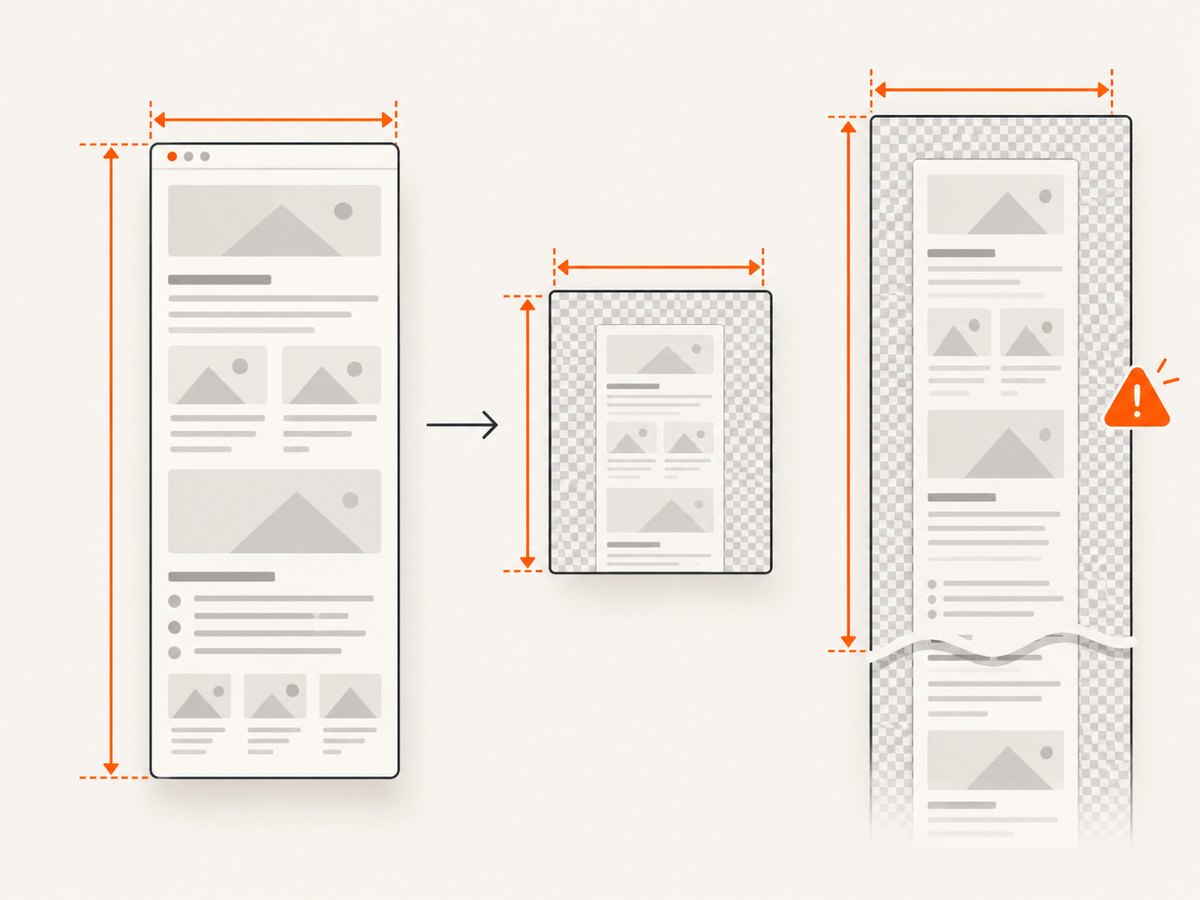
If the image is clipped, undersized, or contains only part of a long element, the html2canvas FAQ recommends matching the rendering window to the element’s scroll dimensions.
const target = document.querySelector("#capture");
const canvas = await html2canvas(target, {
  windowWidth: target.scrollWidth,
  windowHeight: target.scrollHeight,
  width: target.scrollWidth,
  height: target.scrollHeight,
  scrollX: 0,
  scrollY: 0
});
Use this for a deliberate full-content render, not as a default for every screenshot. The configuration documentation warns that windowWidth and windowHeight can affect media queries. A wider virtual window may switch a mobile layout to a desktop layout, changing the result you are trying to capture.
Fix 4: separate viewport screenshots from full-page screenshots
| Goal | Recommended approach | Risk |
|---|---|---|
| Visible viewport | Use the target’s current dimensions and explicit current scroll values. | Content below the viewport is excluded. |
| One element, including overflow | Use the element’s scrollWidth/scrollHeight and inspect media-query changes. |
Large canvases can hit browser limits. |
| Whole document | Capture a document-sized wrapper or use a dedicated browser screenshot service. | Lazy content may not be loaded yet. |
| Fixed header plus scrolled body | Capture at a known scroll position and verify fixed descendants separately. | The header can be rendered twice or appear offset. |
Fix 5: account for canvas size limits
The official FAQ lists approximate limits of about 32,767 pixels per dimension for Chrome/Chromium, Firefox, and desktop Safari. It lists approximate maximum areas of 268 million pixels for Chrome/Chromium and 472 million pixels for Firefox. Limits vary by browser and platform; an oversized canvas may be blank or partially rendered without throwing an error.
Reduce the risk by lowering scale, splitting a long document into sections, or capturing a smaller element:
const canvas = await html2canvas(target, {
  scale: 1,
  width: Math.min(target.scrollWidth, 12000),
  height: Math.min(target.scrollHeight, 12000)
});
Do not crop with arbitrary dimensions unless you also verify that the target’s content is not being clipped.
Fix 6: wait for layout, fonts, images, and lazy content
A capture taken before layout settles can leave apparent gaps or capture a pre-load height. Wait for fonts and images, then allow one animation frame:
await document.fonts.ready;
await Promise.all(
  [...document.images].map(img => img.complete
    ? Promise.resolve()
    : new Promise(resolve => {
        img.addEventListener("load", resolve, { once: true });
        img.addEventListener("error", resolve, { once: true });
      }))
);
await new Promise(requestAnimationFrame);
const canvas = await html2canvas(document.querySelector("#capture"));
For lazy-loaded images, scroll the target into view or trigger the application’s loading mechanism before measuring scrollHeight.
Relevant html2canvas options
| Option | Use | White-space relevance |
|---|---|---|
scrollX, scrollY |
Set the render scroll position. | Primary controls for offset and fixed-position symptoms. |
windowWidth, windowHeight |
Set the virtual browser window. | Useful for full content; can change media queries. |
width, height |
Set output dimensions. | Can clip content if smaller than the target. |
scale |
Control pixel density. | Lower it when canvas limits are reached. |
backgroundColor |
Choose a background or null for transparency. |
Distinguishes a genuine white background from missing pixels. |
useCORS, allowTaint |
Handle cross-origin images. | Image failures can change layout or produce incomplete output. |
onclone |
Adjust the cloned document before rendering. | Useful for hiding sticky headers or resetting styles safely. |
Common errors and fixes
| Symptom | Likely cause | Fix |
|---|---|---|
| Blank strip grows after scrolling | Render scroll position disagrees with page scroll. | Capture at a known scroll position; compare explicit scrollY values. |
| Top margin appears only on one component | CSS margin, padding, transform, or positioned descendant. | Inspect getBoundingClientRect() and computed styles. |
| Bottom is cut off | Window or canvas is too small. | Use target scroll dimensions and check media queries. |
| Output is entirely blank | Canvas dimension or area limit. | Lower scale or split the capture. |
| Layout differs after setting window size | Responsive breakpoint changed. | Set dimensions matching the intended viewport and verify the resulting layout. |
| Fonts or images move after capture starts | Assets were not ready. | Wait for document.fonts.ready, images, and an animation frame. |
| Cross-origin images are missing | Image CORS policy prevents reading pixels. | Serve images with appropriate CORS headers and review useCORS/allowTaint. |
Performance and reliability
- Capture the smallest element that meets the requirement; full-document canvases consume more memory.
- Use
scale: 1for diagnostic captures, then raise it only when you need higher-density output. - Reuse a stable layout state and avoid capturing while animations, transitions, or lazy loading are active.
- Split very long pages into sections when dimensions approach browser limits.
- Keep a minimal reproduction containing the HTML, CSS, browser, html2canvas version, selector, scroll position, and options. Similar-looking reports can have different causes.
Or skip the browser setup
ScreenshotNeo provides a website screenshot API when you need a repeatable server-side capture instead of maintaining browser setup. It accepts a URL and returns PNG, JPEG, WebP, or PDF.
Its capture pipeline accepts cookie and consent banners, removes more than 60 known consent platforms plus newsletter popups and chat widgets, and lets you turn each step off. Bot checks, blank pages, timeouts, failed loads, and cache hits are not billed; responses identify the result with X-Page-Verdict and X-Billed headers. It also offers an MCP server for AI agents with take_screenshot, get_page_info, and capture_pdf.
curl -G "https://api.screenshotneo.com/v1/shot" \
  -d access_key=YOUR_API_KEY \
  --data-urlencode url=https://stripe.com \
  -o shot.webp
import requests
r = requests.get(
"https://api.screenshotneo.com/v1/shot",
params={"access_key": "YOUR_API_KEY", "url": "https://stripe.com"},
timeout=90,
)
r.raise_for_status()
open("shot.webp", "wb").write(r.content)const q = new URLSearchParams({
access_key: 'YOUR_API_KEY',
url: 'https://stripe.com'
});
const res = await fetch(`https://api.screenshotneo.com/v1/shot?${q}`);
if (!res.ok) throw new Error(`HTTP ${res.status}`);
require('fs').writeFileSync('shot.webp', Buffer.from(await res.arrayBuffer()));See the ScreenshotNeo API documentation for options such as full-page capture, CSS selectors, custom CSS and JavaScript, waits, device presets, blocking requests, caching, signed links, asynchronous jobs, bulk capture, PDFs, and usage reporting. The free plan includes 1,000 screenshots per month with no card; paid plans start at $5 for 3,000 shots. Create a free ScreenshotNeo account.
FAQ
Is scrollY: -window.scrollY the official fix?
No. It is a workaround reported for one case. Test it against controlled captures at multiple scroll positions.
Should I always set windowWidth and windowHeight?
No. Use them when the output is clipped or undersized and you intentionally want a larger rendering window. Check responsive breakpoints afterward.
Why does the issue disappear at the top of the page?
The page and renderer then share a zero scroll offset, hiding a coordinate mismatch that appears after scrolling.
Can html2canvas capture every website?
No. It runs in the browser and is subject to cross-origin image rules, dynamic content timing, CSS support, and browser canvas limits.
When should I use a screenshot API?
Use one when captures must run outside a user’s browser, handle repeated URLs, wait for dynamic pages, produce PDFs, or avoid maintaining browser automation infrastructure.


