How to Use a Specific Stylesheet with html2pdf Without Changing the Page
Scope PDF-only CSS to a dedicated export root, avoid cascade surprises, handle print media and page breaks, and ship reliable html2pdf output.

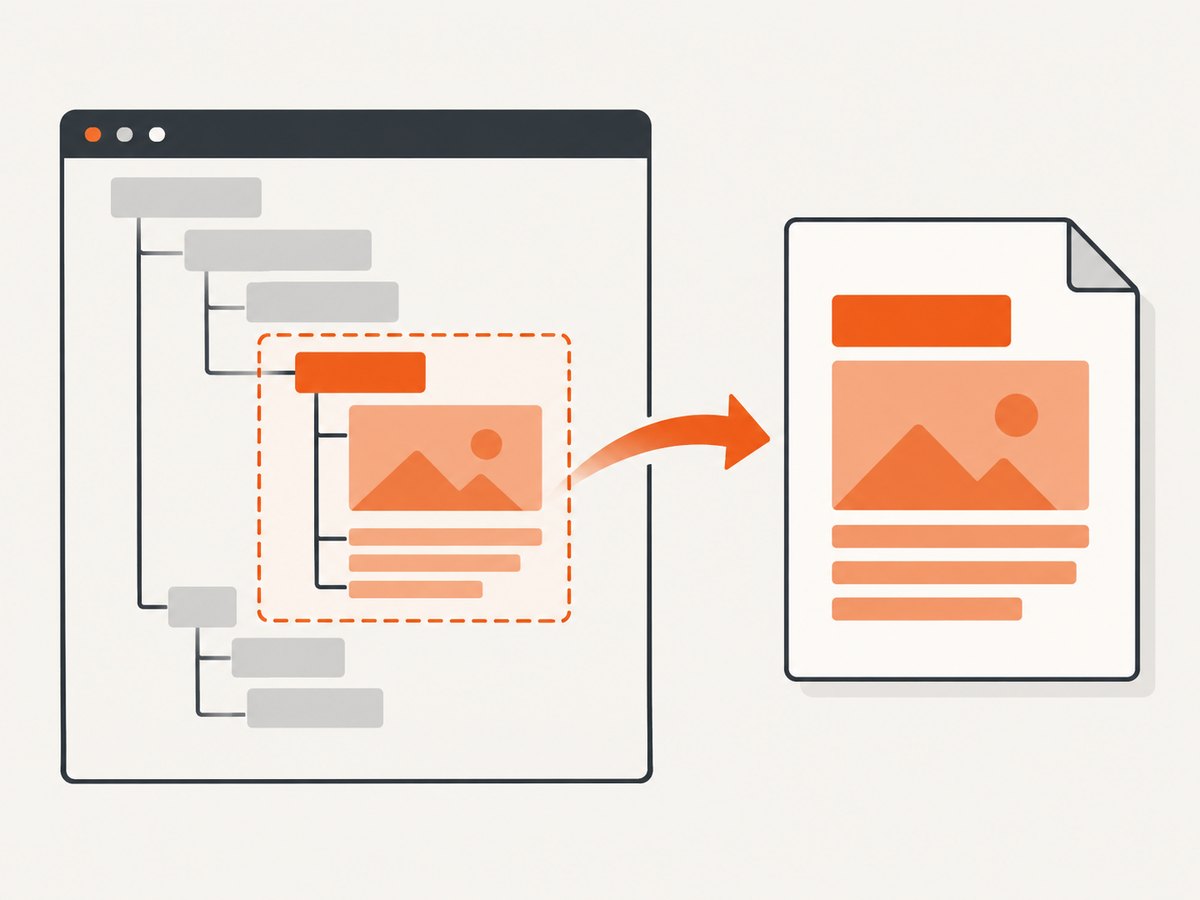
To use a specific stylesheet with html2pdf.js without changing the rest of your page, create a dedicated export root, scope every PDF rule beneath that root, and pass that element to html2pdf().from(element). This limits the capture to the export subtree and prevents you from editing global page styles. It does not erase inherited values or selectors that already match the subtree, so inspect the cascade and validate the generated PDF in the browser and library version you ship.
The pattern below works for invoices, reports, certificates, receipts and any other document that needs a different layout from the surrounding application.
1. The isolation pattern
Give the export content a unique class or ID. Put the PDF-only declarations under that namespace, then capture only the root element.
<div id="pdf-export" class="pdf-export">
  <h1 class="title">Quarterly report</h1>
  <p class="subtitle">January–March 2026</p>
  <section class="summary">
    <h2>Summary</h2>
    <p>Revenue increased during the quarter.</p>
  </section>
</div>
/* PDF-only rules are scoped to the export root. */
.pdf-export {
box-sizing: border-box;
width: 794px;
padding: 40px;
background: #fff;
color: #222;
font-family: Arial, sans-serif;
line-height: 1.45;
}
.pdf-export *,
.pdf-export *::before,
.pdf-export *::after {
box-sizing: inherit;
}
.pdf-export .title {
margin: 0 0 12px;
font-size: 24px;
line-height: 1.2;
}
.pdf-export .subtitle {
margin: 0 0 24px;
color: #666;
}
.pdf-export .summary {
break-inside: avoid;
page-break-inside: avoid;
}const element = document.getElementById('pdf-export');
html2pdf()
.set({
margin: 0.5,
filename: 'quarterly-report.pdf',
image: { type: 'jpeg', quality: 0.95 },
html2canvas: { scale: 2, useCORS: true },
jsPDF: { unit: 'in', format: 'letter', orientation: 'portrait' }
})
.from(element)
.save();The html2pdf.js project documents this client-side pipeline: it converts the selected DOM content through html2canvas and jsPDF. Its documented API accepts a specific element as the source, so you do not need to render the entire document. See the official html2pdf.js documentation for the current workflow and options.
2. Why scoping works, and where it stops
A selector such as .pdf-export .title has a clear boundary. It will not style a same-named title elsewhere on the page. The boundary is a CSS naming convention, not a special html2pdf isolation mode.
Existing application rules still participate in the cascade. For example, a global rule like h1 { font-weight: 800; }, a reset on body, or a utility class placed on a child can affect the output. Inherited properties such as font-family, color, line-height and text-rendering can enter from ancestors. Review the computed styles of the export root and its children before diagnosing html2pdf.
Use a unique root class, keep selectors inside that namespace, and set the key inherited properties on the root. If a global selector wins on specificity, increase specificity inside the namespace or remove the conflicting class from the export markup. Avoid changing shared body, tag and application-wide rules just for one export.
Use a separate export component when the cascade is hostile
For a complex application, render an export-only component with its own markup and stylesheet. The component can reuse data from the screen, while using document-specific spacing, colors and typography. This costs more setup and requires you to load the fonts and images it needs, but it gives you a stronger style boundary than a scoped subtree inside the live page.
For maximum separation, create a dedicated export document or iframe, wait for its fonts and images, and capture that document’s root. This is useful when the application has aggressive global selectors, CSS-in-JS injection, or layout containers that impose transforms and overflow rules.
3. Print CSS versus html2pdf.js
Print styles are designed for the browser’s print media. MDN documents linked stylesheets with media="print" and @media print for browser printing, including printing to PDF through the print workflow. MDN’s printing guide shows that setup.
html2pdf.js follows a different path through html2canvas and jsPDF. Do not assume that a rule inside @media print is active when calling html2pdf(). If your integration or a particular browser version emulates print media, verify it directly in that runtime. Otherwise, put the required export rules in normal stylesheet rules under .pdf-export.
/* Browser print workflow */
@media print {
  .app-navigation,
  .toolbar {
    display: none;
  }
}

/* html2pdf workflow: always available to the captured subtree */
.pdf-export .toolbar,
.pdf-export .app-navigation {
  display: none;
}
It is fine to maintain both sets of rules when you support both workflows. Keep the intent explicit so a later refactor does not assume they are interchangeable.
4. Configure html2pdf for predictable output
html2pdf exposes options through .set(). The exact combination depends on your document, but these are the settings developers most often need.
| Option | Purpose | Practical guidance |
|---|---|---|
margin |
PDF page margins | Use a number for all sides or an array for per-side values. Keep CSS padding separate from PDF margins so you can reason about both. |
filename |
Download name | Use a stable, sanitized name derived from trusted data. |
image.type |
Raster format for canvas output | jpeg is smaller; png preserves transparency and sharp text at a larger size. |
image.quality |
JPEG quality | Raise it for charts and fine lines; lower it when file size matters. |
html2canvas.scale |
Rasterization resolution | Higher values improve detail but increase memory and output size. Test on the longest document. |
html2canvas.useCORS |
Cross-origin images | Set it when remote images send appropriate CORS headers. It cannot bypass a server’s restrictions. |
jsPDF.unit |
Units for PDF geometry | mm, pt and in are common choices. |
jsPDF.format |
Paper size | Use a named format such as letter or A4, or provide dimensions. |
jsPDF.orientation |
Portrait or landscape | Choose landscape for wide tables and diagrams. |
Keep the export root’s CSS width consistent with the intended paper ratio. A root that is much wider than the PDF page will be scaled down, making text hard to read. Conversely, a very narrow root can leave large blank margins.
5. Page breaks and long documents
Pagination is separate from stylesheet isolation. Add break controls to the elements that should stay together:
.pdf-export .card,
.pdf-export .summary,
.pdf-export table {
  break-inside: avoid;
  page-break-inside: avoid;
}

.pdf-export .new-page {
  break-before: page;
  page-break-before: always;
}
html2pdf.js documents CSS break properties and the legacy html2pdf__page-break class. These controls help place content, but they do not guarantee perfect reproduction of every style or every browser layout. A large element that cannot fit on one page may still be split or scaled.
For tables, repeat a header row with normal table markup where supported, keep rows reasonably short, and avoid putting a large image inside a row. For headings, keep the heading with the first paragraph using break-after: avoid or a wrapper with break-inside: avoid. Check the result at the smallest and largest real data sizes.
6. A complete runnable example
The following page creates an isolated export subtree, waits for the user to click a button, and saves a PDF. Include the html2pdf.js build used by your application according to its official installation instructions.
<!doctype html>
<html lang="en">
<head>
  <meta charset="utf-8">
  <title>Scoped html2pdf export</title>
  <script src="https://cdnjs.cloudflare.com/ajax/libs/html2pdf.js/0.10.1/html2pdf.bundle.min.js"></script>
  <style>
    body {
      margin: 0;
      background: #eef1f5;
      font: 16px/1.4 system-ui, sans-serif;
    }

    .app-toolbar {
      padding: 16px;
      background: #172033;
      color: white;
    }

    .pdf-export {
      width: 794px;
      margin: 24px auto;
      padding: 42px;
      background: white;
      color: #20242b;
      font-family: Arial, sans-serif;
      line-height: 1.45;
    }

    .pdf-export h1 {
      margin: 0 0 8px;
      font-size: 28px;
    }

    .pdf-export .meta {
      margin-bottom: 28px;
      color: #68707d;
    }

    .pdf-export .section {
      margin: 0 0 24px;
      break-inside: avoid;
      page-break-inside: avoid;
    }

    .pdf-export .section h2 {
      margin: 0 0 8px;
      font-size: 18px;
    }
  </style>
</head>
<body>
  <div class="app-toolbar">
    <button id="download" type="button">Download PDF</button>
  </div>

  <main id="pdf-export" class="pdf-export">
    <h1>Quarterly report</h1>
    <p class="meta">Prepared 30 September 2026</p>
    <section class="section">
      <h2>Summary</h2>
      <p>This content is inside the export root and receives PDF-specific styles.</p>
    </section>
    <section class="section">
      <h2>Details</h2>
      <p>The toolbar remains on the page but is outside the captured element.</p>
    </section>
  </main>

  <script>
    document.getElementById('download').addEventListener('click', async () => {
      const element = document.getElementById('pdf-export');
      await html2pdf()
        .set({
          margin: 0.5,
          filename: 'quarterly-report.pdf',
          image: { type: 'jpeg', quality: 0.95 },
          html2canvas: { scale: 2, useCORS: true },
          jsPDF: { unit: 'in', format: 'letter', orientation: 'portrait' }
        })
        .from(element)
        .save();
    });
  </script>
</body>
</html>
7. Edge cases to handle before shipping
Fonts
Web fonts may not have finished loading when the canvas is created. Wait for document.fonts.ready before starting the export:
await document.fonts.ready;
await html2pdf().from(document.getElementById('pdf-export')).save();
For an export-only document, load the font there as well. A fallback font can change line wrapping and page breaks.
Images and CORS
Cross-origin images need a server response that permits the request. useCORS: true asks the browser to use CORS; it does not grant access to an image host that sends no permission. Host export images on a CORS-enabled origin or proxy them through your server.
Transforms, fixed positioning and overflow
CSS transforms can change the apparent size and position of a subtree. Fixed-position descendants may be interpreted relative to the viewport rather than your export root. Remove transforms and unnecessary overflow: hidden from the export component, or render it in a clean export document.
Dynamic content
Finish data fetching, animations and charts before capture. Freeze animated elements, wait for chart rendering, and use a deterministic timestamp if the PDF is used for audits.
Shadow DOM and pseudo-elements
Cloning complex nodes can differ from what you see on screen. Shadow DOM content, pseudo-elements, external fonts and generated content deserve explicit visual checks in the target browser.
8. Troubleshooting
| Symptom | Likely cause | Fix |
|---|---|---|
| PDF has the app’s font or colors | Inherited values or global selectors still match. | Set font, color, background and line-height on the export root; increase namespace specificity where needed. |
| Print stylesheet changes do not appear | html2pdf is using html2canvas/jsPDF, not the print dialog. | Move required rules into normal scoped rules and verify the runtime’s media behavior. |
| Images are blank | Cross-origin image lacks CORS headers, or capture starts too early. | Enable CORS on the image host, set useCORS, and wait for image loading. |
| Text is blurry | Canvas scale is too low or the root is being heavily reduced. | Raise html2canvas.scale, reduce the root width, or use a vector/server PDF workflow for text-heavy output. |
| Output is huge or crashes | A long page at high scale consumes substantial browser memory. | Lower scale, split the document, reduce image dimensions, and test the longest report. |
| Sections split awkwardly | Break rules are missing or the section is taller than a page. | Add break-inside: avoid; shorten the section or insert an intentional page break. |
| Layout differs from the screen | The screen uses responsive width, transforms, animation or late-loaded data. | Use fixed export dimensions, disable animation, wait for data and fonts, and capture a dedicated component. |
| Styles appear randomly missing | Node and CSS cloning has limitations in some cases. | Reduce complex selectors and generated content; validate the exact html2pdf.js version in production. |
9. Performance, reliability and cost
Client-side export consumes the user’s CPU and memory. The main cost drivers are DOM size, pixel area, image dimensions and html2canvas.scale. Capture only the export root, remove hidden application panels from that subtree, and avoid rendering a high-resolution image when a smaller one is sufficient.
For reliable exports, wait for fonts, images, charts and asynchronous data. Disable transitions and blinking cursors. Use a deterministic root width and test reports with no data, unusually long text, many rows, missing images and multiple pages. Save a visual fixture for each important template so library upgrades can be reviewed.
If a browser-based PDF is too slow or fragile for your workload, a server-side screenshot or PDF service can move rendering away from the user’s device. Your choice should account for privacy, authentication, concurrency, cold starts and the amount of CSS fidelity you require.
10. Or skip the browser setup
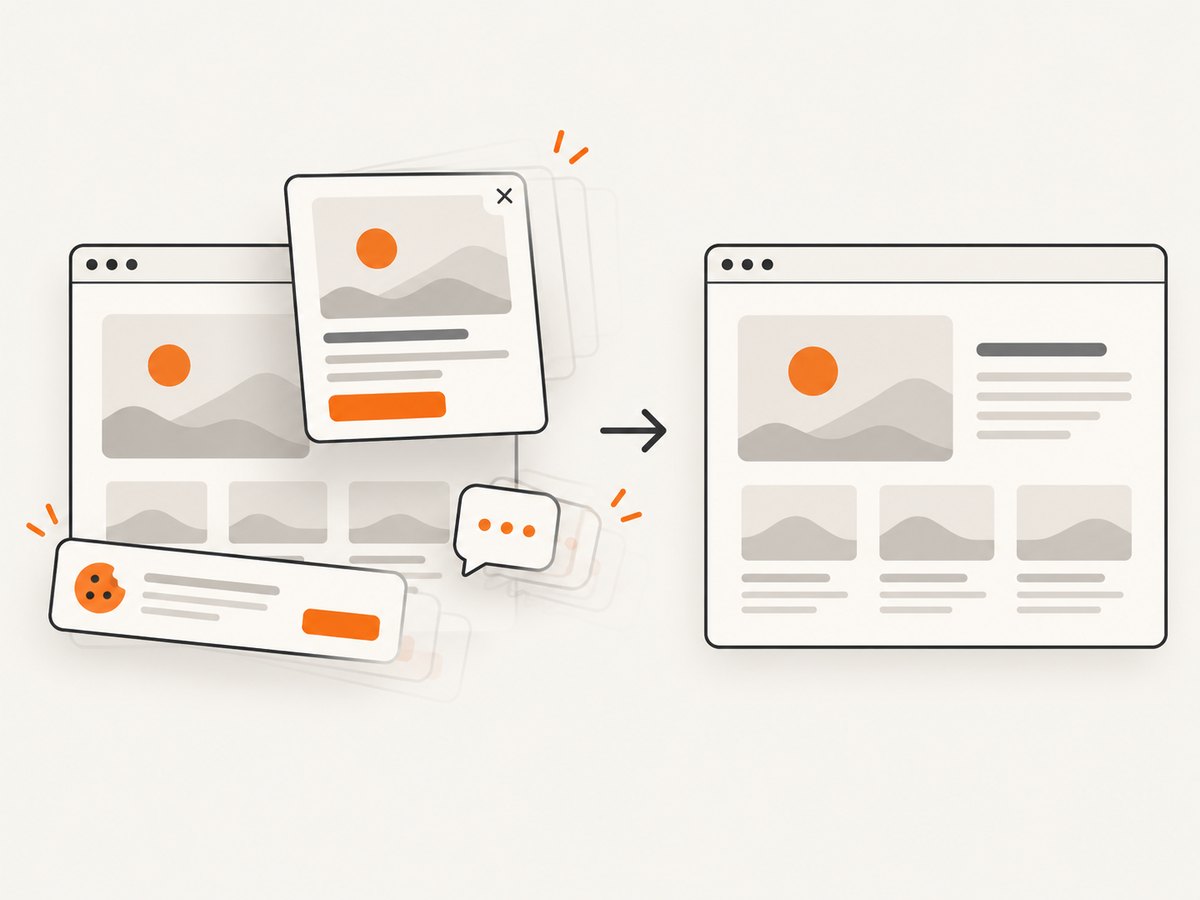
ScreenshotNeo provides a website screenshot API and MCP server. One GET request returns a PNG, JPEG, WebP or PDF, while options cover full-page capture, element selectors, custom CSS and JavaScript, waits, device presets, headers, cookies and PDF settings. Cookie and consent banners, newsletter popups and chat widgets are removed before the capture. Bot checks, blank pages, failed loads and cache hits are not billed, and response headers identify the page verdict and billing result.
For a PDF or image of a public page, start with the documented API examples at ScreenshotNeo’s developer documentation:
curl -G "https://api.screenshotneo.com/v1/shot" \
  -d access_key=YOUR_API_KEY \
  --data-urlencode url=https://stripe.com \
  -o shot.webp
import requests
r = requests.get(
"https://api.screenshotneo.com/v1/shot",
params={"access_key": "YOUR_API_KEY", "url": "https://stripe.com"},
timeout=90,
)
r.raise_for_status()
open("shot.webp", "wb").write(r.content)const q = new URLSearchParams({
access_key: 'YOUR_API_KEY',
url: 'https://stripe.com'
});
const res = await fetch(`https://api.screenshotneo.com/v1/shot?${q}`);ScreenshotNeo includes an MCP server with take_screenshot, get_page_info and capture_pdf tools for Claude, Cursor and other MCP clients. The Free plan includes 1,000 screenshots each month with no card; paid plans start at $5 for 3,000 shots. Create a free ScreenshotNeo account to try it.
11. FAQ
Can I pass a stylesheet URL directly to html2pdf?
html2pdf’s documented workflow starts from DOM content. Load the stylesheet in the page or export component, scope it to the export root, then pass that root to .from().
Will @media print always work?
No. It targets print media, while html2pdf normally renders through html2canvas and jsPDF. Verify the behavior in your exact runtime and keep capture rules available outside print media.
Should I clone the page before exporting?
Clone or render a separate export component when global CSS, responsive layout or interactive state makes the live subtree unpredictable. A scoped root is simpler when its cascade is manageable.
How do I prevent one section from splitting?
Apply break-inside: avoid and its legacy equivalent page-break-inside: avoid. If the section is taller than a page, redesign it or allow a controlled split.
Why does the PDF differ after a library upgrade?
Rendering and node/CSS cloning behavior can change. Pin the version, compare visual fixtures, and test fonts, external images, pseudo-elements and page breaks before deploying.


