How to Hyperlink an Image in HTML
Make any image clickable with one accessible HTML pattern, handle new tabs and actions correctly, and troubleshoot common mistakes.
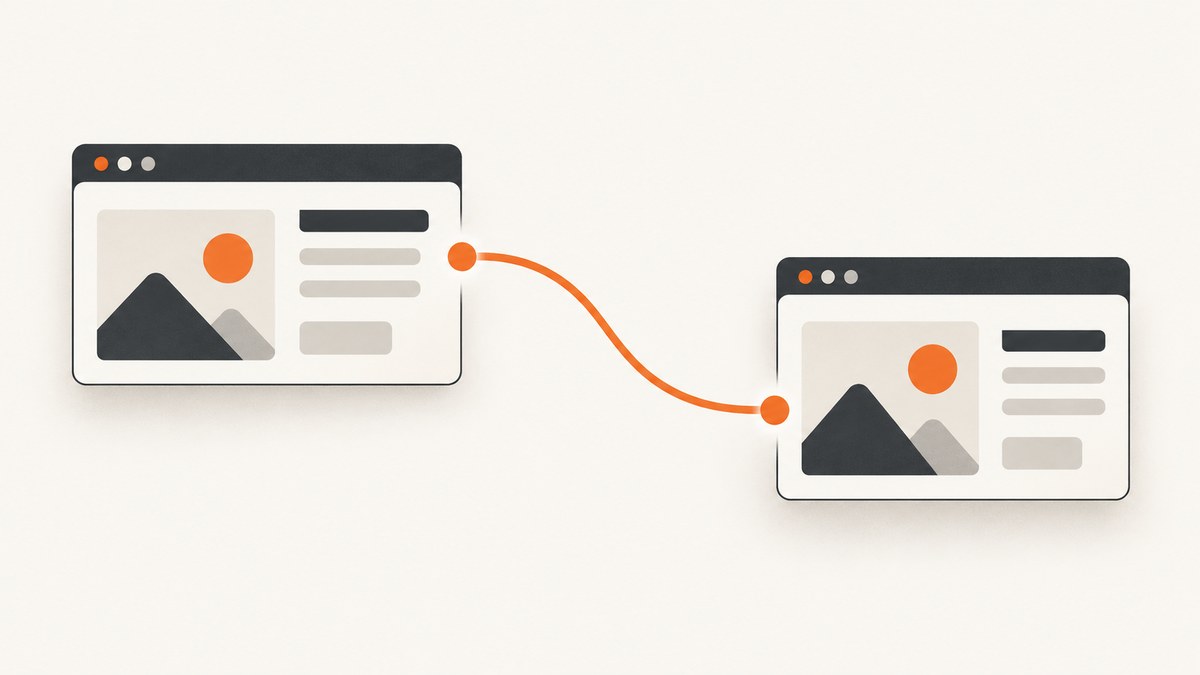
To hyperlink an image in HTML, place the <img> element inside an anchor and put the destination in the anchor’s href:
<a href="https://example.com/">
  <img src="photo.jpg" alt="View the example page">
</a>
The <a> creates the link, its href is the destination, and the nested image becomes the clickable content. The image’s src is a separate URL: it identifies the image file, not where a click should go. See the MDN image reference.
Basic image link
Use this pattern when clicking the image should navigate to another page, section, or file:
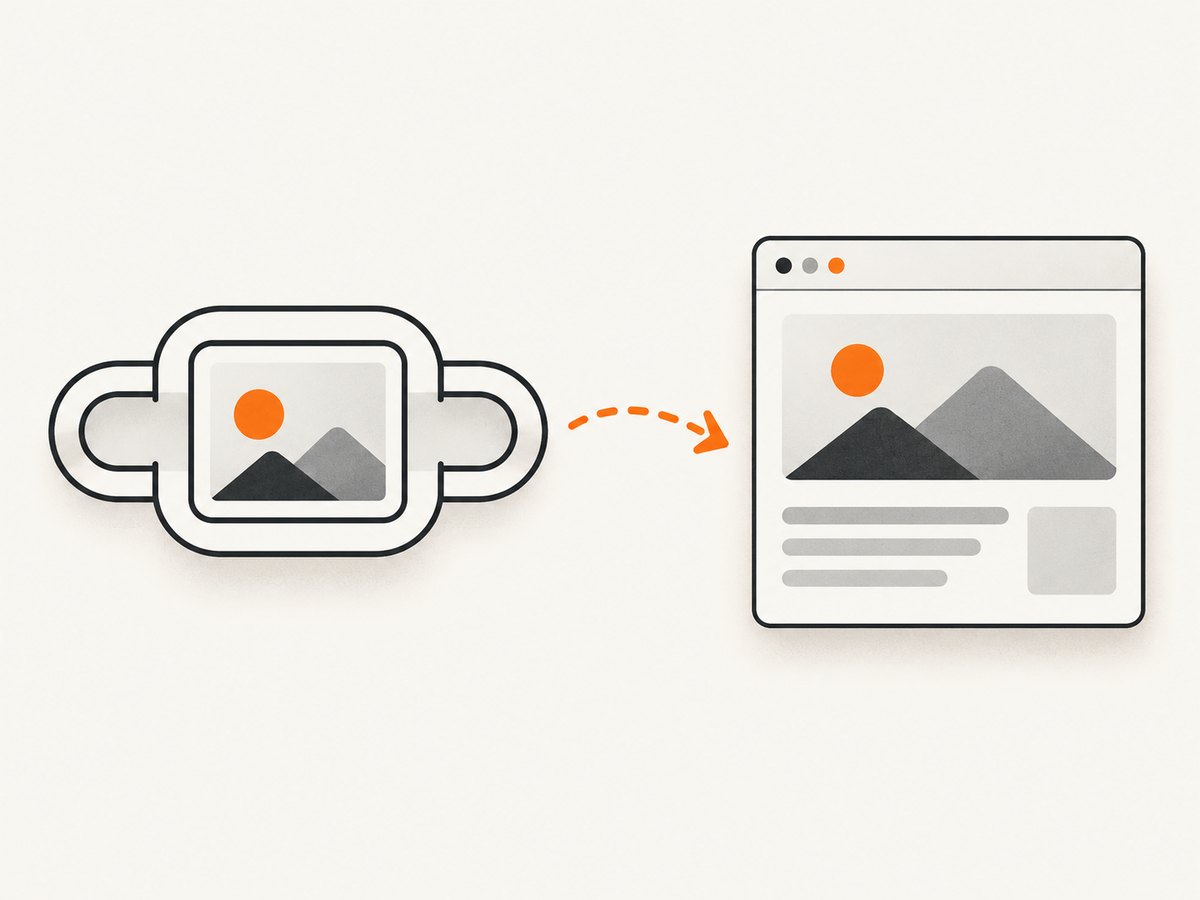
<a href="/products/widget.html">
  <img src="/images/widget.jpg" alt="View the Widget product page">
</a>
Relative and absolute destinations both work:
<!-- Relative URL -->
<a href="/about.html">
  <img src="/images/team.jpg" alt="Read about our team">
</a>

<!-- Absolute URL -->
<a href="https://example.com/docs">
  <img src="https://cdn.example.com/guide-cover.webp" alt="Open the documentation">
</a>
Write the right alt text
When the image is the only content inside the link, its alt text supplies the link’s accessible name. Describe the destination or action, rather than only the image’s appearance:
<a href="/pricing">
  <img src="pricing-card.png" alt="View pricing plans">
</a>
“View pricing plans” tells a screen-reader user where the link goes. “Blue card with three columns” describes pixels but does not identify the link’s purpose. The W3C WAI image guidance and MDN anchor reference cover this distinction.
Image plus visible link text
If text inside the same link already names the destination and the image adds no information, use an empty alt so assistive technology does not announce the purpose twice:
<a href="https://www.w3.org/">
  <img src="w3c.png" alt="">
  W3C Home
</a>
Keep meaningful alt text when the image itself contributes information that the text does not.
Complete examples
Linked thumbnail that opens a detail page
<article>
  <a href="/articles/html-links">
    <img
      src="/images/html-links-thumb.webp"
      alt="Read the HTML links tutorial"
      width="640"
      height="360"
      loading="lazy"
    >
  </a>
  <h2><a href="/articles/html-links">HTML links tutorial</a></h2>
</article>
Declaring width and height reserves space while the image loads. loading="lazy" is useful for below-the-fold thumbnails; omit it for a key image that appears immediately.
Linked image with text in one focusable link
<a class="card" href="/reports/2026">
  <img src="report-cover.jpg" alt="" width="320" height="450">
  <span>Read the 2026 report</span>
</a>
One anchor makes the entire card a single keyboard target and avoids duplicate announcements.
Opening the destination in a new tab
Add target="_blank" only when a new tab is intentional, and disclose that behavior in the accessible content:
<a href="https://example.com/" target="_blank">
  <img src="photo.jpg" alt="View the example page (opens in a new tab)">
</a>
Modern browsers provide the protection associated with rel="noopener" for target="_blank", although adding it remains compatible with older guidance:
<a href="https://example.com/" target="_blank" rel="noopener">
  <img src="photo.jpg" alt="View the example page (opens in a new tab)">
</a>
Do not force a new tab simply because the destination is external. Let users know what activation will do.
When a button is the correct element
Use an anchor for navigation to a URL. Use a <button> when clicking the image performs an action on the current page, such as opening a gallery, toggling a panel, or starting a download handled by JavaScript:
<button type="button" aria-label="Open the product gallery" id="galleryButton">
  <img src="product.jpg" alt="">
</button>
Avoid fake links such as href="#" or href="javascript:void(0)" for actions. They create confusing keyboard and browser behavior.
Useful attributes and edge cases
| Need | Recommended approach |
|---|---|
| Destination | Put the URL in <a href>. |
| Image file | Put the image URL in <img src>. |
| Image-only link | Use alt text that communicates the destination or action. |
| Redundant image beside link text | Use alt="". |
| New tab | Use target="_blank" and disclose it; rel="noopener" is compatible. |
| In-page action | Use a button, not a placeholder link. |
| Download | Use a real file URL and indicate that activation downloads a file. |
| Responsive image | Use srcset and sizes on the image; keep the anchor unchanged. |
Responsive linked image
<a href="/gallery/landscape">
  <img
    src="landscape-800.jpg"
    srcset="landscape-400.jpg 400w, landscape-800.jpg 800w, landscape-1600.jpg 1600w"
    sizes="(max-width: 600px) 100vw, 800px"
    alt="View the full landscape gallery"
  >
</a>
Linked SVG or icon
An inline or external SVG can also be the content of an anchor. Give it an accessible name, or pair it with visible text. For a purely decorative icon beside text, mark it appropriately so it is not announced twice.
Common mistakes and fixes
| Symptom | Cause | Fix |
|---|---|---|
| Clicking does nothing | The image is not inside an anchor, or the anchor has no valid href. |
Wrap the image in <a href="..."> and inspect the rendered DOM. |
| The image URL opens instead of the target page | The image URL was placed in href. |
Put the destination in href and the image file in src. |
| Screen reader announces an unhelpful link | Alt text only describes appearance or is missing. | Write alt text that states where the link goes or what it does. |
| Link purpose is announced twice | Image alt repeats visible link text. | Use alt="" when the image is redundant. |
| Keyboard focus skips the image link | Invalid HTML, CSS removing focus outlines, or a click handler on a noninteractive element. | Use a native anchor, keep it focusable, and preserve a visible :focus style. |
| New tab surprises users | target="_blank" is undisclosed. |
Add “opens in a new tab” to the accessible name or nearby text. |
| A JavaScript action reloads the page | A placeholder anchor is being used for an action. | Replace it with a <button>. |
| Image shifts the layout while loading | Intrinsic dimensions are unknown. | Provide accurate width and height, or reserve space with CSS. |
Testing checklist
- Activate the image with a mouse or touch and confirm the intended URL opens.
- Tab to the link and verify a visible focus indicator.
- Activate it with Enter.
- Check the accessible name with a screen reader or browser accessibility tree.
- Confirm the alt text describes the destination, or is empty when visible text already does.
- If a new tab or download occurs, make that behavior clear.
- Test broken image loading: the link should still have a meaningful accessible name.
Or skip the browser setup
If your goal is to capture a linked page as an image for documentation, previews, or automated checks, ScreenshotNeo provides a single request instead of maintaining browser code. It removes cookie and consent banners, newsletter popups, and chat widgets before capture. Bot checks, blank pages, failed loads, timeouts, and cache hits are not billed, and response headers report the page verdict and billing result.
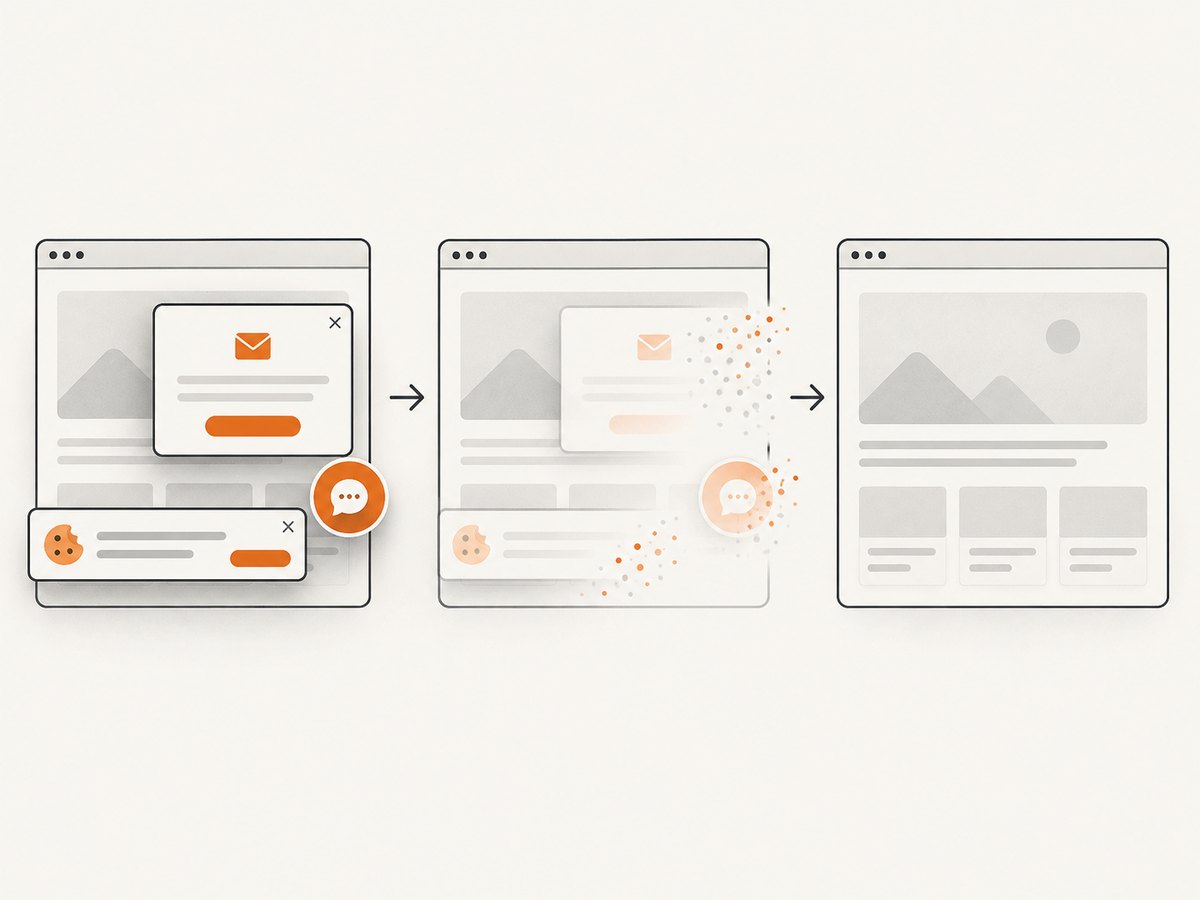
One request returns PNG, JPEG, WebP, or PDF. The API supports full-page or element captures, custom CSS and JavaScript, waits, device presets, headers, cookies, blocking rules, caching, signed links, asynchronous jobs, bulk capture, and more. An MCP server lets Claude, Cursor, and other MCP clients call take_screenshot, get_page_info, and capture_pdf.
See the ScreenshotNeo API documentation for all options.
cURL
curl -G "https://api.screenshotneo.com/v1/shot" \
  -d access_key=YOUR_API_KEY \
  --data-urlencode url=https://stripe.com \
  -o shot.webp
Python
import requests

r = requests.get(
    "https://api.screenshotneo.com/v1/shot",
    params={"access_key": "YOUR_API_KEY", "url": "https://stripe.com"},
    timeout=90,
)
r.raise_for_status()
open("shot.webp", "wb").write(r.content)
Node.js
const q = new URLSearchParams({ access_key: 'YOUR_API_KEY', url: 'https://stripe.com' });
const res = await fetch(`https://api.screenshotneo.com/v1/shot?${q}`);
if (!res.ok) throw new Error(`Screenshot failed: ${res.status}`);
const fs = await import('node:fs/promises');
await fs.writeFile('shot.webp', Buffer.from(await res.arrayBuffer()));
The free plan includes 1,000 screenshots per month with no card. Paid plans start at $5 for 3,000 shots, and every feature is available on every plan. Sign up free for ScreenshotNeo.
Performance, reliability, and cost notes
- Use appropriately sized images and modern formats such as WebP or AVIF when your browser support target allows them.
- Set explicit dimensions to reduce layout movement.
- Keep one link around the image and its label when they lead to the same destination.
- For automated captures, wait for a selector, a delay, or network idle when the linked page renders asynchronously.
- Cache repeated ScreenshotNeo captures with a TTL when the source page does not change often. Failed loads and cache hits are not billed according to the product’s billing rules.
- Inspect
X-Page-VerdictandX-Billedin API responses so your job can distinguish a clean billed capture from a bot check, blank page, timeout, failed load, or cache hit.
FAQ
Can I make an image link to a section on the same page?
Yes. Give the destination element an id, then use a fragment URL such as href="#details".
Should every linked image have descriptive alt text?
Only when the image is the link’s name or adds information. If visible text already identifies the destination and the image is redundant, use alt="".
Is an image inside an anchor valid HTML?
Yes. An anchor may contain phrasing and flow content, including an image, as long as interactive content is not improperly nested.
How do I make the whole image card clickable?
Place the image and its label inside one anchor. This provides one destination and one keyboard focus target.


