Can You Use Hyperlinks in PDFs?
Yes, PDFs can contain clickable links to websites, pages within the document, files, and other destinations. Learn how to add links and fix common problems.
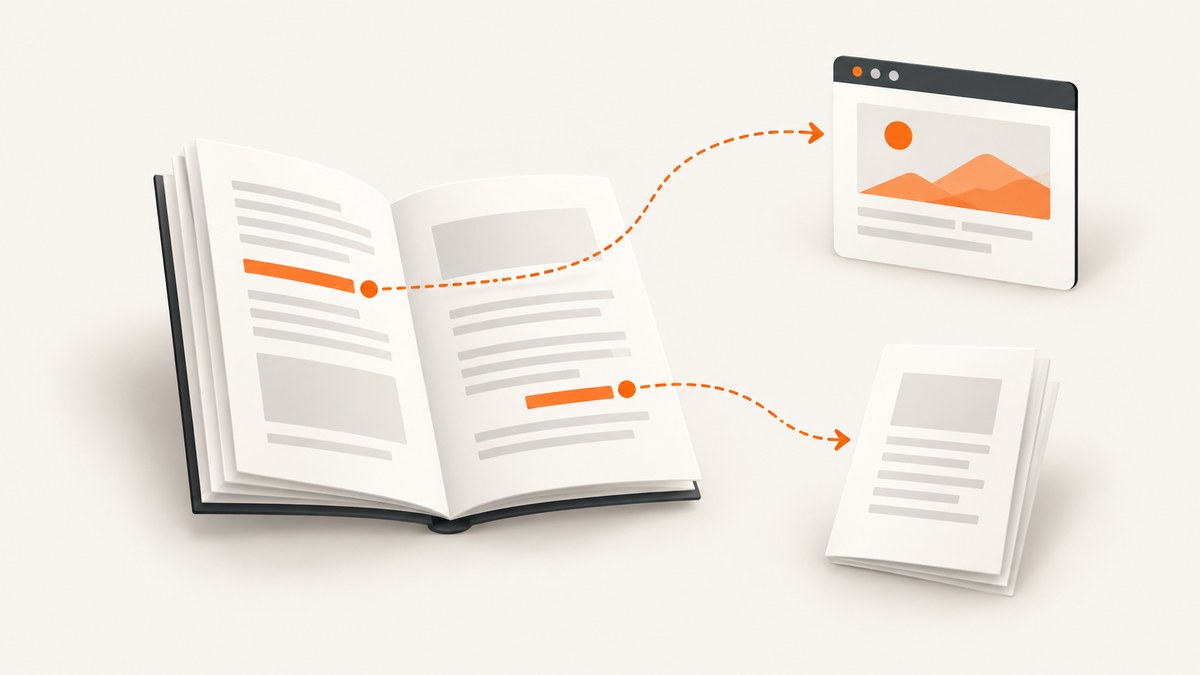
Yes. PDFs can contain clickable hyperlinks. A link may open a web page, jump to a page or destination inside the same PDF, open a file or attachment, or run a supported action. The important distinction is that a URL printed on a page is only visible text unless the PDF also contains an actual link object, usually a Link annotation with a destination or action.
This guide explains how to create links in an existing PDF, what link types to choose, how to make links accessible, and how to diagnose links that appear to do nothing. It also shows how to create a PDF from a web page with ScreenshotNeo, when your starting point is a page you need to capture.
1. What kinds of hyperlinks can a PDF contain?
PDF links are pointers. They can connect a reader to a location within the current document or to something outside it. The PDF Association describes a Link annotation as the PDF equivalent of an HTML anchor; Adobe lists page views, web pages, files, and custom actions among the available link actions.
| Link type | What happens when clicked | Typical use |
|---|---|---|
| External web link | Opens a URL in a browser or another configured app. | Sources, documentation, product pages, contact pages. |
| Internal destination | Moves to a page or saved view in the same PDF. | Table of contents, cross-references, “back to top” links. |
| File or attachment | Opens a local or attached file if the viewer allows it. | Supplemental files, forms, referenced documents. |
| Custom action | Runs an action supported by the authoring tool and reader. | Special workflows; behavior depends on software and security settings. |
Actions involving files or custom behavior can be restricted by a reader’s security policy. For documents intended for broad distribution, web links and internal destinations are usually easier for recipients to understand and test.
2. Visible URL or real hyperlink: how to tell the difference
A PDF page has visual content and interactive objects. A line of text such as https://example.com/guide can be drawn on the page without any link annotation. Some readers automatically recognize and activate URL-looking text, but that viewer behavior does not mean the PDF itself contains a link. Other viewers may leave the same text inert.
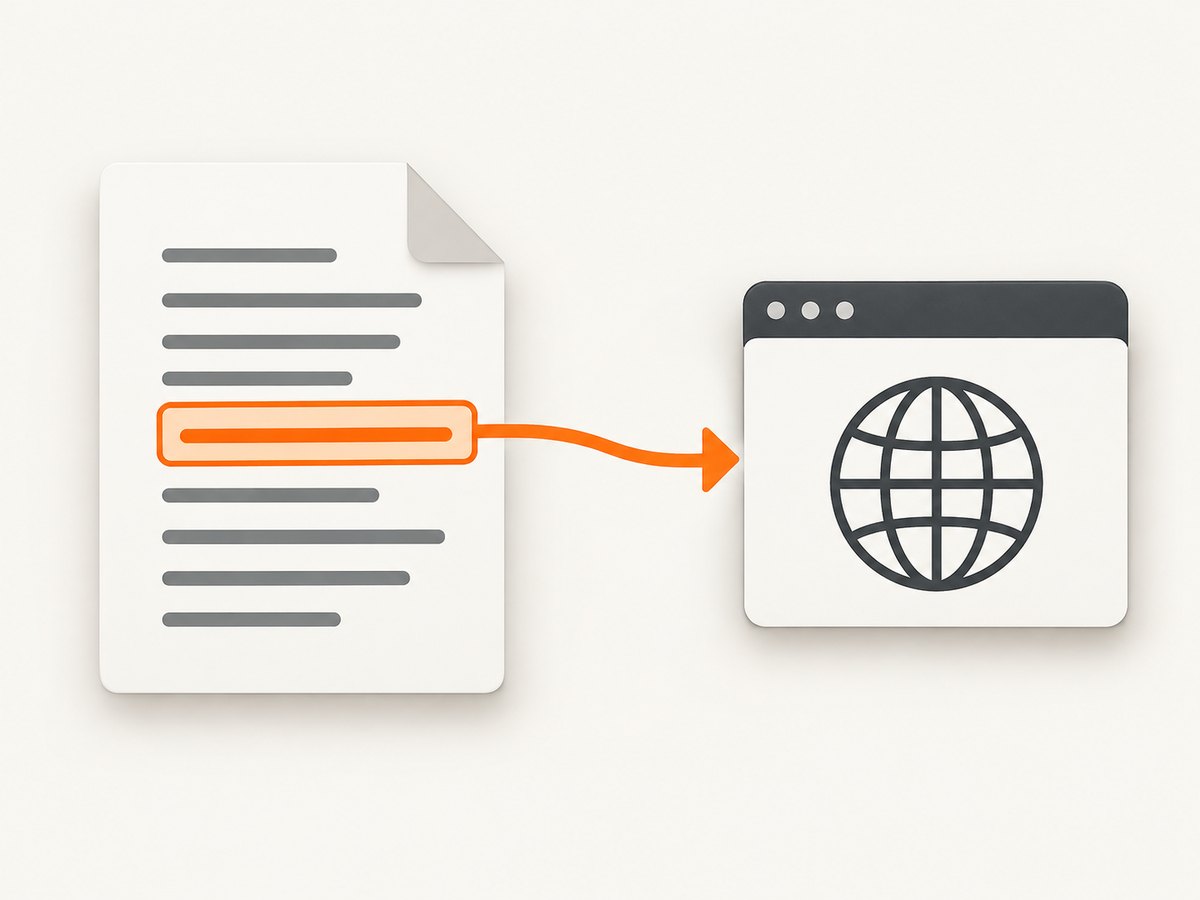
To make a link reliable, add a link object and associate it with the intended text or area. For a web destination, the object needs a valid URI action. For an internal link, it needs a destination in the same document. This is why copying visible URL text into a PDF is not always enough, and why checking the exported PDF matters.
3. Add a clickable hyperlink in Adobe Acrobat
Acrobat’s labels can differ by release, but the general workflow is to add a link area, choose its action, set the destination, then save and check the result.
- Open the PDF in Acrobat.
- Choose Edit > Link > Add or edit a link.
- Drag a rectangle around the text, image, or area that should respond to a click. Keep the rectangle close to the intended target so nearby content does not become clickable accidentally.
- Choose the link appearance. If you want the link to be unobtrusive, select an invisible rectangle; if readers need a visual cue, choose an appropriate border or highlight.
- Select an action: Go to a page view, Open a file, Open a web page, or a supported custom action.
- Enter or select the destination. For an internal destination, navigate to the target page and set the link view as prompted.
- Save the PDF, close it, reopen the saved copy, and click the new link.
Adobe documents these action types in its guidance for adding links. The source document and the saved PDF are different checkpoints: confirm the final saved file behaves as intended before distributing it.
4. Link to a page inside the same PDF
Use an internal page-view destination when the reader should move to a section without leaving the document. This works well for a table of contents, glossary references, footnotes, or links between related sections.
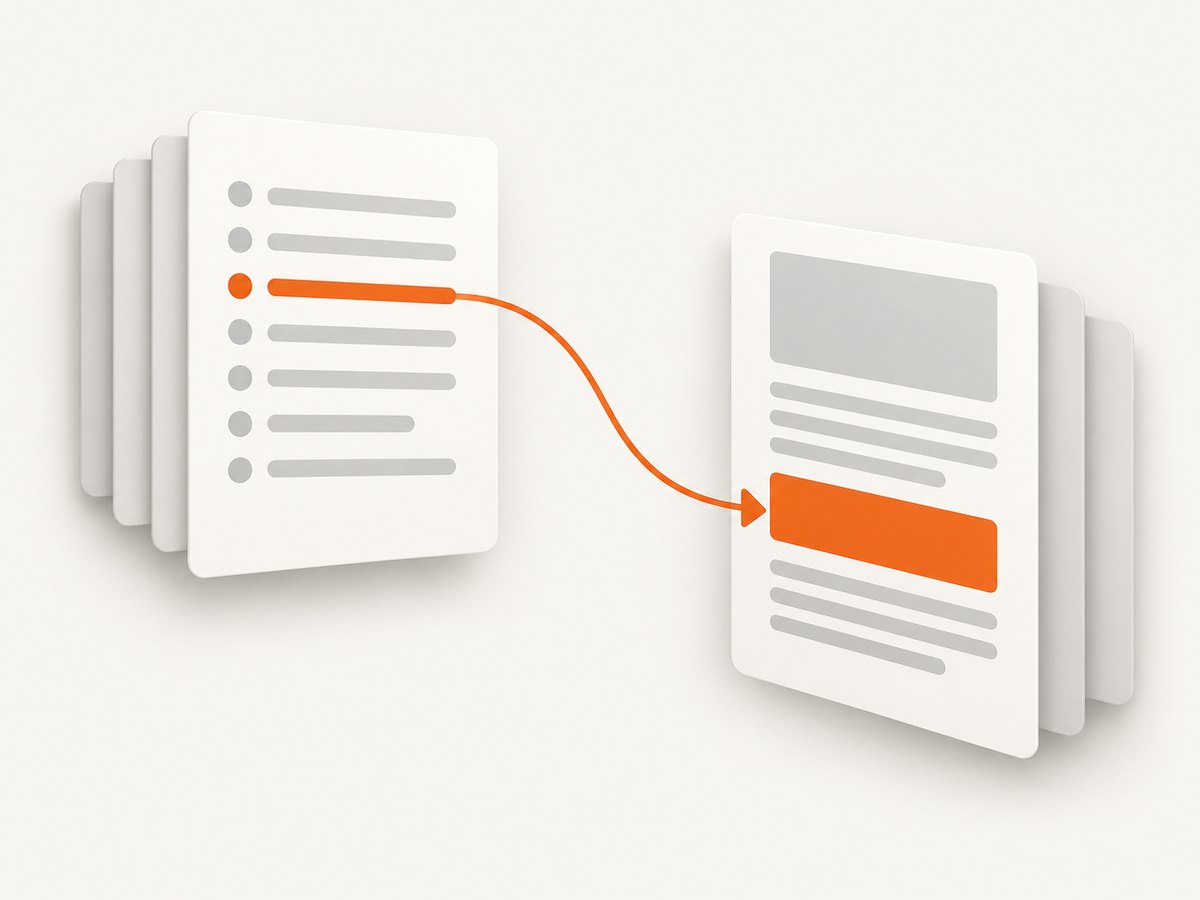
- Start the add-link workflow and select the clickable text or area.
- Choose Go to a page view.
- Navigate to the destination page and position the page as you want it to appear. The target can be a useful view of the section rather than merely the page’s top edge.
- Set the destination when prompted, then save.
- Test the link from the saved file and verify it lands on the expected page and view.
Internal destinations are safer than hard-coding a page number in visible text when the PDF may be reorganized. Still, editing, page replacement, or export workflows can affect destinations, so retest after substantial document changes.
5. Add links in a PDF you generate from a web page
If the source is a web page, browser printing or PDF conversion may preserve some links, but the result depends on the conversion path and source markup. A page that looks like a link in the browser is not proof the exported PDF retained a working annotation. Generate the PDF, then inspect its links in the saved output.
For a capture-based workflow using ScreenshotNeo, make one GET request with the page URL and ask for PDF output. The API and its options are documented at ScreenshotNeo documentation. The example below uses the service’s documented endpoint and API key pattern; use an authorized key and a page you are permitted to capture.
curl -G "https://api.screenshotneo.com/v1/shot" \
  -d access_key=YOUR_API_KEY \
  --data-urlencode url=https://stripe.com \
  -d format=pdf \
  -o page.pdf
A captured PDF is a rendered representation of the page. Do not assume that links, tags, reading order, or other interactive and accessibility properties have been preserved exactly as they exist in the original HTML. Open the generated PDF and test its links and accessibility for your intended use. If the PDF needs a specific internal table of contents, accessible link structure, or custom destinations, use a PDF authoring workflow that explicitly creates and validates those objects.
6. Accessibility: make links understandable without sight
Link behavior is only one part of a usable PDF. The link text should explain its destination or purpose. “Read the installation guide” gives more context than “click here,” particularly when assistive technology presents links as a list outside their surrounding paragraph.
W3C’s PDF11 technique recommends exposing link text with a Link annotation and the /Link structure element so assistive technology can identify the link. In practice, verify that the PDF is tagged, that the link annotation is associated with the intended text in the structure, and that the destination is meaningful. A visible rectangle over text alone does not establish that the document has a well-formed accessible structure.
- Use descriptive, concise link text.
- Give images used as links an accessible name or equivalent text.
- Check that reading order places link text where readers expect it.
- Inspect the tags and structure with tools suitable for your PDF workflow.
- Test with assistive technology when accessibility is a requirement.
7. Troubleshooting: PDF links that do not work
| Symptom | Likely cause | What to check or fix |
|---|---|---|
| URL is visible but not clickable | The page contains text but no Link annotation. | Add a link annotation in a PDF editor; do not rely on automatic URL detection by one viewer. |
| Click does nothing | The annotation is missing, action is unsupported, or viewer security blocks it. | Inspect the saved PDF in another intended viewer and check its security settings and action type. |
| Browser opens the wrong page | The URL is malformed, truncated, or points to an unintended redirect. | Recheck the full destination, including scheme such as https://, and test it separately. |
| Internal link lands on the wrong page | The destination was set incorrectly or changed during later editing. | Recreate the page view, save, reopen, and test after edits or page reordering. |
| Link worked before export but not afterward | The export or optimization step did not preserve annotations or destinations. | Test the final exported file; recreate links in a PDF editor if needed. |
| Link works on desktop but not in browser preview | Viewer support or security behavior differs. | Test in the actual readers your audience uses. Do not assume every viewer permits file or custom actions. |
| Screen reader does not announce the link properly | Missing or incorrect tagging, structure association, or link text. | Check tagged PDF structure and follow W3C PDF11 guidance. |
| File link is blocked | The reader’s security policy restricts local or attached file actions. | Use a permitted destination or distribute the resource through an approved, accessible web link. |
Use this quick checklist before delivery:
- ☐ Click every external and internal link in the saved PDF.
- ☐ Confirm each external URL is correct and reachable for the intended audience.
- ☐ Test in the desktop or browser viewers your readers are likely to use.
- ☐ Recheck links after export, optimization, signing, or other editing.
- ☐ Inspect tags and link text when the document must be accessible.
8. Reliability, performance, and cost considerations
Links add little visual weight, but reliability depends on both the PDF object and the destination. A web page can move or disappear after the PDF is distributed. Prefer stable URLs where possible, avoid unnecessary redirect chains, and periodically review links in long-lived documents. For internal links, test again whenever pages or sections are rearranged.
Viewer differences matter most for actions beyond ordinary web navigation. External links, local files, attachments, and custom actions can be handled differently according to the reader and its security controls. When recipients use several viewers, test representative ones and choose the most broadly supported action that meets the document’s purpose.
For web-page-to-PDF capture, cost and timing depend on the capture service and selected output options. ScreenshotNeo offers a free plan with 1,000 shots per month and no card; paid plans start at $5 for 3,000 shots. Its stated billing policy charges only for clean shots: bot checks or CAPTCHAs, blank pages, timeouts, failed loads, and cache hits cost nothing, and responses identify the page verdict and billing status in headers. Choose capture only when you need a rendered page as a PDF; use a PDF editor when you need to add or repair specific link annotations and destinations in an existing file.
Or skip the browser setup
If your task is to capture a web page as a PDF, ScreenshotNeo turns a URL into a PDF with one request. It accepts cookie and consent banners and removes more than 60 known consent platforms, newsletter popups, and chat widgets before the shot; each step can be turned off. Bot checks, blank pages, and failed loads are never billed. Its MCP server lets AI agents take screenshots, get page information, and capture PDFs. The free plan includes 1,000 shots a month with no card, and paid plans start at $5 for 3,000.
curl -G "https://api.screenshotneo.com/v1/shot" \
  -d access_key=YOUR_API_KEY \
  --data-urlencode url=https://stripe.com \
  -d format=pdf \
  -o page.pdf
See the API documentation for request options, or visit ScreenshotNeo. Sign up for 1,000 free screenshots a month, with no card required.
9. FAQ
Can I make only an image clickable?
Yes. Draw the link rectangle over the image and assign the intended action. Give the linked image an accessible name or equivalent text when required.
Can links open email addresses?
PDF links can point to external resources such as email, depending on the action and viewer. Check the reader behavior and use clear link text so recipients know what will happen.
Do hyperlinks survive PDF compression?
They may, but do not assume every optimization or export tool preserves annotations and destinations. Check the final compressed PDF.
Can a PDF link directly to a particular place on a web page?
A PDF can point to a URL, but whether a web destination opens at a particular section depends on the URL and the website’s behavior. Test the destination in a browser as well as from the PDF.


