How to Identify Buttons with Selenium WebDriver
Learn how to find Selenium buttons by ID, CSS, text, XPath and attributes, handle duplicates and waits, and click the right element reliably.
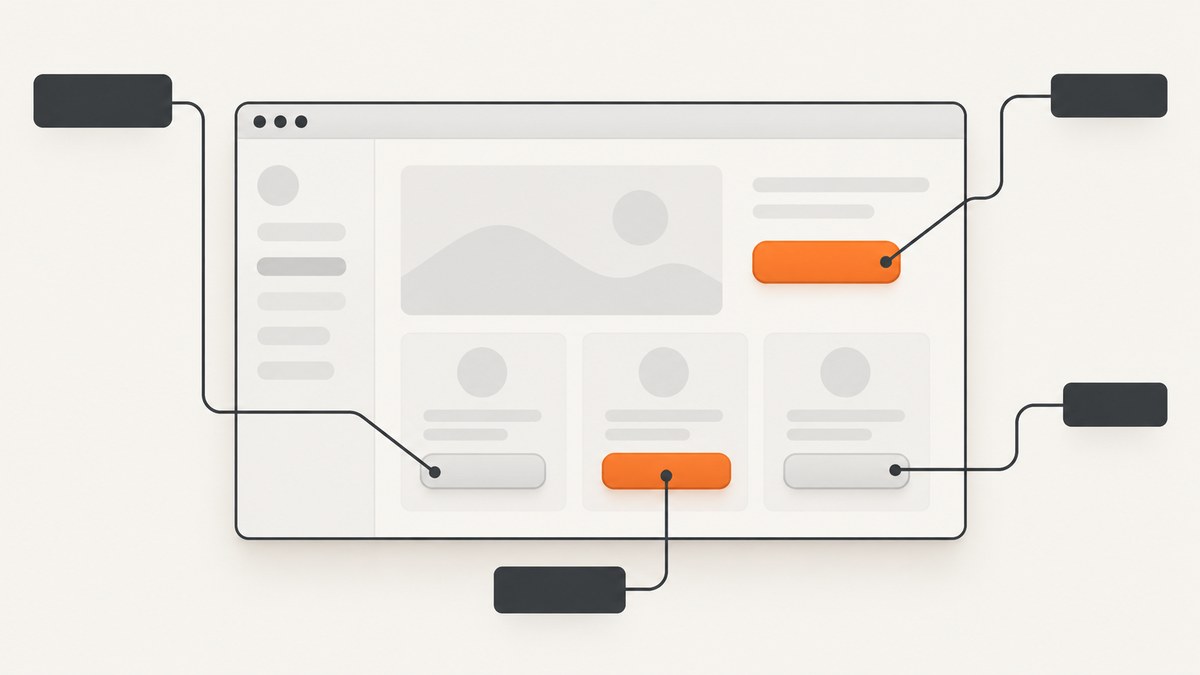
Short answer: Selenium identifies buttons with locators passed to find_element or find_elements. Prefer a stable, unique ID; otherwise use a specific CSS selector. Use XPath when the page structure or relationship makes it the clearest option. A broad selector such as button can match several elements, so inspect all matches before clicking.
Selenium’s official guidance recommends a well-written CSS selector when a unique ID is unavailable, while noting that XPath can be harder to debug. The locator reference covers ID, CSS selector, tag name, XPath and other strategies. See the Selenium locator reference and locator practice guidance.
1. Set up a driver
The Python example below opens a page, finds a button, verifies it, and clicks it. Install Selenium first:
python -m pip install seleniumRecent Selenium versions can manage a compatible browser driver automatically. If your environment manages drivers separately, put the driver executable on PATH or pass its service explicitly.
from selenium import webdriver
from selenium.webdriver.common.by import By
from selenium.webdriver.support.ui import WebDriverWait
from selenium.webdriver.support import expected_conditions as EC

options = webdriver.ChromeOptions()
options.add_argument('--headless=new')

driver = webdriver.Chrome(options=options)
wait = WebDriverWait(driver, 15)

try:
    driver.get('https://example.com/form')
    button = wait.until(EC.element_to_be_clickable((By.ID, 'save')))
    print(button.tag_name, button.get_attribute('type'), button.text)
    button.click()
finally:
    driver.quit()
2. Choose the right locator
| Strategy | Example | Use it when | Watch for |
|---|---|---|---|
| ID | By.ID, 'save' |
The ID is unique and stable. | Generated IDs that change between runs. |
| CSS selector | By.CSS_SELECTOR, 'button#save' |
You need concise matching by tag, class, attribute or structure. | Overly broad selectors and fragile class names. |
| XPath | By.XPATH, "//button[@type='submit']" |
You need text, relationships or a more expressive path. | Long expressions that are difficult to debug. |
| Tag name | By.TAG_NAME, 'button' |
You intentionally want every native button. | Several buttons may match. |
| Class name | By.CLASS_NAME, 'primary-action' |
A stable, single class identifies the control. | Spaces are not valid in a single class-name locator. |
| Accessible name | CSS or XPath using aria-label |
The button has a stable accessible label. | Visible text may differ from the accessible name. |
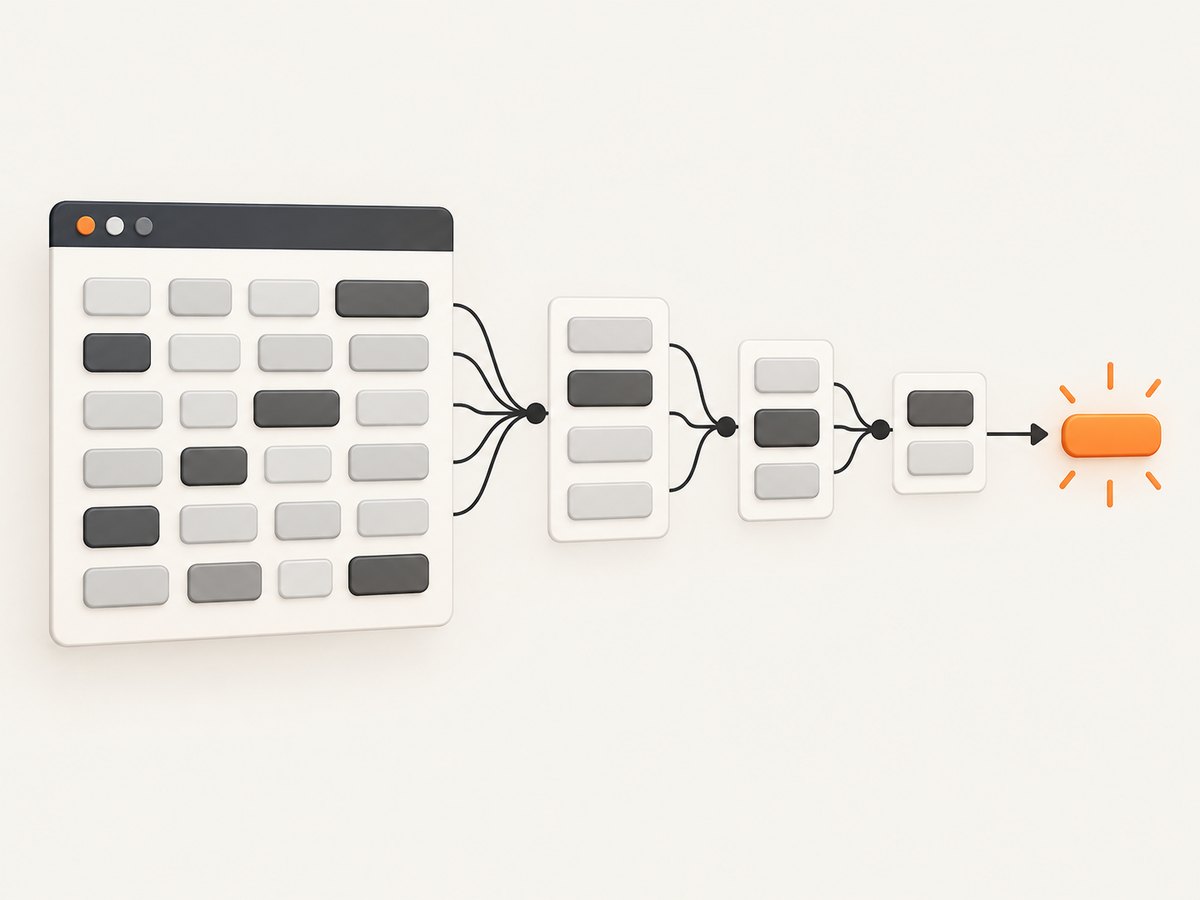
Use the most specific locator that expresses the element’s contract. A selector such as form#checkout button[type='submit'] is clearer and safer than button when a page has several forms.
3. Find a button by ID
button = driver.find_element(By.ID, 'save')An ID is usually the simplest locator when it is unique and assigned for the control’s identity. Confirm that it is not generated on every page load.
4. Find a button with CSS
save = driver.find_element(By.CSS_SELECTOR, 'button#save')
submit = driver.find_element(By.CSS_SELECTOR, "button[type='submit']")
labelled = driver.find_element(By.CSS_SELECTOR, "button[aria-label='Close']")
inside_dialog = driver.find_element(By.CSS_SELECTOR, '[role="dialog"] button.confirm')
CSS supports IDs, classes, attributes, descendants, direct children and structural relationships. Prefer a selector that remains valid when presentation classes or surrounding markup change.
5. Find a button by visible text
from selenium.webdriver.common.by import By

button = driver.find_element(By.XPATH, "//button[normalize-space()='Save']")
normalize-space() handles extra whitespace around the label. Exact text is useful when the wording is stable. For partial text, use:
button = driver.find_element(By.XPATH, "//button[contains(normalize-space(), 'Save')]")Text-based locators can break when copy, localization or punctuation changes. If the application owns the markup, add a stable ID, data attribute or accessible label and locate that instead.
6. Find buttons by attributes
submit = driver.find_element(By.CSS_SELECTOR, "button[type='submit']")
by_test_id = driver.find_element(By.CSS_SELECTOR, "button[data-testid='save-button']")
by_role = driver.find_element(By.CSS_SELECTOR, "[role='button'][aria-label='Next']")
Native <button> elements are preferable to clickable div elements. If an application uses role='button', include the role in the selector and verify that the element is actually actionable.
7. Handle multiple matching buttons
find_element returns the first match. Use find_elements when a selector may match more than one button, then inspect each result.
buttons = driver.find_elements(By.CSS_SELECTOR, 'button')
print(f'Found {len(buttons)} buttons')

for index, candidate in enumerate(buttons):
    print(index, candidate.tag_name, candidate.text,
          candidate.get_attribute('id'),
          candidate.get_attribute('aria-label'),
          candidate.is_displayed(), candidate.is_enabled())

visible_save = next(
    button for button in buttons
    if button.is_displayed()
    and button.is_enabled()
    and button.text.strip() == 'Save'
)
visible_save.click()
Filtering in code is useful for diagnostics. In production, tighten the locator so the intended element is unique and the failure is obvious if the page changes.
8. Wait for the button before interacting
Modern pages often render controls after JavaScript completes. Do not rely on a fixed sleep unless you are diagnosing a timing issue. Use an explicit wait for the state you need:
from selenium.webdriver.support import expected_conditions as EC
from selenium.webdriver.support.ui import WebDriverWait

wait = WebDriverWait(driver, 20)

present = wait.until(EC.presence_of_element_located(
    (By.CSS_SELECTOR, 'button#save')
))
visible = wait.until(EC.visibility_of_element_located(
    (By.CSS_SELECTOR, 'button#save')
))
clickable = wait.until(EC.element_to_be_clickable(
    (By.CSS_SELECTOR, 'button#save')
))
clickable.click()
presence means the element is in the DOM; it may still be hidden. visibility also requires it to be displayed. element_to_be_clickable checks visibility and enabled state, but an overlay can still intercept the click.
9. Verify the element before clicking
When debugging a locator, print the tag, text and relevant attributes. Selenium’s element-information guidance describes reading these properties from a referenced element.
button = driver.find_element(By.CSS_SELECTOR, 'button#save')
assert button.tag_name.lower() == 'button'
print('text:', repr(button.text))
print('type:', button.get_attribute('type'))
print('disabled:', button.get_attribute('disabled'))
print('aria-label:', button.get_attribute('aria-label'))
print('displayed:', button.is_displayed())
print('enabled:', button.is_enabled())
10. Deal with common markup and page states
Disabled buttons
A button can exist but have a disabled attribute or be disabled by application state. Wait for the condition that enables it, or fix the prerequisite form fields instead of forcing a click.
button = wait.until(EC.presence_of_element_located((By.ID, 'continue')))
wait.until(lambda d: button.is_enabled())
button.click()
Overlays, cookie banners and intercepted clicks
If another element covers the button, Selenium may raise ElementClickInterceptedException. Locate and dismiss the overlay, wait for it to disappear, scroll the button into view, and then retry.
wait.until(EC.invisibility_of_element_located(
    (By.CSS_SELECTOR, '.modal-backdrop, .cookie-banner')
))
button = wait.until(EC.element_to_be_clickable((By.ID, 'save')))
button.click()
Stale elements after re-rendering
Frameworks can replace a node after you locate it. A stored WebElement then becomes stale. Locate it again after the update rather than reusing the old reference.
from selenium.common.exceptions import StaleElementReferenceException

for attempt in range(3):
    try:
        wait.until(EC.element_to_be_clickable((By.ID, 'save'))).click()
        break
    except StaleElementReferenceException:
        if attempt == 2:
            raise
Buttons inside an iframe
Switch into the frame before locating its contents, then return to the default document.
frame = wait.until(EC.presence_of_element_located((By.CSS_SELECTOR, 'iframe.payment')))
driver.switch_to.frame(frame)
wait.until(EC.element_to_be_clickable((By.ID, 'pay'))).click()
driver.switch_to.default_content()
Shadow DOM
Elements inside an open shadow root are not found by a selector run against the regular document. Get the host, access its shadow root, and query inside it.
host = driver.find_element(By.CSS_SELECTOR, 'payment-widget')
shadow = host.shadow_root
button = shadow.find_element(By.CSS_SELECTOR, 'button.submit')
button.click()
Closed shadow roots cannot be queried directly through the normal WebDriver API. Use an application-supported interface or test hook where available.
Custom clickable elements
Some interfaces use links or elements with role='button'. Locate the actual element and verify its role, label and enabled state. A JavaScript click can bypass real pointer behavior, so use it only when the application requires it and normal interaction cannot work.
11. Complete Python example
from selenium import webdriver
from selenium.webdriver.common.by import By
from selenium.webdriver.support.ui import WebDriverWait
from selenium.webdriver.support import expected_conditions as EC

URL = 'https://example.com/form'

def find_and_click_button(driver):
    wait = WebDriverWait(driver, 15)
    selectors = [
        (By.ID, 'save'),
        (By.CSS_SELECTOR, "button[data-testid='save']"),
        (By.XPATH, "//button[normalize-space()='Save']"),
    ]

    for locator in selectors:
        matches = driver.find_elements(*locator)
        if len(matches) == 1:
            button = wait.until(EC.element_to_be_clickable(locator))
            if button.tag_name.lower() not in ('button', 'input'):
                raise RuntimeError(f'Unexpected tag: {button.tag_name}')
            button.click()
            return
        if len(matches) > 1:
            raise RuntimeError(f'Locator is not unique: {locator}')

    raise RuntimeError('No save button matched the supported locators')

options = webdriver.ChromeOptions()
options.add_argument('--headless=new')
driver = webdriver.Chrome(options=options)
try:
    driver.get(URL)
    find_and_click_button(driver)
finally:
    driver.quit()
12. JavaScript and Java equivalents
The same locator principles apply to Selenium bindings in other languages.
import { Builder, By, until } from 'selenium-webdriver';

const driver = await new Builder().forBrowser('chrome').build();
try {
  await driver.get('https://example.com/form');
  const button = await driver.wait(
    until.elementLocated(By.css('button#save')),
    15000
  );
  await driver.wait(until.elementIsVisible(button), 15000);
  await button.click();
} finally {
  await driver.quit();
}
WebDriver driver = new ChromeDriver();
try {
driver.get("https://example.com/form");
WebDriverWait wait = new WebDriverWait(driver, Duration.ofSeconds(15));
WebElement button = wait.until(ExpectedConditions.elementToBeClickable(
By.cssSelector("button#save")
));
button.click();
} finally {
driver.quit();
}13. Troubleshooting
| Error or symptom | Likely cause | Fix |
|---|---|---|
NoSuchElementException |
Wrong selector, wrong page, late rendering or wrong frame. | Check the current URL and source, use an explicit wait, and switch into the correct iframe. |
TimeoutException |
The expected state never occurred. | Confirm the selector and condition; inspect whether a disabled state or consent dialog blocks progress. |
ElementClickInterceptedException |
An overlay or another element covers the button. | Dismiss or wait for the overlay, scroll into view, then click. |
ElementNotInteractableException |
The node is hidden, disabled or outside the usable layout. | Wait for visibility and enabled state; locate the visible duplicate. |
StaleElementReferenceException |
The framework replaced the element. | Re-find the element after the DOM update. |
| Wrong button clicked | Selector matches several controls. | Use a unique ID, scoped CSS selector or a filtered find_elements result. |
| Text selector fails | Whitespace, localization or nested markup changed. | Use normalize-space(), an accessible attribute or a stable test ID. |
14. Performance and reliability
- Use one precise locator instead of scanning every button on each step.
- Keep explicit waits close to the action and choose the smallest condition that represents readiness.
- Avoid arbitrary long sleeps; they slow successful runs and still fail when the page is slower than the sleep.
- Use stable application-owned attributes such as
data-testidwhen IDs are unavailable. - Keep browser, driver and Selenium versions compatible and collect the page URL, locator and screenshot when a failure occurs.
- Use headless mode for CI, but reproduce failures in headed mode when layout or overlays are involved.
- Do not use JavaScript to click merely to hide a locator problem; it can skip the pointer and visibility behavior your user would experience.
15. Or skip the browser setup
If you only need a rendered image of a page, ScreenshotNeo provides a GET endpoint that returns PNG, JPEG, WebP or PDF. Its capture flow accepts cookie and consent banners as a visitor and removes more than 60 known consent platforms, newsletter popups and chat widgets before the shot. Bot checks, blank pages, timeouts, failed loads and cache hits are not billed; the response identifies the result with X-Page-Verdict and X-Billed headers.
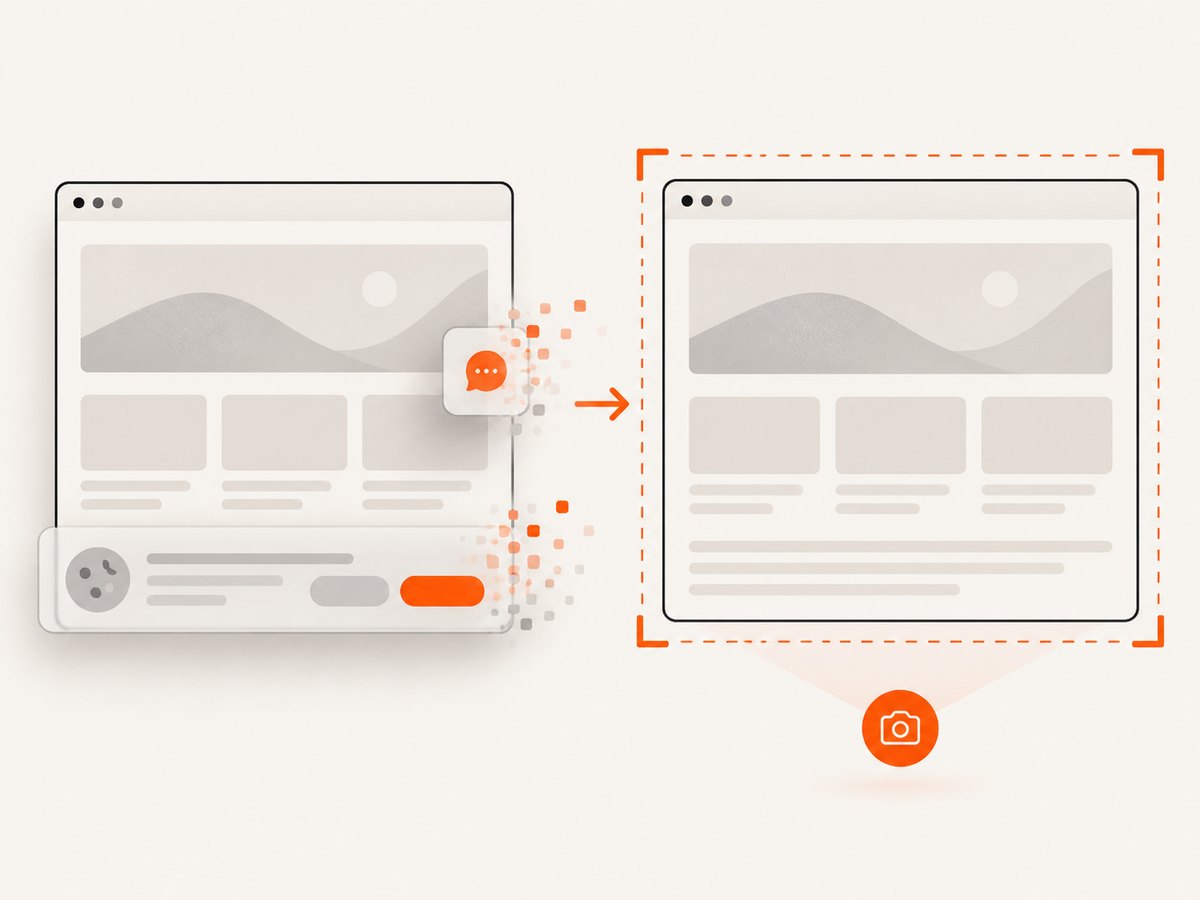
See the ScreenshotNeo API documentation for all options.
curl -G 'https://api.screenshotneo.com/v1/shot' -d access_key=YOUR_API_KEY --data-urlencode url=https://stripe.com -o shot.webpimport requests
r = requests.get('https://api.screenshotneo.com/v1/shot', params={'access_key': 'YOUR_API_KEY', 'url': 'https://stripe.com'}, timeout=90)
r.raise_for_status()
open('shot.webp', 'wb').write(r.content)const q = new URLSearchParams({ access_key: 'YOUR_API_KEY', url: 'https://stripe.com' });
const res = await fetch(`https://api.screenshotneo.com/v1/shot?${q}`);
if (!res.ok) throw new Error(`HTTP ${res.status}`);
require('fs').writeFileSync('shot.webp', Buffer.from(await res.arrayBuffer()));ScreenshotNeo also supports full-page and element captures, dark mode, device presets, custom CSS and JavaScript, waits, request blocking, headers, cookies, caching, signed links, asynchronous jobs, webhooks, bulk capture and an MCP server for AI agents. One thousand screenshots per month are free with no card; paid plans start at $5 for 3,000 shots. Create a free ScreenshotNeo account.
16. FAQ
Should I use CSS or XPath?
Use a stable ID first, then a specific CSS selector in most cases. Choose XPath when text or document relationships make the intent clearer and maintainable.
What does find_element do when there are duplicates?
It returns the first match. Use find_elements to inspect all matches, then make the locator unique.
Can Selenium find an input styled as a button?
Yes. Locate it by its actual markup, such as input[type='submit'], and verify its tag and attributes before interacting.
Why does a button appear in source but Selenium cannot click it?
It may be inside an iframe or shadow root, hidden, disabled, covered by an overlay, or replaced after rendering. Handle the relevant state before clicking.
Is a visible label always the best locator?
No. Labels change with copy and localization. A stable ID, test attribute or accessible attribute is usually more durable.


