How to Identify and Handle Dialogs in Puppeteer
Listen for Puppeteer’s `dialog` event, inspect the dialog type and message, then explicitly accept or dismiss it. Here’s how to handle prompts, confirms, and DOM modals.
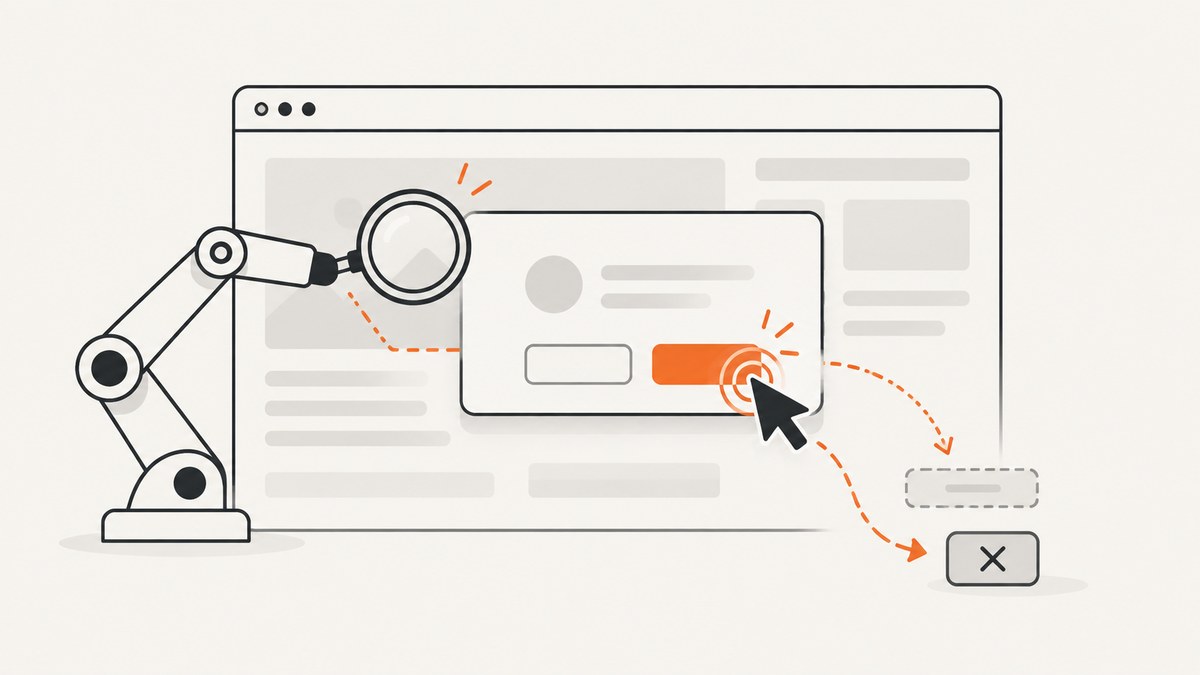
In Puppeteer, listen for the page’s dialog event. Its handler receives a Dialog object, which you can inspect with type() and message(). Resolve it by awaiting accept() or dismiss(). For a JavaScript prompt, pass the value to accept(value). This covers browser JavaScript dialogs such as alert, confirm, prompt, and beforeunload.
A custom modal built from HTML is different: it does not emit this event. Interact with its page elements using Puppeteer’s locator APIs. The key is to identify which kind of dialog you have before deciding how the automation should respond.
1. What Puppeteer calls a dialog
Puppeteer’s PageEvent reference documents the dialog event for JavaScript dialogs. The event handler receives a Dialog with methods and properties for inspecting and handling it:
type()returns the dialog type, such asalert,confirm,prompt, orbeforeunload.message()returns the displayed message.defaultValue()returns the prompt’s default text, or an empty string when the dialog is not a prompt.handledindicates whether the dialog has been handled.accept()accepts the dialog. For a prompt, it can receive the text to submit.dismiss()dismisses the dialog.
These details are documented in Puppeteer’s Dialog class reference and accept() reference. Check the API reference matching the Puppeteer version installed in your project: the documentation version labels can differ across pages and releases.
2. Register the handler before the action
Install the listener before navigating or clicking if that action might open a dialog. An event listener stays active for future dialogs on that page. This complete example starts Chromium, opens a page, handles dialogs, and then triggers a test alert:

const puppeteer = require('puppeteer');

(async () => {
  const browser = await puppeteer.launch({ headless: true });
  try {
    const page = await browser.newPage();

    page.on('dialog', async dialog => {
      console.log('Type:', dialog.type());
      console.log('Message:', dialog.message());
      console.log('Default value:', dialog.defaultValue());

      if (dialog.type() === 'prompt') {
        await dialog.accept('value to submit');
      } else {
        await dialog.dismiss();
      }
    });

    await page.goto('data:text/html,<button onclick="alert(\'Hello\')">Open alert</button>');
    await page.locator('button').click();
  } finally {
    await browser.close();
  }
})();
Save it as dialogs.cjs in a project where Puppeteer is installed, then run node dialogs.cjs. The inline page triggers an alert when its button is clicked. The handler logs dialog information and dismisses it, so the click can finish.
The pattern is based on the event and methods documented by Puppeteer; choose branches to match your application’s intended behavior. A handler that accepts every dialog can submit an unintended confirmation or prompt value. A handler that dismisses every dialog can cancel an action the test is supposed to complete.
3. Choose accept or dismiss deliberately
The response controls the page’s behavior. Make it part of the test’s intent rather than applying a blanket rule.
| Dialog | When to accept | When to dismiss |
|---|---|---|
alert |
When the test expects to close the alert and continue. | When dismissal is the intended response; encode that explicitly. |
confirm |
When the test is meant to confirm the action. | When the test is meant to cancel it. |
prompt |
Use accept('text') to submit a value, or accept() if no custom text is needed. |
When the test is meant to cancel the prompt. |
beforeunload |
Choose the response that matches the navigation or close flow under test. | Use dismissal for a cancellation case when that is the intended outcome. |
Puppeteer documents both response methods. The exact application outcome is a test decision. For beforeunload, verify the navigation or close result in the flow you care about rather than assuming a universal outcome.
4. Handle each JavaScript dialog type
Accept an alert or confirm
For a test that must continue through a confirmation, check its type or expected message and accept it. The page can then continue with the result of the confirmation. An alert has no choice value to read; handling it means closing it with an explicit response.
page.on('dialog', async dialog => {
  if (dialog.type() === 'confirm' && dialog.message() === 'Delete this item?') {
    await dialog.accept();
    return;
  }

  await dialog.dismiss();
});
Comparing the message is useful when a page may show more than one kind of confirmation. Avoid accepting an unknown dialog just because it appeared.
Enter text in a prompt
The prompt value is passed to accept(). The optional argument has no effect on non-prompt dialogs, so branch on the type to make the behavior clear. defaultValue() lets you inspect the starting value before deciding what to submit.
page.on('dialog', async dialog => {
  if (dialog.type() === 'prompt') {
    const startingText = dialog.defaultValue();
    console.log('Prompt started with:', startingText);
    await dialog.accept('new value');
  } else {
    await dialog.dismiss();
  }
});
Test cancellation
To verify that a user can cancel a confirmation or prompt, dismiss it and then assert the page state that should follow. The dialog handler only resolves the browser prompt; your test still needs to check that the application took the cancellation path.
page.on('dialog', async dialog => {
  if (dialog.type() === 'confirm' || dialog.type() === 'prompt') {
    await dialog.dismiss();
    return;
  }
  await dialog.accept();
});
This example accepts other JavaScript dialogs to ensure they are resolved, but in a real test use a policy appropriate for every dialog the page may produce.
5. Avoid races and unresolved dialogs
- Register early. Attach the listener before the navigation, click, or script call that can open the dialog. If the action happens first, the listener can miss the event.
- Resolve promptly. Await
accept()ordismiss()in the handler. Leaving a JavaScript dialog open can prevent page activity from proceeding. - Keep the handler focused. Log only the information needed to diagnose the case and make the response decision. A long-running handler delays resolution.
- Scope the listener to the page. A dialog event belongs to the Puppeteer
Pagethat emitted it. When automating multiple pages, attach a handler to each page that can trigger dialogs. - Remove temporary listeners when appropriate. For a one-action test, use a one-time listener where supported by your event-emitter usage, or remove the listener after the expected dialog is resolved, so later dialogs do not inherit a stale policy.
For an action where the test must wait for one specific dialog, register a promise before triggering the action. A permanent listener and a one-event wait should not both try to resolve the same dialog.
const dialogPromise = new Promise(resolve => {
  page.once('dialog', resolve);
});

const clickPromise = page.locator('#confirm-action').click();
const dialog = await dialogPromise;

if (dialog.type() !== 'confirm') {
  await dialog.dismiss();
  throw new Error(`Expected confirm, got ${dialog.type()}`);
}

await dialog.accept();
await clickPromise;
In this pattern, the listener is installed before the click. The promise captures the dialog object, and the test checks its type before accepting. If your click action itself waits for a condition that cannot finish until the dialog is handled, the ordering may need to be adjusted to avoid waiting for the click before resolving the dialog.
6. JavaScript dialogs versus HTML modals
A website’s custom modal can look like a browser dialog but still be ordinary page content: a positioned <div>, a dialog element, a cookie notice, or a custom confirmation panel. It does not trigger Puppeteer’s JavaScript dialog event. If no event arrives, inspect the DOM and interact with the page controls. Puppeteer’s page interactions guide recommends locators for selecting and interacting with ordinary page elements.
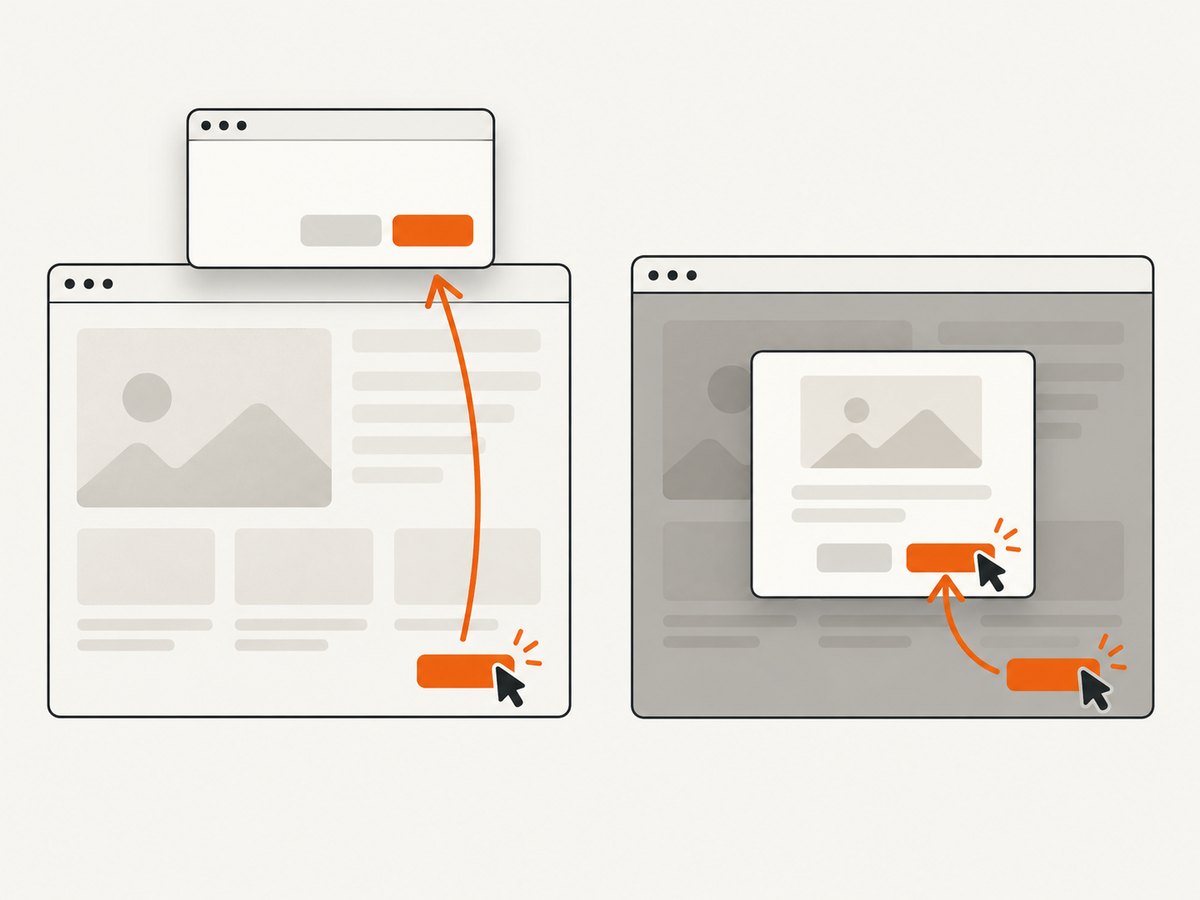
// Example for a site-specific HTML modal:
await page.locator('[role="dialog"] button.confirm').click();
The selector above is an example shape, not a universal selector. Inspect the actual page for its accessible role, button name, or CSS structure, and choose a locator that identifies the intended control. If the modal is rendered inside a frame, work with the relevant frame rather than assuming it belongs to the main page.
7. Troubleshooting
| Symptom | Likely cause | Fix |
|---|---|---|
| The click or navigation appears stuck. | A JavaScript dialog opened but was not handled, or the handler is awaiting work before responding. | Register the listener before the action and promptly await accept() or dismiss(). |
The dialog handler never runs. |
The interface is an HTML modal, or the listener was attached after the dialog appeared. | Attach before the triggering action. If it is HTML, inspect the DOM and use a locator. |
| A prompt submits the wrong value. | The handler accepted a fixed value without checking the dialog or its default. | Check type() and, if useful, defaultValue(); pass the intended text to accept(value). |
| A confirmation takes the wrong branch. | The handler accepts or dismisses every dialog without considering type, message, and test intent. | Branch on type() and relevant message text, then assert the resulting page state. |
| A test’s click promise does not settle. | The click’s completion condition may depend on resolving the dialog. | Register a dialog promise first, trigger the click, resolve the dialog, then await the action promise as appropriate. |
| A dialog on another tab is not caught. | The listener is attached to a different Page. |
Attach a handler to the page that triggers the dialog. |
8. Performance, reliability, and cost
A dialog handler is small, but its timing affects the rest of the automation. Registering before the triggering action removes the common event-ordering race. Resolving the dialog quickly avoids making later page work wait on it. Keep network requests, long delays, and unrelated test assertions out of the response handler; collect the dialog facts, choose a response, and continue the assertions in the main test flow.
Reliability comes from making the expected type and outcome explicit. If a test expects a prompt, treat an alert or confirm as an unexpected condition and report it rather than silently accepting it. If a page can legitimately show several dialog types, document the policy in code and assert the result that matters. For ordinary HTML modals, wait for the relevant element and use a locator instead of waiting forever for a JavaScript dialog event.
The Puppeteer references used here do not establish a universal performance benchmark or a per-dialog cost. For cost planning, account for your browser runtime, infrastructure, and how many captures or test runs you perform; those depend on your deployment and workload. Avoid claiming that handling one dialog has a fixed cost without measuring your own environment.
Or skip the browser setup
If the goal is a clean screenshot rather than browser interaction testing, ScreenshotNeo provides a website screenshot API and MCP server. A single GET request returns an image or PDF. Its capture flow accepts cookie and consent banners and removes more than 60 known consent platforms, newsletter popups, and chat widgets before the shot; each step can be turned off. Bot checks, CAPTCHAs, blank pages, timeouts, failed loads, and cache hits cost nothing, and response headers report the page verdict and billing status. An MCP server provides take_screenshot, get_page_info, and capture_pdf tools for Claude, Cursor, and other MCP clients.
See the ScreenshotNeo API docs for configuration. This cURL call saves a WebP screenshot:
curl -G "https://api.screenshotneo.com/v1/shot" -d access_key=YOUR_API_KEY --data-urlencode url=https://stripe.com -o shot.webpPython:
import requests

r = requests.get(
    "https://api.screenshotneo.com/v1/shot",
    params={"access_key": "YOUR_API_KEY", "url": "https://stripe.com"},
    timeout=90,
)
open("shot.webp", "wb").write(r.content)
Node.js:
const q = new URLSearchParams({ access_key: 'YOUR_API_KEY', url: 'https://stripe.com' });
const res = await fetch(`https://api.screenshotneo.com/v1/shot?${q}`);
Use a free account for 1,000 screenshots a month with no card; paid plans start at $5 for 3,000. Sign up for ScreenshotNeo’s free plan.
FAQ
Can I read an alert’s text?
Yes. Call dialog.message() in the event handler before resolving the dialog.
Does accept('text') type into every dialog?
No. The optional text is for prompts and has no effect on other dialog types.
Why does a visible modal not trigger the event?
It may be part of the page’s HTML rather than a JavaScript dialog. Inspect its DOM and interact with its elements using locators.
Can I ignore the event?
A dialog that remains unresolved can block page activity. Choose and await an explicit response in the handler.
What should I do for beforeunload?
Choose the response that matches the navigation or close behavior your test is checking, then verify that outcome in the flow.


