How to Identify the Source URL of a Screenshot
Find the original page behind a screenshot with Google Lens, TinEye, text searches, metadata checks, and manual URL verification.

Direct answer: save the original screenshot, make a clean crop of the distinctive content, then search it with Google Lens and TinEye. Search visible text separately, inspect metadata as supporting evidence, and open each candidate page to compare the pixels, dimensions, surrounding context, and publication history. The earliest result you can find is a lead, not automatic proof of authorship.
1. Preserve the screenshot as evidence
Keep the original file unchanged. Create separate working copies so your searches do not destroy useful clues.
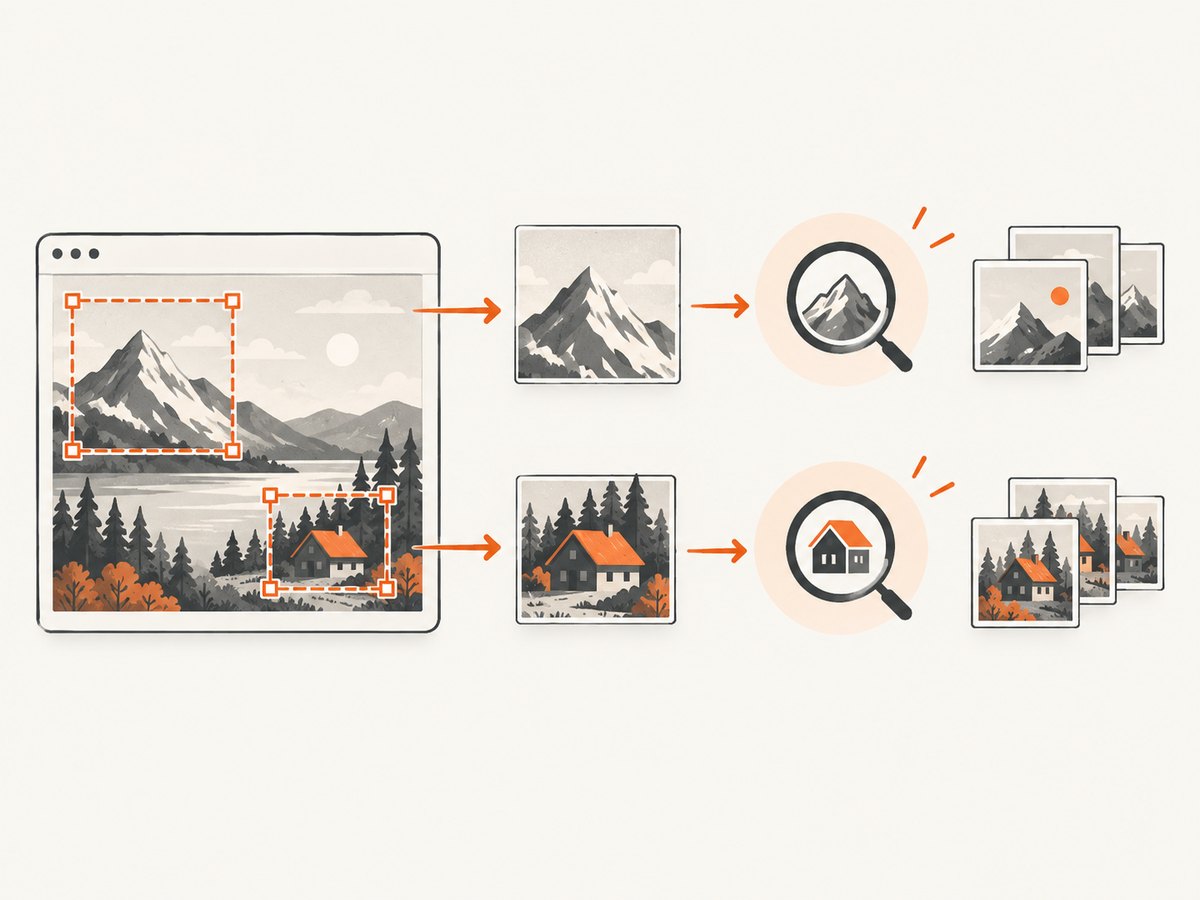
- Content crop: remove browser chrome and app controls, keeping the image or distinctive region.
- Clue crop: retain visible headlines, captions, usernames, timestamps, watermarks, URLs, and browser details.
- Working copy: use this for resizing, compression, OCR, and format conversion.
Record the filename, where you obtained it, and when you found it. A screenshot filename rarely identifies the source, but the surrounding clues can narrow the search.
2. Search with Google Lens
Google Search Help says Lens can search an uploaded image and return visual-similarity results, early uses, image metadata, and source context. Start with the clean crop, then search a smaller region if the full screenshot contains distracting interface elements.
- Open Google Lens or the Google app’s image-search option.
- Upload the screenshot or select it from your device.
- Crop to the image, logo, product, place, or other distinctive region.
- Review visually similar pages and any “early uses” or source-context signals.
- Open promising pages in new tabs and save their URLs for verification.
On Android, Google’s mobile instructions describe selecting a screenshot and narrowing the search to a region. Google also warns that credit and digital-source metadata can be modified, so treat those fields as clues rather than proof.
3. Search with TinEye
TinEye’s tutorial supports image-file uploads, drag and drop, clipboard pasting, and image URLs. It is useful for exact or near-exact copies, modified versions, image-history clues, and higher-resolution candidates.
- Open TinEye.
- Upload the original or a clean crop, or paste an image URL.
- Review exact and modified matches.
- Sort or filter results to investigate older or higher-quality candidates.
- Open the page behind each result; a matching image-host URL alone is not enough.
TinEye says its matching uses image recognition rather than the search image’s filename or metadata. That makes a clean crop valuable when the screenshot filename is generic or the file has been edited.
4. Search distinctive text separately
Image matching can fail when a screenshot is heavily cropped, recompressed, private, or absent from an index. Transcribe a visible headline, caption, username, watermark, or unusual phrase and search several short fragments in quotation marks.
- Search an exact phrase first, then remove one word at a time if results are too narrow.
- Try the username with the unusual phrase.
- Search a headline without punctuation and with likely spelling variants.
- If OCR is available, search multiple short fragments instead of trusting one imperfect transcription.
Page text often survives when image matching does not. Text results can also reveal reposts that embed the original image.
5. Inspect metadata, but do not stop there
Check EXIF and embedded fields for a creator, editing application, date, or source hint. Screenshots commonly strip camera fields, and metadata can be edited. Google explicitly warns that source and credit metadata may be modified. TinEye’s matching does not depend on the search image’s metadata.
Use metadata to generate search terms, then confirm those terms against the candidate page and the image itself.
6. Verify the candidate URL manually
A reverse-search result is a candidate, not a conclusion. For every promising URL:
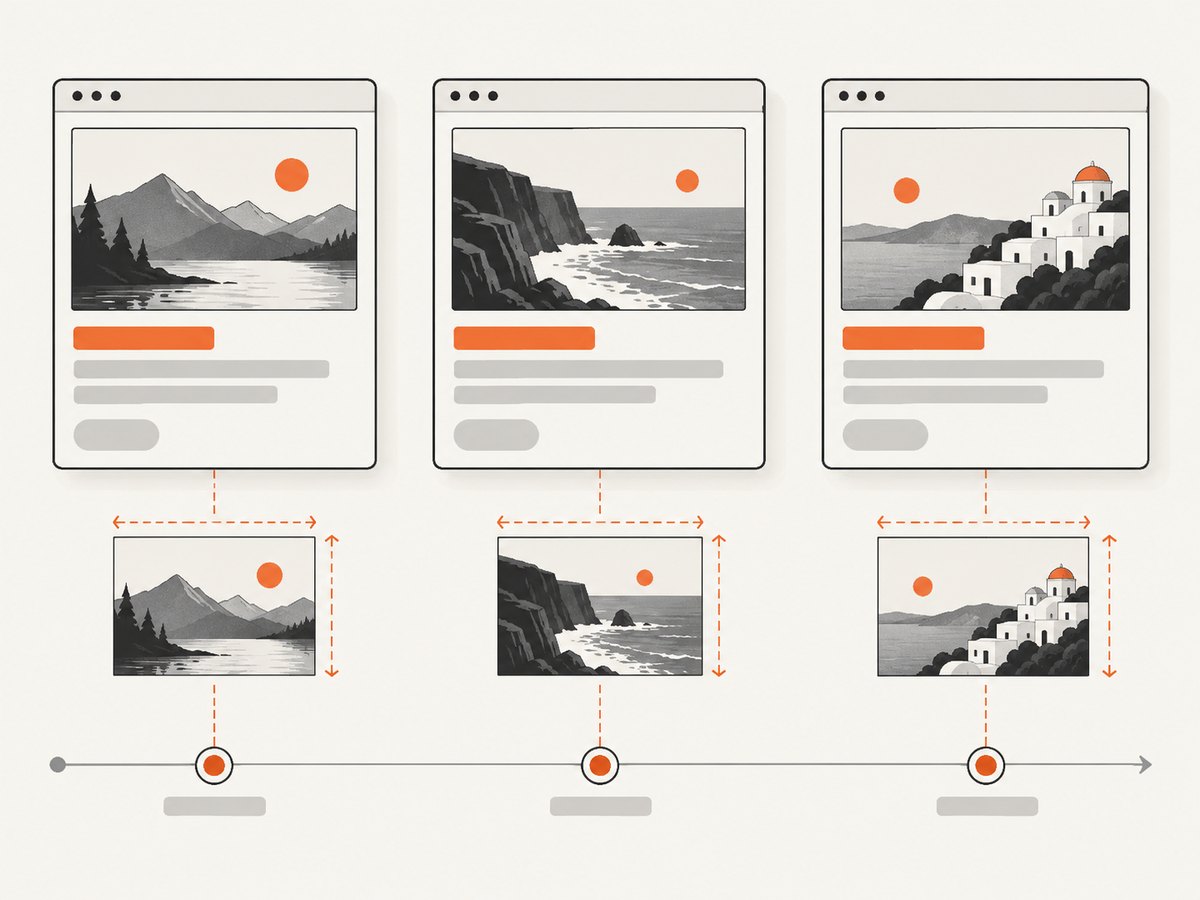
- Open the page rather than relying on the result thumbnail.
- Compare distinctive pixels, crop boundaries, text, logos, artifacts, and image dimensions.
- Inspect the caption, author, publication date, and surrounding page context.
- Check whether the page is a repost, archive, social embed, image host, or original publication.
- Look for an earlier page using the same image, while remembering that “first found” is not necessarily “first published.”
- Record the earliest discoverable URL and describe uncertainty if the evidence is incomplete.
When several pages match, prefer the page that contains original context and an earlier-use signal, but do not claim authorship unless the page provides evidence for it.
7. A repeatable investigation checklist
| Step | What to keep | Why it matters |
|---|---|---|
| Preserve | Original file and acquisition details | Prevents edits from removing clues |
| Crop | Content crop and clue crop | Improves matching while retaining context |
| Search visually | Google Lens results | Finds visual similarities and source context |
| Search copies | TinEye matches and sorting | Finds exact, modified, and higher-resolution copies |
| Search text | Quoted phrases and usernames | Finds pages that image indexes miss |
| Verify | Candidate URL, page context, dates | Separates originals from reposts |
8. Troubleshooting
| Problem | Likely cause | Fix |
|---|---|---|
| No visual matches | The image is private, new, cropped, or recompressed | Use a smaller distinctive crop, try the original file, and search visible text in quotes. |
| Too many unrelated results | Browser chrome or generic scenery dominates the screenshot | Crop to the logo, object, headline, or unusual visual region. |
| Only social posts appear | Reposts are indexed more heavily than the source | Inspect captions and outbound links, then search an exact phrase from the post. |
| Metadata points to a person or date | Fields may be stale or edited | Treat it as a lead and confirm it on the candidate page. |
| The earliest result looks newer than a repost | Crawl dates differ from publication dates | Compare page timestamps, archives, captions, and embedded image URLs. |
| The screenshot contains sensitive information | Uploading exposes the file to a third-party search service | Crop or redact unnecessary content first, and review each service’s current privacy terms before uploading. |
9. Performance, reliability, and cost considerations
- Run both engines for important investigations: Google Lens and TinEye have different indexes and ranking methods; agreement increases confidence, while disagreement calls for page-level checking.
- Use the smallest useful crop: it reduces irrelevant visual features and makes repeated searches faster.
- Keep an evidence log: save query crops, result URLs, page dates, and notes about why each candidate matched.
- Expect incomplete coverage: indexes change, pages may be private or unindexed, and recompression or cropping can defeat matching.
- Do not invent a hit rate: the reviewed official sources publish no universal reverse-image-search success rate.
10. Compare candidate pages consistently with ScreenshotNeo
After you find possible source URLs, consistent captures make visual comparison easier across pages, devices, and states. ScreenshotNeo is a website screenshot API and MCP server. It can capture a candidate URL as PNG, JPEG, WebP, or PDF, including full pages or a selected element, with custom viewport and device settings.
Or skip the browser setup
Use one request to capture a candidate page for comparison. Cookie banners, newsletter popups, and chat widgets are removed before the shot. Bot checks, blank pages, timeouts, failed loads, and cache hits are not billed, and response headers identify the page verdict and billing status. An MCP server lets Claude, Cursor, and other MCP clients take screenshots. The Free plan includes 1,000 screenshots a month with no card; paid plans start at $5 for 3,000 shots.
See the ScreenshotNeo API documentation for all options.
cURL
curl -G "https://api.screenshotneo.com/v1/shot" -d access_key=YOUR_API_KEY --data-urlencode url=https://example.com/candidate -o candidate.webpPython
import requests

r = requests.get(
    "https://api.screenshotneo.com/v1/shot",
    params={"access_key": "YOUR_API_KEY", "url": "https://example.com/candidate"},
    timeout=90,
)
r.raise_for_status()
open("candidate.webp", "wb").write(r.content)
Node.js
import { writeFile } from 'node:fs/promises';

const q = new URLSearchParams({ access_key: 'YOUR_API_KEY', url: 'https://example.com/candidate' });
const res = await fetch(`https://api.screenshotneo.com/v1/shot?${q}`);
if (!res.ok) throw new Error(`ScreenshotNeo returned ${res.status}`);
await writeFile('candidate.webp', Buffer.from(await res.arrayBuffer()));
For source verification, useful options include full-page capture, an element CSS selector, custom viewport or device presets, retina scale, dark mode, custom CSS or JavaScript, click actions, selector or network-idle waits, hidden selectors, blocked resources, custom headers and cookies, timezone and geolocation, resizing, caching with a chosen TTL, and PDF output. Capture the same candidate with the same viewport and crop dimensions so pixel comparisons are meaningful. Bulk capture supports up to 100 URLs per call when you are checking a result set.
Create a free ScreenshotNeo account to get 1,000 screenshots a month with no card.
FAQ
Can a reverse search prove who created an image?
No. It can reveal matches and earlier discoverable uses. Authorship requires evidence from the page, creator, publication record, or other reliable context.
Should I search the full screenshot or a crop?
Search both when possible. Start with a clean crop of the distinctive content, then use the full screenshot to preserve clues such as usernames, timestamps, and browser details.
Is an image URL better than an uploaded file?
Neither is universally better. TinEye supports both. Use the original file when available; use an image URL when the hosted file is stable and publicly reachable.
Why do Google Lens and TinEye disagree?
Their indexes and ranking methods differ. Treat disagreement as a reason to inspect candidate pages and search distinctive text.
What should I report when no source is certain?
Report the earliest discoverable URL, the matching evidence, and the limits: private or unindexed pages, reposts, altered files, and uncertain publication dates.


