Image Rendering Formats and Options
Choose JPEG, PNG, WebP, AVIF or SVG with practical guidance on quality, transparency, browser support, fallbacks and delivery.
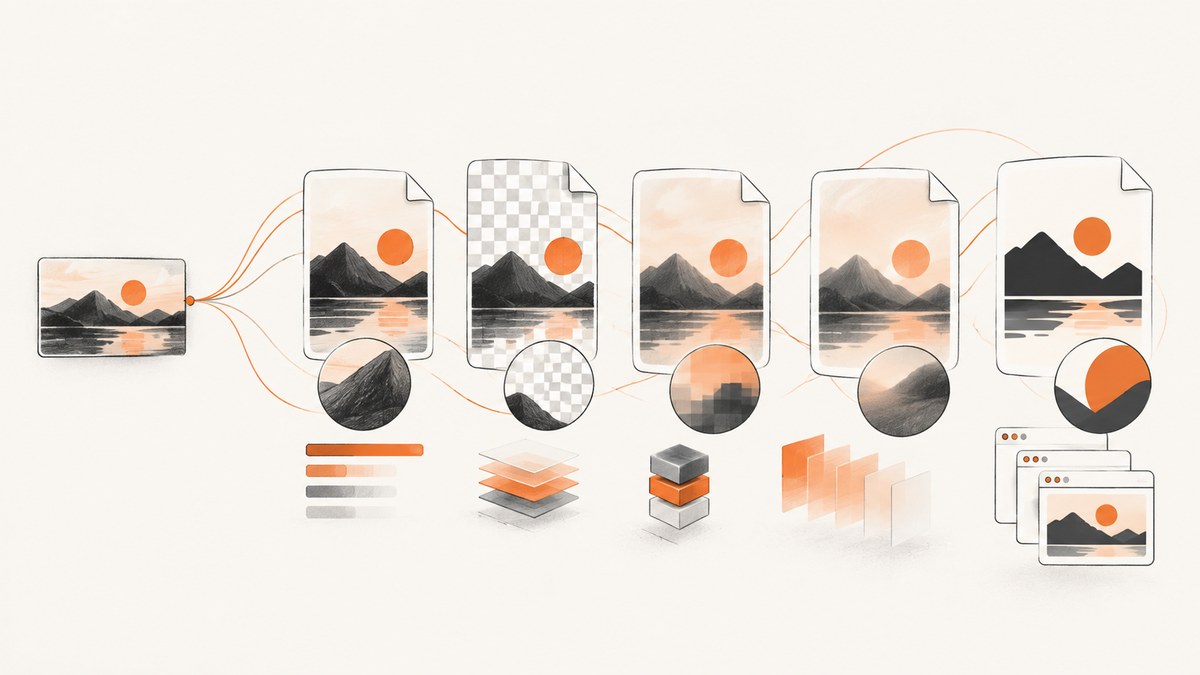
Image format selection affects visual quality, file size, transparency, animation, browser compatibility and how quickly a page can render. The practical answer is to match the format to the image: use SVG for scalable artwork, PNG for exact raster graphics and alpha transparency, JPEG for photographs and broad compatibility, WebP for efficient modern delivery, and AVIF when its compression and feature support fit your target browsers. Provide a fallback when your audience or required features need one.
1. Choose the format by image content
Start with the content rather than the file extension. A photograph, a screenshot containing small text, a logo and an animated illustration have different failure modes under compression.
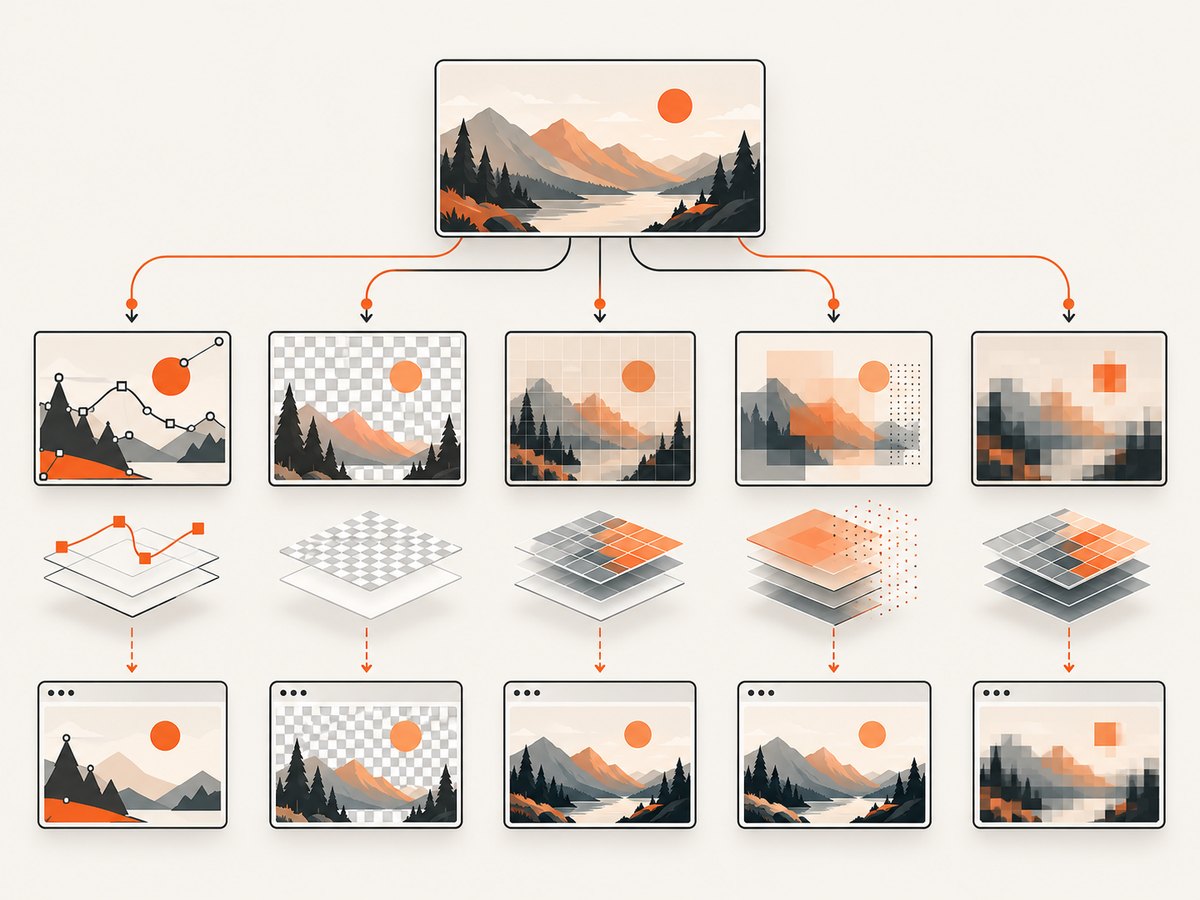
| Format | Best uses | Important tradeoffs |
|---|---|---|
| JPEG | Photographs, gradients and broad compatibility | Lossy; no transparency; repeated recompression can create artifacts |
| PNG | Screenshots, diagrams, line art and transparent graphics | Lossless and precise, but often larger than modern alternatives |
| WebP | Most web photographs, graphics and some animation | Supports lossy and lossless encoding, transparency and animation; use a fallback for older environments |
| AVIF | Still or animated images where high compression and advanced features matter | Supports transparency, animation and higher color depths; feature and historical browser support varies; no progressive rendering |
| SVG | Icons, diagrams, interface artwork, charts and logos | Vector rather than pixel-based; unsuitable for photographic pixels; sanitize untrusted SVG |
| GIF/APNG | Existing basic animations or workflows that require them | GIF is limited; WebP, AVIF or APNG may be better for new animation work |
| JPEG XL | Specialized high-resolution raster workflows | Browser support is not universal; provide a fallback |
For photographs, lossy encoding usually gives the best size-to-quality ratio. For screenshots, diagrams and text-heavy images, artifacts around sharp edges are more visible, so lossless PNG or carefully tuned lossless WebP is often safer. SVG keeps lines and shapes sharp at any display size because it stores drawing instructions rather than a pixel grid.
2. Lossy versus lossless rendering
Lossy compression removes information that is difficult to notice at a chosen quality level. It is effective for natural photographs but can blur text, introduce ringing around icons and create blocks in flat-color areas. Lossless compression preserves every pixel and is appropriate when exact reproduction matters.
MDN reports that lossy WebP images are on average 25–35% smaller than visually similar JPEG images, while lossless WebP is typically 26% smaller than the same images in PNG format. These are averages, not guarantees: image dimensions, palette complexity, encoder settings and content determine the result. Compare your actual assets at the display sizes your users receive.
A repeatable quality check
- Export a representative photograph, screenshot, illustration and transparent logo.
- Encode each candidate format at the quality settings you plan to deploy.
- Compare file bytes and inspect 100% crops of text, diagonals, faces, gradients and transparent edges.
- Check the rendered result on the slowest target device and browser versions.
- Keep the smallest file that preserves the details users need to read or recognize.
3. Transparency, animation and progressive display
PNG, WebP and AVIF can carry alpha transparency. JPEG cannot, so a transparent logo exported as JPEG receives a solid background. SVG can represent transparent regions naturally. Verify that your decoder and image pipeline preserve the alpha channel; an opaque conversion during resizing is a common source of unexpected rectangles.
WebP and AVIF support animation, and APNG is another lossless animation option. GIF remains widely recognized but has a limited color palette. AVIF does not support progressive rendering according to MDN, so an AVIF image may not provide the same incremental visual feedback as a progressively encoded JPEG. If progressive display is part of your experience, test it explicitly.
4. Browser support and fallbacks
Current major browsers broadly support WebP, and AVIF is supported in Chrome, Edge, Opera, Safari and Firefox, but feature support and historical versions differ. Confirm the exact browser versions, embedded webviews and crawlers that matter to your product before removing a fallback.
The HTML <picture> element lets the browser select an appropriate representation. Put modern formats first and a useful fallback <img> last:
<picture>
  <source srcset="hero.avif" type="image/avif">
  <source srcset="hero.webp" type="image/webp">
  <img src="hero.jpg" alt="A mountain lake at sunrise" width="1600" height="900">
</picture>
Use srcset and sizes when the same image is displayed at different widths:
<img
  src="photo-960.jpg"
  srcset="photo-480.webp 480w, photo-960.webp 960w, photo-1440.webp 1440w"
  sizes="(max-width: 700px) 100vw, 70vw"
  alt="Coastal cliffs"
  width="1440"
  height="900"
>
The fallback should be a format your required audience can display, not merely the smallest file. Always provide meaningful dimensions to reduce layout shift and an accurate alternative description.
5. Correct MIME types and delivery
Serve each representation with its actual media type: image/jpeg, image/png, image/webp, image/avif or image/svg+xml. A correct Content-Type helps browsers, caches and security controls handle the file correctly.
HTTP content negotiation can use the browser’s Accept header to select a representation, but behavior depends on your server, CDN and cache key configuration. If a CDN varies responses by Accept, configure and test that variation so one browser does not receive another browser’s format from a shared cache. The picture approach is easier to inspect because the alternatives are explicit in HTML.
Cache and naming checklist
- Use immutable, content-hashed filenames such as
hero.3f91.webpwhen assets are versioned. - Set long freshness times only when a filename changes whenever the bytes change.
- Keep the fallback URL stable and monitor missing or failed variants.
- Do not generate dozens of nearly identical widths; choose a small set based on real layout breakpoints.
- Record the source dimensions, encoder, quality and color profile so an export can be reproduced.
6. Rendering screenshots and generated images
When the source is a rendered webpage, the capture format is another output decision. PNG is useful for crisp interface text and exact pixels. JPEG can be smaller for photographic pages but introduces artifacts around text. WebP is a strong general web output when your consumer supports it. PDF is preferable when the requirement is a printable document rather than a raster image.
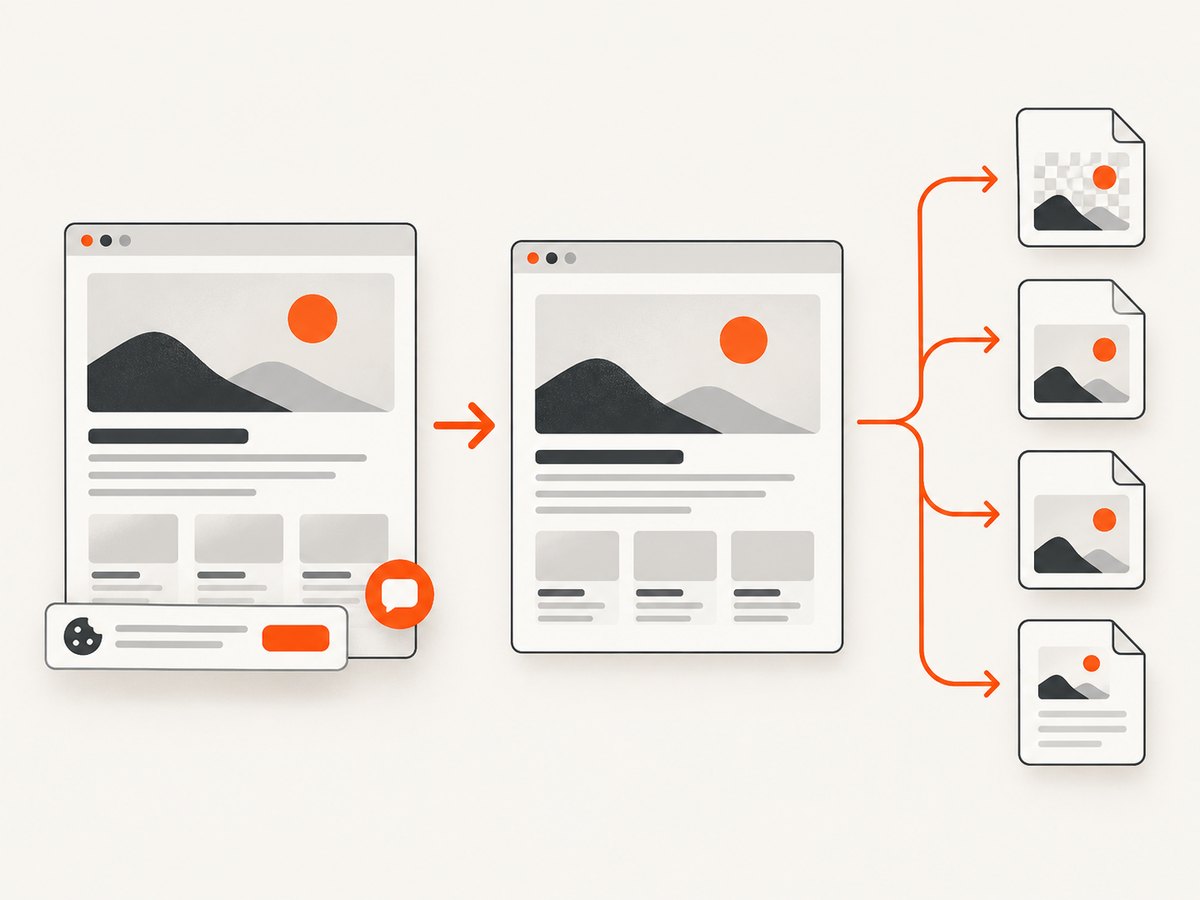
Capture dimensions matter as much as the extension. Set the viewport, device scale, full-page behavior and any element selector before judging quality. A retina scale increases pixel density and file size; it does not repair a page that loaded at the wrong viewport or before its fonts and images were ready.
DIY browser capture with Playwright
The following Node.js script captures a page as PNG, WebP or JPEG. Install Playwright with npm install playwright, then run it with Node.js.
import { chromium } from 'playwright';

const browser = await chromium.launch();
const page = await browser.newPage({
  viewport: { width: 1440, height: 900 },
  deviceScaleFactor: 1
});

await page.goto('https://example.com', { waitUntil: 'networkidle' });
await page.screenshot({
  path: 'page.webp',
  type: 'webp',
  quality: 82,
  fullPage: true
});
await browser.close();
For PNG, remove quality and set type: 'png'. For JPEG, use type: 'jpeg' and a quality from 0 to 100. JPEG does not support transparency. Playwright also supports clipping to an element, masking, animations control and a transparent page background when the page itself permits it.
7. Or skip the browser setup
ScreenshotNeo provides a website screenshot API. One GET request returns PNG, JPEG, WebP or PDF, while options cover full-page capture, lazy images, CSS selectors, dark mode, device presets, retina scale, custom CSS and JavaScript, clicks, waits, blocked resources, headers, cookies, user agents, timezone, geolocation, resizing, caching, signed links, asynchronous jobs, webhooks and bulk capture. See the ScreenshotNeo documentation for parameter names and the OpenAPI specification.
curl -G "https://api.screenshotneo.com/v1/shot" -d access_key=YOUR_API_KEY --data-urlencode url=https://stripe.com -o shot.webpimport requests
r = requests.get("https://api.screenshotneo.com/v1/shot", params={"access_key": "YOUR_API_KEY", "url": "https://stripe.com"}, timeout=90)
open("shot.webp", "wb").write(r.content)const q = new URLSearchParams({ access_key: 'YOUR_API_KEY', url: 'https://stripe.com' });
const res = await fetch(`https://api.screenshotneo.com/v1/shot?${q}`);ScreenshotNeo removes cookie and consent banners, newsletter popups and chat widgets before capture; each step can be disabled. Bot checks, blank pages, timeouts, failed loads and cache hits cost nothing, and the response identifies the result with X-Page-Verdict and X-Billed headers. Its MCP server gives Claude, Cursor and other MCP clients take_screenshot, get_page_info and capture_pdf tools. The free plan includes 1,000 screenshots per month without a card; paid plans start at $5 for 3,000. Create a free ScreenshotNeo account.
8. Options that change output quality
Dimensions and scaling
Capture at the viewport your users need. Full-page mode may produce very tall images; use PDF or segmented captures when downstream systems impose pixel limits. Retina scale improves sharpness on high-density displays but multiplies pixels and memory use. Resize after capture only when the target dimensions and interpolation quality are known.
Color and metadata
Keep a consistent color profile through export and delivery. A mismatch between wide-gamut source files and an unmanaged display can make colors appear different. Strip metadata when privacy or byte size matters, but retain copyright or color information when your workflow requires it.
Transparent backgrounds
Use PNG, WebP or AVIF when the consumer needs alpha. Test against both light and dark backgrounds because semitransparent anti-aliased edges can reveal a matte color from the export process.
9. Performance, reliability and cost
- Performance: choose dimensions that match the rendered slot, use responsive sources, compress at the display size and avoid shipping a multi-megapixel image into a small card.
- Reliability: retain a fallback, validate MIME types, monitor decode failures and ensure generated URLs remain available for the cache lifetime you advertise.
- Capture reliability: wait for a selector, a deliberate delay or network idle when fonts and lazy images affect the result. Block analytics and advertising requests when they add delay and are not part of the visual requirement.
- Cost: storage and transfer scale with bytes, while browser capture also consumes compute and time. Cache stable captures with a chosen TTL and use bulk or asynchronous jobs for large sets.
10. Troubleshooting common failures
| Symptom | Likely cause | Fix |
|---|---|---|
| White or incomplete screenshot | Capture happened before navigation, fonts or lazy images finished | Wait for a selector, network idle or a measured delay; verify the page independently |
| Text looks soft | JPEG quality is too low or the image was resized repeatedly | Use PNG or WebP lossless for text-heavy graphics, increase quality and resize once |
| Transparent logo has a box | JPEG export or an opaque conversion step | Use PNG, WebP or AVIF and verify alpha preservation |
| Modern format fails in one browser | Unsupported version or unsupported feature | Keep a JPEG or PNG fallback in <picture> and test the target browser set |
| Wrong image from a CDN cache | Cache does not vary by format negotiation | Use explicit <picture> URLs or configure the cache key for Accept |
| Screenshot contains a consent dialog | The capture workflow did not interact with the page | Accept or remove the banner in browser automation, or use ScreenshotNeo’s consent handling |
| Large capture times out | Full-page resources, scripts or third-party requests are slow | Block unnecessary resource types, set a realistic timeout, cache stable pages or use asynchronous capture |
11. Practical decision checklist
- Is the source photographic, text-heavy, vector or animated?
- Does it require transparency or exact pixel reproduction?
- Which browser versions, webviews and crawlers must display it?
- Can you provide a fallback with
<picture>? - Are width, height,
srcsetandsizesaccurate for the layout? - Have you measured encoded bytes and inspected difficult details at 100%?
- Are MIME types, cache keys, expiry and invalidation correct?
- For webpage screenshots, did the capture wait for fonts, lazy images and dynamic content?
12. FAQ
Is WebP always better than JPEG?
No. WebP can reduce bytes at similar visual quality, but JPEG has broad compatibility and may be simpler for a legacy audience. Measure your assets and keep a fallback when needed.
Should screenshots be PNG or WebP?
Use PNG when exact pixels, transparency or maximum compatibility matter. Use WebP when your consumers support it and the measured size reduction is valuable.
When should I choose SVG?
Choose SVG for icons, diagrams, logos and other artwork that must remain sharp at multiple sizes. Use raster formats for photographs and pixel-based captures.
Does AVIF replace every other format?
No. AVIF has useful compression and features, but browser history and feature support vary, and it does not provide progressive rendering. Supply a tested fallback.
How do I avoid layout shift?
Provide accurate width and height attributes or an equivalent aspect-ratio reservation before the image loads.
What is the simplest way to automate webpage screenshots?
A browser library such as Playwright gives control over navigation and rendering. A hosted API such as ScreenshotNeo removes browser infrastructure and adds capture options, cleanup and usage reporting.


