How to Add an Image Watermark to a PDF in Python
Add image watermarks to every PDF page in Python with PyMuPDF or pypdf, including scaling, opacity, rotation, underlays, overlays, and troubleshooting.

To add an image watermark to a PDF in Python, open the document, place the image in each page’s coordinate space, and save a new PDF. PyMuPDF is the shortest implementation when the image should cover each page or a simple rectangle. pypdf is better when you need explicit underlay or overlay behavior, transformations, rotation handling, or selective page merging.
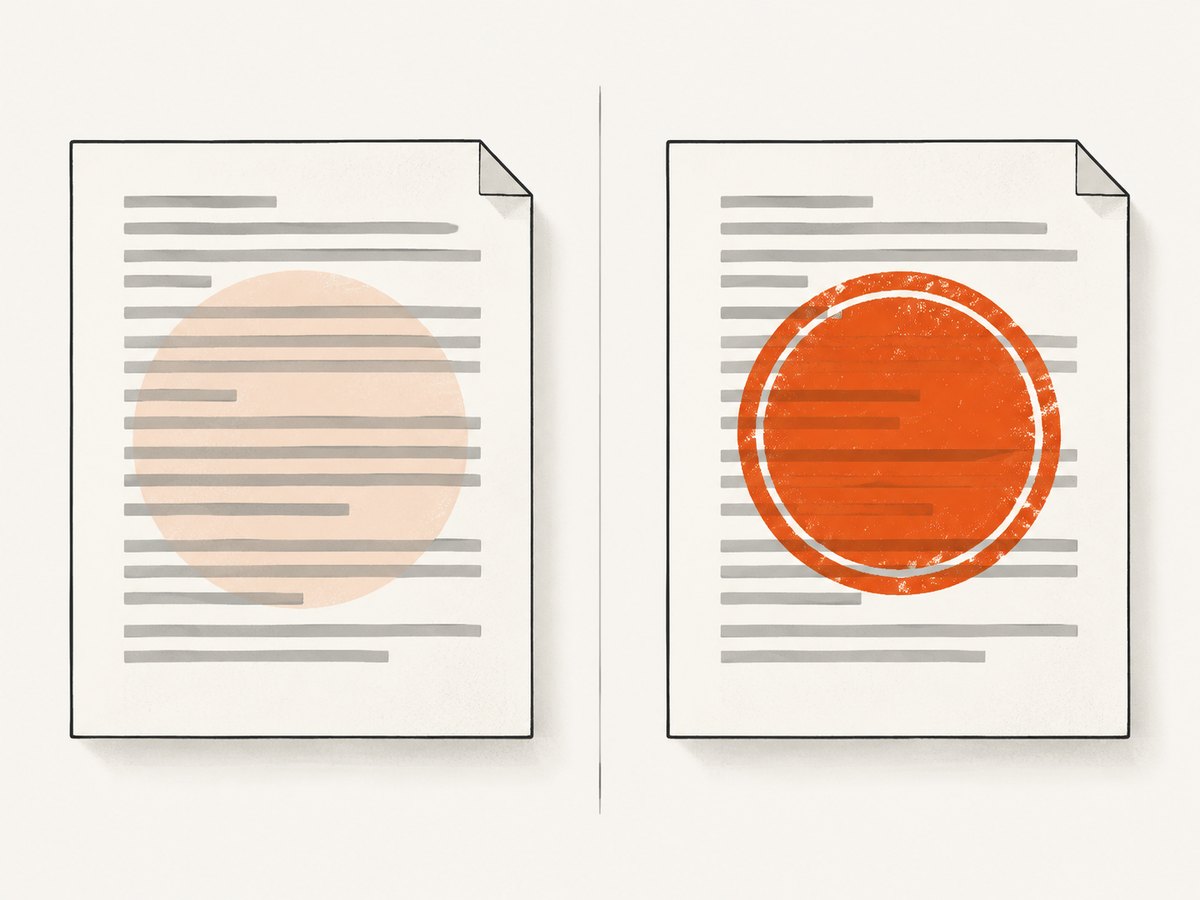
A watermark normally sits behind existing page content. A stamp sits above it. The distinction matters: pypdf describes a watermark as background content and a stamp as content placed on top. PyMuPDF’s documented approach inserts an image at the base of each page. See the PyMuPDF image insertion documentation and pypdf watermark documentation.
1. Install the libraries and inspect your files
Create an isolated environment, then install the library you plan to use. Pillow is useful for checking image dimensions and converting an image to a one-page PDF for the pypdf workflow.
python -m venv .venv
source .venv/bin/activate       # Windows: .venv\\Scripts\\activate
python -m pip install --upgrade pip
python -m pip install PyMuPDF Pillow pypdf
Keep the source PDF and watermark image in a known directory. PNG is usually the most convenient watermark format because it can contain transparency. JPEG has no alpha channel, so its background will be opaque unless you edit it first.
2. Add an image watermark to every page with PyMuPDF
This is the direct, runnable version. It inserts the image across each page’s full bounding rectangle and places it underneath existing page content with overlay=False.
import pymupdf

SOURCE = "document.pdf"
WATERMARK = "watermark.png"
OUTPUT = "watermarked-document.pdf"

doc = pymupdf.open(SOURCE)
try:
    for page in doc:
        page.insert_image(
            page.bound(),
            filename=WATERMARK,
            overlay=False,
        )
    doc.save(OUTPUT)
finally:
    doc.close()

print(f"Saved {OUTPUT}")
page.bound() returns the page rectangle in its current coordinate system. Filling that rectangle makes the image cover the page. If your watermark is a small logo, use a custom rectangle instead of the full page:
import pymupdf

with pymupdf.open("document.pdf") as doc:
    for page in doc:
        rect = pymupdf.Rect(
            page.rect.width - 180,
            page.rect.height - 90,
            page.rect.width - 30,
            page.rect.height - 30,
        )
        page.insert_image(rect, filename="logo.png", overlay=False)
    doc.save("watermarked-document.pdf")
PDF coordinates are measured in points. One inch is 72 points. The origin and page rotation can affect how a rectangle appears, so inspect a rotated source document before choosing fixed coordinates.
Preserve aspect ratio and transparency
When an image is forced into a rectangle with a different aspect ratio, it can look stretched. Prepare the watermark with the desired proportions, or calculate a fitted rectangle that keeps the original width-to-height ratio. Put opacity into the PNG before insertion when possible. This keeps the PDF operation predictable and avoids pretending that the PDF library is applying a particular alpha value.
When inserting the same image repeatedly, reuse its image data where the library supports it. PyMuPDF documents image reuse as a way to reduce memory use and repeated output overhead. For very large documents, this can matter more than the Python loop itself.
3. Put the watermark above or below page content
Use overlay=False for a background watermark. Existing text and images remain visible above it. Use overlay=True when the image must be a foreground stamp, such as a review mark or approval seal.
import pymupdf

doc = pymupdf.open("document.pdf")
for page in doc:
    page.insert_image(
        pymupdf.Rect(40, 40, 220, 120),
        filename="stamp.png",
        overlay=True,
    )
doc.save("stamped-document.pdf")
doc.close()
A foreground image can obscure text. A background image can become hard to see on dark or image-heavy pages. If readability matters, use a prepared image with subtle opacity and test it against the darkest and lightest page in the document.
4. Use pypdf when you need transformations or selective pages
pypdf treats an image watermark as a one-page PDF that is merged into each source page. Pillow performs the image-to-PDF conversion, and merge_transformed_page applies scaling, translation, or rotation.
from io import BytesIO
from PIL import Image
from pypdf import PdfReader, PdfWriter, Transformation


def image_to_pdf(path):
    image = Image.open(path)
    buffer = BytesIO()
    image.save(buffer, "PDF")
    buffer.seek(0)
    return PdfReader(buffer)

source = PdfReader("document.pdf")
watermark_page = image_to_pdf("watermark.png").pages[0]
writer = PdfWriter()

for index, page in enumerate(source.pages):
    # Apply only to pages 1, 3, 5 ...; remove this condition for every page.
    if index % 2 == 0:
        page.merge_transformed_page(
            watermark_page,
            Transformation().scale(0.35).translate(tx=80, ty=120),
            over=False,
        )
    writer.add_page(page)

with open("watermarked-document.pdf", "wb") as output:
    writer.write(output)
Set over=True for a foreground stamp. The transformation chain controls size and position. Adjust the scale and translation for the page size used by your documents; the same values will not produce the same visual location on Letter, A4, and custom pages.
Handle rotated pages
Some PDFs store a page rotation property instead of rotating the page’s content permanently. That can make a watermark appear sideways or displaced. pypdf recommends transferring rotation into the content before merging:
from pypdf import PdfReader, PdfWriter

reader = PdfReader("document.pdf")
writer = PdfWriter()
for page in reader.pages:
    if page.rotation:
        page.transfer_rotation_to_content()
    writer.add_page(page)
with open("normalized.pdf", "wb") as output:
    writer.write(output)
Apply the normalization before the watermark merge, then use coordinates based on the normalized page dimensions.
5. Choose pages, positions, and sizes deliberately
| Requirement | PyMuPDF approach | pypdf approach |
|---|---|---|
| Every page, full-page background | insert_image(page.bound(), overlay=False) |
Merge a watermark page with over=False |
| Small logo in a corner | Pass a custom Rect |
Use Transformation().scale().translate() |
| Foreground stamp | overlay=True |
over=True |
| Only selected pages | Use enumerate(doc) and a page-number condition |
Condition the merge before add_page |
| Rotated source pages | Inspect page rotation and rectangles | Call transfer_rotation_to_content() before merging |
For a diagonal watermark, rotate the pypdf transformation. For PyMuPDF, create a rotated watermark image first or use the image placement options supported by the installed version. Keep the source image’s aspect ratio and leave enough margin that the watermark does not clip at the page edge.
6. Validate the output instead of trusting the save call
After writing the file, reopen it and verify page count, dimensions, and that the output is readable. A successful write does not prove that the image is visible in the intended location.
import pymupdf

with pymupdf.open("watermarked-document.pdf") as check:
    print("pages:", check.page_count)
    for number, page in enumerate(check, start=1):
print(number, page.rect, "rotation:", page.rotation)- Open the first, middle, and last pages in a PDF viewer.
- Check a portrait page and a landscape page if both exist.
- Check pages with existing images and dark backgrounds.
- Confirm links, selectable text, annotations, and form fields still behave as required by your workflow.
- Compare the output file size with the input; an unexpected increase often indicates repeated image embedding or an overly large source image.
7. Common errors and fixes
ModuleNotFoundError: No module named 'pymupdf'
Install the package in the same interpreter that runs the script: python -m pip install PyMuPDF. The import name is pymupdf.
The watermark is invisible
The image may be transparent, outside the page rectangle, or underneath an opaque page background. Temporarily use overlay=True and a bright test image. Print page.rect and verify the rectangle coordinates.
The watermark covers text
Use an image with deliberate transparency, reduce its dimensions, or switch to overlay=False. A foreground stamp is expected to cover content where the two overlap.
The logo is stretched
Your target rectangle has a different aspect ratio from the image. Fit the image to a proportional rectangle before inserting it, or prepare a canvas with the intended proportions.
The watermark is rotated incorrectly
Normalize page rotation before a pypdf merge with transfer_rotation_to_content(). For PyMuPDF, inspect page.rotation and test a page with the same orientation.
Output size becomes very large
Downsample an oversized watermark, use an appropriate PNG or JPEG format, and reuse the same image data when inserting it on many pages. Do not convert a photographic watermark to an unnecessarily large lossless image.
Encrypted or damaged input fails
Authenticate an encrypted PDF before processing, or create a readable copy with the owner’s permission. If the file is malformed, repair or re-export it first; watermark code cannot reliably recover arbitrary damaged cross-reference tables.
8. Performance, reliability, and cost considerations
Watermarking is usually linear in the number of pages, but memory and output size depend heavily on the watermark image and the PDF’s existing content. Reusing one image, avoiding huge source pixels, and saving once after the loop are practical improvements. Do not repeatedly open and save the PDF for each page.
For reliable batch jobs, write to a temporary output path and rename it only after the writer closes successfully. Preserve the original file, record the input and output page counts, and treat a viewer check as part of release validation. If you process untrusted PDFs, isolate the job and set operational limits for file size, page count, and execution time.
Both PyMuPDF and pypdf are libraries you run yourself, so there is no per-page API charge. Your costs are compute, storage, and any hosted worker or queue you use. A hosted screenshot service is relevant when the source is a web page rather than an existing PDF.
9. Or skip the browser setup
If the PDF starts as a web page that you need to capture before watermarking, ScreenshotNeo can produce the clean PDF or image through one request. It accepts the cookie or consent banner like a visitor and removes more than 60 known consent platforms, newsletter popups, and chat widgets before capture. Bot checks, blank pages, failed loads, timeouts, and cache hits are not billed, and response headers identify the page verdict and billing status.
See the ScreenshotNeo API documentation for all options. The basic calls are:
curl -G "https://api.screenshotneo.com/v1/shot" -d access_key=YOUR_API_KEY --data-urlencode url=https://stripe.com -o shot.webpimport requests
r = requests.get("https://api.screenshotneo.com/v1/shot", params={"access_key": "YOUR_API_KEY", "url": "https://stripe.com"}, timeout=90)
open("shot.webp", "wb").write(r.content)const q = new URLSearchParams({ access_key: 'YOUR_API_KEY', url: 'https://stripe.com' });
const res = await fetch(`https://api.screenshotneo.com/v1/shot?${q}`);ScreenshotNeo also supports PDF paper size, margins, landscape mode, page ranges, full-page lazy-image loading, CSS selectors, custom CSS and JavaScript, waits, blocked resources, headers, cookies, user agents, timezone, geolocation, caching, signed links, asynchronous jobs, webhooks, bulk capture, and an MCP server with take_screenshot, get_page_info, and capture_pdf for AI agents. One thousand screenshots per month are free with no card; paid plans start at $5 for 3,000. Create a free ScreenshotNeo account.
10. FAQ
Can I watermark only the first page?
Yes. Process page index zero only, or condition the pypdf merge on the page number.
Should a watermark be an image or text?
Use an image for logos, signatures, and prepared artwork. Use PDF text drawing when the watermark must remain selectable or generated dynamically.
Can I remove a watermark later?
Only if it is stored as a separable object or annotation and your tooling can identify it. A merged watermark may be difficult or impossible to remove without reconstructing the page.
Why does the same code look different on A4 and Letter?
Fixed point coordinates represent different proportions on different page sizes. Calculate positions from page.rect.width and page.rect.height when the watermark should keep the same relative placement.
Which library should I start with?
Start with PyMuPDF for a concise every-page watermark. Choose pypdf when explicit PDF-page merging, transformations, rotation normalization, or selective composition is central to the workflow.


