How to Import Designs from Canva, Figma, and Polotno
Learn which formats move between Canva, Figma, and Polotno, how to preserve editability, and how to fix common SVG and text problems.

Short answer: There is no universal native project import between Canva, Figma, and Polotno. Choose an interchange format based on your destination and how much editability you need. SVG is usually the best bridge for vector artwork. For Polotno, the documented Figma workflow is to export a frame as SVG, convert it to Polotno JSON, and load that JSON into the editor. Always inspect text, masks, patterns, markers, and effects after conversion.
This guide explains the practical routes between all three tools, what remains editable, where content gets flattened, and how to build a repeatable import pipeline.
Choose the route before exporting
| Source | Destination | Recommended bridge | Main limitation |
|---|---|---|---|
| Canva | Figma | SVG for vectors; PNG/JPG for raster images | Not a full Canva project migration |
| Figma | Canva | SVG, PDF, or PSD depending on the asset | Some imports flatten layers or text |
| Figma | Polotno | Frame export as SVG, then @polotno/svg-import |
SVG importer is beta; outlined text is not editable |
| Canva | Polotno | SVG, then convert to Polotno JSON | Canva may outline fonts and advanced SVG can be lost |
| Polotno | Polotno | Native Polotno JSON | JSON is intended for Polotno’s own structure |
Before exporting, answer five questions:
- Are you moving one asset, one frame, or a complete multi-page project?
- Must text remain editable?
- Are gradients, masks, patterns, markers, or blend modes essential?
- Does the destination accept the format in its normal editor, or does it require an SDK package?
- Do you own or have permission to reuse every image, font, and illustration?
Canva to Figma
Vector asset workflow
- Open the Canva design and select the page or individual vector asset.
- Export or copy it as SVG when Canva offers that option.
- In Figma, drag the SVG onto the canvas, use the import command, or paste the copied SVG.
- Ungroup and inspect fills, strokes, clipping paths, and text.
Figma recommends SVG for moving assets between design tools because it is lossless, but its cross-tool route can omit SVG marker and pattern elements. Recreate those elements in Figma if they are visually important. For photographs and other raster content, use PNG or JPG; Figma documents those image formats for designs (Figma image formats).
Canva project limitations
Do not describe this as importing a Canva project into Figma. Figma’s file browser supports formats such as .fig, .sketch, PNG/JPG, and PPTX, but that list does not establish native Canva project compatibility (Figma file import guide). A Canva design with many pages, comments, animations, or app-specific effects normally requires page-by-page export and reconstruction.
Figma to Canva
- In Figma, select the frame or layer you need.
- Export as SVG for vector editability, PNG/JPG for a finished image, or PDF when Canva’s document workflow is the target.
- Upload the exported file in Canva and place it in the destination design.
- Check dimensions, fonts, transparency, and layer order before sharing.
Canva documents SVG uploads below 3 MB and SVG 1.1 preparation requirements in its upload guidance (Canva file formats and requirements). A PDF import is useful for preserving page appearance, but Canva says imported PDF pages become individual images in an A4 document, so the text is not automatically editable. AI imports can also flatten some layers. These behaviors differ from a vector SVG import.
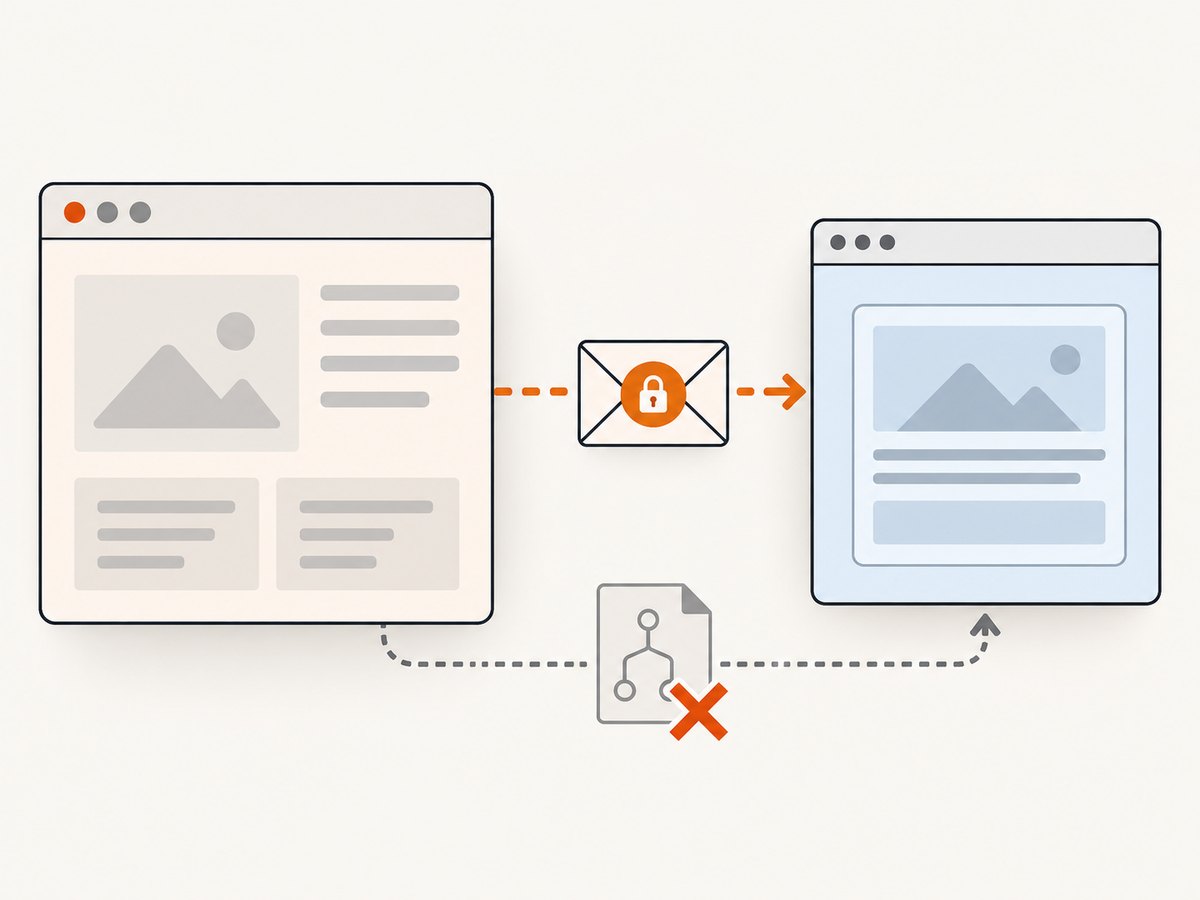
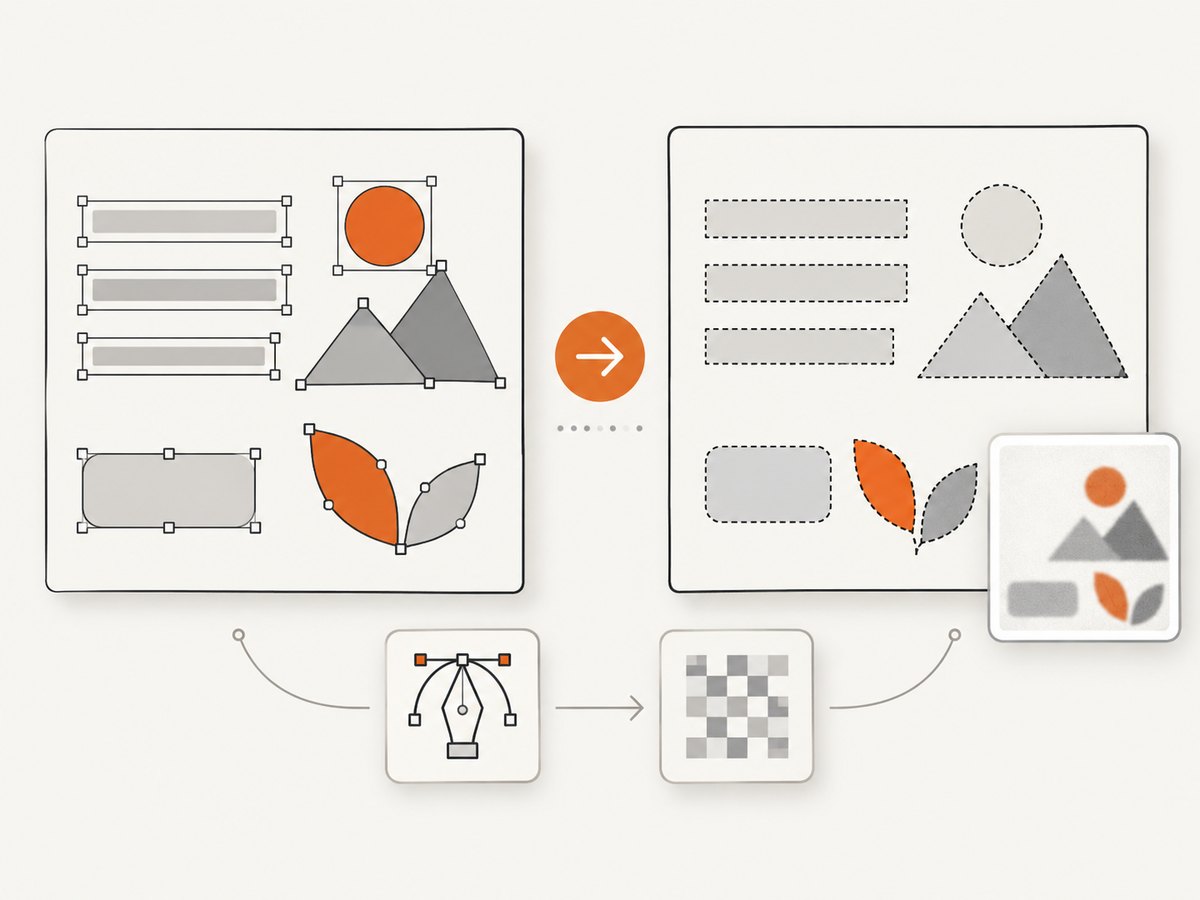
Figma’s “Outline text” export setting is a critical decision. Leave text unoutlined when you want a chance of editing it in the destination. Outline text converts letters to paths; it preserves appearance but removes normal text editing and depends on the destination’s SVG parser.
Figma to Polotno
Polotno’s documented migration path is not a direct .fig import. Export a Figma frame as SVG, convert the SVG with @polotno/svg-import, then load the returned JSON into the Polotno store (Polotno import feature).
- In Figma, select a complete frame and export it as SVG.
- Keep “Outline text” off if editable text matters.
- Install and run the Polotno SVG importer in your application.
- Load the generated JSON with
store.loadJSON(). - Compare the imported result with the Figma frame at 100% zoom.
import { svgToJson } from '@polotno/svg-import';

const response = await fetch('/exports/design.svg');
const svg = await response.text();
const json = await svgToJson(svg);
store.loadJSON(json);
The exact helper signature can vary with the package version, so follow the current package documentation when wiring this into production. Polotno labels SVG import beta and warns that advanced SVG features may be unsupported (Polotno SVG Import). If a result is wrong, simplify nested groups, expand strokes, remove unsupported filters, or replace complex masks with flattened artwork.
Canva to Polotno
Use the same SVG bridge when Canva can export the design as SVG:
- Export the Canva page or asset as SVG.
- Check whether Canva outlined any fonts.
- Convert the SVG with
@polotno/svg-import. - Load the returned JSON into the Polotno store.
- Rebuild text or effects that did not survive conversion.
There is no documented direct Canva-native project import into Polotno. The official Polotno material describes SVG as the bridge from Canva and other vector editors. Text exported as SVG paths cannot become editable text in Polotno. If text editing is central, keep a separate text layer and recreate it in Polotno using an available font.
Polotno to other tools
For Polotno-to-Polotno transfer, save the design as Polotno JSON and load that JSON into the receiving store. Polotno also documents SVG, PDF, and PSD import packages, with PNG and JPEG among common output formats (Polotno import and export). Choose SVG when the destination needs vectors, PDF when the recipient is a document workflow, and PNG/JPEG when appearance matters more than editability.
Preserving editability
| Content | Best choice | What to verify |
|---|---|---|
| Live text | SVG with outline disabled | Font availability, line breaks, kerning |
| Simple vectors | SVG | Fills, strokes, clipping paths |
| Photos | PNG or JPG | Resolution, color profile, crop |
| Multi-page document | PDF or destination-native recreation | Page size and flattening |
| Polotno project | Polotno JSON | Schema compatibility and asset URLs |
Run a representative pilot before converting a library. Include one file with a long text paragraph, a font that is not universal, a gradient, a mask, a pattern, a transparent image, and multiple pages. The pilot reveals losses earlier than a bulk migration.
Common errors and fixes
Text is no longer editable
Cause: The source exported outlined text or the destination rasterized the page. Fix: Export with outlining disabled, install a matching font, or recreate text as a native destination text layer.
Patterns or arrowheads disappeared
Cause: Figma’s cross-tool SVG route can omit marker and pattern elements. Fix: Replace them with simpler paths or rebuild them in the destination.
SVG opens but looks different
Cause: Unsupported filters, masks, blend modes, nested groups, or stroke behavior. Fix: simplify the SVG, expand strokes, flatten only the affected effect, and import again.
Polotno import returns empty JSON
Cause: Invalid SVG markup, missing dimensions, or an importer error. Fix: open the SVG in a browser, validate its root element and viewBox, then test a minimal frame before adding complexity.
Canva upload rejects the SVG
Cause: File size or SVG version constraints. Fix: reduce embedded raster data, remove unnecessary metadata, and meet Canva’s documented 3 MB and SVG 1.1 requirements.
PDF looks correct but cannot be edited
Cause: Canva imports PDF pages as images in an A4 document. Fix: use SVG for vectors or rebuild text and layers in the destination.
Colors or dimensions changed
Cause: Different color profiles, document units, or page sizes. Fix: record the source width, height, and aspect ratio; set the destination page explicitly; compare a color reference and export a proof.
Performance and reliability for batch imports
- Convert one frame at a time and record source filename, dimensions, and destination status.
- Keep original exports beside converted JSON so a failed conversion can be repeated without reopening the source editor.
- Use deterministic filenames and content hashes to avoid importing the same asset twice.
- Validate JSON before loading it into an editor and reject malformed or unexpectedly large files.
- For production, save a preview PNG alongside editable JSON so reviewers can detect visual drift quickly.
- Expect conversion time and memory use to rise with embedded images, deep group nesting, and large page counts.
Or skip the browser setup
If your goal is to capture a design preview or published page as an image or PDF, ScreenshotNeo provides a single website screenshot API request. It is useful after you export a design to a preview URL and need repeatable renders for QA, documentation, or approvals.
See the ScreenshotNeo API documentation for all options. This basic call returns a WebP screenshot:
curl -G "https://api.screenshotneo.com/v1/shot" -d access_key=YOUR_API_KEY --data-urlencode url=https://stripe.com -o shot.webpimport requests
r = requests.get("https://api.screenshotneo.com/v1/shot", params={"access_key": "YOUR_API_KEY", "url": "https://stripe.com"}, timeout=90)
open("shot.webp", "wb").write(r.content)const q = new URLSearchParams({ access_key: 'YOUR_API_KEY', url: 'https://stripe.com' });
const res = await fetch(`https://api.screenshotneo.com/v1/shot?${q}`);ScreenshotNeo removes cookie banners, newsletter popups, and chat widgets before capture. Bot checks, blank pages, failed loads, timeouts, and cache hits are not billed, and response headers report the page verdict and billing status. Its MCP server lets Claude, Cursor, and other MCP clients call take_screenshot, get_page_info, and capture_pdf. You can use full-page capture, CSS element selection, custom CSS and JavaScript, device presets, retina scale, waits, blocking rules, cookies, headers, geolocation, caching, signed links, async jobs, bulk capture, and PDF settings as needed. The free plan includes 1,000 screenshots per month with no card; paid plans start at $5 for 3,000 shots. Create a free ScreenshotNeo account.
Cost and licensing notes
The design tools’ import behavior does not transfer ownership rights. Canva’s guidance says you should upload content you own or are licensed to use. Keep licenses for fonts, stock images, templates, and illustrations with the source files. For API-based rendering, cache stable previews and use the smallest suitable output format; do not repeatedly capture unchanged pages.
FAQ
Can I import a Canva design directly into Figma?
Not as a guaranteed native Canva project. Export individual assets, preferably SVG for vectors, then reconstruct the page in Figma.
Can I import a Figma file into Polotno?
Polotno’s documented route is Figma frame to SVG, SVG conversion with @polotno/svg-import, then Polotno JSON. A .fig file is not directly imported by that route.
Will imported text remain editable?
Only when the export preserves live text and the destination supports it. Outlined SVG text is made of paths and cannot be restored as normal editable text.
Should I use SVG or PDF?
Use SVG for vector editability and PDF for document delivery or page appearance. PDF imports can flatten content, depending on the destination.
Is Polotno SVG import production-ready for every design?
Polotno labels the SVG importer beta and warns that advanced SVG features may be unsupported. Test representative files and simplify difficult artwork.


