How to Improve CasperJS captureSelector Screenshot Quality
Fix blurry or tiny CasperJS captureSelector screenshots by controlling the viewport, waiting for layout, choosing the right format, and checking versions.

Direct answer: Set the PhantomJS viewport explicitly, wait for the target element and its final layout, capture an exact visible selector, and use PNG for crisp text. quality: 100 only changes JPEG compression; it cannot add pixels to an element rendered at a small size. If the result is still soft or clipped, compare captureSelector() with a clipped full-page capture() and record your CasperJS and PhantomJS versions.
1. Use an explicit viewport and wait for the final layout
PhantomJS starts with a 400×300 viewport, and CasperJS does not override it automatically. A small viewport can activate mobile or narrow responsive rules, reduce the rendered size of the target, and make the selector image appear tiny. Change the viewport before capture and wait for the asynchronous operation to complete.
var casper = require('casper').create({
  pageSettings: {
    loadImages: true
  }
});

var url = 'https://example.com';

casper.start(url, function () {
  this.viewport(1440, 900).then(function () {
    this.waitForSelector('#target', function () {
      this.captureSelector('target.png', '#target', {
        format: 'png',
        quality: 100
      });
    }, function () {
      this.die('Target selector was not found: #target');
    });
  });
});

casper.run();
Choose dimensions that match the layout you intend to document. The 1440×900 values are an example, not a required setting. If the page builds the target with client-side JavaScript, wait for a page-specific readiness signal as well as the selector.
Wait for images, fonts, and client-side rendering
waitForSelector() confirms that an element exists, but it does not guarantee that every image, web font, animation, or data request affecting that element has finished. Add a short delay or a page-specific condition after the selector appears.
casper.start(url, function () {
  this.viewport(1440, 900).then(function () {
    this.waitForSelector('#target', function () {
      this.wait(1000, function () {
        this.captureSelector('target.png', '#target', {
          format: 'png',
          quality: 100
        });
      });
    });
  });
});

casper.run();
Use the smallest delay that reliably produces the final layout. A fixed delay is less reliable than waiting for a selector or application state, but it can help with late image decoding or transitions when no better signal is available.
2. Understand what captureSelector() actually captures
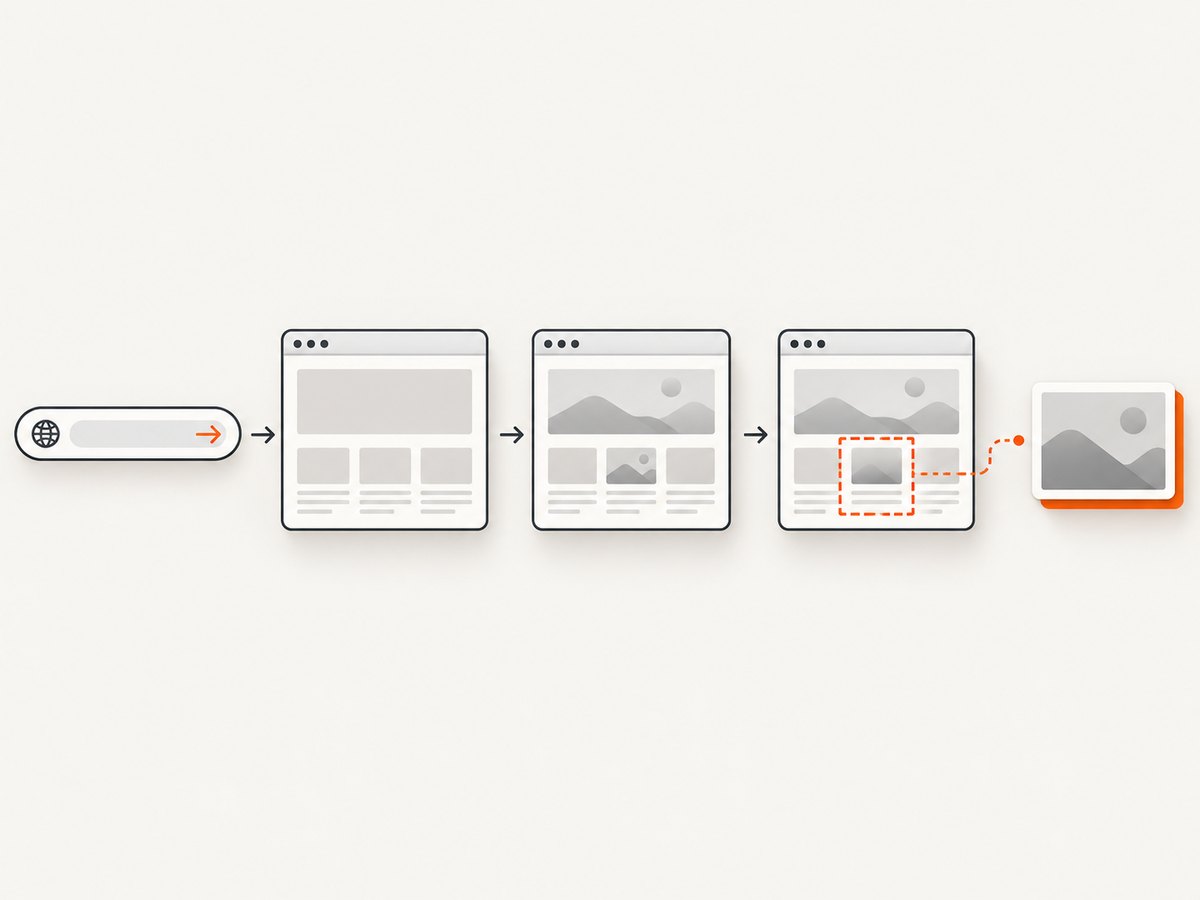
captureSelector(targetFile, selector, imgOptions) captures the rendered page area containing the CSS selector. It clips the pixels produced by the current viewport and layout; it does not upscale the element or create additional detail.
| Symptom | Likely cause | What to inspect |
|---|---|---|
| Everything is tiny | Viewport is too small or responsive CSS selected a compact layout | Viewport dimensions, media queries, computed width and height |
| Text is soft | The element was rendered at few pixels, or JPEG compression was used | Rendered bounds, output format, source font and scale |
| Edges are cut off | Selector bounds, padding, transforms, overflow, or clipping | Element rectangle, ancestor overflow, CSS transforms |
| Blank or incomplete content | Capture ran before images or client-side rendering completed | Network activity, image dimensions, application-ready state |
Select the element that represents the intended capture rather than a wrapper with unexpected padding, transforms, or responsive dimensions. When diagnosing a crop, inspect the target’s rendered bounding box and its ancestors’ overflow, transforms, and dimensions in the page.
3. Choose PNG, JPEG, and quality deliberately
- PNG: lossless and usually the safest choice for text, code, charts, and interface edges.
- JPEG: smaller for photographic content, but compression artifacts can appear around text and sharp edges.
quality: accepts values from 1 to 100. It affects lossy encoding; it cannot recover pixels that were never rendered.
// Lossless UI capture
this.captureSelector('panel.png', '#panel', {
  format: 'png',
  quality: 100
});

// Smaller photographic capture
this.captureSelector('hero.jpg', '#hero', {
  format: 'jpeg',
  quality: 90
});
Set format explicitly instead of relying on the filename. If quality: 100 changes nothing, check the rendered dimensions, responsive layout, selector bounds, and whether the page itself supplies a low-resolution asset.
4. Compare selector capture with a clipped full-page capture
capture() supports a clipRect and the same format and quality controls. Comparing both methods helps separate selector-bound problems from page-rendering problems.
var clip = {
  top: 120,
  left: 80,
  width: 900,
  height: 500
};

casper.start(url, function () {
  this.viewport(1440, 900).then(function () {
    this.waitForSelector('#target', function () {
      this.captureSelector('selector.png', '#target', {
        format: 'png',
        quality: 100
      });
      this.capture('clip.png', {
        clipRect: clip,
        format: 'png',
        quality: 100
      });
    });
  });
});

casper.run();
If the clipped full-page image is sharp but the selector image is cropped or oddly sized, inspect the selector’s box, transforms, padding, and overflow. If both are soft, the problem is more likely the viewport, source assets, fonts, or rendering engine.
5. A complete diagnostic script
This script combines the practical fixes: image loading, an explicit viewport, selector waiting, a final layout delay, and lossless output.
var casper = require('casper').create({
  pageSettings: { loadImages: true },
  logLevel: 'warning',
  verbose: false
});

var url = 'https://example.com';
var selector = '#target';

casper.start(url, function () {
  this.viewport(1440, 900).then(function () {
    this.waitForSelector(selector, function () {
      this.wait(500, function () {
        this.captureSelector('target.png', selector, {
          format: 'png',
          quality: 100
        });
      });
    }, function () {
      this.die('Selector not found: ' + selector);
    });
  });
});

casper.run(function () {
  this.exit();
});
6. Version differences and legacy rendering
CasperJS and PhantomJS versions can affect rendering. A community report described poor selector output with PhantomJS 1.9.7 and CasperJS 1.0.2, followed by an improvement after upgrading to PhantomJS 1.9.8 and CasperJS 1.1.0-beta3. That is a single report, not a compatibility guarantee. Record the exact versions, reproduce the same URL and viewport, and validate an upgrade in your own environment before changing production captures.
casperjs --version
phantomjs --version
7. Troubleshooting checklist
| Error or symptom | Cause | Fix |
|---|---|---|
captureSelector produces a tiny image |
Default 400×300 viewport or a responsive breakpoint | Call viewport(width, height) and wait for it to complete before capture. |
quality: 100 has no visible effect |
PNG is already lossless, or the source was rendered at low resolution | Check format, viewport, element bounds, and source image dimensions. |
| Target is missing or blank | Selector is wrong or capture runs before client-side rendering | Use an exact visible selector and wait for it plus the page’s ready state. |
| Right or bottom edge is clipped | Unexpected padding, transforms, overflow, or selector bounds | Inspect the rendered rectangle and compare with a clipRect capture. |
| Images are empty | Images have not loaded or decoding is incomplete | Keep loadImages: true and wait for image readiness or a final layout delay. |
| Different machines produce different output | Different CasperJS/PhantomJS versions, fonts, viewport, or page state | Pin versions and viewport dimensions and capture after deterministic readiness. |
| JPEG shows halos around text | Lossy compression | Use PNG or raise JPEG quality when file size permits. |
8. Performance and reliability considerations
- Viewport: Larger dimensions can increase rendered work and output size. Use the smallest viewport that faithfully represents the layout.
- Waiting: Prefer a selector or application-ready condition over a long fixed delay. Keep a bounded timeout so failed pages do not run forever.
- Images: Loading all images improves fidelity but increases page work. Disable it only when the capture intentionally excludes images.
- Determinism: Pin browser versions, fonts, viewport, URL state, cookies, and timing where reproducible output matters.
- Diagnostics: Keep one PNG reference capture and compare dimensions, selector bounds, and visual output when changing versions or CSS.
9. Or skip the browser setup
ScreenshotNeo provides a website screenshot API and MCP server. One GET request returns PNG, JPEG, WebP, or PDF, with options for full-page capture, CSS-selector element capture, viewport and device settings, retina scale, custom CSS and JavaScript, click and wait actions, blocked resources, headers, cookies, user agents, timezone, geolocation, resizing, caching, signed links, asynchronous jobs, bulk capture, and usage reporting. See the ScreenshotNeo API documentation for the complete parameter list.

curl -G "https://api.screenshotneo.com/v1/shot" \
  -d access_key=YOUR_API_KEY \
  --data-urlencode url=https://example.com \
  -o shot.webp
import requests
r = requests.get(
"https://api.screenshotneo.com/v1/shot",
params={"access_key": "YOUR_API_KEY", "url": "https://example.com"},
timeout=90,
)
r.raise_for_status()
open("shot.webp", "wb").write(r.content)const fs = require('node:fs/promises');
const q = new URLSearchParams({
access_key: 'YOUR_API_KEY',
url: 'https://example.com'
});
const res = await fetch(`https://api.screenshotneo.com/v1/shot?${q}`);
if (!res.ok) throw new Error(`HTTP ${res.status}`);
await fs.writeFile('shot.webp', Buffer.from(await res.arrayBuffer()));Cookie banners, newsletter popups, and chat widgets are removed before the shot, with each cleanup step configurable. Bot checks, blank pages, timeouts, failed loads, and cache hits cost nothing, and the response identifies the result with X-Page-Verdict and X-Billed headers. An MCP server lets Claude, Cursor, and other MCP clients call take_screenshot, get_page_info, and capture_pdf. The Free plan includes 1,000 screenshots per month with no card; paid plans start at $5 for 3,000.
Create a free ScreenshotNeo account and start with the 1,000 included screenshots.
10. FAQ
Does captureSelector() increase resolution?
No. It clips the rendered selector area. Resolution comes from the viewport, layout, device scale, and source assets.
Should I always use quality 100?
Use PNG for lossless interface detail. For JPEG, choose a high value when artifacts matter, but do not expect it to restore missing pixels.
Why is capture() sharp while captureSelector() is not?
The selector may have unexpected bounds, transforms, padding, or overflow. Compare the selector’s rendered rectangle with a matching clipRect capture.
Can a larger viewport fix a blurry selector?
It can fix a cramped responsive layout and produce more rendered pixels. It cannot improve a low-resolution source image or a browser rendering limitation.
Should I upgrade PhantomJS and CasperJS?
Version changes can affect output, and one community report found an improvement after upgrading. Record versions and validate the result in your own target environment.


