How to Improve Image Quality with dom-to-image
Fix blurry dom-to-image exports with the right scale, pixelRatio, formats, resource loading, and canvas-size limits.
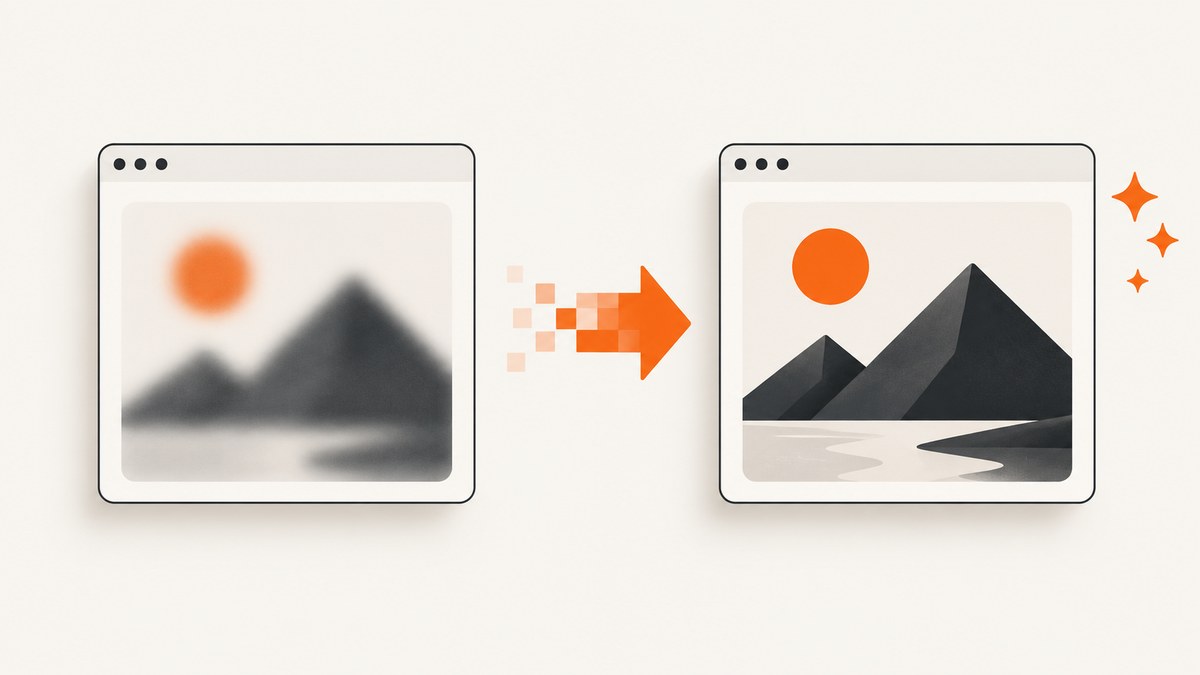
Blurry dom-to-image output usually means the raster canvas is only one CSS pixel per pixel. Increase the export dimensions with scale, set pixelRatio to window.devicePixelRatio (or another deliberate multiplier), wait for fonts and images, and choose PNG for crisp interface text.
The practical formula is:
effective resolution multiplier = scale × pixelRatioIn dom-to-image-more, use its documented scale and pixelRatio options. Verify the final bitmap dimensions instead of multiplying every width and height option blindly.
1. A high-quality dom-to-image capture
This complete browser example waits for fonts and images, captures a visible element at high resolution, and downloads a PNG.
import domtoimage from 'dom-to-image-more';

async function captureHighQuality() {
  const node = document.getElementById('capture');
  if (!node) throw new Error('Element #capture was not found');

  // Make sure the element has layout before measuring it.
  if (node.getClientRects().length === 0) {
    throw new Error('The element must be visible and laid out before capture');
  }

  await document.fonts.ready;

  const images = [...node.querySelectorAll('img')];
  await Promise.all(images.map(img => {
    if (img.complete) return img.decode?.().catch(() => {});
    return new Promise(resolve => {
      img.addEventListener('load', resolve, { once: true });
      img.addEventListener('error', resolve, { once: true });
    });
  }));

  const scale = 2;
  const pixelRatio = window.devicePixelRatio || 1;
  const width = node.clientWidth * scale;
  const height = node.clientHeight * scale;

  const dataUrl = await domtoimage.toPng(node, {
    width,
    height,
    style: {
      transform: `scale(${scale})`,
      transformOrigin: 'top left'
    },
    scale,
    pixelRatio,
    cacheBust: true,
    bgcolor: '#ffffff'
  });

  const link = document.createElement('a');
  link.download = 'capture.png';
  link.href = dataUrl;
  link.click();
}

captureHighQuality().catch(console.error);
If your maintained build already applies scale to the canvas and clone, follow that build’s documented behavior and avoid applying the same multiplier twice.
2. How scale and pixelRatio affect sharpness
scale
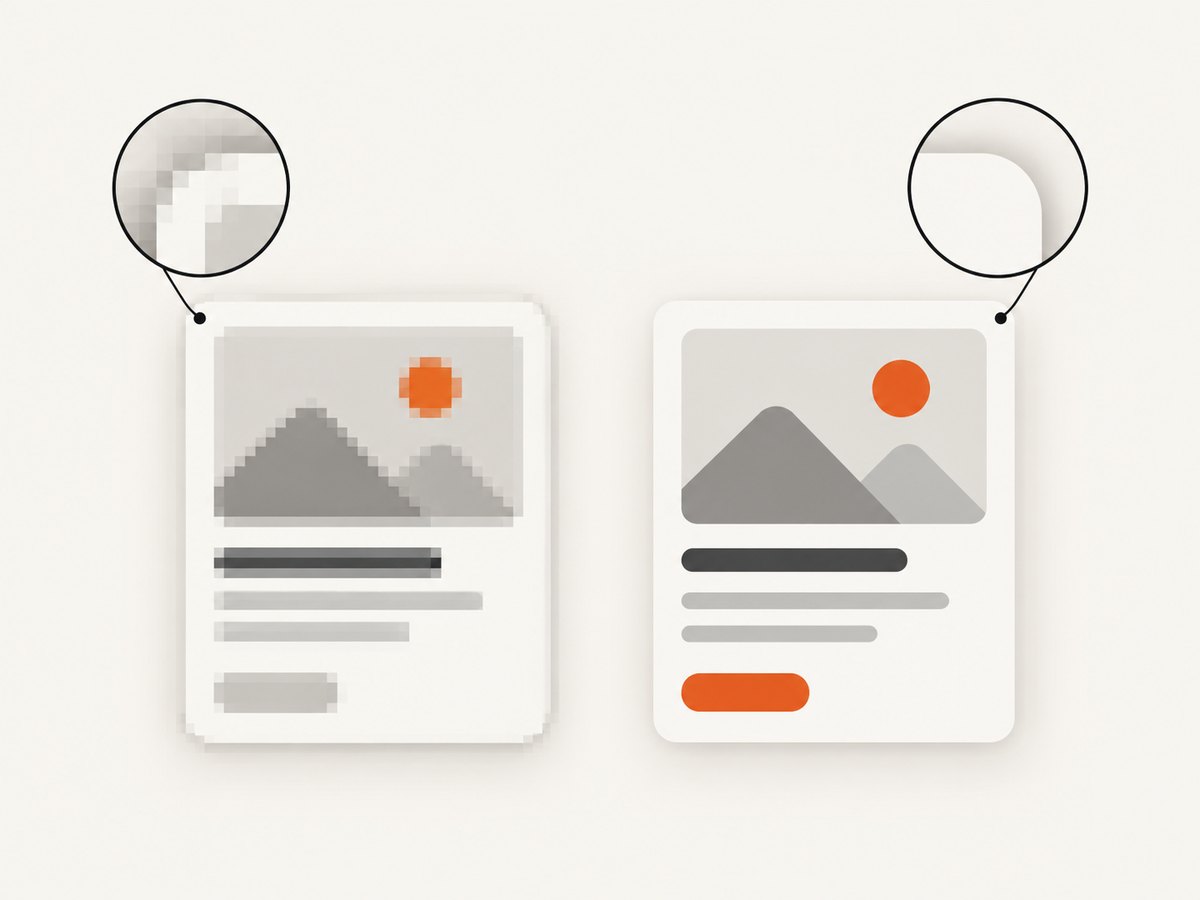
scale enlarges the rendered canvas. Use it when you need a specific output size, such as a 2,000-pixel-wide export from a 1,000-pixel CSS element. A scale of 2 generally produces twice as many pixels in each direction and four times as many total pixels.
pixelRatio
pixelRatio accounts for display density. Setting it to window.devicePixelRatio is useful on Retina and other high-DPI displays. It does not repair missing fonts, blocked images, or unsupported CSS effects.
const ratio = window.devicePixelRatio || 1;
const scale = 2;

const dataUrl = await domtoimage.toPng(node, {
  width: node.clientWidth * scale,
  height: node.clientHeight * scale,
  style: {
    transform: `scale(${scale})`,
    transformOrigin: 'top left'
  },
  pixelRatio: ratio
});
Inspect the result rather than assuming it worked:
const image = new Image();
image.onload = () => console.log(image.naturalWidth, image.naturalHeight);
image.src = dataUrl;
3. Control the output dimensions deliberately
Start with the element’s CSS dimensions:
const cssWidth = node.clientWidth;
const cssHeight = node.clientHeight;
const targetWidth = 2400;
const scale = targetWidth / cssWidth;

const dataUrl = await domtoimage.toPng(node, {
  width: targetWidth,
  height: Math.round(cssHeight * scale),
  style: {
    transform: `scale(${scale})`,
    transformOrigin: 'top left'
  },
  pixelRatio: 1
});
Use one clear strategy: either choose a target raster size, or combine a known scale with a known pixelRatio. Repeatedly multiplying width, height, CSS transforms, and pixel ratio can create an unexpectedly huge canvas.
4. PNG or JPEG?
| Format | Best for | Trade-off |
|---|---|---|
| PNG | Text, icons, borders, diagrams, flat UI | Larger files, lossless edges |
| JPEG | Photos and continuous-tone artwork | Smaller files, lossy artifacts around text and sharp edges |
JPEG quality controls compression from 0 to 1; the documented default is 1.0. It changes file size and artifacts, not the number of captured pixels.
const jpegUrl = await domtoimage.toJpeg(node, {
  quality: 0.92,
  width: node.clientWidth * 2,
  height: node.clientHeight * 2,
  style: {
    transform: 'scale(2)',
    transformOrigin: 'top left'
  },
  pixelRatio: 1,
  bgcolor: '#ffffff'
});
Use bgcolor when exporting JPEG because JPEG has no transparent background. PNG can preserve transparency when the browser and library can render it.
5. Prepare fonts, images, and stylesheets
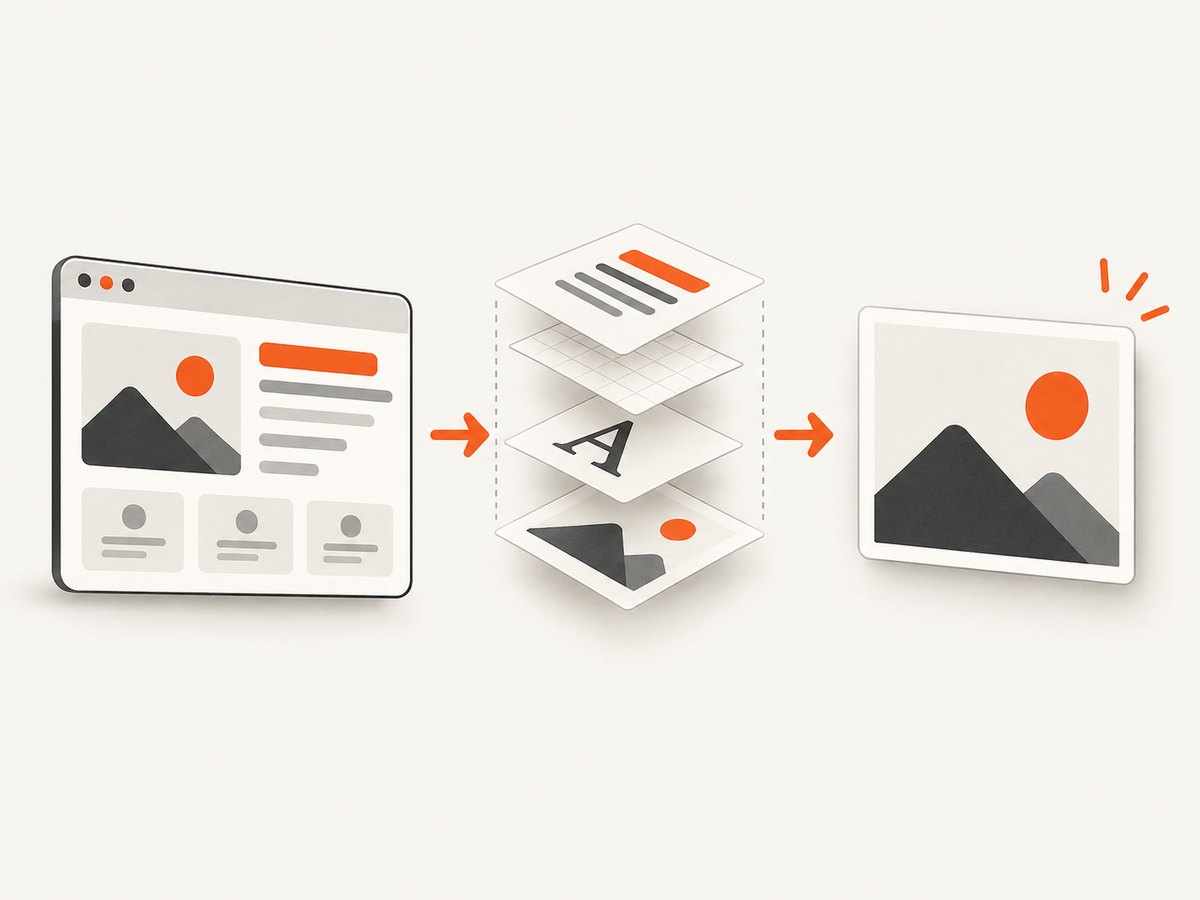
dom-to-image clones the node, copies computed styles, recreates pseudo-elements, embeds fonts and images, serializes the clone to SVG foreignObject, and then optionally rasterizes that SVG onto a canvas. Any missing resource can change the result or make rasterization fail. See the original dom-to-image README for the pipeline description.
Wait for web fonts
await document.fonts.ready;Capture only after the final font has loaded. Otherwise fallback metrics can change line wrapping and make text look different or soft.
Wait for images to decode
await Promise.all(
  [...node.querySelectorAll('img')].map(async img => {
    if (!img.complete) {
      await new Promise(resolve => {
        img.addEventListener('load', resolve, { once: true });
        img.addEventListener('error', resolve, { once: true });
      });
    }
    try { await img.decode(); } catch {}
  })
);
Make remote assets embeddable
Cross-origin images and stylesheets need appropriate permissions. A failed image may be skipped or replaced. A tainted canvas or failed final rasterization can reject the export. Serve assets with compatible CORS headers, host them on the same origin, or provide a placeholder for noncritical images.
Use cacheBust: true when stale remote assets are suspected:
const dataUrl = await domtoimage.toPng(node, {
  cacheBust: true,
  imagePlaceholder: 'data:image/svg+xml,%3Csvg xmlns=%22http://www.w3.org/2000/svg%22 width=%221%22 height=%221%22/%3E'
});
6. Visibility, layout, and browser behavior
- The root must be laid out and measurable.
display: noneproduces no usable geometry. - An invisible root using
opacity: 0may need to be revealed before capture. Some maintained builds provide anensureShownoption. - Browser zoom and fractional device scale can cause approximately one-pixel flex or grid shifts when the clone is re-laid out at whole CSS pixels.
backdrop-filtergenerally cannot render correctly because the isolated SVGforeignObjecthas no painted background for the filter to sample.- SVG
foreignObjectsupport and serialization differ between browsers, so compare output in every browser you support.
7. Canvas limits and very large captures
More scale is not unlimited. Browsers impose maximum canvas dimensions and pixel counts. dom-to-image-more clamps the multiplier when the requested canvas exceeds the browser limit and logs a warning.
When that happens:
- Capture a smaller region.
- Lower either
scaleorpixelRatio. - Split a long page into tiles and assemble them separately.
- Prefer a vector export when your use case supports SVG.
Large canvases also consume more memory and take longer to encode. Test the largest real element your users will export.
8. Useful dom-to-image options
| Option | Purpose |
|---|---|
width, height |
Requested raster dimensions. |
style |
Computed-style overrides, including transforms and transform origin. |
scale |
Canvas scale multiplier in maintained builds. |
pixelRatio |
Device-density multiplier. |
bgcolor |
Background color, especially useful for JPEG. |
quality |
JPEG compression quality from 0 to 1. |
cacheBust |
Adds cache-busting behavior for resource URLs. |
imagePlaceholder |
Fallback data URL for an image that cannot be embedded. |
9. Troubleshooting blurry or failed exports
| Symptom | Likely cause | Fix |
|---|---|---|
| Everything looks soft | 1× CSS-pixel canvas | Increase scale or set pixelRatio; verify natural dimensions. |
| Text uses the wrong font | Font was not loaded | Await document.fonts.ready before capture. |
| Images are missing | Images were not decoded or cannot be fetched | Await image decoding and fix CORS or use a placeholder. |
| Security or tainted-canvas error | Cross-origin resource without permission | Serve the asset with CORS, proxy it, or remove it from the capture. |
| Export rejects in Firefox or another browser | SVG foreignObject or resource behavior differs |
Use the maintained fork, test the target browser, and simplify unsupported CSS. |
| Layout shifts by a pixel | Fractional zoom or clone re-layout | Capture at stable integer dimensions and account for small browser differences. |
| Backdrop blur disappears | No painted backdrop in isolated SVG | Replace it with a solid or pre-rendered background for the export. |
| Canvas warning or clipped output | Browser canvas limit | Reduce dimensions or tile the capture. |
| JPEG has halos around text | Lossy compression | Use PNG or raise JPEG quality. |
10. Performance and reliability checklist
- Capture only the required node instead of the entire document.
- Use the smallest scale that meets the delivery requirement.
- Decode images and load fonts once, then reuse the prepared page.
- Prefer PNG for repeated text-heavy exports; use JPEG for photographic content when file size matters.
- Release large data URLs or blobs after download so they can be garbage-collected.
- Handle rejected promises and provide a fallback when a remote resource is optional.
- For very large pages, tile the work rather than requesting one enormous canvas.
11. Or skip the browser setup
ScreenshotNeo provides a website screenshot API when you want a server-side capture instead of managing browser cloning, fonts, CORS, and canvas limits. Cookie and consent banners are accepted and 60+ known consent platforms, newsletter popups, and chat widgets are removed before the shot. Bot checks, blank pages, timeouts, failed loads, and cache hits are not billed, and response headers report the page verdict and billing status. Its MCP server lets Claude, Cursor, and other MCP clients call take_screenshot, get_page_info, and capture_pdf.
See the ScreenshotNeo API documentation for the available capture options.
curl -G 'https://api.screenshotneo.com/v1/shot' \
  -d access_key=YOUR_API_KEY \
  --data-urlencode url=https://stripe.com \
  -o shot.webp
import requests
r = requests.get(
'https://api.screenshotneo.com/v1/shot',
params={'access_key': 'YOUR_API_KEY', 'url': 'https://stripe.com'},
timeout=90
)
r.raise_for_status()
open('shot.webp', 'wb').write(r.content)const q = new URLSearchParams({
access_key: 'YOUR_API_KEY',
url: 'https://stripe.com'
});
const res = await fetch(`https://api.screenshotneo.com/v1/shot?${q}`);
if (!res.ok) throw new Error(`HTTP ${res.status}`);
await Bun.write('shot.webp', res);ScreenshotNeo includes full-page captures with lazy images loaded, element capture by CSS selector, dark mode, device presets, custom viewports, retina scale, custom CSS and JavaScript, waits, request blocking, headers, cookies, user agents, timezone and geolocation, resizing, caching, signed links, asynchronous jobs, bulk capture, usage data, and PDF output. The free plan includes 1,000 screenshots per month with no card; paid plans start at $5 for 3,000 shots.
Create a free ScreenshotNeo account and start with the 1,000-shot monthly allowance.
12. FAQ
Does JPEG quality make the image sharper?
No. It changes compression. Increase raster dimensions for more detail; use PNG when sharp text matters.
Should I always use both scale and pixelRatio?
Use both when you intentionally want their combined multiplier. For predictable exports, choose one target dimension and verify the final bitmap.
Why is my result different from the live page?
The library reconstructs the node inside an SVG foreignObject. Browser differences, cross-origin resources, font timing, and unsupported effects can change fidelity.
What is the maximum useful scale?
The practical maximum is set by browser canvas limits, available memory, and encoding time. If the library warns that it clamped the multiplier, reduce the capture size or tile it.


