How to Improve html2canvas Content Capture and Text Quality
Fix clipped pages, blurry text, and missing images in html2canvas with complete options, runnable code, and a practical troubleshooting guide.
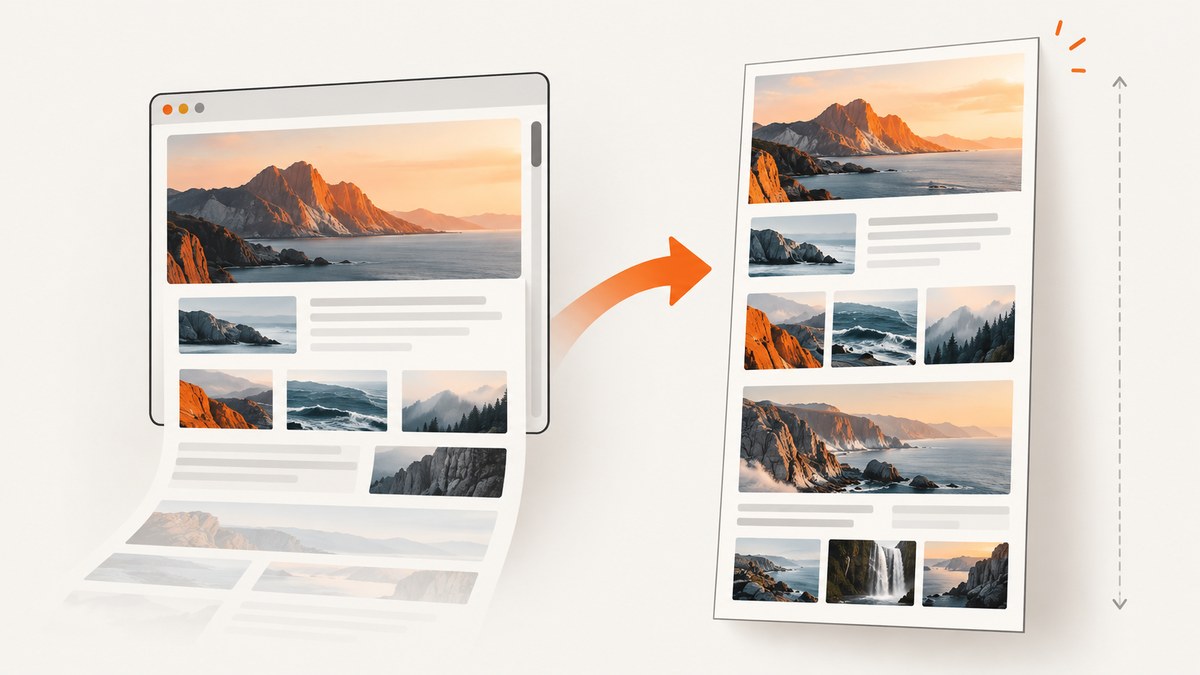
To capture a complete page with html2canvas, size the capture viewport to the target element’s scrollWidth and scrollHeight. To sharpen text, set scale to an appropriate device pixel ratio. Missing cross-origin images require the image server to allow the request through CORS, or a same-origin proxy; JavaScript cannot override browser security rules.
This guide explains how to capture below-the-fold content, choose dimensions and scale, handle images and fonts, adjust the cloned page without changing the live DOM, and diagnose common failures. html2canvas reconstructs a screenshot from DOM and CSS in the browser; it is not a pixel-perfect browser screenshot tool, and its output depends on browser support and content access.
1. Install and capture a complete element
Install the package with npm:
npm install html2canvasIn a browser application, import it and call it after the target is present in the document. This runnable example captures the full scrollable dimensions of #capture, waits for available fonts, and downloads a PNG:
import html2canvas from 'html2canvas';

async function saveCapture() {
  await document.fonts?.ready;
  const target = document.querySelector('#capture');
  if (!(target instanceof HTMLElement)) {
    throw new Error('Capture target #capture was not found');
  }

  const canvas = await html2canvas(target, {
    windowWidth: target.scrollWidth,
    windowHeight: target.scrollHeight,
    scale: window.devicePixelRatio || 1,
    backgroundColor: '#ffffff',
    useCORS: true,
    logging: true
  });

  const link = document.createElement('a');
  link.download = 'capture.png';
  link.href = canvas.toDataURL('image/png');
  link.click();
}

saveCapture().catch(console.error);
For a simple page, passing the element alone may work. The explicit window dimensions matter when content extends beyond the viewport, is clipped, or produces an empty or unexpectedly short output. Check the target’s computed layout and scroll dimensions before capture; hidden or detached nodes do not have the layout you expect.
2. Choose the right capture dimensions and crop
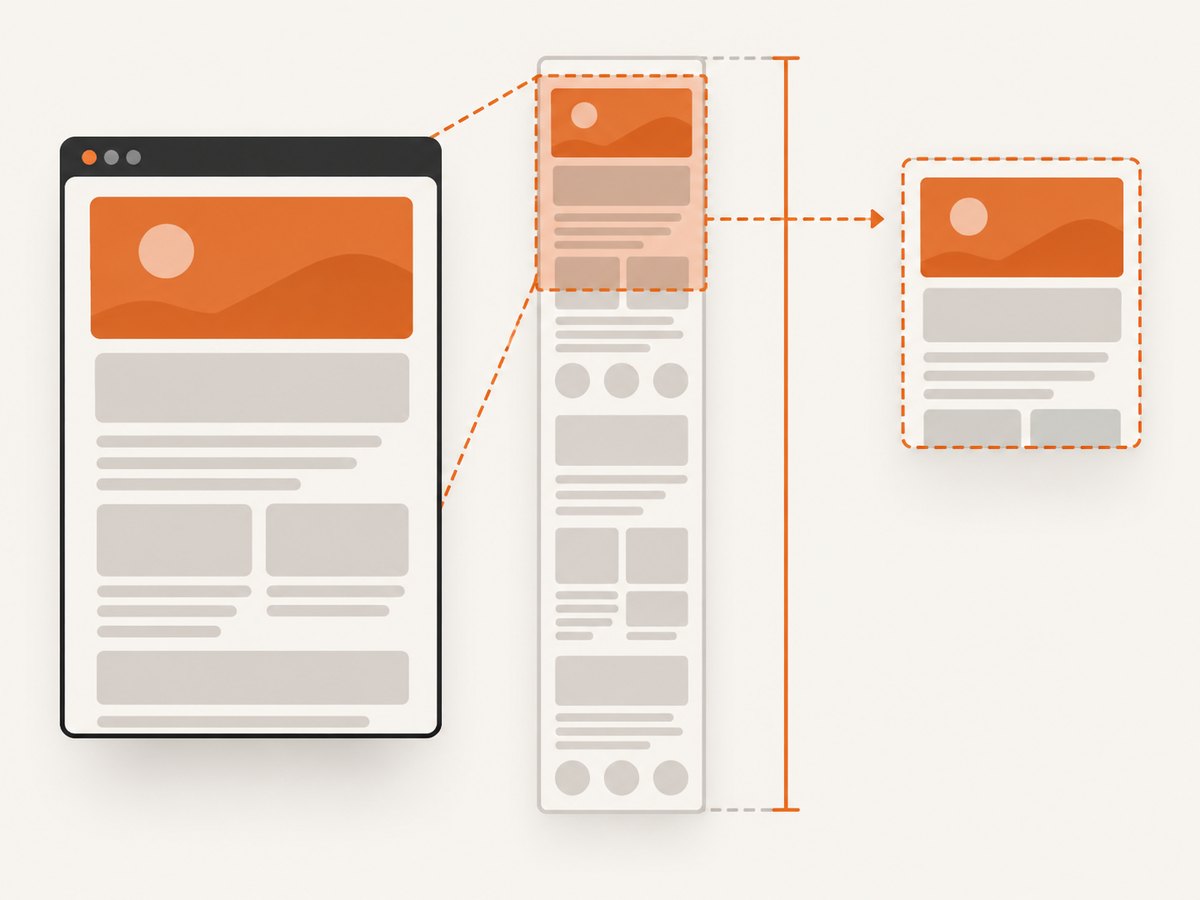
There are two separate questions: how much content should html2canvas render, and which rectangle should appear in the resulting canvas. Use the element’s scroll dimensions for the first. Use x, y, width, and height for an intentional region.
| Goal | Configuration | Effect |
|---|---|---|
| Capture an entire long element | windowWidth: target.scrollWidth, windowHeight: target.scrollHeight |
Gives rendering a viewport large enough for the element’s scrollable content. |
| Capture a specific region | x, y, width, height |
Limits output to the chosen crop coordinates and dimensions. |
| Capture a fixed-size component | Set explicit width and height |
Produces a predictable output rectangle; check that it covers the intended content. |
For example, a crop can focus on a chart inside a larger element:
const canvas = await html2canvas(target, {
  x: 120,
  y: 240,
  width: 900,
  height: 560,
  windowWidth: target.scrollWidth,
  windowHeight: target.scrollHeight,
  scale: 2
});
Crop coordinates are in CSS pixels. Make sure the requested region falls inside the rendered area. A crop does not make off-screen content load automatically, and it does not fix a target whose dimensions are zero. For content loaded only when scrolled into view, scroll through the page first or otherwise trigger its loading behavior, then capture.
3. Make text sharper with scale
A canvas is a raster image. Its output pixel dimensions are approximately the CSS dimensions multiplied by scale. If a 900 CSS-pixel-wide element is captured at scale 1, its canvas is around 900 pixels wide; scale 2 creates around 1,800 pixels. Higher scale can make text and fine details clearer when viewed or printed at the same display size.
The documented default scale is window.devicePixelRatio. Set it explicitly when you want predictable behavior across devices, or choose a smaller value when memory and output size matter:
const canvas = await html2canvas(target, {
  scale: Math.min(window.devicePixelRatio || 1, 2),
  windowWidth: target.scrollWidth,
  windowHeight: target.scrollHeight
});
Scale increases both canvas dimensions, so memory usage grows roughly with the number of pixels: doubling scale in both directions creates about four times as many pixels. Very large canvases can exceed browser or device limits. If capture fails or the tab runs out of memory, reduce scale, capture smaller regions, or capture sections separately. Do not use a high scale to compensate for text that has not loaded or for fonts that rendered with a fallback.
4. Load fonts, images, and dynamic content before capture
html2canvas can only reconstruct content that is available and rendered when it runs. Wait for fonts and relevant application data, and ensure images have finished loading. Waiting for document.fonts.ready is a practical precaution, not a guarantee that every external asset or asynchronous component is ready.
await document.fonts?.ready;

await Promise.all(
  Array.from(document.images).map((image) => {
    if (image.complete) return Promise.resolve();
    return new Promise((resolve) => {
      image.addEventListener('load', resolve, { once: true });
      image.addEventListener('error', resolve, { once: true });
    });
  })
);

const canvas = await html2canvas(target, {
  windowWidth: target.scrollWidth,
  windowHeight: target.scrollHeight,
  imageTimeout: 15000,
  useCORS: true
});
The documented imageTimeout default is 15,000 milliseconds. Set a different timeout when the page’s asset behavior calls for it, but remember that waiting longer cannot repair an inaccessible resource. For lazy-loaded images, scroll them into view so the page requests them before capture.
5. Handle cross-origin images correctly
When an image is hosted on another origin, the browser applies cross-origin rules. Set useCORS: true only if that image server returns an appropriate Access-Control-Allow-Origin header. If you control the image host, configure its CORS response. Otherwise, use a same-origin proxy that fetches and serves permitted assets. The html2canvas documentation describes a proxy that returns the resource as a base64 data URI.
const canvas = await html2canvas(target, {
  useCORS: true,
  // Configure only a proxy endpoint that you operate and trust:
  proxy: '/image-proxy',
  allowTaint: false
});
allowTaint does not bypass browser policy. A tainted canvas may be impossible to export with toDataURL() or toBlob(). Prefer CORS-enabled image responses or a controlled proxy, and avoid treating allowTaint: true as a fix for missing exportable images. html2canvas cannot circumvent content policy restrictions set by the browser.
6. Use onclone for capture-only changes
The onclone callback receives the cloned document used for rendering. Use it to apply capture-specific styles, replace changing text, reveal a capture-only element, or hide controls without mutating the user’s live page.
const canvas = await html2canvas(target, {
  onclone: (clonedDocument) => {
    const clonedTarget = clonedDocument.querySelector('#capture');
    if (clonedTarget instanceof HTMLElement) {
      clonedTarget.classList.add('capture-mode');
    }
    clonedDocument.querySelectorAll('.live-controls').forEach((node) => {
      node.remove();
    });
  }
});
Keep clone changes limited to the screenshot’s needs. A selector that does not match in the cloned document has no effect. For persistent exclusions, mark elements with data-html2canvas-ignore or use ignoreElements:
const canvas = await html2canvas(target, {
  ignoreElements: (element) => element.classList.contains('capture-ignore')
});
7. Configure the renderer and other useful options
Most captures should start with the default renderer and only add options for a defined problem. The table summarizes the options that commonly affect completeness, sharpness, export, and diagnosis.
| Option | When to use it | Consideration |
|---|---|---|
scale |
Increase raster resolution for text and detail. | More pixels use more memory; documented default is device pixel ratio. |
windowWidth, windowHeight |
Render content beyond the current viewport. | Use target scroll dimensions for a full element capture. |
x, y, width, height |
Choose an intentional crop. | Coordinates and dimensions must cover the desired rendered region. |
useCORS, proxy |
Load cross-origin images with server permission or through a proxy. | Neither option removes browser security requirements. |
backgroundColor |
Set an explicit background such as #fff. |
Use null when transparent output is desired and supported by the capture path. |
imageTimeout |
Adjust how long image loading can delay rendering. | Documented default is 15 seconds; longer waits do not make failed URLs accessible. |
logging |
Inspect rendering and resource issues while debugging. | Turn off noisy logs after diagnosis. |
onclone, ignoreElements |
Change or omit elements for the capture. | Check selectors and behavior in the cloned document. |
foreignObjectRendering |
Try an alternate path for complex CSS or text. | Browser support and output vary; compare it with the default renderer. |
For example, test the alternate renderer against the same target and dimensions:
const canvas = await html2canvas(target, {
  foreignObjectRendering: true,
  windowWidth: target.scrollWidth,
  windowHeight: target.scrollHeight,
  scale: window.devicePixelRatio || 1
});
Keep a default-renderer path available if output differs across browsers. html2canvas runs in the browser, and it does not render plugin content such as Flash or Java applets. Sandboxed iframes without allow-same-origin also have limitations. Cross-origin frames and content blocked by policy are not made readable by a rendering option.
8. Troubleshooting checklist
| Symptom | Likely cause | Fix |
|---|---|---|
| Bottom of page is missing | The render viewport matches the browser viewport rather than the target’s full scroll area. | Set windowWidth and windowHeight from scrollWidth and scrollHeight; confirm lazy content has loaded. |
| Capture is blank or tiny | Target is detached, hidden, zero-sized, or not yet laid out. | Check attachment, computed dimensions, visibility, and timing before calling html2canvas. |
| Text looks blurry | Canvas scale is too low, or the page used a fallback font. | Increase scale within memory limits and wait for fonts before capture. |
| Images are missing | Image request failed, lazy loading has not run, or cross-origin response lacks CORS permission. | Inspect resource errors, load lazy images, configure CORS on the image server, or use a same-origin proxy. |
| Export throws a security error | A cross-origin resource tainted the canvas. | Use CORS-approved resources or a proxy; allowTaint does not make export safe. |
| CSS or text differs from the page | The DOM renderer does not reproduce every browser feature identically. | Try foreignObjectRendering on the target browser; compare against the default output and retain a fallback. |
| Capture hangs or times out | An image is slow, inaccessible, or still loading. | Inspect logs and network errors, tune imageTimeout, and remove or fix the problematic resource. |
| Large capture crashes or exhausts memory | Canvas pixel count is too high for the browser or device. | Lower scale, crop, or capture multiple smaller sections. |
- Confirm the target is attached and has the expected computed width and height.
- Wait for text, web fonts, SVGs, images, and application content; inspect logging and resource errors.
- Fix external image access through server CORS headers or a same-origin proxy.
- Match window dimensions to scroll dimensions, then add crop coordinates only if you need a region.
- Increase scale only as far as memory and browser canvas limits allow.
- Compare the alternate renderer when complex CSS or text is the issue, and exclude unstable controls if needed.
9. Performance, reliability, and cost
html2canvas runs locally in the browser, so it does not require a screenshot-rendering server. That can be useful when the page is already open and the capture is part of a client-side workflow. The work still consumes the user’s CPU and memory. Large documents, high scale, complex styling, and many images can make capture slower or exceed browser limits. Reduce the captured area, wait only for required assets, and avoid needlessly high scale.
Reliability depends on the browser’s DOM, CSS and resource behavior. It cannot bypass content security restrictions, render unsupported plugin content, or make inaccessible frame content available. Test the browsers and page types that matter to your application. For recurring jobs, log dimensions, capture options, browser errors, and which resources failed so that blank output can be distinguished from incomplete output.
There is no html2canvas service charge for local rendering, but there can be infrastructure cost if you operate an image proxy, and browser compute has a user-facing cost in time and memory. A proxy should only fetch resources your application is allowed to retrieve; validate destinations and response types as part of your own server design.
10. Or skip the browser setup
If you need a rendered website screenshot without wiring html2canvas into a page, ScreenshotNeo is a website screenshot API and MCP server. One GET request returns PNG, JPEG, WebP, or PDF. See the ScreenshotNeo API documentation for parameters and response details.
curl -G "https://api.screenshotneo.com/v1/shot" -d access_key=YOUR_API_KEY --data-urlencode url=https://stripe.com -o shot.webpimport requests
r = requests.get(
"https://api.screenshotneo.com/v1/shot",
params={"access_key": "YOUR_API_KEY", "url": "https://stripe.com"},
timeout=90,
)
open("shot.webp", "wb").write(r.content)const q = new URLSearchParams({ access_key: 'YOUR_API_KEY', url: 'https://stripe.com' });
const res = await fetch(`https://api.screenshotneo.com/v1/shot?${q}`);
if (!res.ok) throw new Error(`Screenshot request failed: ${res.status}`);
const bytes = new Uint8Array(await res.arrayBuffer());
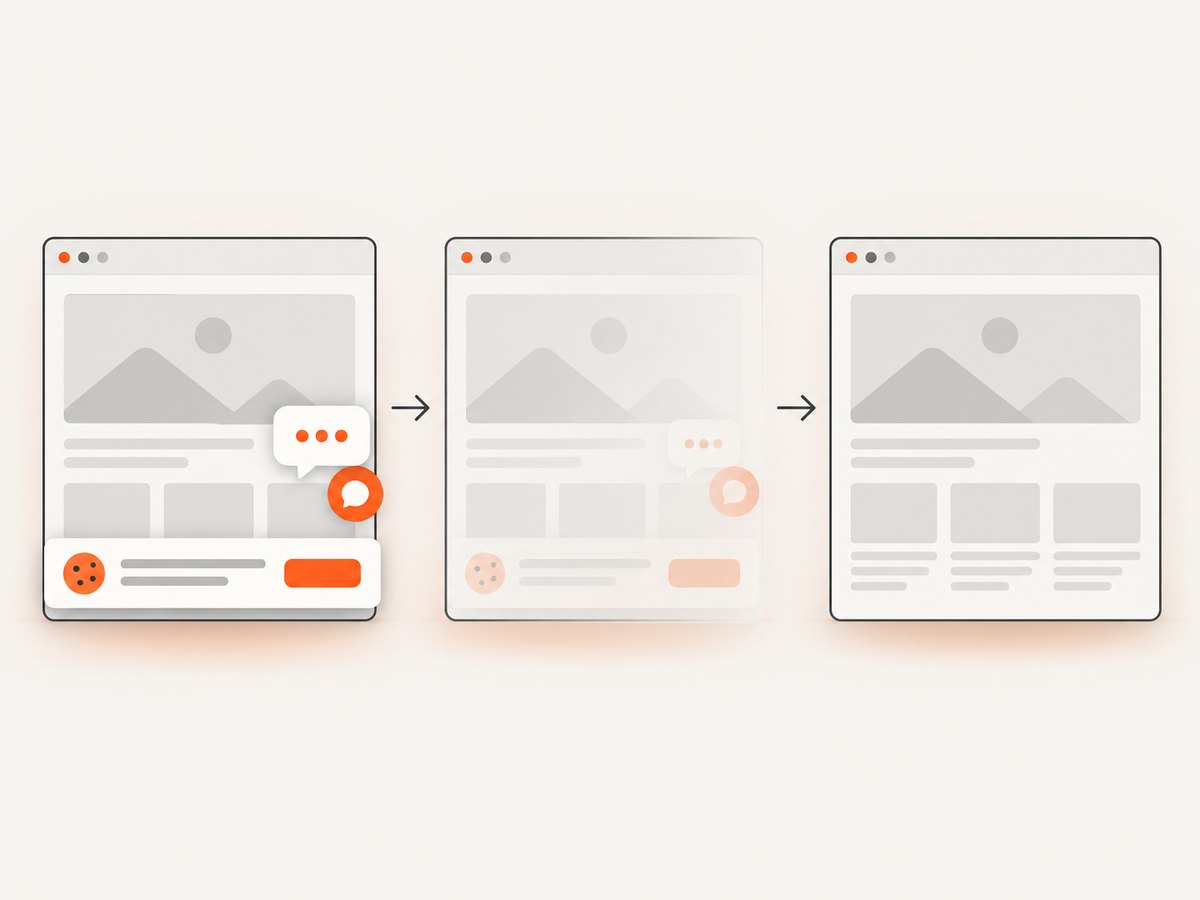
await import('node:fs/promises').then(({ writeFile }) => writeFile('shot.webp', bytes));ScreenshotNeo accepts cookie and consent banners and removes over 60 known consent platforms, newsletter popups, and chat widgets before capture; each cleanup step can be turned off. Bot checks and CAPTCHAs, blank pages, timeouts, failed loads, and cache hits are not billed. Its response includes X-Page-Verdict and X-Billed headers. An MCP server provides take_screenshot, get_page_info, and capture_pdf tools for Claude, Cursor, and other MCP clients.
The free plan includes 1,000 screenshots each month with no card. Paid plans start at $5 for 3,000 screenshots; all features are available on every plan. Sign up free for 1,000 screenshots a month, no card required.
11. FAQ
Does html2canvas capture content below the viewport?
It can render an element beyond the visible viewport when you provide suitable dimensions. Set window dimensions from the target’s scroll dimensions and ensure lazy-loaded content has actually loaded.
Will a higher scale make every capture look better?
No. It adds pixels, which can improve raster sharpness, but increases memory use and cannot fix missing fonts, inaccessible images, or renderer differences.
Can html2canvas capture a cross-origin iframe?
Browser security and sandbox settings limit access to frame content. html2canvas does not bypass those restrictions; a sandbox without allow-same-origin has documented limitations.
Should I always enable foreignObjectRendering?
No. It is an alternative rendering path that may help with complex text or CSS, but output and support vary by browser. Compare it with the default renderer on your target browsers.


