How to Improve Image Quality in html2canvas Captures
Fix blurry, missing, or truncated html2canvas captures by tuning scale, image smoothing, CORS, and canvas dimensions—and learn when to use a browser screenshot instead.
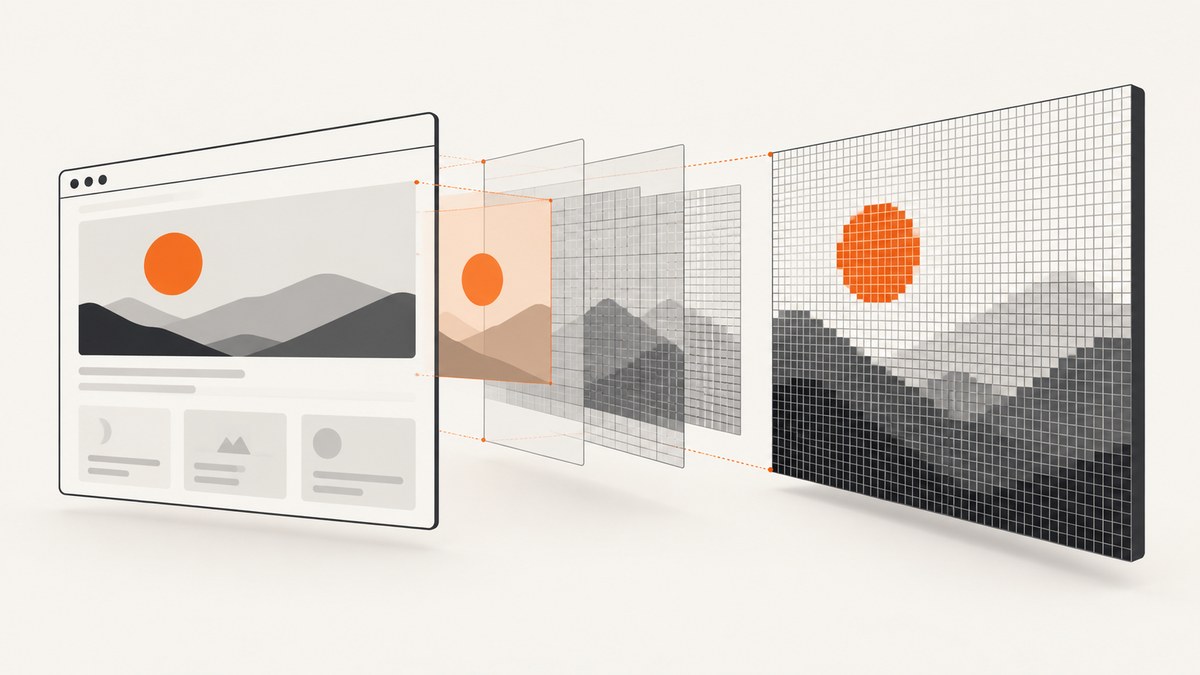
To improve html2canvas image quality, first set scale deliberately: its documented default is window.devicePixelRatio, and a higher value creates more output pixels for the same CSS-sized content. That can reduce softness caused by undersampling, but it cannot add detail missing from source images, fix unsupported CSS, bypass cross-origin restrictions, or make html2canvas capture the browser’s final pixels. The project explains that it reconstructs an image from DOM information rather than taking an actual screenshot (html2canvas documentation).
This guide helps distinguish resolution from rendering fidelity, fix missing images and cut-off output, and choose a native browser capture when you need one. For every setting, test the result in the browsers and devices you support; high scale can increase memory use and run into canvas limits.
1. Start with output dimensions and scale
A canvas has pixel dimensions, while the element being rendered has CSS dimensions. If a 600 CSS-pixel-wide element is rendered at scale: 1, its canvas is approximately 600 pixels wide. At scale: 2, it is approximately 1,200 pixels wide. The larger raster may look sharper when displayed at the same CSS size on a high-density display, but the exact result depends on the element, its source assets, and the target browser.
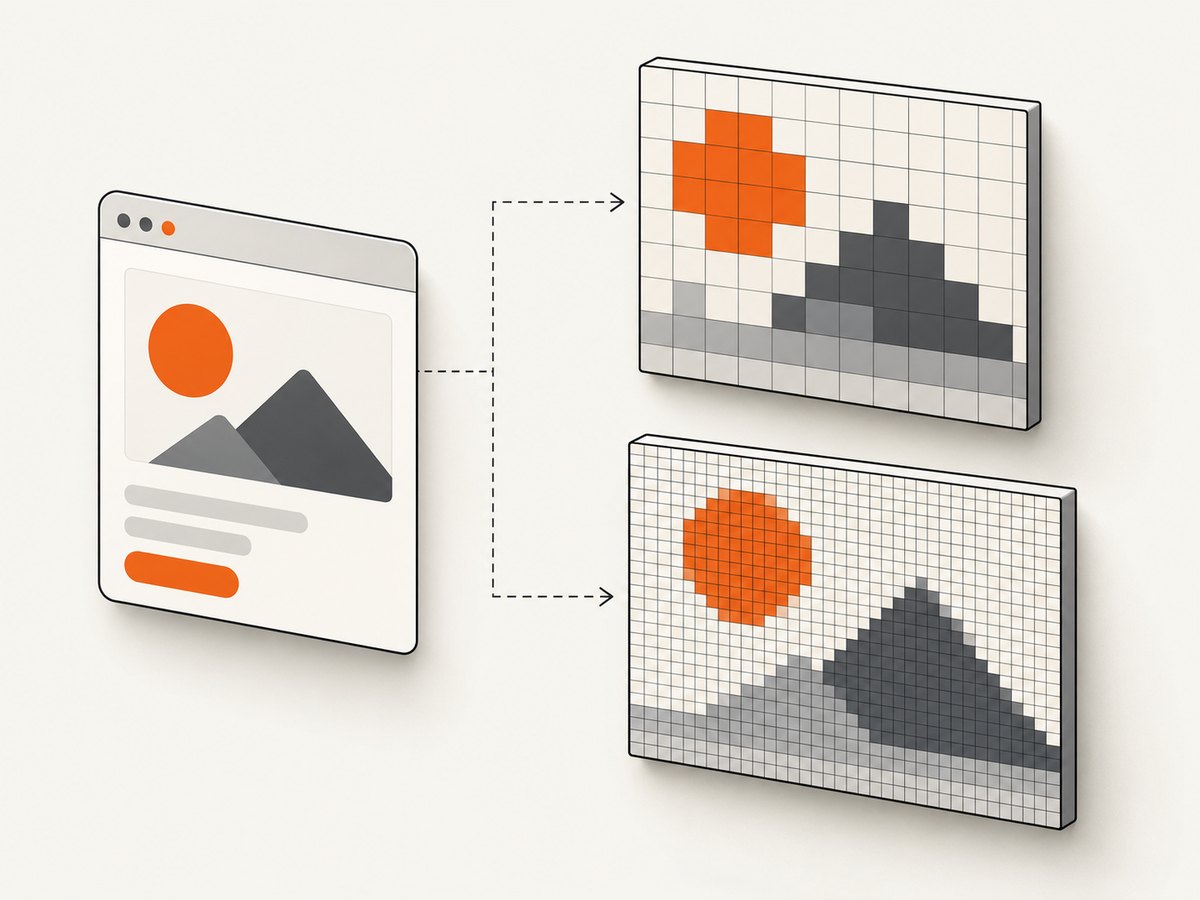
The configuration reference documents scale with a default of window.devicePixelRatio. Set it explicitly when you need predictable output. A capped device-pixel ratio is a practical memory-conscious starting point, not an official library recommendation or a guarantee of a particular resolution.
const element = document.querySelector('#capture');
if (!element) throw new Error('Could not find #capture');

const scale = Math.min(window.devicePixelRatio || 1, 2);
const canvas = await html2canvas(element, {
  scale,
  useCORS: true,
  backgroundColor: '#ffffff',
});

const blob = await new Promise((resolve, reject) => {
  canvas.toBlob((result) => {
    if (result) resolve(result);
    else reject(new Error('Canvas export returned no image'));
  }, 'image/png');
});
const downloadUrl = URL.createObjectURL(blob);
const link = document.createElement('a');
link.href = downloadUrl;
link.download = 'capture.png';
link.click();
URL.revokeObjectURL(downloadUrl);
Load html2canvas in your app using your existing dependency setup and run the snippet in an async function or module. The configuration reference and official examples document the options and PNG export approach. If you need a fixed export size, choose dimensions from the destination’s actual requirements, then calculate a scale that fits those dimensions without exceeding browser canvas limits.
Check what the destination needs
- For a standard web preview, the default device pixel ratio may already be enough.
- For a retina display or a larger preview, compare a higher scale with the destination’s displayed size.
- For a fixed-size asset, calculate pixel width and height from the CSS dimensions multiplied by scale; do not assume a scale multiplier means “4K” or print-ready output.
- For very large elements, reduce scale, capture a smaller region, or split the capture into sections.
More pixels increase raster memory and processing demand. A canvas with width W and height H contains W × H pixels; doubling both dimensions creates four times as many pixels. This is why an unbounded scale is not a reliable quality strategy.
2. Tune image smoothing for the content
When photographs or illustrations look blurred while being resized, inspect the source image dimensions, the element’s CSS size, and the smoothing options. The documented imageSmoothing default is enabled and imageSmoothingQuality defaults to low. These settings affect resampling behavior; they do not change the DOM reconstruction model or manufacture source detail.
const canvas = await html2canvas(document.querySelector('#capture'), {
  scale: 2,
  imageSmoothing: true,
  imageSmoothingQuality: 'high',
  backgroundColor: '#fff',
});
Try high as a quality hint for photographic content and inspect the resulting file in the actual destination. For pixel art or crisp small icons, smoothing may soften hard edges; test imageSmoothing: false and the element’s image-rendering CSS. The forceImageQuality option applies canvas smoothing settings to images and ignores each element’s CSS image-rendering; it is not an image enhancement filter. Consult the configuration page for the installed version’s supported settings.
3. Make sure images and fonts are ready
A capture can faithfully reflect an incomplete page: an image may still be loading, a web font may not have replaced its fallback, or application content may not yet be rendered. Wait for the state you intend to capture. The exact readiness conditions depend on your app; waiting for all network requests is not always appropriate for pages with long-lived connections.
async function captureReadyElement(selector) {
  const element = document.querySelector(selector);
  if (!element) throw new Error(`Missing element: ${selector}`);

  await document.fonts.ready;
  const images = [...element.querySelectorAll('img')];
  await Promise.all(images.map((image) => {
    if (image.complete) return Promise.resolve();
    return new Promise((resolve) => {
      image.addEventListener('load', resolve, { once: true });
      image.addEventListener('error', resolve, { once: true });
    });
  }));

  return html2canvas(element, { scale: 2, useCORS: true });
}
This waits for descendant img elements and the document’s font set, but it cannot ensure that CSS background images, lazy content outside the element, or app-specific asynchronous rendering is complete. If a page loads content after scrolling into view, trigger the relevant app behavior before capture. If you use this helper in production, add a timeout or an application-level readiness signal so a failed resource cannot leave a capture waiting forever.
4. Fix missing images and export errors caused by CORS
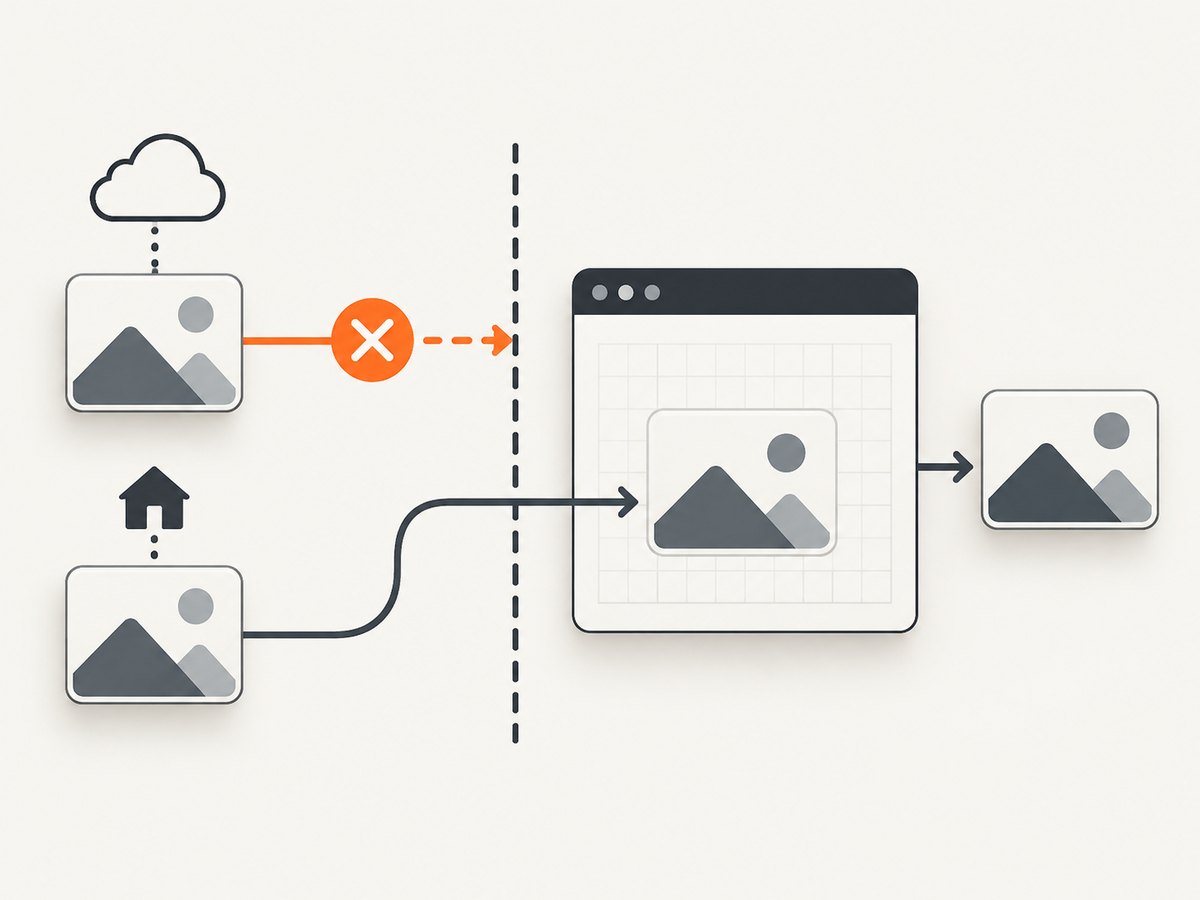
If remote images disappear or canvas export fails, investigate origin policy before increasing resolution. A cross-origin image can taint the canvas, which prevents reading or exporting its pixels. useCORS: true asks html2canvas to load images with CORS, but it only works when the image server sends a suitable Access-Control-Allow-Origin response. It does not bypass browser security. The html2canvas FAQ describes this limitation.
const canvas = await html2canvas(element, {
  scale: 2,
  useCORS: true,
  // Set a proxy URL only if you operate or trust a proxy configured for this use.
  // proxy: '/image-proxy',
});

// Export may throw if the canvas is tainted by a cross-origin resource.
const png = canvas.toDataURL('image/png');
Ask the asset host to permit your origin, serve the asset from a same-origin endpoint, or use a controlled proxy that retrieves approved resources. A proxy must be designed carefully: blindly fetching arbitrary URLs can expose your service to server-side request forgery and abuse. Do not set allowTaint expecting to make a tainted canvas exportable; allowing tainted content does not grant permission to read it back.
5. Prevent blank or truncated captures
Captures that extend far beyond the viewport may need explicit dimensions. For an element capture, pass its scroll dimensions as the browser window dimensions when appropriate, and set capture width and height to the content you need. html2canvas supports options such as windowWidth, windowHeight, width, height, x, and y; verify their behavior against the version you have installed.
const element = document.querySelector('#long-report');
if (!element) throw new Error('Missing #long-report');

const canvas = await html2canvas(element, {
  scale: 1.5,
  width: element.scrollWidth,
  height: element.scrollHeight,
  windowWidth: Math.max(document.documentElement.clientWidth, element.scrollWidth),
  windowHeight: Math.max(document.documentElement.clientHeight, element.scrollHeight),
  useCORS: true,
});
Very tall or wide canvases can exceed browser or device limits and become blank or partial. The html2canvas FAQ gives rough, platform-dependent figures for current evergreen browsers: around 32,767 pixels on a side, with maximum areas around 268 million pixels for Chrome/Chromium and 472 million for Firefox; it notes lower, RAM-dependent limits on iOS Safari. These are not guarantees for a specific browser build, operating system, or device. Read the FAQ’s canvas limits and test your target devices. Reduce scale or capture sections if needed.
6. Understand CSS fidelity and when to use a real screenshot
A sharp canvas can still differ from the page. html2canvas rebuilds the image from DOM and style information it understands; it does not capture the browser’s final composited pixels. Unsupported or partially supported CSS, animations, embedded content, browser-specific rendering, and dynamic state can affect fidelity. The project documentation cautions that its output “may not be 100% accurate to the real representation” because it does not make an actual screenshot (documentation).
If you need the actual visible pixels, use a native browser capture mechanism or browser automation that captures the rendered page. For browser extensions, the html2canvas FAQ points to the native extension APIs: chrome.tabs.captureVisibleTab() in Chrome, Edge, and Opera, and browser.tabs.captureVisibleTab() in Firefox. Those APIs have their own permission and viewport constraints. Increasing html2canvas scale is the wrong fix for unsupported CSS or a requirement for pixel-level browser output.
7. Choose export format and capture area deliberately
PNG is a useful default for UI, text, diagrams, and content where lossless edges matter. The official html2canvas examples show PNG export with toDataURL(); toBlob() is also convenient when you want a Blob for a download or upload. JPEG can reduce file size for photographic content but is lossy; WebP support depends on the browser and receiving system. Changing format or compression does not increase resolution.
const canvas = await html2canvas(element, { scale: 2 });
const blob = await new Promise((resolve) => canvas.toBlob(resolve, 'image/png'));
if (!blob) throw new Error('PNG encoding failed');

const form = new FormData();
form.append('file', blob, 'capture.png');
await fetch('/upload', { method: 'POST', body: form });
Capture only the element or region the user needs. The options x, y, width, and height can define a smaller area. Smaller captures use less memory and are less likely to hit canvas limits. If splitting a long page into sections, preserve section boundaries and test for fixed headers, sticky elements, and content that changes as it scrolls.
8. Troubleshooting checklist
| Symptom | Likely cause | What to try |
|---|---|---|
| Everything looks soft | Output pixel dimensions are too small for the display size | Set scale from the destination requirement; compare with device pixel ratio and inspect actual canvas dimensions. |
| Text is sharp but a photo is blurry | The source image is small or being enlarged | Use a higher-resolution source; inspect CSS resizing and smoothing settings. |
| Some remote images are missing | The host blocks CORS or the request failed | Use useCORS: true only with a CORS-enabled host, or serve the asset through a controlled same-origin path. |
| Export throws a security error | A cross-origin resource tainted the canvas | Fix resource CORS or use a permitted proxy; allowTaint does not make the canvas readable. |
| Capture is blank or cut off | Canvas dimensions exceed platform limits or the viewport is too small | Reduce scale, set suitable dimensions, or capture smaller sections; check device-specific limits. |
| Output differs from the browser page | Unsupported CSS, dynamic state, or reconstruction limits | Check supported styles and page readiness; use a browser screenshot when final rendered pixels are required. |
| Export is huge or slow | Large pixel area, PNG encoding, or oversized capture | Reduce captured area or scale; choose a suitable format and avoid repeated captures of unchanged content. |
9. Or skip the browser setup
If you need a screenshot of a live website without wiring up a browser renderer, ScreenshotNeo provides a website screenshot API and MCP server. One GET request returns an image or PDF; see the API documentation for options and response details.
curl -G "https://api.screenshotneo.com/v1/shot" -d access_key=YOUR_API_KEY --data-urlencode url=https://stripe.com -o shot.webpimport requests
r = requests.get("https://api.screenshotneo.com/v1/shot", params={"access_key": "YOUR_API_KEY", "url": "https://stripe.com"}, timeout=90)
open("shot.webp", "wb").write(r.content)const q = new URLSearchParams({ access_key: 'YOUR_API_KEY', url: 'https://stripe.com' });
const res = await fetch(`https://api.screenshotneo.com/v1/shot?${q}`);
if (!res.ok) throw new Error(`Screenshot request failed: ${res.status}`);
const bytes = new Uint8Array(await res.arrayBuffer());
await Bun.write('shot.webp', bytes);Cookie banners are accepted and removed before the shot, along with 60+ known consent platforms, newsletter popups, and chat widgets; each cleanup step can be turned off. Bot checks, blank pages, timeouts, failed loads, and cache hits cost nothing, and response headers identify the page verdict and billing status. Its MCP server lets AI agents use take_screenshot, get_page_info, and capture_pdf. The free plan includes 1,000 screenshots a month with no card; paid plans start at $5 for 3,000. Create a free ScreenshotNeo account.
10. FAQ
Does setting scale: 2 guarantee a 4K image?
No. Output dimensions depend on the element’s CSS dimensions, scale, and browser limits. Calculate the resulting pixel size and test it where the image will be used.
Should I use toDataURL() or toBlob()?
Both can export canvas content. The official examples demonstrate PNG with toDataURL(); a Blob is often convenient for upload or download workflows. Neither choice fixes low pixel dimensions.
Can html2canvas capture a page with exact browser appearance?
It reconstructs from DOM information and supported styles, so exact equivalence is not guaranteed. Use a native or automated browser screenshot if the final composited pixels are required.
Does useCORS make any image accessible?
No. The remote server must send suitable CORS headers, or the image must be obtained through a permitted same-origin route.


