How to Improve Next.js Image Quality
Fix blurry Next.js images by checking the source, responsive candidates, sizing, quality, formats, and remote-image configuration.
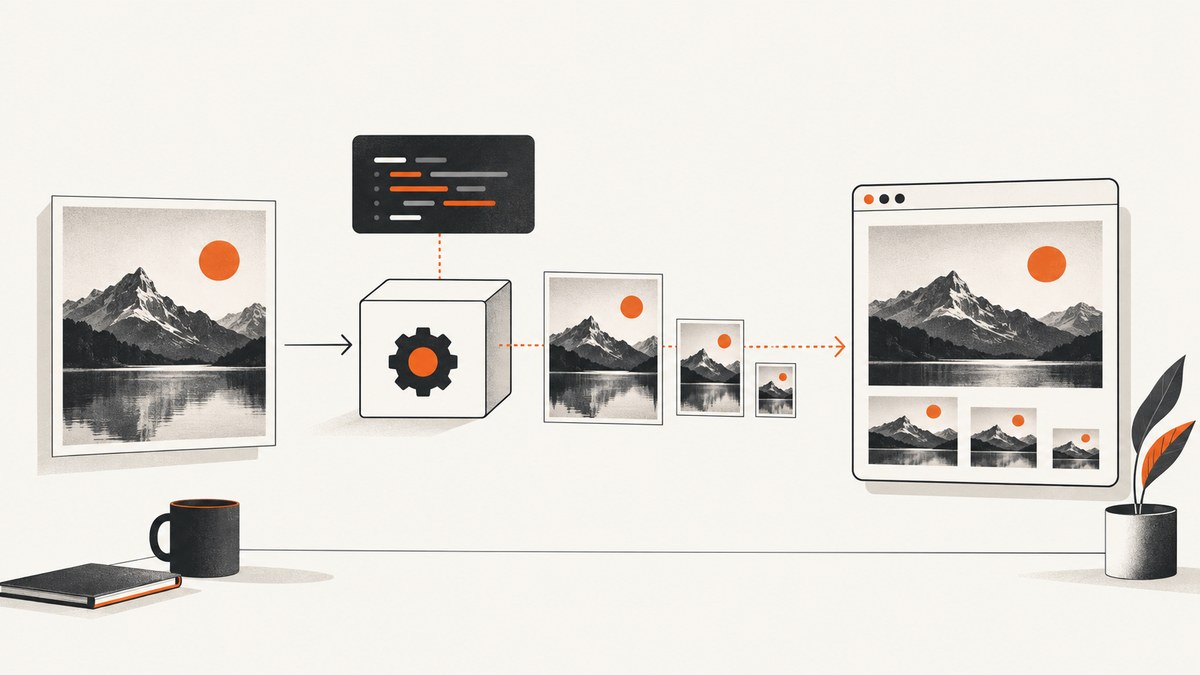
Direct answer: To improve image quality in Next.js, inspect the original asset first, compare its pixel dimensions with the rendered CSS size and device pixel density, verify the browser selected a large enough responsive candidate, then tune quality and the output format. A higher quality value cannot restore detail missing from a small or already-compressed source.
Next.js Image provides optimization, responsive srcset candidates, format negotiation, and layout-stability controls. Use those features with accurate dimensions and sizes; do not treat the width and height props as the final CSS display size.
1. Inspect the original image before changing Next.js
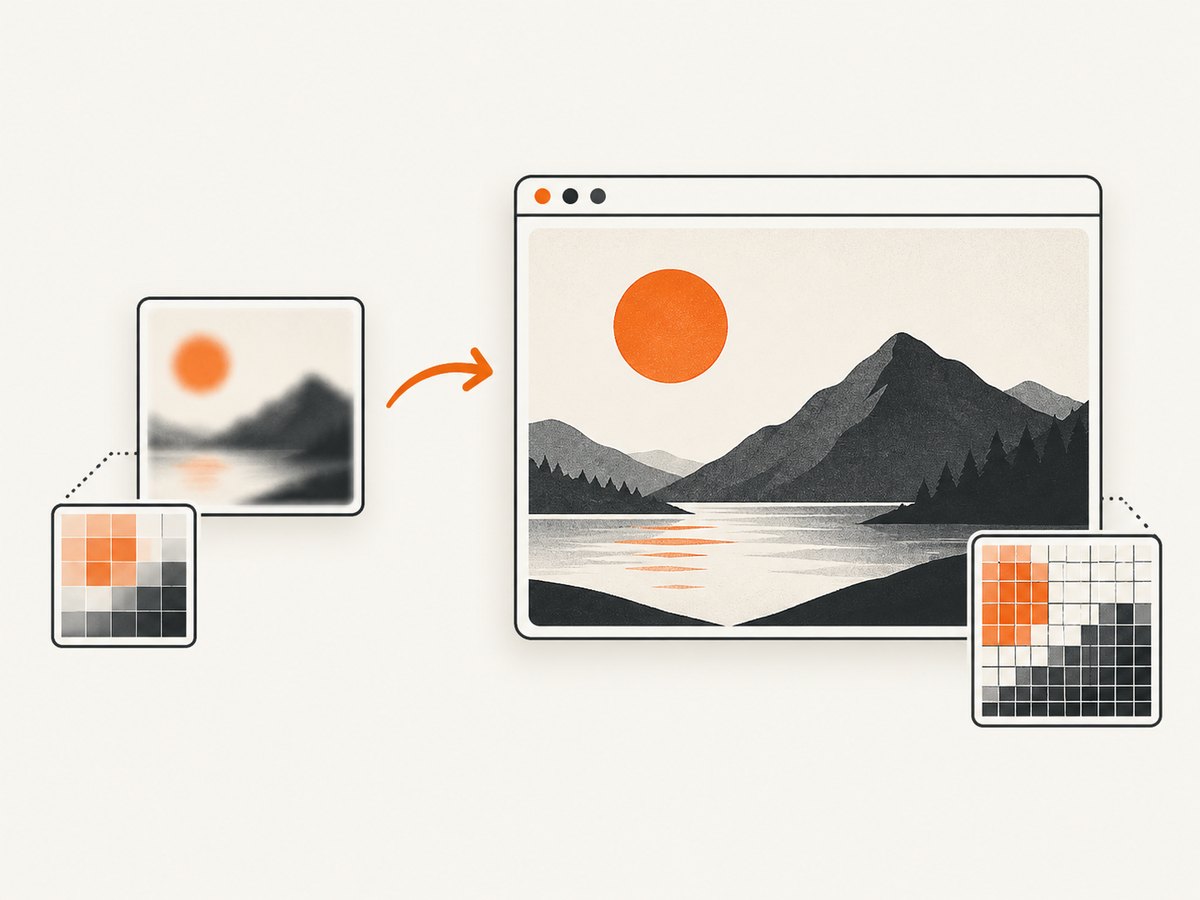
Open the source at its natural pixel dimensions. If it is soft, tiny, or heavily compressed before it reaches Next.js, increasing output quality only creates a larger file with the same missing detail. Replace it with a better source or display it smaller. Next.js documents this limitation directly in its Image API reference.
- Check the source pixel width and height, not just its file size.
- Look for softness, ringing, JPEG artifacts, banding, and already-upscaled content.
- Do not enlarge a raster source beyond the detail it contains.
- For a design that needs more detail, export a larger original or use a vector source where appropriate.
2. Match intrinsic dimensions, layout size, and display density
The width and height props describe intrinsic dimensions and help Next.js preserve the aspect ratio and prevent layout shift. CSS, a parent container, or layout props determine the final rendered size. They are separate concerns.
import Image from 'next/image'
import hero from '@/public/hero.jpg'

export default function Hero() {
  return (
    <Image
      src={hero}
      alt="Product dashboard"
      width={2400}
      height={1350}
      sizes="(max-width: 768px) 100vw, 50vw"
      style={{ width: '100%', height: 'auto' }}
      priority
    />
  )
}
For a parent-sized image, use fill and make the parent positioned with a defined height or aspect ratio:
<div style={{ position: 'relative', aspectRatio: '16 / 9' }}>
  <Image
    src="/hero.jpg"
    alt="Product dashboard"
    fill
    sizes="(max-width: 768px) 100vw, 50vw"
    style={{ objectFit: 'cover' }}
  />
</div>
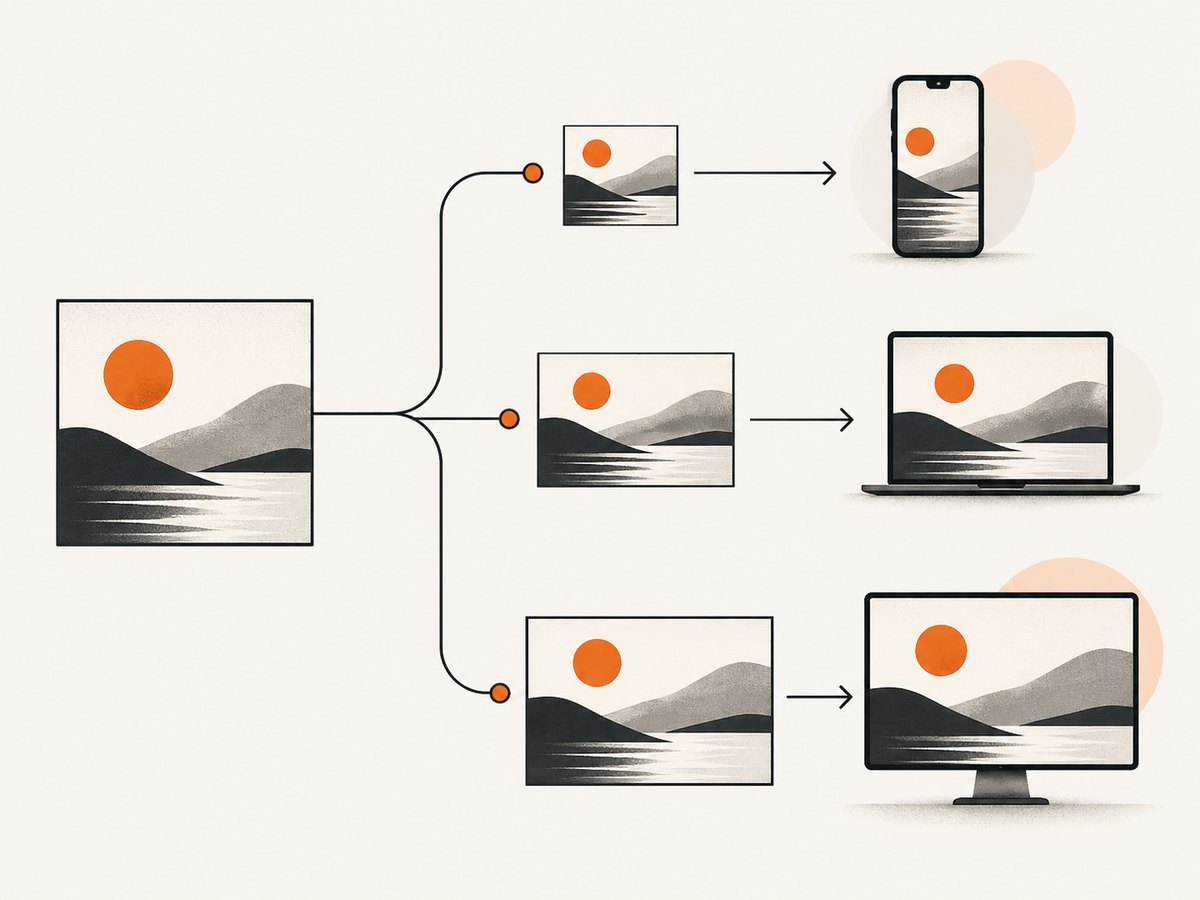
On a high-density display, a 600 CSS-pixel image may need a candidate around 1200 physical pixels wide. Next.js generates candidates and the browser chooses among them using srcset and sizes. The sizes value must describe the actual layout:
<Image
  src={image}
  alt="Article illustration"
  width={1200}
  height={800}
  sizes="(max-width: 700px) 100vw, (max-width: 1100px) 50vw, 33vw"
/>
This expression means full viewport width on narrow screens, half the viewport in the middle layout, and one third on wider screens. Replace it with values that match your own grid.
3. Verify the candidate the browser actually selected
JSX alone does not prove that the browser downloaded a sufficiently large image. Inspect the deployed page:
- Open browser developer tools and inspect the image element.
- Read its rendered CSS width and height.
- Check
currentSrcin the console or inspect the selected network request. - Compare the selected resource’s natural pixel dimensions with its rendered dimensions and device pixel ratio.
- Confirm the response format and whether the URL is an optimizer URL or the original source.
const image = document.querySelector('img')
console.log({
  currentSrc: image.currentSrc,
  rendered: [image.clientWidth, image.clientHeight],
  natural: [image.naturalWidth, image.naturalHeight],
  devicePixelRatio: window.devicePixelRatio
})
If the selected candidate is too small, correct sizes, the intrinsic dimensions, or the layout. If the candidate is large enough but still soft, return to the source asset and compression settings.
4. Tune the quality prop deliberately
Next.js documents a quality range of 1 through 100 and a default of 75. Higher values generally increase fidelity and transfer size; lower values reduce transfer size and may reduce sharpness. There is no universal best value.
<Image
  src="/photo.jpg"
  alt="Mountain landscape"
  width={1600}
  height={1000}
  quality={85}
/>
Choose a value by comparing representative images at their real display size and recording transfer bytes. Photographs, screenshots with text, gradients, transparency, and flat illustrations can respond differently. Do not set every image to 100 automatically.
Next.js 16 quality allowlists
Starting with Next.js 16, configure allowed quality values in next.config.js or next.config.mjs:
/** @type {import('next').NextConfig} */
const nextConfig = {
  images: {
    qualities: [60, 75, 85, 90]
  }
}

module.exports = nextConfig
If a component requests a value outside the list, Next.js uses the closest allowed value. A direct Image Optimization API request with an unconfigured quality returns HTTP 400. Check the documentation for the Next.js version installed in your project before changing this setting.
If the original image is already low quality, setting a high quality value will increase the file size without improving appearance.
5. Choose formats based on the actual image
Next.js can negotiate configured formats from the browser’s Accept header. WebP is the documented default configured format, and AVIF can also be configured:
/** @type {import('next').NextConfig} */
const nextConfig = {
  images: {
    formats: ['image/avif', 'image/webp']
  }
}

module.exports = nextConfig
Array order determines which configured format is preferred when more than one matches. If no configured format matches, or the source is animated, Next.js falls back to the original source format. AVIF may create more cached variants because different clients can receive different formats.
WebP and AVIF can reduce bytes, but a smaller file is not automatically sharper. Compare fine edges, text, gradients, transparency, and animation on real assets. SVG, animated GIF, and very small images may be better served with unoptimized, which serves the source without changing its quality, size, or format:
<Image
  src="/icon.svg"
  alt="Company icon"
  width={32}
  height={32}
  unoptimized
/>
6. Configure remote images safely
Next.js cannot inspect remote files at build time. Supply dimensions and optional blur data manually, or use fill for a parent-sized layout. Restrict hosts and paths with a narrow remotePatterns entry:
/** @type {import('next').NextConfig} */
const nextConfig = {
  images: {
    remotePatterns: [
      {
        protocol: 'https',
        hostname: 'images.example.com',
        pathname: '/products/**'
      }
    ]
  }
}

module.exports = nextConfig
<Image
src="https://images.example.com/products/widget.jpg"
alt="Widget"
width={1200}
height={900}
sizes="(max-width: 768px) 100vw, 33vw"
/>The built-in optimizer does not forward authentication headers when fetching the source. If the image requires authentication, disable optimization for that image or use a delivery arrangement that exposes an appropriately authorized image URL. If the source host already resizes images, a custom loader can generate URLs for that CDN or image server.
7. Use a custom loader when an image service owns transformations
A custom loader is an architectural option for a CMS, CDN, or image server that accepts width and quality parameters:
const imageLoader = ({ src, width, quality }) => {
  const q = quality || 75
  return `https://cdn.example.com/image?url=${encodeURIComponent(src)}&w=${width}&q=${q}`
}

<Image
  loader={imageLoader}
  src="/photos/report.jpg"
  alt="Report"
  width={1200}
  height={800}
  sizes="(max-width: 768px) 100vw, 50vw"
/>
Use this only when the delivery architecture needs it. For ordinary local images, the built-in optimizer is usually simpler.
8. A practical diagnostic checklist
- Source: Is the original sharp at its natural dimensions?
- Scale: Is CSS enlarging the raster beyond its available detail?
- Intrinsic props: Are
width/heightaccurate, or isfillused with a correctly sized parent? - Responsive hint: Does
sizesmatch each layout breakpoint? - Candidate: Is
currentSrclarge enough for the CSS width multiplied by device pixel ratio? - Quality: Is the selected value allowed and appropriate for this asset?
- Format: Does the chosen format preserve text, gradients, transparency, or animation?
- Remote source: Is the host allowed by a narrow
remotePatternsrule, and can the optimizer fetch it without authentication headers? - Cache: Are you looking at a stale optimized response after changing configuration?
9. Troubleshooting common Next.js image-quality problems
| Symptom or error | Likely cause | Fix |
|---|---|---|
Image remains blurry at quality={100} |
The source lacks detail or is being enlarged. | Use a larger, sharper original or render it smaller. Quality cannot recreate pixels. |
| Desktop image looks soft on a Retina display | The browser selected a candidate that is too small. | Measure CSS width and DPR, then correct sizes and intrinsic dimensions. |
| Image is sharp but downloads are large | Quality is too high or the format is inefficient for that asset. | Compare a representative sample at 70–90 quality and evaluate WebP or AVIF. |
| Layout shifts while images load | Missing or incorrect intrinsic dimensions. | Provide accurate width/height, or give a fill parent an explicit aspect ratio or height. |
| “Invalid src prop” or unconfigured hostname | The remote host or path is absent from remotePatterns. |
Add the exact protocol, hostname, and narrow pathname, then restart the dev server. |
| Remote image fails only in production | The optimizer cannot reach the source, or the source needs authentication headers. | Verify public reachability, configure the pattern, or use unoptimized / an authorized delivery URL. |
| HTTP 400 for an optimization request | A requested quality is not in the Next.js 16 allowlist. | Add the value to images.qualities or request an allowed value. |
| SVG or animated image changes unexpectedly | Optimization is not useful for that source type. | Use unoptimized when the source should be served unchanged. |
| Changing config has no visible effect | A cached optimized response is still being served. | Inspect the response URL and cache headers, then invalidate or wait for the relevant cache according to your deployment. |
10. Performance, reliability, and cost considerations
Image quality is a trade-off among visual fidelity, rendered width, device pixel density, transfer size, and format behavior. A candidate that is too small wastes the image’s visual potential; one that is much larger than the display wastes bandwidth. Measure at the real breakpoints and on representative devices.
Responsive candidates can reduce bytes for small screens, while accurate intrinsic dimensions prevent layout shifts. Multiple configured formats can increase cache variants. Remote optimization adds a dependency on source reachability and configuration. Authenticated sources need an explicit delivery strategy because the built-in optimizer does not forward authentication headers.
There is no documented universal quality value or benchmark that wins for every image. Record both visual results and transfer bytes for the image types your application actually serves.
11. Or skip the browser setup
If your goal is to capture a page for visual checks, documentation, or image processing rather than optimize an image already inside Next.js, ScreenshotNeo provides a website screenshot API and MCP server. One GET request returns PNG, JPEG, WebP, or PDF, and the API supports full-page capture, element selectors, dark mode, device presets, retina scale, custom CSS and JavaScript, waiting conditions, request blocking, headers, cookies, geolocation, resizing, caching, signed links, async jobs, bulk capture, and a usage API. See the ScreenshotNeo documentation for request options.
curl -G "https://api.screenshotneo.com/v1/shot" \
  -d access_key=YOUR_API_KEY \
  --data-urlencode url=https://stripe.com \
  -o shot.webp
import requests
r = requests.get(
"https://api.screenshotneo.com/v1/shot",
params={"access_key": "YOUR_API_KEY", "url": "https://stripe.com"},
timeout=90,
)
r.raise_for_status()
open("shot.webp", "wb").write(r.content)const q = new URLSearchParams({
access_key: 'YOUR_API_KEY',
url: 'https://stripe.com'
})
const res = await fetch(`https://api.screenshotneo.com/v1/shot?${q}`)
if (!res.ok) throw new Error(`Screenshot failed: ${res.status}`)
const bytes = Buffer.from(await res.arrayBuffer())
require('fs').writeFileSync('shot.webp', bytes)Cookie banners, newsletter popups, and chat widgets are removed before the shot. Bot checks, blank pages, failed loads, timeouts, and cache hits are not billed, and the response identifies the result with X-Page-Verdict and X-Billed headers. Its MCP server lets Claude, Cursor, and other MCP clients call take_screenshot, get_page_info, and capture_pdf. The free plan includes 1,000 screenshots each month with no card; paid plans start at $5 for 3,000 shots.
Start with 1,000 free screenshots a month—no card required.
12. FAQ
Does quality={100} produce the sharpest possible image?
It can preserve more detail in the optimized output, but it cannot improve a poor original or fix an undersized responsive candidate. It also increases transfer size.
Do width and height control the displayed size?
They establish intrinsic dimensions and aspect ratio. CSS, layout props, or a fill parent control the final rendered size.
Should every image use AVIF?
No. Compare the result for the actual asset, including text, gradients, transparency, animation, browser support, and cache behavior.
Why does sizes matter if I already set width?
width describes intrinsic dimensions; sizes tells the browser how wide the image will render at each layout condition so it can choose an appropriate srcset candidate.
Can the built-in optimizer fetch a private image URL?
It does not forward authentication headers. Use a suitable authorized delivery URL, a custom loader, or disable optimization for that source.


