How to Improve PDF Text Quality with jsPDF and Html2canvas
Make jsPDF and html2canvas PDFs sharper, more reliable, and easier to search with scale, CORS, pagination, and text-preserving techniques.
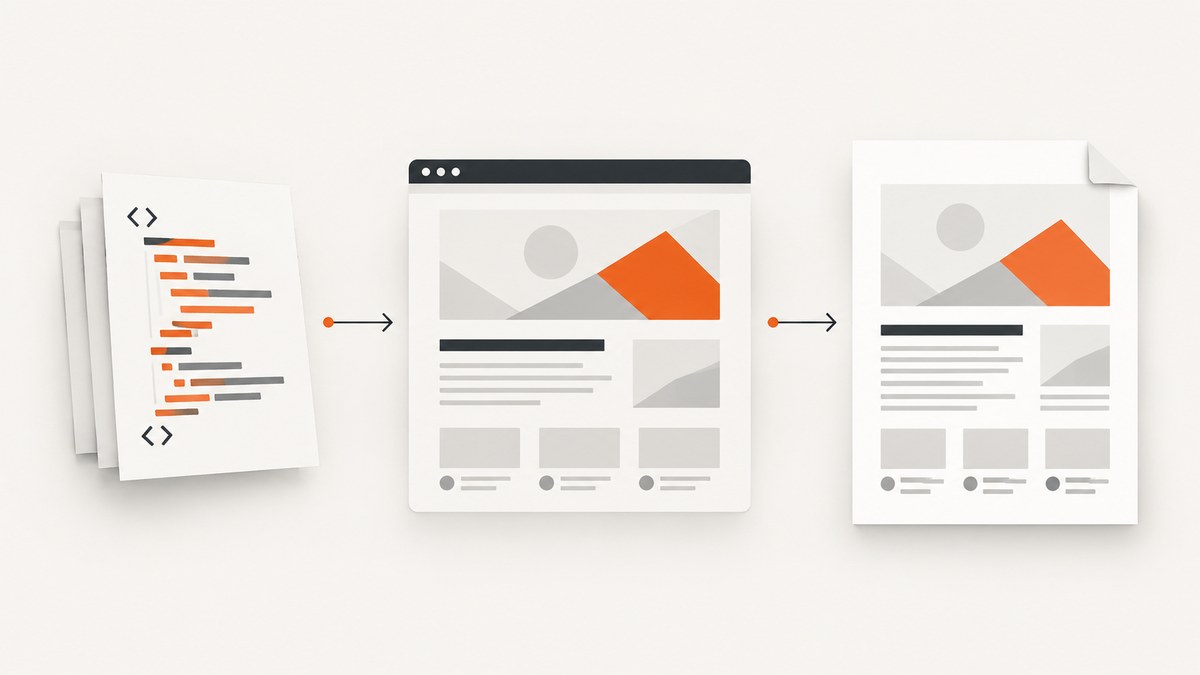
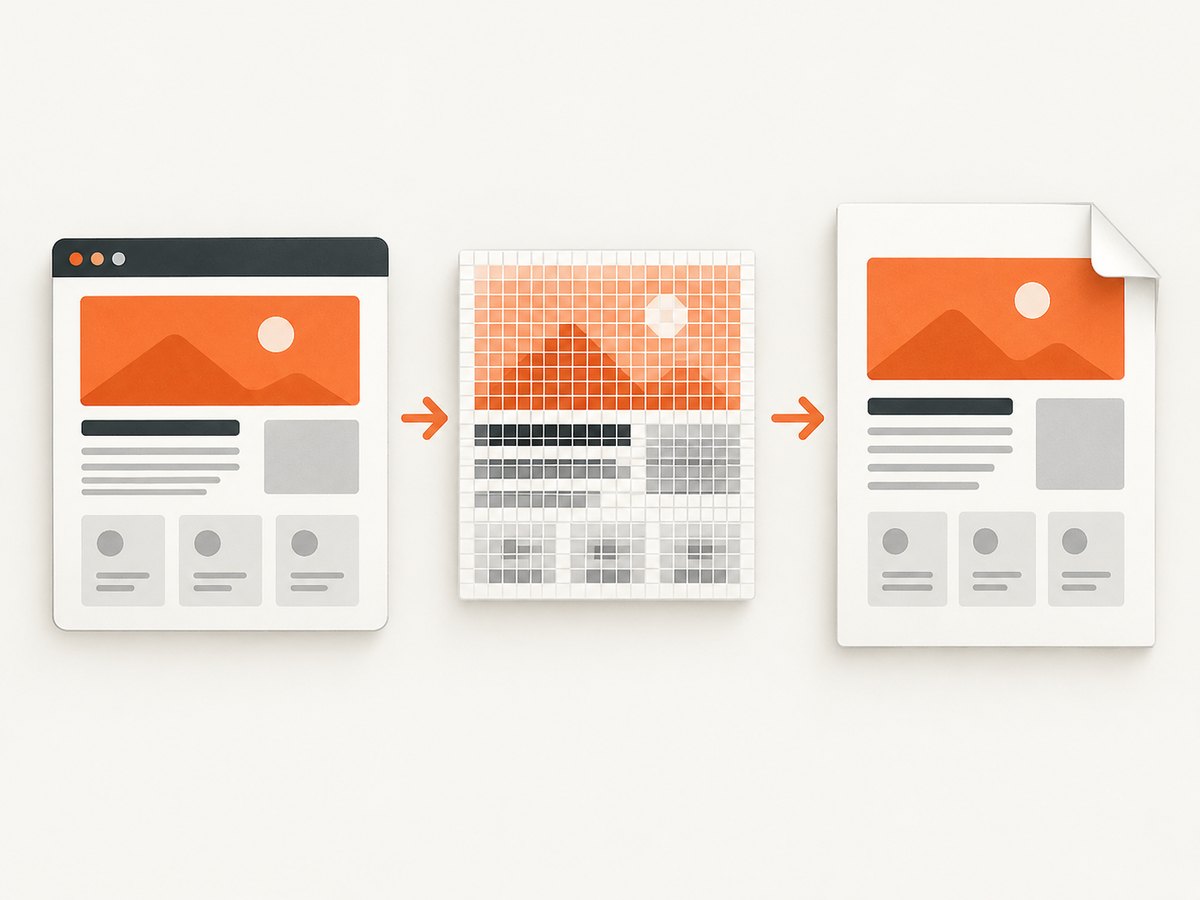
Direct answer: To improve the visual quality of a PDF made with jsPDF and html2canvas, render the HTML at a higher pixel density by setting html2canvas’s scale explicitly, then place the resulting image in jsPDF at its intended physical size. A larger scale can make text look sharper, but it does not make rasterized text selectable or searchable. If search and copy are requirements, use a text-preserving or vector PDF route for the parts of the document that need it.
Quality problems usually begin before jsPDF is called. If the canvas is already blurry, clipped, blank, or missing images, changing PDF settings cannot repair it. Debug the browser rendering, CSS support, fonts, image loading, viewport dimensions, and canvas limits first. The workflow below gives you a repeatable way to produce a sharper PDF and decide when a different rendering strategy is necessary.
What “better quality” means in a jsPDF workflow
PDF quality has several independent dimensions:
- Visual sharpness: how clean text and graphics look at normal zoom and when zoomed in.
- Text semantics: whether a reader can select, copy, search, or index the words.
- Layout fidelity: whether CSS spacing, fonts, colors, shadows, and responsive rules survive conversion.
- Pagination: whether content breaks at sensible points without clipping or overlap.
- Asset reliability: whether remote images and web fonts load without tainting or blanking the canvas.
- File size and resource use: higher resolution generally means larger canvases, more memory, and larger PDFs.
html2canvas creates a raster representation of the page. Its scale controls the rendering resolution and defaults to window.devicePixelRatio. The official documentation shows setting it explicitly when you need a predictable result (html2canvas configuration). jsPDF then embeds that raster output unless your chosen HTML route emits text separately. A sharper raster image is still pixels.
Baseline implementation: capture HTML and add it to jsPDF
Start with a small, deterministic example. The following page waits for fonts, captures one element, and writes a multipage PDF.
<!doctype html>
<html>
<head>
  <meta charset="utf-8">
  <script src="https://cdn.jsdelivr.net/npm/html2canvas@latest/dist/html2canvas.min.js"></script>
  <script src="https://cdn.jsdelivr.net/npm/jspdf@latest/dist/jspdf.umd.min.js"></script>
</head>
<body>
  <article id="invoice">
    <h1>Invoice</h1>
    <p>This content will be rendered into a PDF.</p>
  </article>
  <button id="download">Download PDF</button>

  <script>
    const { jsPDF } = window.jspdf;

    document.querySelector('#download').addEventListener('click', async () => {
      await document.fonts.ready;
      const element = document.querySelector('#invoice');
      const canvas = await html2canvas(element, {
        scale: Math.max(1, Math.min(3, window.devicePixelRatio || 1)),
        useCORS: true,
        backgroundColor: '#ffffff',
        logging: false,
        windowWidth: element.scrollWidth,
        windowHeight: element.scrollHeight
      });

      const pdf = new jsPDF({
        orientation: 'portrait',
        unit: 'mm',
        format: 'a4',
        compress: true
      });

      const pageWidth = pdf.internal.pageSize.getWidth();
      const pageHeight = pdf.internal.pageSize.getHeight();
      const margin = 12;
      const usableWidth = pageWidth - margin * 2;
      const renderedHeight = canvas.height * usableWidth / canvas.width;
      const image = canvas.toDataURL('image/jpeg', 0.92);

      let remaining = renderedHeight;
      let offset = 0;
      pdf.addImage(image, 'JPEG', margin, margin - offset, usableWidth, renderedHeight);
      remaining -= pageHeight - margin * 2;

      while (remaining > 0) {
        offset += pageHeight - margin * 2;
        pdf.addPage();
        pdf.addImage(image, 'JPEG', margin, margin - offset, usableWidth, renderedHeight);
        remaining -= pageHeight - margin * 2;
      }

      pdf.save('document.pdf');
    });
  </script>
</body>
</html>
The important relationship is between canvas pixels and final PDF placement. Increasing scale increases canvas.width and canvas.height. Keep the displayed width in millimetres or points stable, so more pixels are packed into the same physical area. Inspect the canvas before calling toDataURL; this separates html2canvas problems from jsPDF problems.
Choose a scale that your content can support
There is no universal best value. A scale of 2 often provides a useful starting point, but the correct value depends on document dimensions, fonts, images, browser limits, and available memory. Compare output at the final PDF size rather than judging only a huge zoom level.
- Render at
scale: 1and save the canvas dimensions. - Try
scale: 1.5, then 2, and compare the same text at normal reading size. - Stop increasing the value when sharpness no longer improves or rendering becomes slow, blank, or incomplete.
- For long documents, capture sections separately instead of creating one enormous canvas.
Use a bounded calculation so a high-density monitor does not unexpectedly create a huge canvas:
const scale = Math.min(3, Math.max(1, window.devicePixelRatio || 1));
const canvas = await html2canvas(element, { scale });
Higher scale consumes more memory and can increase encoding time and file size. JPEG quality below 1 can reduce size, but aggressive compression introduces ringing around small glyphs. PNG preserves crisp edges and transparency, while JPEG is usually smaller for photographic pages. Test both with your actual document.
Make the browser render the right content
Wait for fonts and images
Capturing before fonts are ready can produce fallback glyphs, changed line wrapping, or apparent blur. Wait for document.fonts.ready and for images to finish loading:
await document.fonts.ready;
await Promise.all([...document.images].map(img => {
  if (img.complete) return Promise.resolve();
  return new Promise(resolve => {
    img.addEventListener('load', resolve, { once: true });
    img.addEventListener('error', resolve, { once: true });
  });
}));
Do not assume every CSS feature is supported. The html2canvas FAQ states that every CSS property must be implemented manually, so it will never have full CSS support (html2canvas FAQ). If a shadow, filter, blend mode, pseudo-element, or layout rule is missing, simplify that rule for print capture or create a capture-specific stylesheet.
Control viewport and scroll dimensions
Responsive CSS can select a different layout during capture. Set windowWidth and windowHeight to the element’s scroll dimensions for tall content, as recommended in the FAQ. Also set the element’s width explicitly when your PDF requires a stable page layout.
const width = element.scrollWidth;
const height = element.scrollHeight;
const canvas = await html2canvas(element, {
  scale: 2,
  windowWidth: width,
  windowHeight: height,
  scrollX: 0,
  scrollY: 0
});
Very large canvases can render blank or partially on some browsers and platforms. Split a report by section, reduce the capture width, or render page-sized elements independently when dimensions approach browser limits.
Handle cross-origin images and canvas security
A remote image can be excluded or taint the canvas. useCORS: true only helps when the image server sends an appropriate Access-Control-Allow-Origin header. It cannot override the remote server’s policy. Verify the image response in browser developer tools. If you cannot configure the origin, fetch through a same-origin proxy that adds the required headers, subject to that site’s terms and your security policy.
const canvas = await html2canvas(element, {
  useCORS: true,
  allowTaint: false,
  imageTimeout: 15000
});
Do not use a permissive proxy blindly. Validate destination URLs, restrict protocols, and avoid forwarding private credentials. If an image is nonessential, replace it with a placeholder when it fails so the rest of the document remains usable.
Pagination and jsPDF HTML options
jsPDF’s HTML plugin exposes html2canvas settings and pagination controls. The exact option names and behavior depend on the installed jsPDF version, so consult the versioned jsPDF documentation and test page breaks. A common approach is to add page-break CSS to block elements:
.pdf-page-break {
  break-before: page;
  page-break-before: always;
}
.avoid-break {
  break-inside: avoid;
  page-break-inside: avoid;
}
For a screenshot-like PDF, manual canvas slicing gives predictable placement. For invoices, tables, and selectable text, a text-oriented generator or browser print-to-PDF route may produce better semantics. Compare normal-size fidelity, selection/search, file size, CSS coverage, cross-origin behavior, pagination, and browser constraints before choosing.
When sharper text still is not selectable
Rasterized text cannot be selected or searched. Increasing scale improves edge detail but does not add a text layer. If accessibility, indexing, copy/paste, or extraction matters, use a route that emits text objects or vectors for those regions. You can also combine approaches: generate a text-preserving PDF for body content and use raster images only for complex visual components. Verify the result by selecting text in a PDF viewer and searching for a known phrase; do not infer semantics from visual sharpness.
Or skip the browser setup
ScreenshotNeo provides a website screenshot API and MCP server. It can return PNG, JPEG, WebP, or PDF from one GET request, with options for full-page capture, lazy-loaded images, CSS-element capture, custom CSS and JavaScript, waits, device presets, viewport and retina scale, PDF paper size, margins, landscape mode, and page ranges. Cookie and consent banners, newsletter popups, and chat widgets are removed before capture. Bot checks, blank pages, timeouts, failed loads, and cache hits are not billed, and response headers identify the page verdict and billing status.

See the complete parameter list in the ScreenshotNeo documentation. The basic call is:
curl -G "https://api.screenshotneo.com/v1/shot" \
  -d access_key=YOUR_API_KEY \
  --data-urlencode url=https://stripe.com \
  -o shot.webp
import requests
r = requests.get(
"https://api.screenshotneo.com/v1/shot",
params={"access_key": "YOUR_API_KEY", "url": "https://stripe.com"},
timeout=90,
)
r.raise_for_status()
open("shot.webp", "wb").write(r.content)const q = new URLSearchParams({ access_key: 'YOUR_API_KEY', url: 'https://stripe.com' });
const res = await fetch(`https://api.screenshotneo.com/v1/shot?${q}`);
if (!res.ok) throw new Error(`HTTP ${res.status}`);
const data = Buffer.from(await res.arrayBuffer());
require('fs').writeFileSync('shot.webp', data);ScreenshotNeo also offers an MCP server with take_screenshot, get_page_info, and capture_pdf tools for Claude, Cursor, and other MCP clients. Plans include 1,000 shots per month free with no card; paid plans start at $5 for 3,000 shots, and every feature is available on every plan. Create a free ScreenshotNeo account to try it.
Troubleshooting checklist
| Symptom | Likely cause | Fix |
|---|---|---|
| Text is blurry | Low canvas scale or oversized final placement | Increase scale gradually, keep physical PDF width fixed, and inspect at normal size. |
| Text cannot be selected | Canvas output is raster | Use a text-preserving or vector route; scale cannot create selectable text. |
| Images are missing | Cross-origin policy or failed load | Check response CORS headers, set useCORS, or use a controlled same-origin proxy. |
| PDF is blank | Canvas dimension or browser limit | Reduce scale, set viewport dimensions, or split the document into sections. |
| Content is clipped | Viewport does not match scroll dimensions | Set windowWidth and windowHeight; capture the correct element. |
| Layout differs from the page | Unsupported CSS or responsive breakpoint | Use capture-specific CSS and explicit dimensions; simplify unsupported properties. |
| Fonts wrap differently | Capture began before web fonts loaded | Await document.fonts.ready and verify the font network requests. |
| File is too large | High pixel dimensions or lossless images | Lower scale only after checking readability, choose JPEG for photographic content, and split pages. |
Performance, reliability, and cost considerations
- Measure the actual canvas: log width, height, and render duration for representative documents. A scale increase multiplies both dimensions, so total pixels grow quickly.
- Reuse stable styles: avoid animations, blinking cursors, and layout shifts during capture. Freeze dynamic content before rendering.
- Capture in sections: section-sized canvases reduce peak memory and make page boundaries explicit.
- Retry selectively: retry network failures and timeouts, but investigate deterministic CSS or CORS errors instead of repeating them.
- Test a browser matrix: canvas limits, font rendering, and CSS support vary by browser, operating system, and device. Validate the actual environments your users receive.
- Budget raster work: higher scales increase CPU, memory, encoding time, and storage. Keep source images appropriately sized and avoid rendering hidden content.
FAQ
Does setting scale to 3 guarantee professional print quality?
No. It increases raster resolution, but output still depends on CSS support, source assets, canvas limits, and the physical PDF size. Measure the result at the intended use size.
Should I use PNG or JPEG?
PNG preserves sharp edges and transparency. JPEG is often smaller for photographic or gradient-heavy pages. Compare both with your document’s typography and graphics.
Can html2canvas create a searchable PDF?
Not from the canvas image alone. Searchability requires text objects or a separate text layer generated by a text-preserving PDF route.
Why does useCORS not fix every image?
It requires the remote server to send a suitable CORS header. The browser security policy remains in force when the server does not opt in.
When should I use a hosted screenshot API?
Use one when you want consistent browser setup, waits, device settings, PDF options, and operational handling without maintaining capture infrastructure. ScreenshotNeo combines those options with consent and popup removal, verdict-based billing, and MCP tools for AI agents.


