How to Improve Screenshot Quality Online
Make screenshots clearer: capture at the right size, crop clutter, preserve readable text, protect privacy, and automate clean captures with ScreenshotNeo.
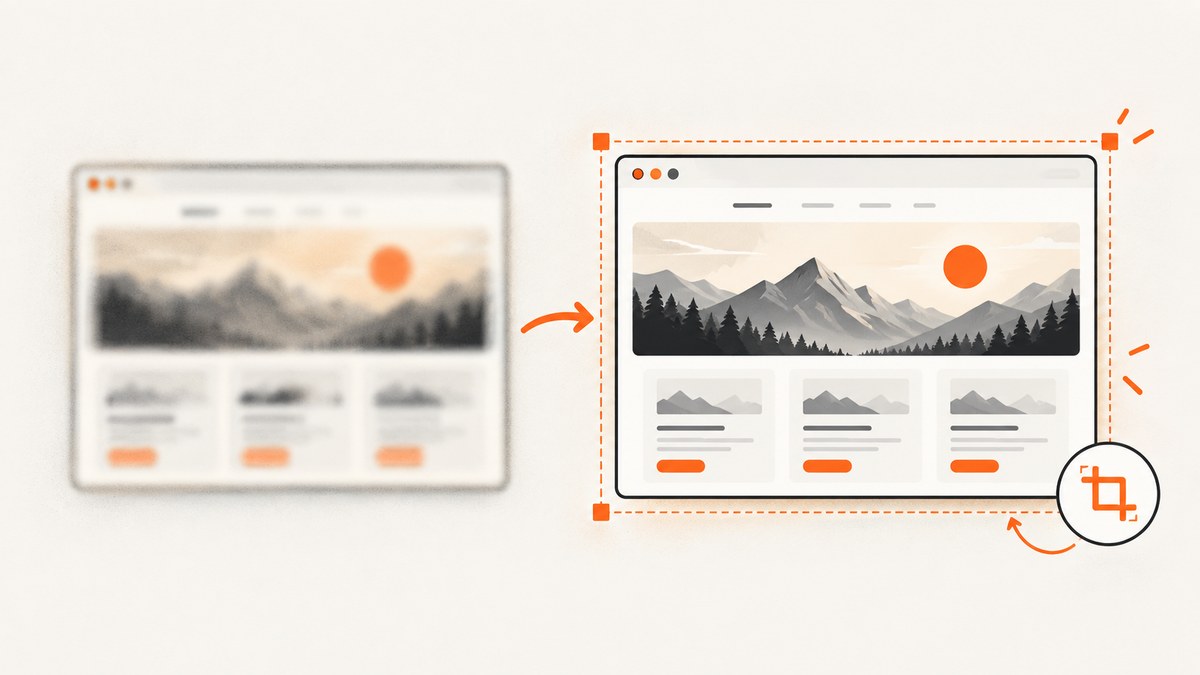
A higher-quality screenshot starts with a better capture. Select the relevant area or capture the full page, use the dimensions your destination needs, crop unrelated browser chrome, preserve text at a readable size, and remove private information before sharing. Enlarging a small bitmap or applying heavy sharpening cannot reliably restore detail that was never captured.
1. Capture a better source image
Editing can improve framing and presentation, but it cannot recreate missing pixels. If the source is blurry, pixelated, or already compressed, recapture it at the required size whenever possible.
Choose the capture area
- Selected region: Capture only the control, error, chart, or paragraph relevant to the task. This reduces clutter and makes text larger in the final image.
- Full page: Use a browser’s full-page capture when the reader needs content below the fold. Microsoft Edge documents both selected-area and entire-page capture in its Screenshot tool (Edge Screenshot documentation).
- Element capture: If your browser or automation tool supports it, target one DOM element instead of capturing the entire viewport. This is useful for cards, tables, and error panels.
Capture at the display size you need
Decide where the image will appear before capturing it: a support ticket, documentation page, presentation, printout, or social post. Capture enough pixels that interface text remains readable at that destination’s rendered size. Chrome’s Lighthouse guidance explains why image dimensions should match rendered display size and account for device pixel ratio (Properly size images).
Do not treat Mozilla’s contextual recommendation of screenshots under 620 pixels in both dimensions as a universal web standard. It applies to a specific help-content workflow (Mozilla’s screenshot guide).
Use browser scale and device pixel ratio deliberately
- For a normal desktop screenshot, use the viewport size at which readers will inspect the UI.
- For high-density displays or print, capture at a larger pixel dimension rather than enlarging a small export later.
- Keep browser zoom at a known value. A zoomed page can make text clearer, but it also changes layout and may hide responsive issues.
2. Crop and simplify the composition
Crop out tabs, bookmarks, address bars, unrelated panels, and empty margins unless they provide useful context. Mozilla recommends cropping larger captures and simplifying complex screenshots so the important UI is easy to find.
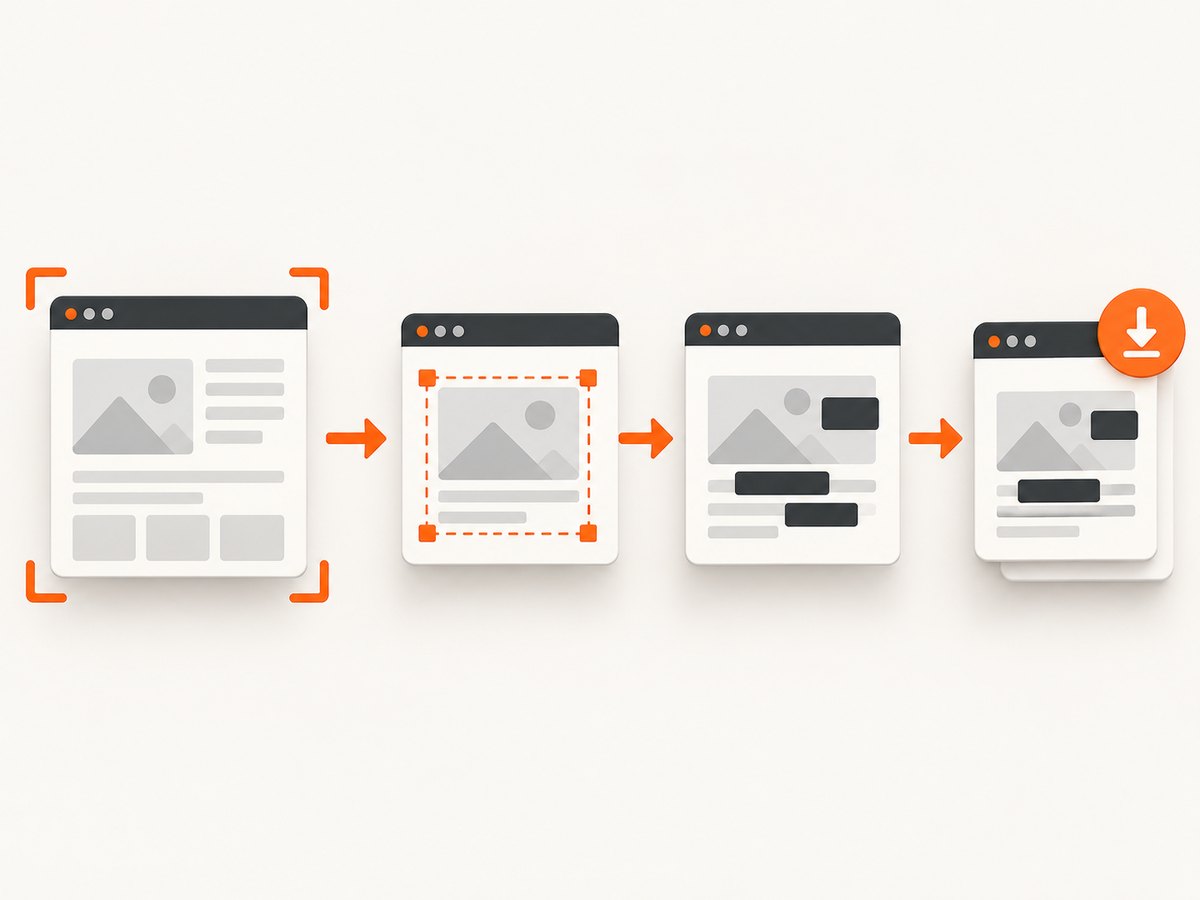
- Keep enough surrounding context to identify the page or control.
- Remove unrelated windows, notifications, and browser chrome.
- Align the crop to the page’s visual structure where possible.
- Check the crop at the size readers will actually view.
For instructional screenshots, mute or remove non-essential areas. Use arrows, boxes, or numbered markers sparingly so annotations do not cover the control they describe.
3. Preserve readable text
For text-heavy interfaces, PNG is a practical first export to inspect. Mozilla explicitly recommends PNG for its screenshot-preparation use case. It is not a universal rule for every platform: compare file size and legibility against JPEG or WebP when bandwidth matters.
- PNG: A sensible starting point for crisp interface text, diagrams, and screenshots with flat-color UI.
- JPEG: Useful when small files matter and the image contains photographs or gradients; compression can create halos around text.
- WebP: Often useful for web delivery when your destination supports it; inspect the rendered result instead of assuming a quality setting is lossless.
Keep an untouched original. Export a working copy, then compare the final image at 100% and at its actual display size. Canva lists crop, resize, sharpen, blur, and annotation-style editing operations, but the availability of a sharpen control is not evidence that it can recover unreadable source detail (Canva screenshot editor).
4. Resize without inventing detail
Upscaling increases the number of output pixels; it does not reliably reconstruct the fine detail lost in a small or compressed source. If text is already unreadable, recapture it at a larger size. If you must resize, use a moderate scale, inspect thin strokes and icons, and avoid repeated save-and-resize cycles.
| Situation | Best action |
|---|---|
| Small original with unreadable text | Recapture at a larger viewport or device scale. |
| Correct detail but wrong dimensions | Resize once using a high-quality resampling method, then inspect. |
| Large full-page image for documentation | Crop to the relevant section or provide a linked full-size version. |
| Print use | Capture more pixels at the intended physical size; do not rely on sharpening alone. |
5. Add restrained annotations
Annotations should direct attention, not compete with the interface. Use one visual language throughout a document: for example, a thin colored rectangle for the target and a short arrow for the action.
- Place labels outside controls when possible.
- Keep arrows short and avoid crossing important text.
- Use a consistent color with enough contrast.
- Save an unmarked original so you can revise the explanation later.
6. Remove private information before sharing
Inspect the entire image, including browser chrome and notification areas, for names, email addresses, usernames, account IDs, customer data, tokens, and internal URLs. Mozilla specifically advises removing personally identifiable information from screenshots.
- Scan the top, bottom, and corners for account and browser details.
- Search visible text for emails, IDs, and secrets.
- Crop information that is not needed.
- Blur or redact details that must remain in the frame. Verify that the redaction is opaque and cannot be removed by changing contrast.
- Check metadata and the filename before uploading or publishing.
Online editors make different privacy claims. Screenit says its capture and editing operations run on the device, while Screenshot Studio describes local, in-page tools. These are vendor statements; review a service’s current policy and network behavior before processing sensitive material.
7. A repeatable online workflow
- Define the destination: Record the required display width, file format, and whether the image must show one element or a full page.
- Recapture: Use a selected region, full-page capture, or element capture at adequate dimensions.
- Frame: Crop unrelated UI and keep enough context for the reader to understand the screen.
- Clean: Hide notifications, personal data, and distracting panels.
- Annotate: Add only the marks needed to explain the task.
- Export: Start with PNG for text-heavy UI, then compare JPEG or WebP if file size is a concern.
- Review: Inspect at 100% and at the final rendered size. Check mobile and dark-mode presentations when relevant.
- Publish: Keep the original and record the capture dimensions and edits used.
8. Automate clean website screenshots with ScreenshotNeo
For repeated captures, documentation builds, visual QA, or screenshots from pages that require browser setup, ScreenshotNeo provides a GET endpoint that returns PNG, JPEG, WebP, or PDF. It accepts full-page captures with lazy images loaded, CSS-element selection, dark mode, device presets or custom viewports, retina scale, custom CSS and JavaScript, clicks, selector or network-idle waits, hidden selectors, blocked ads and trackers, custom headers, cookies, user agents, Authorization, timezone, geolocation, transparent backgrounds, resizing, caching with a chosen TTL, signed image links, asynchronous jobs with signed webhooks, bulk capture of up to 100 URLs per call, usage data, and an OpenAPI specification. Common parameter names used by other screenshot APIs also work when switching.
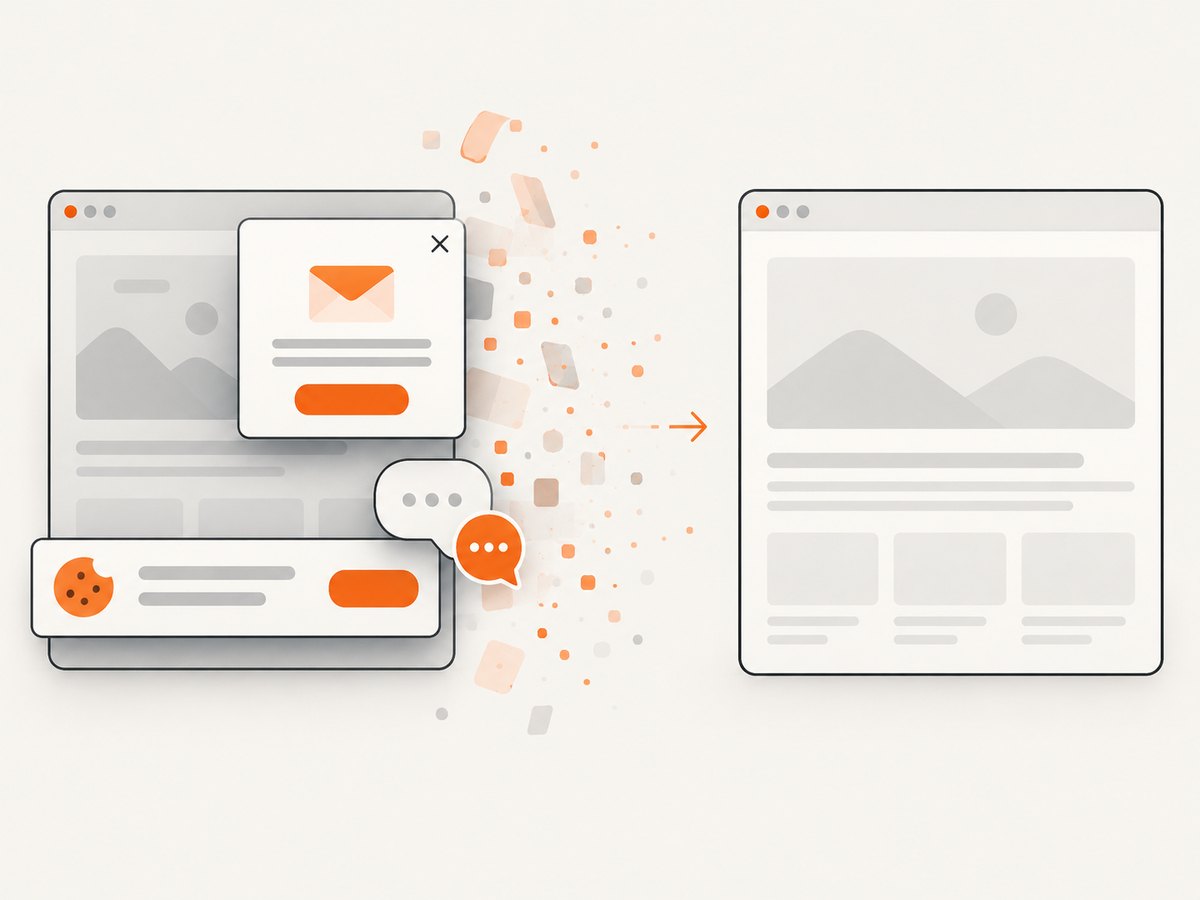
Each capture can accept consent banners and remove more than 60 known consent platforms, newsletter popups, and chat widgets before the shot; each step can be turned off. Bot checks or CAPTCHAs, blank pages, timeouts, failed loads, and cache hits are not billed. The response reports the result with X-Page-Verdict and X-Billed headers.
cURL
curl -G "https://api.screenshotneo.com/v1/shot" \
  -d access_key=YOUR_API_KEY \
  --data-urlencode url=https://stripe.com \
  -o shot.webp
Python
import requests

r = requests.get(
    "https://api.screenshotneo.com/v1/shot",
    params={"access_key": "YOUR_API_KEY", "url": "https://stripe.com"},
    timeout=90,
)
r.raise_for_status()
open("shot.webp", "wb").write(r.content)
Node.js
const q = new URLSearchParams({
  access_key: 'YOUR_API_KEY',
  url: 'https://stripe.com'
});
const res = await fetch(`https://api.screenshotneo.com/v1/shot?${q}`);
if (!res.ok) throw new Error(`HTTP ${res.status}`);
const fs = await import('node:fs/promises');
await fs.writeFile('shot.webp', Buffer.from(await res.arrayBuffer()));
See the ScreenshotNeo documentation for parameter names and response details. For production jobs, set an explicit timeout, retry transient network errors with backoff, preserve the verdict headers in logs, and use caching when the page does not need a fresh render. Signed webhooks and asynchronous jobs are useful when a capture may outlive an HTTP request; bulk capture reduces request overhead for batches.
Or skip the browser setup
Use the same one-call request when you need a clean image without maintaining browser automation:
curl -G "https://api.screenshotneo.com/v1/shot" -d access_key=YOUR_API_KEY --data-urlencode url=https://stripe.com -o shot.webpCookie banners, newsletter popups, and chat widgets are removed before the shot. Bot checks, blank pages, and failed loads are never billed. An MCP server provides take_screenshot, get_page_info, and capture_pdf tools for Claude, Cursor, and other MCP clients. The Free plan includes 1,000 screenshots each month with no card; paid plans start at $5 for 3,000 shots, and every feature is available on every plan.
Create a free ScreenshotNeo account to start with 1,000 screenshots a month and no card.
9. Troubleshooting checklist
| Problem | Likely cause | Fix |
|---|---|---|
| Text looks soft | The source was captured too small or compressed repeatedly. | Recapture at a larger viewport or device scale; export once. |
| Important content is missing | The viewport capture ends before lazy content or below-fold content. | Use full-page capture, wait for a selector or network idle, and verify the page state. |
| Cookie banner covers the page | Consent has not been handled before capture. | Accept consent in the browser workflow or enable ScreenshotNeo’s consent handling. |
| Popup or chat widget obscures the target | A newsletter, chat, or overlay loaded after navigation. | Close it, hide its selector, or use ScreenshotNeo’s popup and widget removal. |
| Capture is blank or times out | The page failed to load, blocked automation, or needs more wait time. | Check the URL and authentication, increase the wait, wait for a selector, and inspect the page verdict. |
| Annotations hide the control | Marks were added too heavily or on top of text. | Move labels outside the target and keep one consistent marker style. |
| Private data was published | Browser chrome, notifications, or account details were overlooked. | Perform a full-image privacy review, crop, and apply opaque redaction before sharing. |
| Output file is too large | Dimensions or lossless format exceed the destination’s needs. | Crop first, then compare JPEG or WebP at the actual display size. |
10. Performance, reliability, and cost notes
- Performance: Crop before upload when possible, avoid unnecessary full-page captures, and use caching with a TTL for unchanged pages.
- Reliability: Wait for a meaningful selector or network idle instead of relying only on a fixed delay. Log verdict and billing headers so failed or cached responses are distinguishable from clean captures.
- Freshness: Disable or shorten cache TTL when the screenshot must reflect live content; use a longer TTL for stable documentation pages.
- Cost: ScreenshotNeo bills only clean shots. Bot checks, CAPTCHAs, blank pages, timeouts, failed loads, and cache hits cost nothing. Plans range from Free (1,000 per month) to paid tiers starting at $5 for 3,000; yearly billing gives two months free.
- Privacy: Do not send secrets in URLs. Use headers or cookies only when required, and review the service policy for sensitive pages.
FAQ
Can sharpening fix a pixelated screenshot?
No. Sharpening may increase edge contrast, but it cannot reliably recreate detail absent from the original. Recapture at a suitable size.
Should every screenshot be PNG?
No. PNG is a practical starting point for text-heavy interface images. Choose JPEG or WebP when their smaller files meet your destination’s quality needs.
Is a full-page screenshot always better?
No. Use a full-page image when below-fold context matters. For a single control or error, a selected region is usually clearer.
How do I make a screenshot safe to share?
Check for names, emails, usernames, IDs, notifications, tokens, and internal URLs. Crop or apply opaque redaction, then inspect the exported file.
When should I automate screenshots?
Automation helps when captures repeat, pages require consistent waits or authentication, or you need many URLs, PDFs, or element-specific images. ScreenshotNeo adds those controls through one API request.


