10 Ways to Improve Website Screenshots in 2026
A practical guide to sharper, faster, accessible website screenshots, from capture settings and responsive layouts to privacy and automation.
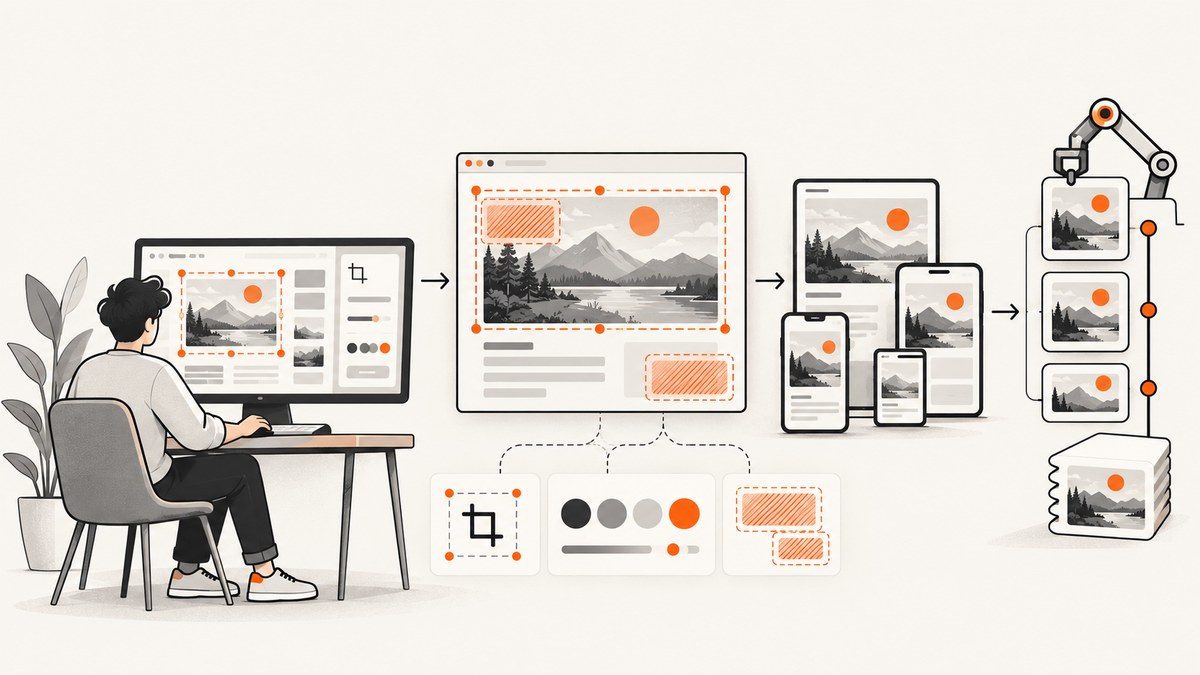
Better website screenshots come from a repeatable process: choose the right capture scope, standardize the browser environment, frame the task, export at the size readers need, and review privacy and accessibility before publishing. The ten improvements below cover manual captures in Edge, automated captures with Playwright, and API-based workflows.
If you only need a quick checklist, use this order:
- Set a consistent viewport, browser, zoom and device scale.
- Choose element, viewport or full-page capture based on the task.
- Crop unrelated chrome and empty space.
- Capture representative responsive states.
- Export a sharp image at its rendered size.
- Optimize variants with
srcsetandsizes. - Write useful alt text and surrounding instructions.
- Remove personal and confidential data.
- Use descriptive filenames and a format policy.
- Automate dynamic states and review the result with accessibility in mind.
1. Standardize the capture environment
Two screenshots of the same page can differ because of the operating system, browser engine, viewport, zoom, fonts, device scale, color scheme, locale or loaded data. A documentation set is easier to compare when those variables are fixed. Google’s documentation style guidance recommends using a consistent operating system for screenshots.
A practical capture specification
| Setting | What to record | Why it matters |
|---|---|---|
| Browser | Family and version | Rendering and font differences can change layout. |
| Viewport | CSS width and height | Breakpoints and wrapping depend on CSS pixels. |
| Zoom | Usually 100% | Non-default zoom changes effective layout. |
| Device scale | 1x, 2x or another fixed value | Controls sharpness and output dimensions. |
| Fonts | Wait until web fonts finish loading | Fallback fonts can alter line breaks. |
| State | Account, locale, theme and data fixture | Reproduces the same content later. |
For automated work, save these values beside the image or in the capture script. For manual work, keep a short checklist near your browser profile. Also disable extensions that inject UI, and decide whether animations should be paused.
2. Match capture mode to the reader’s task
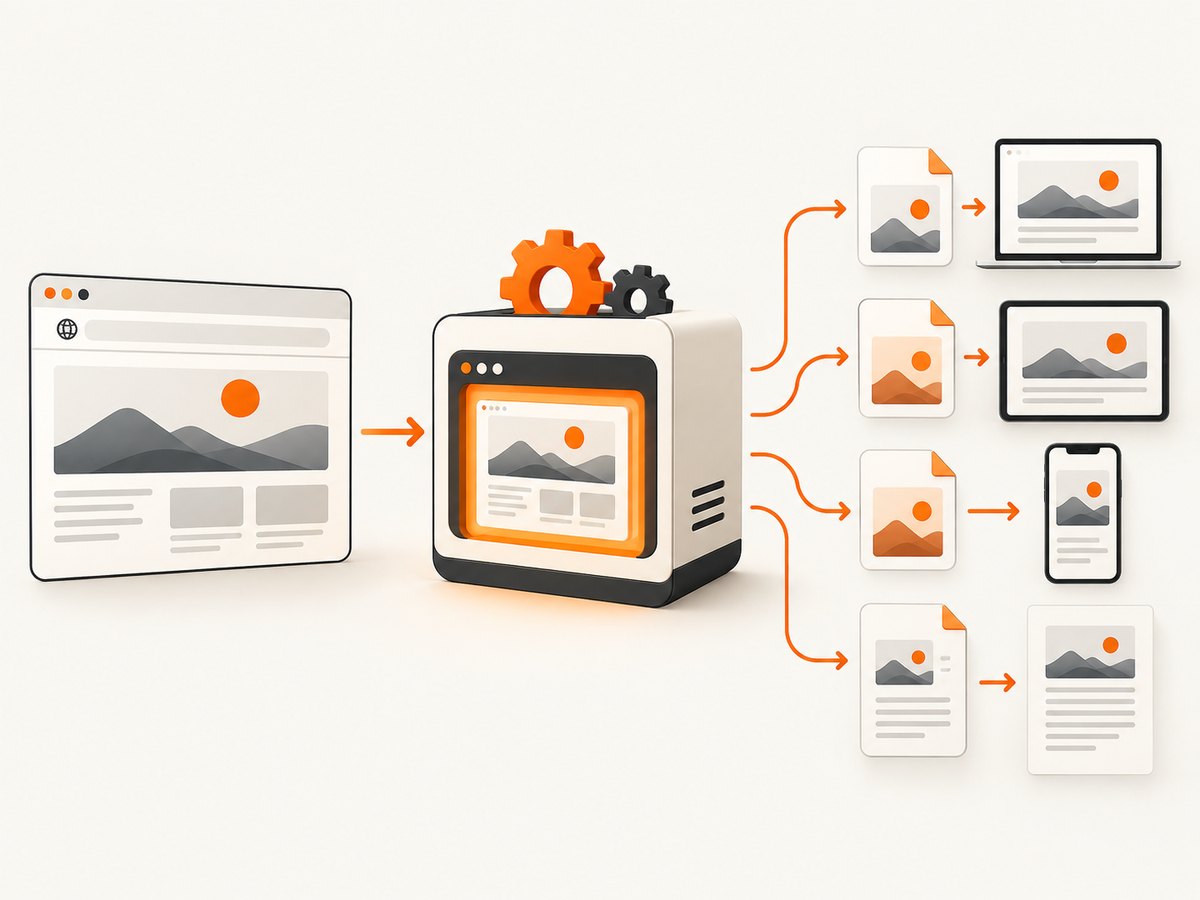
Use the smallest scope that communicates the point. An element screenshot is ideal for one button, field or error message. A viewport screenshot shows the visible interaction and its surrounding context. A full-page screenshot is appropriate when below-the-fold content, page structure or a long article matters. Playwright documents viewport, element, full-page and device-scale screenshots; Edge supports full-page and selected-area capture.
Playwright examples
import { chromium } from 'playwright';

const browser = await chromium.launch();
const page = await browser.newPage({ viewport: { width: 1440, height: 900 } });
await page.goto('https://example.com', { waitUntil: 'networkidle' });

// Visible viewport
await page.screenshot({ path: 'viewport.png' });

// One element
await page.locator('[data-testid="pricing-card"]').screenshot({ path: 'pricing-card.png' });

// Entire document
await page.screenshot({ path: 'full-page.png', fullPage: true });

await browser.close();
Element capture avoids irrelevant whitespace, while full-page capture can become very tall and expensive to display. If a page contains sticky headers, check whether the header is repeated down the full image and crop or mask it when repetition distracts from the content.
3. Frame the important information
Crop away browser chrome, unrelated panels and empty space. Google’s guidance says cropping helps readers focus and can future-proof an image when other interface areas change. Leave enough surrounding context to identify the page and the action being explained.
A useful crop answers three questions quickly: What page is this? Where should the reader look? What changed or matters? If an annotation is necessary, use a restrained outline or arrow and explain it in nearby prose. Do not rely on color alone to identify the target.
4. Show responsive states deliberately
A single desktop image cannot document a responsive interface. Capture the layouts readers actually encounter: at minimum, a representative narrow viewport and a representative wide viewport. Add an intermediate width when a breakpoint changes navigation, tables, cards or forms.
W3C guidance asks authors to consider page information across different viewport sizes and zoomed windows, and WCAG treats each responsive variation as part of the full page. Record the viewport dimensions in a caption or filename so maintainers know which state they are viewing.
const widths = [390, 768, 1440];
for (const width of widths) {
  await page.setViewportSize({ width, height: 900 });
  await page.screenshot({ path: `checkout-${width}.png`, fullPage: true });
}
Check horizontal overflow, clipped controls, collapsed menus and altered content order. A mobile screenshot should show the actual mobile interaction, not a desktop page squeezed into a narrow frame.
5. Capture at an appropriate device scale
Use a high device scale when an image will be displayed large or inspected closely, then export a file sized for its rendered use. Playwright’s device-scale option can produce sharper text and controls. A 2x source is useful for a 1x rendered slot, but shipping a huge image to a small slot wastes bytes.
const page = await browser.newPage({
  viewport: { width: 1280, height: 800 },
  deviceScaleFactor: 2
});
await page.goto('https://example.com', { waitUntil: 'networkidle' });
await page.screenshot({ path: 'retina.png' });
Choose PNG for crisp interface text, transparency or diagrams; JPEG for photographic content; and WebP when your delivery pipeline supports it. Compare the result at the actual display width before choosing the format.
6. Optimize delivery without making text fuzzy
Generate variants near the sizes you actually render. Chrome’s image guidance explains that serving images larger than their rendered dimensions wastes bytes and slows page loads. Use responsive markup:
<img
  src="checkout-1000.webp"
  srcset="checkout-480.webp 480w,
          checkout-750.webp 750w,
          checkout-1000.webp 1000w"
  sizes="(max-width: 700px) 92vw, 1000px"
  width="1000"
  height="720"
  alt="Checkout form showing an inline card-number validation error">
Set intrinsic width and height to reduce layout shifts. Compress after capture, but inspect small text at 100% zoom. If compression makes labels muddy, raise quality, switch to PNG or provide a larger variant. SVG is appropriate for vector artwork, not for a rasterized browser screenshot.
7. Write useful alt text and surrounding context
Alt text should state what the screenshot shows and why it matters. WCAG 2.2 Success Criterion 1.1.1 requires text alternatives for non-text content, and Google recommends concise descriptive alt text. A complex screenshot also needs explanatory prose so readers do not have to infer information visually.
| Weak | Useful |
|---|---|
| Dashboard screenshot | Analytics dashboard with the date filter set to June and traffic falling after the release. |
| Error | Signup form displaying an inline message that the password must contain a number. |
| Mobile view | Mobile navigation drawer open with Documentation selected. |
Do not put every visible label into alt text when the same information is already in the surrounding text. For a chart or dense workflow, summarize the conclusion in prose and link to the underlying data when available.
8. Protect privacy before export
Review every screenshot for account names, email addresses, access tokens, customer records, private URLs, internal hostnames and notification content. Google’s guidance warns against publishing personally identifiable information. Replace sensitive values with safe fixtures before capture whenever possible.
If you must cover data in an image, use an opaque overlay. Blur and mosaic effects can be reversible. Also inspect browser address bars, downloaded filenames, hover tooltips and developer overlays; sensitive values often appear outside the main page content.
9. Use descriptive filenames and a documented format policy
Names such as checkout-error-mobile.png are easier to search and maintain than IMG_0042.png. Include the subject, state and breakpoint when useful:
pricing-table-dark-desktop.webp
signup-password-error-mobile.png
settings-api-key-redacted-1440.png
Store the capture date or commit identifier in metadata or a manifest when screenshots are part of visual regression work. GitHub’s published documentation requirements provide one contextual example: PNG, descriptive names, 144 dpi, 750–1000 pixels for a full-column image and a 250 KB target. Treat those values as that publication’s policy, not a universal rule. Your own policy should define acceptable formats, maximum rendered width, compression quality, naming and retention.
10. Capture dynamic states reproducibly and review accessibility
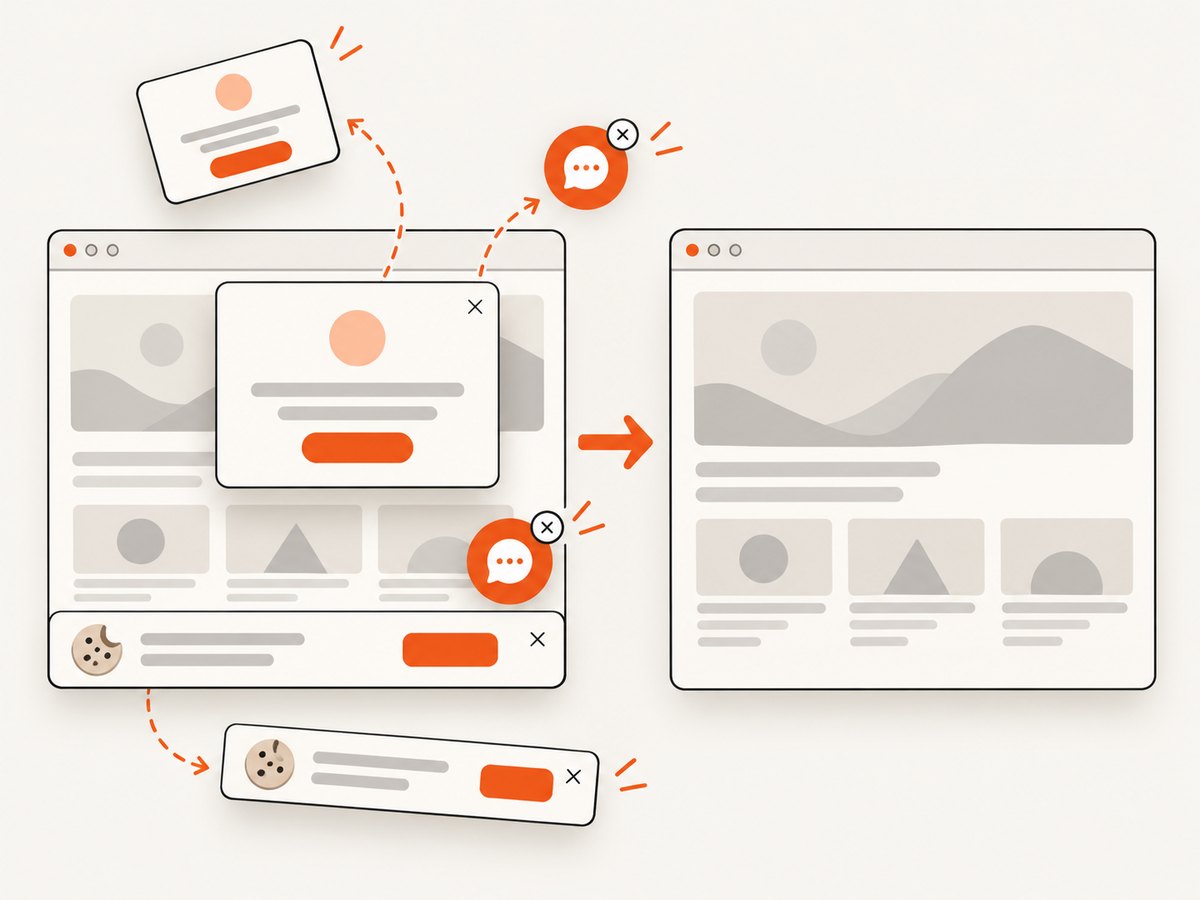
Dynamic content is a common source of inconsistent screenshots. Wait for a specific selector, network idle or a known delay; freeze animations; seed test data; and select the exact frame of a carousel or video. Playwright positions screenshots as useful for visual-layout verification and bug documentation. Edge provides tools for capturing moving content and adding markup.
await page.goto('https://example.com/inbox');
await page.locator('[data-testid="inbox-loaded"]').waitFor();
await page.addStyleTag({ content: `
  *, *::before, *::after {
    animation: none !important;
    transition: none !important;
    caret-color: transparent !important;
  }
` });
await page.screenshot({ path: 'inbox-stable.png', fullPage: true });
Automated checks do not replace using a keyboard or screen reader. Chrome DevTools notes that accessibility tooling cannot substitute for trying a page with those inputs. Review contrast, focus visibility, reading order and whether the surrounding explanation conveys information absent from the image.
DIY workflow: a repeatable Playwright capture
The following script combines the main practices: fixed environment, font loading, animation suppression, a selector wait, responsive captures and a full-page image.
import { chromium } from 'playwright';

const url = 'https://example.com';
const browser = await chromium.launch();
const context = await browser.newContext({
  colorScheme: 'light',
  locale: 'en-US',
  timezoneId: 'UTC',
  deviceScaleFactor: 2
});
const page = await context.newPage();

for (const width of [390, 1440]) {
  await page.setViewportSize({ width, height: 900 });
  await page.goto(url, { waitUntil: 'domcontentloaded' });
  await page.evaluate(() => document.fonts.ready);
  await page.locator('main').waitFor({ state: 'visible', timeout: 15000 });
  await page.addStyleTag({ content: '* { animation: none !important; transition: none !important; }' });
  await page.screenshot({
    path: `page-${width}.png`,
    fullPage: true,
    animations: 'disabled'
  });
}
await browser.close();
For protected or personalized pages, pass test cookies or headers through the browser context and use a fixture account. Keep secrets outside source control. If a page never reaches network idle because of analytics or streaming requests, wait for a meaningful selector instead.
Or skip the browser setup
ScreenshotNeo provides a website screenshot API and MCP server. One GET request returns PNG, JPEG, WebP or PDF, while options cover full-page capture with lazy images, CSS-element capture, dark mode, device presets or custom viewports, retina scale, custom CSS and JavaScript, clicks, selector or network-idle waits, blocked ads and trackers, headers, cookies, user agents, authorization, timezone, geolocation, transparent backgrounds, resizing, caching, signed links, asynchronous jobs, bulk capture and usage reporting. See the ScreenshotNeo documentation for the complete parameter list.
curl -G "https://api.screenshotneo.com/v1/shot" \
  -d access_key=YOUR_API_KEY \
  --data-urlencode url=https://stripe.com \
  -o shot.webp
import requests
r = requests.get(
"https://api.screenshotneo.com/v1/shot",
params={"access_key": "YOUR_API_KEY", "url": "https://stripe.com"},
timeout=90,
)
r.raise_for_status()
open("shot.webp", "wb").write(r.content)const q = new URLSearchParams({ access_key: 'YOUR_API_KEY', url: 'https://stripe.com' });
const res = await fetch(`https://api.screenshotneo.com/v1/shot?${q}`);
if (!res.ok) throw new Error(`HTTP ${res.status}`);
const body = Buffer.from(await res.arrayBuffer());
await import('node:fs/promises').then(fs => fs.writeFile('shot.webp', body));Cookie banners, newsletter popups and chat widgets are removed before the shot. Bot checks, blank pages, failed loads and cache hits are never billed, and response headers identify the page verdict and billing state. An MCP server lets Claude, Cursor and other MCP clients call take_screenshot, get_page_info and capture_pdf. The free plan includes 1,000 screenshots a month with no card; paid plans start at $5 for 3,000.
Create a free ScreenshotNeo account and start with the 1,000 monthly screenshots.
Troubleshooting common screenshot problems
| Symptom | Likely cause | Fix |
|---|---|---|
| Text differs between runs | Fonts or animations are still loading | Wait for document.fonts.ready, disable animation and use a stable fixture. |
| Full-page image is blank below the fold | Lazy content needs scrolling or a full-page-aware capture | Use a tool’s full-page mode and wait for the content selector; scroll in controlled increments if required. |
| Screenshot has a cookie banner | Consent state was not set | Accept the banner in setup, inject a consent cookie, or use a capture service that handles consent. |
| Page times out | Third-party requests never become idle | Wait for a meaningful selector, block unnecessary resource types and raise the timeout only when justified. |
| Mobile layout is clipped | Wrong CSS viewport or horizontal overflow | Set the viewport in CSS pixels and inspect overflow at the target width. |
| Image is sharp but too large | High device scale was delivered at native dimensions | Resize to the rendered slot and provide responsive variants. |
| Private data appears in output | Real account or URL was used | Use synthetic fixtures, redact with an opaque mask and review the entire frame before publishing. |
| API response is not an image | Authentication or URL error | Check the status code and response headers, validate the encoded URL and keep the API key server-side. |
Performance, reliability and cost notes
- Performance: Full-page captures, high device scales and uncached third-party assets increase work. Capture only the scope you need, block irrelevant resources and cache stable pages.
- Reliability: Prefer selector-based readiness over arbitrary sleeps. Pin browser versions for regression sets, record viewport and locale, and retry transient navigation failures with a limit.
- Cost: Large images consume storage and transfer even when capture is free. Resize derivatives and set a cache policy. For API workflows, distinguish successful clean captures from bot checks, blank pages, timeouts and cache hits before analyzing spend.
- Maintenance: Treat screenshots as versioned documentation. Re-capture after meaningful UI changes and keep the source script or capture parameters beside the output.
FAQ
What is the best screenshot size for a website?
Use the rendered width as the baseline, then provide a larger source when readers may zoom or high-density displays are expected. There is no universal pixel size; layout, device scale and publication policy determine it.
Should I use PNG or JPEG?
PNG is usually clearer for interface text, transparency and diagrams. JPEG is efficient for photographs. WebP can reduce size when your browser and publishing pipeline support it.
How do I capture a page that requires login?
Use a dedicated test account, inject short-lived cookies or authorization headers securely, and remove personal data before export. Never place credentials in a public script or URL.
How often should screenshots be updated?
Update them when the documented workflow, responsive layout or visible labels change. Automated visual checks can identify candidates, but a human should confirm that the image still explains the task.
Can one screenshot document accessibility?
No. Include useful alt text and prose, then test the page with keyboard navigation and a screen reader. A screenshot records appearance, not the complete interaction or reading experience.


