How to Improve wkhtmltopdf PDF Generation Performance
Speed up wkhtmltopdf by measuring real workloads, removing unnecessary rendering work, and avoiding repeated startup costs without sacrificing PDF correctness.

wkhtmltopdf performance improves when you remove work the PDF does not need and reduce avoidable process startup for batches. First check whether each source page needs JavaScript and images; if it does not, disable the corresponding work. For many separate conversions, benchmark --read-args-from-stdin against repeated process launches. Keep any JavaScript delay long enough for required content to appear, and verify that faster settings still produce correct PDFs.
There is no documented universal speed gain for these options. The upstream documentation lists the controls, but does not provide comparable benchmark results. Measure with representative input pages and record the wkhtmltopdf version and build, especially whether it uses patched Qt. [Usage documentation; Debian manual]
1. Establish a baseline before tuning
Choose a small set of representative inputs: a static page, a page with images, a JavaScript-rendered page if you have one, and a typical long document. Include the slowest pages your production workload regularly sees. Run the same inputs with the same binary, machine, network conditions, and output settings before and after each change.
- Record the environment. Capture the command output from
wkhtmltopdf --version, the operating system and package source, and whether the build includes patched Qt. Features can differ between patched-Qt builds and distribution packages. The upstream downloads page lists 0.12.6 as the stable series and dates its release to June 11, 2020; that is the project page’s stated information, not proof that every installed package is identical. [Downloads and release information; Debian manual] - Time cold and warm runs. A cold run can include process startup, initial resource loading, and cache misses; later runs may benefit from operating-system or remote caches. Keep these results separate. Do not compare a cold baseline to a warm tuned run.
- Change one variable at a time. For example, compare the default against JavaScript disabled, then restore the default and compare images disabled. This shows which change affects your workload.
- Check the PDF, not only elapsed time. Compare page count, text, images, layout, and any content created by JavaScript. A faster command that omits required content is a regression.
For each run, log elapsed time, exit status, output size, and the exact command. For batches, also note total pages converted and how many separate input documents were processed. Use repeated runs and report a median or range; a single run can be distorted by network and machine activity.
2. Disable JavaScript only for pages that do not need it
JavaScript is enabled by default in the documented options. Disabling it can avoid script execution, but it also prevents scripts from populating charts, menus, tables, or other content. Use this setting only after confirming the page is complete without JavaScript.
wkhtmltopdf --disable-javascript https://example.com/report report.pdfFor local HTML, replace the URL with a file path, for example file:///srv/reports/report.html. Keep the input and output arguments at the end of the command. Check the installed binary’s help if an option is unavailable or behaves differently in your package.
If your source renders data asynchronously, JavaScript may be essential. In that case, reduce unnecessary scripts at the source when possible, or tune the documented JavaScript delay only after checking when the required content becomes available. A shorter delay is not automatically faster in a useful way: it can create a quick, incomplete PDF.
3. Skip images only when the PDF does not need them
Images load by default. Omitting them can reduce resource fetching and rendering, but it removes logos, diagrams, charts rendered as images, and other visual content. Test this only for outputs where images are genuinely optional.
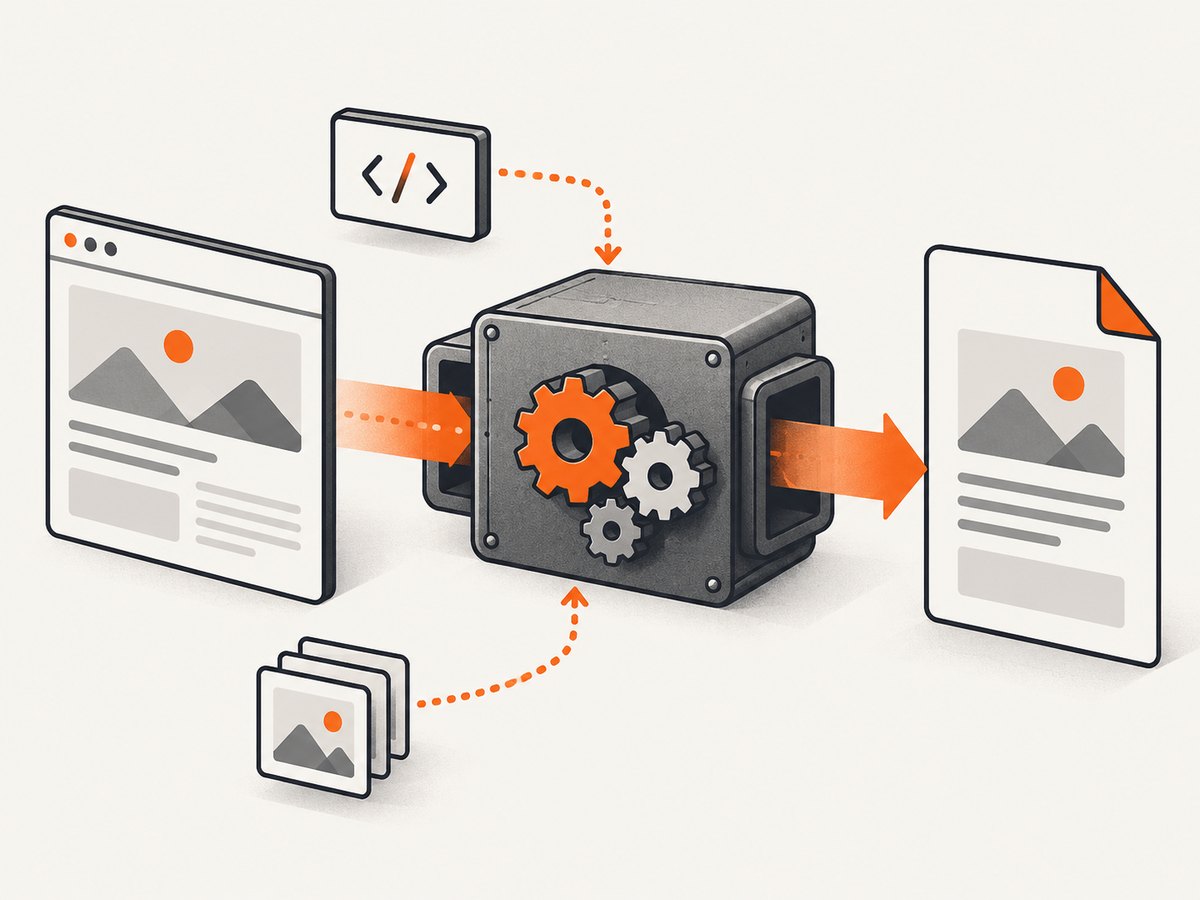
wkhtmltopdf --no-images https://example.com/text-only text-only.pdfDo not use this as a blanket server setting if the same service handles image-heavy reports. Apply it per job or per known document type. If images are required, investigate whether their URLs are slow, unavailable, or unnecessarily large at the source rather than silently dropping them.
4. Tune JavaScript delay against page readiness
The usage documentation exposes a JavaScript delay option, but it does not give a universally correct delay. The right value depends on the page and on when its required content is ready. Start from the current behavior, then lower the delay in small steps on representative pages. Inspect each PDF for missing dynamic content and repeat across slow and fast page loads.
# Example syntax: choose a delay based on your own readiness checks
wkhtmltopdf --javascript-delay 1000 https://example.com/report report.pdf
The value in this example is illustrative, not a recommended default. A fixed delay is a time-based compromise: too short can capture before content is ready; too long adds avoidable waiting. If the page’s timing varies, validate the slow cases instead of tuning against a single fast run. [Usage documentation]
5. Reduce repeated startup cost for many documents
If you invoke wkhtmltopdf once for every page or document, process startup can become part of total batch time. The Debian manual documents --read-args-from-stdin as an option to address repeated startup overhead for multiple invocations. Compare it with ordinary separate commands on the same input set; the documentation does not promise a throughput multiplier.
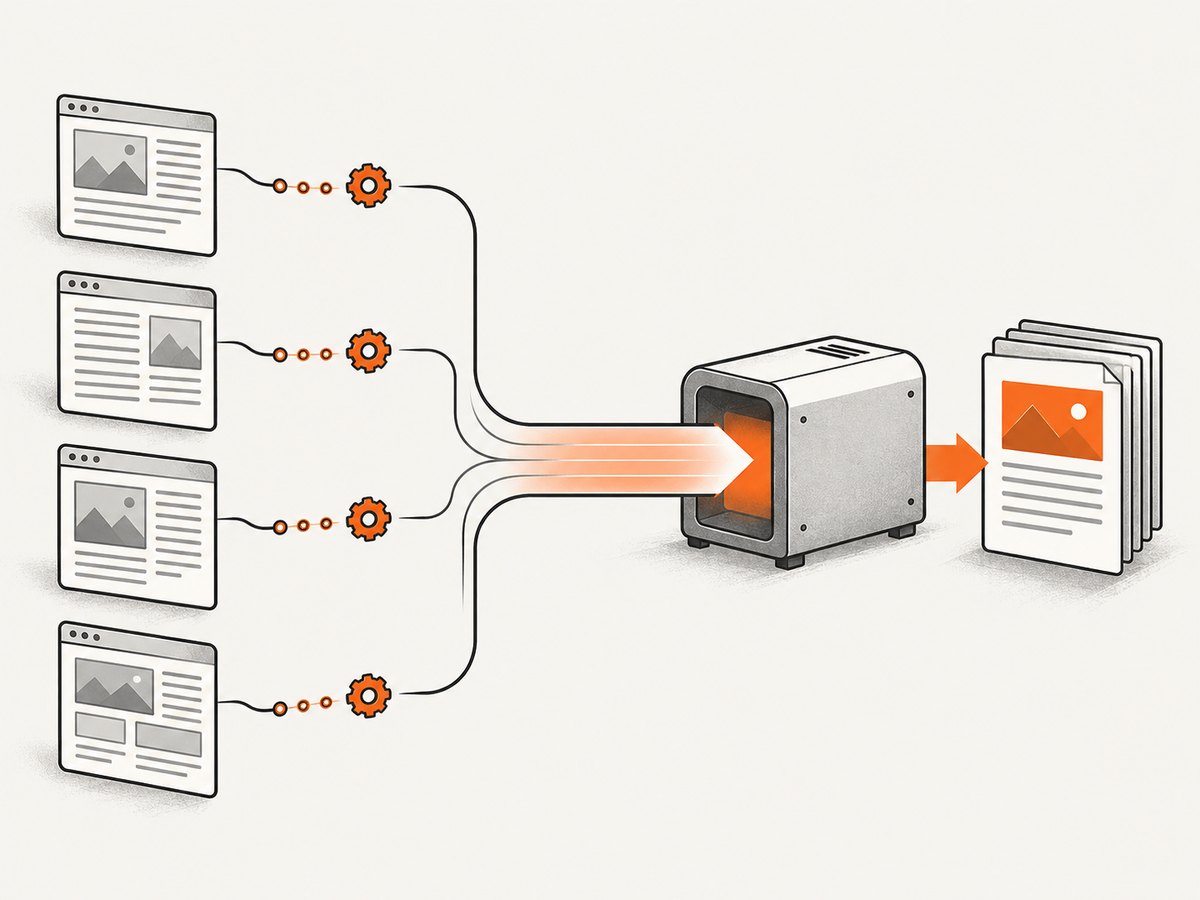
# One invocation reads arguments for multiple conversions from standard input
wkhtmltopdf --read-args-from-stdin <<'EOF'
https://example.com/a a.pdf
https://example.com/b b.pdf
EOF
Check the installed manual or wkhtmltopdf --extended-help for exact syntax and supported behavior in your build. Treat each input/output pair as a separate conversion, and exercise the exact argument format with a small batch before integrating it into a job runner. Keep failures attributable to individual inputs in your logs; one malformed argument line should not make a large batch difficult to diagnose. [Debian manual]
6. Measure fidelity, throughput, and cost together
Performance is useful only if the output still meets the document’s requirements. Compare these dimensions:
| Measure | What to record | Why it matters |
|---|---|---|
| Latency | Cold and warm elapsed time per input | Shows both startup and steady-state behavior |
| Batch throughput | Total documents and pages per batch, plus total duration | Reveals whether startup reduction helps the real workload |
| Output fidelity | Page count, text, images, layout, dynamic content | Catches speed gains caused by missing content |
| Resource use | CPU, memory, network activity, output size | Helps identify whether rendering, fetching, or process volume dominates |
| Reliability | Exit status, timeouts, failed URLs, malformed PDFs | Prevents an optimization from increasing retries or support work |
Do not infer production capacity from one short benchmark. Network-bound pages vary with remote resource availability, while local HTML may have a different bottleneck. Include realistic concurrency only if your service uses concurrent conversions, and watch memory and failure rates as concurrency changes. The sources cited here do not publish a controlled benchmark or a universal ranking of wkhtmltopdf flags.
Cost depends on the resources your deployment uses and on how often it retries or handles slow pages. The cited project guidance does not provide cost figures. Track compute time and failed jobs in your own environment; a setting that lowers per-job time but produces missing output may increase total cost through retries and manual correction.
7. Confirm the build supports the behavior you expect
wkhtmltopdf uses Qt WebKit. Some features depend on patched Qt, and distribution builds may omit them. Two machines running a command with the same name may therefore have different supported options or behavior. Capture wkhtmltopdf --version and inspect the local help output when moving between developer machines, containers, and production. [Project homepage; Downloads; Debian manual]
The project’s status guidance suggests considering Puppeteer for sites that depend on dynamic JavaScript. For controlled report generation from HTML, it names WeasyPrint and the commercial tool Prince as alternatives to evaluate. These are scenario recommendations, not results from a like-for-like performance benchmark. Compare them using your required fidelity, actual latency and throughput, deployment and maintenance needs, and licensing or service cost. [Project status and recommendations]
8. Troubleshooting common performance problems
| Symptom | Likely cause | What to do |
|---|---|---|
| PDF is fast but content is missing | JavaScript was disabled or the delay was shortened too far | Restore JavaScript, then tune delay against the page’s actual readiness and inspect dynamic output. |
| Images disappeared | --no-images is active |
Remove the option for jobs that need images; apply it only to suitable text-only documents. |
| One machine rejects an option | Different package or Qt build | Compare version and local help output; confirm whether the feature depends on patched Qt. |
| Batch mode fails or produces unexpected files | Arguments were supplied in the wrong stdin format or unsupported by the installed build | Check the local manual and test a two-document batch with simple paths before scaling up. |
| Timing varies widely between runs | Remote resource latency, cache state, or host load differs | Separate cold and warm measurements, repeat runs, and record network and machine conditions. |
| All conversions remain slow | The workload may be dominated by rendering, page complexity, or resource fetching rather than startup | Profile representative inputs, simplify source pages where possible, and evaluate a renderer suited to the page’s JavaScript requirements. |
9. Keep untrusted input isolated
Do not trade away input safety to improve speed. The wkhtmltopdf project warns against processing untrusted HTML or JavaScript without sanitization, and recommends considering AppArmor or SELinux. Sanitize user-supplied content and run conversions with appropriate process isolation. A faster configuration does not make hostile input safe. [wkhtmltopdf status guidance]
Or skip the browser setup
If your goal is a screenshot rather than a PDF generated by your own wkhtmltopdf process, ScreenshotNeo offers a one-request screenshot API and an MCP server for AI agents. This does not replace wkhtmltopdf for every report workflow; it is an option when a rendered page capture fits the job. See the API documentation.
curl -G "https://api.screenshotneo.com/v1/shot" -d access_key=YOUR_API_KEY --data-urlencode url=https://stripe.com -o shot.webpimport requests
r = requests.get("https://api.screenshotneo.com/v1/shot", params={"access_key": "YOUR_API_KEY", "url": "https://stripe.com"}, timeout=90)
open("shot.webp", "wb").write(r.content)const q = new URLSearchParams({ access_key: 'YOUR_API_KEY', url: 'https://stripe.com' });
const res = await fetch(`https://api.screenshotneo.com/v1/shot?${q}`);- Cookie banners, newsletter popups, and chat widgets are removed before the shot; each cleanup step can be turned off.
- Bot checks, blank pages, failed loads, timeouts, and cache hits are not billed; response headers identify the page verdict and billing status.
- An MCP server gives AI agents tools to take screenshots, inspect page information, and capture PDFs.
- The free plan includes 1,000 screenshots a month with no card; paid plans start at $5 for 3,000.
Create a free account and get 1,000 screenshots a month with no card.
FAQ
Is wkhtmltopdf always faster with JavaScript disabled?
No. The option can remove script work, but pages that need scripts may become incomplete. Measure the pages you actually convert and validate their output.
Does --read-args-from-stdin guarantee faster batches?
No. It is documented as a way to address repeated startup overhead. Its impact depends on the workload and environment, so compare it with repeated invocations.
What is the best replacement for dynamic pages?
The project points readers toward Puppeteer for dynamic-JavaScript sites. Evaluate it against your page requirements and deployment constraints rather than assuming a universal winner.
Does wkhtmltopdf publish a speed benchmark for these flags?
The reviewed official documentation and manual do not provide a controlled, comparable performance statistic for the options covered here.


