How to Take In-Browser Screenshots With HTML5, Canvas, and JavaScript
Choose the right browser capture method: export an app-owned canvas, reconstruct DOM content with html2canvas, or capture a user-selected screen.
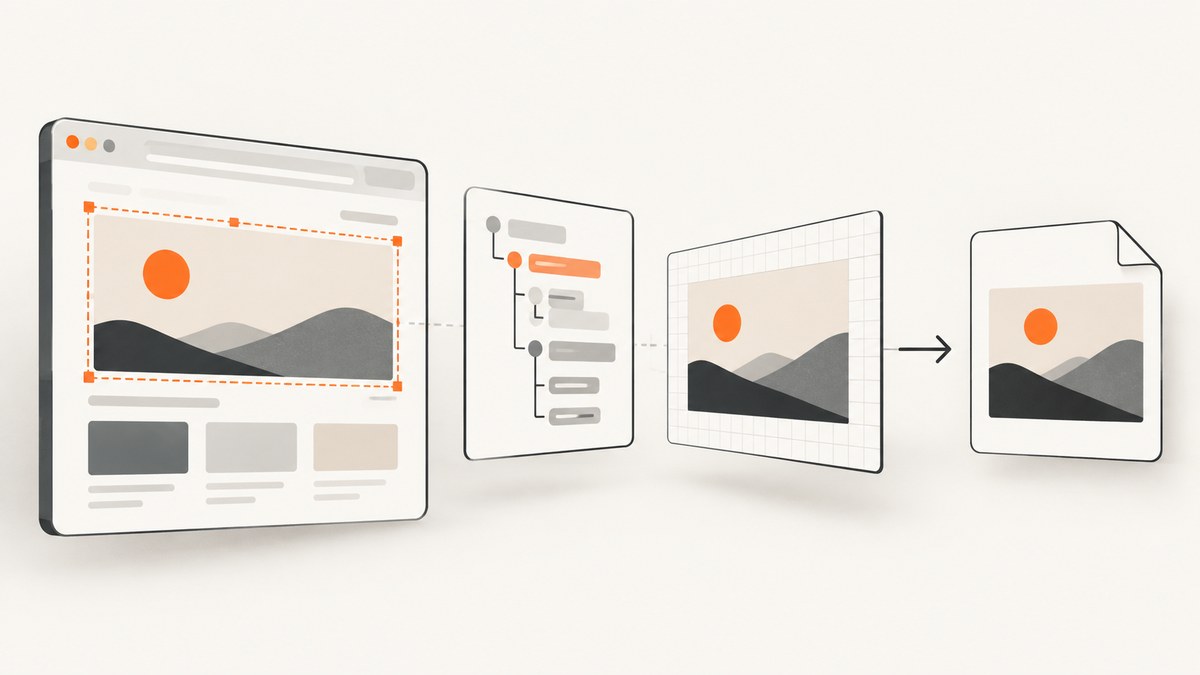
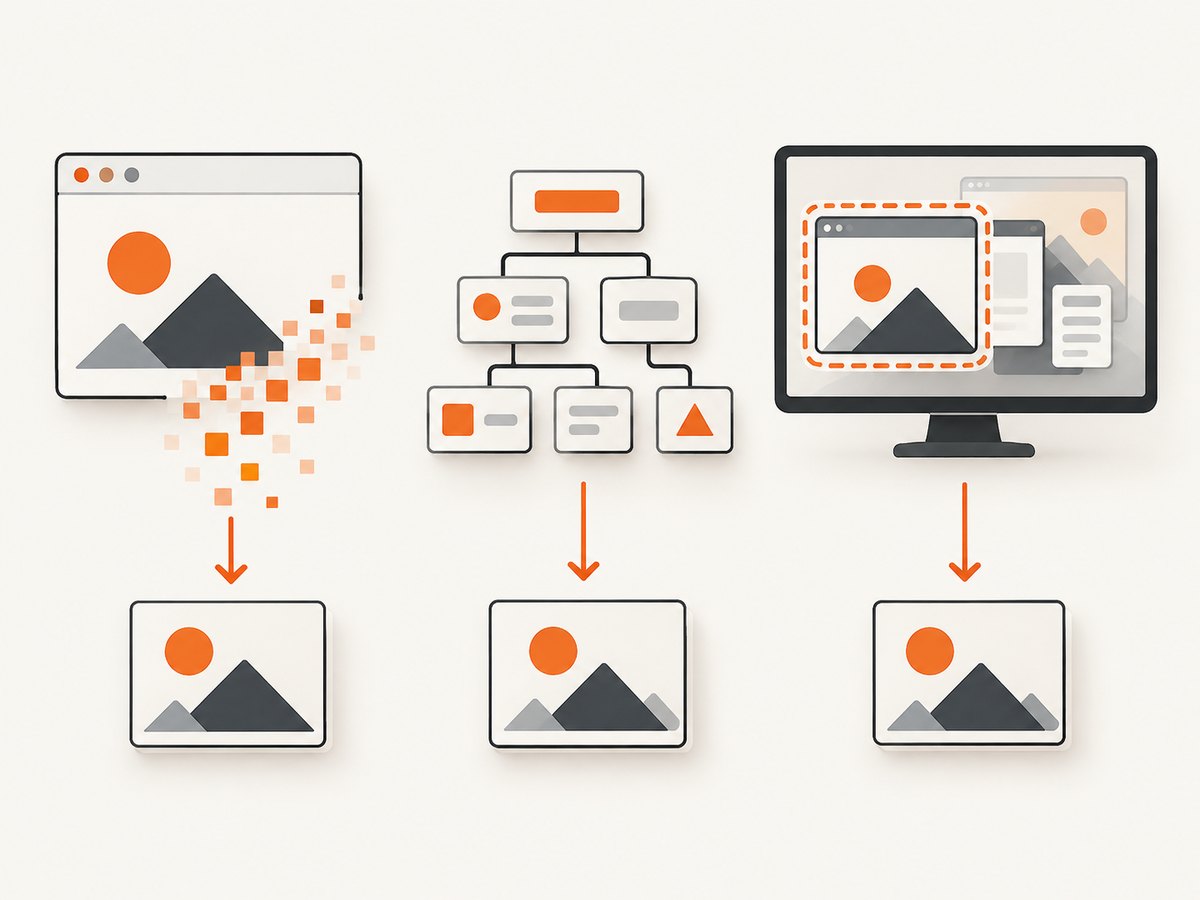
To take an in-browser screenshot, first decide what you need to capture. If your app already draws the image into a canvas, export its bitmap with canvas.toBlob(). To make an image from a DOM element or page region, use a library such as html2canvas, understanding that it reconstructs supported DOM content rather than reading the browser’s actual pixels. To capture a tab, window, or display, ask the user to choose it with getDisplayMedia(); ordinary page JavaScript cannot silently capture arbitrary screens.
These methods solve different jobs. The canvas API is the direct choice for an app-owned canvas. html2canvas is useful for DOM-based exports with known rendering limits. Display capture is appropriate when the user must choose a live screen source. If you need a server-rendered screenshot of a URL instead, ScreenshotNeo provides a one-request screenshot API and an MCP server for AI agents. See the ScreenshotNeo documentation.
1. Export pixels from a canvas you own
If your application already draws the content into an HTML canvas, export that bitmap directly. Use toBlob() for a Blob that you can preview, upload, or download. Use toDataURL() when an encoded data URL is specifically useful and the image is modest in size.
PNG is the default and required supported format. Browsers may support JPEG and WebP; when a requested format is unsupported, the browser falls back to PNG. A canvas with zero dimensions or dimensions beyond the browser’s maximum canvas size can serialize as data:,. A canvas that is not origin-clean throws a SecurityError when exported.
Export as a Blob
function canvasToBlob(canvas, type = "image/png", quality) {
  return new Promise((resolve, reject) => {
    canvas.toBlob((blob) => {
      if (blob) resolve(blob);
      else reject(new Error("Canvas export did not produce a Blob"));
    }, type, quality);
  });
}

async function downloadCanvas(canvas, filename = "capture.png") {
  const blob = await canvasToBlob(canvas, "image/png");
  const url = URL.createObjectURL(blob);
  const link = document.createElement("a");
  link.href = url;
  link.download = filename;
  link.click();
  // Keep the URL alive through the click; release it after use.
  setTimeout(() => URL.revokeObjectURL(url), 0);
}

// Example: call from a user action after the canvas has been drawn.
document.querySelector("#download").addEventListener("click", () => {
  downloadCanvas(document.querySelector("canvas"));
});
toBlob() calls its callback asynchronously. The example wraps that callback in a Promise so application code can use await. The object URL is a temporary reference to the Blob; revoke it when the preview or download no longer needs it.
Data URL alternative
const canvas = document.querySelector("canvas");
const dataUrl = canvas.toDataURL("image/png");

const link = document.createElement("a");
link.href = dataUrl;
link.download = "capture.png";
link.click();
A data URL encodes the complete image into an in-memory string. Large images can use substantially more memory than a Blob workflow, so prefer toBlob() for larger captures. If you pass a quality value for lossy formats such as JPEG or WebP, it is a format-specific hint; it does not make PNG lossy.
2. Reconstruct a DOM element with html2canvas
When the target is ordinary page content rather than an app-owned canvas, html2canvas can traverse DOM information and build a canvas representation. It does not take a native screenshot of the browser’s rendered pixels. Its output can differ from what the user sees because it only handles CSS and rendering features it understands. Cross-origin iframes are inaccessible under browser security rules; cross-origin images, resources, and tainted canvases also limit what can be included.
The project documents support for modern evergreen browsers including Chrome and Chromium-based browsers, Firefox, and Safari. Treat this as the library’s stated compatibility, not a guarantee for every browser version or CSS feature. Check the html2canvas project documentation for current setup and supported behavior.
Runnable browser example
This standalone page loads the library from its documented CDN and captures one selected element. For production, pin and manage the dependency through your usual package workflow.
<!doctype html>
<html lang="en">
<meta charset="utf-8">
<meta name="viewport" content="width=device-width, initial-scale=1">
<title>DOM capture example</title>
<button id="capture">Capture card</button>
<article id="card">
  <h1>A DOM region</h1>
  <p>This element will be reconstructed as a canvas.</p>
</article>
<script src="https://cdn.jsdelivr.net/npm/html2canvas@1.4.1/dist/html2canvas.min.js"></script>
<script>
document.querySelector("#capture").addEventListener("click", async () => {
  const element = document.querySelector("#card");
  try {
    const canvas = await html2canvas(element);
    const blob = await new Promise((resolve, reject) => {
      canvas.toBlob((value) => value ? resolve(value) : reject(new Error("No image Blob")), "image/png");
    });
    const url = URL.createObjectURL(blob);
    const link = document.createElement("a");
    link.href = url;
    link.download = "card.png";
    link.click();
    setTimeout(() => URL.revokeObjectURL(url), 0);
  } catch (error) {
    console.error("Capture failed:", error);
  }
});
</script>
</html>
To capture a whole document, pass document.body. Prefer a smaller element when that meets the requirement: it reduces work and makes the output easier to reason about. Test the actual fonts, images, transforms, and CSS effects used on your page, because support is feature-dependent.
3. Capture a user-selected display with getDisplayMedia()
Use navigator.mediaDevices.getDisplayMedia() when the person should pick a browser tab, window, or display and you need its live pixels. It prompts the user to select a source and grant permission. The call must start from a user interaction, and permission cannot be stored for reuse: the user must approve each capture. Constraints cannot silently restrict which sources the chooser offers.
The following example captures a frame from the selected stream, draws it into a canvas, then downloads a PNG. It stops the media tracks after capturing. A production interface should also handle the user cancelling the chooser and provide a clear way to stop capture.
<button id="capture-screen">Choose screen and save frame</button>
<script>
document.querySelector("#capture-screen").addEventListener("click", async () => {
  let stream;
  try {
    stream = await navigator.mediaDevices.getDisplayMedia({ video: true, audio: false });
    const video = document.createElement("video");
    video.srcObject = stream;
    await video.play();

    // Wait until the video has dimensions and a frame is available.
    await new Promise((resolve) => {
      if (video.readyState >= 2) resolve();
      else video.addEventListener("loadeddata", resolve, { once: true });
    });

    const canvas = document.createElement("canvas");
    canvas.width = video.videoWidth;
    canvas.height = video.videoHeight;
    canvas.getContext("2d").drawImage(video, 0, 0);
    const blob = await new Promise((resolve, reject) => {
      canvas.toBlob((value) => value ? resolve(value) : reject(new Error("No image Blob")), "image/png");
    });
    const url = URL.createObjectURL(blob);
    const link = document.createElement("a");
    link.href = url;
    link.download = "screen-frame.png";
    link.click();
    setTimeout(() => URL.revokeObjectURL(url), 0);
  } catch (error) {
    console.error("Screen capture was not completed:", error);
  } finally {
    stream?.getTracks().forEach((track) => track.stop());
  }
});
</script>
This is a user-mediated screen capture flow, not a method for a webpage to take screenshots without consent. The browser controls the chooser and permission behavior. Consult the MDN getDisplayMedia documentation for the current API requirements.
4. Pick the method that matches the target
| Need | Method | What you get | Main limitation |
|---|---|---|---|
| Export pixels already in your app canvas | toBlob() or toDataURL() |
The canvas bitmap | Export fails if foreign content tainted it; dimensions must be supported. |
| Render a DOM element or page region as an image | html2canvas | A reconstructed canvas based on DOM information | Not native browser pixels; feature and cross-origin limits apply. |
| Capture a live tab, window, or display | getDisplayMedia(), then video-to-canvas |
A frame from the source chosen by the user | Requires user activation and fresh permission/source selection. |
| Capture a URL on a server without setting up browser code | ScreenshotNeo | PNG, JPEG, WebP, or PDF from a GET request | Requires an API key; use its documented options for the desired capture. |
Decision checklist
- Does the app own the canvas bitmap? Export it directly.
- Is the target a DOM region, and is a close reconstruction sufficient? Try html2canvas and verify the page’s CSS and assets.
- Must the user choose a live screen source? Use
getDisplayMedia()and design for permission cancellation. - Do you need repeatable server-side captures of URLs, batch work, PDFs, or an AI-agent tool? Consider a screenshot API such as ScreenshotNeo.
5. Cross-origin rules and export security
When a foreign image is drawn into a canvas without the required CORS approval, the browser marks the canvas as tainted. Reading pixels or exporting through getImageData(), toBlob(), toDataURL(), or captureStream() is then blocked with a security error. Setting an image’s crossorigin attribute only works when the image server sends an appropriate CORS response; client-side code cannot grant itself access. See MDN’s cross-origin canvas guidance.
const image = new Image();
image.crossOrigin = "anonymous"; // Set before src; server must allow this origin.
image.src = "https://assets.example.test/photo.jpg";
image.onload = () => {
  const canvas = document.querySelector("canvas");
  canvas.getContext("2d").drawImage(image, 0, 0);
};
This does not bypass CORS. If the remote server does not permit the request, choose an asset you control or arrange an appropriately secured server-side asset flow. Do not route arbitrary URLs through an open proxy: that can expose private data and create abuse risks. html2canvas also cannot bypass browser content policy, including cross-origin iframe restrictions.
6. Performance, reliability, and cost
Performance
- Canvas export: prefer Blob output for large images to avoid holding the full base64-style data URL string in memory. Avoid needlessly oversized canvas dimensions; the browser may impose a maximum.
- DOM reconstruction: capture the smallest useful subtree. Large, complex pages require more DOM traversal and drawing. Wait until fonts and images you need have loaded; otherwise the capture may omit or differ from their final appearance.
- Display capture: the sample only needs one frame. If you capture continuously, retain control of the stream and stop tracks when finished so capture does not continue in the background.
Reliability
Each approach has a different failure boundary. Canvas export can fail due to tainting or unsupported dimensions. DOM reconstruction can omit unsupported CSS or inaccessible resources. Display capture can be cancelled or denied by the user. Handle rejected promises and missing Blobs, provide useful errors, and test on the browsers and content your application actually supports.
Cost
The browser APIs and html2canvas do not charge per screenshot as a hosted capture service, but the application still pays in client CPU, memory, implementation time, and support for rendering edge cases. A hosted API adds a service price and network request, while moving browser provisioning and capture execution out of your frontend code. ScreenshotNeo offers 1,000 screenshots per month free with no card; paid plans are Starter $5 for 3,000, Growth $15 for 15,000, Pro $39 for 60,000, Scale $99 for 250,000, and Business $249 for 1,000,000. Yearly billing gives two months free, and every feature is on every plan. Use the plan that matches your volume and check the product page for current details.
7. Or skip the browser setup
For a screenshot of a URL, ScreenshotNeo returns an image or PDF from one GET request. Its options include full-page capture with lazy images loaded, selector-based element capture, viewport and device settings, custom CSS and JavaScript, cookies and headers, waits, resource blocking, caching, async jobs, and bulk capture. Its response identifies page verdict and billing status; clean shots are billed, while bot checks or CAPTCHAs, blank pages, timeouts, failed loads, and cache hits cost nothing.
curl -G "https://api.screenshotneo.com/v1/shot" -d access_key=YOUR_API_KEY --data-urlencode url=https://stripe.com -o shot.webpimport requests
r = requests.get("https://api.screenshotneo.com/v1/shot", params={"access_key": "YOUR_API_KEY", "url": "https://stripe.com"}, timeout=90)
open("shot.webp", "wb").write(r.content)const q = new URLSearchParams({ access_key: 'YOUR_API_KEY', url: 'https://stripe.com' });
const res = await fetch(`https://api.screenshotneo.com/v1/shot?${q}`);
if (!res.ok) throw new Error(`Screenshot request failed: ${res.status}`);
const image = Buffer.from(await res.arrayBuffer());
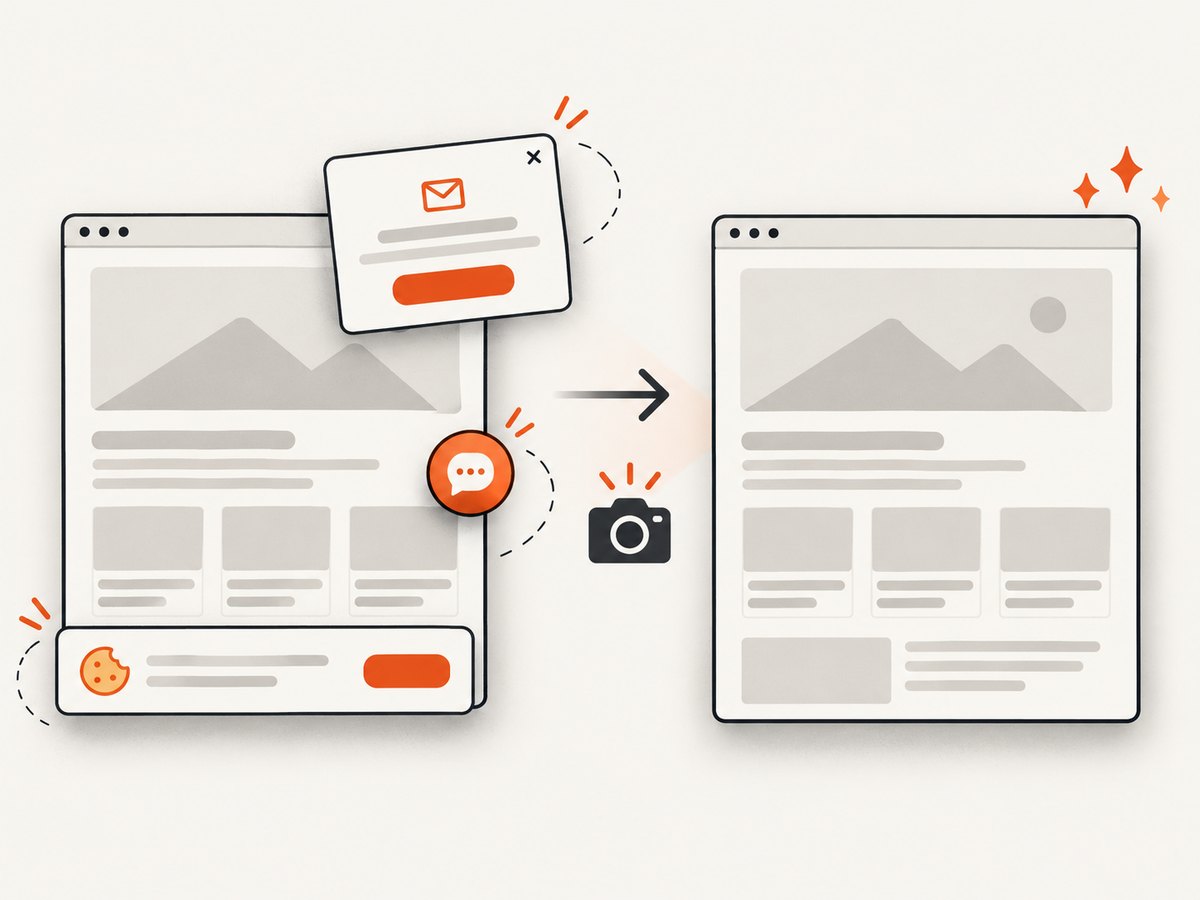
await import('node:fs/promises').then(fs => fs.writeFile('shot.webp', image));Cookie banners, newsletter popups, and chat widgets are removed before the shot, and each step can be turned off. Bot checks, blank pages, and failed loads are never billed. An MCP server lets Claude, Cursor, or another MCP client use screenshot tools. The free plan includes 1,000 screenshots a month with no card; paid plans start at $5 for 3,000. Read the API docs for request options, then sign up for 1,000 free screenshots a month with no card.
8. Troubleshooting
| Symptom | Likely cause | Fix |
|---|---|---|
SecurityError during canvas export |
A cross-origin image or other foreign content tainted the canvas. | Load the asset with CORS enabled before setting src, and confirm its server returns an allowing CORS header. Otherwise do not draw that resource into an exportable canvas. |
toDataURL() returns data:, |
The canvas is zero-sized or exceeds the browser’s maximum dimensions. | Set nonzero dimensions and reduce the output size; check both width and height before export. |
| html2canvas output differs from the visible page | The library reconstructs supported DOM features, not native rendered pixels. | Reduce the capture to a supported region, inspect unsupported CSS and cross-origin resources, or use user-selected display capture when actual visible pixels are required. |
| Image missing from a DOM capture | It has not loaded yet, is cross-origin restricted, or comes from inaccessible content such as a cross-origin iframe. | Wait for required assets, confirm CORS behavior, and capture only content the page is allowed to access. |
| Screen chooser rejects or never opens | The call did not start in a user interaction, the user cancelled, or the browser/context does not permit display capture. | Call directly from a click or other valid user gesture, handle rejection, and explain that the user must choose and approve a source each time. |
Blob callback returns null |
The browser could not produce the requested output. | Check dimensions and origin cleanliness, use a supported format such as PNG, and report the failure instead of creating an object URL. |
9. Frequently asked questions
Can JavaScript screenshot any webpage in the browser?
No. A page can export its own canvas, reconstruct accessible DOM content with a library, or request a user-selected display. Browser security boundaries prevent arbitrary silent access to other origins or screens.
Can html2canvas copy the result to the clipboard?
It creates a canvas representation; clipboard writing is a separate browser capability with its own permission and secure-context requirements. Convert the canvas to a Blob, then use the Clipboard API where supported and allowed, with a download fallback.
How do I get html2canvas to work in a browser extension?
Extension pages and content scripts have separate permissions and execution contexts. Ensure the capture code runs against a page context it can access, and remember that extension permissions do not make cross-origin canvas pixels readable. Use the relevant browser’s extension documentation for its permission model.
Which method gives the most faithful result?
For an app-owned canvas, its export is the bitmap the app drew. For a live display, a frame from the user-selected source represents captured screen pixels. html2canvas aims to reproduce DOM content and may differ from browser rendering.


