How to Include Screenshots in a Python pytest HTML Report
Attach Selenium screenshots to pytest-html reports on demand, on failure, or automatically, with working hooks, fixtures, troubleshooting, and packaging tips.
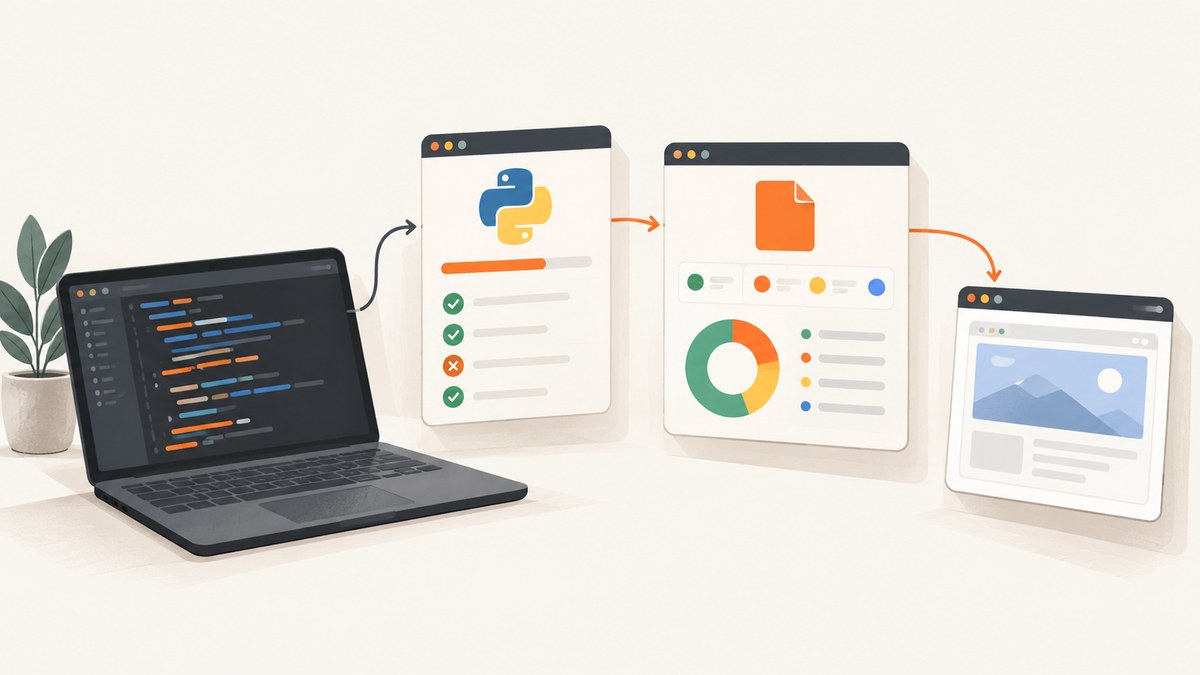
To include screenshots in a Python pytest HTML report, capture an image during the test and add it to pytest-html through pytest_html.extras.image(). The most flexible approach is a pytest_runtest_makereport hook that attaches a screenshot when a test fails. For one-off attachments, use the extras fixture directly in a test. If you use pytest-selenium, its debug capture can collect screenshots automatically.
This guide shows each approach with runnable Selenium examples, explains when to capture images, covers report packaging and parallel runs, and lists fixes for common errors.
1. Install pytest-html and create a report
Install pytest-html in the same environment as pytest:
python -m pip install pytest pytest-html seleniumRun your suite with an output file:
pytest --html=report.htmlOpen report.html in a browser after the run. A screenshot added as an extra appears in the test result row. Keep the report and any external image files together when you share the artifact unless you deliberately embed the image data.
2. Add a screenshot with the pytest-html extras fixture
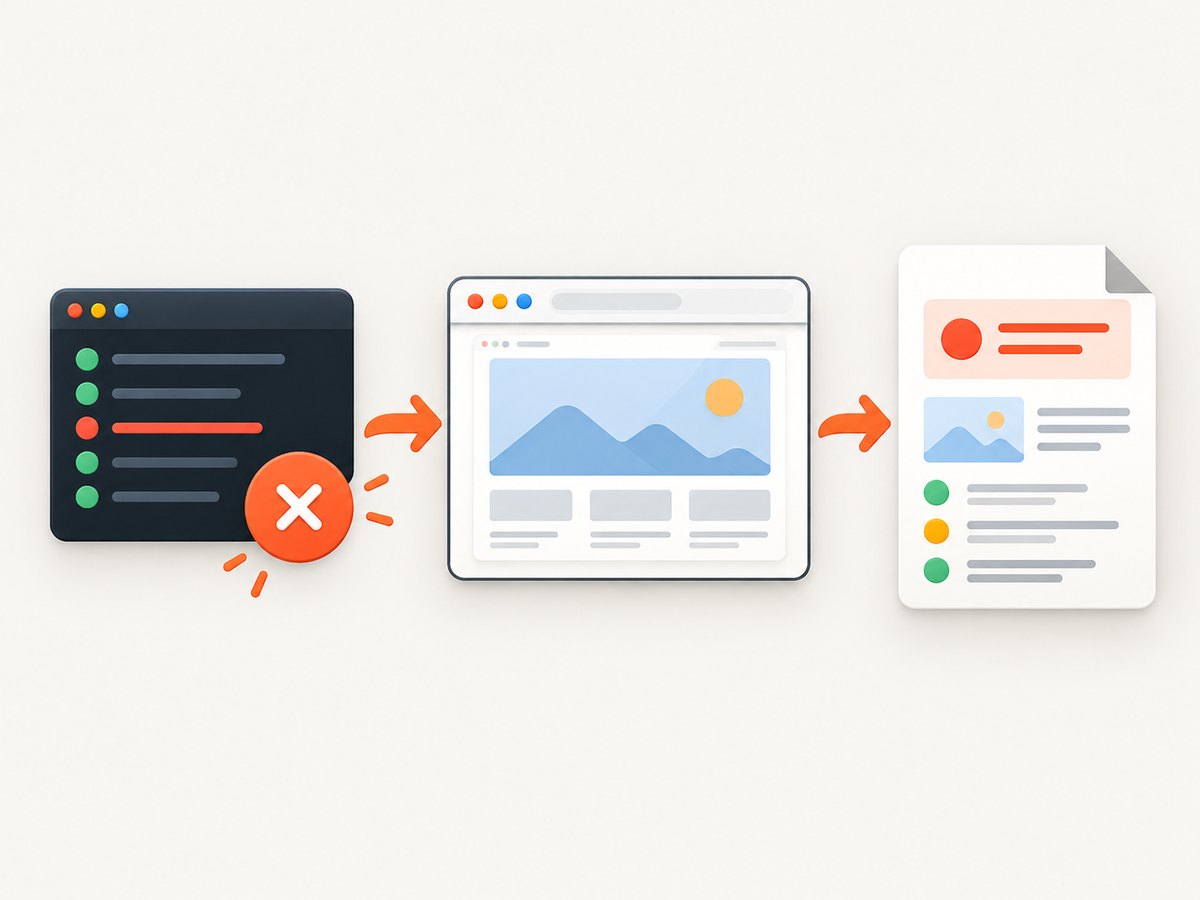
The simplest pattern is to capture a screenshot in a test and pass the resulting file path to extras.image(). The fixture is provided by pytest-html and is available when the plugin is installed.
from pathlib import Path

from pytest_html import extras
from selenium import webdriver
from selenium.webdriver.chrome.options import Options


def test_home_page(extras):
    options = Options()
    options.add_argument('--headless=new')
    options.add_argument('--window-size=1440,1000')

    driver = webdriver.Chrome(options=options)
    image_path = Path('artifacts/home-page.png')
    image_path.parent.mkdir(parents=True, exist_ok=True)

    try:
        driver.get('https://example.com')
        assert 'Example Domain' in driver.title
        driver.save_screenshot(str(image_path))
        extras.append(extras.image(str(image_path)))
    finally:
        driver.quit()
Run it with:
pytest --html=report.htmlextras.image() accepts image data, a path, or a URL. The path form is convenient for local Selenium captures. The helper also has format-specific functions such as extras.png() and extras.jpg() when you already have bytes in memory.
Attach PNG bytes without writing a file
from pytest_html import extras


def test_bytes_attachment(driver, extras):
    driver.get('https://example.com')
    png_bytes = driver.get_screenshot_as_png()
    extras.append(extras.png(png_bytes))
Using bytes avoids a separate artifact file, but large screenshots make the HTML report larger. Decide whether your CI system prefers one self-contained artifact or a smaller HTML file plus an image directory.
3. Capture screenshots automatically when a test fails
A hook is better than repeating screenshot code in every test. The hook below uses a Selenium driver fixture, captures only failed call phases, and assigns the current extras list to report.extras. The plural property is the current pytest-html API; the older singular report.extra form was deprecated in pytest-html 4.0.0.
Create conftest.py:
from pathlib import Path

import pytest
from pytest_html import extras
from selenium import webdriver
from selenium.webdriver.chrome.options import Options


@pytest.fixture
def driver():
    options = Options()
    options.add_argument('--headless=new')
    options.add_argument('--window-size=1440,1000')
    browser = webdriver.Chrome(options=options)
    try:
        yield browser
    finally:
        browser.quit()


@pytest.hookimpl(hookwrapper=True)
def pytest_runtest_makereport(item, call):
    outcome = yield
    report = outcome.get_result()

    if report.when != 'call' or not report.failed:
        return

    browser = item.funcargs.get('driver')
    if browser is None:
        return

    output_dir = Path('artifacts/screenshots')
    output_dir.mkdir(parents=True, exist_ok=True)
    safe_name = report.nodeid.replace('/', '_').replace('::', '__').replace(' ', '_')
    image_path = output_dir / f'{safe_name}.png'

    try:
        browser.save_screenshot(str(image_path))
        current = list(getattr(report, 'extras', []))
        current.append(extras.image(str(image_path)))
        report.extras = current
    except Exception as exc:
        current = list(getattr(report, 'extras', []))
        current.append(extras.text(f'Screenshot capture failed: {exc}'))
        report.extras = current
Example test:
def test_expected_heading(driver):
    driver.get('https://example.com')
    assert driver.find_element('tag name', 'h1').text == 'A heading that is intentionally wrong'
Run:
pytest --html=report.htmlThe deliberately failing assertion produces a screenshot in the report. In a real suite, keep the assertion meaningful and let the hook provide diagnostic evidence when it fails.
Support different driver fixture names
Projects often call the fixture browser, selenium, or web_driver. You can inspect several names:
candidate_names = ('driver', 'browser', 'selenium', 'web_driver')
browser = next((item.funcargs.get(name) for name in candidate_names
                if item.funcargs.get(name) is not None), None)
If your fixture is provided by another plugin, confirm its exact name before changing the hook. The hook can only capture a browser object that is available in the test’s function arguments.
4. Capture at setup, call, or teardown
pytest creates separate report phases: setup, call, and teardown. Most assertion failures happen during call, so capture there first. A setup failure may occur before the driver fixture exists; a teardown failure may happen after the browser has already been closed.
To capture any failed phase, change the condition:
if not report.failed:
    return
Then guard the driver and catch capture errors. Capturing on every phase can produce duplicate images, so use it only when setup or teardown diagnostics matter.
5. Use pytest-selenium automatic debug capture
If you use pytest-selenium, the plugin documents automatic debug information on failure, including the URL, page HTML, logs, and a screenshot. Capture timing can be configured as never, failure (the default), or always. Always collecting debug data can increase report size substantially.
Choose failure-only capture for normal CI runs. Use always capture temporarily when you need screenshots from successful navigation steps as well. Exclude debug categories you do not need through the plugin configuration or the SELENIUM_EXCLUDE_DEBUG environment variable. The pytest_selenium_capture_debug hook can save screenshots to the file system even when you are not generating an HTML report.
Automatic capture is useful when every test uses the plugin’s standard Selenium fixture. A custom pytest-html hook is more suitable when you need a specific filename, a custom driver fixture, extra metadata, or screenshots at a precise point in the test.
6. Add more than one screenshot or diagnostic item
A test result can contain multiple extras. Add a screenshot alongside text, HTML, or a URL:
from pytest_html import extras


def test_checkout(driver, extras):
    driver.get('https://example.com/checkout')
    extras.append(extras.url(driver.current_url, name='Final URL'))
    extras.append(extras.html(driver.page_source, name='Page HTML'))
    extras.append(extras.png(driver.get_screenshot_as_png(), name='Checkout view'))
Keep sensitive data out of page-source extras. HTML may contain tokens, customer details, email addresses, or hidden form values. If a report leaves your CI system, review which debug categories are enabled.
7. Full-page and element screenshots
Selenium’s standard screenshot captures the current viewport. For an element-only image, locate the element and call its screenshot method:
def test_invoice_panel(driver, extras):
    driver.get('https://example.com/invoice')
    panel = driver.find_element('css selector', '[data-testid="invoice"]')
    extras.append(extras.png(panel.screenshot_as_png, name='Invoice panel'))
Full-page behavior depends on the browser and driver version. A reliable cross-browser fallback is to set a tall window, capture, then restore the size. For very long pages, stitching viewport captures may be necessary; that adds complexity and can produce seams around sticky headers. Prefer an element screenshot when the failure is localized.
8. Self-contained reports and external image files
pytest-html supports --self-contained-html, but its documentation warns that images added as files or links are external resources and may not display as expected in a standalone file. The plugin warns when such resources are added.
Choose one delivery model:
- Portable bundle: keep
report.htmland the screenshot directory together, and archive the directory as one artifact. - Single HTML file: attach image bytes with
extras.png(driver.get_screenshot_as_png())and verify the resulting file size. - CI viewer: publish the report and image directory using the CI system’s artifact viewer, then test links from a clean download.
Do not assume that a report which opens locally will work after being emailed, uploaded, or copied without its sibling image files.
9. Parallel tests and unique filenames
Parallel workers can overwrite a shared filename. Include the node ID, worker ID, or a UUID in each path:
import os
from pathlib import Path

worker = os.environ.get('PYTEST_XDIST_WORKER', 'master')
filename = f'{worker}_{report.nodeid.replace("/", "_").replace("::", "__")}.png'
image_path = Path('artifacts/screenshots') / filename
Create the directory before saving and sanitize characters that are invalid on your operating system. If several jobs publish artifacts to one location, give each job its own directory.
Some third-party screenshot helpers have their own limits. The documented pytest-report-extras 1.2.x guide lists no parallel execution support, synchronous Playwright only, and limited support for pytest-html’s self-contained mode. Check those constraints before adding such a plugin to a parallel suite.
10. Troubleshooting common errors
The report contains no screenshot
Confirm that pytest-html is installed, the run includes --html=report.html, and the hook sets report.extras. In a hook, make sure hookwrapper=True is present and that outcome.get_result() is called after yield.
AttributeError: report.extra or missing attachment
Use the plural API:
report.extras = list(getattr(report, 'extras', []))Append the new item to that list. The singular report.extra API is deprecated in current pytest-html releases.
The screenshot file is missing
Ensure the parent directory exists with mkdir(parents=True, exist_ok=True). Also check that the browser process has not been closed before the hook runs. A teardown failure often means the driver fixture already quit.
The HTML report opens but images are broken
The report references an external path or URL. Move the image directory with the HTML file, or attach PNG bytes and verify the self-contained output. Test the archived artifact from a fresh directory.
Headless Chrome cannot start
Use a browser image that includes Chrome and its driver, add the headless argument appropriate to your installed version, and inspect the driver startup error in CI logs. The report hook cannot capture an image if the browser never starts.
Only some failures have screenshots
Check whether those tests use the fixture name your hook expects. Also check whether the failure occurred during setup, before the driver was yielded. Add temporary text extras describing the missing driver or broaden the phase condition.
Reports are too large
Capture on failure instead of always, reduce the viewport, attach an element image, and exclude unnecessary Selenium debug categories. Compressing PNGs can help, but do not sacrifice the visual detail needed to diagnose the failure.
11. Performance, reliability, and cost considerations
Screenshot capture adds browser I/O and disk writes to a test. Failure-only capture keeps the normal path fast. If a page is still rendering, wait for the application state you actually need before capturing; an immediate screenshot may show a loading shell rather than the defect.
Use deterministic viewport dimensions and stable test data so screenshots are comparable between runs. Include the test node ID in filenames, and archive screenshots with the same job that generated the HTML. For flaky tests, a screenshot is evidence, not proof of root cause; pair it with the URL, browser logs, and relevant page HTML when those artifacts are safe to retain.
There is no separate physical product requirement for this workflow. The main costs are browser execution time, storage, and CI artifact retention. Automatic debug capture on every test can increase all three.
Or skip the browser setup
If your goal is to capture a page for a report rather than exercise it through Selenium, ScreenshotNeo provides a single screenshot API request. It handles the browser capture service for you and returns PNG, JPEG, WebP, or PDF. The API also accepts options for full-page images, element selectors, waits, custom CSS and JavaScript, device presets, dark mode, cookies, headers, and more. See the ScreenshotNeo API documentation for the parameter list.
cURL
curl -G 'https://api.screenshotneo.com/v1/shot' \
  -d access_key=YOUR_API_KEY \
  --data-urlencode url=https://stripe.com \
  -o shot.webp
Python
import requests

r = requests.get(
    'https://api.screenshotneo.com/v1/shot',
    params={'access_key': 'YOUR_API_KEY', 'url': 'https://stripe.com'},
    timeout=90,
)
r.raise_for_status()
open('shot.webp', 'wb').write(r.content)
Node.js
const q = new URLSearchParams({ access_key: 'YOUR_API_KEY', url: 'https://stripe.com' });
const res = await fetch(`https://api.screenshotneo.com/v1/shot?${q}`);
if (!res.ok) throw new Error(`HTTP ${res.status}`);
const fs = require('node:fs');
fs.writeFileSync('shot.webp', Buffer.from(await res.arrayBuffer()));
ScreenshotNeo removes cookie and consent banners, newsletter popups, and chat widgets before the shot. Bot checks, blank pages, timeouts, failed loads, and cache hits are not billed, and response headers identify the page verdict and billing result. An MCP server provides take_screenshot, get_page_info, and capture_pdf tools for Claude, Cursor, and other MCP clients. The free plan includes 1,000 screenshots per month with no card; paid plans start at $5 for 3,000.
Create a free ScreenshotNeo account and use the captured file as a pytest-html extra.
12. A practical checklist
- Install pytest-html and run pytest with
--html=report.html. - Choose the
extrasfixture for individual tests or a hook for automatic failure capture. - Use
report.extras, not the deprecated singular property. - Capture during the call phase unless setup or teardown diagnostics are required.
- Create artifact directories and unique filenames before saving.
- Decide whether to ship external image files or embed image bytes.
- Limit automatic capture to failures when report size and runtime matter.
- Review screenshots and page HTML for secrets before sharing reports.
FAQ
Can pytest-html attach a screenshot from a URL?
Yes. Its image extra accepts image data, a local path, or a URL. A local path is usually easier to reproduce in CI; a URL requires the report viewer to reach that URL later.
Can I use Playwright instead of Selenium?
Yes. Capture bytes from the Playwright page object and pass them to extras.png(). Verify compatibility if you add a third-party reporting plugin; some documented integrations support only synchronous Playwright.
Should I capture screenshots for passing tests?
Usually only when visual evidence is part of the test’s purpose. Failure-only capture keeps reports smaller and avoids unnecessary browser and storage work.
Why does a self-contained report still reference files?
pytest-html warns that file and URL extras remain external resources. Use image bytes for a single-file artifact, or distribute the HTML and image directory together.


