How to Increase Canvas Image Resolution with toDataURL
Make canvas exports sharper by increasing the backing bitmap, scaling for devicePixelRatio, and choosing the right export format.
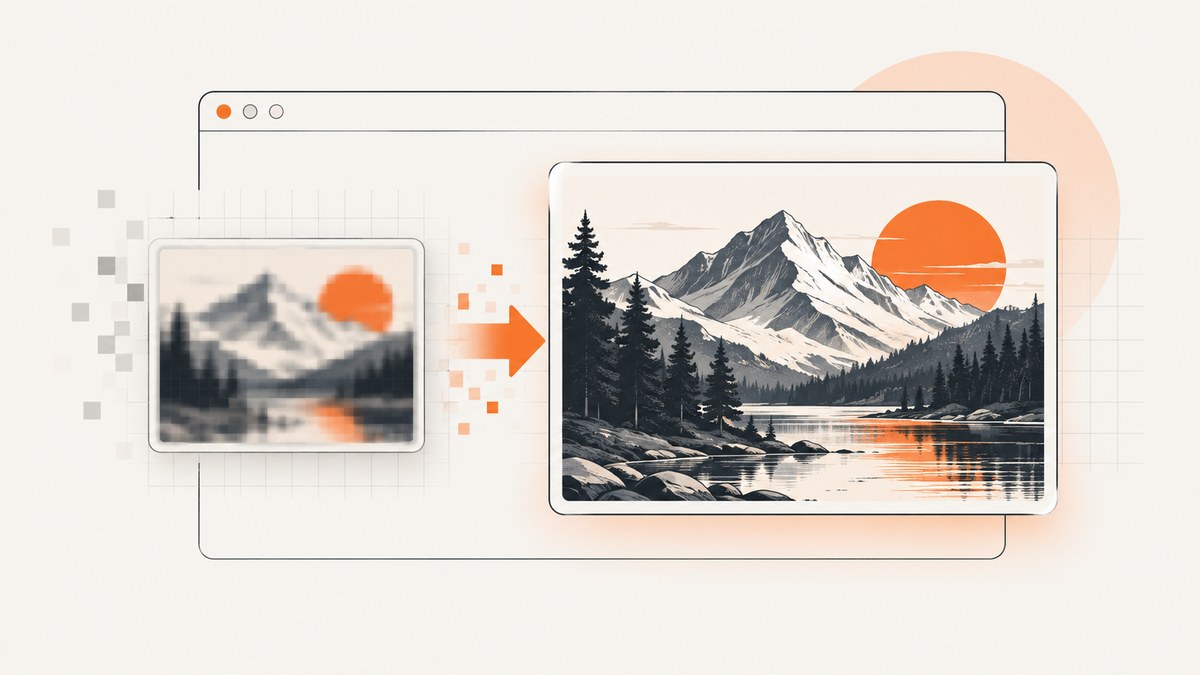
Direct answer: toDataURL() exports the canvas’s backing bitmap. To increase the exported resolution, set canvas.width and canvas.height to more pixels before drawing. For a sharp canvas on high-density displays, multiply the intended CSS size by window.devicePixelRatio, then scale the drawing context by the same value.
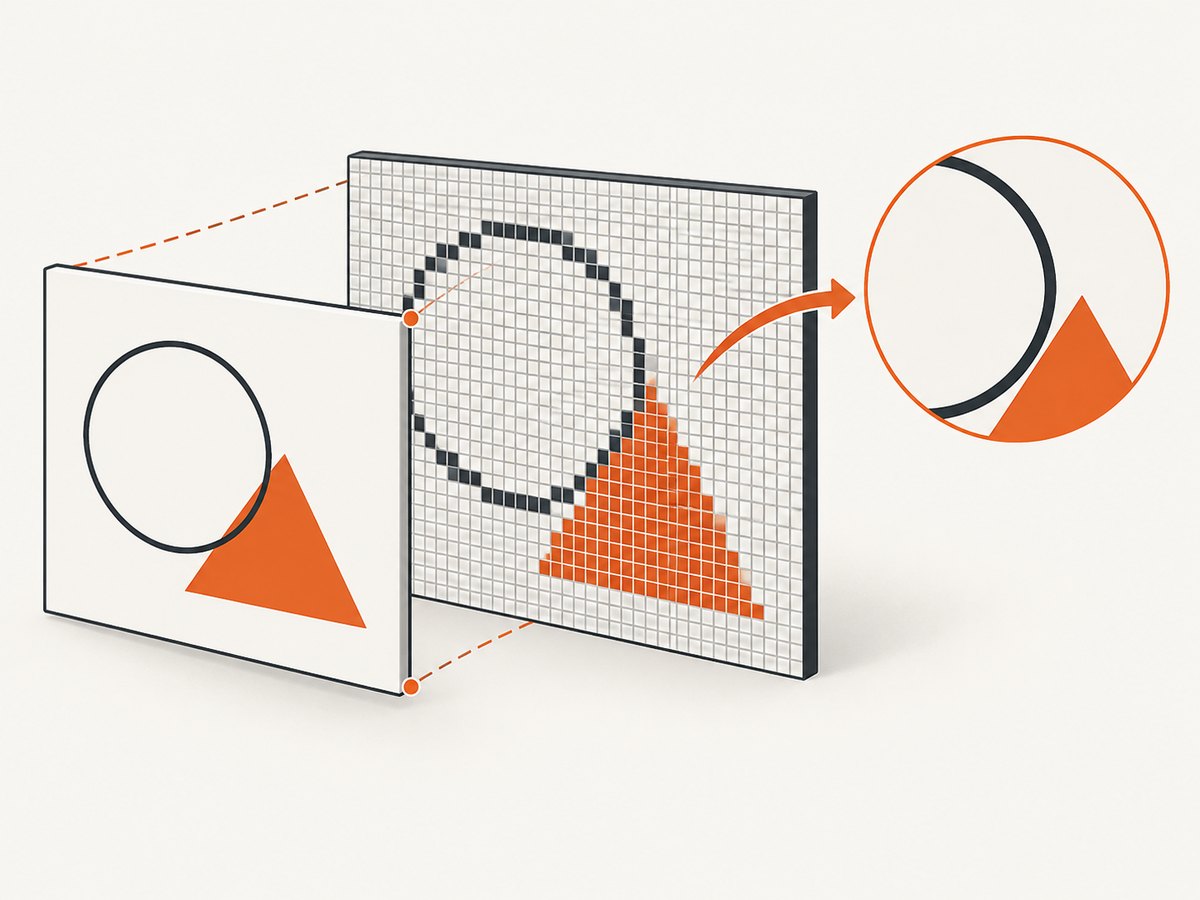
Changing only the CSS width and height makes the displayed canvas larger or smaller; it does not add pixels to the exported image. The canvas bitmap has its own dimensions, and toDataURL() serializes that bitmap. See the MDN toDataURL reference and the WHATWG canvas specification.
Use a high-DPI canvas before calling toDataURL()
This setup keeps drawing coordinates in CSS pixels while allocating a larger backing bitmap for Retina and other high-density displays.
<canvas id="chart"></canvas>
<script>
function setupHiDpiCanvas(canvas, cssWidth, cssHeight) {
  const dpr = window.devicePixelRatio || 1;

  // The on-screen size.
  canvas.style.width = `${cssWidth}px`;
  canvas.style.height = `${cssHeight}px`;

  // The exported bitmap size.
  canvas.width = Math.floor(cssWidth * dpr);
  canvas.height = Math.floor(cssHeight * dpr);

  const ctx = canvas.getContext('2d');
  ctx.setTransform(dpr, 0, 0, dpr, 0, 0);
  return ctx;
}

const canvas = document.querySelector('#chart');
const ctx = setupHiDpiCanvas(canvas, 600, 400);

// Draw in CSS-pixel coordinates (600 × 400), not backing-pixel coordinates.
ctx.fillStyle = '#0f172a';
ctx.fillRect(0, 0, 600, 400);
ctx.fillStyle = '#38bdf8';
ctx.font = '24px sans-serif';
ctx.fillText('Sharp canvas export', 40, 70);
ctx.lineWidth = 4;
ctx.strokeStyle = '#f8fafc';
ctx.beginPath();
ctx.moveTo(40, 300);
ctx.lineTo(180, 220);
ctx.lineTo(320, 260);
ctx.lineTo(520, 120);
ctx.stroke();

const dataUrl = canvas.toDataURL('image/png');
console.log(dataUrl); // PNG data URL at 600 × dpr by 400 × dpr pixels
</script>
On a display with a device-pixel ratio of 2, the bitmap is 1,200 × 800 pixels while it still occupies 600 × 400 CSS pixels. The same pattern is documented in MDN’s devicePixelRatio guidance.
Understand CSS size versus bitmap size
A canvas has two sizes:
| Property | Controls | Example |
|---|---|---|
canvas.style.width / style.height |
Displayed CSS size | 600 × 400 CSS pixels |
canvas.width / canvas.height |
Backing bitmap and export pixel count | 1,200 × 800 bitmap pixels at DPR 2 |
This produces a blurry export because it changes presentation size only:
canvas.style.width = '1200px';
canvas.style.height = '800px';
// The bitmap may still be only the default 300 × 150 pixels.
Set the bitmap dimensions before drawing, then redraw if they must change. Assigning width or height clears the bitmap and resets drawing state.
Choose an explicit export size
If the image must be a known pixel size for a download, print layout, or server workflow, choose that bitmap size directly. CSS size and export size can be different.
function makeExportCanvas(cssWidth, cssHeight, scale = 3) {
  const canvas = document.createElement('canvas');
  canvas.style.width = `${cssWidth}px`;
  canvas.style.height = `${cssHeight}px`;
  canvas.width = Math.floor(cssWidth * scale);
  canvas.height = Math.floor(cssHeight * scale);

  const ctx = canvas.getContext('2d');
  ctx.setTransform(scale, 0, 0, scale, 0, 0);
  return { canvas, ctx };
}

const { canvas, ctx } = makeExportCanvas(800, 500, 3);
ctx.fillStyle = 'white';
ctx.fillRect(0, 0, 800, 500);
ctx.fillStyle = 'black';
ctx.font = '32px sans-serif';
ctx.fillText('2,400 × 1,500 export', 40, 70);

const url = canvas.toDataURL('image/png');
const link = document.createElement('a');
link.href = url;
link.download = 'high-resolution.png';
link.click();
Use PNG, JPEG, and WebP correctly
toDataURL(type, quality) accepts a requested MIME type. PNG is the default and is lossless. JPEG and WebP are commonly supported, but availability should be checked because unsupported requests can fall back to PNG. The quality value applies to lossy formats and ranges from 0 to 1. See MDN’s format and quality notes.
const pngUrl = canvas.toDataURL('image/png');
const jpegUrl = canvas.toDataURL('image/jpeg', 0.9);
const webpUrl = canvas.toDataURL('image/webp', 0.85);

function exportFormat(canvas, type, quality) {
  const url = canvas.toDataURL(type, quality);
  const supported = url.startsWith(`data:${type}`);
  return { url, supported };
}

console.log(exportFormat(canvas, 'image/webp', 0.85));- Use PNG for text, diagrams, screenshots, sharp edges, and transparency.
- Use JPEG for photographic content when transparency is not required.
- Use WebP when your target browsers and consumers support it and you want a smaller file.
- Quality changes compression, not the number of pixels. Increase the backing dimensions to increase resolution.
Prefer toBlob() for large images
toDataURL() encodes the complete image into an in-memory string. Large data URLs consume memory and can exceed URL or storage limits. For large exports, MDN recommends toBlob() with URL.createObjectURL().
function canvasToBlob(canvas, type = 'image/png', quality) {
  return new Promise((resolve, reject) => {
    canvas.toBlob(blob => {
      if (blob) resolve(blob);
      else reject(new Error('The browser could not encode this canvas'));
    }, type, quality);
  });
}

const blob = await canvasToBlob(canvas, 'image/png');
const objectUrl = URL.createObjectURL(blob);
const link = document.createElement('a');
link.href = objectUrl;
link.download = 'large-export.png';
link.click();
URL.revokeObjectURL(objectUrl);
Keep a responsive canvas sharp
Device-pixel ratio can change when a window moves between displays or when page zoom changes. Recalculate the backing dimensions and redraw when the CSS size or DPR changes.
function resizeCanvas(canvas, cssWidth, cssHeight, draw) {
  const dpr = window.devicePixelRatio || 1;
  canvas.style.width = `${cssWidth}px`;
  canvas.style.height = `${cssHeight}px`;
  canvas.width = Math.floor(cssWidth * dpr);
  canvas.height = Math.floor(cssHeight * dpr);

  const ctx = canvas.getContext('2d');
  ctx.setTransform(dpr, 0, 0, dpr, 0, 0);
  draw(ctx, cssWidth, cssHeight);
}

const canvas = document.querySelector('#chart');
const draw = (ctx, width, height) => {
  ctx.clearRect(0, 0, width, height);
  ctx.fillStyle = '#111827';
  ctx.fillRect(0, 0, width, height);
  ctx.fillStyle = '#fff';
  ctx.font = '20px sans-serif';
  ctx.fillText(`${width} × ${height} CSS pixels`, 20, 40);
};

function refresh() {
  const rect = canvas.getBoundingClientRect();
  resizeCanvas(canvas, rect.width, rect.height, draw);
}

refresh();
window.addEventListener('resize', refresh);
window.matchMedia(`(resolution: ${window.devicePixelRatio}dppx)`)
  .addEventListener('change', refresh);
Images, CORS, and tainted canvases
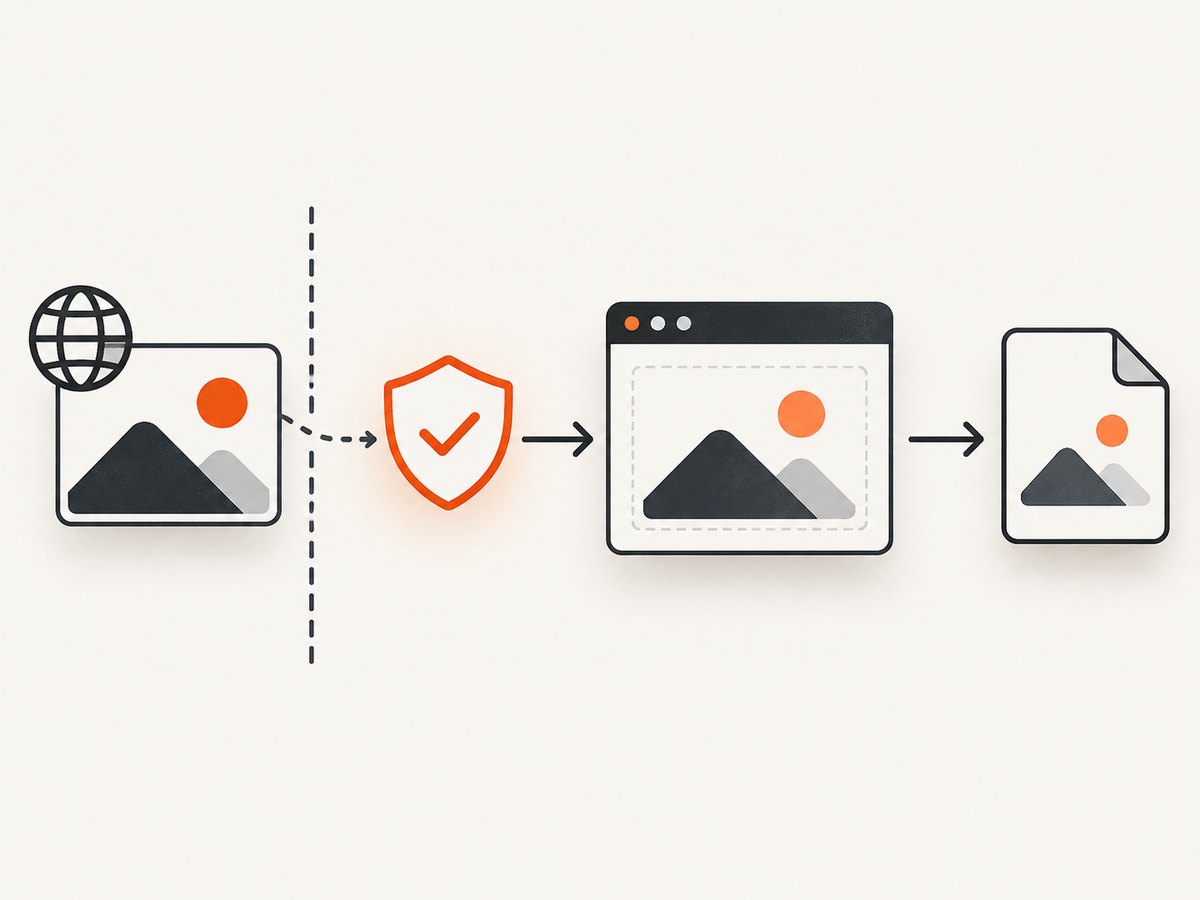
If you draw an image from another origin without suitable CORS permission, the canvas becomes tainted. Reading pixels or exporting with toDataURL() then throws a SecurityError. Set crossOrigin before assigning src, and ensure the image server sends an appropriate Access-Control-Allow-Origin header.
const image = new Image();
image.crossOrigin = 'anonymous';
image.onload = () => {
  ctx.drawImage(image, 0, 0, 600, 400);
  const png = canvas.toDataURL('image/png');
};
image.onerror = () => {
  console.error('The image could not be loaded with CORS permission');
};
image.src = 'https://cdn.example.com/photo.png';
A proxy under your control can fetch the asset and serve it with the correct CORS headers, subject to the asset owner’s access rules. Disabling browser security is not a production solution.
Common errors and fixes
| Symptom | Cause | Fix |
|---|---|---|
| Export is blurry | Only CSS dimensions were increased, or the bitmap was created at 1×. | Set canvas.width and canvas.height to CSS size × scale, then scale the context and redraw. |
| Drawing disappears after resize | Assigning bitmap dimensions clears the canvas and resets state. | Set dimensions first or call your complete drawing routine again. |
SecurityError from toDataURL() |
The bitmap is tainted by a cross-origin image or video. | Use CORS-enabled resources, set crossOrigin before src, or proxy the asset. |
Result is data:, |
The canvas has zero dimensions or exceeds the browser’s maximum canvas size. | Verify both dimensions are positive and reduce the scale or split the image into tiles. |
| JPEG has a black or unexpected background | JPEG does not support transparency. | Paint an explicit background before exporting to JPEG, or use PNG/WebP with alpha. |
| Text still looks soft | The source font is not loaded, the font is too small for the target size, or the canvas was upscaled after drawing. | Wait for document.fonts.ready, draw at the final backing resolution, and avoid post-export enlargement. |
| Export freezes the tab | Very large toDataURL() strings require substantial memory and synchronous encoding. |
Use toBlob(), lower the scale, export in tiles, or move work to an OffscreenCanvas worker. |
Performance, reliability, and cost considerations
- Memory: An RGBA bitmap uses roughly four bytes per pixel before browser overhead. Multiplying both dimensions by 3 multiplies pixel count, and therefore bitmap memory, by about 9.
- Encoding: PNG is lossless but can be large. JPEG/WebP quality affects encoding time and file size, not source detail.
- Maximum dimensions: Browser limits vary. Test the largest target size and handle
data:,or encoding failures. - Redraw cost: Resize and DPR changes require a redraw. Keep source data separate from the canvas so redraws are deterministic.
- Reliability: Wait for images and fonts before drawing. Handle failed resource loads and CORS errors explicitly.
- Resolution metadata: Formats that support it may carry 96 DPI metadata. DPI metadata does not increase pixel dimensions.
- Cost: Browser canvas APIs have no per-export service charge. Your practical costs are memory, CPU time, bandwidth, and any infrastructure used to proxy assets or process files.
Or skip the browser setup
If your goal is a website screenshot rather than a canvas bitmap, ScreenshotNeo returns a PNG, JPEG, WebP, or PDF from one GET request. The API can apply a device preset or viewport, retina scale, full-page capture, custom CSS and JavaScript, and other capture options. See the ScreenshotNeo API documentation.
curl -G "https://api.screenshotneo.com/v1/shot" -d access_key=YOUR_API_KEY --data-urlencode url=https://example.com -o shot.webpimport requests
r = requests.get(
"https://api.screenshotneo.com/v1/shot",
params={"access_key": "YOUR_API_KEY", "url": "https://example.com"},
timeout=90,
)
r.raise_for_status()
open("shot.webp", "wb").write(r.content)const q = new URLSearchParams({
access_key: 'YOUR_API_KEY',
url: 'https://example.com'
});
const res = await fetch(`https://api.screenshotneo.com/v1/shot?${q}`);
if (!res.ok) throw new Error(`Screenshot failed: ${res.status}`);
const bytes = Buffer.from(await res.arrayBuffer());
await import('node:fs/promises').then(fs => fs.writeFile('shot.webp', bytes));Cookie banners, newsletter popups, and chat widgets are removed before the shot. Bot checks, blank pages, failed loads, timeouts, and cache hits are not billed, and response headers identify the page verdict and billing status. An MCP server lets Claude, Cursor, and other MCP clients call take_screenshot, get_page_info, and capture_pdf. The Free plan includes 1,000 screenshots per month with no card; paid plans start at $5 for 3,000 shots.
Create a free ScreenshotNeo account to try the API with 1,000 screenshots each month and no card.
FAQ
Can toDataURL increase the detail of an existing low-resolution drawing?
No. It serializes the pixels already in the bitmap. Allocate a larger bitmap and redraw source shapes, text, and images at that resolution.
What scale should I use?
Use window.devicePixelRatio for a display-matched canvas. Use a deliberate scale such as 2 or 3 when you need a fixed export size, while checking memory and browser limits.
Does the quality argument make PNG sharper?
No. Quality applies to lossy formats such as JPEG and commonly WebP. PNG resolution comes from the bitmap dimensions.
Why is my exported image larger than the canvas on screen?
That is expected when the backing bitmap is CSS size multiplied by DPR. The browser displays it downsampled into the CSS dimensions.
Should I use toDataURL or toBlob?
Use toDataURL() for small, immediate data URLs. Use toBlob() for large downloads, uploads, or images that would make a very long string.


