How to Increase Cypress Screenshot Resolution in Jenkins Pipelines
Increase Cypress screenshot resolution in Jenkins by aligning viewport, Xvfb, browser scale, capture mode, and artifact verification.
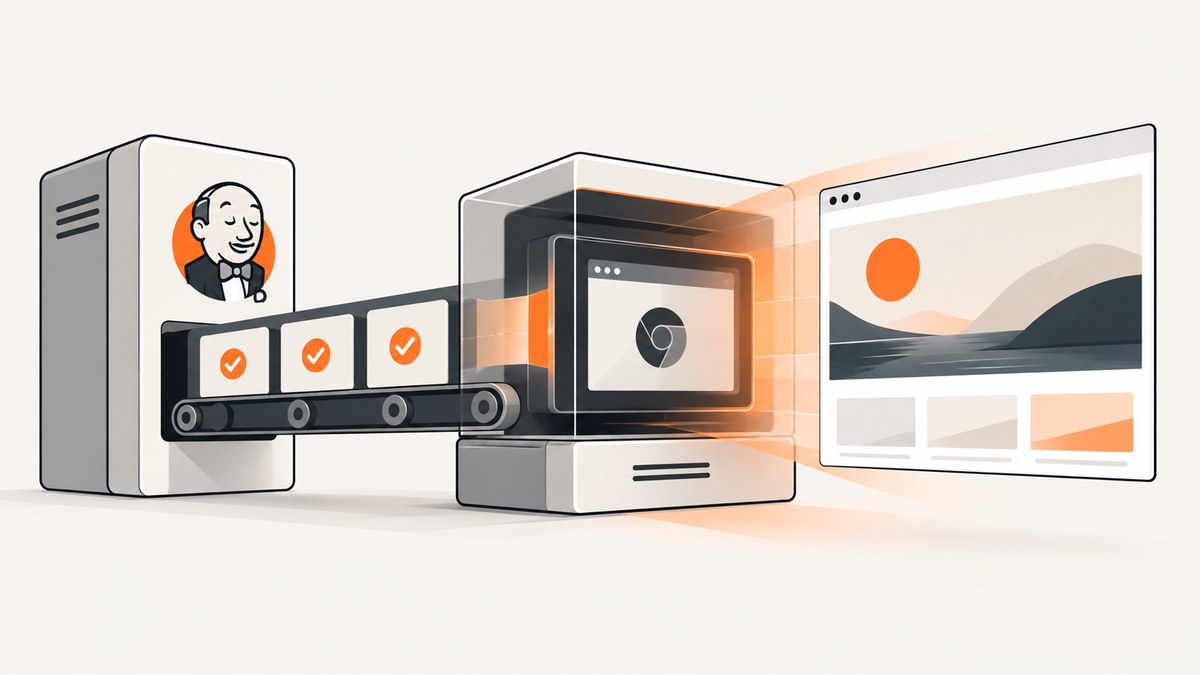
To increase Cypress screenshot resolution in Jenkins, align four settings: the application viewport, the virtual display size, the browser device scale factor, and Cypress capture scaling. A larger viewportWidth alone changes layout dimensions but does not guarantee a larger PNG. Jenkins must provide a display large enough for the browser, Chrome must use the intended device scale, and the screenshot must use an appropriate capture mode.
The reliable workflow is:
- Set a deliberate Cypress viewport, such as 1440 × 900.
- Run the browser in an Xvfb display at least that large.
- Set the Chromium device scale factor when you need predictable physical pixels.
- Use
capture: 'viewport'orcapture: 'fullPage'with an intentionalscalevalue. - Log the actual screenshot dimensions through
after:screenshot. - Archive the screenshot directory in Jenkins, including failed builds.
1. What each resolution control changes
| Control | Where it is configured | What it changes | What it does not guarantee |
|---|---|---|---|
viewportWidth, viewportHeight |
cypress.config.js or cy.viewport() |
The application layout viewport in CSS pixels | Physical PNG dimensions or device pixel density |
| Xvfb display size | Jenkins agent or pipeline step | The available virtual browser window and display pixels | That Cypress will use an unscaled capture |
--force-device-scale-factor |
Chromium browser launch hook | Browser device pixel density | That the browser accepted the argument or that every capture mode uses it |
capture |
cy.screenshot() or screenshot defaults |
Whether the image is the viewport, full page, or Cypress runner | That a runner image excludes Cypress UI |
scale |
cy.screenshot() or screenshot defaults |
Whether the application is fitted into the browser window | A replacement for a sufficiently large display |
Cypress documents a default application viewport of 1000 × 660 pixels. It also notes that cy.viewport() does not simulate devicePixelRatio; viewport size is a layout setting, not a promise about saved PNG density. Cypress’s high-resolution guidance explains that the application runs in an iframe that can be scaled to fit the browser window. That is why a larger viewport can still produce an unexpectedly sized image. See the Cypress viewport documentation and Cypress high-resolution screenshot guidance.
2. Configure Cypress for a deliberate viewport
Put shared dimensions in cypress.config.js so every test starts from the same layout. The following configuration also logs the values Cypress reports when it saves an image.

const { defineConfig } = require('cypress')

module.exports = defineConfig({
  viewportWidth: 1440,
  viewportHeight: 900,
  screenshotsFolder: 'cypress/screenshots',
  e2e: {
    setupNodeEvents(on, config) {
      on('before:browser:launch', (browser, launchOptionsOrArgs) => {
        if (browser.family === 'chromium') {
          launchOptionsOrArgs.args.push('--force-device-scale-factor=1')
        }
        return launchOptionsOrArgs
      })

      on('after:screenshot', (details) => {
        console.log(JSON.stringify({
          path: details.path,
          width: details.width,
          height: details.height,
          scaled: details.scaled,
          pixelRatio: details.pixelRatio,
        }))
      })
    },
  },
})
The before:browser:launch callback signature differs between Cypress major versions. Keep the structure appropriate for the version installed on your Jenkins agent and verify that the argument is present in the actual launch command. Cypress exposes the saved path, dimensions, scaled state, and optional pixel ratio through after:screenshot; those values are the evidence that the pipeline produced the intended output.
For a one-off test, set a viewport locally:
describe('checkout screenshot', () => {
  it('uses the visual regression viewport', () => {
    cy.viewport(1440, 900)
    cy.visit('/checkout')
    cy.screenshot('checkout', {
      capture: 'viewport',
      scale: false,
    })
  })
})
3. Give Jenkins a large enough Xvfb display
Headless CI still needs a browser window and a display surface. When the virtual display is smaller than the browser window or requested viewport, the browser or Cypress can fit the application and save a scaled image. Configure Xvfb with width and height at least as large as the browser window, plus an appropriate color depth. A common starting point for the example above is 1440x900x24.
The exact syntax depends on the Jenkins Xvfb plugin or pipeline step installed on the agent. A declarative pipeline can place the test inside the plugin’s Xvfb wrapper, while a container image can start Xvfb explicitly before Cypress. The important invariant is that the display size, browser window, and Cypress viewport agree.
pipeline {
  agent any

  stages {
    stage('Cypress screenshots') {
      steps {
        // Configure the Xvfb plugin or agent image for 1440x900x24.
        sh 'npx cypress run --browser chrome'
      }
    }
  }

  post {
    always {
      archiveArtifacts artifacts: 'cypress/screenshots/**/*',
        allowEmptyArchive: true
    }
  }
}
Treat the display value as a starting point, not proof. Log the screenshot dimensions and inspect an archived PNG. A display can be configured correctly while another wrapper, browser flag, or container setting still causes scaling.
4. Choose the right Cypress capture mode
Application screenshots usually need viewport or fullPage. A viewport capture records the currently visible application area. A full-page capture records the entire application page and is useful for long pages, provided the page has finished rendering. A runner capture includes the Cypress UI and is always scaled, so use it only when the command log or runner context is part of the evidence.
// Visible application area
cy.screenshot('checkout-viewport', {
  capture: 'viewport',
  scale: false,
})

// Entire application page
cy.screenshot('checkout-full-page', {
  capture: 'fullPage',
  scale: false,
})

// Include Cypress UI only when you need runner context
cy.screenshot('checkout-runner', {
  capture: 'runner',
})
scale: false prevents Cypress from fitting the application into a smaller browser window for viewport and full-page captures. It cannot create pixels that the display and browser did not provide. Runner captures are coerced to scaled mode regardless of this setting.
5. Make full-page screenshots complete and repeatable
Resolution is only useful when the captured page is complete. Wait for the route and critical content before capturing. If the page lazy-loads images, scroll or trigger the application behavior that loads them, then wait for the image elements to finish. Avoid taking a screenshot while a responsive breakpoint is changing or a web font is still loading.
cy.visit('/dashboard')
cy.get('[data-testid="dashboard"]', { timeout: 30000 })
  .should('be.visible')
cy.get('img').each(($image) => {
  cy.wrap($image).should(($el) => {
    expect($el[0].complete).to.equal(true)
  })
})
cy.screenshot('dashboard-full', {
  capture: 'fullPage',
  scale: false,
})
For visual regression, run generation and comparison in the same environment. Pin the Jenkins container or agent image, browser version, Cypress version, installed fonts, viewport, Xvfb dimensions, and relevant OS settings. Operating-system differences, browser updates, fonts, and display scaling can change pixels even when the application code is unchanged. A fixed environment reduces false differences.
6. Verify dimensions and publish Jenkins artifacts
Cypress writes screenshots to cypress/screenshots by default. Failure screenshots are taken during cypress run unless you disable them. Keep the artifact path stable across agents and archive it in a post or finally section so screenshots remain available when tests fail.
Use the after:screenshot output to answer four questions:
- Did the file get written where expected?
- What width and height did Cypress report?
- Was the image marked as scaled?
- Did Cypress report a pixel ratio?
If you need an independent check, inspect the PNG dimensions with an image tool in a separate CI step. Compare the physical dimensions with the intended viewport and device scale rather than relying on a filename or browser setting.
7. A complete Jenkins troubleshooting checklist
| Symptom | Likely cause | Fix |
|---|---|---|
| The PNG is still 1000 × 660 | The default Cypress viewport is still active | Set viewportWidth and viewportHeight in the loaded config, or call cy.viewport(); confirm the config file is used by Jenkins. |
| The viewport is correct but the PNG is smaller than expected | The Xvfb display or browser window is too small and Cypress fitted the page | Increase Xvfb to at least the browser window size, use scale: false, and inspect details.scaled. |
Adding cy.viewport() changes layout but not density |
Viewport size does not simulate devicePixelRatio |
Set the Chromium device scale factor through before:browser:launch and verify the saved dimensions. |
| The launch hook throws an argument error | The callback shape does not match the installed Cypress major version | Use the current signature for that version and return the modified launch options or arguments. |
| The screenshot contains Cypress controls | capture: 'runner' was selected |
Use capture: 'viewport' or capture: 'fullPage' for application evidence. |
| Full-page output is blank or incomplete | The page was captured before content or lazy images finished loading | Wait for a stable selector, complete image loading, and application network activity before capture. |
| Visual diffs appear only on Jenkins | Fonts, browser, OS, display size, or Cypress versions differ | Pin the agent image, fonts, browser, Cypress version, viewport, and Xvfb dimensions. |
| No screenshots are available after a failed build | Artifacts are archived only after a successful stage | Archive the screenshots directory in post { always { ... } } or an equivalent finally block. |
8. Performance, reliability, and cost considerations
Higher-resolution screenshots consume more storage and may take longer to encode and transfer. Full-page captures also require more browser work than viewport captures. Use viewport images for focused checks and full-page images only when the entire document is necessary. Keep the screenshot names deterministic so retries replace or clearly distinguish the intended artifact.
Reliability improves when the pipeline has one source of truth for dimensions. Define the viewport in Cypress configuration, derive the Xvfb value from that decision, and log actual output. Do not silently vary the browser version or fonts between agents. For flaky pages, wait on application state rather than using an arbitrary long delay; a selector or explicit readiness signal documents what the screenshot requires.
Jenkins itself does not charge per screenshot, but storage, artifact retention, browser runtime, and network transfer have operational costs. Retain only the images needed for review or visual comparison, and apply the repository’s normal artifact retention policy.
9. Or skip the browser setup
If the goal is a clean image of a URL rather than a Cypress test artifact, ScreenshotNeo provides a single GET request for a PNG, JPEG, WebP, or PDF. Its API can handle viewport and full-page capture without managing Chrome, Xvfb, or Jenkins browser flags.

See the ScreenshotNeo API documentation for the available parameters. A minimal request is:
curl -G "https://api.screenshotneo.com/v1/shot" \
  -d access_key=YOUR_API_KEY \
  --data-urlencode url=https://stripe.com \
  -o shot.webp
Python:
import requests

r = requests.get(
    "https://api.screenshotneo.com/v1/shot",
    params={"access_key": "YOUR_API_KEY", "url": "https://stripe.com"},
    timeout=90,
)
r.raise_for_status()
open("shot.webp", "wb").write(r.content)
Node.js:
const q = new URLSearchParams({
  access_key: 'YOUR_API_KEY',
  url: 'https://stripe.com'
});
const res = await fetch(`https://api.screenshotneo.com/v1/shot?${q}`);
if (!res.ok) throw new Error(`Screenshot failed: ${res.status}`);
const bytes = Buffer.from(await res.arrayBuffer());
require('fs').writeFileSync('shot.webp', bytes);
ScreenshotNeo removes cookie and consent banners, newsletter popups, and chat widgets before capture; each cleanup step can be turned off. Bot checks or CAPTCHAs, blank pages, timeouts, failed loads, and cache hits are not billed, and response headers identify the page verdict and billing result. It also offers an MCP server with take_screenshot, get_page_info, and capture_pdf tools for Claude, Cursor, and other MCP clients. One thousand screenshots per month are free with no card; paid plans start at $5 for 3,000 shots. Create a free ScreenshotNeo account.
10. FAQ
Does increasing viewportWidth always increase PNG pixels?
No. It changes CSS layout dimensions. Display size, browser scaling, device scale, and capture mode determine the saved image dimensions.
Should I use scale: false for every screenshot?
Use it for application viewport and full-page captures when you want the page’s natural output. Runner captures are always scaled.
What Xvfb size should I choose?
Choose a width and height at least as large as the browser window required by your target viewport, with a suitable color depth. Verify the result through reported screenshot dimensions.
Why do visual diffs change after a browser update?
Browser rendering, fonts, antialiasing, and layout behavior can change. Pin the browser and other environment inputs for reproducible comparisons.
Where should Jenkins store Cypress screenshots?
Use the configured screenshotsFolder, which defaults to cypress/screenshots, and archive it in an always-run post step.