How to Increase Puppeteer page.pdf() Timeout for Page.printToPDF
Set Puppeteer’s PDF timeout per call, change the page default, or disable it with 0. Learn which timeout applies and how to diagnose slow exports.

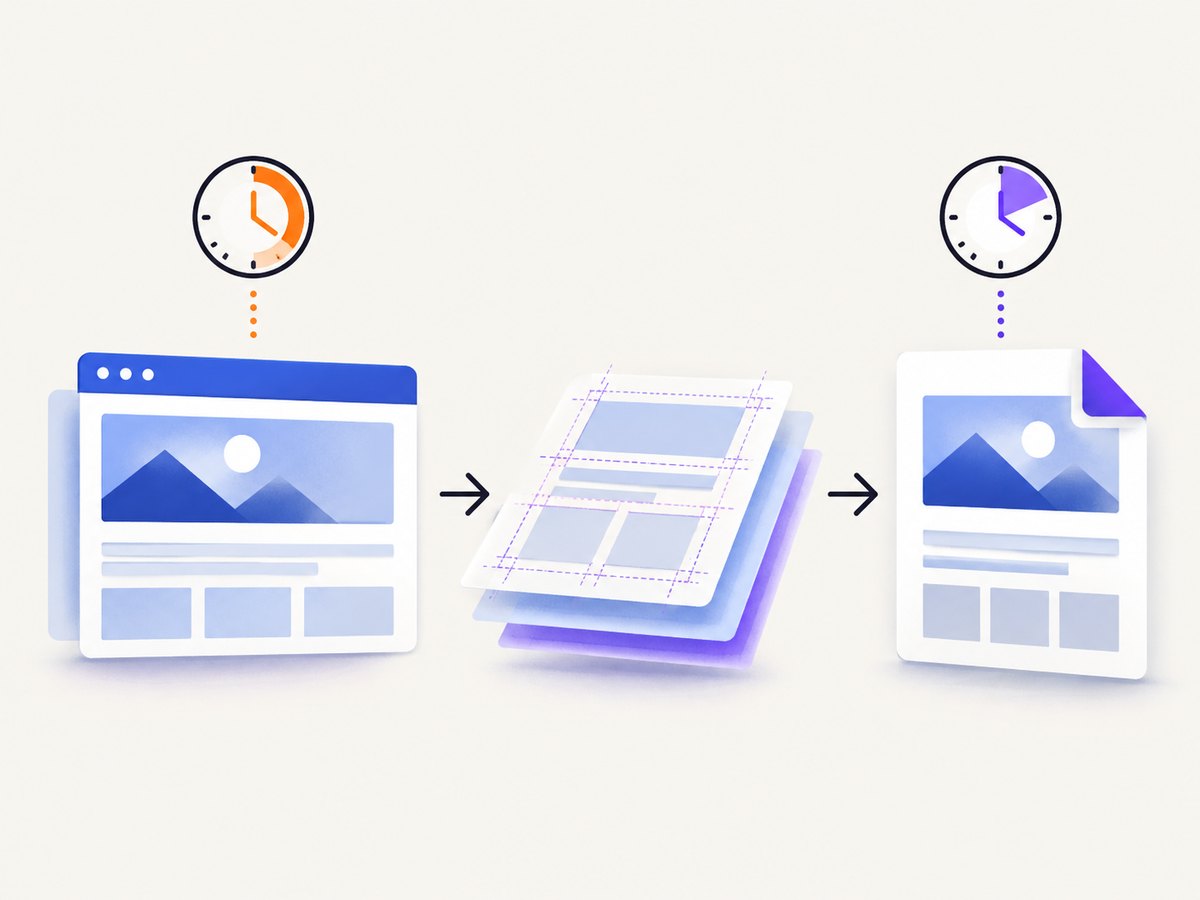
Direct answer: pass a timeout value in milliseconds to the page.pdf() options object. For example, timeout: 60000 allows one minute for that PDF operation:
await page.pdf({
  path: 'output.pdf',
  timeout: 60_000
});
The current Puppeteer PDFOptions reference documents a 30,000 millisecond default. Set timeout: 0 to disable the PDF timeout. For one slow document, prefer the per-call option because it changes only that export. The official reference is the PDFOptions API.
Which Puppeteer timeout should you change?
Puppeteer exposes several timeout controls, and they do different jobs. Changing the wrong one can leave the same error in place.
| Setting | Scope | Use it when | Example |
|---|---|---|---|
page.pdf({ timeout }) |
One PDF export | A particular document needs more time | timeout: 120000 |
page.setDefaultTimeout() |
Page-wide default | Most operations on this page need a larger limit | page.setDefaultTimeout(120000) |
protocolTimeout |
Individual Chrome DevTools Protocol calls | The error explicitly reports a protocol-call timeout | Set when launching or connecting |
page.setDefaultTimeout() has broader effects than a PDF-only setting. It changes the default maximum wait for page operations, so use it deliberately. protocolTimeout is separate again; the documented ConnectOptions default is 180,000 milliseconds. Do not increase it just because page.pdf() reached its own limit. First identify the error type in the stack trace. See the Page.setDefaultTimeout reference and ConnectOptions reference.
Per-call timeout: the safest fix
Use a per-call timeout when only one report, invoice, or page is slow. Values are integer milliseconds.
import puppeteer from 'puppeteer';

const browser = await puppeteer.launch();
const page = await browser.newPage();

try {
  await page.goto('https://example.com/report', {
    waitUntil: 'networkidle0',
    timeout: 60_000
  });

  await page.pdf({
    path: 'report.pdf',
    format: 'A4',
    printBackground: true,
    timeout: 120_000
  });
} finally {
  await browser.close();
}
The navigation timeout in page.goto() and the PDF timeout in page.pdf() are independent. A page can load successfully and still take too long to print, or navigation can time out before PDF generation begins. Set each limit according to the stage it protects.
Change the page default
If many PDF calls on the same page need the same larger limit, set a page default and omit timeout from each call:
page.setDefaultTimeout(120_000);

await page.pdf({
  path: 'report.pdf',
  format: 'Letter',
  printBackground: true
});
This default also affects other page operations that use the page timeout. Keep the setting local to the page or job where possible. A shared page with an unnecessarily large default can make unrelated failures take longer to surface.
Disable the PDF timeout
Passing zero disables the PDF timeout:
await page.pdf({
  path: 'large-report.pdf',
  timeout: 0
});
An unlimited wait can be appropriate for a controlled batch job, but it can also leave a worker occupied forever when a page, font, image, or browser process never completes. If you run a service, pair an unlimited PDF timeout with an outer job deadline and process cancellation policy.
What page.pdf() waits for
Puppeteer generates PDFs using the browser’s print CSS media type. Styles inside @media print can therefore change the output compared with a screenshot or screen rendering. PDF generation also waits for fonts by default through the waitForFonts option. A slow or unavailable font can contribute to a long export.
await page.emulateMediaType('print');

await page.pdf({
  path: 'print-layout.pdf',
  format: 'A4',
  printBackground: true,
  waitForFonts: true,
  timeout: 90_000
});
Do not treat a larger timeout as proof that the page is healthy. It only permits the operation to wait longer. Investigate the document when generation consistently approaches the limit.
Complete runnable example with diagnostics
This script records the duration of navigation and PDF generation separately, which helps identify the slow stage:
import puppeteer from 'puppeteer';

const url = process.argv[2] ?? 'https://example.com';
const pdfTimeout = Number(process.env.PDF_TIMEOUT_MS ?? 120_000);
const navigationTimeout = Number(process.env.NAV_TIMEOUT_MS ?? 60_000);

const browser = await puppeteer.launch({ headless: true });
const page = await browser.newPage();
page.setDefaultNavigationTimeout(navigationTimeout);

try {
  const navigationStart = Date.now();
  await page.goto(url, { waitUntil: 'networkidle0' });
  console.log(`navigation_ms=${Date.now() - navigationStart}`);

  const pdfStart = Date.now();
  await page.pdf({
    path: 'output.pdf',
    format: 'A4',
    printBackground: true,
    timeout: pdfTimeout
  });
  console.log(`pdf_ms=${Date.now() - pdfStart}`);
} catch (error) {
  console.error(error);
  process.exitCode = 1;
} finally {
  await browser.close();
}
Run it with PDF_TIMEOUT_MS=180000 node export.mjs https://example.com. Keep the timeout value in configuration rather than hard-coding different values throughout a codebase.
Options that commonly affect export time
- Fonts: remote font files can delay the default font wait. Self-host fonts or verify that their URLs respond from the browser environment.
- Images: very large images increase layout and encoding work. Resize assets before rendering when possible.
- Lazy content: a page that loads content only after scrolling may never become complete under your chosen navigation condition. Trigger the required scrolling or wait for a known selector before calling
page.pdf(). - Print CSS: complex print rules, large tables, and page-break calculations can increase layout time. Test the print stylesheet independently.
- Backgrounds and scale: options such as
printBackgroundand high output scale can increase PDF size and encoding time. - Page ranges: exporting only required pages can reduce work for very long documents.
Troubleshooting Puppeteer PDF timeouts
“Timed out after 30000 ms” from page.pdf()
Cause: the PDFOptions default or inherited page default is 30 seconds. Fix: add timeout: 60_000 or another workload-appropriate value to the page.pdf() call. Confirm that the error occurs during PDF generation rather than navigation.
The timeout option appears to have no effect
Cause: the failure may be a navigation timeout, a protocol timeout, or an outer test runner/job timeout. Fix: inspect the error name and stack, then adjust the matching setting. Set page.setDefaultNavigationTimeout() for navigation failures; investigate protocolTimeout only when the message identifies a protocol call.
The PDF succeeds but is incomplete
Cause: the page reached a navigation condition before client-rendered content, lazy images, or fonts were ready. Fix: wait for a meaningful selector, wait for fonts, and explicitly trigger lazy loading. A longer PDF timeout cannot create content that was never loaded.
await page.goto(url, { waitUntil: 'domcontentloaded' });
await page.waitForSelector('#report-ready', { timeout: 60_000 });
await page.evaluate(() => document.fonts.ready);
await page.pdf({ path: 'report.pdf', timeout: 120_000 });
The process hangs after setting timeout: 0
Cause: an unbounded operation is waiting on a page or browser resource indefinitely. Fix: use a finite PDF timeout in interactive services, or enforce an outer deadline that closes the browser and marks the job failed.
Only some URLs fail
Cause: those pages may contain bot checks, broken resources, slow third-party scripts, authentication redirects, or unusually large documents. Fix: capture request and console diagnostics, test the URL in the same browser environment, and set per-document limits rather than raising every job’s timeout.
Performance and reliability checklist
- Measure navigation and PDF generation separately.
- Use a finite per-call timeout first, such as 60,000 or 120,000 milliseconds, based on your document workload.
- Wait for an application-specific ready selector instead of relying only on network idle.
- Ensure fonts, images, and lazy content are available before printing.
- Reuse a browser process carefully, but isolate pages and always close pages and browsers in cleanup handlers.
- Apply an outer job deadline, retry only transient failures, and avoid retrying deterministic bad URLs indefinitely.
- Record the URL, Puppeteer version, timeout values, and error category with each failed job.
Puppeteer’s documentation gives defaults, not a universal value for every deployment. Choose a limit from your own document size, browser resources, concurrency, and service-level requirements. A higher timeout trades faster failure detection for a greater chance of completing a slow export; it does not improve the page itself.

Cost and operational considerations
Longer browser jobs consume worker time and memory. If you increase the timeout globally, one problematic page can occupy a slot while other jobs wait. Prefer per-call values, queue long documents separately, and cap concurrency according to available CPU and memory. For recurring reports, cache stable source data and reduce unnecessary third-party requests before rendering.
Or skip the browser setup
If your goal is a reliable URL-to-PDF or screenshot request rather than controlling Chromium directly, ScreenshotNeo provides a website capture API and MCP server. See the ScreenshotNeo documentation for the full option set.
One GET request returns a PNG, JPEG, WebP, or PDF. The same endpoint supports PDF paper size, margins, landscape mode, and page ranges, along with waits for selectors, delays, or network idle. You can also supply custom headers, cookies, user agents, authorization, timezone, geolocation, custom JavaScript and CSS, blocked resource types, caching TTLs, and signed links.
cURL
curl -G "https://api.screenshotneo.com/v1/shot" \
  -d access_key=YOUR_API_KEY \
  --data-urlencode url=https://stripe.com \
  -o shot.webp
Python
import requests

r = requests.get(
    "https://api.screenshotneo.com/v1/shot",
    params={"access_key": "YOUR_API_KEY", "url": "https://stripe.com"},
    timeout=90,
)
r.raise_for_status()
open("shot.webp", "wb").write(r.content)
Node.js
const q = new URLSearchParams({
  access_key: 'YOUR_API_KEY',
  url: 'https://stripe.com'
});
const res = await fetch(`https://api.screenshotneo.com/v1/shot?${q}`);
if (!res.ok) throw new Error(`HTTP ${res.status}`);
const data = Buffer.from(await res.arrayBuffer());
require('node:fs').writeFileSync('shot.webp', data);
ScreenshotNeo accepts cookie and consent banners as a visitor and removes more than 60 known consent platforms, newsletter popups, and chat widgets before capture; each cleanup step can be disabled. Bot checks, CAPTCHAs, blank pages, timeouts, failed loads, and cache hits are not billed, and response headers identify the page verdict and billing result with X-Page-Verdict and X-Billed. Its MCP server exposes take_screenshot, get_page_info, and capture_pdf for Claude, Cursor, and other MCP clients.
The free plan includes 1,000 screenshots per month with no card. Paid plans start at $5 for 3,000 shots, and every feature is available on every plan. Create a free ScreenshotNeo account.
FAQ
What unit does the page.pdf() timeout use?
Milliseconds. For example, 60_000 is 60 seconds.
Is 120 seconds always the right value?
No. Puppeteer documents the setting and default, not a universal workload recommendation. Measure your jobs and select a limit that fits their size and environment.
Does page.setDefaultTimeout() change navigation timeout?
It changes the page’s general default timeout. Navigation has its own default navigation timeout controls, so configure navigation separately when that is the failing stage.
Does timeout: 0 make a PDF faster?
No. It removes the PDF operation’s maximum wait. It can allow a slow export to finish, but it does not reduce rendering or encoding time.
Why does a PDF differ from a screenshot?
PDF generation uses print media CSS and waits for fonts by default. Print-specific rules, page breaks, and font loading can therefore change both timing and appearance.


