How to Inject Data Into HTML Before Converting It to PDF
Learn how to populate HTML safely, wait for async data and assets, then generate reliable PDFs with Playwright or Puppeteer.

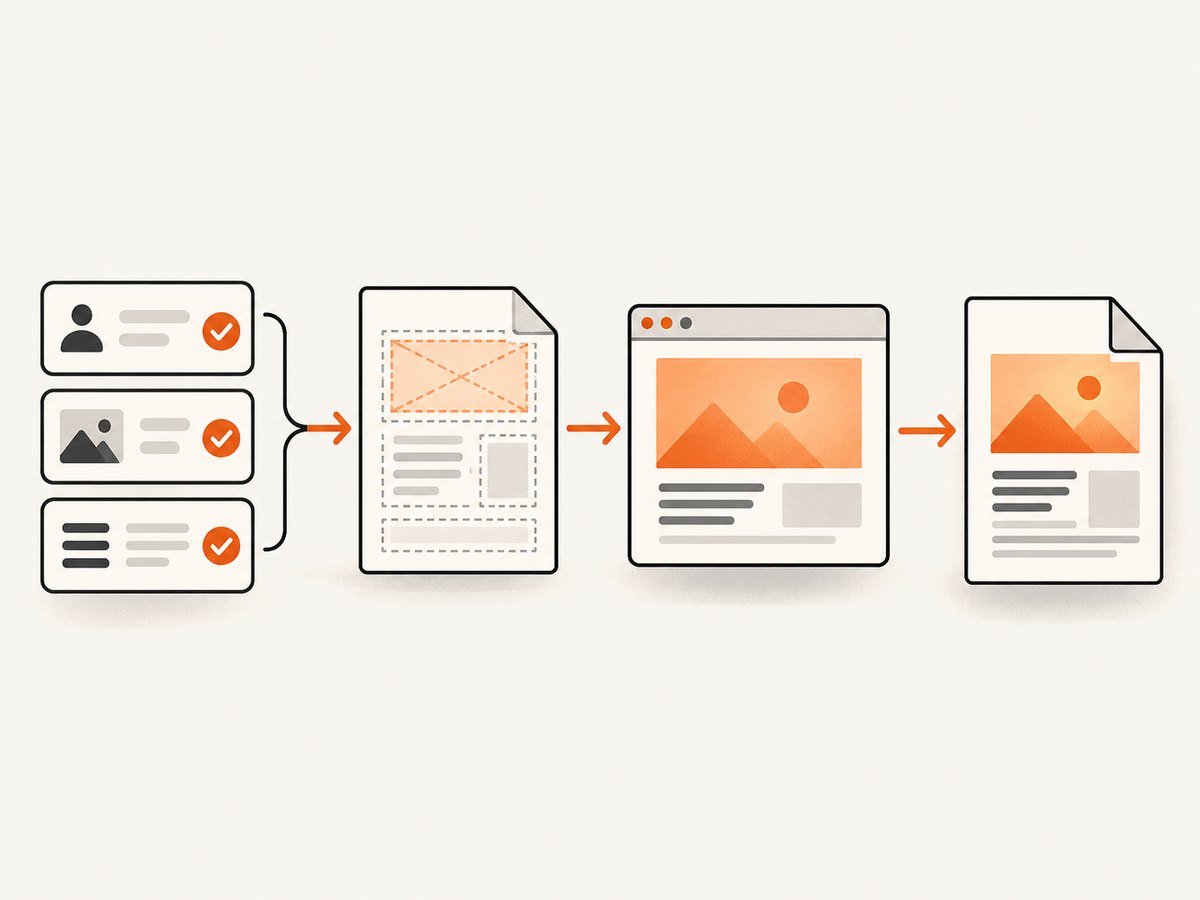
Direct answer: fetch and validate your data first, render a complete HTML document with escaped values, load that HTML in a browser renderer, wait for application data, fonts and images to be ready, then call the PDF API. A PDF captures the page state the renderer sees at generation time, so generating before those steps finish produces missing or stale content.
Recommended pipeline
- Fetch data in your application or server layer.
- Validate required fields and normalize dates, numbers and URLs.
- Render a complete HTML document from a template.
- Insert values as text or escaped attributes. Keep untrusted values out of executable markup and scripts.
- Load the final HTML in Playwright or Puppeteer.
- Wait for app-specific asynchronous work, fonts and required images.
- Generate the PDF with deliberate paper, margin and print-style settings.
- Inspect the resulting file for overflow, page breaks, missing assets and color changes.
Playwright’s page.setContent(html) assigns markup to a page, and its API notes that this internally calls document.write(). page.evaluate() can await a function that returns a promise, which is useful for an application-specific readiness signal. Both Playwright and Puppeteer document print media as the default for PDF output. Playwright Page API and Puppeteer PDF guide describe the exact behavior and options for their current versions.
Complete Node.js example with Playwright
Install Playwright and a browser in your project, then run this script. The example fetches data before rendering, escapes text, waits for fonts and images, and writes an A4 PDF.
import { chromium } from 'playwright';
import fs from 'node:fs/promises';
const invoice = {
number: 'INV-1042',
customer: 'Ada Lovelace',
total: 1250.50,
dueDate: '2026-10-15',
logoUrl: 'https://example.com/logo.png'
};
function escapeHtml(value) {
return String(value)
.replaceAll('&', '&')
.replaceAll('<', '<')
.replaceAll('>', '>')
.replaceAll('"', '"')
.replaceAll(''', ''');
}
const html = `<!doctype html>
<html>
<head>
<meta charset='utf-8'>
<style>
@page { size: A4; margin: 18mm; }
* { box-sizing: border-box; }
body { font-family: Arial, sans-serif; color: #1f2937; }
h1 { margin: 0 0 8px; }
.total { font-size: 22px; font-weight: 700; }
@media print { .screen-only { display: none; } }
</style>
</head>
<body>
<img id='logo' src='${escapeHtml(invoice.logoUrl)}' width='160' alt='Company logo'>
<h1>Invoice ${escapeHtml(invoice.number)}</h1>
<p>Customer: ${escapeHtml(invoice.customer)}</p>
<p>Due: ${escapeHtml(invoice.dueDate)}</p>
<p class='total'>Total: $${invoice.total.toFixed(2)}</p>
</body>
</html>`;
const browser = await chromium.launch();
try {
const page = await browser.newPage();
await page.setContent(html, { waitUntil: 'load' });
await page.evaluate(() => document.fonts.ready);
await page.waitForFunction(() => [...document.images].every((image) => image.complete));
const pdf = await page.pdf({
format: 'A4',
printBackground: true,
preferCSSPageSize: true,
margin: { top: '18mm', right: '18mm', bottom: '18mm', left: '18mm' }
});
await fs.writeFile('invoice.pdf', pdf);
} finally {
await browser.close();
}The escaping function is for text and attribute values. Validate URLs separately before allowing them into src or href. Do not pass an untrusted string to innerHTML or concatenate it into a script.
Waiting for asynchronous application data
If the HTML shell loads data with JavaScript, loading the document is not enough. Add a readiness condition owned by your application:
await page.setContent(renderedHtml, { waitUntil: 'domcontentloaded' });
await page.waitForFunction(() => window.reportReady === true);
await page.evaluate(() => document.fonts.ready);
const pdf = await page.pdf({ format: 'A4', printBackground: true });
Set window.reportReady only after data binding, charts and required images finish. A fixed sleep can be a fallback for an unmodifiable page, but it is not proof that work is complete. Prefer a selector, a promise, a network response you control, or an explicit application flag.
Python Playwright version
from pathlib import Path
from playwright.sync_api import sync_playwright
from html import escape

name = 'Ada Lovelace'
amount = '1250.50'
html = f'''<!doctype html>
<html><head><meta charset="utf-8">
<style>@page {{ size: A4; margin: 18mm; }} body {{ font-family: Arial, sans-serif; }}</style>
</head><body>
<h1>Invoice</h1><p>Customer: {escape(name)}</p>
<p>Total: ${escape(amount)}</p>
</body></html>'''

with sync_playwright() as p:
    browser = p.chromium.launch()
    page = browser.new_page()
    page.set_content(html, wait_until='load')
    page.evaluate('document.fonts.ready')
    page.pdf(path='invoice.pdf', format='A4', print_background=True,
             prefer_css_page_size=True)
    browser.close()
Install the Python package and the browser binary according to the Playwright Python documentation. Pin versions in deployment so browser and library updates are deliberate.
Puppeteer equivalent
import puppeteer from 'puppeteer';

const browser = await puppeteer.launch();
try {
  const page = await browser.newPage();
  await page.setContent(renderedHtml, { waitUntil: 'load' });
  await page.evaluate(() => document.fonts.ready);
  await page.pdf({
    path: 'output.pdf',
    format: 'A4',
    printBackground: true,
    preferCSSPageSize: true
  });
} finally {
  await browser.close();
}
Puppeteer’s guide says Page.pdf() waits for fonts by default. You still need an application-specific check for data, images and other assets.
Print layout and PDF options
| Requirement | Setting or technique |
|---|---|
| Paper dimensions | Use format: 'A4', Letter, or CSS @page with preferCSSPageSize: true. |
| Margins | Set PDF margins or @page { margin: ... }; avoid setting both inconsistently. |
| Backgrounds | Enable printBackground: true when fills and images are part of the document. |
| Headers and footers | Use the renderer’s display-header-footer options and HTML templates where supported; reserve space so content is not covered. |
| Page breaks | Use break-before, break-after and break-inside: avoid on logical blocks. Test tables and long unbroken strings. |
| Colors | Print output can adjust colors. Use -webkit-print-color-adjust: exact intentionally and verify readability. |
| Screen versus print CSS | PDF uses print media by default. Put PDF-specific rules in @media print and hide controls marked screen-only. |
Data safety and correctness
- Fetch data server-side where practical, then validate its shape before templating.
- Escape text nodes and attribute values. Attribute escaping alone does not make a value safe for a JavaScript, CSS or URL context.
- Allowlist URL schemes such as
https:before inserting links or image sources. - Keep secrets out of HTML sent to the browser and out of generated PDFs unless the document explicitly requires them.
- Use a restrictive content security policy and isolate untrusted documents when your deployment model permits it.
- Remember that
setContentusesdocument.write(), andevaluateexecutes in the page context; neither API is a complete security policy.
Images, fonts and external resources
Remote assets can fail because of authentication, DNS, certificate, CORS or network restrictions. Prefer stable, versioned asset URLs or embed small assets as data URLs. Wait for document.fonts.ready and verify every image’s complete and naturalWidth. For authenticated resources, provide credentials through the browser context rather than exposing tokens in the rendered document.
Reliability, performance and cost
- Reuse a browser process for batches, but create an isolated context or page per document so cookies and DOM state do not leak.
- Limit concurrency to the CPU and memory available to the browser. Too many simultaneous pages cause slow rendering and crashes.
- Set navigation and PDF timeouts, record which readiness check failed, and retry only transient browser or network failures.
- Use deterministic fonts, locale, timezone and data snapshots when PDFs must be reproducible.
- Cache immutable assets and prefetch data before launching a page. Avoid waiting for analytics, ads or unrelated third-party requests.
- Measure end-to-end time from data fetch through PDF write, plus output size and failure rate. The cited Playwright and Puppeteer documentation does not establish a universal speed or cost winner.
- Browser PDF generation has infrastructure costs for browser binaries, memory and cold starts. A hosted capture API can move that operational work to a service; compare its pricing and controls with your workload.

Troubleshooting
| Symptom | Likely cause | Fix |
|---|---|---|
| PDF has old or empty values | PDF was generated before async binding completed. | Add an explicit readiness flag, selector or awaited application promise. |
| Fonts look different | Font request failed or rendering started before fonts were ready. | Self-host or allow the font request, await document.fonts.ready, and pin browser versions. |
| Images are blank | Image failed, is lazy-loaded, or was captured too early. | Scroll or trigger lazy loading, wait for image completion, and check naturalWidth. |
| Screen preview and PDF differ | Print media CSS is active. | Inspect @media print, paper size, margins and color adjustment rules. |
| Content is clipped | Fixed heights, overflowing tables or header/footer overlap. | Remove rigid heights, allow wrapping, add page-break rules and reserve header/footer space. |
| Blank pages appear | Oversized elements, forced breaks or conflicting page dimensions. | Check computed sizes, remove redundant breaks and keep blocks within the printable area. |
| Navigation timeout | A third-party request or never-ending page load blocks readiness. | Use a controlled readiness condition, block irrelevant resources, and set a bounded timeout. |
| Browser crashes in production | Too much concurrency or insufficient shared memory. | Lower concurrency, recycle workers, increase container resources and capture diagnostics. |
| Unsafe markup appears in output | Untrusted input was concatenated into HTML or script. | Escape for its context, validate URLs and keep executable code separate from data. |
Or skip the browser setup
ScreenshotNeo provides a website capture API that can return PNG, JPEG, WebP or PDF. For a URL that already renders the data, one request is enough:
curl -G "https://api.screenshotneo.com/v1/shot" -d access_key=YOUR_API_KEY --data-urlencode url=https://stripe.com -o shot.webpimport requests
r = requests.get("https://api.screenshotneo.com/v1/shot", params={"access_key": "YOUR_API_KEY", "url": "https://stripe.com"}, timeout=90)
open("shot.webp", "wb").write(r.content)const q = new URLSearchParams({ access_key: 'YOUR_API_KEY', url: 'https://stripe.com' });
const res = await fetch(`https://api.screenshotneo.com/v1/shot?${q}`);See the ScreenshotNeo API documentation for PDF parameters and the full option set. Before capture it can accept cookie and consent banners and remove more than 60 known consent platforms, newsletter popups and chat widgets; each step can be disabled. Bot checks, blank pages, timeouts, failed loads and cache hits are not billed, and the response reports the page verdict and billing status with X-Page-Verdict and X-Billed headers. It also offers an MCP server for Claude, Cursor and other MCP clients, with take_screenshot, get_page_info and capture_pdf tools. The Free plan includes 1,000 shots per month without a card; paid plans start at $5 for 3,000 shots.
Create a free ScreenshotNeo account and start with 1,000 screenshots a month at no charge.
FAQ
Should data be injected before or after loading the page?
Inject or render the complete data-backed HTML before PDF generation. If the page loads data in the browser, wait for that work explicitly before calling the PDF method.
Can I use the same HTML for screen and PDF?
Yes, but provide intentional print rules. Print media is the default for documented Playwright and Puppeteer PDF APIs, so screen-only controls and responsive layouts may change.
Is a delay enough to guarantee correct output?
No. A delay only guesses. A readiness signal tied to your data and assets is more reliable.
Which renderer should I choose?
Choose based on your existing language, browser support, deployment model, PDF options and version-maintenance needs. The official sources document both APIs but do not claim a universal winner.
How do I verify a generated PDF?
Open representative files and check values, page count, breaks, images, fonts, colors and links. Add automated checks for required text and unexpected blank pages where the document is business-critical.


