How to Inject a Script in WordPress
Add JavaScript to WordPress with the supported enqueue APIs. Learn where scripts run, how to handle inline code safely, and how to troubleshoot loading issues.

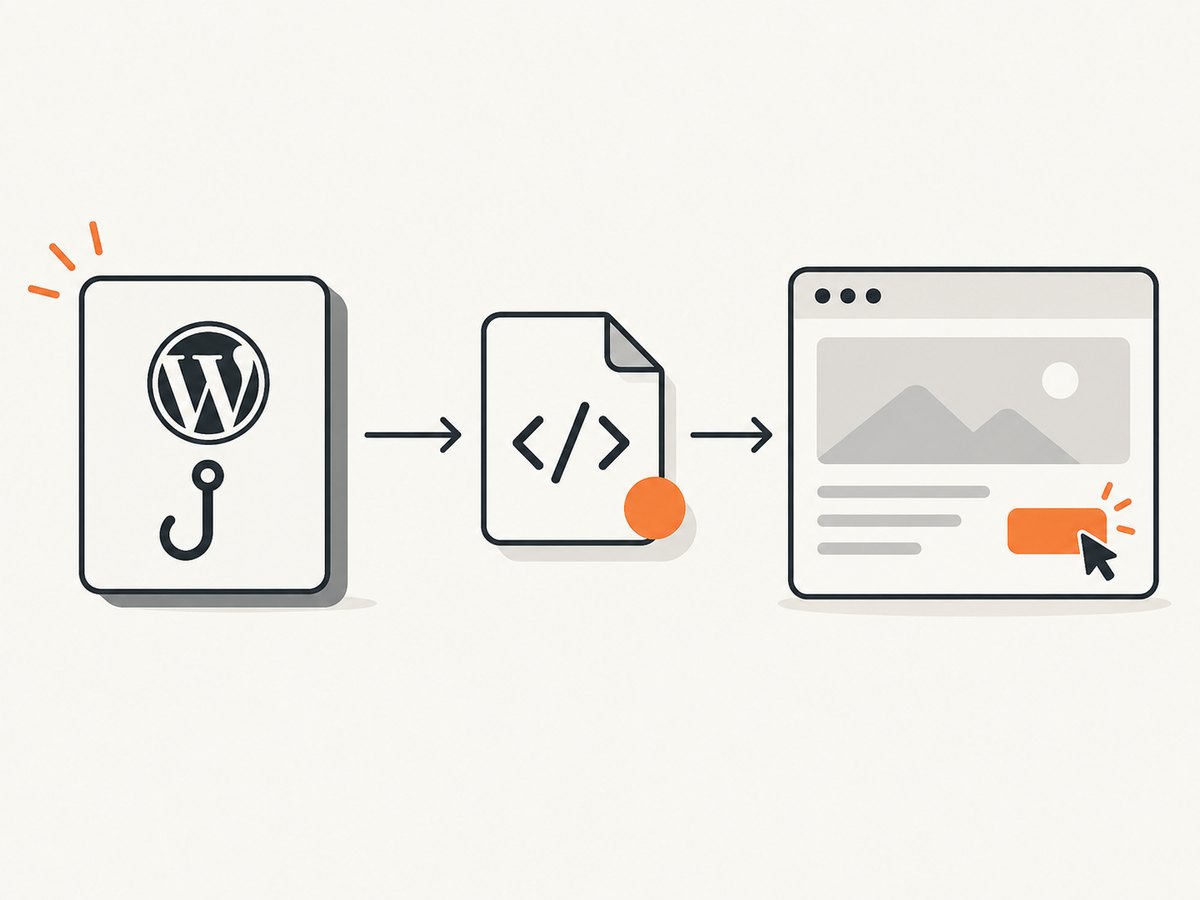
To add JavaScript to a WordPress site, enqueue a script from the wp_enqueue_scripts action with wp_enqueue_script(). This is WordPress’s recommended way to attach a JavaScript file to generated pages. Use wp_add_inline_script() for a small snippet associated with an enqueued file. Choose a different enqueue action for admin or login screens, and check that the active theme calls wp_head() and wp_footer() where needed.
The examples below belong in a site-specific plugin or a child theme’s functions.php. A plugin is often the more durable home for behavior that should remain when the theme changes. Do not paste untrusted values into executable JavaScript.
1. Enqueue a JavaScript file on the front end
Create a file such as assets/js/custom.js in your theme or plugin, then enqueue it from a uniquely named callback. The theme example uses get_theme_file_uri(), which resolves a file from the active theme. Use the corresponding plugin URL function if the asset lives in a plugin.
<?php
add_action( 'wp_enqueue_scripts', 'mytheme_enqueue_custom_script' );

function mytheme_enqueue_custom_script() {
    wp_enqueue_script(
        'mytheme-custom',
        get_theme_file_uri( 'assets/js/custom.js' ),
        array(),
        '1.0.0',
        array( 'in_footer' => true )
    );
}
Put the JavaScript itself in assets/js/custom.js, without PHP tags:
document.addEventListener('DOMContentLoaded', () => {
  const button = document.querySelector('[data-site-action]');
  if (!button) return;

  button.addEventListener('click', () => {
    button.classList.toggle('is-active');
  });
});
The arguments to wp_enqueue_script() are: a unique handle; the script URL; dependency handles; a version string; and loading options. The example has no dependencies, uses version 1.0.0, and requests footer placement. Change the handle and path to match your project. If your JavaScript relies on another registered script, list that handle in the dependency array so WordPress can preserve the dependency relationship.
For a plugin asset, the shape is similar; define the plugin URL using the plugin’s own bootstrap file rather than assuming a theme path:
add_action( 'wp_enqueue_scripts', 'myplugin_enqueue_script' );

function myplugin_enqueue_script() {
    wp_enqueue_script(
        'myplugin-feature',
        plugin_dir_url( __FILE__ ) . 'assets/js/feature.js',
        array(),
        '1.0.0',
        array( 'in_footer' => true )
    );
}
Use a stable version in production, then update it when the asset changes so browsers can refresh cached files. A project can use a release version or a file modification time, depending on its deployment and cache strategy. Avoid changing the version on every request in production, since that defeats browser caching.
2. Pick the correct screen and output location
The hook should match where the code is needed. For the public-facing site, use wp_enqueue_scripts. For admin screens, use admin_enqueue_scripts. For the login screen, use login_enqueue_scripts. Do not enqueue a front-end-only library globally across admin pages unless it is genuinely needed there.
| Need | Action | Notes |
|---|---|---|
| Public site pages | wp_enqueue_scripts |
Use for theme and plugin front-end assets. |
| Dashboard/admin page | admin_enqueue_scripts |
Enqueue only where the admin feature needs it; the action provides screen context. |
| Login page | login_enqueue_scripts |
Use for login-specific behavior or presentation. |
wp_enqueue_script() does not by itself force a script into a particular location independent of the theme. The active theme’s wp_head() call prints head hook output, and wp_footer() prints footer hook output before the closing body tag. If the theme omits the relevant template function, queued output for that location may not appear. A well-formed theme should include them in its templates.
Footer placement is a good default for many interactive scripts because it avoids making the browser wait for a nonessential script before parsing page markup. Keep a script in the head when its behavior must run early, and account for whether the required DOM or dependencies exist at that point.
3. Add a small inline snippet safely
When a short piece of JavaScript belongs with an enqueued file, attach it to that handle using wp_add_inline_script(). Its third argument controls placement: before or after. The default is after the linked script.
add_action( 'wp_enqueue_scripts', 'mytheme_enqueue_and_configure_script' );

function mytheme_enqueue_and_configure_script() {
    wp_enqueue_script(
        'mytheme-custom',
        get_theme_file_uri( 'assets/js/custom.js' ),
        array(),
        '1.0.0',
        array( 'in_footer' => true )
    );

    wp_add_inline_script(
        'mytheme-custom',
        'window.myThemeConfig = { mode: "compact" };',
        'before'
    );
}
The handle must be registered or enqueued for the inline code to be associated with it. Keep the inline string controlled by your code. If a value from a user, database, request, or third party needs to appear inside inline JavaScript, validate it and escape it for that context. WordPress documents esc_js() for values embedded in JavaScript; escaping should happen as late as possible and match the output context. Never turn an arbitrary input string into executable source.
For larger or reusable behavior, keep the code in a file and pass data separately rather than maintaining a long PHP string. That is easier to review, version, cache, and debug.
4. Choose footer, defer, async, or a module
Since WordPress 6.3, the fifth argument can be an options array. Along with in_footer, it can specify a loading strategy of defer or async. Choose based on execution order and dependencies.
// Deferred: executes after HTML parsing, preserving order among deferred scripts.
wp_enqueue_script(
    'mytheme-deferred',
    get_theme_file_uri( 'assets/js/deferred.js' ),
    array( 'jquery' ),
    '1.0.0',
    array( 'strategy' => 'defer' )
);

// Async: suitable only when the script can execute independently.
wp_enqueue_script(
    'mytheme-independent',
    get_theme_file_uri( 'assets/js/independent.js' ),
    array(),
    '1.0.0',
    array( 'strategy' => 'async' )
);
defer waits until the document has been parsed and runs before DOMContentLoaded; deferred scripts retain ordering relative to one another. async runs as soon as it is available, so its timing and order relative to other scripts are not predictable. Do not mark a script async if it depends on another script being initialized first. Footer placement, defer, and async are alternatives to choose deliberately; adding all options without understanding their interaction can make timing harder to reason about.
For ECMAScript modules, use WordPress’s module API rather than treating an import-based module as an ordinary classic script:
add_action( 'wp_enqueue_scripts', 'mytheme_enqueue_module' );

function mytheme_enqueue_module() {
    wp_enqueue_script_module(
        'mytheme-app',
        get_theme_file_uri( 'assets/js/app.js' ),
        array(),
        '1.0.0'
    );
}
Modules have their own dependency and import-map behavior. If a module uses dynamic imports, WordPress documents the need for footer placement or deferred loading so the import map is printed before module evaluation. Check the module function reference for the current API and project’s supported WordPress version before relying on version-specific arguments.
5. Check security and maintenance
- Keep executable code under developer control. Do not interpolate raw request parameters, user content, or database values into a script.
- Validate and sanitize input, escape output. Use WordPress APIs where possible and escape at the point where data is emitted.
- Use a unique handle. Handles identify scripts and dependencies; collisions can lead to unexpected behavior.
- Load only on pages that need the feature. Conditional enqueueing can avoid extra downloads and execution on unrelated screens.
- Keep dependencies accurate. A declared dependency gives WordPress information needed to order scripts.
- Use a cache-aware version. Update it when the file changes, while avoiding per-request cache busting.
- Prefer maintained files for substantial code. Inline snippets are useful for small configuration values, but become difficult to audit as they grow.
6. Troubleshoot scripts that do not run
| Symptom | Likely cause | What to check |
|---|---|---|
| No script tag appears in page source | The callback is attached to the wrong action, never loads, or the theme lacks the expected template call. | Confirm the front-end/admin/login action, inspect callback loading, and check that the template calls wp_head() or wp_footer() for the chosen location. |
| Browser reports a 404 | The asset URL does not point to the actual file. | Check the path, filename case, and whether the file is in the active theme or plugin directory. Use the matching URL helper. |
| Inline code is missing | The target handle is not registered/enqueued, or the association runs too early. | Attach the inline code after enqueuing the same handle in the enqueue callback. |
| Code runs before an element exists | The script executes in the head or before markup is ready. | Use footer placement or defer where suitable, or wait for DOMContentLoaded. |
| Dependency is undefined | The dependency is absent, incorrectly named, or async execution changed ordering. | Declare the real registered dependency and avoid async for ordered dependencies. |
| Old code continues to run | A browser, page cache, CDN, or optimization plugin serves a cached asset. | Update the script version, clear relevant caches, and inspect the actual response URL and contents. |
| Enqueue arguments seem ignored | The same handle was already registered with different parameters. | Use a unique handle or inspect the earlier registration. Enqueuing the existing handle with new arguments does not replace its original registration. |
| Browser console shows a syntax or policy error | Malformed JavaScript, context-unsafe inserted data, or a site security policy may be involved. | Read the exact console error, validate the source syntax, avoid raw dynamic code, and check the site’s configured policy. |
Use browser developer tools to inspect the document source or Network panel, confirm the script response and status, and read Console errors. If an optimization or caching plugin combines or delays scripts, temporarily compare the generated page with that behavior disabled in a safe development environment.
7. Performance, reliability, and cost
A locally hosted, enqueued file can be cached by browsers and site delivery layers. Load it only on relevant pages, keep it small, and declare dependencies so execution order is explicit. Defer scripts that can wait until parsing completes. Use async only for independent code. These choices reduce avoidable work, but a script’s actual impact depends on what it downloads and executes; avoid assuming that moving every script to the footer fixes a slow page.
For reliability, test the page templates where the feature is used, along with the front-end or admin context intended. A child theme or plugin update can change hooks or asset paths. Keep JavaScript in version control, and verify the final rendered page after cache or optimization layers transform the output.
There is no WordPress core fee for calling the enqueue API. Your hosting, maintenance, and any external service used by the script may have their own costs. For a script that captures a webpage as an image or PDF, browser automation is a separate operational concern: a hosted screenshot API can avoid maintaining a browser runtime yourself.
8. Or skip the browser setup
If the JavaScript you are adding needs a screenshot of a URL, ScreenshotNeo provides a website screenshot API and MCP server. It returns PNG, JPEG, WebP, or PDF from one GET request. The API documentation is at ScreenshotNeo docs.

curl -G "https://api.screenshotneo.com/v1/shot" -d access_key=YOUR_API_KEY --data-urlencode url=https://stripe.com -o shot.webpimport requests
r = requests.get("https://api.screenshotneo.com/v1/shot", params={"access_key": "YOUR_API_KEY", "url": "https://stripe.com"}, timeout=90)
open("shot.webp", "wb").write(r.content)const q = new URLSearchParams({ access_key: 'YOUR_API_KEY', url: 'https://stripe.com' });
const res = await fetch(`https://api.screenshotneo.com/v1/shot?${q}`);- Cookie and consent banners, newsletter popups, and chat widgets are removed before the screenshot; each cleanup step can be turned off.
- Bot checks and CAPTCHAs, blank pages, failed loads, timeouts, and cache hits are not billed. Responses identify the page verdict and billing status in headers.
- An MCP server gives AI agents tools for screenshots, page information, and PDF capture.
- The free plan includes 1,000 screenshots a month with no card. Paid plans start at $5 for 3,000 shots, and every feature is on every plan.
Create a free ScreenshotNeo account for 1,000 screenshots a month with no card.
9. FAQ
Can I put the code directly in functions.php?
You can put the PHP that registers the enqueue callback there, preferably in a child theme or site-specific plugin. Keep substantial JavaScript in its own file and enqueue it.
Does wp_footer() enqueue a script?
No. It prints footer hook output when the theme calls it. Enqueue the script through WordPress APIs; footer placement determines where the queued tag is emitted.
Should I use a plugin or a theme?
Use a theme when the behavior is part of that theme’s presentation. Use a plugin when it is site functionality that should survive a theme switch.
Can I add JavaScript only to one page?
Yes. Add a condition in the enqueue callback using the appropriate WordPress conditional function, and enqueue only when that page or feature is active.


