How to Fix Inline Styles Not Working in iText 5 .NET HTML-to-PDF Conversion
Inline styles usually fail because HTMLWorker has almost no CSS support. Use XML Worker, valid XHTML, and the correct CSS pipeline.

Short answer: inline CSS is usually ignored because the conversion uses iTextSharp’s HTMLWorker. iText’s documentation says HTMLWorker has no general CSS support and only limited support for basic properties. Replace it with XML Worker, pass well-formed XHTML, and use the correct CSS input method. If individual declarations still fail, the property or layout may be outside XML Worker’s supported renderer.
Why inline styles disappear
There are four common causes:
- HTMLWorker is parsing the document. It does not provide general CSS support, so even valid
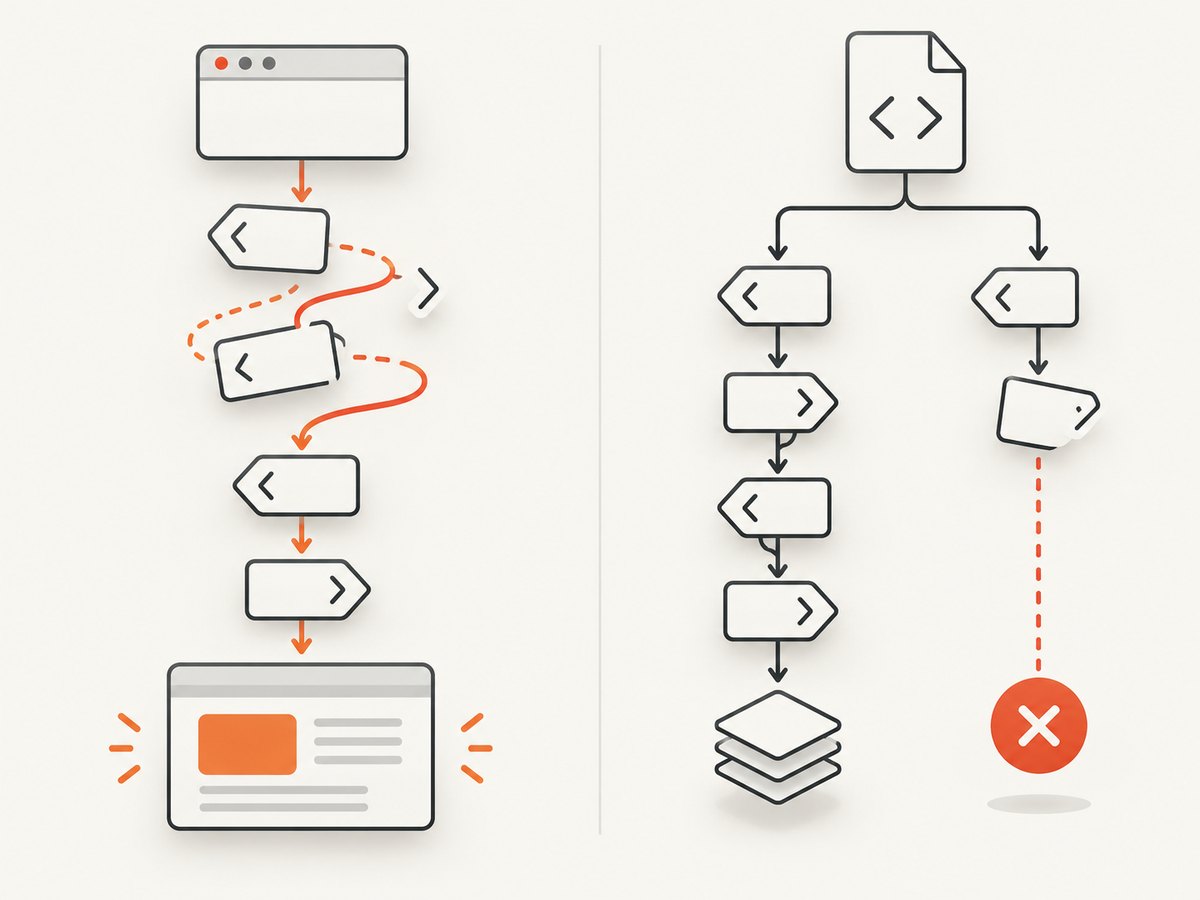
styleattributes can be ignored. See iText’s troubleshooting guidance: Why doesn’t CSS and RowSpan work?. - The input is not valid XHTML. XML Worker expects XML-like markup. Unclosed tags, invalid nesting, and browser-only recovery can stop styles from being applied.
- The stylesheet is not supplied correctly. External CSS must be resolvable or passed through the CSS stream or resolver pipeline.
- The declaration is unsupported. XML Worker is not a browser. A valid browser declaration can still be unsupported by its parser or renderer.
1. Confirm which parser your code uses
Search the project for HTMLWorker, HTMLWorker.Parse, or XMLWorkerHelper. If you find HTMLWorker, that is the first fix to make. XML Worker is a separate package, itextsharp.xmlworker, used alongside iTextSharp; its package metadata is available in the official package specification.
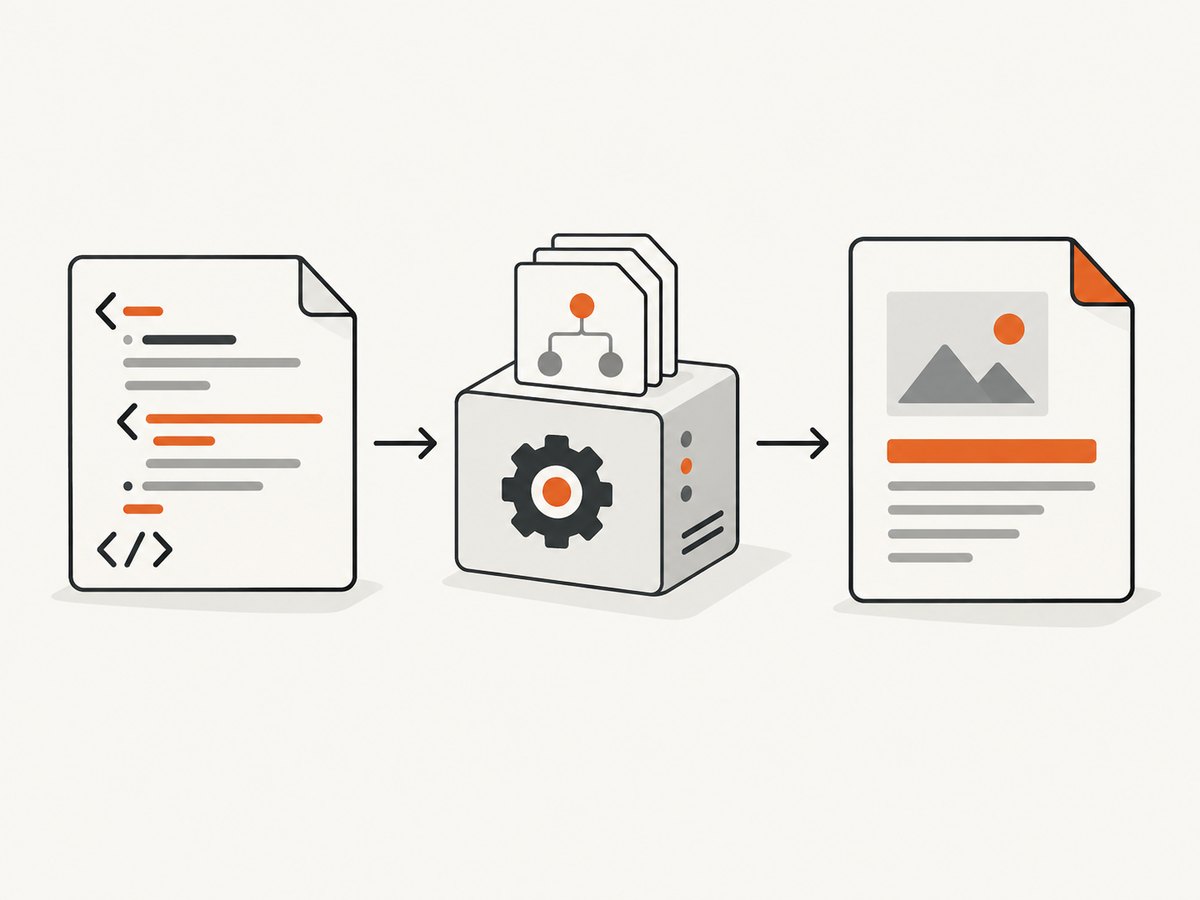
2. Install the XML Worker package
Install compatible iTextSharp and XML Worker versions in the application. Keep the package versions aligned with the API examples below and check your application’s licensing and deployment requirements before shipping.
Install-Package iTextSharp
Install-Package itextsharp.xmlworker
3. Convert inline styles with XMLWorkerHelper
For a string containing inline styles, the simplest supported .NET path is XMLWorkerHelper.GetInstance().ParseXHtml. The HTML must be XHTML-compatible.
using System;
using System.IO;
using iTextSharp.text;
using iTextSharp.text.pdf;
using iTextSharp.tool.xml;

public static class PdfConverter
{
    public static void Convert(string html, string outputPath)
    {
        using (var document = new Document(PageSize.A4))
        using (var output = new FileStream(outputPath, FileMode.Create, FileAccess.Write))
        {
            var writer = PdfWriter.GetInstance(document, output);
            document.Open();

            using (var htmlReader = new StringReader(html))
            {
                XMLWorkerHelper.GetInstance()
                    .ParseXHtml(writer, document, htmlReader);
            }

            document.Close();
        }
    }
}

var html = @"<html>
  <head><meta charset='utf-8' /></head>
  <body>
    <p style='color: red; font-size: 18px;'>This text should be red.</p>
  </body>
</html>";

PdfConverter.Convert(html, "output.pdf");
This is the pattern shown in iText’s HTML-to-PDF conversion guide. It supports inline CSS and absolutely linked CSS through the helper route, subject to XML Worker’s supported feature set.
4. Make the HTML XHTML-compatible
Start with a minimal reproduction before adding your complete template.
<?xml version="1.0" encoding="UTF-8"?>
<html xmlns="http://www.w3.org/1999/xhtml">
  <head>
    <meta http-equiv="Content-Type" content="text/html; charset=UTF-8" />
  </head>
  <body>
    <p style="color: red;">Test</p>
    <img src="file:///tmp/logo.png" alt="Logo" />
    <br />
  </body>
</html>- Close every element, including
br,img,meta, andinput. - Use valid nesting: close a paragraph before opening a block element.
- Escape ampersands in text and attribute values as
&. - Pass the rendered HTML string, not a view object, template name, or empty value.
- Use a minimal document with one element and one declaration to separate parser problems from unsupported CSS.
5. Supply CSS separately when needed
If your application generates HTML and CSS independently, use the overload that accepts UTF-8 streams.
using System.IO;
using System.Text;
using iTextSharp.text;
using iTextSharp.text.pdf;
using iTextSharp.tool.xml;

var html = @"<html><body><p class='notice'>Styled text</p></body></html>";
var css = @".notice { color: #b00020; font-size: 16px; }";

using (var document = new Document(PageSize.A4))
using (var output = new FileStream("output.pdf", FileMode.Create))
{
    var writer = PdfWriter.GetInstance(document, output);
    document.Open();

    using (var htmlStream = new MemoryStream(Encoding.UTF8.GetBytes(html)))
    using (var cssStream = new MemoryStream(Encoding.UTF8.GetBytes(css)))
    {
        XMLWorkerHelper.GetInstance()
            .ParseXHtml(writer, document, htmlStream, cssStream, Encoding.UTF8);
    }

    document.Close();
}
Make sure both streams contain the expected bytes and are positioned at the beginning when parsing starts.
6. Use the lower-level CSS resolver for external stylesheets
When you need explicit control over an external CSS file, create a StyleAttrCSSResolver, add the stylesheet, configure the HTML pipeline, and connect it to the PDF writer pipeline. This is the approach documented in iText’s external CSS example.
using System.IO;
using iTextSharp.text;
using iTextSharp.text.pdf;
using iTextSharp.tool.xml;
using iTextSharp.tool.xml.css;
using iTextSharp.tool.xml.html;
using iTextSharp.tool.xml.pipeline;
using iTextSharp.tool.xml.pipeline.css;
using iTextSharp.tool.xml.pipeline.end;
using iTextSharp.tool.xml.pipeline.html;
using iTextSharp.tool.xml.parser;

using (var document = new Document(PageSize.A4))
using (var output = new FileStream("output.pdf", FileMode.Create))
{
    var writer = PdfWriter.GetInstance(document, output);
    document.Open();

    var cssResolver = XMLWorkerHelper.GetInstance().GetDefaultCssResolver(false);
    cssResolver.AddCssFile("/absolute/path/site.css", true);

    var htmlContext = new HtmlPipelineContext(null);
    htmlContext.SetTagFactory(Tags.GetHtmlTagProcessorFactory());

    var pipeline = new CssResolverPipeline(
        cssResolver,
        new HtmlPipeline(htmlContext, new PdfWriterPipeline(document, writer)));

    var worker = new XMLWorker(pipeline, true);
    var parser = new XMLParser(worker);

    using (var htmlReader = File.OpenText("document.xhtml"))
    {
        parser.Parse(htmlReader);
    }

    document.Close();
}
Use an absolute stylesheet path or otherwise ensure the resolver can open the resource. If the stylesheet is generated in memory, use the stream overload instead of relying on URL resolution.
7. Diagnose a declaration that still fails
- Reduce the document to one element and one CSS declaration.
- Confirm a basic property such as
colororfont-sizeworks. - Add declarations one at a time until the failure returns.
- Check whether the selector, property, value, or layout combination is supported by your XML Worker version.
- Inspect the PDF itself; browser developer tools cannot prove that XML Worker will render the same result.
Do not assume browser CSS parity. XML Worker has its own parser and renderer, and the supplied sources do not define a complete property-by-property compatibility table.
Common errors and fixes
| Symptom | Likely cause | Fix |
|---|---|---|
| All inline styles vanish | HTMLWorker is being used | Move to XML Worker and call ParseXHtml. |
| Only part of the document renders | Malformed XHTML or invalid nesting | Close tags, fix nesting, escape XML characters, and retry with a minimal file. |
| Inline CSS works but linked CSS does not | Stylesheet cannot be resolved or was not passed to the parser | Use an absolute link where supported, pass a CSS stream, or add the file through StyleAttrCSSResolver. |
| No output or an empty PDF | Empty HTML, a template object instead of rendered markup, or an exception before writing | Log the final HTML length and first bytes; parse a known-good minimal XHTML document. |
| Some properties work and others do not | Unsupported property, selector, or layout combination | Isolate the declaration and verify support for the installed XML Worker version. |
| Images or fonts are missing | Resource paths cannot be resolved by the conversion process | Use resolvable absolute paths or configure resource handling; test resources independently from CSS. |
Performance, reliability, and cost considerations
- Performance: keep HTML and CSS small, reuse static resources, and avoid parsing the same stylesheet repeatedly when your application can safely cache it.
- Reliability: validate generated XHTML before conversion, log parser exceptions, and retain a minimal fixture that exercises the styles your templates depend on.
- Compatibility: test the exact iTextSharp and XML Worker package versions deployed in production. XML Worker package metadata identifies it as deprecated and points toward newer iText options.
- Migration: when you need broader HTML and CSS support, evaluate iText pdfHTML for .NET. It is also not a browser engine, so validate your documents, licensing, and deployment compatibility before migrating.
- Cost: conversion cost is determined by your application and chosen iText licensing arrangement; the sources do not provide a universal price. Review the applicable terms separately.
Or skip the browser setup
If your real goal is to capture a rendered webpage as an image or PDF rather than produce a PDF from HTML inside .NET, ScreenshotNeo provides a single HTTP request. Its API accepts a URL and returns PNG, JPEG, WebP, or PDF; see the ScreenshotNeo API documentation.
curl -G "https://api.screenshotneo.com/v1/shot" -d access_key=YOUR_API_KEY --data-urlencode url=https://stripe.com -o shot.webpimport requests
r = requests.get("https://api.screenshotneo.com/v1/shot", params={"access_key": "YOUR_API_KEY", "url": "https://stripe.com"}, timeout=90)
open("shot.webp", "wb").write(r.content)const q = new URLSearchParams({ access_key: 'YOUR_API_KEY', url: 'https://stripe.com' });
const res = await fetch(`https://api.screenshotneo.com/v1/shot?${q}`);Cookie banners, newsletter popups, and chat widgets are removed before the shot. Bot checks, blank pages, failed loads, timeouts, and cache hits are not billed, and response headers identify the page verdict and billing status. An MCP server lets Claude, Cursor, and other MCP clients call take_screenshot, get_page_info, and capture_pdf. The free plan includes 1,000 screenshots a month with no card; paid plans start at $5 for 3,000 shots.
Create a free ScreenshotNeo account and start with 1,000 screenshots per month at no charge.
FAQ
Does changing the inline CSS syntax fix HTMLWorker?
No. HTMLWorker’s CSS limitation is the parser limitation. Switch to XML Worker for supported CSS before changing individual declarations.
Can XML Worker render any CSS that works in Chrome?
No. It has a separate parser and renderer. Test the exact properties and layout combinations your document needs.
Should I use a linked stylesheet or inline styles?
Both can work when supplied through the documented XML Worker paths. Inline styles avoid stylesheet URL resolution; a CSS stream or resolver gives better separation and control for larger documents.
Is XML Worker still the current iText solution?
The XML Worker package metadata describes it as deprecated and points to iText pdfHTML and iText Community. Evaluate migration when its supported feature set is too narrow.
Why does valid HTML still fail?
“Valid in a browser” does not guarantee XHTML compatibility or XML Worker support. Normalize the markup, isolate one declaration, and verify resource paths.


