How to Insert an Image from a URL in HTML
Learn the correct img syntax, accessible alt text, responsive images, dimensions, troubleshooting, and reliable remote-image checks.

The standard way to insert an image from a URL in HTML is the <img> element. Put the image resource URL in src and provide useful alternative text in alt:
<img src="https://example.com/images/photo.jpg" alt="A red bicycle leaning against a brick wall"><img> is a void element, so it does not have a closing tag or child content. The URL must point directly to an image resource that the browser can load, rather than to a normal web page that happens to display an image.
1. Use an absolute or relative image URL
An absolute URL includes the scheme and host. Use one when the image is hosted on another site or when you need an unambiguous address:

<img src="https://cdn.example.com/assets/team.jpg" alt="The product team outside the office">A relative URL is resolved from the current document URL. It is usually the simplest choice for an image served by your own site:
<img src="/images/team.jpg" alt="The product team outside the office">For a page at https://example.com/docs/getting-started/, images/team.jpg resolves relative to that page, while /images/team.jpg starts at the site root. If you move a document to another directory, a directory-relative path can stop working; root-relative paths avoid that particular change.
2. The complete, production-ready image element
For an informative image, describe the content or function that matters in the surrounding context. Add intrinsic dimensions when they are known:
<img
  src="https://example.com/images/bicycle-1200.jpg"
  alt="A red bicycle leaning against a brick wall"
  width="1200"
  height="800"
>
The HTML width and height values describe the image’s intrinsic pixel dimensions. They let the browser reserve the correct aspect-ratio space before the file arrives, which helps prevent content from moving while the page loads. CSS can still make the image responsive:
img {
  max-width: 100%;
  height: auto;
}
Keep the dimensions proportional to the actual file. If a 1200 by 800 image is declared as 1200 by 600, the browser reserves the wrong shape and the page can jump when the image is decoded.
3. Write useful alt text
The alt attribute is the fallback content for people who cannot process the image or have image loading disabled. It is also exposed when the resource fails to load. Describe the image’s meaning, not its filename:
<!-- Useful: describes the subject -->
<img src="chart.png" alt="Quarterly revenue increased from Q1 to Q4">

<!-- Usually poor: filename provides no context -->
<img src="IMG_4821.png" alt="IMG_4821">
If nearby text already communicates the same information and the image is purely decorative, use an empty value:
<img src="decorative-divider.svg" alt="">Do not omit alt on an ordinary content image. An empty value deliberately tells assistive technology that the image can be skipped; omitting the attribute leaves its purpose ambiguous.
The WHATWG HTML Standard describes alt as equivalent content for people who cannot process images or have image loading disabled.
4. Load images responsively with srcset and sizes
A single src works for simple pages. If you have several files at different widths, srcset lets the browser choose a suitable candidate. With width descriptors, add sizes to describe the image’s expected layout width:
<img
  src="photo-800.jpg"
  srcset="photo-400.jpg 400w, photo-800.jpg 800w, photo-1600.jpg 1600w"
  sizes="(max-width: 600px) 100vw, 800px"
  alt="A red bicycle leaning against a brick wall"
  width="1600"
  height="1067"
>
In this example, a viewport up to 600 pixels wide normally displays the image at the full viewport width. Larger screens reserve about 800 CSS pixels for it. The browser combines that information with device pixel density and network conditions when selecting a candidate. Every URL in srcset must resolve to an actual image resource.
For art direction, where the crop itself changes, use <picture>:
<picture>
  <source media="(max-width: 600px)" srcset="portrait-crop.jpg">
  <img src="wide-crop.jpg" alt="A cyclist riding beside a lake" width="1600" height="900">
</picture>
The fallback <img> remains required. Its alt describes the image’s meaning regardless of which source is selected.
5. Control loading without breaking the first view
Images load eagerly by default. For a large page with many images below the fold, you can ask the browser to defer those resources:
<img
  src="gallery-12.jpg"
  alt="A ceramic bowl on a wooden table"
  width="1200"
  height="800"
  loading="lazy"
>
Do not lazy-load the main image that is immediately visible when the page opens. Keep dimensions on lazy images because an unloaded element with no reserved size can affect layout and the point at which it intersects the viewport. Other useful native hints include decoding="async" for non-blocking decoding and fetchpriority="high" for an especially important image, but use them selectively because they influence browser scheduling rather than image correctness.
6. Verify that a URL is a direct image resource
A common mistake is copying the address of an image viewer or a product page instead of the image file itself. Open the URL in a new browser tab and inspect the response. A working resource normally returns an image media type such as image/jpeg, image/png, image/webp, or image/avif.
You can inspect headers from a terminal with cURL:
curl -I https://example.com/images/photo.jpgLook for a successful status and an appropriate Content-Type. To download a copy for comparison:
curl -L "https://example.com/images/photo.jpg" -o photo.jpgPython example using requests:
import requests

url = "https://example.com/images/photo.jpg"
r = requests.get(url, timeout=30)
r.raise_for_status()
print(r.headers.get("content-type"))
with open("photo.jpg", "wb") as f:
    f.write(r.content)
Node.js example using the built-in Fetch API:
const url = 'https://example.com/images/photo.jpg';
const res = await fetch(url, { method: 'HEAD' });
if (!res.ok) throw new Error(`${res.status} ${res.statusText}`);
console.log(res.headers.get('content-type'));
These checks do not replace testing the image in the real page. A host can return different content based on referrer, cookies, user agent, authentication, or geographic location.
7. Handle common hosting and browser edge cases
HTTPS pages and HTTP images
If your page uses HTTPS, reference images over HTTPS too. Browsers can block an HTTP image as mixed content. Change the image host to HTTPS or serve the asset through your own secure origin.
Authentication and expiring URLs
An image URL that requires a login, a short-lived signature, or a private cookie may work for you and fail for visitors. Use a public asset URL, a stable signed URL with enough lifetime, or proxy the resource through an endpoint that applies your access policy. Never put a secret API key directly in an HTML src attribute.
Hotlink protection and referrers
Some hosts refuse requests from pages on other domains or return a placeholder image. If you control the host, configure its hotlink policy and CDN rules. If you do not control it, obtain permission and host an authorized copy where licensing allows.
CORS and canvas processing
An ordinary <img> can often display a cross-origin resource without CORS headers. If JavaScript later draws that image onto a canvas and reads the pixels, the image server must send an appropriate CORS header and the element must use the matching crossorigin setting before loading.
URLs containing spaces or query parameters
Encode spaces and special characters in URLs. Query strings are valid when the server uses them for resizing or format negotiation:
<img src="https://cdn.example.com/photo.jpg?w=1200&format=webp" alt="A mountain trail at sunrise">In HTML, write an ampersand as & when it appears in an attribute value.
8. Troubleshoot a broken image
| Symptom | Likely cause | Fix |
|---|---|---|
| Broken-image icon | Misspelled path, deleted file, or wrong relative directory | Open the exact URL, check the document’s base location, and correct the path. |
| A web page appears inside the image area | The URL points to an HTML page, not an image resource | Copy the direct file URL and verify the response Content-Type. |
| Works locally but not in production | Different base URL, HTTPS policy, authentication, or referrer rules | Inspect the production request in browser developer tools and test the deployed URL. |
| Image is stretched | Incorrect width and height ratio or CSS overriding one dimension | Use the file’s real dimensions and set height: auto for fluid images. |
| Layout jumps while loading | No intrinsic dimensions were supplied | Add accurate width and height attributes or reserve space with CSS. |
| Alt text is visible | The image failed or is still unavailable | Fix the resource while keeping meaningful alt text as the fallback. |
| Only some users see an image | Expiring signatures, geoblocking, cookies, or user-agent filtering | Use a stable public asset or a server-side delivery path. |
In browser developer tools, inspect the Network panel for the request status, final redirect URL, response type, and console messages. A 404 identifies a missing path; a 403 commonly indicates permissions or hotlink protection; a 301 or 302 may reveal that you copied a page URL instead of the final asset.
9. Generate a clean image before embedding it
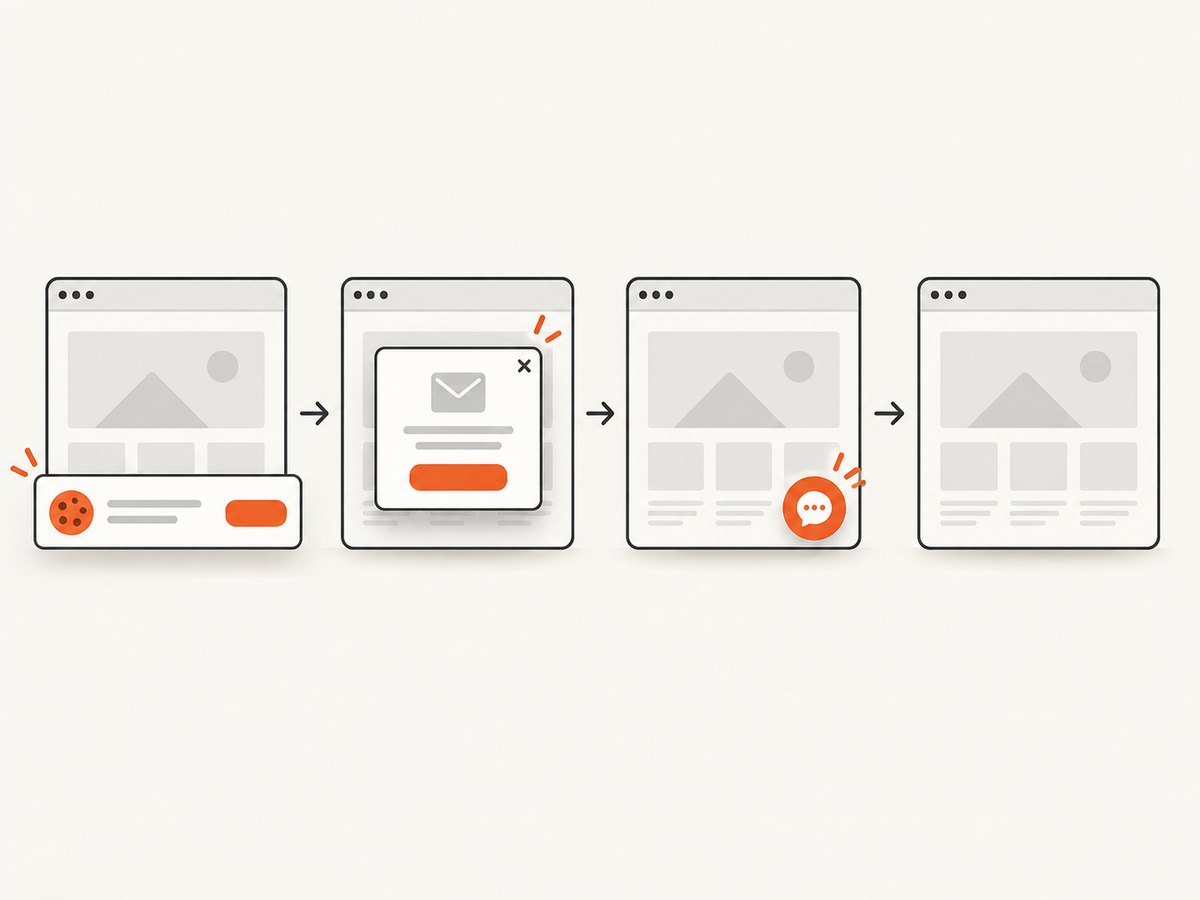
If the source is a web page rather than an existing image file, first capture the page as an image and then use the returned file URL in your HTML. ScreenshotNeo is a website screenshot API and MCP server that returns PNG, JPEG, WebP, or PDF from one request. It accepts cookie and consent banners before capture and removes more than 60 known consent platforms, newsletter popups, and chat widgets. Bot checks, blank pages, failed loads, timeouts, and cache hits are not billed, and the response identifies the page verdict and billing status in headers.
Or skip the browser setup
Use ScreenshotNeo when you need a page snapshot rather than a manually hosted image. The API call below returns a WebP screenshot you can save and then reference with a normal <img> element. See the ScreenshotNeo API documentation for all options.
curl -G "https://api.screenshotneo.com/v1/shot" -d access_key=YOUR_API_KEY --data-urlencode url=https://example.com -o shot.webpimport requests
r = requests.get("https://api.screenshotneo.com/v1/shot", params={"access_key": "YOUR_API_KEY", "url": "https://example.com"}, timeout=90)
open("shot.webp", "wb").write(r.content)const q = new URLSearchParams({ access_key: 'YOUR_API_KEY', url: 'https://example.com' });
const res = await fetch(`https://api.screenshotneo.com/v1/shot?${q}`);Cookie banners, popups, and chat widgets are removed before the shot. Bot checks, blank pages, and failed loads are never billed. An MCP server lets AI agents take screenshots with Claude, Cursor, or any MCP client. The Free plan includes 1,000 screenshots each month with no card, and paid plans start at $5 for 3,000 shots. Create a free ScreenshotNeo account.
10. Performance, reliability, and cost considerations
- Choose an appropriate file size. A browser still downloads the resource selected by
srcorsrcset. Serve dimensions close to the displayed size and use modern formats when your delivery stack supports them. - Reserve layout space. Accurate dimensions improve visual stability and make lazy loading safer.
- Use a CDN or stable origin. A reliable, cacheable URL reduces latency and avoids failures caused by temporary local files.
- Keep URLs durable. Avoid embedding short-lived signed URLs in long-lived pages unless the page is regenerated before they expire.
- Cache generated screenshots. If you capture the same page repeatedly, store the resulting image and reference it until the source changes. ScreenshotNeo also supports caching with a TTL you choose.
- Control capture work when needed. ScreenshotNeo supports full-page capture with lazy images loaded, element capture by CSS selector, custom CSS and JavaScript, waits, request blocking, headers, cookies, user agents, time zones, geolocation, resizing, signed links, asynchronous jobs, webhooks, bulk capture, and a usage API.
11. A practical checklist
- Confirm that
srcpoints directly to an image resource. - Use an absolute URL for an external host or a correctly resolved relative URL for your own site.
- Write meaningful
alttext, or usealt=""for a decorative image. - Add the real intrinsic
widthandheight. - Use
srcsetandsizeswhen multiple image widths are available. - Use
loading="lazy"for suitable below-the-fold images, not the main visible image. - Check HTTPS, redirects, permissions, hotlink rules, and response media type.
- Keep a fallback path for important images and test with image loading disabled.
FAQ
Can I put a page URL in src?
No. The value should resolve to the image bytes. A page URL may return HTML, which the browser cannot display as an image.
Does every image need alt text?
Every <img> should have an alt attribute. Use a description for informative images and an empty value for decorative ones.
Should I use a full URL for images on my own site?
Either works. Relative paths are convenient for same-site assets; absolute URLs are explicit and useful when the complete address is known.
Why does my image work in a browser tab but not in HTML?
The host may require a referrer, cookie, authorization, or a particular URL encoding. Compare the successful browser request with the request made by your page.
Can ScreenshotNeo return an image I can put in src?
Yes. Save the PNG, JPEG, or WebP response to storage you control, then reference that stable asset URL with the normal <img> markup.


