How to Insert an Inline Image With Selenium and Python
Upload an image through Selenium’s file input, trigger your editor’s insert action, and verify the image is inline with a complete Python workflow.
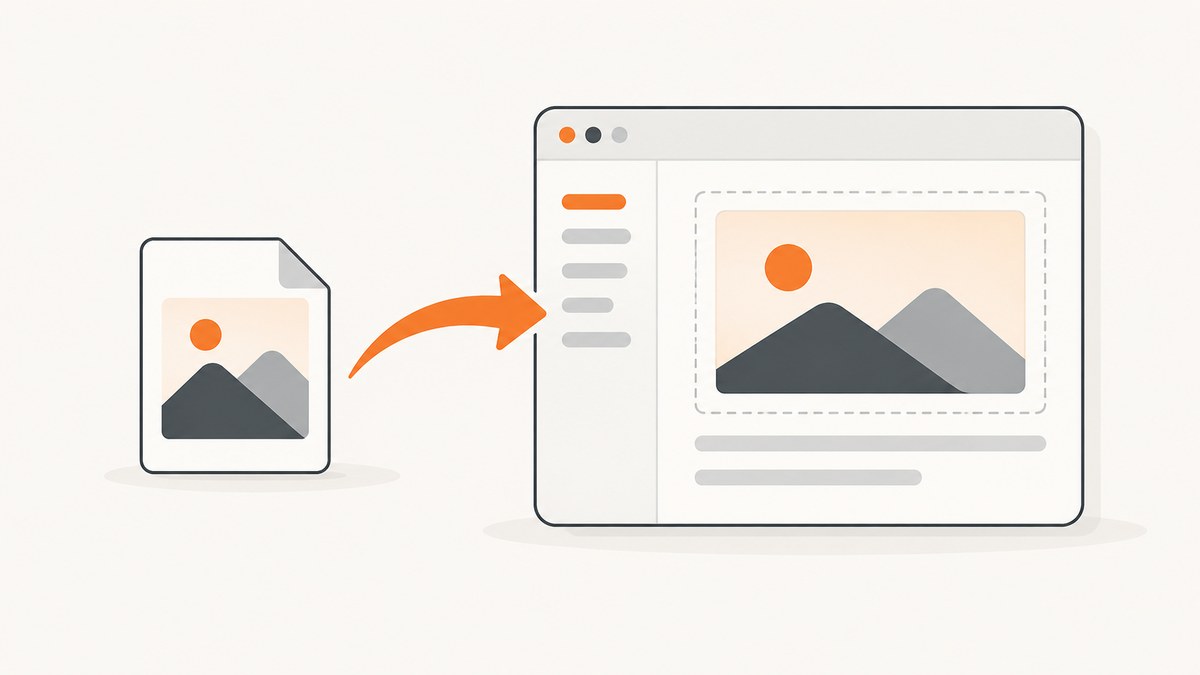
Direct answer: Find the page’s <input type='file'>, call Selenium’s send_keys() with the absolute path to your image, then use the editor’s own Insert, Upload, or Submit control and wait for the resulting <img> element. Selenium uploads the file; the target editor decides whether that upload becomes an inline image.
Selenium does not operate the operating-system file picker. Its documented approach is to set the file input directly with a file path, then continue with the page workflow. See the official Selenium file-upload guide and the Python WebElement API documentation.
1. Understand the two-step workflow
- Upload: send the local image path to the page’s file input.
- Insert: click the application-specific control that places the uploaded image at the cursor or into the content model.
A successful send_keys() call only proves that the browser accepted the file. It does not prove that the editor inserted the image, saved it, or displayed it at the intended location.
2. Prerequisites and page inspection
- Install Selenium with
python -m pip install selenium. - Use a supported browser such as Chrome, Firefox, or Edge and its matching WebDriver setup.
- Have an existing image file such as PNG, JPEG, GIF, or WebP.
- Inspect the page to identify the real file-input selector, upload button, insert button, editor container, and save control.
Look for input[type='file'] first. A custom upload button commonly opens that input when clicked, but your automation should still set the input directly. Do not copy the demonstration page’s button IDs into another application.
3. Complete runnable Python example
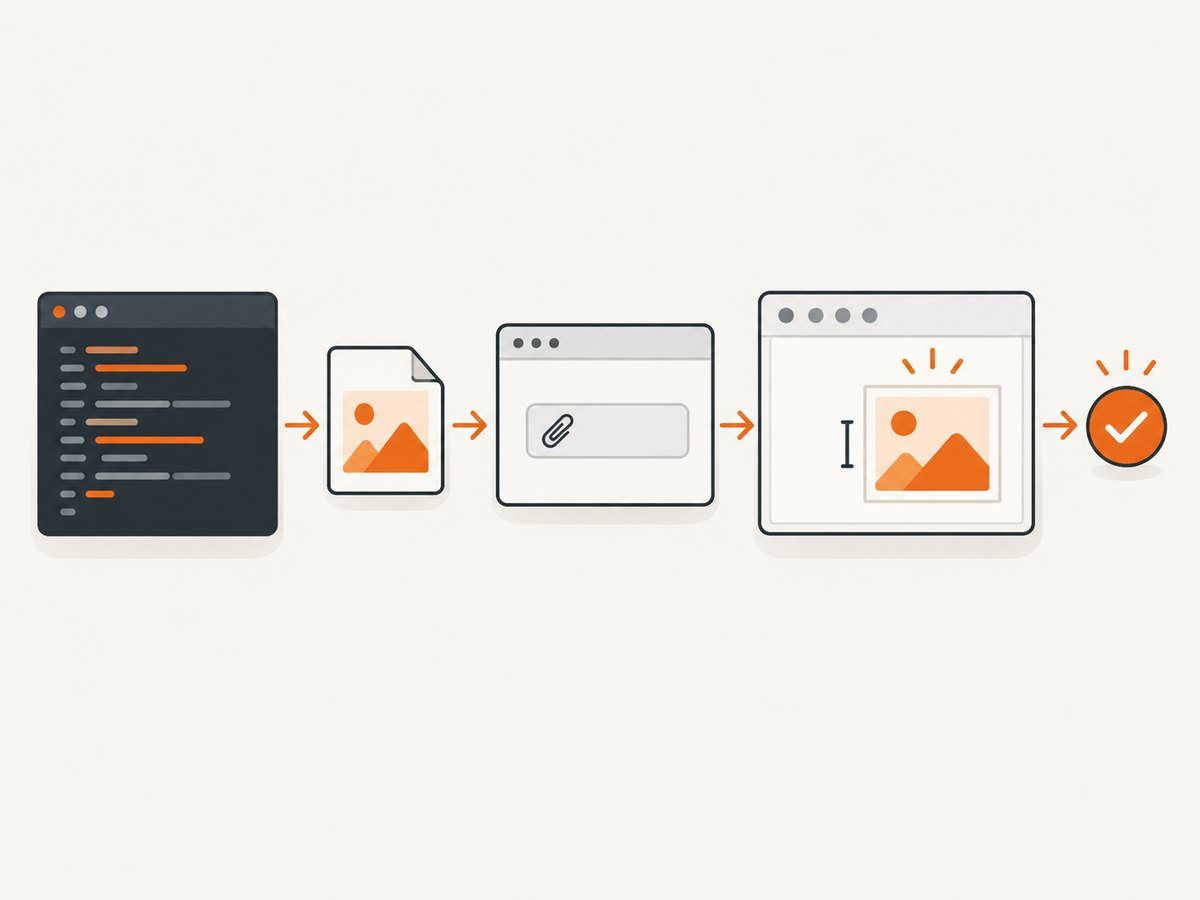
The following script uploads an image, clicks an editor-specific insert button, waits for an inline image inside the editor, and saves the form. Replace the URL and selectors with those from your application.
from pathlib import Path
from selenium import webdriver
from selenium.webdriver.common.by import By
from selenium.webdriver.support.ui import WebDriverWait
from selenium.webdriver.support import expected_conditions as EC

PAGE_URL = 'https://example.com/editor'
IMAGE_PATH = Path(__file__).parent / 'assets' / 'diagram.png'

# Change these selectors after inspecting the target application.
FILE_INPUT = (By.CSS_SELECTOR, "input[type='file']")
INSERT_BUTTON = (By.CSS_SELECTOR, "button[data-action='insert-image']")
EDITOR = (By.CSS_SELECTOR, "[contenteditable='true']")
SAVE_BUTTON = (By.CSS_SELECTOR, "button[type='submit']")

if not IMAGE_PATH.is_file():
    raise FileNotFoundError(f'Image does not exist: {IMAGE_PATH}')

absolute_image = str(IMAGE_PATH.resolve())
options = webdriver.ChromeOptions()
# options.add_argument('--headless=new')  # Enable for CI if required.

driver = webdriver.Chrome(options=options)
wait = WebDriverWait(driver, 30)

try:
    driver.get(PAGE_URL)

    file_input = wait.until(EC.presence_of_element_located(FILE_INPUT))
    file_input.send_keys(absolute_image)

    # Some editors insert immediately; others expose a separate control.
    insert_button = wait.until(EC.element_to_be_clickable(INSERT_BUTTON))
    insert_button.click()

    editor = wait.until(EC.presence_of_element_located(EDITOR))
    wait.until(lambda d: editor.find_elements(By.CSS_SELECTOR, 'img'))

    # Confirm that the editor now contains an image before saving.
    inline_images = editor.find_elements(By.CSS_SELECTOR, 'img')
    if not inline_images:
        raise RuntimeError('Upload completed, but no inline image appeared in the editor')

    save_button = wait.until(EC.element_to_be_clickable(SAVE_BUTTON))
    save_button.click()
    print(f'Inserted {len(inline_images)} image(s) and submitted the editor')
finally:
    driver.quit()
The absolute path is deliberate. Selenium’s Python documentation recommends resolving paths with ordinary Python path handling so the script is not dependent on the process’s current working directory.
4. Adapt the script to your editor
Standard file input with a separate Insert button
Use the example as written: locate the input, call send_keys(), wait for the upload response or preview, click Insert, and verify an image inside the editor.
Upload inserts automatically
Some editors insert the image as soon as the upload finishes. Remove the Insert-button click and wait for the editor’s image node, upload-complete indicator, or network-driven preview instead.
Contenteditable editor
For editors based on contenteditable, verify the image inside the contenteditable element. A preview elsewhere on the page may only be a temporary upload result.
Toolbar opens a hidden input
Clicking a toolbar icon may be needed to create or reveal the file input. After that interaction, still send the path to the actual input[type='file']. Do not attempt to automate the native file-picker window.
Multiple images
Send each absolute path separately when the input accepts one file, or pass multiple paths separated by newlines when the page explicitly supports multiple. Verify that the editor contains the expected count and order.
for image_path in [Path('assets/one.png'), Path('assets/two.jpg')]:
    file_input.send_keys(str(image_path.resolve()))
    wait.until(EC.presence_of_element_located((By.CSS_SELECTOR, '.upload-complete')))= 2)
5. Useful Selenium options and waits
| Need | Recommended approach |
|---|---|
| Element exists | presence_of_element_located |
| Control can be clicked | element_to_be_clickable |
| Upload finished | Wait for the application’s preview, status, or editor image |
| Stable verification | Assert an img descendant and inspect its src or dimensions |
| Slow editor initialization | Use an explicit wait up to a measured timeout instead of a fixed sleep |
Prefer explicit waits to time.sleep(). A fixed delay can be too short on a busy run and unnecessarily slow on a fast one.
6. Local versus remote WebDriver
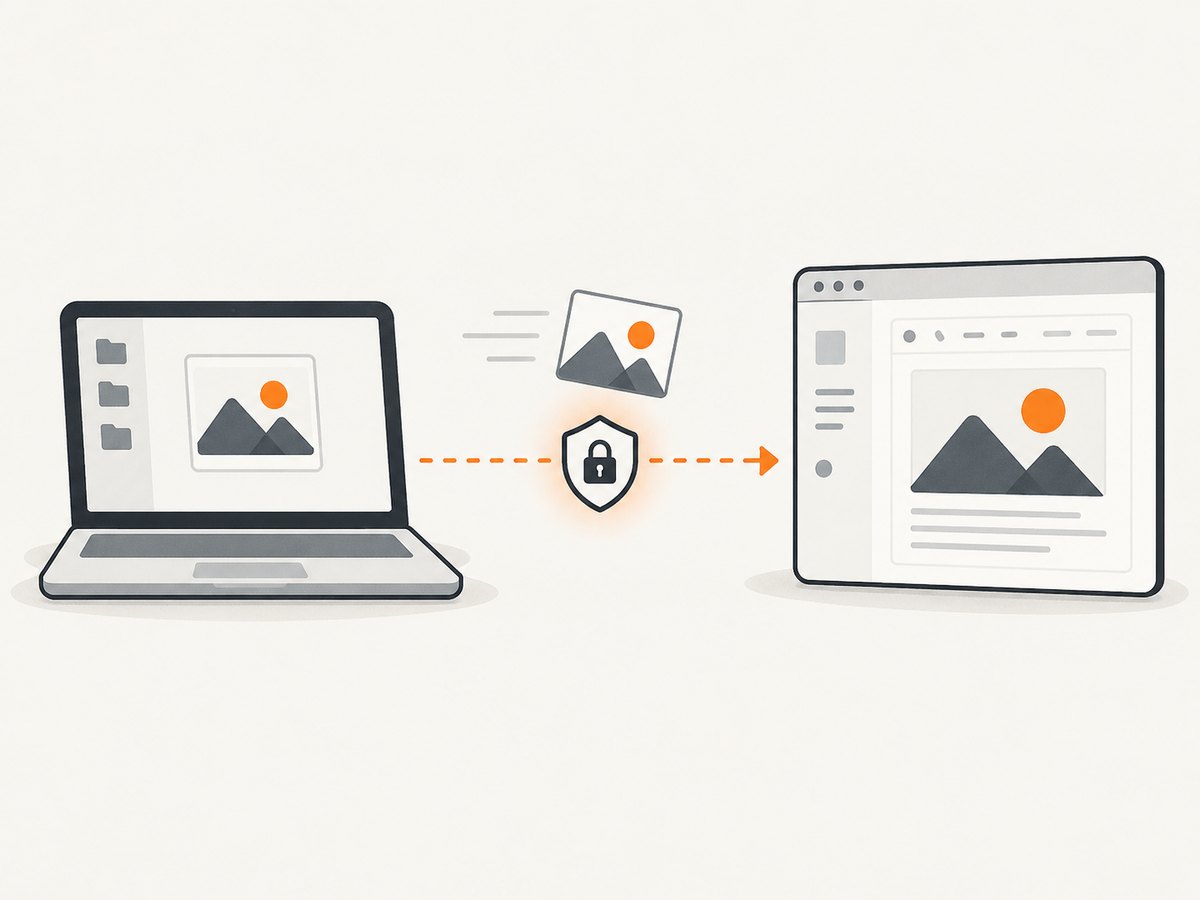
With a local driver, the path must exist on the machine running Python. With a remote browser, the browser may run in another container or host, so your local path may not exist there. Make the image available to the remote session using your Selenium Grid or cloud provider’s file-upload support, then send the path recognized by that session. Confirm the remote configuration before debugging selectors.
Keep test assets in a predictable project directory and log the resolved path. Avoid relative paths that depend on the directory from which a CI runner starts the script.
7. Troubleshooting common failures
| Symptom | Cause | Fix |
|---|---|---|
NoSuchElementException for the file input |
Wrong selector, iframe, or input created only after opening the uploader | Inspect the DOM, switch into the correct iframe, or trigger the uploader before locating the input. |
ElementNotInteractableException |
The selected node is not the real file input or is detached | Locate the current input[type='file']; use send_keys() directly instead of clicking it. |
InvalidArgumentException on send_keys() |
Path is missing, relative in the wrong working directory, or malformed | Check Path.is_file() and pass str(path.resolve()). |
| Upload preview appears but no inline image | Upload and editor insertion are separate operations | Click the editor’s Insert/Confirm control and wait for an img inside the editor. |
| Image appears outside the editor | You verified a page preview rather than the saved content area | Scope the assertion to the editor container or content model. |
| Works locally but fails remotely | The browser machine cannot read the Python machine’s file | Transfer the file through the remote WebDriver mechanism or mount a shared path. |
| Image disappears after saving | Save request failed, editor state was not committed, or the image URL is temporary | Wait for the save confirmation, reload, and verify the persisted image. |
| Timeout after clicking Insert | Selector does not match the application state or upload is still processing | Wait for a documented upload-complete state, then inspect the current DOM and browser console. |
8. Reliability, performance, and cost notes
- Reliability: Use stable attributes such as
data-testidwhen the application provides them. Verify the final editor state after every upload. - Performance: Reuse one WebDriver session for a batch of images, avoid unnecessary page reloads, and wait on state changes rather than long sleeps.
- Retries: Retry a failed upload only after checking whether the first attempt created a server-side asset; otherwise you may create duplicates.
- File size: Respect the target application’s image limits and validate dimensions or MIME type before uploading.
- Cost: Selenium itself is open-source software, but hosted browsers, grid capacity, bandwidth, and the application’s storage or upload service may have separate costs.
9. Or skip the browser setup
If your actual goal is a clean image of a web page rather than inserting a local file into an editor, ScreenshotNeo provides a single screenshot request. Read the ScreenshotNeo API documentation for all options.
curl -G "https://api.screenshotneo.com/v1/shot" -d access_key=YOUR_API_KEY --data-urlencode url=https://stripe.com -o shot.webpimport requests
r = requests.get("https://api.screenshotneo.com/v1/shot", params={"access_key": "YOUR_API_KEY", "url": "https://stripe.com"}, timeout=90)
open("shot.webp", "wb").write(r.content)const q = new URLSearchParams({ access_key: 'YOUR_API_KEY', url: 'https://stripe.com' }); const res = await fetch(`https://api.screenshotneo.com/v1/shot?${q}`);ScreenshotNeo removes cookie banners, newsletter popups, and chat widgets before capture. Bot checks, blank pages, and failed loads are never billed, and the response reports the page verdict and billing status. Its MCP server lets Claude, Cursor, and other MCP clients take screenshots. The Free plan includes 1,000 screenshots per month with no card; paid plans start at $5 for 3,000 screenshots. Create a free ScreenshotNeo account.
10. FAQ
Can Selenium upload without opening a file picker?
Yes. Locate the HTML file input and call send_keys() with the image path. Selenium’s documented upload route avoids the native dialog.
Does uploading guarantee an inline image?
No. The editor must insert the uploaded asset into its content. Automate and verify that editor-specific step.
Should I use a relative or absolute path?
An absolute path is safer because it is independent of the process’s current working directory.
Why does a remote run fail with a valid local path?
The browser is running on another machine or container. Transfer or mount the image for that remote session.
How can I prove the image was saved?
Wait for the save confirmation, reload the page, and assert that the persisted editor content still contains the image.


