Inspect Employee Rosters with Browser Automation
Build a privacy-aware roster inspector with Playwright or Selenium: authenticate, wait for rows, extract minimal fields, validate results, and audit every run.
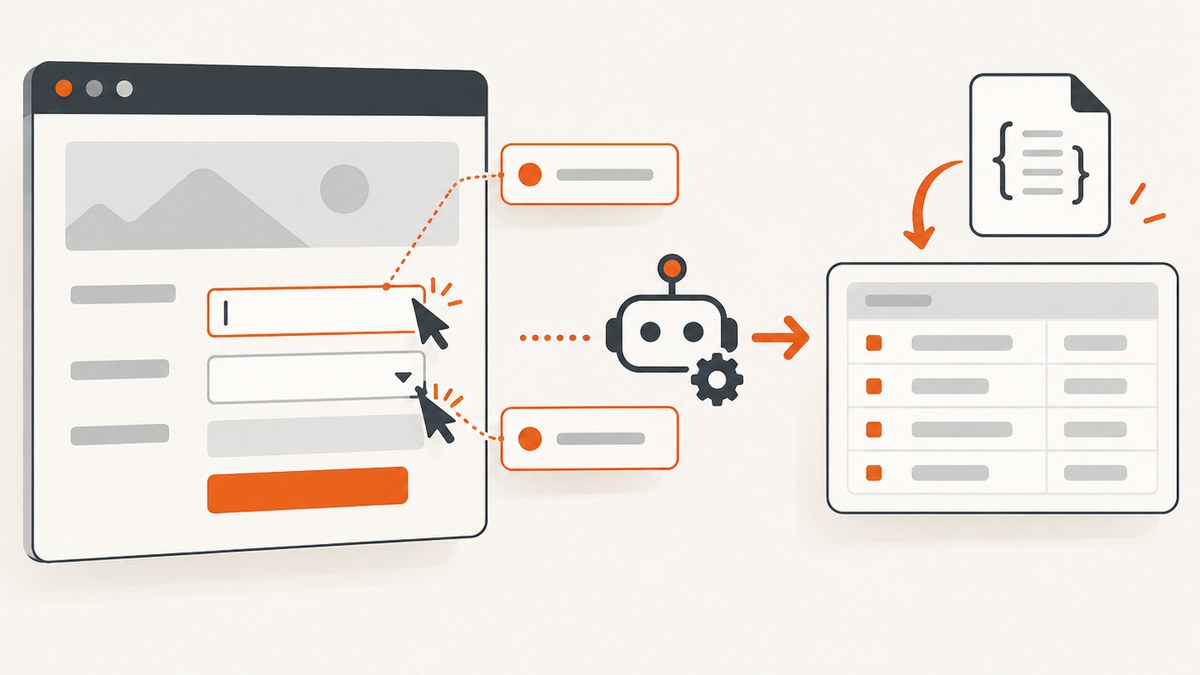
Direct answer: inspect an employee roster with an authenticated browser session, wait for a specific readiness condition, extract only the fields you need, validate the records, and write a minimal audit record. Playwright is usually the best default for new projects because it provides cross-browser support, isolated contexts, resilient locators, tracing, and integrations for AI-agent workflows. Selenium is a strong choice when your team already uses WebDriver bindings, needs its standards-based protocol, or runs Selenium Grid.
Roster data can include names, shifts, attendance, payroll-linked fields, and other personal information. Your automation should therefore use a dedicated least-privilege account, protect saved authentication state, minimize extracted columns, restrict artifacts, and delete data on a defined schedule.
1. Define the inspection before opening the site
Write down the operational question and the minimum data required to answer it. For example, a coverage check may need employee ID, shift start, shift end, and location, while a payroll reconciliation may need a different approved set of fields. Do not export every visible column simply because the page displays it.
- Purpose: state whether you are checking coverage, absences, scheduling conflicts, or another documented need.
- Scope: define the roster period, department, location, and filters.
- Fields: list the exact columns and formats required.
- Access: use a service account with read-only or otherwise minimal permissions.
- Retention: set deletion dates for extracted records, screenshots, traces, downloads, and logs.
- Evidence: retain only a timestamp, filter values, roster period, application version, and validation result unless a reviewer needs more.
The European Commission describes purpose limitation, data minimisation, and storage limitation as GDPR principles, and notes that the rules apply to staff management and payroll administration. Treat legal basis, notice, access requests, and jurisdiction-specific consent requirements as part of your production review.
2. Choose Playwright or Selenium
| Concern | Playwright | Selenium |
|---|---|---|
| Best fit | New automation for modern web applications | Existing WebDriver teams, standards-based infrastructure, or Grid |
| Browsers | Chromium, Firefox, and WebKit | Broad browser support through WebDriver implementations |
| Synchronization | Locators and actions auto-wait for actionable states | Explicit waits tied to the condition your script needs |
| Authentication | Login flows, API authentication, and reusable storageState | Driver sessions, cookies, profiles, and your existing credential helpers |
| Diagnostics | Tracing, screenshots, videos, and isolated browser contexts | Browser logs, screenshots, WebDriver diagnostics, and Grid observability |
| Remote execution | Browser workers and hosted execution patterns | Selenium Grid and WebDriver-compatible remote browsers |
Playwright’s project describes it as enabling reliable end-to-end testing for modern web apps and documents TypeScript, Python, .NET, and Java support. Selenium documents WebDriver as a W3C Recommendation and states that WebDriver drives a browser natively. Read the Playwright documentation and Selenium documentation for version-specific APIs.
3. Authenticate without exposing credentials
Prefer a dedicated account created for automation. Store credentials in your secret manager, inject them at runtime, and never print passwords, session cookies, authorization headers, or storage-state files. If the portal supports an API token or service integration for read-only roster access, use that for authentication and reserve browser automation for the UI steps that genuinely require it.

Playwright authentication state
import { chromium } from 'playwright';

const browser = await chromium.launch({ headless: true });
const context = await browser.newContext();
const page = await context.newPage();

await page.goto(process.env.ROSTER_LOGIN_URL, { waitUntil: 'domcontentloaded' });
await page.getByLabel('Email').fill(process.env.ROSTER_USER);
await page.getByLabel('Password').fill(process.env.ROSTER_PASSWORD);
await page.getByRole('button', { name: 'Sign in' }).click();
await page.waitForURL(/roster|schedule/);

await context.storageState({ path: '/secure/runtime/roster-state.json' });
await browser.close();
Protect the resulting file like a password. Keep it outside the repository and remove it when the account or session is revoked.
Selenium login session
from selenium import webdriver
from selenium.webdriver.common.by import By
from selenium.webdriver.support.ui import WebDriverWait
from selenium.webdriver.support import expected_conditions as EC

options = webdriver.ChromeOptions()
options.add_argument('--headless=new')
driver = webdriver.Chrome(options=options)
wait = WebDriverWait(driver, 30)

driver.get(os.environ['ROSTER_LOGIN_URL'])
wait.until(EC.visibility_of_element_located((By.LABEL, 'Email'))).send_keys(os.environ['ROSTER_USER'])
driver.find_element(By.LABEL, 'Password').send_keys(os.environ['ROSTER_PASSWORD'])
driver.find_element(By.CSS_SELECTOR, 'button[type=submit]').click()
wait.until(EC.url_contains('/roster'))
Selenium warns that mixing implicit and explicit waits can produce unpredictable timing. Choose explicit waits for the states your inspection depends on.
4. Navigate and wait for roster rows
Do not use a fixed sleep as your primary synchronization mechanism. A five-second delay may be too short on a slow run and waste time on a fast run. Wait for a condition such as the table becoming visible, a completion marker appearing, a minimum row count being reached, or a loading indicator disappearing.
Playwright: condition-based extraction
import { chromium } from 'playwright';

const browser = await chromium.launch({ headless: true });
const context = await browser.newContext({ storageState: '/secure/runtime/roster-state.json' });
const page = await context.newPage();

await page.goto('https://hr.example.test/roster?period=2026-09-29', {
  waitUntil: 'domcontentloaded',
  timeout: 60000
});

const table = page.getByRole('table', { name: 'Employee roster' });
await table.waitFor({ state: 'visible', timeout: 30000 });
await page.locator('[data-testid="roster-loading"]').waitFor({ state: 'hidden', timeout: 30000 }).catch(() => {});

const rows = page.getByRole('row').filter({ has: page.getByRole('cell') });
await page.waitForFunction(() => document.querySelectorAll('[data-roster-row]').length > 0);

const records = await page.locator('[data-roster-row]').evaluateAll((elements) =>
  elements.map((row) => ({
    employeeId: row.getAttribute('data-employee-id'),
    name: row.querySelector('[data-field="name"]')?.textContent?.trim(),
    start: row.querySelector('[data-field="start"]')?.textContent?.trim(),
    end: row.querySelector('[data-field="end"]')?.textContent?.trim()
  }))
);

await browser.close();
console.log(JSON.stringify(records));
Selenium: explicit waits
from datetime import datetime
import os
from selenium import webdriver
from selenium.webdriver.common.by import By
from selenium.webdriver.support.ui import WebDriverWait
from selenium.webdriver.support import expected_conditions as EC

driver = webdriver.Chrome()
wait = WebDriverWait(driver, 45)
driver.get('https://hr.example.test/roster?period=2026-09-29')
wait.until(EC.visibility_of_element_located((By.CSS_SELECTOR, '[data-testid="roster-table"]')))
wait.until(EC.presence_of_element_located((By.CSS_SELECTOR, '[data-roster-row]')))

records = []
for row in driver.find_elements(By.CSS_SELECTOR, '[data-roster-row]'):
    records.append({
        'employee_id': row.get_attribute('data-employee-id'),
        'name': row.find_element(By.CSS_SELECTOR, '[data-field="name"]').text.strip(),
        'start': row.find_element(By.CSS_SELECTOR, '[data-field="start"]').text.strip(),
        'end': row.find_element(By.CSS_SELECTOR, '[data-field="end"]').text.strip(),
    })

driver.quit()
5. Use selectors that survive UI changes
Prefer stable element IDs, accessible roles, labels, and application-owned data attributes. Keep selectors in one module so a portal redesign requires a small repair. Avoid selectors based on visual position, generated class names, or “the fourth cell in the second row.” Column order changes can silently return the wrong person’s time.
| Selector choice | Example | Why |
|---|---|---|
| Stable test ID | [data-roster-row] |
Owned by the application and explicit about intent |
| Accessible role | getByRole('row') |
Matches the user-visible structure |
| Label | getByLabel('Department') |
Works when form labels are maintained |
| Compact CSS | [data-field='start'] |
Limits the selector to the required field |
6. Normalize and validate the result
Raw text is not a trustworthy dataset. Normalize whitespace, dates, time zones, and empty values. Validate required fields, duplicate employee IDs, expected date ranges, and the number of rows. Fail closed when a required field is missing or a row is ambiguous; do not silently publish partial data.
from datetime import datetime

required = {'employee_id', 'name', 'start', 'end'}
seen = set()
clean = []

for record in records:
    if not required.issubset(record):
        raise ValueError('Roster row is missing a required field')
    employee_id = record['employee_id']
    if not employee_id or employee_id in seen:
        raise ValueError('Missing or duplicate employee ID')
    seen.add(employee_id)
    start = datetime.fromisoformat(record['start'])
    end = datetime.fromisoformat(record['end'])
    if end <= start:
        raise ValueError('Shift end must be after shift start')
    clean.append({
        'employee_id': employee_id,
        'name': ' '.join(record['name'].split()),
        'start': start.isoformat(),
        'end': end.isoformat(),
    })

print({'rows': len(clean), 'validated_at': datetime.utcnow().isoformat() + 'Z'})
Record the roster period, filters, timestamp, row count, validation status, and application version. Keep names and schedules out of ordinary logs when a count and status are sufficient.
7. Handle pagination, virtualized tables, and downloads
- Pagination: detect a disabled Next button and iterate until it is disabled. Deduplicate by employee ID across pages.
- Virtualization: a table may render only visible rows. Scroll the container and collect rows after each movement, or use the portal’s export endpoint if it is approved.
- Filters: apply filters before waiting for rows, then record the selected values in the audit record.
- Exports: treat CSV, PDF, screenshots, browser traces, and downloads as personal-data artifacts. Encrypt them, restrict access, and delete them on schedule.
- Time zones: convert portal-local times with an explicit IANA zone. Do not infer a zone from the server clock.
- Empty rosters: distinguish a valid zero-row result from a failed load by checking the portal’s empty-state marker.
8. Troubleshooting
| Symptom | Likely cause | Fix |
|---|---|---|
| Rows are missing | Virtualized table, pagination, or a filter still loading | Wait for the completion marker, scroll through the container, and iterate pages explicitly. |
| Intermittent timeout | Network delay, slow JavaScript, or an incorrect readiness condition | Wait for the exact table or row state, capture a redacted diagnostic, and use a bounded timeout. |
| Stale element error | The framework re-rendered the row | Locate the row again immediately before reading fields; avoid holding element handles across updates. |
| Login loop | Expired state, MFA challenge, wrong redirect, or blocked automation account | Refresh stored state through an approved flow, verify the redirect, and provide a human-approved MFA process. |
| Wrong values after redesign | Positional or generated-class selectors | Replace them with stable IDs, roles, labels, or data attributes and centralize selectors. |
| Duplicate employees | Overlapping pages or repeated virtualized rows | Deduplicate by a stable employee ID and fail if IDs are absent. |
| Blank screenshot or trace contains secrets | Capture occurred before rendering, or diagnostics recorded sensitive data | Wait for a visible readiness condition; redact or disable artifacts and restrict storage. |
9. Performance, reliability, and cost
Reuse a browser process for a batch while creating a fresh context per account or tenant. Limit concurrency to what the portal and your account policy allow. Cache approved reference data, but never let stale roster data masquerade as current: include the capture timestamp and period in every output.
Use bounded retries for transient navigation failures, with backoff and a maximum attempt count. Do not retry authentication failures, permission errors, validation failures, or ambiguous rows as if they were network glitches. Emit structured metrics such as duration, pages visited, rows found, rows validated, and failure category without employee names.
Browser automation costs include compute, browser startup, remote execution, storage, and engineering maintenance. A screenshot or trace can also create a privacy cost because it may contain an entire roster. Capture evidence only when it serves a documented review purpose.
10. Or skip the browser setup
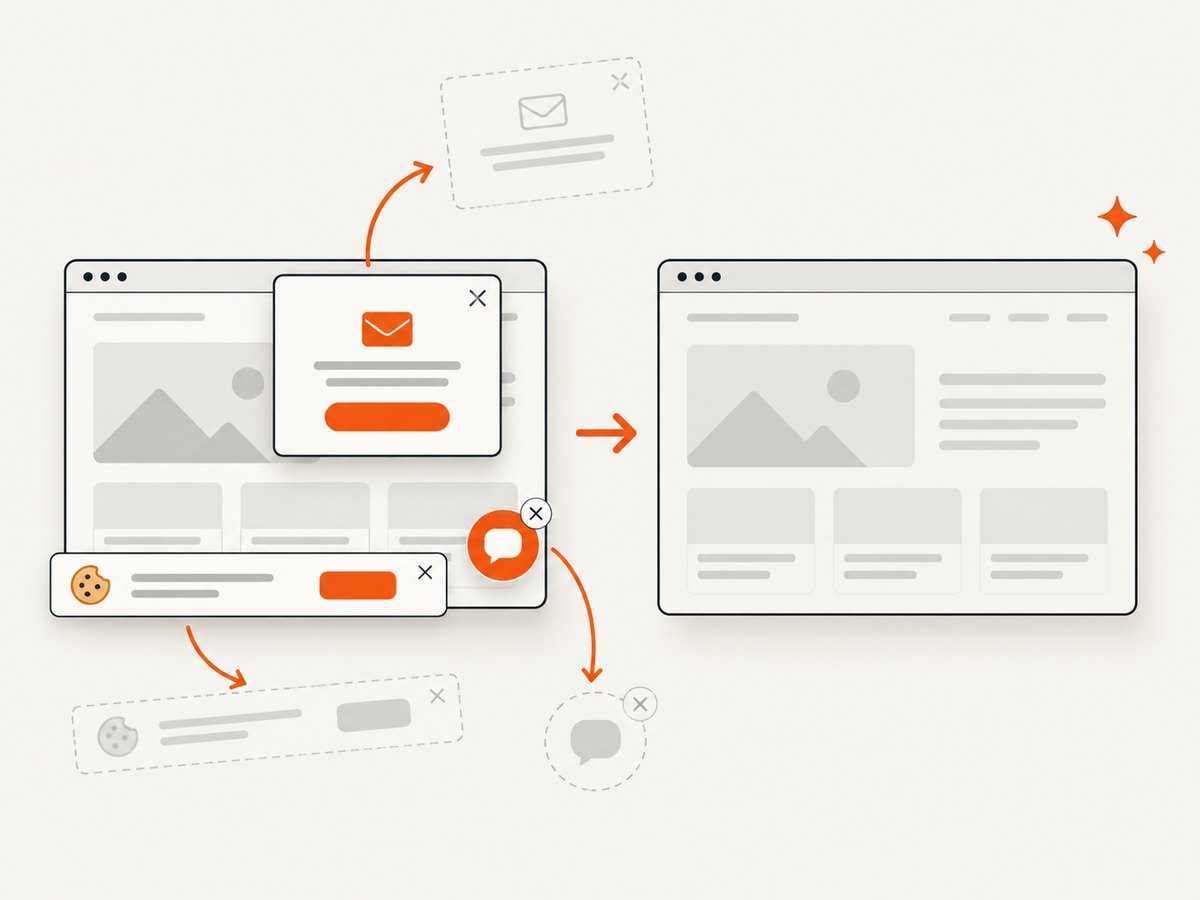
If your goal is a clean visual record of a roster or schedule page, ScreenshotNeo provides a single screenshot API request. It accepts cookie and consent banners like a visitor, then removes more than 60 known consent platforms, newsletter popups, and chat widgets before capture; each step can be turned off. Bot checks, blank pages, timeouts, failed loads, and cache hits are not billed, and the response identifies the result with X-Page-Verdict and X-Billed headers.
See the ScreenshotNeo API documentation for the full option set. You can capture a full page with lazy images loaded, one CSS-selected element, a chosen device or viewport, dark mode, retina output, custom CSS or JavaScript, and a transparent background. Waiting can use a selector, delay, or network idle. You can block ads, trackers, requests, or resource types; provide headers, cookies, a user agent, Authorization, timezone, and geolocation; resize images; choose a cache TTL; create signed public image links; submit asynchronous jobs with signed webhooks; capture up to 100 URLs per bulk call; use PDF options; and inspect usage through the API. Its parameter names match those used by other screenshot APIs, which simplifies migration.
cURL
curl -G 'https://api.screenshotneo.com/v1/shot' \
  -d access_key=YOUR_API_KEY \
  --data-urlencode url=https://hr.example.test/roster \
  -o roster.webp
Python
import requests

r = requests.get(
    'https://api.screenshotneo.com/v1/shot',
    params={'access_key': 'YOUR_API_KEY', 'url': 'https://hr.example.test/roster'},
    timeout=90,
)
r.raise_for_status()
open('roster.webp', 'wb').write(r.content)
print(r.headers.get('X-Page-Verdict'), r.headers.get('X-Billed'))
Node.js
const q = new URLSearchParams({
  access_key: 'YOUR_API_KEY',
  url: 'https://hr.example.test/roster'
});
const res = await fetch(`https://api.screenshotneo.com/v1/shot?${q}`);
if (!res.ok) throw new Error(`HTTP ${res.status}`);
const image = Buffer.from(await res.arrayBuffer());
await import('node:fs/promises').then(fs => fs.writeFile('roster.webp', image));
console.log(res.headers.get('X-Page-Verdict'), res.headers.get('X-Billed'));
The API is useful when you need a visual audit artifact without maintaining browser binaries, login flows, waits, and selector code. For AI-operated workflows, ScreenshotNeo also provides an MCP server with take_screenshot, get_page_info, and capture_pdf tools for Claude, Cursor, and other MCP clients.
Free accounts include 1,000 screenshots per month with no card. Paid plans start at $5 for 3,000 shots; every feature is available on every plan. Create a free ScreenshotNeo account.
11. Privacy and governance checklist
- Document purpose, lawful basis, and the approved roster period.
- Use a dedicated least-privilege account and protected secrets.
- Collect only required columns; avoid payroll or attendance fields unless necessary.
- Restrict access to exports, screenshots, traces, downloads, and session state.
- Redact diagnostics and prevent personal data from entering ordinary logs.
- Validate row identity, date ranges, duplicates, and expected filters.
- Define deletion dates and verify that backups follow the same policy.
- Review local consent, notice, and employee opt-out requirements before production.
12. FAQ
Should I automate the roster UI or use an API?
Use an approved roster API when it exposes the exact read-only data you need. Use browser automation when the information exists only in the UI, requires interactive filters, or must be recorded as rendered evidence.
How long should a wait be?
Set a bounded timeout based on the portal’s normal behavior, but wait on a state such as visible rows or a completion marker. A fixed sleep is not a readiness guarantee.
Can I save a full-page screenshot?
Yes, but treat it as a personal-data export. Limit access, encrypt storage, redact where possible, and delete it according to the retention policy.
What should happen when one row is malformed?
Fail closed for the affected inspection, record a redacted diagnostic, and require review. Publishing a partial roster without clearly marking it incomplete can create operational risk.
How do I make repairs after a portal redesign?
Keep selectors centralized, prefer stable IDs and accessible names, add a small readiness and validation check, and review failures through a redacted trace or screenshot.


