How to Install Chrome Headless on Windows
Install Chrome on Windows, run it headlessly, and capture rendered pages as DOM, screenshots, or PDFs with practical flags and fixes.
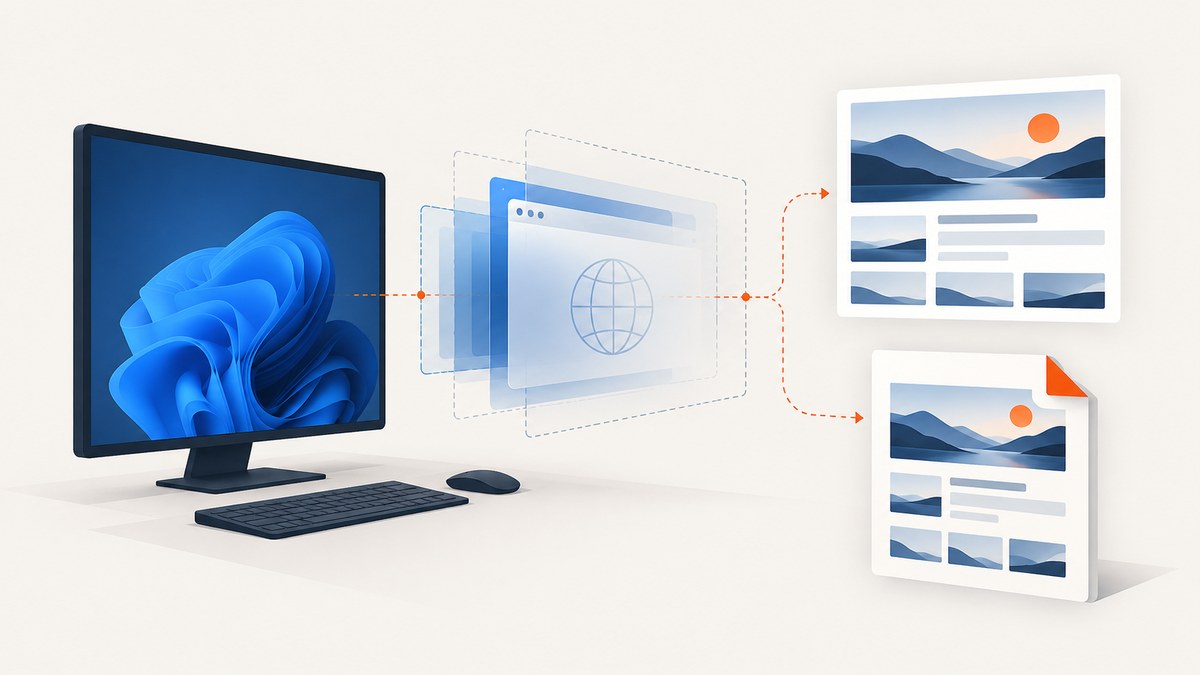
To run Chrome Headless on Windows, install Google Chrome normally, then launch it with the --headless flag. Headless is a mode of Chrome, not a separate standard Windows installation. Google’s documented command is start chrome --headless. [Chrome installation help] [Chrome Headless mode]
Once launched, Chrome can render a page without showing a browser window, then write the rendered DOM, a screenshot, or a PDF. This guide covers installation, commands you can run in Command Prompt, current versus legacy Headless, configuration flags, automation considerations, troubleshooting, and an API option if you only need screenshots.
1. Check Windows compatibility
Before installing, check that the machine meets Google’s current Chrome requirements:
- Intel hardware: Windows 10 or later, on a Pentium 4 or later processor that supports SSE3.
- ARM hardware: Windows 11 or later.
These are Chrome requirements; Headless does not have a separate set of Windows installation requirements because it runs through Chrome. For the latest details, use Google’s Chrome system requirements and installation instructions.
2. Install Chrome on Windows
- Open Google’s Chrome download page.
- Download the Windows installation file.
- Run the installer. If Windows shows a run or permission prompt, follow the prompts to continue.
- Open Chrome once installation finishes. This confirms that the ordinary browser installation completed.
You do not need a separate “Chrome Headless for Windows” installer for the current integrated mode. The next step is to invoke Chrome with a command-line flag. Chrome’s executable location and Windows command registration can vary, so use the chrome command first and locate the installed executable if Windows cannot resolve that name.
3. Run Chrome Headless from Command Prompt
Open Command Prompt and run Google’s documented Windows example:
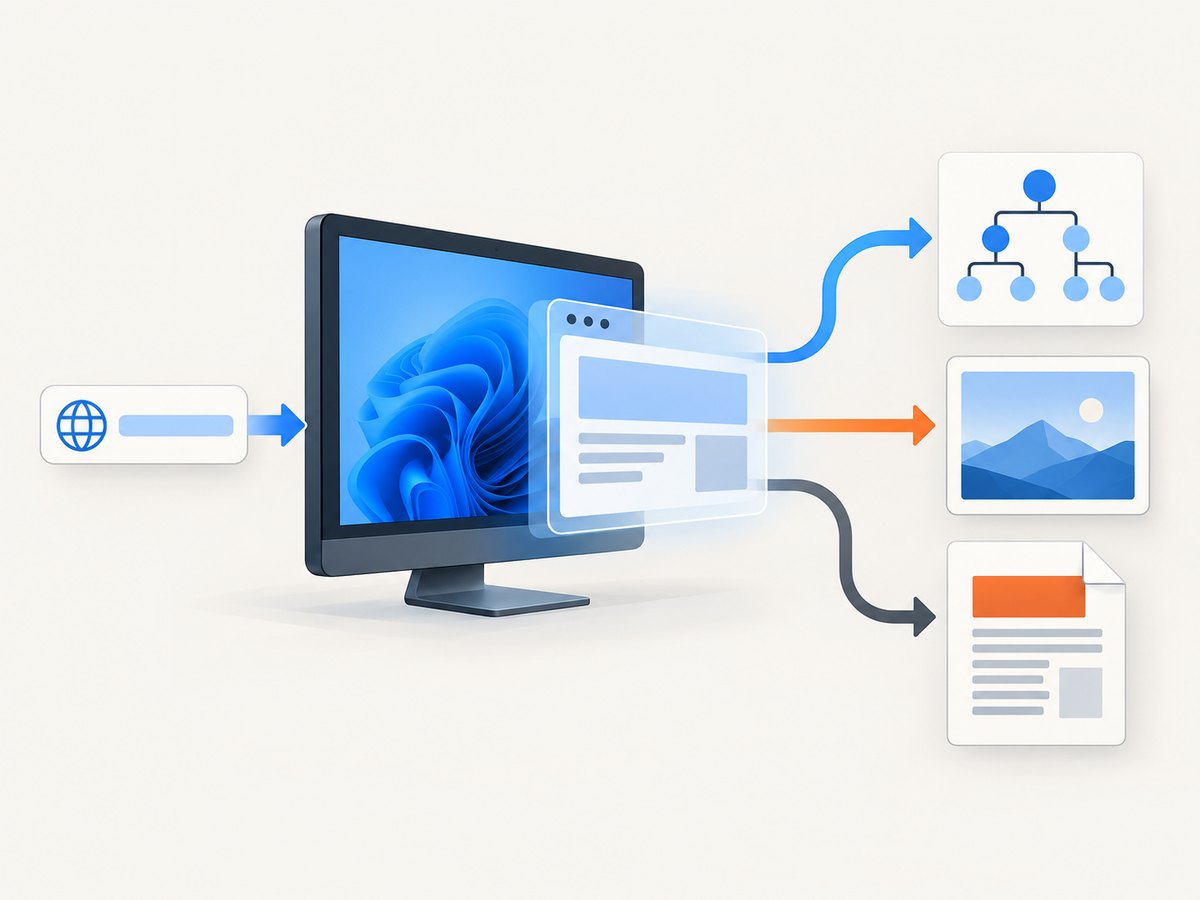
start chrome --headlessThis starts Chrome without displaying its usual browser UI. For a useful one-shot task, provide a page URL and an output flag. The following commands run in Command Prompt:
Print the rendered DOM
start chrome --headless --dump-dom https://example.com--dump-dom outputs the DOM after Chrome has parsed the document and run page scripts. This differs from simply downloading the original HTML: JavaScript may have changed the page before the DOM is serialized. Use it to inspect the rendered markup, but remember that the command output may be large and may contain page data you should treat as untrusted.
Save a screenshot
start chrome --headless --screenshot https://example.comChrome writes screenshot.png in the current working directory. To set the viewport dimensions, add --window-size with width and height in pixels:
start chrome --headless --screenshot --window-size=1440,1000 https://example.comThe screenshot flag captures the page at the configured viewport. For a full-page capture or repeatable automation that needs scrolling, selectors, or application-specific waits, a browser automation library or screenshot API may fit better than a one-shot CLI command.
Save a PDF
start chrome --headless --print-to-pdf https://example.comThis writes output.pdf. Current Chrome versions support --no-pdf-header-footer to suppress printed headers and footers:
start chrome --headless --print-to-pdf --no-pdf-header-footer https://example.comPDF rendering uses print layout, which can differ from the visible screen layout. If the result looks different than expected, check the page’s print styles and try the same URL in Chrome’s normal print preview.
4. Find Chrome if the command is not recognized
The short chrome command depends on the Chrome installation and Windows command registration. If Command Prompt says it cannot find Chrome, use the installed Chrome binary directly. Do not assume one fixed installation path: it can vary by installation method, user account, and machine configuration.
To locate the executable, search for chrome.exe in File Explorer or inspect the target of the Chrome shortcut. Then run the full path in Command Prompt, quoting it if the path contains spaces. For example, replace the placeholder with the path you actually found:
"C:\path\you\found\chrome.exe" --headless --screenshot https://example.comWhen using start with a quoted executable path, Windows treats the first quoted string as a window title. The simplest approach for a direct executable path is to run the quoted command as shown above, without start.
5. Useful Headless flags and what they change
| Flag | Purpose | Practical note |
|---|---|---|
--headless |
Runs Chrome without visible browser UI. | Use this current mode for ordinary Chrome behavior. |
--dump-dom |
Writes the parsed and script-modified DOM. | Useful for checking rendered markup, not a screenshot. |
--screenshot |
Saves a screenshot as screenshot.png. |
Use --window-size=WIDTH,HEIGHT to specify viewport dimensions. |
--print-to-pdf |
Prints the page to output.pdf. |
Use --no-pdf-header-footer on current versions to suppress headers and footers. |
--timeout=MILLISECONDS |
Sets the maximum wait before DOM, screenshot, or PDF capture. | The page may still be loading when the limit is reached. |
--virtual-time-budget=MILLISECONDS |
Advances page time for time-dependent code. | Can help with pages that rely on timers or animation, but does not guarantee every external resource has loaded. |
--allow-chrome-scheme-url |
Allows access to chrome:// URLs in Headless. |
Documented as available from Chrome 123. |
For example, set a timeout and viewport for a screenshot:
start chrome --headless --timeout=10000 --screenshot --window-size=1365,900 https://example.comFlags are not a substitute for checking the result. A page can finish its initial navigation while it is still loading images, fetching data, or showing a cookie dialog. If your capture depends on a particular element or application state, choose an automation approach that can wait for that condition explicitly.
6. Current Headless versus the legacy shell
Chrome 112 introduced the updated Headless implementation, which uses Chrome itself while suppressing its visible UI. Starting with Chrome 132, --headless and --headless=new use that implementation. The old implementation no longer launches through --headless=old. Google’s documentation describes the separate chrome-headless-shell binary as the way to run the old Headless implementation. [Chrome Headless mode] [Chrome Headless Shell]
| Choice | Use it when | Trade-off |
|---|---|---|
Integrated Chrome with --headless |
You want behavior closer to ordinary Chrome, general browser functionality, or end-to-end tests. | Uses the Chrome browser installation and its normal dependencies. |
chrome-headless-shell |
Your workflow specifically needs the old implementation, or you want a standalone shell for screenshotting or scraping without full Chrome functionality. | It is a distinct binary with fewer dependencies, but it does not provide the same full Chrome functionality. |
For most new Windows setups, start with integrated Chrome and --headless. Do not copy --headless=old from an older tutorial into a current Chrome command. If a test relies on behavior specific to the old implementation, install the shell through Chrome for Testing tooling. Google’s documented example is:
npx @puppeteer/browsers install chrome-headless-shell@stableThis command requires Node.js and npm/npx to be installed. The shell is a separate option; installing it is not required to use current Chrome Headless.
7. Make captures more repeatable
A command can be syntactically correct and still capture an incomplete page. The most useful reliability steps are to control the viewport, choose a timeout, and confirm that the page is in the state you intend to capture.
- Set a viewport. Use the same
--window-size=WIDTH,HEIGHTfor comparable screenshots. Responsive layouts can change substantially across widths. - Choose a timeout deliberately. Add
--timeout=MILLISECONDSif the default wait is unsuitable. A short timeout can capture a partially rendered page; a very long one can slow a batch of captures. - Inspect the output. Check whether the expected text, images, and layout appeared. A successful process launch does not prove that a site rendered successfully.
- Account for page behavior. Pages may require JavaScript, authentication, cookies, or a consent choice. A simple command does not configure those conditions for you.
- Keep the working directory in mind. The screenshot and PDF output names are relative to the directory from which Chrome runs. Use a known working directory so files are easy to find.
For dynamic sites, --virtual-time-budget can be useful where page code depends on timers. Treat it as a capture control, not proof that every network request, image, or application task completed.
8. Troubleshooting
| Symptom | Likely cause | Fix |
|---|---|---|
'chrome' is not recognized |
The Chrome command alias is not available in this Command Prompt session or installation. | Locate the actual chrome.exe and invoke its full quoted path. Avoid assuming a universal install directory. |
| No screenshot file appears | The command ran from a different working directory, or Chrome could not complete the task. | Check the current directory, then run again from a known folder. Specify the URL and --screenshot flag and inspect any command output. |
| The screenshot is too small or uses the wrong layout | The viewport is not the size the page needs, so responsive CSS selected another layout. | Set --window-size=WIDTH,HEIGHT and capture again. |
| The screenshot or PDF is blank or incomplete | The page may need more time, may rely on scripts or data requests, or may have failed to load. | Try a longer --timeout, verify the URL and network access, and check whether the page requires login, consent, or other state. |
--headless=old does not launch the expected mode |
Current Chrome no longer exposes the legacy mode through the main binary. | Use --headless for the current integrated mode. If you need the old implementation, use the separate chrome-headless-shell binary. |
| PDF includes headers or footers | Chrome’s print output includes them by default. | On current Chrome, add --no-pdf-header-footer. If using an older version, consult the documentation for its supported flag name. |
A chrome:// page cannot be opened |
Chrome scheme URLs require an explicit option in Headless. | On Chrome 123 or later, add --allow-chrome-scheme-url. |
| Different runs produce different output | The page content, remote data, timing, viewport, or browser version changed between runs. | Keep the Chrome version and viewport consistent, set an appropriate timeout, and verify that the page state is stable before capture. |
Older instructions often add --disable-gpu as a default. The current general-purpose instructions begin with --headless; add special compatibility flags only when diagnosing a specific issue and after checking the Chrome version and relevant documentation.
9. Performance, reliability, and cost
Running Headless locally avoids sending each capture request to a screenshot service, but you provide and maintain the Windows machine, Chrome installation, network access, and any automation around it. For a single screenshot, the CLI is straightforward. For repeated captures, the time spent handling browser versions, waits, failures, and output files becomes part of the workflow.
Performance depends on the page and machine as well as the capture settings. Large pages, scripts, images, and waits can increase capture time. Use a viewport that matches the task and a timeout that gives the page enough time without making every failed capture wait unnecessarily. For repeatability, record the Chrome version and command flags alongside the output.
Chrome itself can be installed without a screenshot API charge. The relevant cost for local Headless work is operational: machine capacity, maintenance, and developer time. If you need to capture many URLs or need an API your application can call, compare the cost and effort of maintaining the browser workflow with an API plan’s request limits and features.
10. Or skip the browser setup
If your goal is to get a screenshot from code rather than manage Chrome on Windows, ScreenshotNeo is a website screenshot API and MCP server. One GET request returns a PNG, JPEG, WebP, or PDF. See the API documentation for request options.
cURL
curl -G "https://api.screenshotneo.com/v1/shot" -d access_key=YOUR_API_KEY --data-urlencode url=https://stripe.com -o shot.webpPython
import requests

r = requests.get(
    "https://api.screenshotneo.com/v1/shot",
    params={"access_key": "YOUR_API_KEY", "url": "https://stripe.com"},
    timeout=90,
)
open("shot.webp", "wb").write(r.content)
Node.js
const q = new URLSearchParams({ access_key: 'YOUR_API_KEY', url: 'https://stripe.com' });
const res = await fetch(`https://api.screenshotneo.com/v1/shot?${q}`);
const bytes = Buffer.from(await res.arrayBuffer());
await import('node:fs/promises').then(fs => fs.writeFile('shot.webp', bytes));
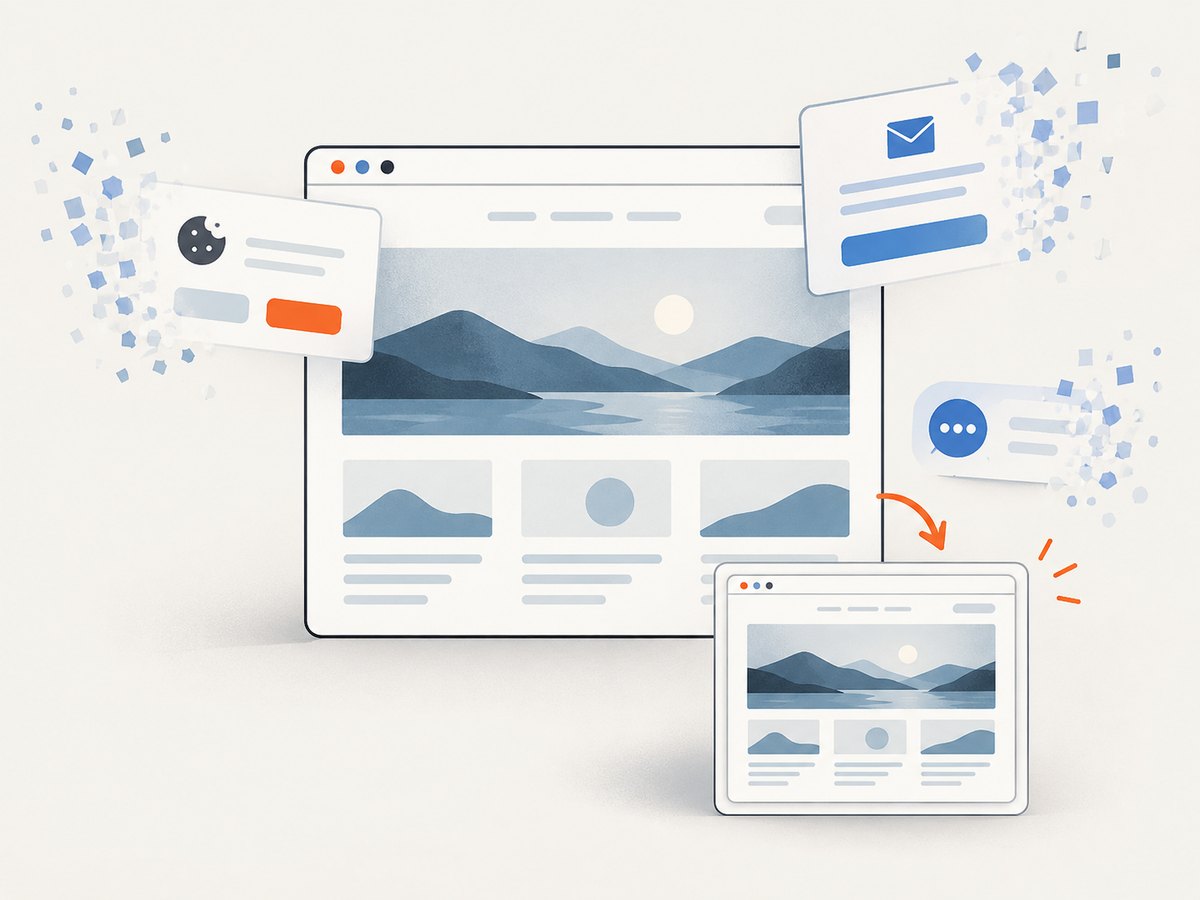
ScreenshotNeo removes cookie and consent banners, newsletter popups, and chat widgets before capture; each cleanup step can be turned off. Bot checks and CAPTCHAs, blank pages, timeouts, failed loads, and cache hits are not billed. Responses include X-Page-Verdict and X-Billed headers. Its MCP server gives AI agents tools named take_screenshot, get_page_info, and capture_pdf.
The Free plan includes 1,000 screenshots per month with no card. Paid plans start at $5 for 3,000 screenshots; every feature is available on every plan. If you need screenshots without installing and maintaining a browser, sign up for 1,000 free screenshots a month, with no card.
11. Frequently asked questions
Is Chrome Headless a separate Windows app?
No. For the current standard workflow, install Chrome and launch it with --headless. The separate chrome-headless-shell binary is for the legacy implementation.
Can I use Headless to inspect JavaScript-rendered pages?
Yes. --dump-dom serializes the DOM after Chrome parses the page and runs scripts. The result depends on the page having enough time and the required resources to render.
Where does Chrome save the screenshot?
The documented --screenshot command writes screenshot.png in the current working directory. Run the command from the folder where you want the file, or check that folder after capture.
Should I use --headless=new?
Use --headless for the current integrated mode. In Chrome 132 and later, both --headless and --headless=new use that implementation.
Can I capture a page that needs an account?
The basic CLI examples do not configure authentication or page state. You would need an automation setup that can provide the required session or credentials, while handling those secrets carefully.


