How to Install Chromium on Ubuntu and CentOS
Install a maintained Chromium browser on Ubuntu or CentOS with Snap, EPEL, snapd, RPM checks, troubleshooting, and automation guidance.
Short answer: On standard Ubuntu 16.04 LTS and newer systems, install Chromium with sudo snap install chromium. On CentOS, identify the release, enable EPEL, install and enable snapd, create the classic Snap symlink, then run the same Chromium command. The exact CentOS repository path depends on whether you use CentOS 7, CentOS 8/9 Stream, or another Enterprise Linux variant.
Snap is the documented default route because Chromium receives updates through the Snap Store. Ubuntu usually has Snap ready already. CentOS needs more preparation. EPEL also publishes Chromium RPMs for some Enterprise Linux releases, but availability and dependencies vary, so verify the target release before using a direct RPM command.
Install Chromium on Ubuntu
1. Check the Ubuntu release
cat /etc/os-release
Canonical documents the Snap package for Ubuntu 16.04 LTS and later. Standard Ubuntu installations normally include Snap. Some Ubuntu flavours remove it, and older or customized images may need snapd installed manually.
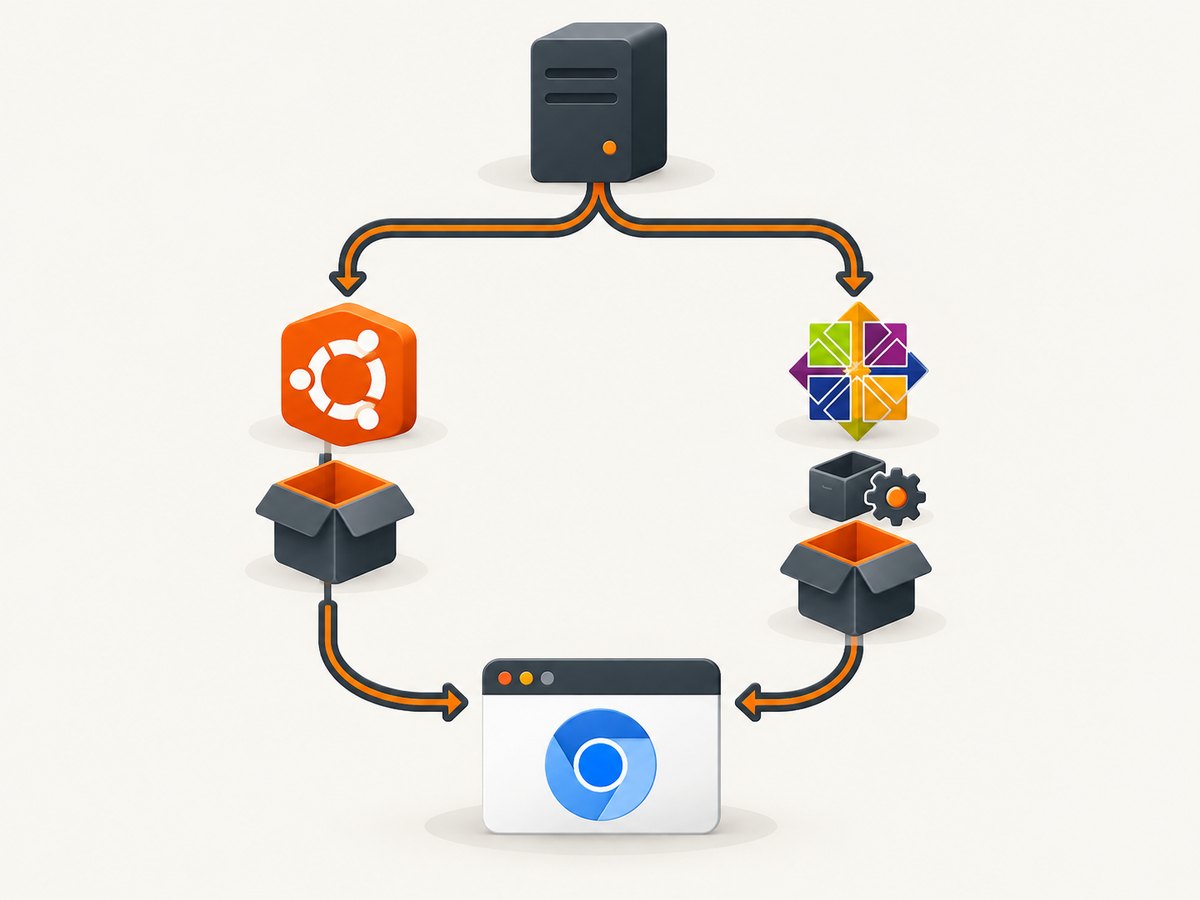
2. Install Chromium with Snap
sudo snap install chromium
This installs the Chromium Snap published through the Snap Store. Snap packages update automatically through the Snap service, so you do not need to build Chromium or maintain a separate download directory.
3. If Snap is missing
sudo apt update
sudo apt install snapd
Log out and back in, or restart the machine, after installing snapd. This refreshes the session environment and Snap paths. Then install Chromium:
sudo snap install chromium
4. Launch and verify Chromium
chromium
On some desktop environments the executable is exposed as chromium; on others you can start it from the application menu. Confirm the installed Snap with:
snap list chromium
snap info chromium
The Snap Store page describes Chromium as the open-source browser package and provides the current installation command. See Canonical’s Ubuntu Chromium instructions for release-specific notes.
Install Chromium on CentOS
1. Identify the exact CentOS release
cat /etc/centos-release
The command determines whether you should use dnf or yum for the EPEL setup. The documented Snap daemon procedure supports CentOS 7, 8, 8 Stream, and 9 Stream; CentOS 7 support starts with 7.6.
2. Enable EPEL
For CentOS 8 or 9 Stream, use dnf:
sudo dnf install epel-release
sudo dnf upgrade
For CentOS 7, use yum:
sudo yum install epel-release
EPEL supplies snapd and its dependencies. Repository metadata can change, so refresh package information if the command reports stale or unavailable metadata.
3. Install and enable snapd
sudo yum install snapd
sudo systemctl enable --now snapd.socket
sudo ln -s /var/lib/snapd/snap /snap
The yum command works on CentOS 7 and is commonly accepted by later releases as a compatibility command. If your CentOS 8/9 system prefers dnf, use:
sudo dnf install snapd
sudo systemctl enable --now snapd.socket
sudo ln -s /var/lib/snapd/snap /snap
The symbolic link enables classic Snap support. Log out and back in, or restart, before installing the browser.
4. Install Chromium
sudo snap install chromium
Verify the daemon and package:
systemctl status snapd.socket
snap list chromium
snap info chromium
Read the CentOS Chromium instructions and the Snap daemon guide when your release has unusual repository configuration.
Choosing Snap, an RPM, or a standalone build
| Method | Best for | Maintenance | Main caveat |
|---|---|---|---|
| Snap | Normal desktop and server installations | Automatic Snap updates | Requires snapd; CentOS requires EPEL |
| EPEL RPM | Systems that standardize on RPM packages | Managed by enabled RPM repositories | Package names and dependencies vary by EPEL release |
| Standalone Chromium archive | Build-specific testing or specialized automation | You manage downloads and updates | Upstream calls builds best-effort; old builds lack current security fixes |
EPEL RPM availability
The Fedora Project package index lists Chromium packages for EPEL 8, EPEL 9, and EPEL 10 variants. That does not guarantee that every CentOS image has a compatible package enabled. Check the exact release and repositories first:
dnf repolist
dnf info chromium
yum info chromium
If metadata shows a compatible package, install it using your package manager:
sudo dnf install chromium
Use this route only after confirming the package belongs to the repository set you intend to maintain. Do not assume dnf install chromium works universally across CentOS generations.
Standalone upstream builds
The Chromium project provides a Linux archive workflow in which you select a build number, download a ZIP archive, and run its executable. This is useful when a test must pin a particular revision. It is not the usual production installation path: upstream describes these builds as best-effort, says they may not correspond to user-facing Chrome releases, and warns that old builds do not receive current security fixes.
Headless Chromium on servers
For automation, install Chromium on a machine with the libraries, fonts, and sandbox permissions required by your workload. Test the binary as the same user that will run the job:
chromium --version
chromium --headless --no-sandbox --disable-gpu --dump-dom https://example.com
Only use --no-sandbox when your isolation model explicitly requires it. Running a browser as an unprivileged user with the sandbox enabled is preferable. A minimal screenshot command is:
chromium --headless --disable-gpu \
  --window-size=1365,768 \
  --screenshot=example.png \
  https://example.com
On a server without a desktop session, confirm that required font packages are installed. Missing fonts can change line wrapping and produce different screenshots even when the page loaded successfully.
Common errors and fixes
| Error or symptom | Likely cause | Fix |
|---|---|---|
snap: command not found |
Snap is not installed or the session has not refreshed | Install snapd, then log out and back in or restart |
cannot communicate with server |
The Snap socket is disabled | Run sudo systemctl enable --now snapd.socket |
No matching package to install: snapd |
EPEL is missing or repository metadata is stale | Install epel-release, refresh metadata, and check dnf repolist or yum repolist |
| Chromium launches but the command is not found | Snap paths are not available in the current session | Log out and back in, restart, or invoke the desktop launcher |
Broken /snap link |
The link already exists or points elsewhere | Inspect with ls -ld /snap; remove only an incorrect link, then recreate it |
| Blank page in headless mode | Page scripts, network access, certificates, or timing are incomplete | Try --dump-dom, allow more time, inspect network policy, and test as the service user |
| Different layout from a desktop | Viewport, device scale, fonts, or user agent differ | Set an explicit window size, install required fonts, and use consistent browser flags |
| Sandbox error | Browser is running as root or lacks namespace permissions | Run as an unprivileged user and keep the sandbox enabled; change host policy rather than defaulting to --no-sandbox |
| RPM dependency conflict | EPEL package does not match the OS release or enabled modules | Inspect package metadata and enabled repositories; use Snap when the RPM path is incompatible |
Updates, rollback, and removal
Snap refreshes installed snaps automatically. Inspect revisions and channels with:
snap list --all chromium
snap info chromium
To remove the Snap package:
sudo snap remove chromium
On Ubuntu, remove Snap itself only if you understand the effect on other installed snaps. On CentOS, removing Chromium does not necessarily remove snapd, EPEL, or the /snap link because other software may use them.
Performance and reliability considerations
- Startup time: A persistent browser process is faster for repeated automation than launching Chromium for every URL. Reuse a controlled browser context when your framework supports it.
- Memory: Full-page pages, large images, and many parallel tabs increase memory pressure. Limit concurrency and close contexts after each batch.
- Network: DNS, TLS inspection, proxies, and outbound firewall rules can look like browser failures. Test the same URL with
curland Chromium from the same host. - Reproducibility: Pin the OS image, Chromium channel, viewport, fonts, timezone, locale, and user agent when screenshots are compared in CI.
- Security: Keep Chromium current. Standalone old builds are particularly risky because upstream says they do not receive current security fixes.
- Cost: The software packages are free, but CI runners, CPU, memory, storage, bandwidth, and maintenance have operational costs. Parallel browser jobs can raise infrastructure usage quickly.
Or skip the browser setup
If your goal is to obtain reliable website screenshots rather than operate Chromium yourself, ScreenshotNeo provides a website screenshot API and MCP server. One request returns a PNG, JPEG, WebP, or PDF. Cookie and consent banners are accepted before capture, and more than 60 known consent platforms, newsletter popups, and chat widgets are removed. Bot checks, blank pages, timeouts, failed loads, and cache hits are not billed, and the response reports the result with X-Page-Verdict and X-Billed headers.

Use the ScreenshotNeo API documentation for all options. The basic call is:
cURL
curl -G "https://api.screenshotneo.com/v1/shot" -d access_key=YOUR_API_KEY --data-urlencode url=https://stripe.com -o shot.webpPython
import requests

r = requests.get("https://api.screenshotneo.com/v1/shot", params={"access_key": "YOUR_API_KEY", "url": "https://stripe.com"}, timeout=90)
r.raise_for_status()
open("shot.webp", "wb").write(r.content)
Node.js
const q = new URLSearchParams({ access_key: 'YOUR_API_KEY', url: 'https://stripe.com' });
const res = await fetch(`https://api.screenshotneo.com/v1/shot?${q}`);
if (!res.ok) throw new Error(`HTTP ${res.status}`);
const fs = await import('node:fs/promises');
await fs.writeFile('shot.webp', Buffer.from(await res.arrayBuffer()));
ScreenshotNeo also supports full-page capture with lazy images loaded, CSS-selector element capture, dark mode, 12 device presets or custom viewports, retina scale, PDF paper sizes and page ranges, custom CSS and JavaScript, clicks, selector or network-idle waits, request blocking, headers, cookies, authorization, timezone, geolocation, transparent backgrounds, resizing, cache TTLs, signed image links, asynchronous jobs with signed webhooks, bulk capture for 100 URLs per call, usage reporting, and an OpenAPI specification. An MCP server exposes take_screenshot, get_page_info, and capture_pdf to Claude, Cursor, and other MCP clients.
There is a free plan with 1,000 screenshots per month and no card. Paid plans start at $5 for 3,000 shots; every feature is available on every plan. Create a free ScreenshotNeo account and start with 1,000 screenshots a month at no charge.
Installation checklist
- Run
cat /etc/os-releaseorcat /etc/centos-release. - On Ubuntu, install
snapdonly when it is absent. - On CentOS, enable the correct EPEL repository.
- Install and enable
snapd.socketon CentOS. - Create
/snapfor classic Snap support. - Log out and back in or restart after Snap setup.
- Run
sudo snap install chromium. - Verify with
chromium --versionandsnap list chromium. - For automation, test the same user, fonts, viewport, network policy, and sandbox settings used in production.
FAQ
Why does apt install chromium install a Snap?
On Ubuntu releases where Chromium is supplied through the Snap route, the package command can act as a transition to the Chromium Snap. Installing with sudo snap install chromium makes the intended package format explicit.
Can I install Chromium on CentOS without Snap?
Sometimes. EPEL lists Chromium for selected EPEL 8, 9, and 10 variants, but compatibility depends on your exact release and repositories. Verify package metadata before relying on an RPM command.
Does Snap work on CentOS 7?
The Snap daemon documentation lists CentOS 7 support from 7.6 onward. You still need EPEL, snapd, the socket, and the classic Snap symlink.
Is a standalone Chromium archive suitable for a public server?
Use it for a pinned test or build-specific requirement. Upstream describes these builds as best-effort and warns that old builds do not receive current security fixes.
Which installation is best for CI screenshots?
Use a maintained package path, pin the environment details that affect rendering, and run Chromium as an unprivileged user. If maintaining browser images is unnecessary for your project, use the ScreenshotNeo API instead.


