How to Install Cypress with npm
Install Cypress locally with npm, open the Launchpad, fix missing binaries, and run tests reliably in CI.
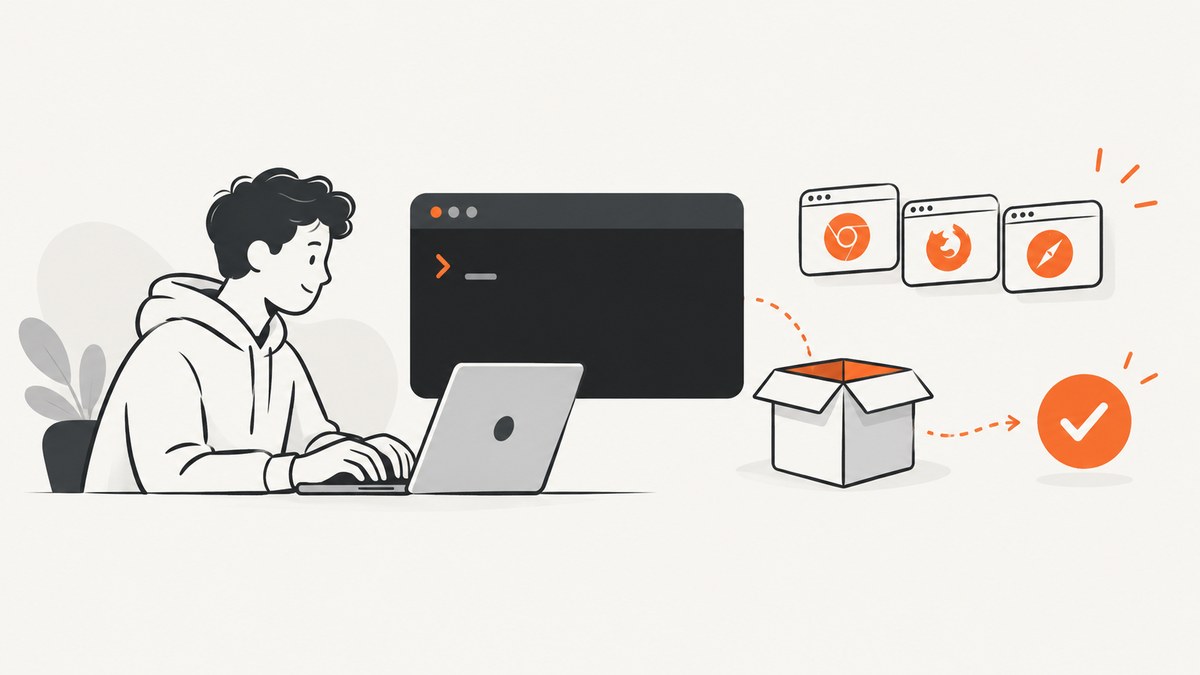
Run this in your project root:
npm install cypress --save-dev
npx cypress open
The first command installs Cypress as a local development dependency. The second launches the Cypress Launchpad, where you choose end-to-end (E2E) or component testing and a browser. For a headless run, use npx cypress run.
Prerequisites
Check the current Cypress requirements before installing because supported versions change. The current guide lists Node.js 22.x, 24.x, or 26.x and newer, plus npm 10.1.0 or newer. Supported systems include macOS 13.5 or newer, Windows 10/11 x64, and supported Linux distributions such as Ubuntu 22.04 or newer. Linux arm64 support has additional caveats.
Check your versions
node --version
npm --version
uname -a
If your Node.js or npm version is outside the current support range, update it with the version manager used by your team before installing Cypress.
Install Cypress in a new or existing project
- Open a terminal in the project root.
- If the project has no
package.json, create one:
npm init -y- Install Cypress as a development dependency:
npm install cypress --save-devInstalling locally keeps the Cypress version in your project lockfile, so local development and CI use the same package version.
Confirm the package is present
npm ls cypress
npx cypress version
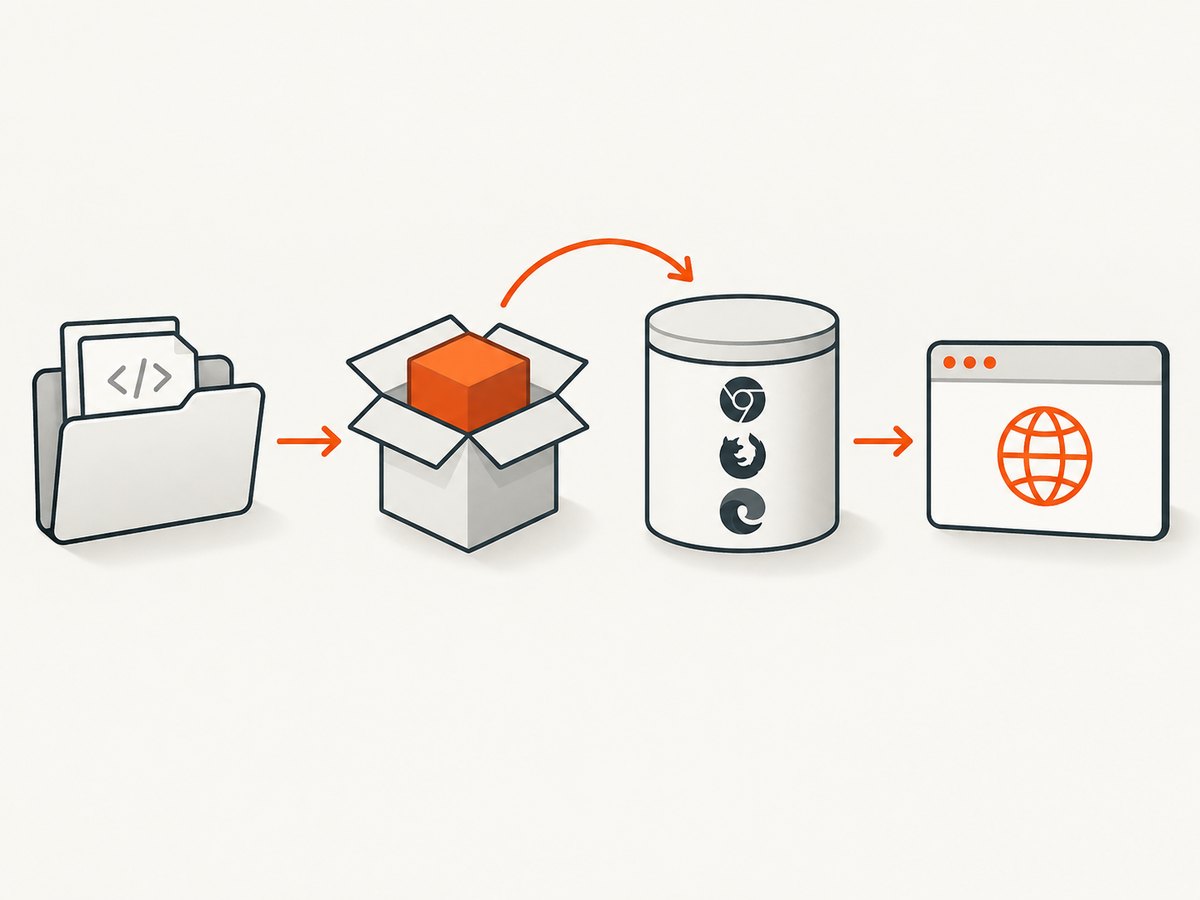
The npm package and the Cypress application binary are related but separate. npm adds the package to node_modules; an install lifecycle step normally downloads the matching binary into Cypress’s global cache.
Open Cypress and create the project files
Launch the interactive setup:
npx cypress openIn the Launchpad:
- Choose End-to-End Testing or Component Testing.
- Select a browser that is installed on the machine.
- Accept the generated configuration and folder structure.
- Open or create a spec and run it from the Cypress app.
The Launchpad creates the configuration needed for the selected testing mode. Commit those generated files when your team wants the project setup to be reproducible.
Run Cypress headlessly
Use the headless command locally or in CI:
npx cypress runRun one spec when iterating:
npx cypress run --spec "cypress/e2e/login.cy.js"Choose a browser explicitly when more than one is installed:
npx cypress run --browser chromeUse npx cypress run --help to see the options supported by the installed version.
Add npm scripts
Put short, repeatable commands in package.json:
{
  "scripts": {
    "cy:open": "cypress open",
    "cy:run": "cypress run"
  }
}
Then run:
npm run cy:open
npm run cy:run
Do not name a script cypress. Package-manager command resolution can shadow the Cypress binary and make commands behave unexpectedly.
When the binary is missing
If npm installed the package but Cypress reports that its binary is missing, install and verify the binary explicitly:
npm install cypress --save-dev
npx cypress install
npx cypress verify
npx cypress open
cypress install downloads the binary matching the installed npm package. cypress verify checks that it is installed and executable.
npm lifecycle scripts are blocked
Recent npm versions changed lifecycle-script behavior. The current Cypress guide notes that npm 11.16.0 warns about lifecycle scripts and npm 12.0.0 blocks them by default. If the postinstall download did not run, approve Cypress in npm’s allowScripts configuration and rebuild, or run npx cypress install explicitly.
Also check whether the install used --ignore-scripts. That flag intentionally skips the lifecycle step, so the explicit install sequence is required.
Use a specific cache location
Cypress stores its binary in a global cache rather than inside each project. In restricted CI environments, make sure the cache directory is writable and preserved between jobs. Run:
npx cypress cache path
npx cypress cache list
If the cache contains a broken or partial download, clear it with the cache command documented for your installed Cypress version, then run npx cypress install and npx cypress verify again.
CI installation and execution
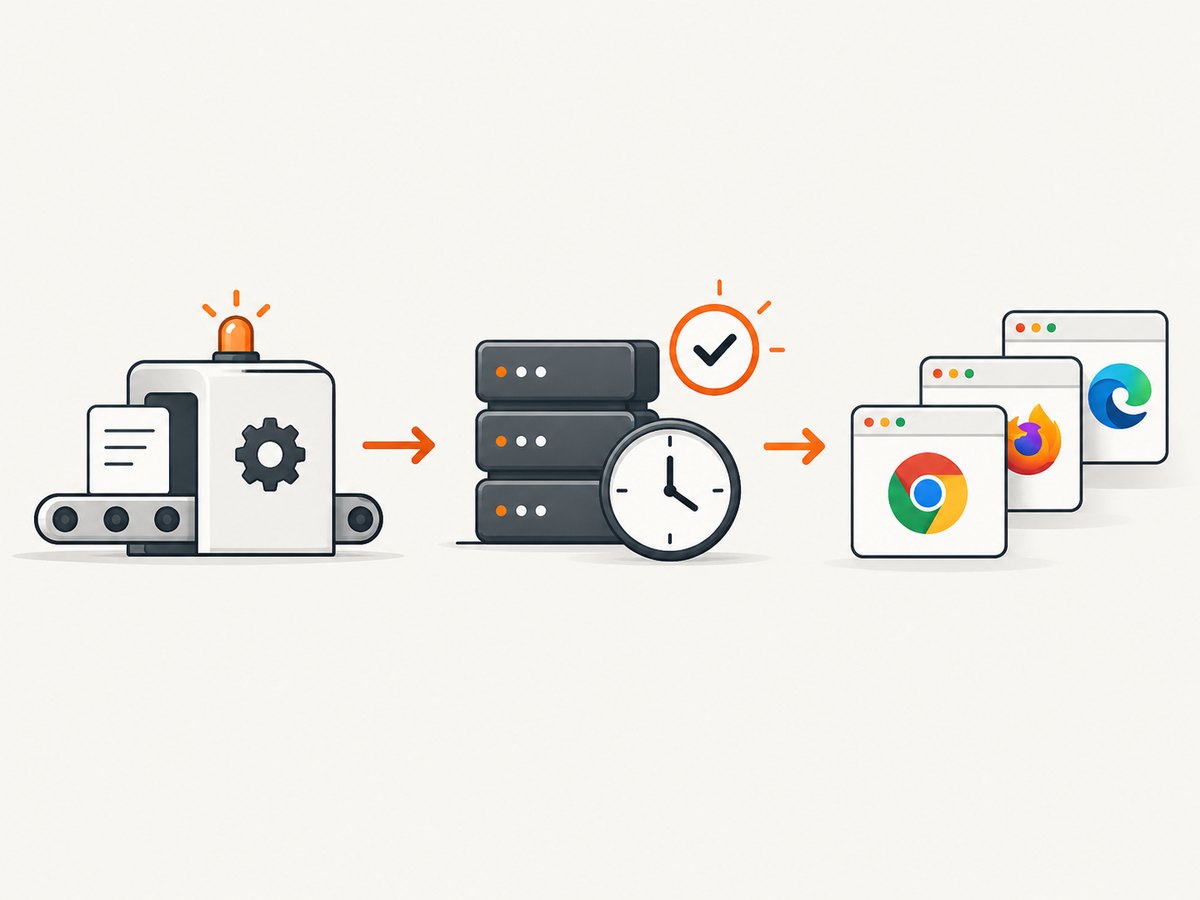
A minimal CI sequence is:
npm ci
npx cypress install
npx cypress verify
npx cypress run
Use npm ci when a lockfile is committed. It installs the exact dependency tree selected by the lockfile.
Start the application before Cypress
Cypress must be able to reach the application under test. Starting a server and immediately launching Cypress creates a race condition:
npm start & npx cypress runThe server may not be listening when the first test starts. Use a readiness mechanism that waits for the application URL, or use the official Cypress GitHub Action’s start and wait-on options. A generic shell pattern is:
npm start &
# wait until the application's health URL responds
npx cypress run
Keep the readiness URL stable and fail the job if the server never becomes available.
Complete installation checklist
- Node.js and npm meet the current Cypress requirements.
- The command runs from the project root.
cypressappears underdevDependencies.- The lockfile is committed.
npx cypress verifysucceeds.npx cypress opencreates the selected testing setup.npx cypress runpasses locally.- CI installs dependencies and the binary before running tests.
- CI waits for the application server to be ready.
Troubleshooting common errors
| Symptom | Likely cause | Fix |
|---|---|---|
cypress: command not found |
Cypress is not installed locally or the command was run outside the project. | Change to the project root and run npm install cypress --save-dev, then use npx cypress .... |
| “Cypress executable not found” | The package exists but the binary download did not complete. | Run npx cypress install, then npx cypress verify. |
| Install succeeds but no binary is downloaded | npm lifecycle scripts were blocked, or --ignore-scripts was used. |
Approve Cypress in npm allowScripts or install explicitly with npx cypress install. |
| Permission denied in the cache | The CI user cannot write to the global Cypress cache. | Give the runner a writable cache directory and preserve it between jobs, then reinstall and verify. |
| Browser is not detected | The selected browser is not installed or is unsupported on the operating system. | Install a supported browser, list detected browsers with the Cypress CLI, and select an installed browser. |
| Tests fail immediately in CI | The application server is still starting. | Add URL readiness checks or configure the Cypress GitHub Action with start and wait-on. |
| Different results locally and in CI | Node, npm, Cypress, browser, environment variables, or OS differ. | Pin dependencies with the lockfile, print versions in CI, use the same browser family, and keep environment configuration explicit. |
Performance, reliability and cost considerations
Installation performance
The npm package install and binary download are separate operations. The first install is slower because it downloads the Cypress application. Cache the global Cypress binary in CI, but invalidate that cache when the Cypress version changes.
Reliable runs
Use a committed lockfile, run npx cypress verify on clean CI workers, and wait for the application to be ready. Keep the Node.js, npm, operating-system and browser versions within Cypress’s current support matrix.
Disk and network use
The binary cache consumes disk space outside the project directory. Ephemeral workers download it on every job unless CI caching is configured. Corporate proxies, firewalls and restricted lifecycle scripts can interrupt the download; configure the runner’s approved network and npm policy rather than silently skipping verification.
Node.js, cURL and Python examples
The npm installation itself is a package-manager operation, so the canonical command is shell-based. Node.js can invoke the same local binary through an npm script:
const { execFileSync } = require('node:child_process');

execFileSync(process.platform === 'win32' ? 'npx.cmd' : 'npx', ['cypress', 'verify'], {
  stdio: 'inherit'
});
cURL and Python do not install the local Cypress npm package; they are not appropriate substitutes for npm install cypress --save-dev. Use them only for your own application’s health endpoint when implementing a CI readiness check. For example:
curl --fail --silent --show-error http://localhost:3000/healthimport urllib.request
urllib.request.urlopen("http://localhost:3000/health", timeout=5)
print("application is ready")Or skip the browser setup
If your goal is to obtain clean website screenshots rather than run browser tests, ScreenshotNeo provides a website screenshot API and MCP server. One GET request returns PNG, JPEG, WebP or PDF. Cookie and consent banners, newsletter popups and chat widgets are removed before capture; bot checks, blank pages and failed loads are not billed, and response headers identify the page verdict and billing status. Its MCP server lets Claude, Cursor and other MCP clients call take_screenshot, get_page_info and capture_pdf.
See the ScreenshotNeo API documentation for all options.
curl -G "https://api.screenshotneo.com/v1/shot" -d access_key=YOUR_API_KEY --data-urlencode url=https://stripe.com -o shot.webpimport requests
r = requests.get("https://api.screenshotneo.com/v1/shot", params={"access_key": "YOUR_API_KEY", "url": "https://stripe.com"}, timeout=90)
open("shot.webp", "wb").write(r.content)const q = new URLSearchParams({ access_key: 'YOUR_API_KEY', url: 'https://stripe.com' });
const res = await fetch(`https://api.screenshotneo.com/v1/shot?${q}`);Features include full-page and element captures, device presets, retina scale, dark mode, custom CSS and JavaScript, waits, request blocking, headers, cookies, geolocation, PDFs, caching, signed links, asynchronous jobs, bulk capture and a usage API. The Free plan includes 1,000 screenshots each month with no card; paid plans start at $5 for 3,000.
Create a free ScreenshotNeo account and get 1,000 screenshots a month with no card.
FAQ
Should Cypress be a production dependency?
No. Install it with --save-dev because it is a development and test tool.
Do I need to run cypress install every time?
Usually no. The package lifecycle normally downloads the matching binary. Run it explicitly when scripts are blocked, ignored or the cache is missing.
What is the difference between cypress open and cypress run?
open launches the interactive app and Launchpad. run executes tests headlessly, which is suited to CI.
Why does a clean install help?
Removing an incomplete dependency tree and reinstalling from the lockfile can resolve mismatched packages or partial binary downloads. Verify afterward with npx cypress verify.


