How to Install Docker on Ubuntu, CentOS, Debian, and Windows
Install Docker Engine on Ubuntu, Debian, or CentOS, or Docker Desktop on Windows. Follow the right commands for your OS, then verify the daemon and run a test container.

Install Docker Engine from Docker’s official APT repository on Ubuntu or Debian, or its official RPM repository on CentOS. On Windows 10 or 11, install Docker Desktop and use its WSL 2 or Hyper-V backend. Remove conflicting packages first, start the Linux service where applicable, and verify the installation with docker run hello-world.
This guide covers the supported install paths, commands, verification, security, and common fixes. Docker’s requirements and package names can change, so check the official instructions for your distribution and Windows version before a production rollout: Docker Engine installation and Docker Desktop for Windows.
1. Choose the installation method
| System | Recommended path | Daemon/backend | Important detail |
|---|---|---|---|
| Ubuntu | Docker’s APT repository | Native Linux service | Use the codename and architecture reported by the host. |
| Debian | Docker’s APT repository | Native Linux service | Testing releases and derivatives may need a Debian codename override. |
| CentOS | Docker’s RPM repository | Native Linux service | Enable and start Docker after package installation. |
| Windows 10/11 | Docker Desktop installer | WSL 2 or Hyper-V | Windows containers require Pro or Enterprise; Home supports Linux containers. |
Docker’s convenience installation scripts are intended for testing and development, not as the routine production install. Static binaries also require manual updates. On Linux, Docker Desktop is an optional alternative to the native Engine; if both are installed, Docker contexts select which daemon the CLI talks to.
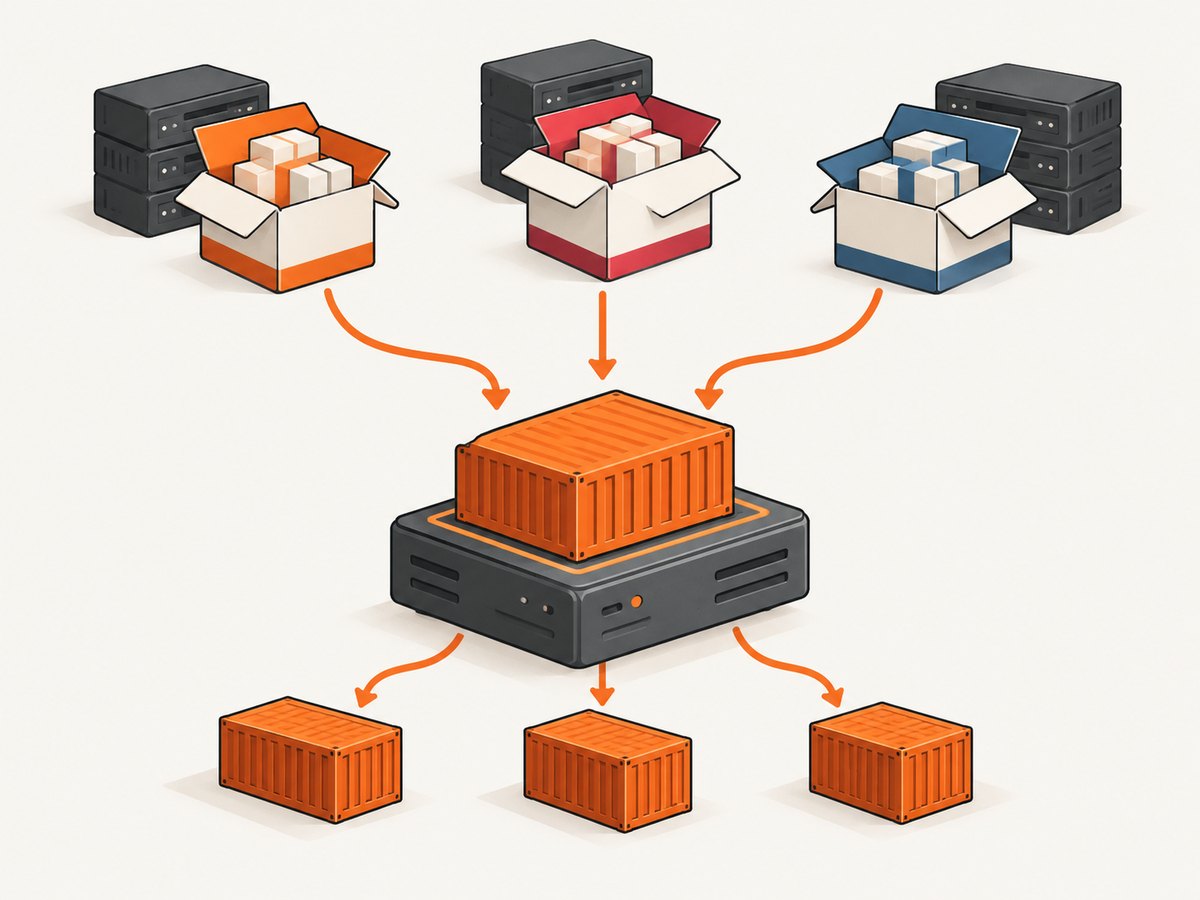
2. Install Docker Engine on Ubuntu
Docker’s current Ubuntu instructions list 64-bit Ubuntu 26.04 LTS, 24.04 LTS, and 22.04 LTS, for supported architectures including amd64, armhf, arm64, s390x, and ppc64le. Confirm current support on the official Ubuntu installation page if your release or architecture differs.
Step 1: Remove conflicting packages
Ubuntu packages such as docker.io, docker-compose, docker-buildx, podman-docker, containerd, and runc can conflict with Docker’s packages. Remove any that are installed. This command tolerates packages that are absent:
sudo apt remove $(dpkg-query -W -f='${binary:Package}\n' docker.io docker-compose docker-doc podman-docker containerd runc 2>/dev/null)Removing packages does not automatically remove images, containers, volumes, or networks stored under Docker’s data directory. If migrating from an existing installation, inspect and back up the data you need before changing packages.
Step 2: Add Docker’s official repository
sudo apt update
sudo apt install ca-certificates curl
sudo install -m 0755 -d /etc/apt/keyrings
sudo curl -fsSL https://download.docker.com/linux/ubuntu/gpg -o /etc/apt/keyrings/docker.asc
sudo chmod a+r /etc/apt/keyrings/docker.asc
sudo tee /etc/apt/sources.list.d/docker.sources >/dev/null <<EOF
Types: deb
URIs: https://download.docker.com/linux/ubuntu
Suites: $(. /etc/os-release && echo "${UBUNTU_CODENAME:-$VERSION_CODENAME}")
Components: stable
Architectures: $(dpkg --print-architecture)
Signed-By: /etc/apt/keyrings/docker.asc
EOF
sudo apt update
The repository suite comes from the OS release metadata, with UBUNTU_CODENAME preferred where present. The architecture line tells APT to use the build matching the machine.
Step 3: Install Engine, CLI, and plugins
sudo apt install docker-ce docker-ce-cli containerd.io docker-buildx-plugin docker-compose-pluginThis installs Docker Engine, the command-line client, containerd, Buildx, and the Compose plugin. Package updates subsequently arrive through APT along with your other repository updates. Review package changes before accepting them on managed servers.
3. Install Docker Engine on Debian
Debian uses the same package set as Ubuntu, but its repository URL and codename detection differ. See the official Debian instructions for the current supported releases and architectures.
Step 1: Remove conflicting packages
sudo apt remove $(dpkg-query -W -f='${binary:Package}\n' docker.io docker-compose docker-doc podman-docker containerd runc 2>/dev/null)Step 2: Configure Docker’s APT repository
sudo apt update
sudo apt install ca-certificates curl
sudo install -m 0755 -d /etc/apt/keyrings
sudo curl -fsSL https://download.docker.com/linux/debian/gpg -o /etc/apt/keyrings/docker.asc
sudo chmod a+r /etc/apt/keyrings/docker.asc
sudo tee /etc/apt/sources.list.d/docker.sources >/dev/null <<EOF
Types: deb
URIs: https://download.docker.com/linux/debian
Suites: $(. /etc/os-release && echo "$VERSION_CODENAME")
Components: stable
Architectures: $(dpkg --print-architecture)
Signed-By: /etc/apt/keyrings/docker.asc
EOF
sudo apt update
sudo apt install docker-ce docker-ce-cli containerd.io docker-buildx-plugin docker-compose-plugin
For Debian testing or a derivative such as Kali, the detected codename may not match a suite offered by Docker’s Debian repository. Docker’s guidance is to use the corresponding Debian codename when needed; for example, a testing system may use trixie. Don’t guess: confirm the correct mapping for the release on the official page before editing docker.sources.
4. Install Docker Engine on CentOS
Use Docker’s official RPM repository. Remove conflicting Docker-related packages first, following the distribution’s package manager and the CentOS installation page. Then install the repository helper, add the Docker repository, and install the packages:
sudo dnf -y install dnf-plugins-core
sudo dnf config-manager --add-repo https://download.docker.com/linux/centos/docker-ce.repo
sudo dnf install docker-ce docker-ce-cli containerd.io docker-buildx-plugin docker-compose-plugin
Installing the packages does not start Docker. Enable it for startup and start it now:
sudo systemctl enable --now dockerOn a distribution using a different version of DNF or repository-management commands, follow the current vendor instructions. Do not mix packages from a distribution’s own Docker build with Docker’s CE repository packages without a deliberate migration plan.
5. Start and verify Docker on Linux
On Ubuntu and Debian, Docker starts at boot by default after installation. On CentOS, the preceding systemctl enable --now command starts and enables the service. Check service health and run Docker’s test image:
sudo systemctl status docker
sudo docker run hello-world
The hello-world command downloads a small test image if necessary, starts a container that prints a confirmation, and exits. A successful result confirms that the CLI can contact the daemon and the daemon can run a container. It also requires network access to retrieve the image on the first run; a later run may use the cached image.
For a compact check of the client and server versions, run:
docker versionIf it reports a client but cannot connect to the daemon, the CLI is installed but the service is stopped, unavailable, or selected through the wrong context. Check systemctl status docker and docker context ls.
Run Docker without sudo (optional)
By default, Linux commands use sudo because the Docker socket is privileged. To allow a user to invoke Docker without it:
sudo groupadd docker
sudo usermod -aG docker "$USER"
newgrp docker
docker run hello-world
If groupadd says the group already exists, continue with usermod. A full logout and login also refreshes group membership. Treat this as a security decision: Docker explicitly warns that membership in the docker group grants root-level privileges to that user. On a shared or sensitive host, keep access restricted and use sudo where appropriate.
6. Install Docker Desktop on Windows
Docker Desktop is the normal installation route for Windows development. It provides a Linux-container environment using WSL 2 or Hyper-V. Check Microsoft’s Windows servicing status and Docker’s current system requirements before installation.
Check prerequisites
- Docker’s current page lists 64-bit Windows 10 Enterprise, Pro, or Education 22H2 (build 19045) and Windows 11 Enterprise, Pro, or Education 23H2 (build 22631) or higher, subject to the Windows servicing timeline.
- WSL 2 requires a 64-bit processor with SLAT, at least 8 GB RAM, hardware virtualization enabled in firmware, and the WSL 2 feature enabled.
- Windows containers require Pro or Enterprise. Home and Education editions support Linux containers only.
- Hyper-V has its own edition and platform requirements. Choose a backend supported by the Windows edition and your development needs.
Install interactively
- Download
Docker Desktop Installer.exefrom Docker’s official website. - Run the installer. Choose per-user installation or all-users installation.
- On the configuration screen, choose WSL 2 or Hyper-V where offered.
- Complete the wizard, then start Docker Desktop from the Start menu.
- Open PowerShell and verify the CLI and a container with
docker versionanddocker run hello-world.
Per-user mode installs under %LOCALAPPDATA%\Programs\DockerDesktop and does not require administrator privileges. All-users installation requires an administrator account.
Install from PowerShell
Run the following in the directory containing the installer. The all-users command needs an elevated PowerShell window.
# Per-user installation
Start-Process 'Docker Desktop Installer.exe' -Wait -ArgumentList 'install', '--user'

# All-users installation (run PowerShell as Administrator)
Start-Process 'Docker Desktop Installer.exe' -Wait install
Start Docker Desktop after the installer finishes. The command completing does not itself prove the engine is running; wait for Desktop to finish starting before checking the CLI.
7. Optional: Docker Desktop on Linux
Docker Desktop for Linux is available as a .deb or .rpm package for Ubuntu, Debian, RHEL, and Fedora on x86_64/amd64. For Linux servers and most command-line workflows, the native Engine above is the simpler default. Desktop can be useful when you specifically want its desktop workflow.
If Engine and Desktop coexist, the Docker CLI can address different daemons through contexts. Inspect and select the intended context:
docker context ls
docker context use default
# Or, when using Docker Desktop for Linux:
docker context use desktop-linux
Check docker context show before running commands if images or containers appear to be missing. They may exist under the other daemon, since each context points to a different Docker environment.
8. Troubleshooting
| Symptom | Likely cause | What to do |
|---|---|---|
Cannot connect to the Docker daemon |
Linux service is stopped, or Windows Desktop is not ready. | On Linux run sudo systemctl status docker, then sudo systemctl start docker if appropriate. On Windows, start Desktop and wait until it reports ready. |
permission denied on /var/run/docker.sock |
The user lacks permission to access Docker’s privileged socket. | Use sudo docker ..., or deliberately grant docker-group membership and log out and back in. Understand the root-level access this grants. |
APT cannot find docker-ce |
Repository file, codename, architecture, key permissions, or apt update is wrong. |
Inspect /etc/apt/sources.list.d/docker.sources; compare its suite and architecture with the official guide; run sudo apt update and read repository errors. |
| APT reports a missing release file | The system codename is not published in Docker’s repository or a derivative uses a different codename. | Use the supported corresponding Debian/Ubuntu suite only after verifying the mapping in Docker’s docs. Do not point a derivative at an arbitrary suite. |
| RPM repository command or package is unavailable | Repository helper is missing, OS release is unsupported, or package metadata is stale. | Install dnf-plugins-core, confirm the CentOS release is covered by Docker’s current page, refresh metadata, and check repository output. |
hello-world cannot pull the image |
No network/DNS access, proxy restrictions, or registry access failure. | Check DNS and outbound HTTPS, configure the environment’s approved proxy if needed, then retry. Service health and image download are separate checks. |
| Docker Desktop says virtualization is unavailable | Hardware virtualization is disabled or unsupported, or the selected backend feature is not enabled. | Check firmware virtualization settings, CPU requirements, WSL 2 installation, and the selected backend’s Windows prerequisites. |
| Windows installer fails or is blocked | Unsupported or out-of-service Windows build, missing admin rights for all-users mode, or organizational policy. | Check the exact build and edition against current requirements; use per-user mode if suitable, or ask the device administrator about policy. |
| Containers disappeared after installing Desktop on Linux | The CLI switched to another Docker context. | Run docker context ls and select the daemon where those containers were created. |
For Linux service logs, use sudo journalctl -u docker --since today. Include the exact OS release, architecture, command, and relevant error lines when searching Docker’s documentation or asking for help; avoid sharing credentials or private registry tokens.
9. Performance, reliability, and cost
Docker Engine packages themselves do not determine application performance by a single fixed number. The host’s CPU, memory, storage, image size, filesystem, networking, and container workload matter. On Windows, WSL 2 or Hyper-V adds a backend layer; keep the backend and Docker Desktop current and allocate resources that match the workload. Avoid pulling large images repeatedly by reusing local images where appropriate.

For reliability, enable the Docker service at boot on servers, monitor it with your normal system service tooling, and maintain a planned update path through APT or DNF. Verify both daemon health and workload health: hello-world confirms a basic container run, but it does not validate an application’s persistence, networking, restart policy, or production readiness.
Docker Engine is distributed through OS packages without a per-container fee stated in these installation instructions. Operational costs can still include the host, storage, network transfer, and any separately selected Docker products or services. Docker Desktop licensing and organizational use terms are separate from the basic installation steps; review Docker’s current licensing terms if installing it for a company.
10. Use a screenshot API from a Docker workflow
Docker is useful for packaging a screenshot worker or browser automation service so its runtime is reproducible. A typical workflow sends a URL to a capture service and stores the returned image or PDF. If you build your own browser worker, pin and update its browser and OS dependencies, set container resource limits, and decide how it handles timeouts, retries, and untrusted URLs.
Or skip the browser setup
ScreenshotNeo is a website screenshot API and MCP server from Yorker Media. One GET request returns a PNG, JPEG, WebP, or PDF. For API parameters, options, and formats, see the ScreenshotNeo documentation.
curl -G "https://api.screenshotneo.com/v1/shot" -d access_key=YOUR_API_KEY --data-urlencode url=https://stripe.com -o shot.webpimport requests
r = requests.get(
"https://api.screenshotneo.com/v1/shot",
params={"access_key": "YOUR_API_KEY", "url": "https://stripe.com"},
timeout=90,
)
open("shot.webp", "wb").write(r.content)const q = new URLSearchParams({ access_key: 'YOUR_API_KEY', url: 'https://stripe.com' });
const res = await fetch(`https://api.screenshotneo.com/v1/shot?${q}`);Cookie banners, newsletter popups, and chat widgets are removed before the shot. Bot checks, blank pages, and failed loads are never billed; response headers say whether the page was clean and billed. An MCP server lets AI agents use take_screenshot, get_page_info, and capture_pdf. The free plan includes 1,000 screenshots a month with no card; paid plans start at $5 for 3,000 shots. Sign up for 1,000 free screenshots a month, with no card.
FAQ
Can I install Docker on Ubuntu Server without a desktop?
Yes. Install Docker Engine from the official Ubuntu APT repository and use the Linux service and CLI. Docker Desktop is not required for a server installation.
Can I use Docker on Windows Home?
Yes, for Linux containers through Docker Desktop with a supported WSL 2 setup. Windows containers require Pro or Enterprise according to Docker’s current requirements.
Do I need Docker Compose?
Compose is optional for single-container commands, but the Compose plugin is included in the package commands above. It is used to define and operate multi-container applications.
Why does docker run hello-world need internet access?
The first run usually has to download the image. If it is already present locally, Docker can run it without another download, subject to the daemon and image being available.
Does installing Docker make every container start after reboot?
No. Enabling the Docker service starts the daemon at boot. Individual container restart behavior is configured separately.


