How to Install Playwright in an ASP.NET Docker Image
Install Playwright browsers in an ASP.NET Docker image, align versions, handle Linux dependencies, and avoid common CI and Chromium failures.
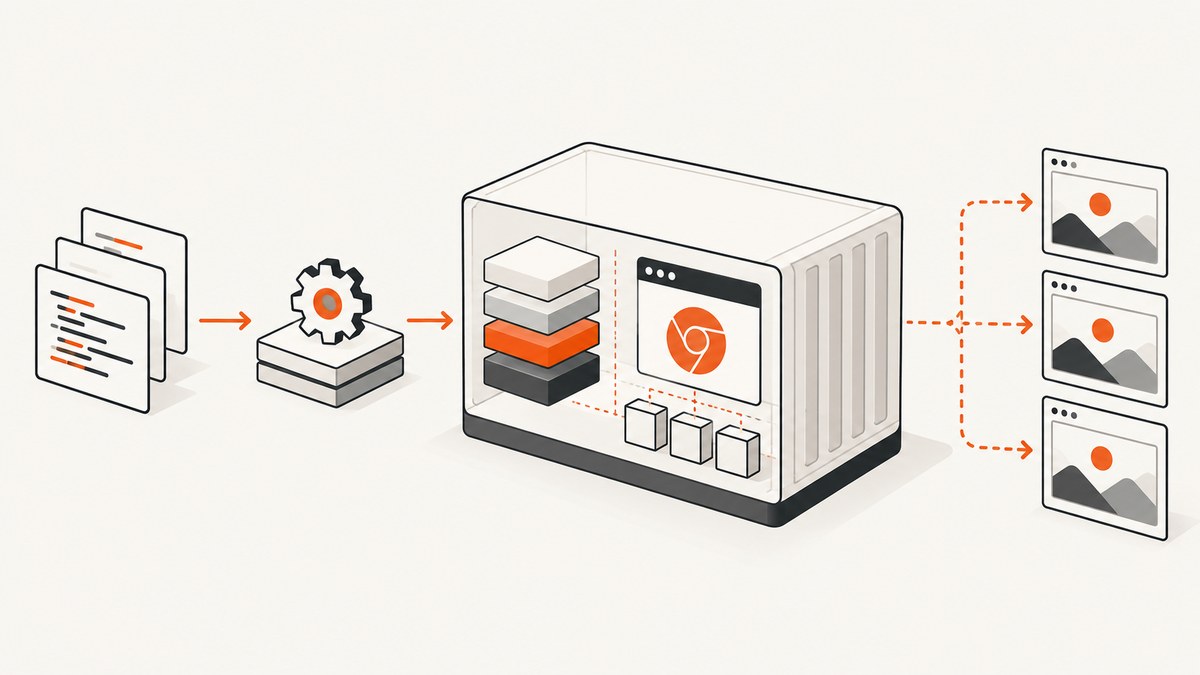
Direct answer: add the Playwright .NET NuGet package to your ASP.NET or test project, run dotnet build, then execute the generated Playwright CLI script inside the Docker image to install browser binaries. The official Playwright .NET image is an alternative: it already contains browsers and operating-system dependencies, but your project still needs the Playwright package. Keep the package and image versions aligned.
Installing the NuGet package alone is not enough. Playwright code is a .NET client; Chromium, Firefox, or WebKit must also be present in the image. The exact Dockerfile depends on whether you want a supplied Playwright environment or tight control over your ASP.NET base image.
Choose an installation path
| Path | Use it when | What you manage |
|---|---|---|
| Official Playwright .NET image | CI, end-to-end tests, or a container where the supplied Ubuntu environment is acceptable | Your project package and matching image tag |
| Custom ASP.NET/.NET image | You need your own runtime, application layers, or a smaller, controlled base | Browser binaries, native dependencies, PowerShell, and their placement in the final image |
The official image contains browser binaries and system dependencies, but does not contain the Playwright package used by your project. Read the Playwright .NET Docker documentation and pin a versioned image tag instead of a moving tag.
Option A: use the official Playwright .NET image
This is usually the shortest route for a test container. Start from a versioned Playwright image, restore your project, build it, and run the tests. Match the image version to the Playwright package version in the project; a mismatch can prevent Playwright from locating the expected browser executables.
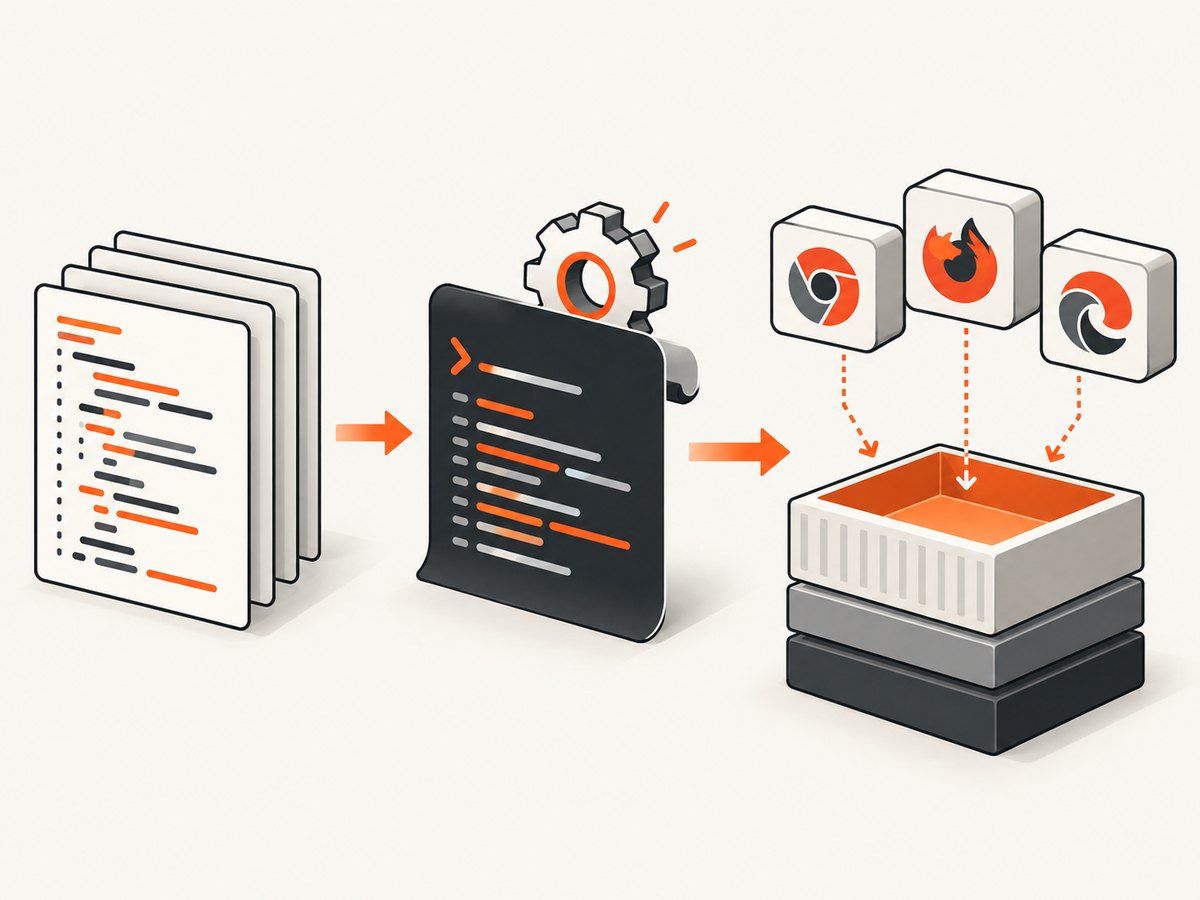
1. Add the package
dotnet add tests/MyApp.Tests/MyApp.Tests.csproj package Microsoft.Playwright --version 1.XX.YYReplace 1.XX.YY with the version you have selected. Commit the resulting project-file and lock-file changes so local development and CI use the same version.
2. Create a test Dockerfile
ARG PLAYWRIGHT_VERSION=1.XX.YY
FROM mcr.microsoft.com/playwright/dotnet:v1.XX.YY-jammy

WORKDIR /src
COPY . .

RUN dotnet restore tests/MyApp.Tests/MyApp.Tests.csproj
RUN dotnet build tests/MyApp.Tests/MyApp.Tests.csproj --configuration Release --no-restore

ENTRYPOINT ["dotnet", "test", "tests/MyApp.Tests/MyApp.Tests.csproj", "--configuration", "Release", "--no-build"]
The tag format and Ubuntu variant change over time, so confirm the currently published tags in the official Docker documentation. The important properties are a pinned image and a matching package version.
3. Build and run it
docker build -f Dockerfile.playwright -t myapp-playwright .
docker run --rm --init --ipc=host myapp-playwright
--init gives the container a proper PID 1 process, which helps child-process cleanup. --ipc=host gives Chromium more shared memory and can reduce out-of-memory crashes during parallel or media-heavy tests. Add these flags to the CI job that launches the container.
Option B: install browsers in a custom ASP.NET image
Use this route when your application or test image must remain based on a specific Microsoft .NET image. The key ordering rule is: restore and build first, then invoke the generated Playwright script. The script does not exist before the package has been built.
1. Reference Playwright in the project
<ItemGroup>
  <PackageReference Include="Microsoft.Playwright" Version="1.XX.YY" />
</ItemGroup>
For a normal ASP.NET application, put the reference in the project that actually launches Playwright. For browser tests, put it in the test project. A package reference in an unrelated web project does not generate the script in the test output you later copy into the image.
2. Build before installing browsers
RUN dotnet restore src/MyApp/MyApp.csproj
RUN dotnet build src/MyApp/MyApp.csproj --configuration Release
On Linux containers, the generated script is commonly under a path such as bin/Release/netX/playwright.ps1. Replace netX with your target framework, for example net8.0. The exact output path depends on the project and configuration.
3. Run the generated CLI script
RUN pwsh src/MyApp/bin/Release/netX/playwright.ps1 install --with-depsThe --with-deps option asks Playwright to install the native Linux dependencies required by the selected browsers. It requires PowerShell (pwsh) and sufficient permissions in the build stage. If your base image already supplies the dependencies, you can install browser binaries without that option:
RUN pwsh src/MyApp/bin/Release/netX/playwright.ps1 install chromiumInstall only the browsers your test matrix needs. Installing Chromium, Firefox, and WebKit together increases download time and image contents. Firefox and WebKit builds documented by Playwright depend on glibc; Alpine’s musl-based environment is not supported for those documented builds. Prefer a glibc-based .NET image when those browsers are required.
Complete multi-stage example
FROM mcr.microsoft.com/dotnet/sdk:8.0-jammy AS build
WORKDIR /src
COPY . .

RUN dotnet restore src/MyApp/MyApp.csproj
RUN dotnet build src/MyApp/MyApp.csproj -c Release

# PowerShell must be available in this stage.
RUN apt-get update \
    && apt-get install -y --no-install-recommends powershell \
    && rm -rf /var/lib/apt/lists/*

RUN pwsh src/MyApp/bin/Release/net8.0/playwright.ps1 install --with-deps chromium

FROM mcr.microsoft.com/dotnet/aspnet:8.0-jammy AS runtime
WORKDIR /app
COPY --from=build /src/src/MyApp/bin/Release/net8.0/ .
# Copy the Playwright browser cache and any libraries installed for it
# according to your base-image layout.
COPY --from=build /root/.cache/ms-playwright /root/.cache/ms-playwright

ENTRYPOINT ["dotnet", "MyApp.dll"]
This illustrates the sequence, not a universal drop-in image. A multi-stage build must preserve both the browser cache and every native library required at runtime. If you install dependencies only in the SDK stage and omit them from the runtime stage, the application can build successfully and still fail when it launches a browser. Validate the final runtime image with the same user and command used in production or CI.
Container users, sandboxing, and trust boundaries
The official image runs as root by default. In that mode Chromium’s sandbox is disabled. This can be acceptable for trusted end-to-end tests, but it is a poor boundary for a service that visits arbitrary, untrusted sites. The Playwright documentation recommends a separate user and an appropriate seccomp profile for untrusted crawling or scraping. The image is intended for testing and development, not as a general-purpose hostile-site browser.
RUN useradd --create-home --shell /bin/bash pwuser
USER pwuser
ENV HOME=/home/pwuser
When using a non-root user, install browsers and dependencies in a way that makes the cache readable by that user, or set a deliberate browser-cache path. Do not assume a root-owned /root/.cache/ms-playwright will be usable after switching users.
Run Playwright from ASP.NET
using Microsoft.Playwright;

using var playwright = await Playwright.CreateAsync();
await using var browser = await playwright.Chromium.LaunchAsync(new BrowserTypeLaunchOptions
{
    Headless = true
});

var page = await browser.NewPageAsync();
await page.GotoAsync("https://example.com", new PageGotoOptions
{
    WaitUntil = WaitUntilState.NetworkIdle
});
await page.ScreenshotAsync(new PageScreenshotOptions
{
    Path = "artifacts/example.png",
    FullPage = true
});
Keep the browser lifecycle outside a tight loop when possible: launch one browser, create isolated contexts or pages, and close it at the end of the job. Use explicit timeouts and save traces or screenshots when a test fails.
CI workflow and caching
- Restore the project and verify the Playwright package version.
- Build the project so the generated CLI script exists.
- Use the pinned Playwright image, or install the required browsers with the generated script.
- Run
dotnet testwith--initand Chromium shared-memory settings where your runner supports them. - Publish failure artifacts such as screenshots, videos, traces, and browser logs.
Cache NuGet packages and browser downloads only when your CI cache key includes the Playwright package version, operating-system image, architecture, and browser selection. Reusing a cache from another Playwright version can leave executables that the package does not expect. A clean rebuild is the quickest way to distinguish a stale cache from an application defect.
Restricted networks and proxies
Browser installation downloads large archives. If a corporate proxy or firewall blocks them, follow Playwright’s browser installation guidance for proxy and custom browser-download-host environment variables. Configure those variables in the Docker build stage, where the CLI performs the download; setting them only at application runtime does not repair a failed image build. Keep credentials out of Docker layers by using your CI secret mechanism and cleaning temporary configuration.
Troubleshooting
| Symptom | Cause | Fix |
|---|---|---|
playwright.ps1: not found |
The project was not built, or the target-framework/configuration path is wrong. | Run dotnet build first and inspect bin/Release or bin/Debug for the generated script. |
| Executable missing or browser revision mismatch | The package and Docker image/browser cache use different Playwright versions. | Pin both versions to the same value, remove stale browser caches, and rebuild. |
| Browser starts locally but fails in Docker | Native libraries are absent from the final stage, or the runtime user cannot read the cache. | Install dependencies with --with-deps where appropriate, copy them into the runtime image, and check ownership and permissions. |
| Chromium exits with an out-of-memory error | Insufficient shared memory, especially with parallel pages. | Run the container with --ipc=host, reduce parallelism, or allocate more memory. |
| Sandbox error as root | Chromium’s sandbox is disabled for root. | Use a non-root user for untrusted targets and configure the recommended seccomp policy; keep root use limited to trusted tests. |
| Firefox or WebKit cannot launch on Alpine | The documented builds require glibc and Alpine uses musl. | Use a supported glibc-based image. |
| Browser download times out | The build network cannot reach the download host or requires a proxy. | Configure the documented proxy/download-host variables and test connectivity during the build. |
| Works in the build stage, fails in runtime | The multi-stage image copied application files but not browser binaries or native libraries. | Copy the browser cache and required libraries, then run a smoke test from the final image. |
Performance, reliability, and cost considerations
- Build time: browser downloads and system packages can dominate image builds. Install only required browsers and cache by exact version.
- Image size: Chromium, Firefox, and WebKit each add substantial binaries. Treat any size shown in documentation as illustrative, not a guaranteed total.
- Runtime stability: use
--init, adequate shared memory, bounded test parallelism, and explicit navigation timeouts. - Reproducibility: pin the .NET SDK, Playwright package, Docker base image, and browser image tag. Rebuild when upgrading them together.
- Security: do not expose a root browser to arbitrary URLs. Use a dedicated user and the documented isolation controls for untrusted content.
Or skip the browser setup
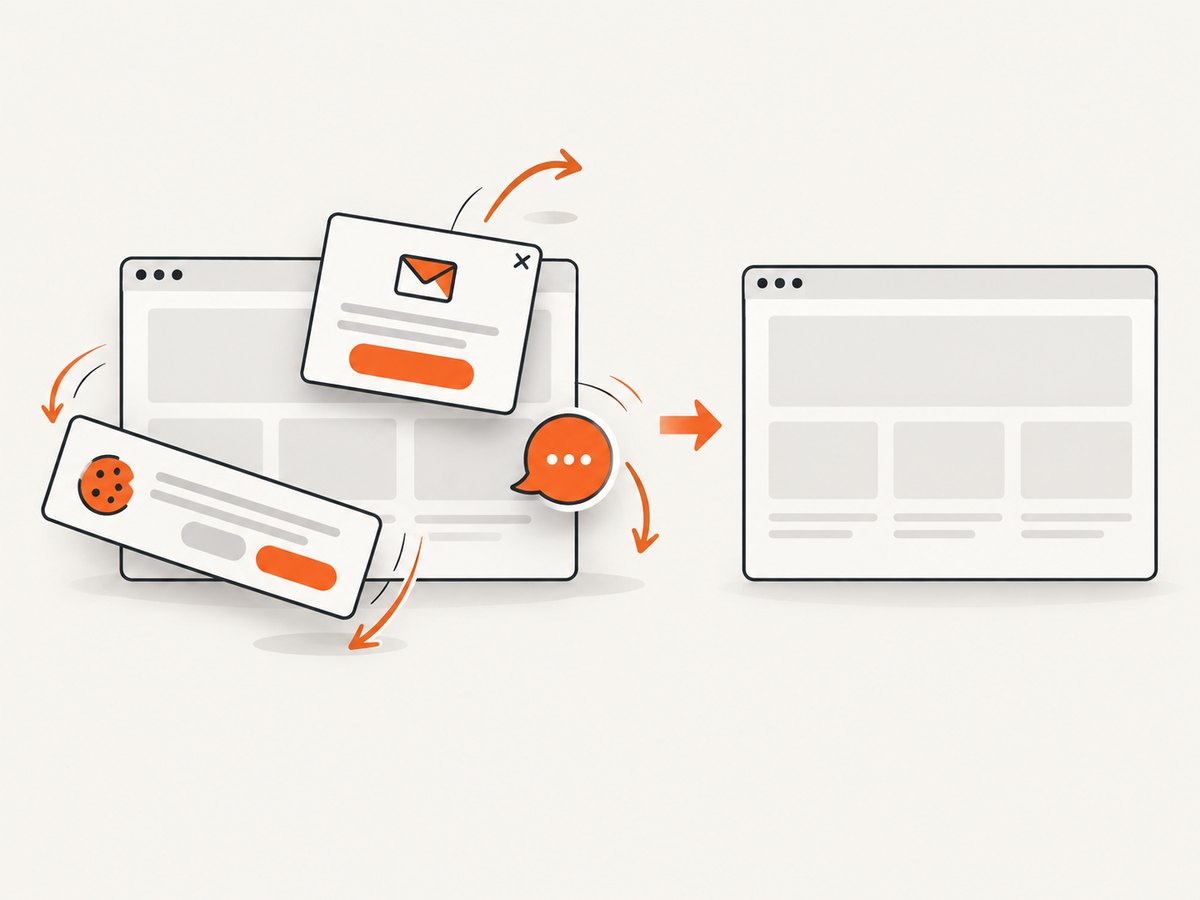
If your goal is to obtain reliable website screenshots rather than maintain browser binaries in an ASP.NET image, ScreenshotNeo provides a single HTTP endpoint. It removes cookie and consent banners, newsletter popups, and chat widgets before capture; bot checks, blank pages, failed loads, timeouts, and cache hits are not billed. Responses identify the page verdict and billing status with X-Page-Verdict and X-Billed headers. Its MCP server provides take_screenshot, get_page_info, and capture_pdf tools for Claude, Cursor, and other MCP clients.
See the ScreenshotNeo API documentation for all options. This basic request returns a WebP image:
cURL
curl -G "https://api.screenshotneo.com/v1/shot" -d access_key=YOUR_API_KEY --data-urlencode url=https://stripe.com -o shot.webpPython
import requests
r = requests.get("https://api.screenshotneo.com/v1/shot", params={"access_key": "YOUR_API_KEY", "url": "https://stripe.com"}, timeout=90)
r.raise_for_status()
open("shot.webp", "wb").write(r.content)
Node.js
const q = new URLSearchParams({ access_key: 'YOUR_API_KEY', url: 'https://stripe.com' });
const res = await fetch(`https://api.screenshotneo.com/v1/shot?${q}`);
if (!res.ok) throw new Error(`Screenshot failed: ${res.status}`);
const fs = await import('node:fs/promises');
await fs.writeFile('shot.webp', Buffer.from(await res.arrayBuffer()));
ScreenshotNeo also supports full-page captures with lazy images, CSS-selector element capture, dark mode, device presets, custom viewports, retina scale, PDFs, custom CSS and JavaScript, clicks, waits, request blocking, headers, cookies, user agents, authorization, timezone, geolocation, transparent backgrounds, resizing, TTL caching, signed links, asynchronous jobs, webhooks, bulk capture of up to 100 URLs per call, usage reporting, and an OpenAPI specification. Its parameter names are compatible with those used by other screenshot APIs, which can simplify migration.
There is a free plan with 1,000 screenshots each month and no card. Paid plans start at $5 for 3,000 screenshots; every feature is available on every plan. Create a free ScreenshotNeo account.
FAQ
Does installing Microsoft.Playwright install Chromium?
No. The package supplies the .NET API and generated CLI; install browser binaries in the image or use the official Playwright image.
Can I use a normal ASP.NET runtime image?
Yes, provided the final image contains the browser binaries and native libraries, and the runtime user can access them.
Should I install every browser?
Only if your test matrix requires all of them. Otherwise install a specific browser such as chromium to reduce build work.
Why pin both versions?
The Playwright package expects compatible browser revisions. Aligning the package and image prevents missing-executable and revision-mismatch failures.
Is the official Playwright image a production web-server image?
The official documentation describes it as intended for testing and development. Treat browser isolation and untrusted-site access as separate production security decisions.


