How to Install a Screenshot Extension in Chrome
Install a screenshot extension in desktop Chrome, review permissions, control site access, and fix the most common installation problems.
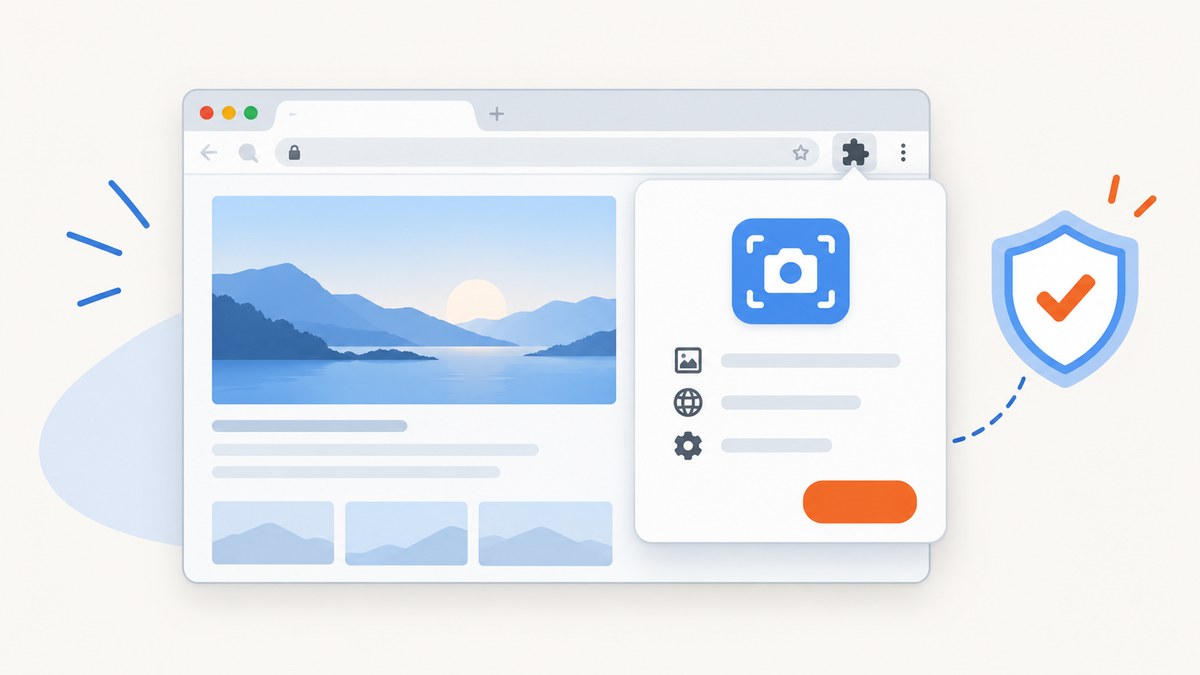
Short answer: In desktop Chrome, open the Chrome Web Store, choose the screenshot extension, select Add to Chrome, review the requested permissions, and select Add extension if you trust it. Open it from the extensions icon beside the address bar. Chrome extensions cannot be added from Incognito or Guest mode, on mobile Chrome, or when an administrator blocks them.
Install the extension in desktop Chrome
- Open a regular Chrome window on your computer. Do not use Incognito or Guest mode.
- Go to the Chrome Web Store.
- Search for the screenshot extension you want and open its listing.
- Check the publisher, description, reviews, requested permissions, and recent update information.
- Select Add to Chrome.
- Read Chrome’s permission dialog. Select Add extension only when you trust the extension and accept the access it requests. Google advises: “Make sure that you only approve extensions that you trust.”
- After installation, select the extensions icon (the puzzle piece) to the right of the address bar. Select the screenshot extension to open it. You can pin it so its icon remains visible.
Google’s Install and manage extensions help page documents this installation flow and the available management controls.
Choose the right permissions
A permission warning describes what an extension could access; it does not, by itself, prove that the extension is unsafe. Permissions for all websites are broad because they may allow an extension to read, request, or modify information on pages you visit. Treat the request as a decision about trust and scope.
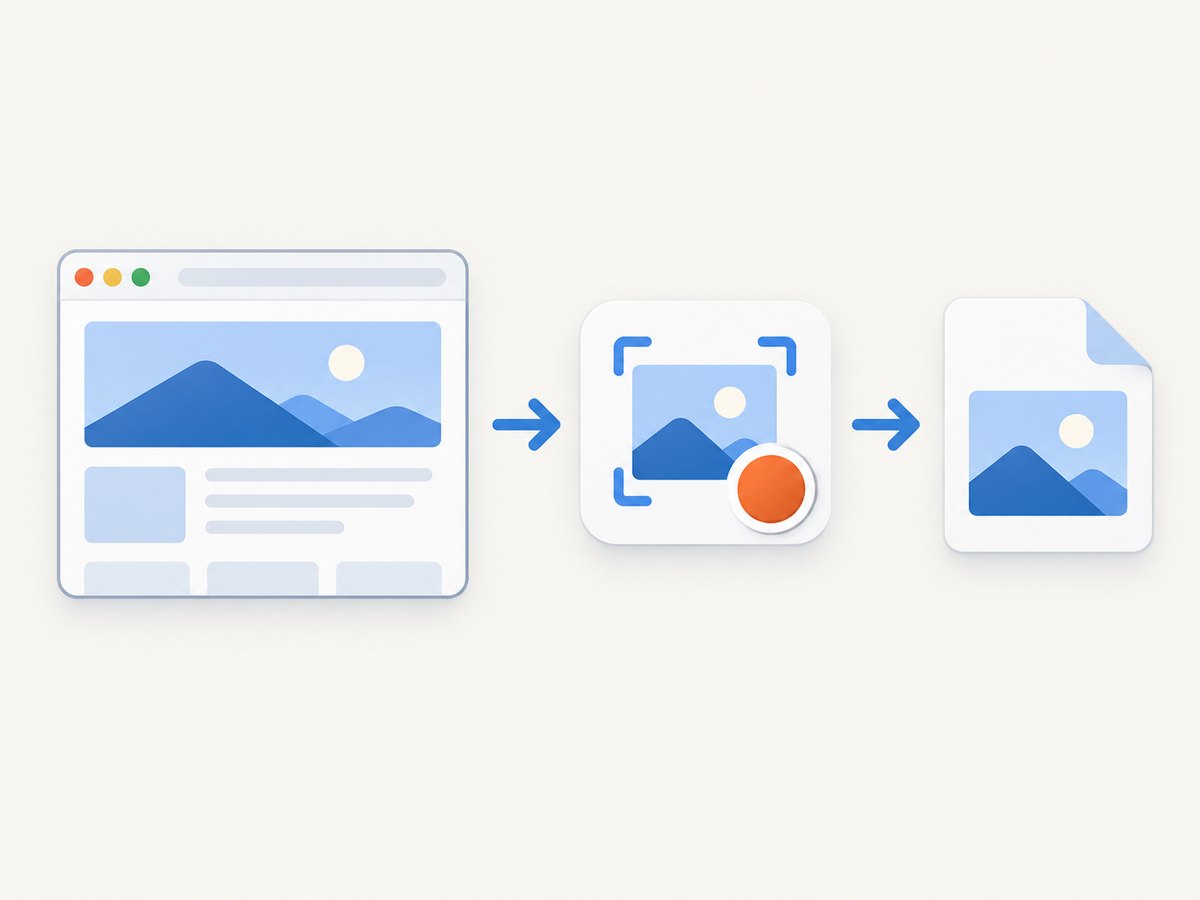
| Permission or access level | What it can mean | Practical choice |
|---|---|---|
| Current site or when you select the extension | The extension can run only after you invoke it or on the site you permit. | Use this narrow scope when you take occasional screenshots. |
| On specific sites | The extension can work automatically on sites you name. | Add only the domains needed for your workflow. |
| On all sites | The extension may read or change pages across the web, depending on its permissions. | Choose this only when the extension’s purpose requires it and you trust the publisher. |
| Access to browsing history, downloads, or other browser data | The extension may interact with more than the visible page. | Read the listing and privacy policy before accepting. |
Change site access after installation
- Select More (three dots) in Chrome.
- Open Extensions, then Manage extensions.
- Find the screenshot extension and select Details.
- Under site access, choose the narrowest option that still lets you capture the pages you need.
You can also switch an extension off temporarily, inspect its details, or remove it from this page. See Google’s extension management guidance for the current controls.
Take your first screenshot
- Open the page you want to capture in a normal tab.
- Select the extensions icon and choose your screenshot extension.
- Choose the capture mode offered by that extension, such as visible area, selected area, or full page.
- Allow any requested one-time site access if Chrome asks again.
- Choose the export format or download action provided by the extension.
Do not assume every extension supports full-page capture, PDF export, annotations, or automatic scrolling. Confirm those functions in the listing before relying on them for a workflow.
Why Chrome will not let you add the extension
Incognito or Guest mode is open
Chrome does not allow extensions to be added while you are browsing in Incognito or Guest mode. Close that window and repeat the installation from a regular Chrome profile.
You are using a phone or tablet
Chrome extensions cannot be installed on mobile devices, even when the browser is displayed in a desktop-style mode. Use desktop Chrome on Windows, macOS, Linux, or ChromeOS.
Your work or school administrator blocked it
Managed devices can prevent installation of some extensions. If Chrome says an administrator has blocked the extension, check whether the browser or computer is managed and ask your organization’s administrator. Do not try to bypass the policy.
The browser or extension is incompatible
Update Chrome, reopen the Web Store listing, and check whether the extension supports your Chromium-based browser. Compatibility can change as browser versions and extension manifests change.
The Add to Chrome button is missing
- Confirm that you are signed into a normal desktop Chrome window.
- Reload the listing and update Chrome.
- Check whether the listing is available in your region or account.
- Look for a managed-browser message in chrome://management.
- Try the installation from a new regular Chrome profile if the current profile has policy or sync problems.
The extension installed but does not work on a page
- Open Manage extensions → Details and grant access to the current site, if appropriate.
- Reload the page after changing site access.
- Check whether the page is a Chrome internal page such as chrome://settings, a Web Store page, a PDF viewer, or another protected surface where extensions may be restricted.
- Disable conflicting extensions temporarily and try again.
- Check the extension’s listing for supported capture modes and known limitations.
Remove or disable a screenshot extension
- Open More → Extensions → Manage extensions.
- Turn off the extension to disable it without deleting its settings.
- Select Remove to uninstall it, then confirm.
If an extension behaves unexpectedly, remove it, review recently installed extensions, and change passwords from a trusted environment if you entered sensitive information while it was active.
Browser extension or screenshot API?
A Chrome extension is convenient for a person taking an occasional screenshot from an open tab. An API is usually easier to operate from a test suite, documentation pipeline, monitoring job, or backend service because it does not require a logged-in browser, a visible window, or a manually maintained extension.
| Need | Better fit |
|---|---|
| Capture the page currently open in your browser | Chrome extension |
| Run captures in CI or a scheduled job | Screenshot API |
| Capture many URLs repeatedly | API with bulk or asynchronous jobs |
| Control cookies, headers, user agent, viewport, or JavaScript | API or an automation script |
| Let an AI agent capture pages through tools | MCP-enabled screenshot service |
Or skip the browser setup
ScreenshotNeo provides a website screenshot API and MCP server. A GET request returns a PNG, JPEG, WebP, or PDF. Cookie and consent banners, newsletter popups, and chat widgets are removed before capture; bot checks, blank pages, timeouts, failed loads, and cache hits are not billed. Each response identifies the result with X-Page-Verdict and X-Billed headers. Its MCP server provides take_screenshot, get_page_info, and capture_pdf tools for Claude, Cursor, and other MCP clients.
cURL
curl -G "https://api.screenshotneo.com/v1/shot" \
  -d access_key=YOUR_API_KEY \
  --data-urlencode url=https://stripe.com \
  -o shot.webp
Python
import requests

r = requests.get(
    "https://api.screenshotneo.com/v1/shot",
    params={"access_key": "YOUR_API_KEY", "url": "https://stripe.com"},
    timeout=90,
)
r.raise_for_status()
open("shot.webp", "wb").write(r.content)
Node.js
const q = new URLSearchParams({ access_key: 'YOUR_API_KEY', url: 'https://stripe.com' });
const res = await fetch(`https://api.screenshotneo.com/v1/shot?${q}`);
if (!res.ok) throw new Error(`Screenshot failed: ${res.status}`);
const buffer = Buffer.from(await res.arrayBuffer());
require('fs').writeFileSync('shot.webp', buffer);
See the ScreenshotNeo documentation for the full option set, including full-page capture with lazy images, CSS element capture, dark mode, device presets, retina scale, PDF paper sizes and page ranges, custom CSS and JavaScript, clicks, waits, request blocking, headers, cookies, user agents, time zones, geolocation, transparent backgrounds, resizing, caching, signed links, asynchronous jobs, webhooks, bulk capture, usage data, and the OpenAPI specification. One thousand screenshots per month are free with no card; paid plans start at $5 for 3,000 shots. Every feature is available on every plan. Create a free ScreenshotNeo account.
Performance, reliability, and cost notes
- Extensions: capture time depends on the page, scrolling behavior, browser resources, and the extension’s implementation. Keep only needed extensions enabled when diagnosing slow or incorrect captures.
- APIs: set a client timeout long enough for real pages, handle non-2xx responses, and save the response body using binary mode. Use caching when the page does not need a fresh render.
- Dynamic pages: wait for a selector, a delay, or network idle when content is rendered after the initial HTML.
- Billing: ScreenshotNeo bills only clean shots. Bot checks, blank pages, timeouts, failed loads, and cache hits cost nothing, and the response headers state the verdict and billing result.
- Scale: use bulk capture for up to 100 URLs per call or asynchronous jobs with signed webhooks when a synchronous request is not appropriate.
FAQ
Can I install a Chrome screenshot extension from my phone?
No. Chrome’s extension installation flow requires desktop Chrome; mobile Chrome does not support installing extensions.

Is a permission warning proof that an extension is malicious?
No. It explains possible access. Review the scope, publisher, privacy information, and whether the requested access matches the extension’s purpose.
Can I restrict an extension to one website?
Usually yes. Open its details in Manage extensions and choose the narrowest available site-access setting.
Why can an extension capture one page but not another?
Site permissions, protected Chrome pages, page structure, content loaded after the initial render, or conflicts with another extension can all cause that difference.
Do I need an extension for automated screenshots?
No. A screenshot API such as ScreenshotNeo can run from cURL, Python, Node.js, CI, scheduled jobs, or an MCP client without opening Chrome.


