How to Install wkhtmltoimage on macOS
Install wkhtmltoimage on macOS from the official 64-bit package, verify it, troubleshoot compatibility, and learn when a hosted screenshot API is simpler.
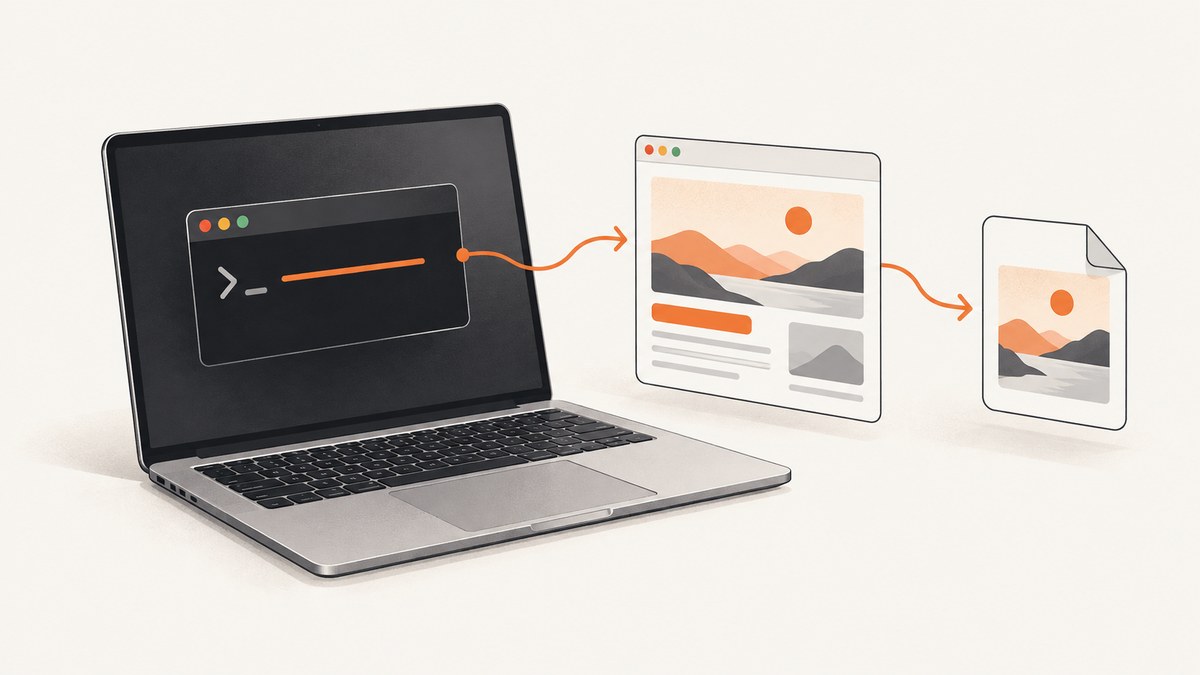
Direct answer: Download the official 64-bit macOS installer from the wkhtmltopdf project downloads page, run it, then verify the command in Terminal with wkhtmltoimage --version. The page labels the package “Installer (10.7 or later)” and sends downloads to the project’s GitHub releases. The latest stable series shown by the project is 0.12.6 from June 2020. Because the project is legacy software and the official listing does not establish a native Apple Silicon build, confirm that the binary runs on your Mac before depending on it in production.
What wkhtmltoimage is and whether it is still maintained
wkhtmltoimage is a command-line renderer that loads HTML and writes an image such as PNG or JPEG. It comes from the wkhtmltopdf project and uses a patched Qt WebKit engine. The upstream repository was archived on January 2, 2023, and the packaging repository was archived on August 28, 2023. Qt WebKit was deprecated in 2015 and removed in 2016, so this is a frozen toolchain rather than a current browser engine. See the upstream repository and the packaging repository for the project status.
That age affects compatibility. The official download page says the macOS installer is 64-bit and for macOS 10.7 or later, but it does not promise a native Apple Silicon build. An Intel Mac may run it directly; an Apple Silicon Mac may require compatibility support, or the binary may fail. Treat the installer listing as the starting point, then test the actual Mac and macOS version you will use.
Install from the official macOS installer
1. Download the project package
- Open the official downloads page.
- Under macOS, choose the 64-bit installer marked Installer (10.7 or later).
- Follow the link to the matching GitHub release asset. Avoid unofficial mirrors because they can replace or modify the binary.
The release page identifies 0.12.6 as the latest stable release in the available project history. The downloads page and GitHub page differ by one day when displaying the June 2020 release date; “June 2020” is the useful compatibility description.
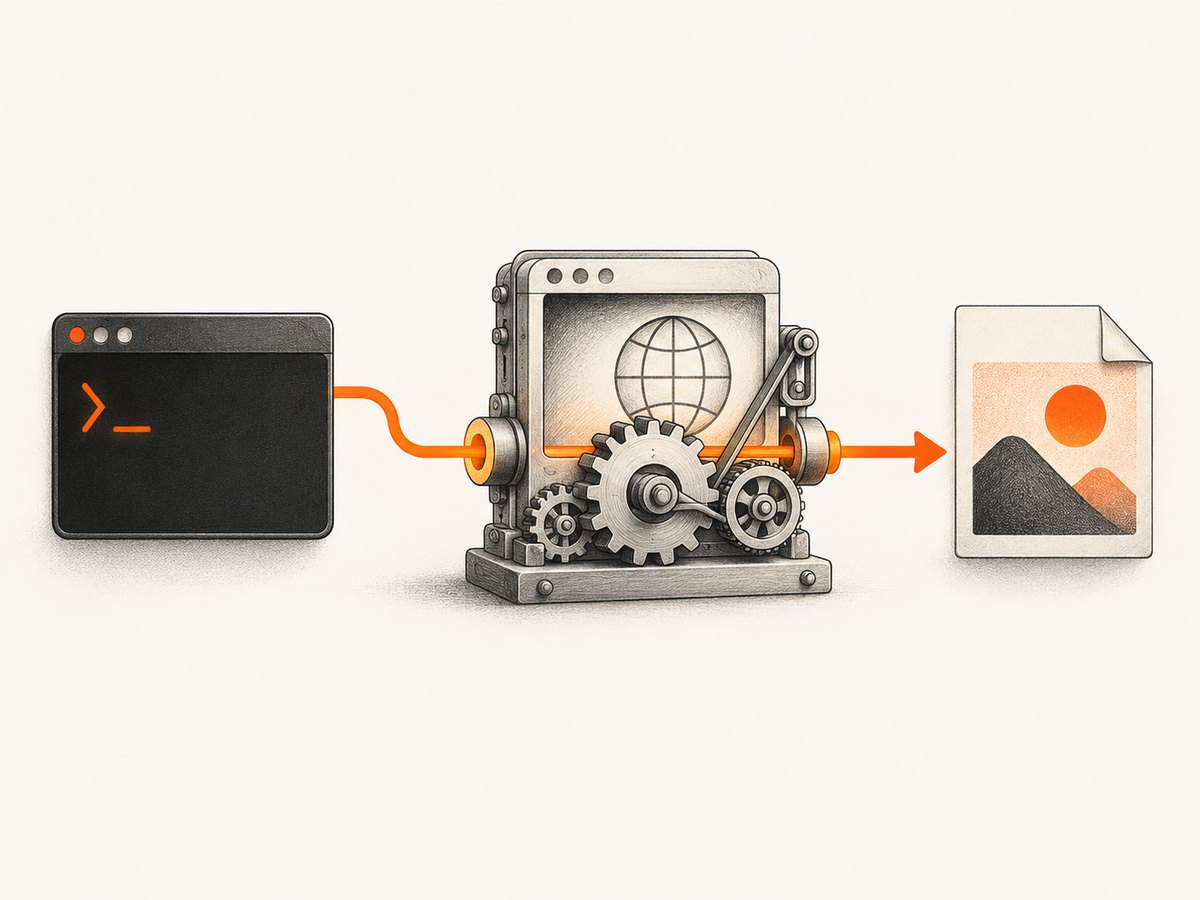
2. Run the installer
Open the downloaded installer and follow its prompts. The official material confirms that an installer exists but does not document every dialog label or the universal destination path, so do not assume that a particular folder was used. Keep the installer filename and your macOS version if you need to diagnose a failure.
3. Verify the command
Open Terminal and run:
wkhtmltoimage --versionA working installation should print a version string. If Terminal reports that the command cannot be found, locate the installed executable and inspect your shell’s PATH:
command -v wkhtmltoimage
which wkhtmltoimage
printf '%s\n' "$PATH"
find /Applications /usr/local /opt -type f -name wkhtmltoimage 2>/dev/null
The find command can take time and may show permission errors. Its purpose is discovery; the official project pages do not define one path that is guaranteed on every Mac.
4. Render a first image
wkhtmltoimage https://example.com output.pngThe first argument is the page URL and the second is the output filename. You can use a local file as well:
wkhtmltoimage file:///Users/you/site/index.html output.pngOpen the result with Preview or use:
file output.pngUseful wkhtmltoimage options
Run wkhtmltoimage --help on the installed version for the complete option list. The following flags cover the settings developers most often need when turning a page into a deterministic image. Exact behavior can vary because the bundled WebKit engine is old.
| Need | Option | Example |
|---|---|---|
| Output format | Choose the filename extension | page.png or page.jpg |
| Viewport width | --width |
--width 1440 |
| Viewport height | --height |
--height 900 |
| Wait for JavaScript | --javascript-delay |
--javascript-delay 1500 |
| Disable JavaScript | --disable-javascript |
Useful for static pages |
| Load local assets | --enable-local-file-access |
Use when HTML references local files |
| Block local assets | --disable-local-file-access |
Safer default for untrusted input |
| Crop to content | --crop-x, --crop-y, --crop-w, --crop-h |
--crop-w 800 --crop-h 600 |
| Image quality | --quality |
--quality 90 for JPEG |
| Transparent background | --transparent |
Use with formats that support alpha |
| Custom user agent | --custom-header |
--custom-header User-Agent MyBot |
| Cookies | --cookie |
--cookie session abc123 |
| HTTP authentication | --username, --password |
For basic-auth protected pages |
| Proxy | --proxy |
--proxy host:port |
| Debug output | --debug-javascript |
Print JavaScript diagnostics |
| Quiet logs | --quiet |
Useful in scripts after debugging |
Options must appear before the URL and output path. A reproducible command might look like this:
wkhtmltoimage --width 1440 --height 900 --javascript-delay 1000 --quality 90 https://example.com example.jpgDo not expect modern browser features to work. CSS and JavaScript supported by current Chromium may be missing or render differently in the Qt WebKit engine.
Automate installation checks and captures
Shell script
#!/usr/bin/env bash
set -euo pipefail

if ! command -v wkhtmltoimage >/dev/null 2>&1; then
  echo "wkhtmltoimage is not on PATH" >&2
  exit 127
fi

wkhtmltoimage --version
wkhtmltoimage --width 1365 --javascript-delay 1000 \
  "https://example.com" "example.png"
file example.png
Calling it from Python
import shutil
import subprocess

binary = shutil.which("wkhtmltoimage")
if binary is None:
    raise RuntimeError("wkhtmltoimage is not on PATH")

subprocess.run(
    [binary, "--width", "1365", "--javascript-delay", "1000",
     "https://example.com", "example.png"],
    check=True,
)
print("created example.png")
Calling it from Node.js
import { spawn } from "node:child_process";

const child = spawn("wkhtmltoimage", [
  "--width", "1365",
  "--javascript-delay", "1000",
  "https://example.com",
  "example.png",
], { stdio: "inherit" });

child.on("close", (code) => {
  if (code !== 0) process.exit(code ?? 1);
});
Apple Silicon, Intel Macs, and compatibility checks
The official listing establishes a 64-bit macOS installer, not a native Apple Silicon package. Check your architecture with:
uname -m
sw_vers
file "$(command -v wkhtmltoimage)"
uname -m reports the shell environment, sw_vers reports macOS, and file describes the executable. On Apple Silicon, the result may indicate an Intel binary. If the command fails to launch, record the exact error, installer filename, macOS version, and processor architecture before trying compatibility changes. Avoid claiming that a particular translation mode is officially supported when the project page does not say so.
Common errors and fixes
| Error or symptom | Likely cause | What to do |
|---|---|---|
command not found |
The executable directory is not in PATH, or installation did not complete. |
Use command -v and find to locate the binary, then add its directory to the shell startup file only after confirming the path. |
| Installer will not open | macOS security policy, a damaged download, or architecture incompatibility. | Re-download from the official page, record the exact macOS and processor details, and inspect the system’s security message. Do not use an unofficial mirror. |
| Blank or partly rendered image | The page depends on JavaScript, delayed data, unsupported CSS, or blocked resources. | Try --javascript-delay, check with --debug-javascript, and test a simpler page. A current browser-based renderer may be required for modern applications. |
| Images or fonts are missing | Network resources failed, local-file access is disabled, or the old engine cannot load the format. | Confirm the URL is reachable, use --enable-local-file-access only for trusted local files, and check the page’s asset URLs. |
| HTTPS or certificate error | Old TLS or certificate support in the bundled WebKit stack. | Test the URL in a current browser. If only the legacy renderer fails, use a maintained browser automation service. |
| Output dimensions are wrong | Viewport and crop settings were omitted or CSS uses responsive breakpoints. | Set --width and --height explicitly and inspect the page at that viewport. |
| Process hangs | A page never finishes loading, JavaScript loops, or a resource is unreachable. | Wrap the process in an external timeout, reduce JavaScript delay, and capture the URL separately to identify the problematic resource. |
| Permission denied writing output | The destination directory is not writable. | Write to a directory owned by your user and verify with pwd and ls -ld. |
Security considerations
The project download page warns: “Do not use wkhtmltopdf with any untrusted HTML – be sure to sanitize any user-supplied HTML/JS, otherwise it can lead to complete takeover of the server it is running on!” That wording names wkhtmltopdf, but the caution is relevant to wkhtmltoimage because both come from the same project and use the same Qt WebKit family. Treat supplied HTML, JavaScript, URLs, cookies, and headers as untrusted input.
- Run the renderer in a restricted account or container.
- Do not allow arbitrary file access when rendering user content.
- Validate destination paths to prevent overwriting files.
- Restrict outbound network access when a page does not need the internet.
- Never place secrets in command-line arguments if process listings can expose them.
- Set an external timeout and limit output size.
Performance, reliability, and cost planning
Rendering time depends on page size, network latency, JavaScript, fonts, images, and the delay you choose. The old engine can be faster for simple static pages but less reliable for modern sites. For repeatable output, fix the viewport, wait strategy, user agent, cookies, and destination format. Cache results when the source page is unchanged, and log the command, exit code, duration, and output dimensions.
The binary itself has no hosted per-shot charge, but operating it has engineering costs: maintaining an archived dependency, handling browser incompatibilities, isolating untrusted input, and running your own machines. A hosted renderer can be easier when you need consistent captures across many URLs or current web behavior.
Or skip the browser setup
ScreenshotNeo provides a website screenshot API and MCP server. One GET request returns PNG, JPEG, WebP, or PDF. The API accepts options for full-page capture with lazy images, CSS-selector element capture, dark mode, device presets, custom viewport and retina scale, PDF paper settings, custom CSS and JavaScript, clicks, selector waits, delays, network idle, request blocking, headers, cookies, user agents, authorization, timezone, geolocation, transparency, resizing, caching, signed links, asynchronous jobs, webhooks, bulk capture, usage reporting, and HTML/CSS-to-image conversion. Parameter names used by other screenshot APIs also work, which can simplify migration.

curl -G "https://api.screenshotneo.com/v1/shot" -d access_key=YOUR_API_KEY --data-urlencode url=https://stripe.com -o shot.webpSee the ScreenshotNeo documentation for request options and response details.
import requests
r = requests.get("https://api.screenshotneo.com/v1/shot", params={"access_key": "YOUR_API_KEY", "url": "https://stripe.com"}, timeout=90)
open("shot.webp", "wb").write(r.content)
const q = new URLSearchParams({ access_key: 'YOUR_API_KEY', url: 'https://stripe.com' });
const res = await fetch(`https://api.screenshotneo.com/v1/shot?${q}`);Before capture, ScreenshotNeo accepts cookie and consent banners and removes more than 60 known consent platforms, newsletter popups, and chat widgets; each cleanup step can be disabled. Bot checks or CAPTCHAs, blank pages, timeouts, failed loads, and cache hits are not billed, and response headers identify the page verdict and whether the shot was billed. Its MCP server lets Claude, Cursor, and other MCP clients call take_screenshot, get_page_info, and capture_pdf. The Free plan includes 1,000 shots per month without a card; paid plans start at $5 for 3,000 shots. Create a free ScreenshotNeo account.
Frequently asked questions
Does Homebrew install wkhtmltoimage?
No. brew install qt installs current Qt framework and development tools; it is not an installation of the wkhtmltoimage utility. The wkhtmltopdf packaging project documents its own patched-Qt context.
Is wkhtmltoimage officially supported on Apple Silicon?
The official download listing confirms a 64-bit macOS installer but does not establish a native Apple Silicon build. Test the exact installer on the target Mac.
Should I build it from source?
Source builds are an advanced fallback. The project is archived and requires old patched-Qt dependencies, so the precompiled installer is the practical first route for most users.
Why does a page look different from Safari or Chrome?
wkhtmltoimage uses an old Qt WebKit engine. Modern CSS, JavaScript, TLS, and browser APIs may render differently or fail.
Can I use it for user-submitted HTML?
Only with strong isolation, sanitization, restricted file and network access, timeouts, and resource limits. The project’s security warning treats untrusted HTML and JavaScript as dangerous.
When is an API a better fit?
Use a hosted API when you need current browser behavior, consent and popup cleanup, retries and verdicts, PDF output, bulk jobs, or AI-agent access without maintaining an archived local renderer.


