How to Install wkhtmltopdf on 64-Bit Debian
Install wkhtmltopdf on 64-bit Debian with release checks, apt commands, headless-server guidance, troubleshooting, and safer alternatives.
Direct answer: on Debian Bookworm amd64, first confirm the release and package candidate, then run sudo apt update and sudo apt install wkhtmltopdf. Debian’s Bookworm package listing includes version 0.12.6-2+b1 for amd64. Availability is suite-specific, however: Debian’s tracker records the package as removed from testing on 2025-02-05. Check your machine before assuming the same command works on another Debian release.
1. Check that you are running 64-bit Debian
The package name is the same on supported architectures, but your operating system release and architecture determine whether apt can find a suitable build.
cat /etc/os-release
uname -m

# Show the Debian package candidate, if your repositories provide one
apt-cache policy wkhtmltopdf
For a 64-bit Intel or AMD system, uname -m normally prints x86_64. The release information should identify the suite, such as bookworm. If apt-cache policy shows a candidate version, your configured repositories currently know about the package. If it prints no candidate, do not download an arbitrary binary yet; inspect your suite, repository components and architecture first.
Debian’s Bookworm package page lists the amd64 package and its dependencies. The Debian package tracker is useful for checking suite status.
2. Install the Debian package with apt
When your configured repositories provide wkhtmltopdf, apt is the simplest route because it resolves Debian dependencies and records the installation in the package database.
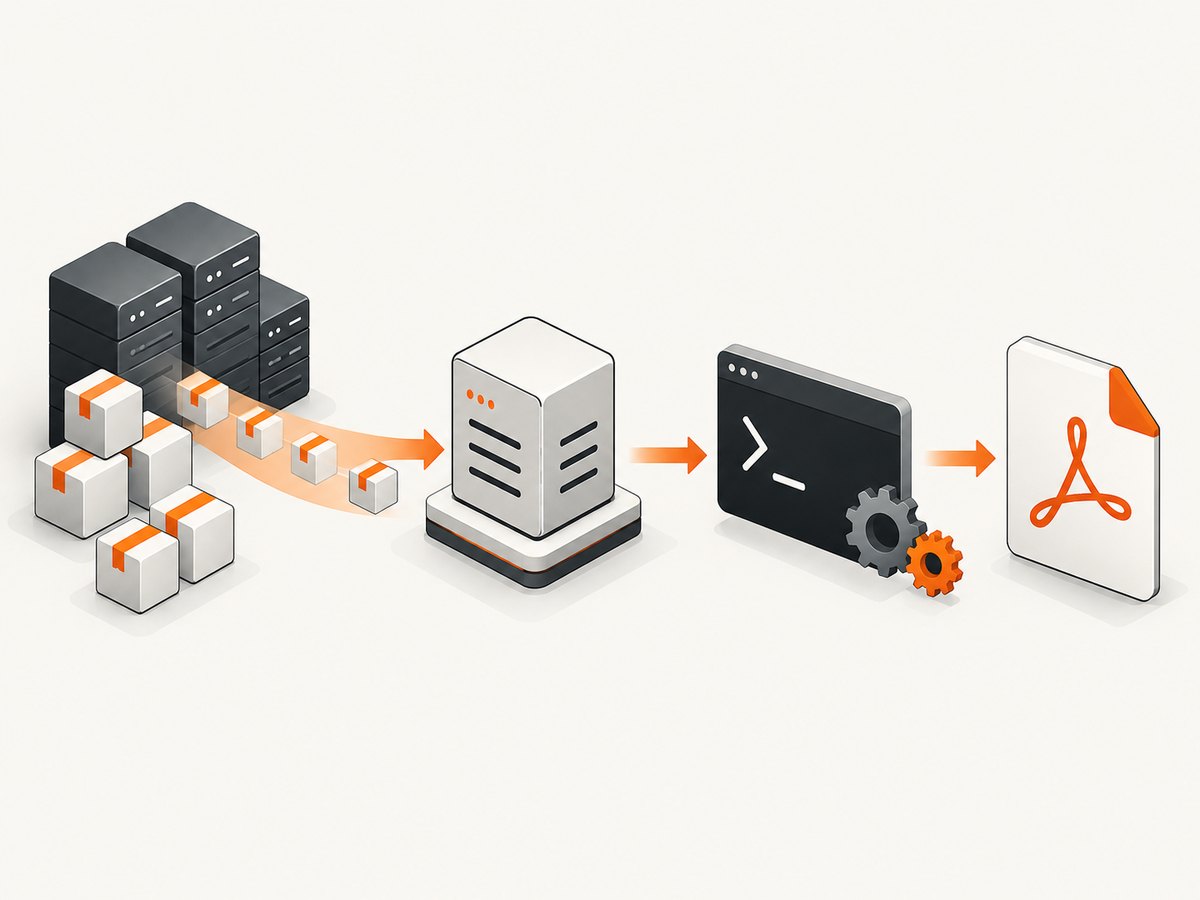
sudo apt update
sudo apt install wkhtmltopdf
Review the packages apt proposes before confirming. On Bookworm amd64, Debian metadata describes Qt 5 and Qt WebKit runtime dependencies. The installed build is Debian’s build; it is not automatically equivalent to an upstream package compiled with patched Qt.
Verify the executable
wkhtmltopdf --version
command -v wkhtmltopdf
The version command should print the installed release and build information. The path check confirms which executable your shell will run. If an older copy in /usr/local/bin appears before the apt-managed binary, inspect both paths with type -a wkhtmltopdf.
Convert a small local document
cat > /tmp/example.html <<'HTML'
<!doctype html>
<html>
  <meta charset="utf-8">
  <title>wkhtmltopdf check</title>
  <body><h1>It works</h1><p>Generated on Debian.</p></body>
</html>
HTML

wkhtmltopdf /tmp/example.html /tmp/example.pdf
file /tmp/example.pdf
ls -lh /tmp/example.pdf
This checks executable startup, HTML parsing and PDF writing. It does not prove that every website will render correctly; JavaScript-heavy pages, remote assets and authentication introduce additional variables.
3. Convert a public URL
wkhtmltopdf https://example.com /tmp/example-com.pdfFor repeatable jobs, make the output directory explicit and capture stderr in your logs:
mkdir -p "$PWD/output"
wkhtmltopdf https://example.com "$PWD/output/example-com.pdf" 2>wkhtmltopdf.log
Use a URL that the server can reach over the network. DNS, outbound firewall rules, TLS trust, redirects and the target site’s response all affect the result.
4. Headless servers and the X11 requirement
Debian’s package description says: “This program requires an X11 server to run.” A minimal cloud VM often has no graphical session, so a command that works on a desktop can fail in a service or SSH session.
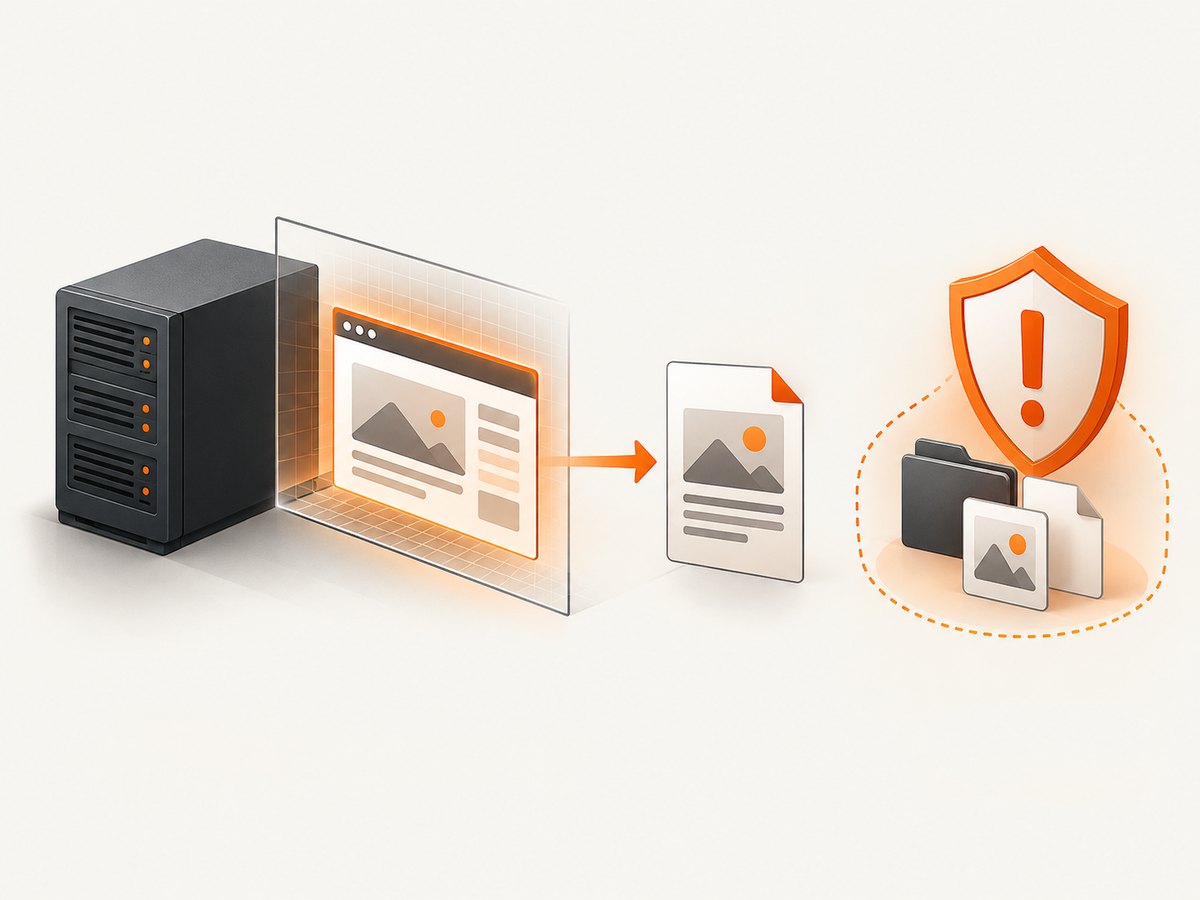
Check whether a display is available:
printf 'DISPLAY=%s\n' "$DISPLAY"
command -v Xvfb || true
If your deployment requires it, provide an X server or a virtual framebuffer such as Xvfb, then run the conversion within that display. The exact service setup depends on your Debian image and process supervisor; verify it in the same user and environment that runs your job.
# Example one-shot pattern when Xvfb is installed
xvfb-run --auto-servernum wkhtmltopdf https://example.com /tmp/example.pdf
Treat this as an environment pattern, not a guarantee that every package build behaves identically. Confirm the command on your target image, and make sure the service user can write the output directory.
5. Debian’s build versus upstream binaries
The Debian package is the first choice when it is available for your suite. It uses Debian’s dependency management and update mechanisms. Debian also documents that its package is not built against the forked version of Qt, so some options are unsupported compared with builds that include patched Qt.
The upstream 0.12.6 release page directs readers to a separate packaging project for binaries. That packaging repository discusses distribution-native packages and patched Qt, but it is archived. Consider those artifacts legacy options: check the exact Debian release, architecture, dependencies and behavior before installing one.
| Route | Use when | Check first |
|---|---|---|
| Debian apt package | Your suite exposes a candidate and standard rendering is sufficient | apt-cache policy wkhtmltopdf, version and supported options |
| Specific upstream packaging artifact | You require behavior tied to a patched-Qt build | Release compatibility, architecture, dependency set and project maintenance status |
Do not assume that an upstream binary is universally better or that Debian’s package includes patched-Qt behavior. Compare the feature you need with the build you selected.
6. Local files, security and input handling
Upstream 0.12.6 release notes state: “BREAKING CHANGE: block local filesystem access by default.” This protects against a converter reading local resources unexpectedly. Do not casually enable local-file access when the HTML is untrusted. A page that can reference local paths may expose credentials, source code or other sensitive files.
For untrusted HTML, isolate the conversion process, restrict network access where practical, use a dedicated service account, write to a controlled temporary directory and remove temporary files after completion. Validate URLs and output paths before passing them to a shell. Prefer argument arrays in application code so user input is not interpreted as shell syntax.
7. Calling wkhtmltopdf from Python
Use subprocess.run with a list of arguments, a timeout and captured stderr:
from pathlib import Path
import subprocess

output = Path("/tmp/page.pdf")
cmd = ["wkhtmltopdf", "https://example.com", str(output)]

result = subprocess.run(
    cmd,
    check=False,
    capture_output=True,
    text=True,
    timeout=90,
)

if result.returncode != 0:
    raise RuntimeError(f"wkhtmltopdf failed ({result.returncode}): {result.stderr}")

print(output, output.stat().st_size, "bytes")
For local HTML generated by your application, write it to a controlled temporary file and pass that path as one argument. Keep the timeout finite so a stalled network request cannot occupy a worker indefinitely.
8. Calling wkhtmltopdf from Node.js
import { execFile } from "node:child_process";

execFile(
  "wkhtmltopdf",
  ["https://example.com", "/tmp/page.pdf"],
  { timeout: 90_000, maxBuffer: 1024 * 1024 },
  (error, stdout, stderr) => {
    if (error) {
      console.error(stderr);
      process.exitCode = error.code ?? 1;
      return;
    }
    console.log("Created /tmp/page.pdf");
  }
);
execFile avoids invoking a shell for the argument list. Log stderr because warnings about missing displays, blocked resources and load failures often explain an apparently valid but incomplete PDF.
9. Using cURL with an HTML source
cURL does not replace wkhtmltopdf; it can fetch HTML first, after which wkhtmltopdf renders the saved file.
curl --fail --location --silent --show-error \
  https://example.com \
  --output /tmp/page.html
wkhtmltopdf /tmp/page.html /tmp/page.pdf
This two-step method is useful when you need to inspect or archive the exact response. It can differ from direct URL conversion because relative assets, cookies, redirects and JavaScript execution may behave differently when the page is loaded from a local file.
10. Common errors and fixes
| Symptom | Likely cause | Fix |
|---|---|---|
Unable to locate package wkhtmltopdf |
The suite or enabled repositories do not provide it | Check /etc/os-release, architecture, repository configuration and apt-cache policy. Do not assume Bookworm instructions apply to testing or another release. |
QXcbConnection: Could not connect to display |
No X11 display on a headless host | Provide an X server or an appropriate Xvfb setup, then run under that display. |
| PDF is blank or missing images | Resource load failure, JavaScript timing, blocked network or authentication | Inspect stderr, test the URL from the same host, increase an appropriate wait strategy, and verify cookies or headers. |
| Some command-line options are unknown | The Debian build lacks functionality associated with patched Qt | Confirm the build and option support. Compare a specific, compatible upstream artifact only when the required feature justifies it. |
| Permission denied writing output | Service user cannot write the destination | Choose a writable directory and fix ownership or permissions without making the whole filesystem writable. |
| Conversion hangs | Never-ending page activity, unreachable resources or a display problem | Set a process timeout, capture logs, test connectivity and isolate the problematic page. |
| Local assets no longer load | Local filesystem access is blocked by default in upstream 0.12.6 | Prefer serving assets through a controlled local HTTP endpoint. Only change access policy after reviewing the security implications. |
11. Reliability, performance and operating costs
- Warm processes: launching a converter for every request adds startup overhead. A queue with bounded workers can smooth bursts, but enforce per-job timeouts.
- Resource limits: cap CPU, memory, temporary disk and concurrent jobs. Large pages and full-resolution images can consume substantially more memory than their HTML size suggests.
- Determinism: record the Debian release, package version, command arguments, source URL and stderr. Pinning the package version can reduce unexpected layout changes, subject to your security-update policy.
- Network dependence: remote fonts, images, APIs and trackers can make output variable. Host critical assets in a controlled location and test from the production network.
- Cost: the software package itself does not remove the operational cost of VM CPU, memory, storage, bandwidth and maintenance. Measure your own workload; the dossier contains no benchmark.
12. Or skip the browser setup
If your goal is simply to obtain a clean screenshot or PDF from a URL, ScreenshotNeo provides a hosted API and MCP server instead of making you maintain wkhtmltopdf, X11 and browser dependencies. It accepts one GET request and returns PNG, JPEG, WebP or PDF.
See the ScreenshotNeo documentation for the full parameter list. A minimal request is:
curl -G "https://api.screenshotneo.com/v1/shot" -d access_key=YOUR_API_KEY --data-urlencode url=https://stripe.com -o shot.webpimport requests
r = requests.get("https://api.screenshotneo.com/v1/shot", params={"access_key": "YOUR_API_KEY", "url": "https://stripe.com"}, timeout=90)
open("shot.webp", "wb").write(r.content)const q = new URLSearchParams({ access_key: 'YOUR_API_KEY', url: 'https://stripe.com' }); const res = await fetch(`https://api.screenshotneo.com/v1/shot?${q}`);ScreenshotNeo removes cookie and consent banners, newsletter popups and chat widgets before capture. Bot checks, blank pages, timeouts, failed loads and cache hits are not billed, and response headers identify the page verdict and billing result. Its MCP server includes take_screenshot, get_page_info and capture_pdf for Claude, Cursor and other MCP clients. The free plan includes 1,000 screenshots each month with no card; paid plans start at $5 for 3,000. Create a free ScreenshotNeo account.
13. Installation checklist
- Read
/etc/os-releaseand confirm the target Debian suite. - Confirm 64-bit architecture with
uname -m. - Run
apt-cache policy wkhtmltopdfand verify a candidate exists. - Install with
sudo apt updatefollowed bysudo apt install wkhtmltopdf. - Run
wkhtmltopdf --version. - Convert a small local file, then a public URL.
- For headless jobs, verify X11 or Xvfb under the service user.
- Record stderr, enforce timeouts and review local-file security.
FAQ
Does this work on every 64-bit Debian release?
No. Package availability depends on the Debian suite and configured repositories. Bookworm amd64 lists the package; testing status has changed, so check locally.
Is wkhtmltopdf a Chromium browser?
No. It renders with WebKit. Its rendering behavior and supported options differ from modern browser automation tools.
Why does a desktop install work while my server fails?
The server may not have an X11 display. Debian documents that the program requires an X11 server; provide a suitable display environment or use a hosted capture service.
Should I install an upstream binary?
Only for a verified compatibility requirement, such as an option tied to patched Qt. Check the exact artifact, architecture and Debian release because the upstream packaging project is archived.
Can I safely convert arbitrary user HTML?
Apply isolation, timeouts, resource limits and strict handling of local files and URLs. Upstream 0.12.6 blocks local filesystem access by default for a reason.


