How to Install wkhtmltopdf on Heroku for a Python Flask App
A Flask wrapper does not install wkhtmltopdf. Learn how to check your Heroku stack, choose a compatible binary, deploy it safely, and troubleshoot PDF generation.
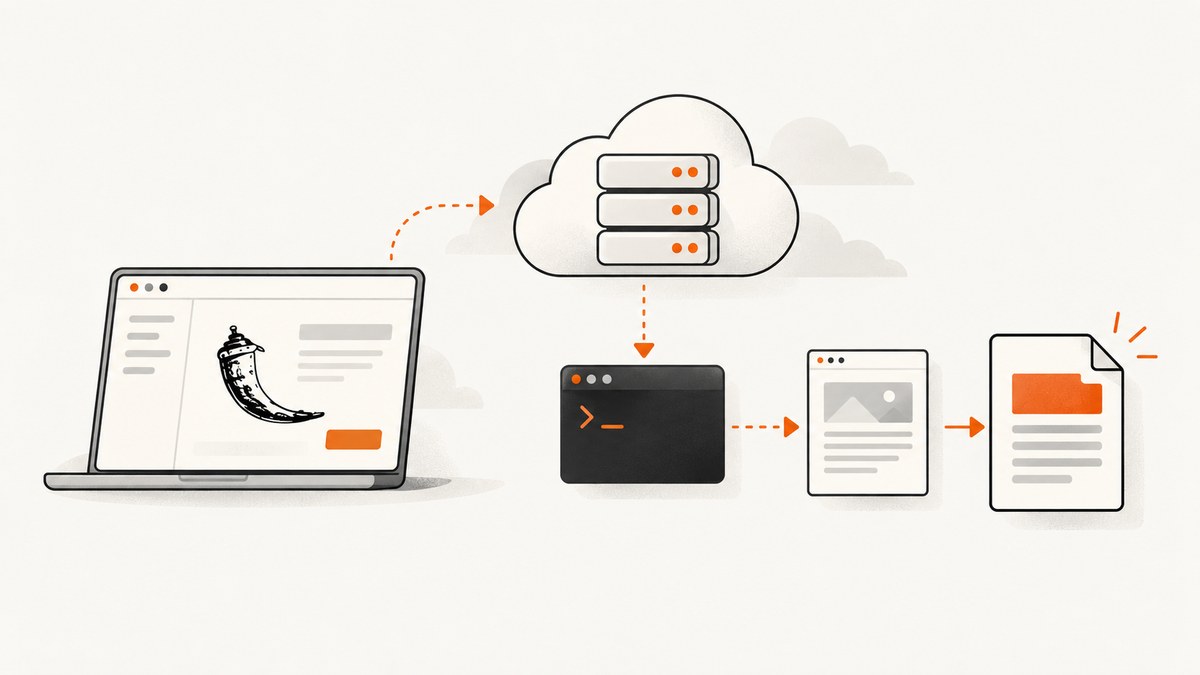
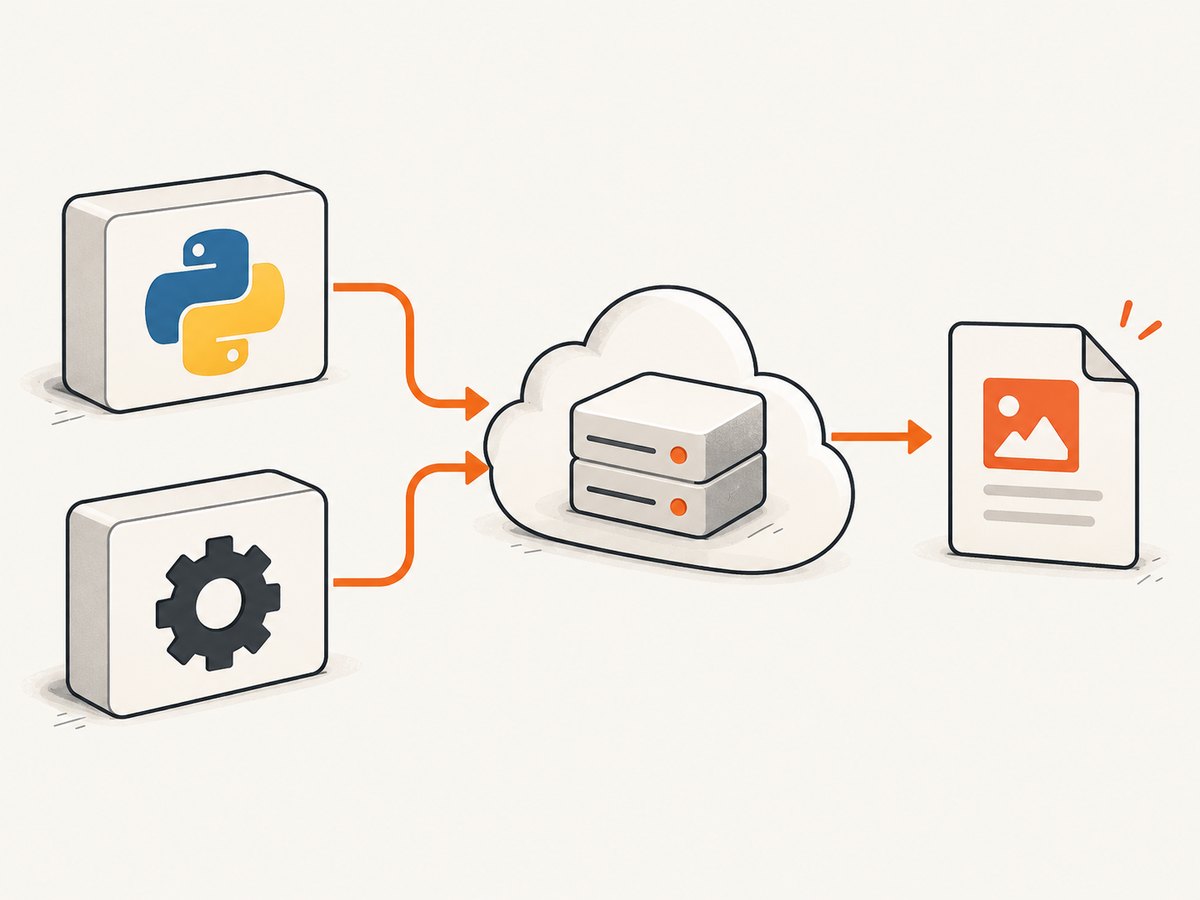
Direct answer: You need to deploy two separate dependencies: your Flask Python package and the wkhtmltopdf executable. The Python wrapper calls that external program; installing the wrapper from requirements.txt alone does not put the executable in your Heroku dyno. The Flask-WkHTMLtoPDF documentation likewise says to obtain the wkhtmltopdf tool separately. Before choosing an install command, identify your app’s Heroku stack and build model: the community binary buildpack instructions found for this task document Heroku-18, -20, and -22 only. Compatibility with newer stacks is unverified, so do not assume a command for an older stack works on yours.
This guide shows how to investigate and deploy the dependency without guessing at a binary URL. It also covers a Flask integration, deployment checks, common failures, and when a maintained renderer may be a better fit.
1. Check your Heroku stack and build model
Start by inspecting the deployed app and its buildpacks. If the app uses a stack-specific third-party buildpack, verify that its current release explicitly supports your stack and architecture. A listing that mentions Heroku-18/-20/-22 does not establish support for a newer stack.
heroku apps:info --app YOUR_APP_NAME
heroku stack --app YOUR_APP_NAME
heroku buildpacks --app YOUR_APP_NAME
Heroku distinguishes classic buildpacks from Cloud Native Buildpacks (CNBs). They use different configuration paths. Classic buildpacks are available for Cedar-generation apps; CNBs are available across generations. Heroku’s guide explains how to inspect and configure both kinds of buildpacks: Managing Buildpacks.
| What to inspect | Why it matters |
|---|---|
| Stack / OS generation | Prebuilt binaries and native libraries are built for particular operating system generations. |
| Architecture | The executable must match the dyno architecture; do not assume an amd64 binary fits another architecture. |
| Buildpack type | A classic buildpack recipe is not a CNB recipe. |
| Runtime path | Your wrapper must call the executable at the path where the buildpack installs it. |
| Shared libraries and fonts | A file may exist and be executable but still fail at runtime if its native dependencies or fonts are unavailable. |
Heroku’s current Python setup guidance recommends pinning the runtime in a root .python-version file and declaring Python dependencies in a root dependency manifest such as requirements.txt. These files describe Python, not the separate wkhtmltopdf program. See Python Support Reference and Getting Started with Python.
2. Add the Python-side dependencies
For a common Flask setup using pdfkit, the root requirements.txt could include the following. Keep the versions consistent with the versions your application has selected and locked.
Flask
pdfkit
Do not add a Python package name and assume it bundles the native executable. Confirm what your chosen wrapper expects. This example uses pdfkit, whose role is to invoke wkhtmltopdf. For the Flask-WkHTMLtoPDF extension, follow that project’s documentation and still provide the separately installed binary.
A minimal project layout might look like this:
my-flask-app/
├── .python-version
├── requirements.txt
├── Procfile
└── app.py
For a new app, set a supported Python version in .python-version according to Heroku’s current reference. Do not copy an old Python version from an older blog post without checking its support status.
3. Choose a compatible way to install the executable
For a classic buildpack app, one community buildpack listing describes wkhtmltopdf binaries for Heroku-18, -20, and -22 and an executable under /app/bin. These are the limits of the compatibility information available here. Confirm the current listing, release, stack support, architecture, shared libraries, and path before adding it. Heroku cautions that third-party buildpacks are not under its control; inspect the source and use them with care.
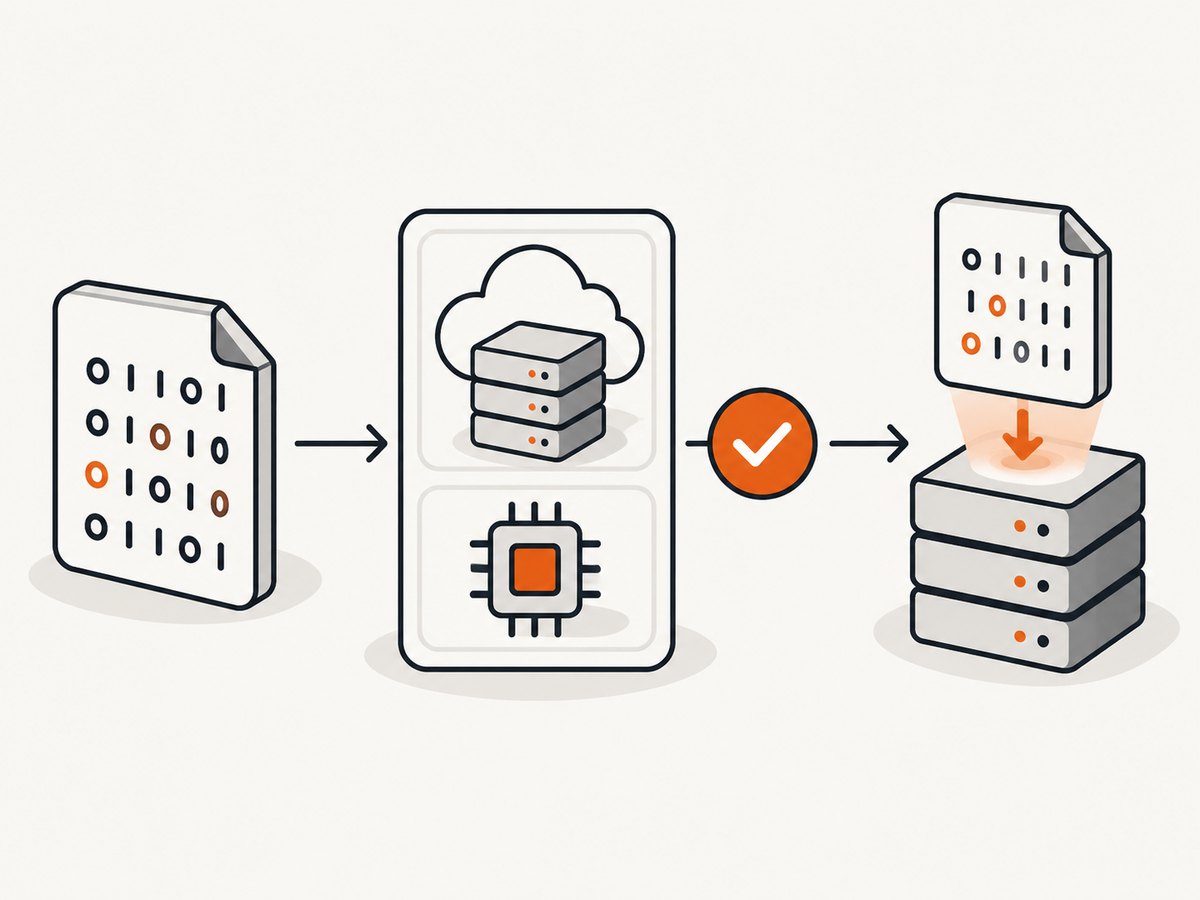
If the buildpack is confirmed for your app, configure it using its own current instructions. Do not paste a guessed repository URL or assume a generic command: buildpack ownership, URLs, release state, and support can change. If instructions use an Aptfile URL to select a binary, the cited community listing warns that a custom URL bypasses its stack detection. Verify that URL’s binary matches the app’s stack.
For a CNB app, Heroku’s project.toml configuration is a distinct route. Heroku’s deb-packages CNB demonstrates installing Debian packages for specified Ubuntu builder environments, but that does not establish that wkhtmltopdf is present for your target image or that the recipe applies to a classic app. Confirm both the package’s availability and builder compatibility before using this approach.
Do not combine recipes from the two models. If you are unsure which model your app uses, inspect the configured buildpacks and deployment setup first. Follow the matching official Heroku documentation, then the chosen third-party package’s instructions.
4. Point Flask at the deployed executable
Configure the wrapper with the path reported by the installed buildpack. The following runnable pattern reads a path from an environment variable, which lets the same app use a local executable during development and a buildpack-installed executable in production. Set WKHTMLTOPDF_PATH to the actual path verified inside the deployed dyno; /app/bin/wkhtmltopdf is only an example reported by the older-stack listing, not a universal path.
import os
from flask import Flask, make_response, render_template_string
import pdfkit

app = Flask(__name__)

WKHTMLTOPDF_PATH = os.environ.get("WKHTMLTOPDF_PATH", "wkhtmltopdf")
config = pdfkit.configuration(wkhtmltopdf=WKHTMLTOPDF_PATH)

@app.get("/report.pdf")
def report_pdf():
    html = render_template_string("""
        <!doctype html>
        <html>
          <head><meta charset="utf-8"><title>Report</title></head>
          <body><h1>Monthly report</h1><p>Generated by Flask.</p></body>
        </html>
    """)
    pdf_bytes = pdfkit.from_string(html, False, configuration=config)
    response = make_response(pdf_bytes)
    response.headers["Content-Type"] = "application/pdf"
    response.headers["Content-Disposition"] = 'inline; filename="report.pdf"'
    return response

if __name__ == "__main__":
    app.run()
The endpoint is illustrative; use your production WSGI server and existing Flask routing conventions. If your wrapper has different configuration syntax, pass it the verified executable path using that wrapper’s documented interface. Avoid depending on your laptop’s PATH: the dyno has its own filesystem and environment.
A typical Procfile for a Flask app served by Gunicorn is:
web: gunicorn app:appInclude Gunicorn in the root dependency manifest if the app uses it. The Procfile starts the web process; it does not install wkhtmltopdf.
5. Deploy and verify inside the running dyno
- Commit the Python manifest, runtime pin, Procfile, and build configuration required by the chosen deployment model.
- Deploy through the app’s normal Heroku workflow and inspect the build output for the expected buildpacks and successful installation.
- Open a one-off dyno and check the executable at the path you configured.
- Render a representative report and check output validity, fonts, page breaks, images, and any remote assets your templates require.
- Exercise the real endpoint and inspect application logs for wrapper and subprocess errors.
heroku run bash --app YOUR_APP_NAME
# Inside the dyno, substitute the path you verified:
/app/bin/wkhtmltopdf --version
which wkhtmltopdf
python -c 'import pdfkit; print("pdfkit import ok")'
Run only the command matching the actual installation path. A successful Python import proves the wrapper is installed, not that the binary runs. A version response proves the executable starts, not that your PDF layout is correct. Validate both layers and the generated document.
6. Troubleshooting common failures
| Symptom | Likely cause | What to check or fix |
|---|---|---|
No wkhtmltopdf executable found or “not found” |
The binary was not installed, or the wrapper is looking at the wrong path. | Inspect build output and run which / --version in a dyno. Set the wrapper path to the confirmed location. |
Permission denied |
The executable lacks execute permission, or the installed artifact is not runnable in this environment. | Check permissions and the buildpack’s installation procedure. Do not assume changing permissions fixes an incompatible binary. |
cannot open shared object file |
A required native shared library is missing or incompatible. | Check the binary’s documented OS and library requirements against the slug runtime; use a compatible release or a different renderer. |
| Build fails after changing stacks | The buildpack or binary may support only older stack generations. | Confirm explicit support for the new stack and architecture. Do not infer newer compatibility from Heroku-18/-20/-22 instructions. |
| PDF is blank or assets are missing | HTML refers to inaccessible remote resources, relies on dynamic JavaScript, or renders before content is ready. | Check asset URLs and network access. wkhtmltopdf may not behave like a current browser on JavaScript-heavy pages; evaluate a renderer suited to dynamic content. |
| Text glyphs are missing or substituted | The dyno lacks the fonts used by the template. | Verify the fonts are available to the renderer and test representative scripts and symbols after deployment. |
| Works locally, fails on Heroku | Local OS, architecture, libraries, PATH, or fonts differ from the deployed environment. | Reproduce checks inside the dyno. Treat the deployed executable and runtime as the source of truth. |
| App becomes slow or runs out of memory during PDF generation | Large documents, expensive assets, or concurrent renderer processes can consume substantial dyno resources. | Measure representative production documents, constrain concurrent work, and consider moving long renders to background jobs or a dedicated rendering service. |
7. Security, maintenance, performance, and cost
Security and maintenance
wkhtmltopdf is legacy software. Its upstream project lists 0.12.6 as its stable series, released in 2020, and the main GitHub repository was archived in January 2023. The project’s downloads page warns: “Do not use wkhtmltopdf with any untrusted HTML” because unsanitized user-supplied HTML or JavaScript can lead to server compromise. Treat this as a serious boundary: do not render arbitrary submitted markup in a privileged application process. Sanitize inputs and isolate rendering appropriately if user-controlled content is involved.
For a new deployment, compare renderer maintenance and security posture alongside stack support, CSS fidelity, JavaScript needs, fonts, and operational complexity. The project suggests WeasyPrint or Prince for controlled report generation, and Puppeteer for pages that depend on dynamic JavaScript. These choices have their own dependencies and deployment requirements; validate them against your documents before migrating.
Performance and reliability
No reliable benchmark for your app can be inferred from the package name. Measure the actual document sizes, number of concurrent requests, rendering time, memory use, external asset behavior, and failure rate on the target dyno. Keep generation bounded: define request timeouts and document-size limits, and avoid launching unbounded subprocesses from web requests. For long jobs, a background worker can prevent a slow render from holding an interactive request open.
For reliable output, test a small set of representative documents after every stack, buildpack, binary, or font change. Include cases with long tables, page breaks, images, non-Latin text if relevant, and missing assets. Keep logs that identify the render failure without logging private document contents.
Cost
The renderer is an additional runtime dependency, so consider its effect on build complexity and dyno resource use. Cost depends on your Heroku plan, workload, and chosen architecture; the available sources provide no benchmark or price comparison for PDF rendering. Measure before selecting capacity. A hosted screenshot API is designed for capturing webpages, and is a different workflow from converting arbitrary Flask-generated HTML into a report PDF.
Or skip the browser setup
If your goal is a screenshot of a publicly reachable webpage rather than rendering Flask-generated report HTML with wkhtmltopdf, ScreenshotNeo provides a one-request screenshot API. Its API is not an installation method for wkhtmltopdf or a drop-in replacement for a Flask HTML-to-PDF pipeline. It can return a screenshot or PDF of a URL.
For full API parameters and setup, see the ScreenshotNeo documentation.
curl -G "https://api.screenshotneo.com/v1/shot" \
  -d access_key=YOUR_API_KEY \
  --data-urlencode url=https://stripe.com \
  -o shot.webp
import requests
r = requests.get(
"https://api.screenshotneo.com/v1/shot",
params={"access_key": "YOUR_API_KEY", "url": "https://stripe.com"},
timeout=90,
)
open("shot.webp", "wb").write(r.content)const q = new URLSearchParams({
access_key: 'YOUR_API_KEY',
url: 'https://stripe.com'
});
const res = await fetch(`https://api.screenshotneo.com/v1/shot?${q}`);
if (!res.ok) throw new Error(`Screenshot request failed: ${res.status}`);
const bytes = new Uint8Array(await res.arrayBuffer());
// Save `bytes` with your application's chosen file-writing method.- Cookie banners are accepted and removed, along with newsletter popups and chat widgets, before the shot.
- Bot checks, blank pages, failed loads, timeouts, and cache hits are not billed; response headers indicate the page verdict and billing status.
- An MCP server lets AI agents use screenshot, page-info, and PDF-capture tools.
- 1,000 screenshots a month are free with no card; paid plans start at $5 for 3,000.
Create a free ScreenshotNeo account for 1,000 screenshots a month with no card.
Frequently asked questions
Does installing Flask-WkHTMLtoPDF install wkhtmltopdf?
No. The wrapper and command-line executable are separate deployment dependencies. Install and verify both.
Can I copy a Heroku-22 command to a newer stack?
Not safely without confirming the binary and buildpack support that stack, its architecture, and its native requirements. The compatibility information found for the community buildpack covers Heroku-18/-20/-22 only.
Should I use wkhtmltopdf for JavaScript-heavy pages?
Evaluate a renderer designed for those pages. The upstream project points to Puppeteer for dynamic JavaScript content.
Can ScreenshotNeo replace my report generator?
It captures a URL as an image or PDF. Use it when the input is an accessible webpage; use a server-side document renderer when your Flask app must create a PDF from generated or private HTML.


