How to Install wkhtmltopdf with Patched Qt Without Compiling
Install a prebuilt wkhtmltopdf package with patched Qt for your OS and CPU, then verify headers, footers, and headless rendering without compiling.
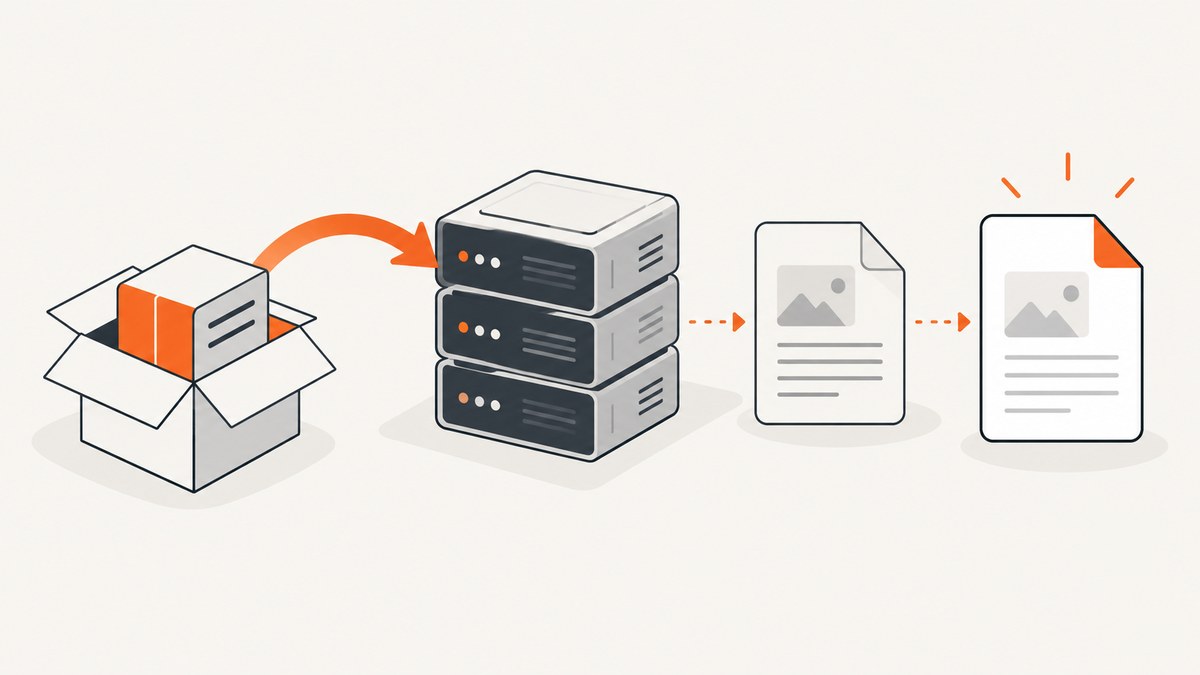
Install the upstream prebuilt wkhtmltopdf package that matches your exact operating system release and CPU architecture. You do not need to compile it. If you need headers, footers, table of contents, or other wkhtmltopdf-specific behavior, confirm that the binary reports patched Qt: many distribution repository builds omit those patches.
The upstream downloads page lists the stable series as wkhtmltopdf 0.12.6 (2020) and links to GitHub-hosted releases. It offers packages and installers for several operating systems. Start there, select the matching release package, install it with the platform’s normal package tools, and verify the executable before deploying it. Official downloads
1. Check whether patched Qt is required
wkhtmltopdf is a command-line tool that renders HTML to PDF using the Qt WebKit engine. “Patched Qt” refers to project-specific changes that enable behavior not available in the ordinary Qt build. The official FAQ explains that many Linux distributions compile wkhtmltopdf without those patches, so their binaries can behave differently.
A concrete example is headers and footers: Odoo’s integration guidance says repository versions for Debian and Ubuntu do not support them because the feature requires patched Qt. If your workload only needs basic HTML-to-PDF output, a repository build may be adequate. If you rely on patched features, install and verify the upstream package instead. Official FAQ · Odoo installation guidance
2. Identify the exact platform
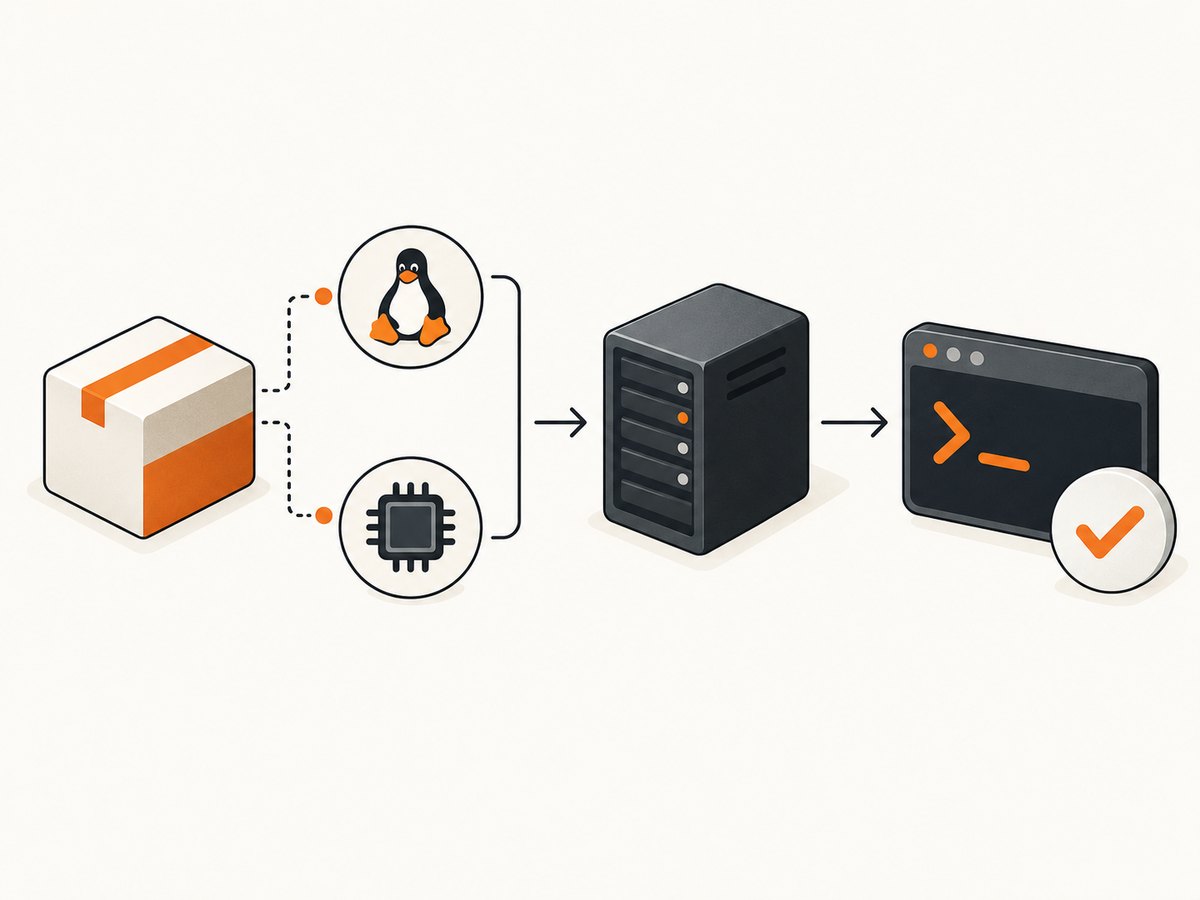
Before downloading, record the OS release and architecture. A package for the wrong release may depend on libraries that are unavailable on your machine. Likewise, amd64 and arm64 packages are not interchangeable. Use the OS’s own identification tools:
# Linux distribution and release
cat /etc/os-release

# CPU architecture
uname -m
Package names and architecture labels vary. For example, x86_64 is commonly called amd64 in Debian package names, while aarch64 often corresponds to arm64. Treat that as a clue, not a substitute for checking the release’s available package. If the official download list does not show an exact match, consult the linked packaging release notes before trying a nearby build.
3. Choose and install a prebuilt package
- Open the official downloads page and locate your distribution and release, or select the listed Windows or macOS installer where appropriate.
- Follow the corresponding GitHub release link and choose the asset matching both OS release and architecture. Avoid a generic Linux binary when a distribution-specific package is offered; library versions and distribution patch levels affect compatibility.
- Download the package using your browser or the command-line tool approved for your environment. Check the release page’s asset name before installing it.
- Install it with the normal package installer for that platform. On Debian or Ubuntu, the downloaded
.debcan be installed withaptso dependencies are resolved by the package manager. On Windows or macOS, use the listed installer or archive instructions. - Run the version check and a small PDF smoke test below before directing production traffic to the binary.
Debian/Ubuntu example, assuming the downloaded file is in the current directory and its name matches the placeholder you replace:
sudo apt install ./wkhtmltox_EXACT_RELEASE_amd64.deb
wkhtmltopdf --version
Use the exact asset filename from the release. The ./ prefix tells apt that the argument is a local package file. If the package manager reports missing dependencies, allow it to resolve them from your configured repositories where possible; do not force installation by ignoring dependency errors.
4. Verify patched Qt and render a smoke-test PDF
Check the version output:
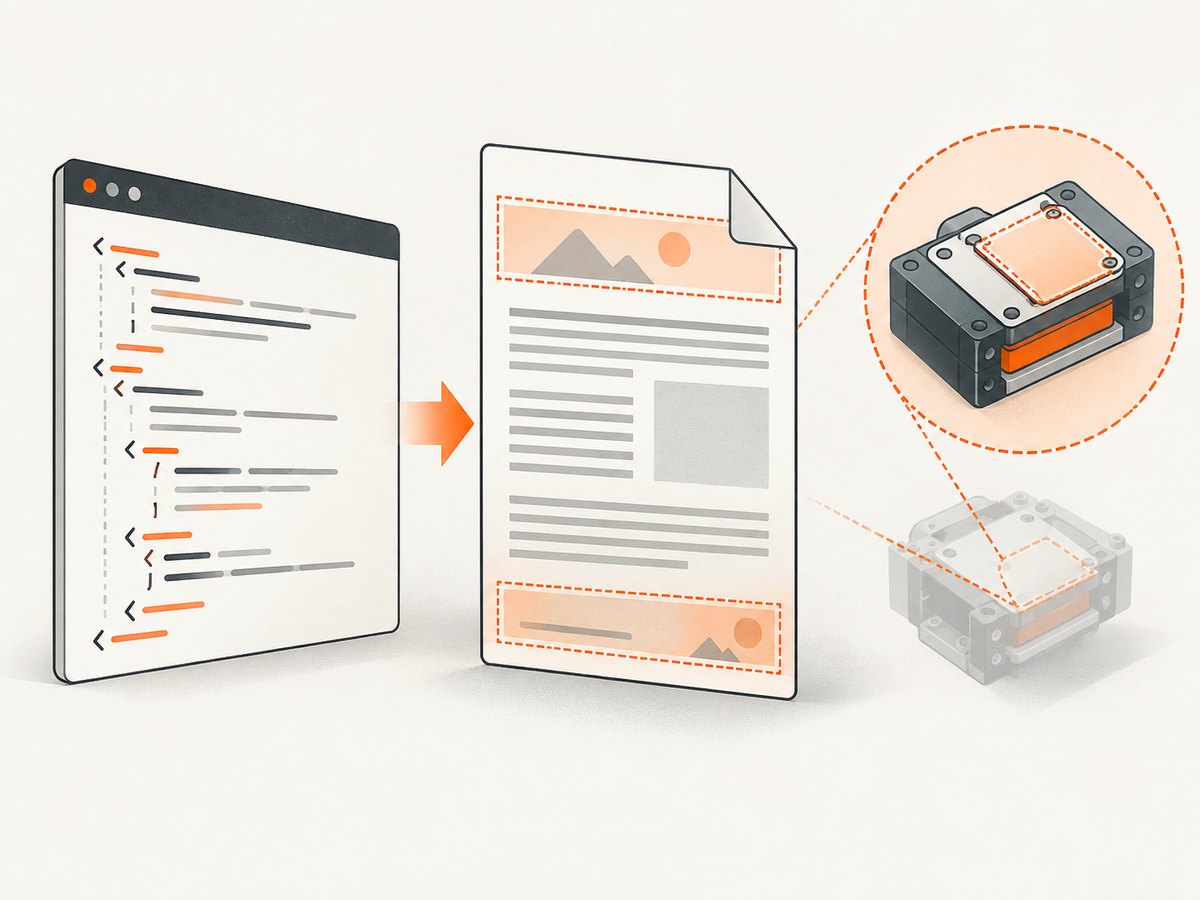
wkhtmltopdf --versionFor a build that includes the relevant patches, the version string identifies the patched Qt build. If it only reports a plain version such as wkhtmltopdf 0.12.6, do not infer that patched features are available. Test the feature you need. The version command and an actual render together catch cases where an old executable earlier in PATH is being used.
Create a local HTML file and render it with a header and footer:
cat > smoke.html <<'HTML'
<!doctype html>
<html>
<head><meta charset="utf-8"><title>Render check</title></head>
<body><h1>wkhtmltopdf smoke check</h1><p>Local rendering works.</p></body>
</html>
HTML

wkhtmltopdf \
  --page-size A4 \
  --margin-top 20mm \
  --header-center 'Header check' \
  --header-spacing 5 \
  --footer-center '[page] / [topage]' \
  smoke.html smoke.pdf
Open smoke.pdf and confirm the body, header, footer, and page numbering appear as expected. If the header and footer are missing, first confirm that the executable is the one you just installed with command -v wkhtmltopdf and inspect wkhtmltopdf --version. A repository build may have replaced or taken precedence over the patched binary.
5. Select an installation method for your environment
| Method | Patched feature coverage | Dependencies and operations | Best fit |
|---|---|---|---|
| Upstream distribution package | Expected when the matching upstream patched build is selected; verify output and workload. | Uses system package tools; dependencies must match the target release. | Supported OS release and architecture. |
| OS repository package | May omit patched Qt features such as headers and footers. | Convenient upgrades through the distribution, but behavior can differ from upstream. | Basic rendering where missing patched features are acceptable. |
| Manual package extraction | Depends on the extracted build itself. | Does not remove shared-library requirements; updates and executable paths need attention. | Package installation is blocked but dependencies can be supplied. |
| Docker or VM packaging workflow | Depends on the packaged target binary. | Adds an isolation and image/VM maintenance layer. | Repeatable server deployments or unsupported distributions. |
The upstream FAQ notes that packages can be extracted manually if they cannot be installed directly, but all required system dependencies still have to be present. For repeatable builds or unsupported systems, the project’s packaging repository documents Docker and VM workflows and describes reproducible target builds. Packaging repository
6. Troubleshooting
| Symptom | Likely cause | What to do |
|---|---|---|
command not found |
The package did not install, or its executable directory is not on PATH. |
Check the package installation result, locate the executable using the platform’s package file listing, and ensure the expected directory is on PATH. |
| Missing shared library or loader error | Package built for another release or architecture, or dependencies are absent. | Recheck /etc/os-release and uname -m; install the matching package and resolve declared dependencies. Extraction alone does not supply libraries. |
| Headers or footers do not appear | Running a distribution build without patched Qt, or invoking a different binary than expected. | Check command -v wkhtmltopdf and wkhtmltopdf --version; install the appropriate upstream patched package and repeat the smoke test. |
| Works interactively but fails on a server | Different runtime libraries, environment, or package than the development host. | Deploy the same OS-compatible package in the server image; test in the actual headless runtime and record the binary version. |
| Package manager refuses installation | Dependency resolution cannot satisfy the selected package, or the package does not match the release. | Prefer the matching package. Manual extraction is a fallback only when you can provide its dependencies; otherwise use a documented container or VM workflow. |
| PDF is blank or resources are missing | HTML may rely on remote assets or runtime conditions that differ from the local smoke test. | Test with a small local file, then isolate external resources and deployment differences. Confirm the input is available to the renderer before adjusting production options. |
7. Reliability, performance, and security
For reliable deployments, pin the OS release and package asset in your build process, record the version output, and run a representative PDF render during image creation or release validation. Test the actual headers, footers, table of contents, fonts, and external-resource behavior your application depends on. A small local smoke test verifies the executable; it does not prove every production page will render identically.
Headless command-line rendering suits server workflows, but predictable results depend on a compatible runtime and inputs that are available to the process. If you process many documents, measure your own workload and size the worker pool based on render duration and memory use; the project materials cited here do not provide a universal throughput benchmark. Keep package upgrades deliberate and test them against representative PDFs so changes in system libraries or binary builds do not surprise downstream users.
Security: The official downloads page warns: “Do not use wkhtmltopdf with any untrusted HTML – be sure to sanitize any user-supplied HTML/JS, otherwise it can lead to complete takeover of the server it is running on!” Treat user-controlled markup and scripts as untrusted input. Sanitize them before rendering, and isolate rendering workloads when processing content that did not come from a trusted source. Upstream security warning
8. Or skip the browser setup
If your goal is a website screenshot or PDF rather than operating a local HTML-to-PDF binary, ScreenshotNeo provides a website screenshot API and MCP server. One GET request can return an image or PDF. See the API documentation for request options.
curl -G "https://api.screenshotneo.com/v1/shot" \
  -d access_key=YOUR_API_KEY \
  --data-urlencode url=https://stripe.com \
-o shot.webp- Cookie and consent banners, newsletter popups, and chat widgets are removed before capture; each cleanup step can be turned off.
- Bot checks, blank pages, timeouts, failed loads, and cache hits are not billed; response headers report the page verdict and billing status.
- An MCP server gives AI agents tools to take screenshots, inspect page information, and capture PDFs.
- The free plan includes 1,000 screenshots per month with no card; paid plans start at $5 for 3,000 shots.
Create a free ScreenshotNeo account and get 1,000 screenshots a month without a card.
FAQ
Is patched Qt a separate package I need to install?
It is part of a particular wkhtmltopdf build, not a separate add-on to apply to any binary. Choose a package that includes the project’s patches and verify the installed executable.
Is wkhtmltopdf 0.12.6 the current stable series in the upstream materials?
The official downloads page lists 0.12.6, dated 2020, as the stable series. Check the upstream page for the assets and release information available when you install.
Can I use a package for a nearby Linux distribution?
Do not assume compatibility. Shared-library versions and distribution patch levels vary; select an exact match when offered, or use a documented Docker or VM workflow.
Does extracting a package make it portable?
No. Extraction may avoid package-manager installation, but the binary still needs its system dependencies.
What should I test before putting it into production?
Check the version and patched Qt indication, then render a representative document that exercises the features your application needs. Include this check when changing the base OS or package.


