How to Install wkhtmltopdf with Patched Qt
Install wkhtmltopdf 0.12.6 with patched Qt, verify the build, troubleshoot missing features, and run it safely in production.
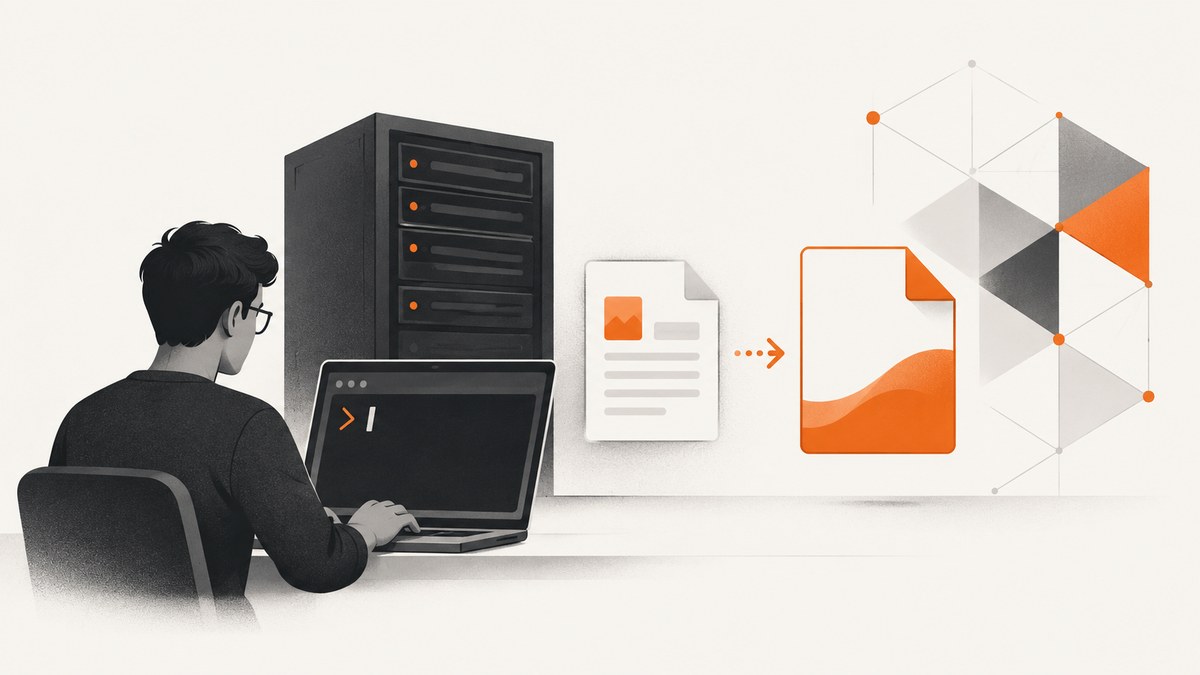
Direct answer: install the official wkhtmltopdf 0.12.6 package that matches your operating-system release and CPU architecture. Official builds include the patched Qt version required for features such as reliable headers, footers, outlines, and other wkhtmltopdf-specific behavior. Verify the executable with wkhtmltopdf --version, then convert a small local HTML file before putting it into an application.
Many Linux distribution packages use a different Qt build or omit wkhtmltopdf’s patches. They may install successfully while silently missing features. If your application depends on patched-Qt behavior, use the matching upstream package from the official downloads page, document its source, and pin that package in your deployment process.
What patched Qt changes
wkhtmltopdf renders HTML to PDF, while wkhtmltoimage renders HTML to image formats. Both use Qt WebKit and run headlessly, so a display server is not required. The project states that some features require a patched Qt because those changes are not upstream. Distribution maintainers may compile wkhtmltopdf without those patches, which can produce different output even when the command reports version 0.12.6.
Patched Qt matters when you rely on wkhtmltopdf-specific capabilities such as headers and footers, page metadata, table-of-contents behavior, link handling, or consistent rendering across environments. A newer system WebKit does not automatically mean feature parity. Treat the Qt patch status and package provenance as part of your application’s runtime contract.
Choose the correct package
- Identify the operating-system release, not just the distribution family. For example, record the exact Debian, Ubuntu, CentOS, AlmaLinux, Amazon Linux, openSUSE, or Arch release.
- Identify the CPU architecture. On Linux, run
uname -m. Common values includex86_64andaarch64; choose only a package explicitly built for your architecture. - Open the official downloads page. The project links platform-specific installers and packages through GitHub releases.
- Select the package for both your operating-system release and architecture. Do not substitute a package for a neighboring release merely because the filename looks similar.
- Record the release version, download URL, checksum if supplied, and installation date in your build documentation.
| Platform | Official packaging options | Selection rule |
|---|---|---|
| Windows | 32-bit and 64-bit installers for Vista or later | Match the installer to the machine architecture. |
| macOS | 64-bit installer for macOS 10.7 or later | Confirm the host is supported before installing. |
| Debian/Ubuntu | Distribution-specific .deb packages |
Match the Debian or Ubuntu release and architecture. |
| AlmaLinux/CentOS/Amazon Linux | Distribution-specific packages | Use the package built for your family and release. |
| openSUSE/Arch Linux | Distribution-specific packages | Follow the package’s documented architecture requirements. |
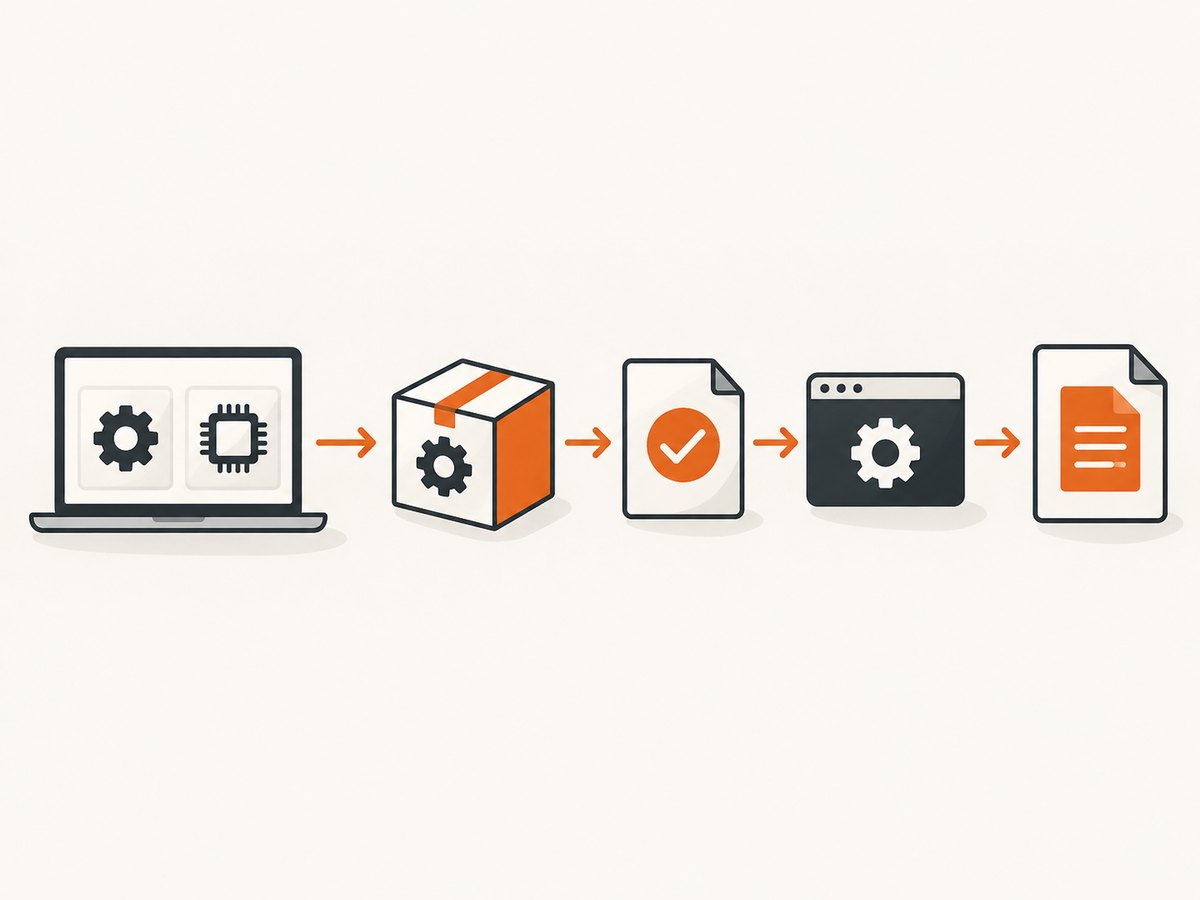
Install on Debian or Ubuntu
Download the matching .deb from the official release, then install it with the distribution package manager so dependencies are resolved. Replace the filename below with the file you downloaded.
# Confirm the host architecture and release
uname -m
. /etc/os-release
printf '%s %s\n' "$ID" "$VERSION_ID"

# Install the downloaded official package
sudo apt install ./wkhtmltox_0.12.6-1._amd64.deb

# Confirm the executable is on PATH
command -v wkhtmltopdf
wkhtmltopdf --version
The exact package filename varies by release. If apt reports an unmet dependency, install the required dependency packages through your normal repository and rerun the command. The official documentation says a package can be extracted manually when it cannot be installed normally, but extraction does not remove the dependency requirement.
Manual extraction when package installation fails
Manual extraction is a recovery technique, not a way to bypass dependencies. Extract the archive into a controlled location, make sure its shared libraries are available, and expose the binary through a deliberate PATH entry.
mkdir -p "$HOME/opt/wkhtmltox"
dpkg-deb -x ./wkhtmltox_0.12.6-1._amd64.deb "$HOME/opt/wkhtmltox"
export PATH="$HOME/opt/wkhtmltox/usr/local/bin:$PATH"
wkhtmltopdf --version
For a service, prefer a system package or a container image you control rather than relying on a developer’s home-directory installation. Check dynamic-library errors with ldd $(command -v wkhtmltopdf) and install missing libraries using your distribution’s package manager.
Install on Windows
- Open the official downloads page and choose the 32-bit or 64-bit installer appropriate to the machine.
- Run the installer with an account allowed to install software.
- Open a new PowerShell window so the updated PATH is loaded.
- Verify the executable:
wkhtmltopdf.exe --versionIf PowerShell cannot find the command, invoke the executable using its full installation path or add that directory to the system PATH. Keep the path stable for scheduled jobs and web services.
Install on macOS
- Confirm that the Mac is a supported 64-bit system and runs macOS 10.7 or later.
- Download the macOS installer listed on the official page.
- Open the installer and complete the installation.
- Open a new Terminal session and verify:
wkhtmltopdf --versionmacOS security controls may require approval before an installer or executable can run. Use the package supplied by the official project and avoid copying binaries between unrelated macOS versions without validating them.
Verify that Qt is patched
Run the version command and record the complete output:
wkhtmltopdf --versionThe output should identify the wkhtmltopdf release and indicate whether it was built with patched Qt. Do not infer patch status solely from the version number. A distribution package may report 0.12.6 while using a build with different feature coverage.
Next, perform a smoke test that exercises the actual conversion path:
cat > /tmp/wkhtml-test.html <<'HTML'
<!doctype html>
<html>
  <head><meta charset="utf-8"><title>wkhtmltopdf test</title></head>
  <body><h1>Patched Qt test</h1><p>Text and images should render.</p></body>
</html>
HTML
wkhtmltopdf /tmp/wkhtml-test.html /tmp/wkhtml-test.pdf
file /tmp/wkhtml-test.pdf
Open the PDF and check text, images, page size, and page count. For an application that uses headers or footers, add a representative test document and assert that those elements appear. Keep this smoke test in deployment validation so a base-image change cannot silently replace the binary.
Headers, footers, and other missing features
Missing headers or footers are usually caused by one of four conditions: a distribution build without patched Qt, incorrect command-line options, a header or footer resource that cannot be loaded, or JavaScript that has not finished before capture.
| Symptom | Likely cause | Action |
|---|---|---|
| Header/footer options are ignored | Unpatched distribution build | Compare --version; install the official patched package. |
| Header appears blank | Bad local path, blocked resource, or unsupported markup | Use an absolute accessible URL or local file, simplify the HTML, and test it independently. |
| Images are missing | Relative URLs, network failure, or file-access restrictions | Use absolute URLs, allow required access deliberately, and inspect the converter’s stderr. |
| Output is cut off | Unexpected page size, margins, or content overflow | Set page size and margins explicitly; test long content and wide tables. |
| JavaScript content is absent | Capture occurs before rendering completes | Use an appropriate JavaScript delay and wait for the page’s data to be present. |
Keep command-line options in source control. A minimal conversion looks like this:
wkhtmltopdf \
  --page-size A4 \
  --margin-top 20mm \
  --margin-right 15mm \
  --margin-bottom 20mm \
  --margin-left 15mm \
  https://example.com report.pdf
Use the options documented for your installed release. Avoid copying options from a different renderer or assuming that a system package supports every upstream feature.
Linux distribution packages versus upstream builds
Ubuntu Jammy publishes a wkhtmltopdf 0.12.6-2 package with Qt 5 dependencies. That package may be convenient for routine conversions, but distribution packaging and upstream patched-Qt packaging are separate choices. If patched behavior is a requirement, compare the package’s build details and use the official packaging build for the matching distribution.
Make the decision using these criteria:
- Feature coverage: whether patched-Qt functionality required by your application is present.
- Compatibility: whether the package matches the OS release and architecture.
- Dependencies: whether the package integrates cleanly with system libraries.
- Provenance: whether you can identify the release and source.
- Reproducibility: whether the same binary can be installed in CI, containers, and production.
- Maintenance: whether your team can patch or replace the converter when the host OS changes.
Containers and custom builds
The official packaging repository documents reproducible Docker and Vagrant workflows for maintainers building custom targets. Building wkhtmltopdf yourself makes sense when you need a platform that is not covered by published packages or must reproduce a specific dependency set. It also creates responsibility for the compiler, Qt patches, system libraries, and long-term updates.
For ordinary application deployment, install a published package and pin it in a container image. Record the base image, package filename, architecture, and output of wkhtmltopdf --version. Rebuild the image deliberately when the host distribution changes.
Security: never pass untrusted HTML directly
The project warns not to use wkhtmltopdf with untrusted HTML because unsanitized HTML or JavaScript can lead to complete server takeover. Treat HTML, JavaScript, CSS, remote URLs, cookies, and local-file access as untrusted inputs in server workflows.
- Sanitize user-supplied HTML and remove scripts unless they are explicitly required.
- Run conversion jobs in an isolated, low-privilege process or container.
- Restrict outbound network access and prevent access to internal metadata endpoints.
- Do not expose a converter endpoint that accepts arbitrary URLs without authorization and controls.
- Use timeouts, memory limits, process limits, and a queue for conversion jobs.
- Keep temporary files outside directories containing secrets and remove them after conversion.
Performance and reliability checklist
- Warm a worker process or a small pool instead of starting an unbounded process for every request.
- Set a conversion timeout and terminate stuck child processes.
- Use local assets or a controlled asset host when network variability affects output.
- Define page size, margins, orientation, and encoding explicitly.
- Test long pages, large images, web fonts, tables, right-to-left text, and JavaScript-driven pages.
- Capture stderr and the exit status; a generated file alone does not prove that every asset loaded.
- Pin the exact package and run the smoke test in CI after base-image changes.
- Measure queue wait time, conversion time, output size, and failure categories in your own environment.
Or skip the browser setup
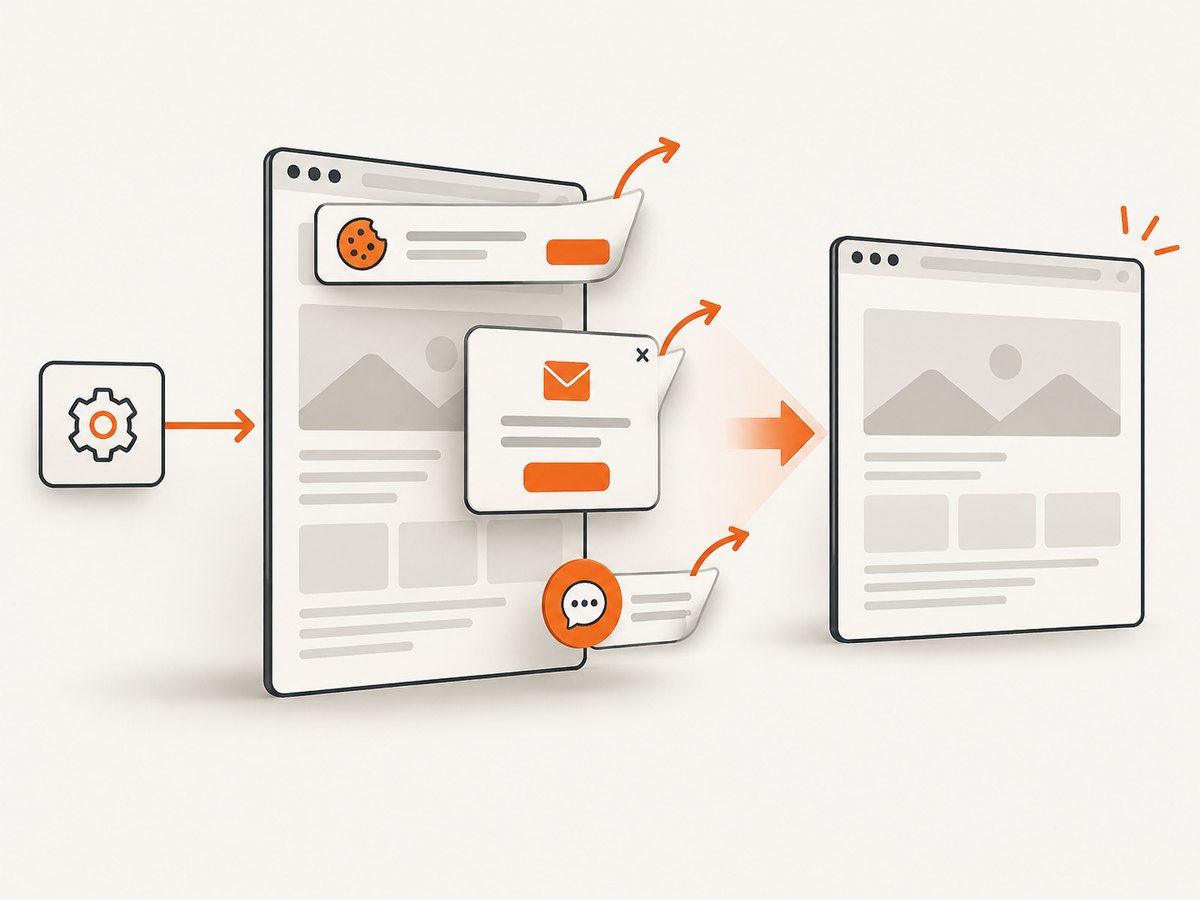
If your goal is a clean screenshot or PDF rather than maintaining a local Qt/WebKit installation, ScreenshotNeo provides a website screenshot API. It accepts one GET request and returns PNG, JPEG, WebP, or PDF. Before capture, it accepts cookie and consent banners and removes more than 60 known consent platforms, newsletter popups, and chat widgets; each step can be disabled.
Only clean shots are billed. Bot checks or CAPTCHAs, blank pages, timeouts, failed loads, and cache hits cost nothing, and the response reports the result through X-Page-Verdict and X-Billed headers. ScreenshotNeo also has an MCP server with take_screenshot, get_page_info, and capture_pdf tools for Claude, Cursor, and other MCP clients.
See the ScreenshotNeo API documentation for all options, including full-page capture with lazy images loaded, CSS-selector element capture, dark mode, device presets, retina scale, PDF paper sizes and page ranges, custom CSS and JavaScript, clicks, waits, request blocking, headers, cookies, user agents, authorization, timezone, geolocation, transparent backgrounds, resizing, TTL caching, signed links, asynchronous jobs, webhooks, bulk capture, usage reporting, and the OpenAPI specification.
curl -G "https://api.screenshotneo.com/v1/shot" -d access_key=YOUR_API_KEY --data-urlencode url=https://stripe.com -o shot.webpimport requests
r = requests.get("https://api.screenshotneo.com/v1/shot", params={"access_key": "YOUR_API_KEY", "url": "https://stripe.com"}, timeout=90)
open("shot.webp", "wb").write(r.content)const q = new URLSearchParams({ access_key: 'YOUR_API_KEY', url: 'https://stripe.com' });
const res = await fetch(`https://api.screenshotneo.com/v1/shot?${q}`);The Free plan includes 1,000 screenshots per month with no card. Paid plans start at $5 for 3,000 shots; yearly billing gives two months free, and every feature is available on every plan. Create a free ScreenshotNeo account.
Troubleshooting
“Command not found”
The binary is not on PATH or the installation did not complete. Locate it with your package manager, invoke it by full path, or add its installation directory to PATH. Open a new shell after changing PATH.
“Unknown long argument”
The installed build may be older, differently packaged, or missing patched features. Run wkhtmltopdf --version, compare the package source, and install the official matching build if the option is required.
Shared-library errors
The package does not match the host libraries or required dependencies are absent. Install dependencies for the exact OS release, inspect with ldd, and avoid copying a binary from another distribution.
Blank or incomplete PDFs
Check the input URL, network access, JavaScript timing, redirects, and resource permissions. Reproduce with a minimal local file, then add assets and scripts one at a time. Capture stderr and preserve the exact command.
Different output in CI
CI is using a different binary, architecture, font set, locale, or base image. Pin the package in the image, record version output, install required fonts, and run the same smoke test in CI and production.
FAQ
Is wkhtmltopdf 0.12.6 the stable version?
The official project identifies 0.12.6 as the stable series, released June 11, 2020. Use the package published for your platform rather than guessing from a third-party mirror.
Can I use an Ubuntu package if I need patched Qt?
Only after confirming its build includes the features your application needs. Distribution packages can omit upstream patches, so use the official matching package when patched behavior is required.
Does wkhtmltopdf need X11?
The tool is designed to run headlessly without a display service because it uses Qt WebKit directly.
Should I build wkhtmltopdf myself?
Build it when you need a custom unsupported target or a reproducible dependency set and can maintain that build. Otherwise, use a published package.
How do I know a PDF is valid?
Check the process exit status, inspect stderr, verify the output file type, and open a representative document containing the assets and features your application uses.


