How to Install the wkhtmltopdf Python Package on Windows
Install pdfkit and the wkhtmltopdf Windows executable separately, configure PATH, fix common errors, and generate your first PDF.
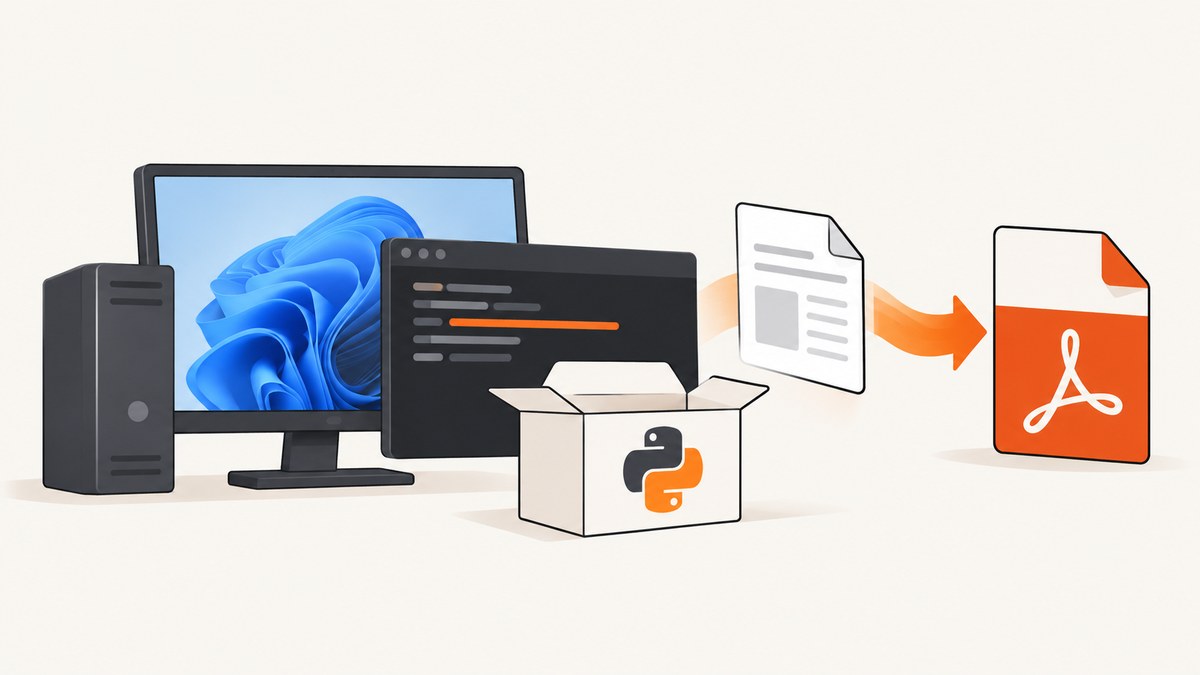
Direct answer: wkhtmltopdf is not installed by pip. On Windows, install the Python wrapper with py -m pip install pdfkit, install the native wkhtmltopdf.exe separately from the project’s Windows installer, then make sure the executable is on PATH or pass its full path to pdfkit.configuration().
pdfkit calls the native renderer as a child process. Installing only the Python package leaves you with a wrapper but no renderer, which causes errors such as “No wkhtmltopdf executable found.”
What you are installing
| Component | What it does | How you install it |
|---|---|---|
| Python | Runs your application and the wrapper | Python’s Windows installer or Install Manager |
pdfkit |
Python API that invokes wkhtmltopdf | py -m pip install pdfkit |
wkhtmltopdf.exe |
WebKit-based HTML-to-PDF command-line renderer | Project Windows installer |
The python-pdfkit documentation describes pdfkit as a Python 3 wrapper for wkhtmltopdf and directs Windows users to install the binary separately. The wkhtmltopdf downloads page is the authoritative place to obtain the Windows installer. Check that page for the version and platform options currently offered; the available research does not establish a reliable release matrix.
Prerequisites: install and verify Python
Use a current Python Windows installer or Python Install Manager. Python’s Windows documentation says the Install Manager is available from python.org or the Microsoft Store and exposes the python, py, and pymanager commands after installation.
- Install Python for your account or for all users, according to your organization’s policy.
- Open a new PowerShell or Command Prompt window after installation.
- Confirm that the launcher and interpreter respond:
py --version
python --version
If Windows opens the Microsoft Store when you type python, use py for the remaining commands or adjust the App execution aliases in Windows Settings. A new terminal matters because installers update environment variables that existing shells do not always reload.
Step 1: install pdfkit in a virtual environment
A virtual environment keeps this project’s Python dependencies separate from other applications.
mkdir wkhtmltopdf-demo
cd wkhtmltopdf-demo
py -m venv .venv
.venv\Scripts\Activate.ps1
py -m pip install --upgrade pip
py -m pip install pdfkit
In Command Prompt, activation uses .venv\Scripts\activate.bat. If PowerShell blocks activation scripts, either enable scripts according to your organization’s policy or run the commands through cmd.exe; activation is convenient but not required when you call the virtual environment’s Python directly.
Verify that the wrapper is installed:
py -m pip show pdfkit
py -c "import pdfkit; print(pdfkit.__file__)"
This verifies the Python layer only. It does not prove that wkhtmltopdf is installed.
Step 2: install the native wkhtmltopdf executable
- Open the official wkhtmltopdf downloads page.
- Choose the Windows installer appropriate for the machine and download it.
- Run the installer. Note the destination directory, especially the folder containing
wkhtmltopdf.exe. - Allow the installer to add that directory to
PATHif it offers the option. If it does not, add thebindirectory manually through Windows environment-variable settings. - Close every existing terminal and open a new one so the updated
PATHis loaded.
The exact default directory can vary by installer choice and machine policy. Do not assume that a successful installer dialog means Python can discover the executable; verify discovery explicitly.
Step 3: verify PATH and the renderer
Run these commands in a new terminal:
where wkhtmltopdf
wkhtmltopdf --version
where should print one or more full paths. The version command should start the executable and print its build information. The installation guidance recommends wkhtmltopdf --version as the basic verification check.
If where wkhtmltopdf reports that it cannot find the file, the problem is Windows executable discovery, not pip. Check the installer destination, add the correct directory to PATH, and open another new terminal. If multiple paths appear, Windows uses the first matching executable; remove stale copies or use an explicit path in your Python code.
Step 4: generate a first PDF
Create hello.py:
import pdfkit

html = """


    wkhtmltopdf check


    Hello from Windows
    This PDF was rendered by wkhtmltopdf through pdfkit.


"""

pdfkit.from_string(html, "hello.pdf")
print("Wrote hello.pdf")
Run it from the activated environment:
py hello.pyAlternatively, render an HTML file or URL:
import pdfkit

pdfkit.from_file("report.html", "report.pdf")
pdfkit.from_url("https://example.com", "example.pdf")
When passing local files, use absolute paths if your application can be launched from different working directories. On Windows, pathlib.Path helps avoid hand-written separator mistakes:
from pathlib import Path
import pdfkit

source = Path(__file__).with_name("report.html")
target = Path(__file__).with_name("report.pdf")
pdfkit.from_file(str(source), str(target))
Configure an explicit executable path
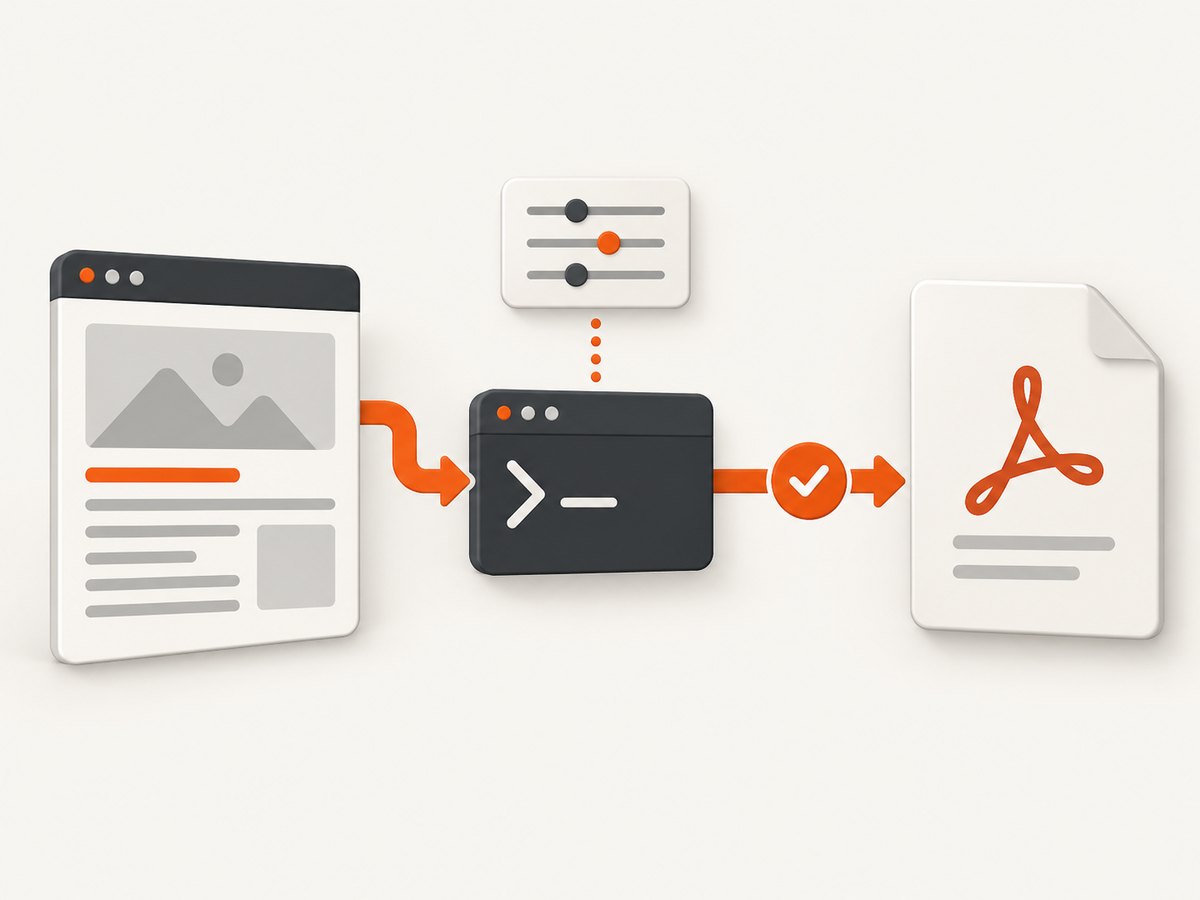
PATH discovery is convenient for a developer workstation, but an explicit path is often clearer in a service, scheduled task, CI runner, or machine with multiple wkhtmltopdf installations. pdfkit supports a configuration object:
import pdfkit

config = pdfkit.configuration(
    wkhtmltopdf=r"C:\Program Files\wkhtmltopdf\bin\wkhtmltopdf.exe"
)

pdfkit.from_string(
    "<h1>Hello</h1>",
    "hello.pdf",
    configuration=config,
)
Use a raw string (r"...") or double backslashes so Python does not interpret Windows backslashes as escape sequences. If your installer used another directory, replace the example path with the location shown by File Explorer or the installer.
You can make the path configurable without changing source code:
import os
import pdfkit

executable = os.environ.get(
    "WKHTMLTOPDF_PATH",
    r"C:\Program Files\wkhtmltopdf\bin\wkhtmltopdf.exe",
)
config = pdfkit.configuration(wkhtmltopdf=executable)
pdfkit.from_url("https://example.com", "example.pdf", configuration=config)
Useful pdfkit options
pdfkit passes option names to the wkhtmltopdf command. Options are supplied as a dictionary; omit the leading command-line dashes.
import pdfkit

options = {
    "page-size": "A4",
    "margin-top": "15mm",
    "margin-right": "15mm",
    "margin-bottom": "15mm",
    "margin-left": "15mm",
    "encoding": "UTF-8",
    "print-media-type": None,
    "quiet": "",
}

pdfkit.from_string(
    "<h1>Styled report</h1>",
    "styled.pdf",
    options=options,
)
Commonly useful settings include:
page-size, or explicitpage-widthandpage-height, for paper dimensions.margin-top,margin-right,margin-bottom, andmargin-leftfor printable spacing.orientationset toLandscapefor wide tables.encodingset toUTF-8for non-ASCII text.print-media-typeto ask the renderer to use print CSS.javascript-delaywhen a page needs additional time to populate client-side content.load-error-handlingand related load settings when you need a deliberate policy for unreachable resources.cookie,custom-header, and authentication-related options when the source requires request credentials. Keep secrets out of logs and source control.
Option availability and behavior belong to the installed wkhtmltopdf build. Consult that build’s command-line help before relying on a specialized flag:
wkhtmltopdf --extended-helpWindows-specific edge cases
PATH differs between your terminal and service
A scheduled task, Windows service, IDE, or CI runner may use a different user account and environment than your interactive shell. A command that works in PowerShell can fail in the service. Use an explicit executable path and ensure the service account can read the executable and write the output directory.
32-bit and 64-bit assumptions
Do not infer compatibility from the Python interpreter alone. Verify the downloaded installer and executable on the target machine, then run wkhtmltopdf --version under the same account that will render documents.
HTML, CSS, fonts, and local assets
Relative CSS, images, and fonts resolve differently when rendering a string, a local file, or a remote URL. Use correct absolute URLs or a predictable base directory. If local resources are intentionally needed, review the renderer’s local-file access settings and Windows file permissions. A PDF with missing images is often an asset-path problem rather than a pdfkit installation problem.
JavaScript-heavy pages
wkhtmltopdf uses a WebKit-based renderer, so modern browser APIs and very recent CSS may not behave like they do in Chrome or Edge. A page can load while its client-side content is still empty. Add a carefully chosen JavaScript delay, simplify the page for print, or render a server-side HTML snapshot.
Troubleshooting checklist
| Error or symptom | Likely cause | Fix |
|---|---|---|
ModuleNotFoundError: No module named 'pdfkit' |
pdfkit was installed into another interpreter or environment. | Activate the intended environment and run py -m pip install pdfkit; verify with py -m pip show pdfkit. |
OSError: No wkhtmltopdf executable found |
The native executable is absent or not discoverable. | Install the Windows binary, run where wkhtmltopdf, or pass pdfkit.configuration(wkhtmltopdf=...). |
where wkhtmltopdf finds nothing after installation |
The shell has an old PATH or the wrong directory was added. | Open a new terminal, inspect the installer directory, and add the folder that contains wkhtmltopdf.exe. |
| Works interactively but fails in a task or service | Different account, PATH, permissions, or working directory. | Use an absolute executable path, absolute output paths, and test as the service account. |
| PDF is blank or missing dynamic content | JavaScript has not finished or the page is incompatible with the renderer. | Use javascript-delay, provide a print-friendly page, and inspect the source HTML separately. |
| Images or styles are missing | Relative URLs, blocked local files, or inaccessible resources. | Use resolvable URLs, verify permissions, and test each asset from the same account. |
| Non-ASCII characters display incorrectly | Missing or incorrect encoding or fonts. | Set encoding to UTF-8, include a UTF-8 meta tag, and install the required fonts on Windows. |
| PDF output cannot be written | Destination directory does not exist or is not writable. | Create the directory, use an absolute path, and check account permissions. |
Performance, reliability, and cost considerations
Each conversion starts a native process and loads the source page, so rendering many documents serially can be slow. Reuse prepared HTML, avoid unnecessary remote assets, and queue work instead of blocking a web request indefinitely. Set an application-level timeout around the Python call and retain the stderr output from failed conversions for diagnosis.
For repeatable output, pin your Python dependency, record the wkhtmltopdf installer version, and deploy the same executable path across environments. Keep a small fixture document containing fonts, images, tables, and JavaScript so upgrades can be compared. The project documentation does not provide a dependable current Windows-version compatibility matrix; verify the current download and test on your target Windows images before a production rollout.
Both components are software dependencies rather than per-document hosted services. Your practical costs are installation, maintenance, machine resources, and engineering time. A self-managed renderer also means you own patching, scaling, observability, and failures caused by unreachable pages or incompatible HTML.
Or skip the browser setup
If your goal is reliable website screenshots or PDFs rather than maintaining a Windows renderer, ScreenshotNeo provides a hosted API. It accepts one GET request and returns a PNG, JPEG, WebP, or PDF. The request below follows the ScreenshotNeo API documentation:
curl -G "https://api.screenshotneo.com/v1/shot" -d access_key=YOUR_API_KEY --data-urlencode url=https://stripe.com -o shot.webpimport requests
r = requests.get(
"https://api.screenshotneo.com/v1/shot",
params={"access_key": "YOUR_API_KEY", "url": "https://stripe.com"},
timeout=90,
)
open("shot.webp", "wb").write(r.content)const q = new URLSearchParams({ access_key: 'YOUR_API_KEY', url: 'https://stripe.com' });
const res = await fetch(`https://api.screenshotneo.com/v1/shot?${q}`);Cookie and consent banners, newsletter popups, and chat widgets are removed before the shot. Bot checks, blank pages, failed loads, timeouts, and cache hits are not billed, and response headers identify the page verdict and billing status. ScreenshotNeo also has an MCP server so Claude, Cursor, and other MCP clients can take screenshots with take_screenshot, inspect pages with get_page_info, and create PDFs with capture_pdf. One thousand screenshots per month are free with no card; paid plans start at $5 for 3,000 shots. Create a free ScreenshotNeo account.
FAQ
Does pip install wkhtmltopdf install the renderer?
No. Install pdfkit with pip and install the native wkhtmltopdf executable separately.
Should I use python or py on Windows?
py -m pip is the documented Windows form and helps target the Python launcher’s interpreter. Use whichever command points to the environment where your application runs.
Can pdfkit work without changing PATH?
Yes. Pass the full executable path to pdfkit.configuration(wkhtmltopdf=...).
Why does my PDF differ from Chrome?
wkhtmltopdf uses a WebKit-based renderer, not the current Chrome engine. Modern CSS, JavaScript, and browser APIs can therefore produce different output.
Where should I check for version compatibility?
Check the current wkhtmltopdf download and project documentation, then validate the exact installer on your Windows target. The available installation references do not provide a reliable universal version matrix.


