How to Integrate MCP with Windsurf
Connect MCP servers to Windsurf Cascade: find the config, add GitHub or Azure, reload tools, and fix common setup errors.
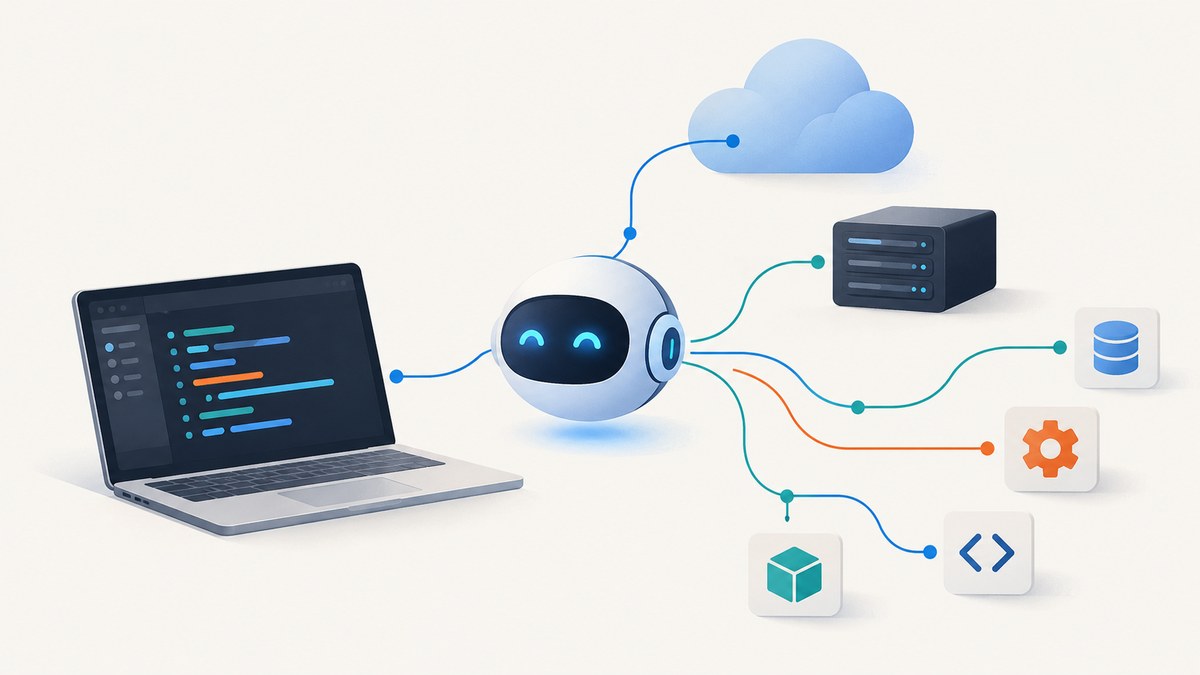
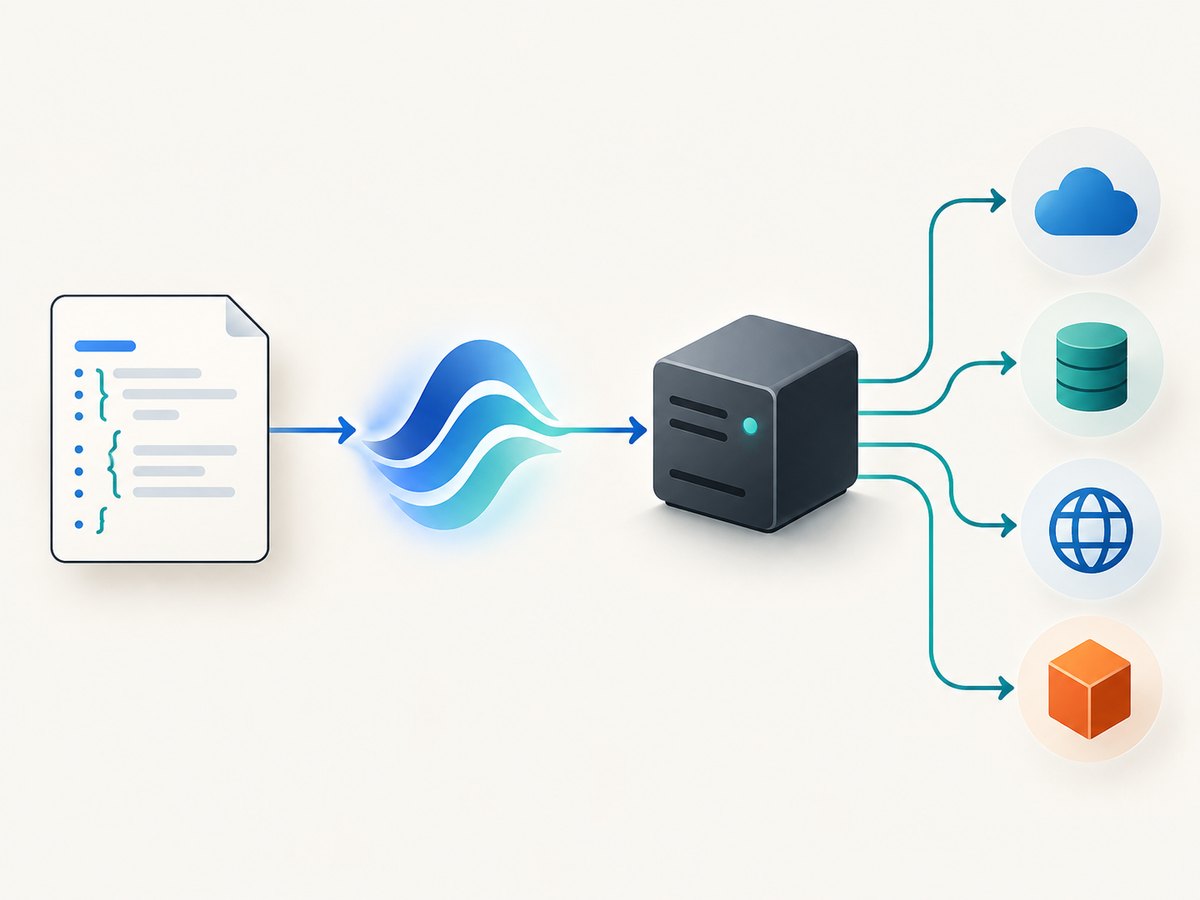
To integrate a Model Context Protocol (MCP) server with Windsurf, add its definition to ~/.codeium/windsurf/mcp_config.json under the top-level mcpServers key, save the file, then refresh Windsurf’s MCP controls. A local server entry usually needs a command, arguments, and sometimes environment variables. The exact package name, arguments, and authentication method must come from that server’s current documentation.
MCP lets Windsurf’s Cascade connect to external servers that expose tools and services. The server configuration tells Windsurf how to start or connect to a server; it does not itself grant credentials or cloud access. The steps below cover the config file, GitHub and Azure examples, verification, security, and troubleshooting.
1. Open Windsurf’s MCP settings
- In Windsurf, open File > Preferences > Windsurf Settings > Manage MCPs.
- Choose View raw config to open the MCP configuration file.
- Check that the file is
~/.codeium/windsurf/mcp_config.json. The leading~means your home directory.
The exact labels can change between Windsurf versions. Microsoft’s Windsurf instructions document this route through Manage MCPs and View raw config. If you cannot find the menu, use Windsurf’s current MCP management controls and confirm the raw config path there. [Microsoft Learn: Connect Azure MCP Server to Windsurf]
2. Add a server to mcp_config.json
Windsurf expects server definitions inside a JSON object named mcpServers. A generic local stdio server entry looks like this:
{
  "mcpServers": {
    "example": {
      "command": "npx",
      "args": ["-y", "PACKAGE_NAME"],
      "env": {
        "EXAMPLE_API_KEY": "YOUR_KEY"
      }
    }
  }
}
Replace PACKAGE_NAME, the command, arguments, and environment variable names with values from the server vendor’s documentation. Not every server needs an API key, and some authenticate through a separate sign-in or cloud CLI instead. Keep the JSON syntax valid: property names and string values use double quotes, and there must not be a trailing comma after the last item.
If you already have servers configured, add another named object inside mcpServers; do not replace the existing entries. For example:
{
  "mcpServers": {
    "existing-server": {
      "command": "some-command",
      "args": ["existing-argument"]
    },
    "example": {
      "command": "npx",
      "args": ["-y", "PACKAGE_NAME"]
    }
  }
}
Protect credentials
Do not put real credentials in a project file that may be checked into source control. The env map is a place to pass a server’s required environment variables, but a literal token in a shared configuration file can still be exposed to anyone who can read that file. Use your environment or the provider’s supported authentication flow where possible, and follow the vendor’s guidance for secrets. The GitHub example below shows the required variable name; substitute your own token locally.
3. Configure GitHub MCP Server
GitHub documents two setup routes for Windsurf: install GitHub MCP Server from the Windsurf plugin store, or manually configure GitHub’s official Docker image, ghcr.io/github/github-mcp-server. The manual route passes a personal access token through GITHUB_PERSONAL_ACCESS_TOKEN. Use the current official GitHub guide for the complete command and any required token permissions; do not assume every GitHub operation needs the same access scope. [GitHub: Using the GitHub MCP Server]
The configuration has this general shape, but the exact Docker arguments and transport options must match GitHub’s current guide:
{
  "mcpServers": {
    "github": {
      "command": "docker",
      "args": [
        "run",
        "-i",
        "--rm",
        "-e",
        "GITHUB_PERSONAL_ACCESS_TOKEN",
        "ghcr.io/github/github-mcp-server"
      ],
      "env": {
        "GITHUB_PERSONAL_ACCESS_TOKEN": "YOUR_TOKEN"
      }
    }
  }
}
Make sure Docker is installed and available to Windsurf’s process if you use this route. GitHub’s documentation marks the npm package @modelcontextprotocol/server-github as deprecated as of April 2025, so prefer the official Docker image or plugin-store installation described in the current GitHub guide.
4. Configure Azure MCP Server
Microsoft Learn provides this Windsurf entry for Azure MCP Server:
{
  "mcpServers": {
    "Azure MCP Server": {
      "command": "npx",
      "args": [
        "-y",
        "@azure/mcp@latest",
        "server",
        "start"
      ]
    }
  }
}
Save it under mcpServers in the raw config. Before asking Cascade to work with Azure resources, authenticate with Azure CLI, Azure Developer CLI, Visual Studio, or Visual Studio Code as Microsoft’s instructions require. The configuration starts the MCP server; Azure authentication is a separate step. Then use a narrow prompt to check that the server can access the expected resource. [Microsoft Learn: Connect Azure MCP Server to Windsurf]
5. Save, refresh, and verify tools
- Save
mcp_config.json. - Return to the MCP controls in Windsurf and click Refresh in the MCP toolbar.
- Check that the server appears and that Windsurf lists its expected tools.
- Try one limited prompt that uses a low-risk read operation, such as asking for a repository detail or listing a resource you are authorized to inspect.
- Confirm the result is from the intended server and account before using tools that modify data.
Saving alone may not reload the definitions. GitHub’s guide explicitly says to click Refresh after manual configuration. [GitHub: Using the GitHub MCP Server]
Choose the right MCP setup
| Setup choice | How it connects | Authentication to check | Best source for details |
|---|---|---|---|
| Local command | Windsurf launches a process using command and args |
Environment variables or the server’s own sign-in flow | The server maintainer’s current setup guide |
| GitHub official image | Windsurf runs GitHub’s Docker image | GITHUB_PERSONAL_ACCESS_TOKEN and its required permissions |
GitHub’s MCP Server guide |
| Azure MCP Server | Windsurf launches @azure/mcp with npx |
Authenticated Azure CLI, Azure Developer CLI, Visual Studio, or Visual Studio Code | Microsoft Learn’s Windsurf procedure |
| Plugin store | Windsurf installs a listed server through its interface | Follow the provider’s sign-in steps | Windsurf and provider documentation |
When comparing options, check the transport and setup method, authentication model, who maintains the package or image, and which tools or data it exposes. These determine the operational fit; an entry that starts successfully may still lack the permissions or tools your task needs.
Security and configuration checklist
- Use the vendor’s current instructions. Package names, command arguments, UI labels, and transport requirements can change.
- Limit credentials. Grant only the permissions the intended operations require, and avoid putting secrets in checked-in files.
- Review tool scope. Know whether a server can read, create, update, or delete resources before allowing it to perform consequential operations.
- Keep names distinct. Each server needs its own key under
mcpServers. - Refresh after edits. Reload the MCP controls after changing the config.
- Verify with a small operation. Confirm the server and account before asking Cascade to make changes.
Troubleshooting
| Symptom | Likely cause | Fix |
|---|---|---|
| No server appears | Wrong config path, invalid JSON, or the file was not reloaded | Open Manage MCPs > View raw config, confirm ~/.codeium/windsurf/mcp_config.json, validate the JSON, save, and click Refresh. |
| Server appears, but has no tools | Wrong command or arguments, startup failure, missing transport requirements, or server initialization problem | Compare every config field with the server’s current setup guide. Check that the executable is installed and on the process PATH, then refresh. |
| “Command not found” or process will not start | The runtime or executable is missing, or Windsurf cannot see its PATH | Install the required runtime, confirm the command works in a terminal, and use the documented absolute path if the app has a different environment. |
| Authentication fails | Missing or invalid token, insufficient permissions, expired sign-in, or cloud CLI not authenticated | Verify the provider’s required variable name and token access; renew the provider login. For Azure, authenticate one of Microsoft’s supported local tools. |
| Changes to config have no effect | Windsurf still has the previous configuration loaded | Save the file and click Refresh in the MCP toolbar. Reopen raw config to ensure you edited the file Windsurf is reading. |
| GitHub setup instructions do not match | Instructions use the deprecated npm server or old arguments | Use GitHub’s current guide and its official image or plugin-store path. The old @modelcontextprotocol/server-github npm package is marked deprecated. |
| Azure tools start but cannot see resources | The MCP process is configured, but the local Azure identity or subscription context is missing or wrong | Sign in with a supported Azure toolchain and verify the active tenant and subscription before retrying. |
Performance, reliability, and maintenance
A local server adds a process startup step, and the result depends on its runtime, network access, provider availability, credentials, and permissions. The setup documentation does not publish comparable latency or uptime figures, so treat performance as specific to the server and task. If a server is slow, first distinguish startup delays from provider responses and large result payloads.

For reliable use, keep the server’s documented runtime installed, use a maintained vendor package or image where available, and verify the config after upgrades. A floating version such as @latest can pick up changes over time; consult the vendor’s version guidance if reproducibility matters. Check authentication separately from MCP startup so a healthy process is not mistaken for working resource access.
Cost depends on the connected provider and any infrastructure you run. The configuration examples alone do not establish a price. Check the service’s own pricing and usage terms, particularly if a server invokes paid APIs or runs hosted infrastructure.
Or skip the browser setup
If your MCP workflow needs a clean website screenshot for Cascade or another MCP client, ScreenshotNeo offers a screenshot API and MCP server. Its MCP tools include take_screenshot, get_page_info, and capture_pdf. For direct API use, one GET request can return an image or PDF. See the ScreenshotNeo API documentation.
curl -G "https://api.screenshotneo.com/v1/shot" \
  -d access_key=YOUR_API_KEY \
  --data-urlencode url=https://stripe.com \
  -o shot.webp
import requests
r = requests.get(
"https://api.screenshotneo.com/v1/shot",
params={"access_key": "YOUR_API_KEY", "url": "https://stripe.com"},
timeout=90,
)
open("shot.webp", "wb").write(r.content)const q = new URLSearchParams({
access_key: 'YOUR_API_KEY',
url: 'https://stripe.com'
});
const res = await fetch(`https://api.screenshotneo.com/v1/shot?${q}`);
const bytes = new Uint8Array(await res.arrayBuffer());
await import('node:fs/promises').then(fs => fs.writeFile('shot.webp', bytes));ScreenshotNeo accepts cookie and consent banners before capture and removes more than 60 known consent platforms, newsletter popups, and chat widgets; each step can be turned off. Bot checks, blank pages, failed loads, timeouts, and cache hits are not billed, and response headers report the page verdict and billing status. Its MCP server lets AI agents take screenshots. The free plan includes 1,000 screenshots per month with no card; paid plans start at $5 for 3,000. Every feature is on every plan. Learn about ScreenshotNeo and sign up for 1,000 free screenshots a month, with no card.
FAQ
Where is Windsurf’s MCP config file?
The documented path is ~/.codeium/windsurf/mcp_config.json. Use Manage MCPs and View raw config in Windsurf to confirm the active file.
Do I need to restart Windsurf after changing the file?
Save the config and use Refresh in the MCP toolbar. If the server still does not load, revisit the raw config and check the command and JSON.
Can I use more than one MCP server?
Yes. Add a distinct named entry for each server inside the same mcpServers object.
Does adding an Azure entry sign me in to Azure?
No. The server entry configures how Windsurf starts Azure MCP Server. Authenticate separately with a supported Azure toolchain.
Why does Cascade show a server but no tools?
The server may not have started or completed initialization. Check its command, arguments, credentials, transport requirements, and vendor instructions, then refresh.


