How to Integrate MCP with Zed
Add local or remote MCP servers to Zed, verify they are active, control tool permissions, and troubleshoot agent-specific configuration boundaries.
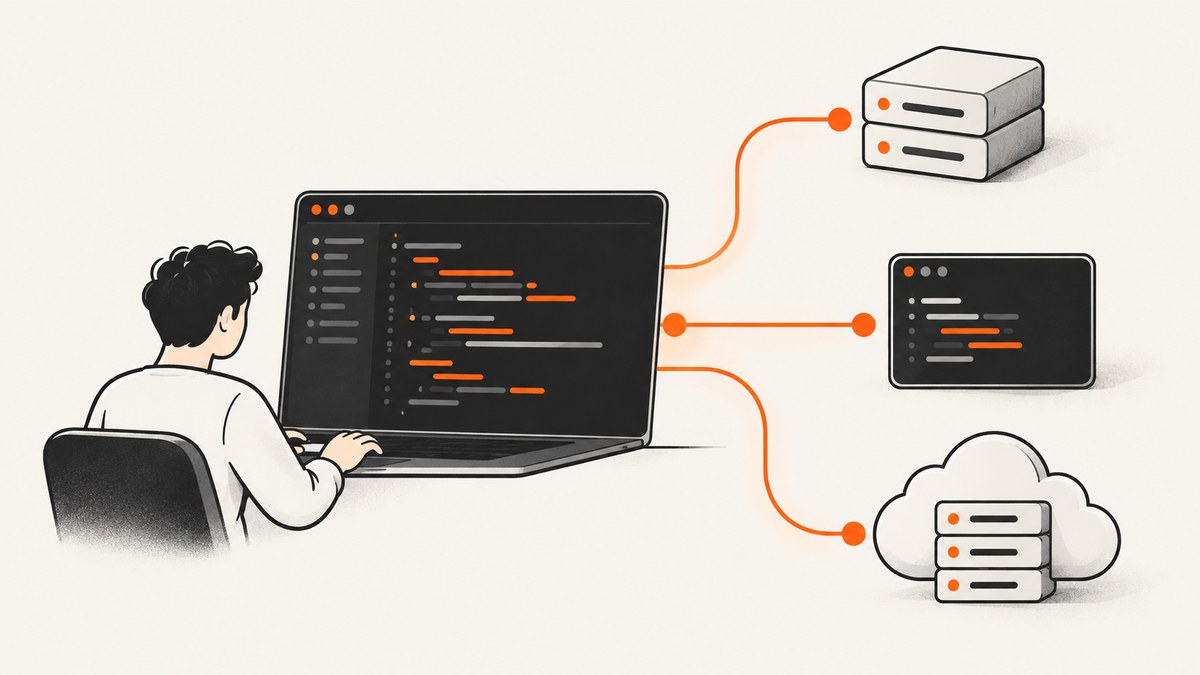
Direct answer: Zed configures MCP (Model Context Protocol) servers in Agent Settings → MCP Servers. Open the settings with agent: open settings (or zed: open settings and choose AI), click Add Server, then choose Install from Extensions, Add Local Server, or Add Remote Server. Local entries need a command and may include arguments and environment variables. Remote entries need a URL and may include authorization headers. Return to MCP Servers and confirm the green Server is active indicator before asking the Agent to use a tool.
This guide covers the complete setup, configuration examples, agent boundaries, permissions, reliability, and fixes for the errors developers most often encounter.
What MCP does in Zed
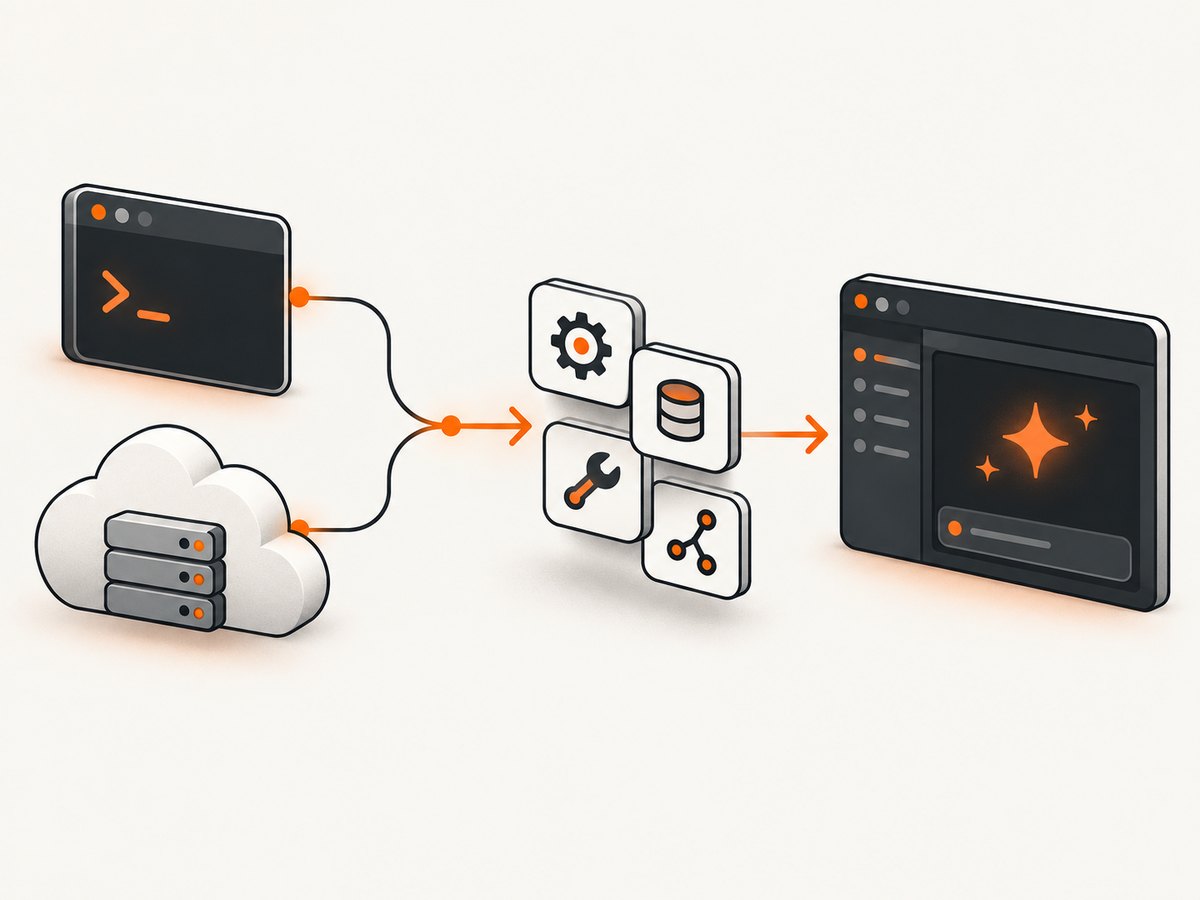
Zed uses the Model Context Protocol to interact with context servers. An MCP server exposes capabilities such as tools and prompts; Zed discovers those capabilities and makes them available to the Agent. Zed currently supports MCP Tools and Prompts, handles the notifications/tools/list_changed notification, and reloads the tool list when a server reports changes.
MCP configuration is attached to Zed’s AI settings. That distinction matters because an MCP server configured in Zed is not automatically configured for every program on your computer. The Zed Agent reads Zed’s configuration directly. External Agents can receive configured servers over ACP, while terminal threads generally read the native MCP configuration of the CLI or TUI running in that terminal.
Choose an installation route
| Route | Best for | What you configure | Ownership |
|---|---|---|---|
| Install from Extensions | Known, packaged integrations | Extension selection and any provider credentials | Zed extension ecosystem |
| Add Local Server | A server running on your machine | command, optional args, optional env |
Your local process |
| Add Remote Server | A hosted MCP endpoint | url, optional headers or OAuth |
Remote service provider |
Use an extension when the provider already publishes one and you want Zed to manage installation. Use a local entry when the server depends on your filesystem, local credentials, or a package you run yourself. Use a remote entry when the provider gives you an HTTPS MCP endpoint and you do not need a local process.
Step 1: Open Zed’s MCP settings
- Open the Command Palette.
- Run
agent: open settings. You can also runzed: open settings, select the AI page, and then open MCP Servers. - Click Add Server.
The AI settings page separates LLM Providers, External Agents, and MCP Servers. If you cannot find MCP Servers, make sure you are in the AI settings page rather than general editor settings.
Step 2: Install an MCP server from Extensions
- In MCP Servers, choose Install from Extensions.
- Select an extension from the Zed website, the
zed: extensionsCommand Palette action, or the extension picker. - Complete any provider-specific setup, such as an API key or account login.
- Return to MCP Servers and check the status indicator.
Zed lists Context7, GitHub, Puppeteer, Gem, Brave Search, Prisma, Framelink Figma, and Resend as examples of popular extension servers. Names and setup fields come from each provider, so follow that provider’s credential instructions rather than guessing environment variable names.
Step 3: Add a local MCP server
A local server is a process Zed starts and communicates with. The configuration has a required command plus optional arguments and environment variables.
{
  "context_servers": {
    "local-mcp-server": {
      "command": "some-command",
      "args": ["arg-1", "arg-2"],
      "env": {
        "EXAMPLE_TOKEN": "replace-with-your-token"
      }
    }
  }
}- Choose Add Local Server.
- Enter the executable command exactly as it is available to Zed’s process environment.
- Add each command-line argument as a separate item in
args. - Put required secrets or settings in
env. Prefer environment injection or your system secret store over committing tokens to a project file. - Save the entry and watch its status in MCP Servers.
Local-server details that prevent failures
- Executable path: A command that works in an interactive shell may not be on Zed’s PATH. Use an absolute path when the status remains inactive.
- Working directory: If the server expects to run from a particular project, use the provider’s documented launch method or a wrapper script that changes directory before starting.
- Arguments: Keep flags and values as separate array elements when the provider documents them that way. Do not paste a whole shell pipeline into one argument.
- Environment: Confirm spelling and capitalization. A missing token commonly looks like a server-start failure.
- Process lifetime: The command must stay running and speak MCP on its standard transport. A command that prints help and exits is not an MCP server.
Step 4: Add a remote MCP server
{
  "context_servers": {
    "remote-mcp-server": {
      "url": "https://example.com/mcp",
      "headers": {
        "Authorization": "Bearer <token>"
      }
    },
    "remote-mcp-server-with-oauth": {
      "url": "https://mcp.example.com/mcp"
    }
  }
}- Choose Add Remote Server.
- Enter the complete MCP URL supplied by the provider.
- If the provider supplies an authorization header, add it under
headers. - If you omit an Authorization header, Zed says it will prompt for the standard MCP OAuth flow when the server requires it.
- Save, authenticate if prompted, and verify the status dot.
Use HTTPS for hosted services, keep bearer tokens out of source control, and rotate credentials through the provider when access changes. A URL that serves an ordinary web page is not an MCP endpoint, even if it uses HTTPS.
Step 5: Verify that the server is active
Return to AI settings → MCP Servers and inspect the status dot for the server. A green dot with the tooltip Server is active is the first configuration check. If it is not green:
- Open the status tooltip and copy the exact error.
- For a local server, run the same command in a terminal and verify its executable, arguments, and required environment variables.
- For a remote server, check the URL, authorization header, OAuth session, TLS certificate, and provider availability.
- Read the server provider’s logs and error documentation.
- Save the entry again or restart the server after changing credentials.
Step 6: Use MCP tools in the Agent
Open the Agent Panel and describe the task. Automatic tool selection depends on the model and can vary. Naming the server in your prompt makes the intended route clearer:
Use the GitHub MCP server to inspect the open issues in this repository and summarize duplicates.For repeatable behavior, create a custom profile. Turn off conflicting built-in tools and turn on only the MCP tools required for the task. A narrow profile reduces ambiguous tool selection and makes prompts easier to audit.
Configuration boundaries: Agent, External Agents, and terminal threads
| Execution path | Where MCP servers come from | Practical implication |
|---|---|---|
| Zed Agent | Zed-configured MCP servers | Use the MCP Servers page and its status indicator. |
| External Agents | Configured servers passed over ACP | Confirm the external agent supports the handoff and that the server is enabled in Zed. |
| Terminal threads | The terminal CLI/TUI’s native MCP configuration | A server visible in Zed may still be absent from the terminal agent. |
This is the most common reason a developer sees an active server in Zed but cannot call it from a terminal-based agent. Configure the server in the configuration system used by that agent, or use the Zed Agent path.
Permissions, prompts, and predictable tool use
- Ask for one tool-driven action at a time while validating a new server.
- Name the MCP server when more than one server exposes similar tools.
- Use a custom profile to disable overlapping built-in tools.
- Review tool arguments before allowing operations that write, delete, publish, or change remote state.
- Keep credentials scoped to the smallest set of resources the server needs.
Zed supports MCP Tools and Prompts. Discovery, Sampling, and Elicitation are areas where Zed’s documentation welcomes additional feature coverage, so do not assume a server feature outside Tools and Prompts will work in the same way.

Or skip the browser setup
If your agent needs screenshots, ScreenshotNeo provides an MCP server as well as a direct API. It can accept a URL, remove cookie and consent banners, newsletter popups, and chat widgets before capture, and return PNG, JPEG, WebP, or PDF. Bot checks, blank pages, timeouts, failed loads, and cache hits are not billed; each response identifies the result with X-Page-Verdict and X-Billed headers. The MCP tools are take_screenshot, get_page_info, and capture_pdf.
To configure the hosted MCP server in Zed, use the remote-server route above with the MCP URL and authorization details shown in the ScreenshotNeo documentation. For a direct one-call capture, the API base is https://api.screenshotneo.com/v1/shot.
cURL
curl -G "https://api.screenshotneo.com/v1/shot" -d access_key=YOUR_API_KEY --data-urlencode url=https://stripe.com -o shot.webpPython
import requests
r = requests.get("https://api.screenshotneo.com/v1/shot", params={"access_key": "YOUR_API_KEY", "url": "https://stripe.com"}, timeout=90)
open("shot.webp", "wb").write(r.content)
Node.js
const q = new URLSearchParams({ access_key: 'YOUR_API_KEY', url: 'https://stripe.com' });
const res = await fetch(`https://api.screenshotneo.com/v1/shot?${q}`);
ScreenshotNeo has 63 options, including full-page capture with lazy images loaded, CSS-selector element capture, dark mode, device presets or custom viewports, retina scale, PDF paper and page controls, custom CSS and JavaScript, clicks, selector waits, delays, network-idle waits, request blocking, headers, cookies, user agents, Authorization, timezone, geolocation, transparent backgrounds, resizing, configurable caching, signed image links, asynchronous jobs with signed webhooks, bulk capture for 100 URLs per call, a usage API, and an OpenAPI specification. Existing parameter names used by other screenshot APIs also work, which can simplify migration.
ScreenshotNeo includes every feature on every plan: 1,000 screenshots per month free with no card; paid plans start at $5 for 3,000 shots. Yearly billing gives two months free. Create a free ScreenshotNeo account to try the API and MCP server.
Troubleshooting
| Symptom | Likely cause | Fix |
|---|---|---|
| Server is inactive immediately | Bad command, missing executable, or process exits | Run the command manually, use an absolute path, check arguments, and inspect stderr. |
| Remote server asks for credentials repeatedly | Invalid or expired header/OAuth session | Replace the token, remove a stale Authorization header, and complete OAuth again. |
| Green status but no tools appear | Discovery failed or the server exposes no supported tools | Restart the server, inspect provider logs, and verify it exposes MCP Tools or Prompts. |
| Agent chooses the wrong tool | Overlapping tools or model selection variance | Name the server and use a custom profile with conflicting tools disabled. |
| Zed Agent works but terminal agent does not | Different configuration boundary | Configure the terminal agent’s native MCP settings or use the Zed Agent. |
| Tool call returns invalid parameters | Arguments do not match the server schema | Inspect the discovered schema and send required fields with the documented types. |
| Tool call times out | Slow upstream service, network issue, or server deadlock | Check provider status and logs, retry once, then reduce the request scope. |
| Requests are rate-limited | Provider quota or concurrency limit | Back off, reduce parallel calls, and review the provider’s limits. |
Performance, reliability, and cost considerations
- Startup: Local servers add process startup time. Keep a long-lived server process where supported instead of launching a new process for every prompt.
- Network: Remote latency depends on the provider and your connection. Group related work into one tool call when the server supports it.
- Discovery: A large tool catalog makes selection harder. Custom profiles and explicit server names reduce ambiguity.
- Retries: Retry only idempotent operations unless the server documents safe retry behavior. A timed-out write may have succeeded remotely.
- Secrets: Store tokens in environment variables or the provider’s OAuth flow. Do not commit them to project settings.
- Cost: Zed’s configuration itself does not state a universal MCP price. Costs, quotas, and rate limits belong to each server provider and model. Check those terms before enabling high-volume automation.
Checklist
- Choose extension, local, or remote installation.
- Open Agent Settings → MCP Servers.
- Enter the command, arguments, environment, URL, or headers required by the provider.
- Confirm the green Server is active status.
- Test one simple tool call in the Agent Panel.
- Name the server in prompts when selection is ambiguous.
- Create a custom profile for repeatable tool permissions.
- Remember that External Agents and terminal threads may use different MCP configuration.
FAQ
Where is the MCP settings page in Zed?
Open agent: open settings, or open zed: open settings and select AI. The MCP Servers section is on that page.
Can I use a remote server without an Authorization header?
Yes. If the provider requires authentication, Zed says it will prompt for the standard MCP OAuth flow when no Authorization header is configured.
Why does my server work in Zed but not in an external agent?
External Agents receive configured servers over ACP, while terminal threads generally use their own native CLI or TUI configuration. Verify which path you are using.
Does Zed support every MCP capability?
Zed supports MCP Tools and Prompts and handles tool-list change notifications. Its documentation identifies Discovery, Sampling, and Elicitation as areas for additional feature coverage.
How do I make tool selection more deterministic?
Name the MCP server in your prompt and create a custom profile that enables the needed MCP tools while disabling conflicting built-in tools.


