How to Integrate Selenium with Scrapy
Use Scrapy for crawling and Selenium for JavaScript rendering, waits, clicks, and dynamic pages with a production-ready setup.
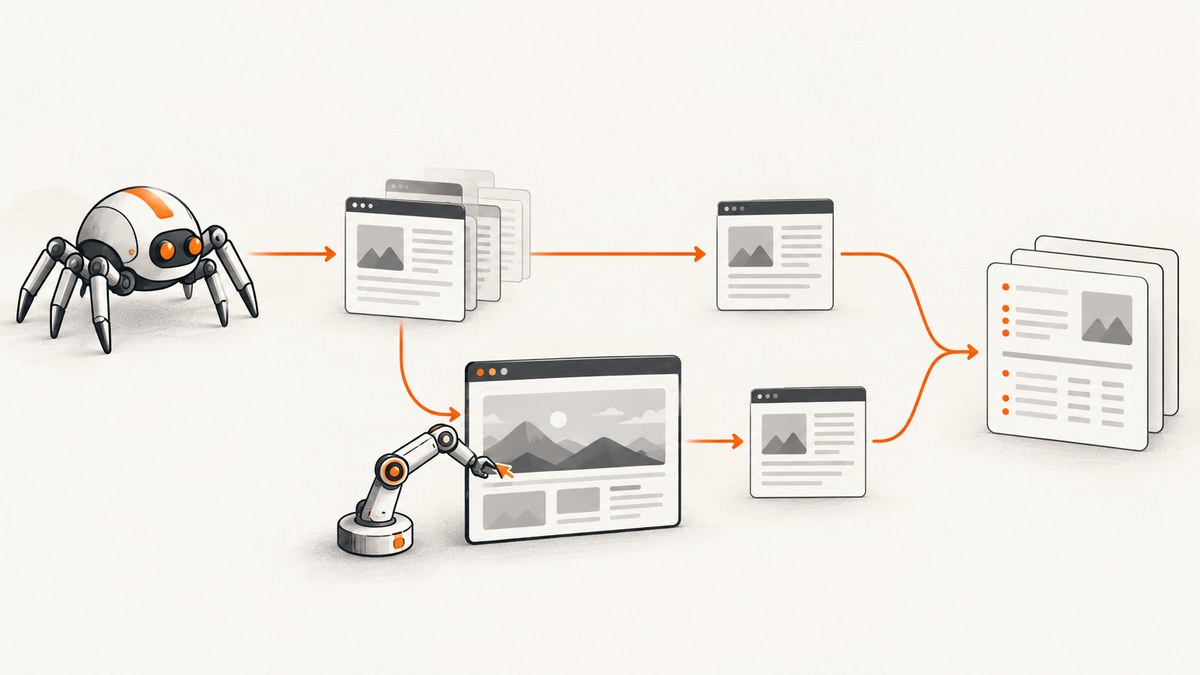
Direct answer: integrate Selenium through Scrapy downloader middleware. Install scrapy-selenium, configure a compatible browser and driver (or Selenium Manager), enable scrapy_selenium.SeleniumMiddleware, and yield SeleniumRequest only for pages that need JavaScript or browser interaction. The middleware renders the page, then gives your callback a normal Scrapy response that you can parse with CSS or XPath selectors.
Scrapy should continue handling crawl scheduling, concurrency, retries, callbacks, and item pipelines. Selenium should handle the expensive browser work: executing JavaScript, waiting for asynchronous content, scrolling, clicking, filling forms, and switching windows. Keeping those jobs separate makes a spider easier to operate and faster than sending every URL through a browser.
1. How the integration works
Scrapy downloader middleware sits between the scheduler and the downloader. SeleniumMiddleware intercepts a SeleniumRequest, navigates a WebDriver browser to its URL, applies the requested wait and script, and builds a response from the browser’s current HTML. Your callback receives that response just like a normal Scrapy response.
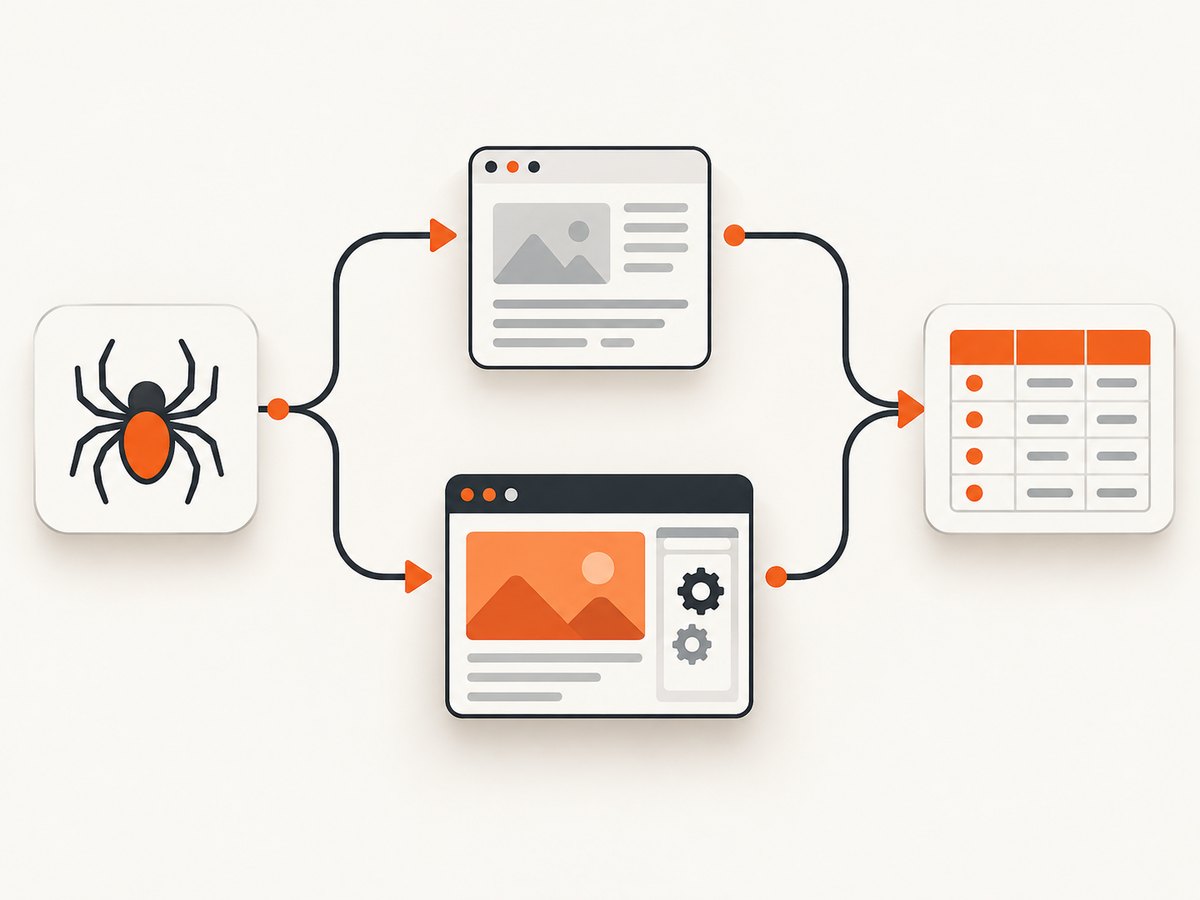
- Your spider yields an ordinary
scrapy.Requestfor static pages. - For a JavaScript-dependent URL, it yields
SeleniumRequest. - The middleware starts or reuses the configured browser and loads the URL.
- It waits for a condition, a delay, or your script.
- The callback extracts data with
response.css()orresponse.xpath().
The Selenium driver is also available as response.request.meta['driver'] when the callback must perform a direct browser action. Keep most extraction in Scrapy selectors so the spider remains readable and testable. Selenium WebDriver drives browsers natively and can run locally or through Selenium Server on another machine. WebDriver is a W3C Recommendation; Selenium also documents WebDriver BiDi for bidirectional browser events (Selenium WebDriver documentation).
2. Install the packages and browser
Create an isolated environment, then install Scrapy, Selenium, and the middleware package:
python -m venv .venv
source .venv/bin/activate
python -m pip install scrapy selenium scrapy-selenium
Install Chrome, Firefox, or Edge on the machine that will run the spider. Selenium Manager, included with supported Selenium distributions, can discover, download, and cache drivers and supported browsers when they are missing. This behavior is documented for Selenium 4.6.0 and later (Selenium Manager documentation). In locked-down production images, explicitly install and pin the browser and driver instead of relying on a download at runtime.
3. Configure Scrapy middleware
Add the settings to settings.py. The exact driver path is optional when Selenium Manager can resolve it.
BOT_NAME = "catalog_crawler"

SPIDER_MODULES = ["catalog_crawler.spiders"]
NEWSPIDER_MODULE = "catalog_crawler.spiders"

SELENIUM_DRIVER_NAME = "chrome"
# Set this when you manage the driver yourself:
# SELENIUM_DRIVER_EXECUTABLE_PATH = "/usr/local/bin/chromedriver"

# For Selenium Server, use this instead of a local executable path:
# SELENIUM_COMMAND_EXECUTOR = "http://selenium-hub:4444/wd/hub"

SELENIUM_DRIVER_ARGUMENTS = [
    "--headless=new",
    "--no-sandbox",
    "--disable-dev-shm-usage",
    "--window-size=1440,1000",
]

DOWNLOADER_MIDDLEWARES = {
    "scrapy_selenium.SeleniumMiddleware": 800,
}

ROBOTSTXT_OBEY = True
DOWNLOAD_DELAY = 0.25
Use the middleware priority shown by the package documentation unless another middleware in your project requires a deliberate ordering change. In containers, --disable-dev-shm-usage avoids crashes caused by a small shared-memory mount; --no-sandbox is commonly needed in containerized Chrome deployments, but follow your image’s security policy.
4. Minimal SeleniumRequest spider
The following spider waits for product cards, then extracts them with normal Scrapy selectors:
import scrapy
from scrapy_selenium import SeleniumRequest


class ProductSpider(scrapy.Spider):
    name = "products"

    def start_requests(self):
        yield scrapy.Request(
            "https://example.com/catalog",
            callback=self.parse_static,
        )
        yield SeleniumRequest(
            url="https://example.com/products",
            callback=self.parse_products,
            wait_time=10,
        )

    def parse_static(self, response):
        yield {"title": response.css("h1::text").get()}

    def parse_products(self, response):
        for card in response.css(".product"):
            yield {
                "name": card.css(".name::text").get(),
                "price": card.css(".price::text").get(),
                "url": response.urljoin(card.css("a::attr(href)").get()),
            }
Run it with scrapy crawl products -O products.json. The callback sees browser-produced HTML, so selectors must match the DOM after JavaScript has rendered the content.
5. Waiting for dynamic content
A fixed delay is easy but often wasteful. Prefer an explicit condition that represents readiness. SeleniumRequest supports wait_until, using Selenium expected conditions, and wait_time for a simple maximum wait.
from selenium.webdriver.common.by import By
from selenium.webdriver.support import expected_conditions as EC
from scrapy_selenium import SeleniumRequest

yield SeleniumRequest(
    url="https://example.com/dashboard",
    callback=self.parse_dashboard,
    wait_until=EC.visibility_of_element_located(
        (By.CSS_SELECTOR, "[data-loaded='true']")
    ),
    wait_time=20,
)
Use a condition that cannot be true before the data is available: a result row, a completed state attribute, or a non-empty container. Waiting for body only proves that the initial document loaded; it does not prove that an API request finished.
6. Scrolling, clicking, and custom JavaScript
For controlled browser-side actions, pass a script to SeleniumRequest. This example scrolls to trigger lazy loading:
scroll_script = """
window.scrollTo(0, document.body.scrollHeight);
"""

yield SeleniumRequest(
    url="https://example.com/infinite-list",
    callback=self.parse_items,
    script=scroll_script,
    wait_time=3,
)
For multiple scrolls or a click followed by a wait, access the driver in the callback:
from selenium.webdriver.common.by import By
from selenium.webdriver.support.ui import WebDriverWait
from selenium.webdriver.support import expected_conditions as EC

def parse_items(self, response):
    driver = response.request.meta["driver"]
    driver.execute_script("window.scrollTo(0, document.body.scrollHeight)")
    WebDriverWait(driver, 15).until(
        EC.presence_of_element_located((By.CSS_SELECTOR, ".new-items"))
    )
    updated_html = driver.page_source
    for name in scrapy.Selector(text=updated_html).css(".item .name::text").getall():
        yield {"name": name.strip()}
Use stable attributes such as data-testid when available. Avoid brittle selectors based on generated class names. If a click opens a new tab, capture the original window handle, inspect driver.window_handles, switch to the new handle, and return to the original before the next request.
7. Screenshots and request options
The middleware request type supports browser options documented by scrapy-selenium, including:
| Option | Use |
|---|---|
wait_time |
Maximum seconds to wait after navigation. |
wait_until |
Selenium expected condition that indicates readiness. |
script |
JavaScript to execute before the response is returned. |
screenshot |
Request a browser screenshot when supported by the package version. |
headers and cookies |
Pass request context when the middleware version supports it; otherwise set them through the driver. |
Check the installed package documentation and source for version-specific arguments. The middleware project is third-party software, so verify compatibility between your Scrapy, Selenium, browser, driver, and scrapy-selenium versions before deployment.
8. Local, headless, and remote execution
Local development
Run headed Chrome while debugging selectors, then enable headless mode in CI. Save a screenshot and page source when a callback fails; those artifacts usually reveal whether the selector, wait, or browser state is wrong.
Remote Selenium Server
For a centralized browser pool, run Selenium Server or a compatible Grid and set:
SELENIUM_DRIVER_NAME = "chrome"
SELENIUM_COMMAND_EXECUTOR = "http://selenium-hub:4444/wd/hub"
SELENIUM_DRIVER_ARGUMENTS = ["--headless=new", "--window-size=1440,1000"]
Remote execution adds network latency and another failure boundary. Keep browser sessions isolated, cap concurrent sessions to the Grid’s capacity, and make the hub address configurable through an environment variable. Selenium’s documentation explicitly supports running WebDriver on a remote machine (Selenium Grid documentation).
9. Reliability and performance practices
- Use Selenium selectively. Ordinary Scrapy requests consume fewer CPU and memory resources than a full browser. Route only JavaScript-dependent pages through Selenium.
- Reuse a browser carefully. Reuse reduces startup overhead, but clear cookies, local storage, and tabs between unrelated accounts or domains.
- Set bounded waits. Every explicit wait needs a timeout so one broken page cannot occupy a worker indefinitely.
- Limit concurrency. A browser session is heavier than an HTTP request. Start with a small Selenium concurrency and increase only after observing memory, CPU, and remote Grid capacity.
- Retry the right failures. Retry transient navigation errors and remote session failures. Do not blindly retry deterministic selector failures.
- Record evidence. Log URL, wait condition, elapsed time, browser version, and exception type. Store HTML or screenshots for failed pages where policy permits.
- Respect site rules. Follow robots policies, terms, authentication boundaries, and applicable privacy requirements.
There is no universal Selenium throughput number: page weight, JavaScript execution, browser type, wait conditions, and Grid capacity dominate. Measure your own crawl with representative URLs rather than copying a benchmark from another environment.
10. Common errors and fixes
| Error or symptom | Likely cause | Fix |
|---|---|---|
ModuleNotFoundError: scrapy_selenium |
Package is not installed in the active environment. | Activate the project environment and run pip install scrapy-selenium. |
| Driver executable cannot be found | Browser driver is absent or incompatible. | Install a matching driver, set SELENIUM_DRIVER_EXECUTABLE_PATH, or use Selenium Manager. |
| Chrome exits immediately in Docker | Sandbox or shared-memory constraints. | Try --headless=new, --disable-dev-shm-usage, and an image with a compatible browser; use --no-sandbox only according to your security policy. |
| Selector returns no items | Content has not rendered, selector targets the wrong DOM, or content is inside an iframe. | Wait for a meaningful element, inspect saved page_source, and switch into the iframe before extracting. |
| Timeout waiting for an element | Condition never becomes true, content is blocked, or the page is slow. | Verify the selector in a headed browser, increase the bounded timeout, and capture console/network evidence. |
| Stale element reference | JavaScript replaced the node after you located it. | Wait for the update to finish, then locate the element again immediately before interacting. |
| Remote session refused | Grid URL, credentials, browser capability, or hub capacity is wrong. | Check the executor URL, inspect Grid logs, and reduce concurrency. |
| Spider memory keeps growing | Too many browser sessions, tabs, screenshots, or retained response objects. | Lower Selenium concurrency, close extra windows, clear state, and avoid storing full HTML in items. |
11. Or skip the browser setup
If your goal is reliable website images rather than DOM extraction, ScreenshotNeo provides a single screenshot API request. Its browser handles JavaScript pages, full-page capture, element selectors, waits, custom headers and cookies, device presets, dark mode, PDFs, and other capture controls. Read the ScreenshotNeo API documentation for all options.
curl -G "https://api.screenshotneo.com/v1/shot" -d access_key=YOUR_API_KEY --data-urlencode url=https://stripe.com -o shot.webpimport requests
r = requests.get("https://api.screenshotneo.com/v1/shot", params={"access_key": "YOUR_API_KEY", "url": "https://stripe.com"}, timeout=90)
open("shot.webp", "wb").write(r.content)const q = new URLSearchParams({ access_key: 'YOUR_API_KEY', url: 'https://stripe.com' });
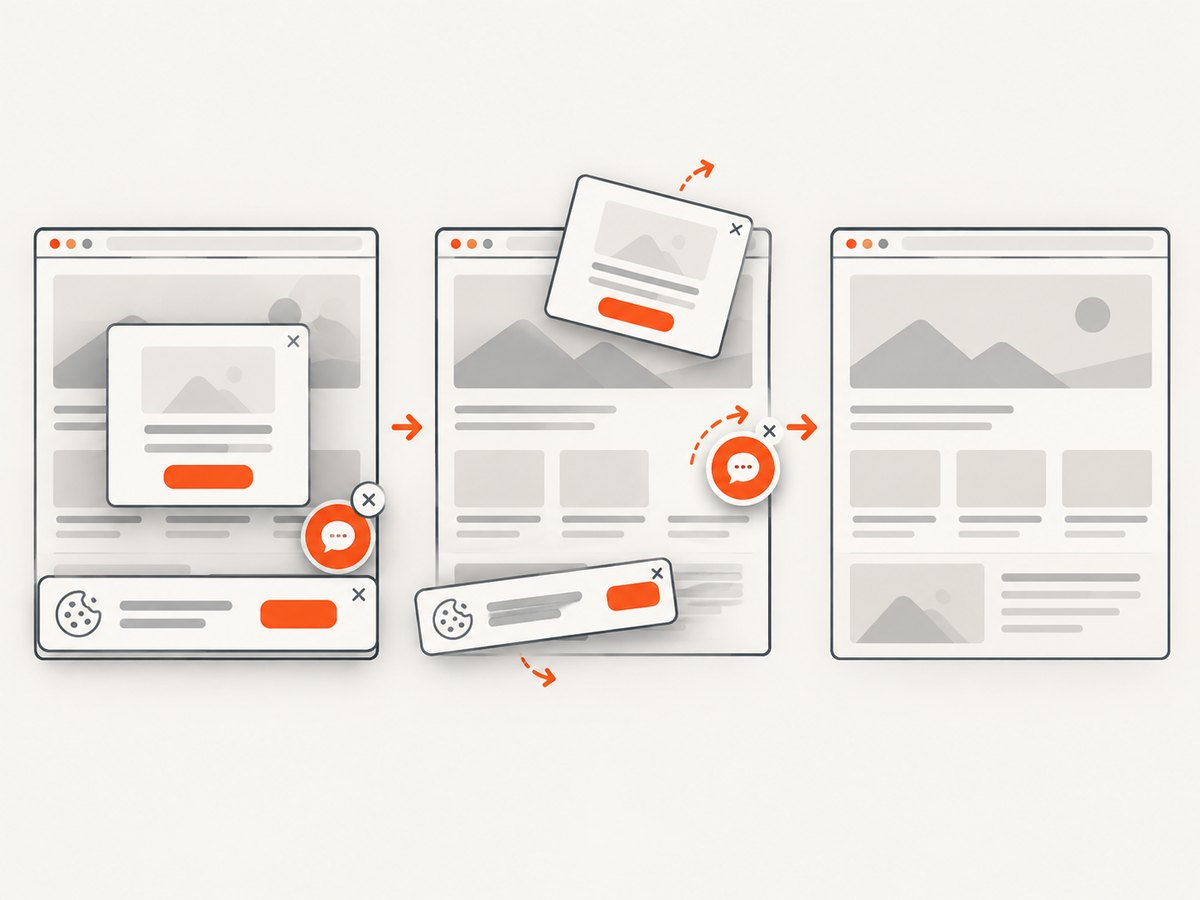
const res = await fetch(`https://api.screenshotneo.com/v1/shot?${q}`);Cookie and consent banners are accepted before capture, and more than 60 known consent platforms, newsletter popups, and chat widgets are removed. Bot checks, blank pages, timeouts, failed loads, and cache hits are not billed; response headers identify the page verdict and whether the shot was billed. An MCP server provides take_screenshot, get_page_info, and capture_pdf tools for Claude, Cursor, and other MCP clients. The Free plan includes 1,000 screenshots each month with no card; paid plans start at $5 for 3,000 shots. Create a free ScreenshotNeo account.
12. Choosing the right architecture
| Requirement | Best fit |
|---|---|
| Static HTML or JSON endpoint | Plain Scrapy Request |
| JavaScript rendering with extracted fields | Selective local Selenium requests |
| Many browser sessions or centralized browsers | Remote Selenium Server or Grid |
| Clicks, scrolling, screenshots, and browser state | Selenium, with explicit waits and session controls |
| Website images or PDFs without maintaining browsers | ScreenshotNeo API |
13. Deployment checklist
- Pin compatible Scrapy, Selenium, middleware, browser, and driver versions.
- Confirm headless startup in the same container or host used by production.
- Test every wait condition against slow and empty responses.
- Set bounded timeouts and a deliberate retry policy.
- Limit browser concurrency and monitor memory.
- Clear cookies, storage, tabs, and authentication state between isolated jobs.
- Capture diagnostic HTML or screenshots for failed pages.
- Verify robots, terms, authentication, and privacy requirements.
FAQ
Can Scrapy and Selenium run in the same spider?
Yes. Yield ordinary Request objects for static pages and SeleniumRequest only where rendering or interaction is required.
Do I need to write XPath with Selenium?
No. The middleware returns a Scrapy response, so CSS and XPath selectors from Scrapy work in the callback. Use Selenium locators only for browser actions or explicit waits.
Should I use a fixed sleep?
Use a meaningful expected condition when possible. A bounded fixed wait is acceptable for simple pages, but it can be either slower than necessary or too short when network conditions change.
When should I use remote Selenium?
Use it when browsers need to be centralized, isolated, or scaled across machines. For a small crawler, local headless execution is simpler.
Is Selenium the right tool for taking screenshots?
It can capture screenshots, but maintaining browsers, drivers, waits, and concurrency is operational work. For an API workflow, ScreenshotNeo supplies the browser capture path and reports whether a response was billed.


