How to Add Intelligent Page Breaks When Generating PDFs from HTML
Keep headings, cards, figures, and table groups together in HTML-to-PDF output with CSS fragmentation rules, renderer settings, and working Puppeteer and WeasyPrint examples.
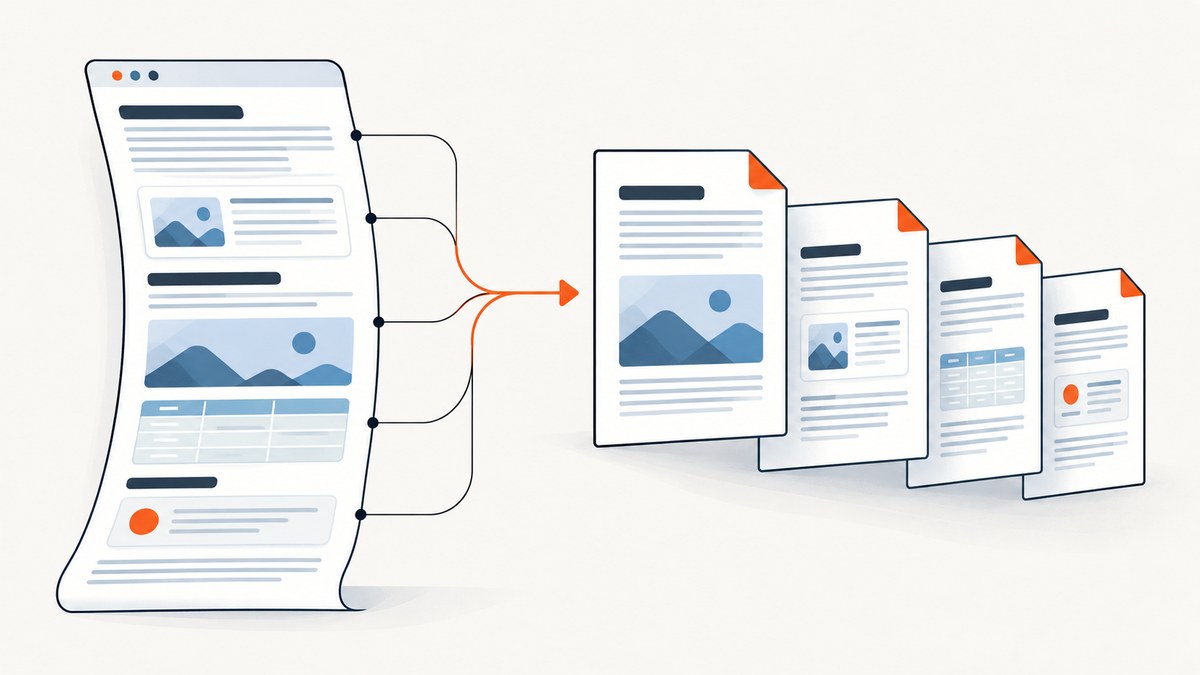
Direct answer: Add semantic containers around every unit that should stay together, then control pagination with print CSS. Use break-inside: avoid (plus the legacy page-break-inside: avoid alias) for figures, cards, callouts, and grouped table rows. Use break-after: avoid on headings so a heading does not sit at the bottom of a page. Reserve break-before: page for real chapter boundaries. Finally, render with a known page size and test long, nested, and oversized content.
A page break ends layout in the current page box and starts layout in a new page box, as defined by the CSS 2.2 paged-media specification. The formatter still has to make progress: an element taller than a page cannot remain intact, so an avoidance rule may be overridden or the break may be moved before the element.
1. Model the document as semantic units
Pagination works best when the HTML structure reflects the reading structure. Wrap a heading and its opening text, a figure and its caption, a callout, a pricing card, or a related group of table rows in a block container. The container gives the formatter one box on which to make a break decision.
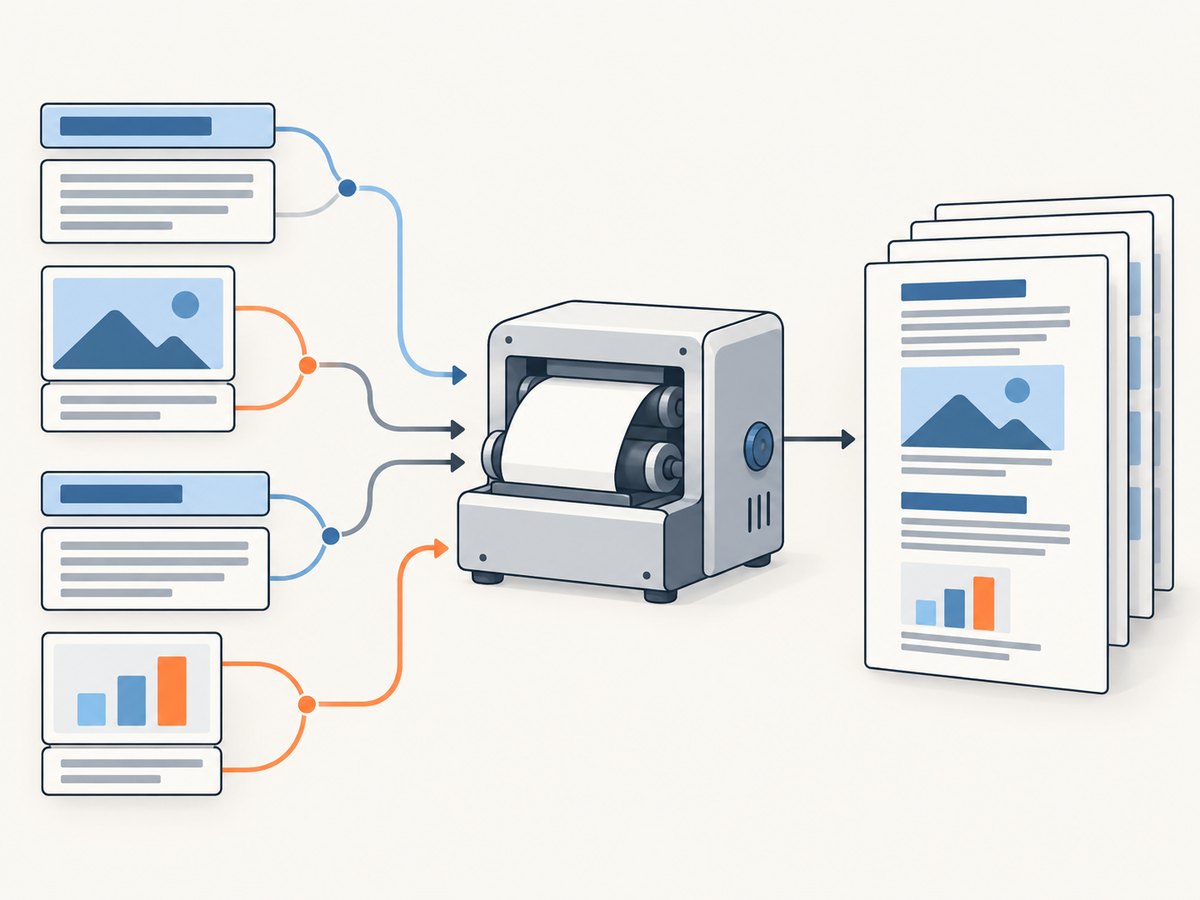
<article>
  <section class="chapter">
    <h2>Deployment steps</h2>
    <p>The introduction belongs with the heading.</p>

    <figure class="figure">
      <img src="architecture.png" alt="Request and rendering flow">
      <figcaption>The capture pipeline.</figcaption>
    </figure>

    <aside class="callout">
      <strong>Tip</strong> Keep this operational note together.
    </aside>
  </section>
</article>
Avoid applying break-inside: avoid to the entire article. Large containers then become impossible to place and the renderer has to override the rule in surprising locations. Apply it to atomic blocks instead.
2. Add print CSS for headings, blocks, and text
Modern fragmentation properties are break-before, break-after, and break-inside. Keep the page-break-* aliases for older engines and for code that must run across multiple renderers.
@page {
  size: A4;
  margin: 18mm 16mm 20mm;
}

@media print {
  /* Do not strand a heading at the bottom of a page. */
  h1, h2, h3 {
    break-after: avoid;
    page-break-after: avoid;
  }

  /* A chapter starts on a fresh page. Use sparingly. */
  section.chapter {
    break-before: page;
    page-break-before: always;
  }

  /* Atomic blocks should travel with their contents. */
  figure,
  .figure,
  .card,
  .callout,
  .table-group {
    break-inside: avoid;
    page-break-inside: avoid;
  }

  /* Keep a small amount of text at the top and bottom of a page. */
  p, li {
    orphans: 3;
    widows: 3;
  }

  /* Preserve color when the renderer supports the WebKit property. */
  * {
    -webkit-print-color-adjust: exact;
    print-color-adjust: exact;
  }
}
break-after: avoid asks the formatter to keep the following content with the heading. It does not force the following paragraph to fit if there is not enough room. orphans controls the minimum number of lines left at the bottom of a page; widows controls the minimum number moved to the next page.
Forced breaks versus avoidance
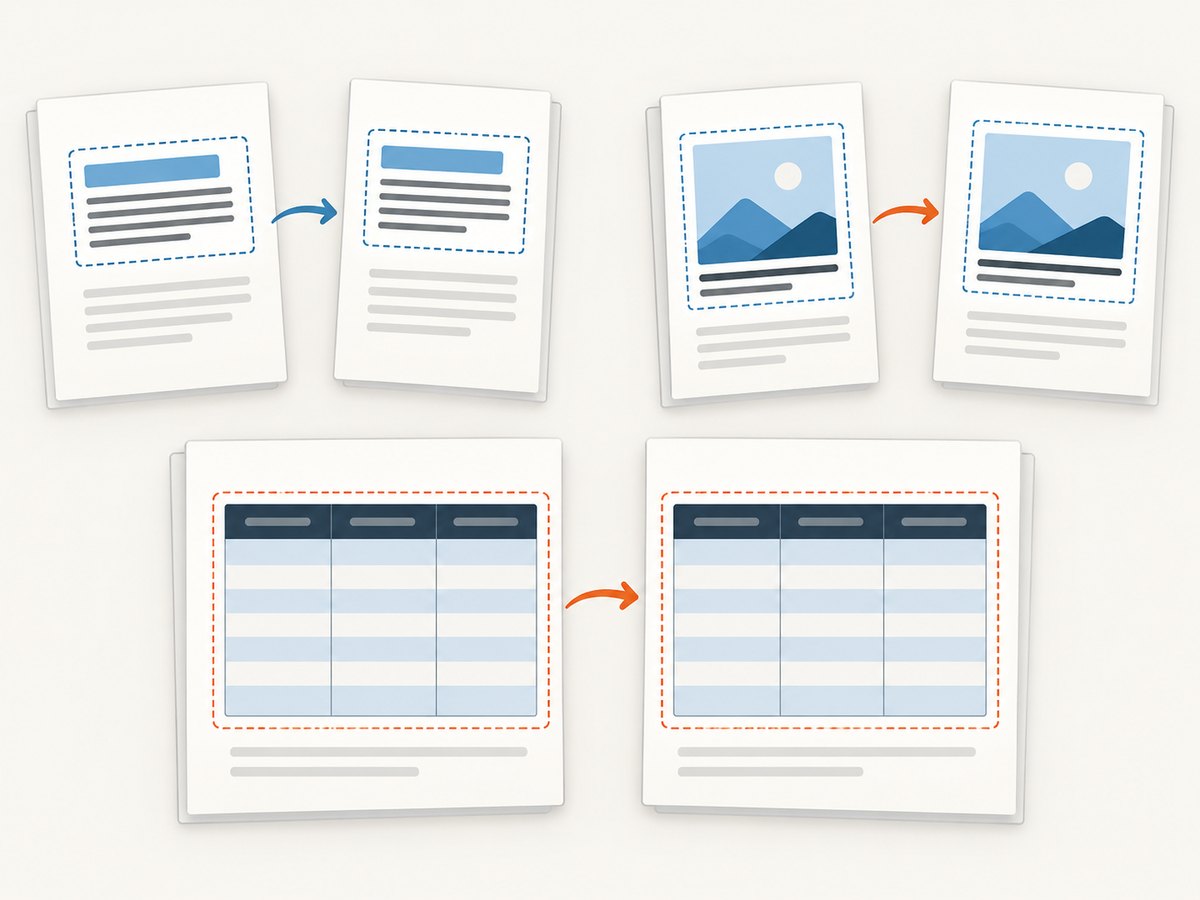
Use break-before: page for a chapter, appendix, or other deliberate boundary. Do not use it before every heading: that creates excessive whitespace and prevents the formatter from using available space efficiently. Use break-inside: avoid for a card, figure, or callout whose internal relationship matters.
3. Keep figures, cards, and callouts together
Put the image and caption in the same container. If the image itself is taller than the remaining page area, the formatter may move the whole figure to the next page; if it is taller than one full page, it must split or overflow.
.figure {
  margin: 1rem 0;
  break-inside: avoid;
  page-break-inside: avoid;
}

.figure img {
  display: block;
  max-width: 100%;
  height: auto;
}

.callout {
  padding: 0.8rem 1rem;
  border: 1px solid #c7d2fe;
  background: #eef2ff;
  break-inside: avoid;
  page-break-inside: avoid;
}

.card-grid {
  display: block;
}

.card {
  margin-block: 0 1rem;
  break-inside: avoid;
  page-break-inside: avoid;
}
Flex and grid layouts can behave differently across formatters. For predictable pagination, switch complex screen grids to a simple block or table-like print layout inside @media print. Test nested cards rather than assuming a parent rule protects every child.
4. Keep table groups and rows readable
Tables are a frequent source of bad PDF breaks. Use a thead so the header can repeat, and group related rows in tbody elements or wrapper blocks. Avoid placing an entire multi-page table inside break-inside: avoid; instead protect a short group or individual row where the renderer supports it.
<table class="report">
  <thead>
    <tr><th>Plan</th><th>Limit</th><th>Notes</th></tr>
  </thead>
  <tbody class="table-group">
    <tr><td>Free</td><td>1,000</td><td>No card</td></tr>
    <tr><td>Starter</td><td>3,000</td><td>Monthly plan</td></tr>
  </tbody>
</table>
@media print {
.report thead {
display: table-header-group;
}
.report tr {
break-inside: avoid;
page-break-inside: avoid;
}
.table-group {
break-inside: avoid;
page-break-inside: avoid;
}
}
A group that is taller than the page still has to split. If a row contains a long paragraph, consider moving that prose into a cell-specific block or redesigning the table for print.
5. Render with Puppeteer
Puppeteer’s page.pdf() generates a PDF with the print CSS media type. Keep pagination rules under @media print unless the page is intentionally designed for screen media; in that case call page.emulateMediaType('screen') before creating the PDF. The following script is runnable with Node.js and Puppeteer.
import puppeteer from 'puppeteer';

const browser = await puppeteer.launch({ headless: true });
try {
  const page = await browser.newPage();
  await page.goto('http://localhost:3000/report.html', {
    waitUntil: 'networkidle0'
  });

  await page.emulateMediaType('print');
  await page.pdf({
    path: 'report.pdf',
    format: 'A4',
    printBackground: true,
    preferCSSPageSize: true,
    margin: { top: '18mm', right: '16mm', bottom: '20mm', left: '16mm' }
  });
} finally {
  await browser.close();
}
preferCSSPageSize: true lets the @page size rule control the page box. If you omit it, the API’s format and margin settings remain the source of truth. Puppeteer documents that printing modifies colors by default; use -webkit-print-color-adjust: exact when color fidelity matters.
Wait for fonts, images, and application data
networkidle0 only helps when the page eventually becomes idle. For pages that render after JavaScript, wait for a stable selector and for fonts before calling pdf().
await page.goto(url, { waitUntil: 'domcontentloaded' });
await page.waitForSelector('#report-ready');
await page.evaluate(() => document.fonts.ready);
await page.evaluate(() => Promise.all(
  [...document.images].map(img => img.complete
    ? Promise.resolve()
    : new Promise(resolve => {
        img.addEventListener('load', resolve, { once: true });
        img.addEventListener('error', resolve, { once: true });
      }))
));
await page.pdf({ path: 'report.pdf', preferCSSPageSize: true, printBackground: true });
6. Render with WeasyPrint
WeasyPrint is a dedicated HTML/CSS-to-PDF engine. Its current API documents page support for break-before, break-after, break-inside, the legacy aliases, orphans, and widows. Column and region fragmentation are separate concerns, so verify layouts that depend on multi-column breaking.
from weasyprint import HTML

HTML('report.html', base_url='.').write_pdf('report.pdf')
Use base_url so relative images, stylesheets, and fonts resolve consistently. Keep the same print CSS used by the browser, then compare page boundaries: engines can make different choices around flex, grid, tables, and oversized blocks.
7. A practical intelligent-break algorithm
- List semantic units. Identify every heading with its introduction, figure and caption, callout, card, and related table group.
- Create stable containers. Give each unit a block element with a class that can receive print rules.
- Protect atomic units. Add
break-inside: avoidand its alias to the containers. - Protect headings. Add
break-after: avoid; set reasonablewidowsandorphans. - Define the page box. Set
@pagesize and margins so available space is known. - Force only true boundaries. Add
break-before: pagebefore major chapters, appendices, or intentionally separated sections. - Test pathological content. Include long paragraphs, nested cards, multi-page tables, missing images, web fonts, and blocks taller than a page.
The formatter considers the previous element’s break-after, the next element’s break-before, and the containing box’s break-inside. When rules conflict, the engine resolves them according to its fragmentation algorithm and may override avoidance to produce a valid document.
8. Troubleshooting common page-break failures
| Symptom | Likely cause | Fix |
|---|---|---|
| Heading is alone at the bottom | No rule prevents a break after the heading | Use h1, h2, h3 { break-after: avoid; page-break-after: avoid; } and keep the opening paragraph in the same semantic section. |
| Figure caption moves to the next page | Image and caption are separate boxes | Wrap both in one figure or .figure container with break-inside: avoid. |
| CSS appears ignored | Rules are inside the wrong media query or the renderer uses a different media type | Put pagination rules in @media print; with Puppeteer use print media, or deliberately call emulateMediaType('screen'). |
| Colors disappear | Print color adjustment is modifying backgrounds | Enable printBackground: true and add -webkit-print-color-adjust: exact where supported. |
| Every section starts on a new page | break-before: page was applied too broadly |
Limit forced breaks to chapter classes; use avoidance for ordinary sections. |
| A card still splits | The card is taller than the remaining page, or a parent layout prevents the rule | Reduce padding or content, switch the print layout to blocks, or accept a split for content taller than one page. |
| Table headers do not repeat | The header is not a real thead, or the engine does not support the display mode |
Use thead and display: table-header-group; verify the selected renderer. |
| Images or fonts are missing | Assets were not loaded before PDF generation | Use absolute URLs or a correct base_url; wait for document.fonts.ready and image completion. |
| Different engines produce different breaks | Fragmentation support and layout algorithms differ | Test the production renderer, simplify flex/grid for print, and keep renderer-specific checks in CI. |
9. Performance, reliability, and cost considerations
Pagination itself is usually cheap compared with loading a page, executing JavaScript, downloading fonts, and decoding large images. Reduce render time by serving appropriately sized images, reusing a browser process for batches, waiting on a precise readiness selector instead of an unnecessarily long delay, and avoiding third-party resources that are not part of the document.
For reliability, make the HTML deterministic: set a fixed page size, embed or reliably host fonts, provide image dimensions, and wait for application data before printing. Capture logs for navigation failures and missing assets. If a block can exceed one page, design an intentional split point instead of depending on avoid.
Operational cost depends on the renderer and where it runs. A self-hosted Chromium process trades infrastructure maintenance for control. A dedicated engine such as WeasyPrint avoids browser startup but has different CSS and JavaScript capabilities. Compare print-media handling, modern and legacy break properties, tables, flex/grid, columns, headers and footers, font and image fidelity, JavaScript needs, and total runtime cost with representative documents.
10. Or skip the browser setup
ScreenshotNeo provides a hosted capture API and an MCP server for developers and AI agents. It can return PNG, JPEG, WebP, or PDF, with PDF controls for paper size, margins, landscape mode, and page ranges. The API accepts a URL and handles the rendering service for you.
For a basic request, see the ScreenshotNeo API documentation:
curl -G "https://api.screenshotneo.com/v1/shot" \
  -d access_key=YOUR_API_KEY \
  --data-urlencode url=https://stripe.com \
  -o shot.webp
import requests
r = requests.get(
"https://api.screenshotneo.com/v1/shot",
params={"access_key": "YOUR_API_KEY", "url": "https://stripe.com"},
timeout=90,
)
r.raise_for_status()
open("shot.webp", "wb").write(r.content)const q = new URLSearchParams({
access_key: 'YOUR_API_KEY',
url: 'https://stripe.com'
});
const res = await fetch(`https://api.screenshotneo.com/v1/shot?${q}`);
if (!res.ok) throw new Error(`HTTP ${res.status}`);
const bytes = Buffer.from(await res.arrayBuffer());
await import('node:fs/promises').then(fs => fs.writeFile('shot.webp', bytes));For PDF output and the complete option list, use the documentation’s PDF parameters. ScreenshotNeo can load lazy images, wait for a selector, delay, or network idle, apply custom CSS and JavaScript, set viewport and device options, and choose paper size, margins, orientation, and page ranges. Cookie and consent banners, newsletter popups, and chat widgets are removed before capture. Bot checks, blank pages, timeouts, failed loads, and cache hits are not billed, and response headers identify the page verdict and billing result. Its MCP server exposes take_screenshot, get_page_info, and capture_pdf for Claude, Cursor, and other MCP clients.
Create a free ScreenshotNeo account for 1,000 screenshots a month with no card. Paid plans start at $5 for 3,000 screenshots.
11. FAQ
Does page-break-inside: avoid guarantee that a box stays on one page?
No. It is a request to the formatter. A box taller than the available page area must split, overflow, or move according to the engine’s rules.
Should I use break-* or page-break-*?
Use the modern fragmentation properties and retain the legacy aliases for compatibility with older renderers.
Why does my screen layout look correct but the PDF does not?
PDF generation uses print media by default in Puppeteer. Put pagination rules in @media print, or explicitly emulate screen media when that is the intended design.
Can a multi-page table remain unbroken?
Only if it fits on one page. For longer tables, repeat the header and protect short row groups instead of the entire table.
Which renderer should I choose?
Choose based on JavaScript requirements, CSS layout, table and column behavior, font fidelity, headers and footers, operational cost, and the renderer you can test in production. Puppeteer uses Chromium’s print behavior; WeasyPrint provides a dedicated HTML/CSS pagination engine.


