How to Interact with Java Windows Using WebDriver
Switch between Selenium Java tabs and windows reliably with handles, explicit waits, cleanup patterns, troubleshooting, and runnable examples.
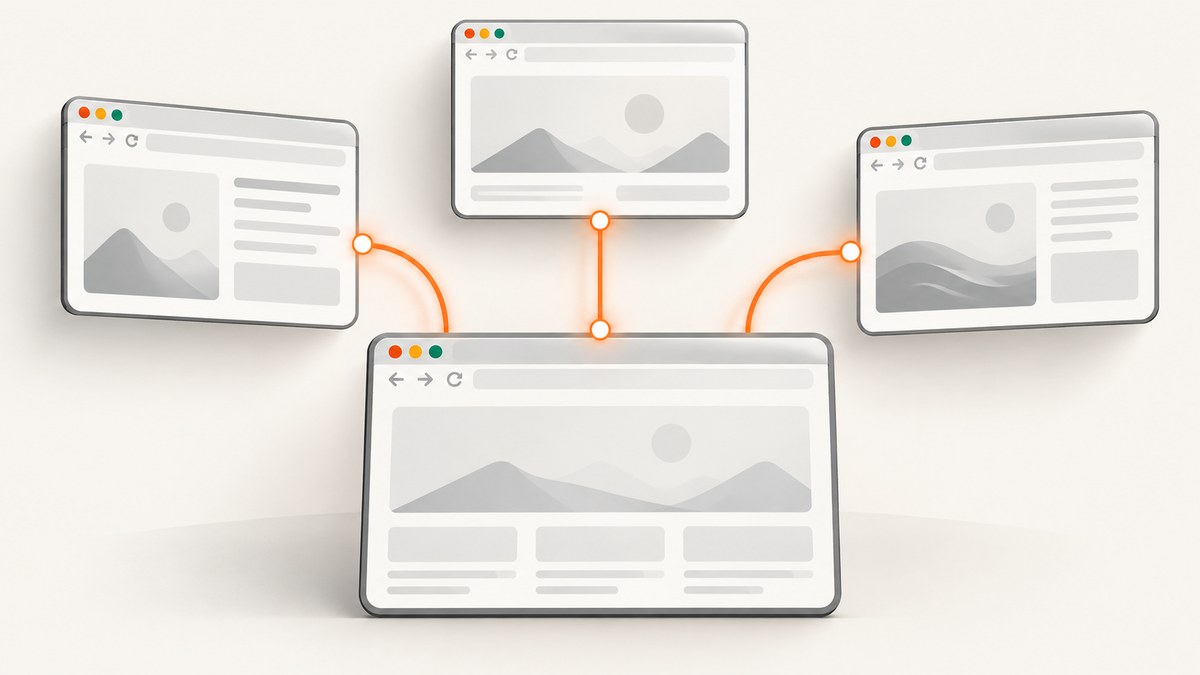
Selenium WebDriver addresses each top-level browser tab or window through an opaque window handle. Save the current handle, trigger the new context, wait until the expected number of handles exists, select the handle that differs from the parent, and call driver.switchTo().window(handle) before locating elements.
The basic pattern is:
String original = driver.getWindowHandle();
driver.findElement(By.linkText("Open new window")).click();

new WebDriverWait(driver, Duration.ofSeconds(10))
    .until(ExpectedConditions.numberOfWindowsToBe(2));

for (String handle : driver.getWindowHandles()) {
    if (!handle.equals(original)) {
        driver.switchTo().window(handle);
        break;
    }
}
Selenium does not switch merely because the browser visibly focuses a new tab. The official Selenium guide describes window handles as the way to work with a newly opened tab or window. See the official windows documentation.
How window handles work
getWindowHandle() returns the opaque identifier for the current top-level browsing context. getWindowHandles() returns all handles currently available in the WebDriver session. A handle’s text has no meaning, and its value should not be expected to remain stable between sessions.
| Operation | Purpose |
|---|---|
driver.getWindowHandle() |
Save or inspect the currently selected tab/window. |
driver.getWindowHandles() |
Read every live tab/window in the session. |
driver.switchTo().window(handle) |
Make a specific top-level context active. |
driver.close() |
Close only the currently selected tab/window. |
driver.quit() |
Close every context and end the WebDriver session. |
A window handle is different from a frame. Use switchTo().frame(...) for an iframe inside the current page; use switchTo().window(handle) for a separate tab or browser window. The Java TargetLocator API exposes both kinds of switching.
Reliable workflow for a link that opens a new tab
- Save the parent handle before clicking.
- Trigger the link, button, JavaScript action, or other event that opens the child.
- Wait for the observable window count instead of sleeping for a fixed duration.
- Compare every returned handle with the saved parent.
- Switch to the selected handle, then wait for a title, URL, or distinctive element.
- Perform assertions and interactions in that context.
- Close the child when finished and switch back to a still-live handle.
- Call
quit()once the entire test is complete.
Complete Java example
import java.time.Duration;
import java.util.Set;

import org.openqa.selenium.By;
import org.openqa.selenium.WebDriver;
import org.openqa.selenium.chrome.ChromeDriver;
import org.openqa.selenium.support.ui.ExpectedConditions;
import org.openqa.selenium.support.ui.WebDriverWait;

public class MultipleWindows {
    public static void main(String[] args) {
        WebDriver driver = new ChromeDriver();
        WebDriverWait wait = new WebDriverWait(driver, Duration.ofSeconds(10));
        String original = null;

        try {
            driver.get("https://example.test/page-with-popup");
            original = driver.getWindowHandle();

            driver.findElement(By.linkText("Open new window")).click();
            wait.until(ExpectedConditions.numberOfWindowsToBe(2));

            String child = null;
            Set<String> handles = driver.getWindowHandles();
            for (String handle : handles) {
                if (!handle.equals(original)) {
                    child = handle;
                    break;
                }
            }
            if (child == null) {
                throw new IllegalStateException("The child window did not appear");
            }

            driver.switchTo().window(child);
            wait.until(ExpectedConditions.titleContains("Child"));
            System.out.println(driver.getTitle());
            driver.findElement(By.id("continue")).click();

            driver.close();
            driver.switchTo().window(original);
            wait.until(ExpectedConditions.titleContains("Parent"));
        } finally {
            driver.quit();
        }
    }
}
Replace the example URL and locators with those from your application. The explicit wait makes the code synchronize on registration of the second context, while the title wait confirms that the selected context has loaded the expected page.
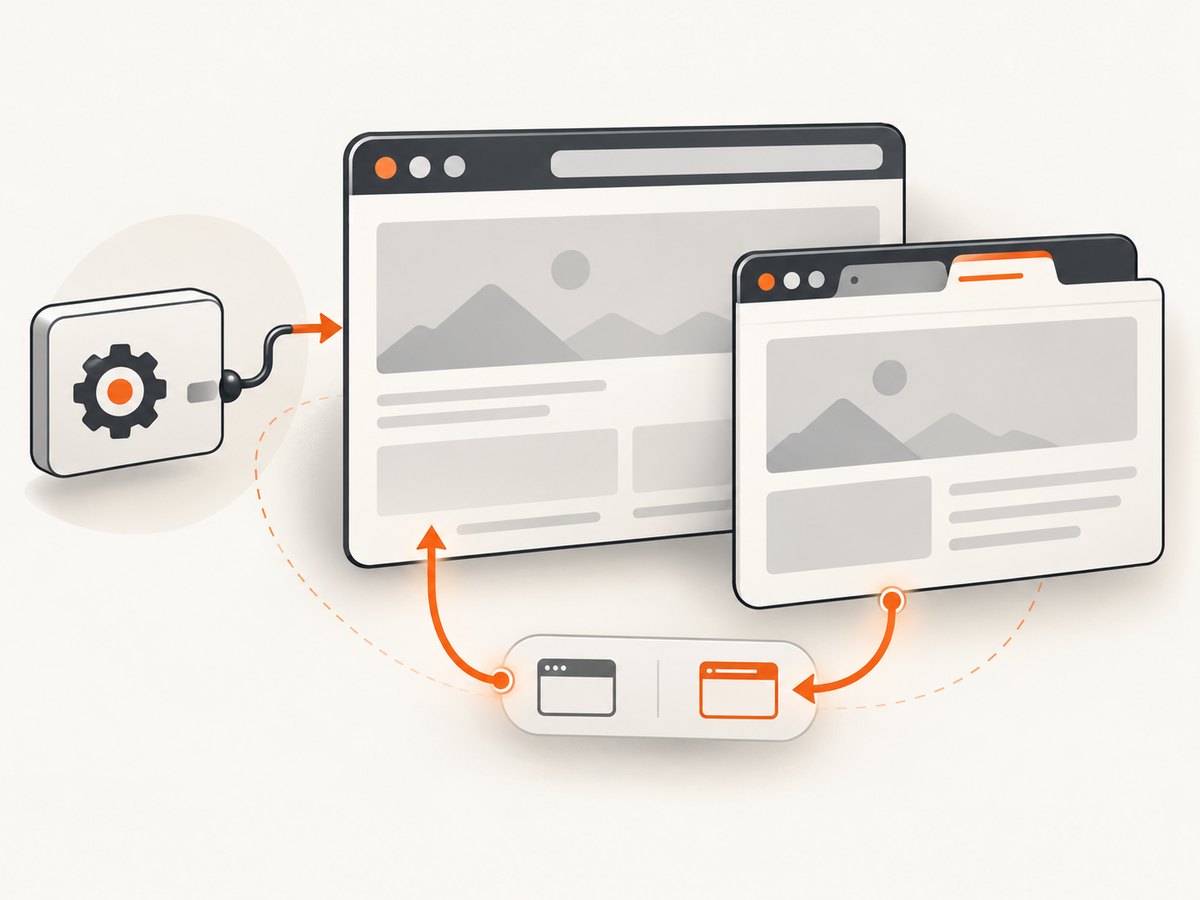
Selecting a window when several contexts exist
With two contexts, choosing the handle different from the parent is usually sufficient. With three or more, do not rely on iteration order or assume the newest handle is at index 1. Instead, switch temporarily to each candidate and identify it by a property that belongs to the intended page.
String parent = driver.getWindowHandle();
driver.findElement(By.cssSelector("a.opens-report")).click();
driver.findElement(By.cssSelector("a.opens-help")).click();

new WebDriverWait(driver, Duration.ofSeconds(10))
    .until(ExpectedConditions.numberOfWindowsToBe(3));

String report = null;
for (String handle : driver.getWindowHandles()) {
    driver.switchTo().window(handle);
    if (driver.getTitle().contains("Report")) {
        report = handle;
        break;
    }
}

if (report == null) {
    driver.switchTo().window(parent);
    throw new IllegalStateException("Report window was not found");
}

driver.switchTo().window(report);
For a more robust check, wait for a URL fragment or a distinctive element after switching. A title can be empty or shared by multiple pages during navigation.
Creating a tab or window with Selenium 4
When the test itself needs a fresh context, Selenium 4 provides newWindow. The command creates and focuses the requested context, so an additional switch is unnecessary.
import org.openqa.selenium.WindowType;

String original = driver.getWindowHandle();

driver.switchTo().newWindow(WindowType.TAB);
driver.get("https://example.com/child-tab");

// The newly created tab is already active.
driver.findElement(By.tagName("body"));

driver.close();
driver.switchTo().window(original);

driver.switchTo().newWindow(WindowType.WINDOW);
driver.get("https://example.com/child-window");
Use WindowType.TAB when you need another tab in the same browser window and WindowType.WINDOW when you need a separate top-level browser window. The Selenium Java WebDriver API documents these methods.
Opening contexts with JavaScript or a user gesture
Some sites open a context only after a trusted click, while others use window.open. Prefer the application’s real control because browser popup policies can block scripts that are not associated with a user gesture.
String parent = driver.getWindowHandle();
int before = driver.getWindowHandles().size();

driver.findElement(By.id("launch")).click();
new WebDriverWait(driver, Duration.ofSeconds(10))
    .until(d -> d.getWindowHandles().size() == before + 1);

for (String handle : driver.getWindowHandles()) {
    if (!handle.equals(parent)) {
        driver.switchTo().window(handle);
        break;
    }
}
Closing a child and returning to the parent
close() affects only the active context. It does not automatically select another tab. Always switch to a known live handle immediately afterward.
String parent = driver.getWindowHandle();
String child = ...;
driver.switchTo().window(child);
// assertions and interactions in child
driver.close();
driver.switchTo().window(parent);
If the parent was closed earlier, choose another handle from a set you know is still live. Continuing commands while the driver points at a closed context commonly produces NoSuchWindowException.
Synchronization strategies
| Wait | Use it when |
|---|---|
numberOfWindowsToBe(n) |
You know the exact count expected after an action. |
| Window-count lambda | The new count is relative to a dynamic starting count. |
titleContains or titleIs |
The target page has a reliable title. |
urlContains |
The URL identifies the target more reliably than its title. |
presenceOfElementLocated |
A distinctive element proves that the target document is ready. |
A count wait only proves that the browser registered a context. It does not prove that navigation finished. Combine it with a page-state wait when the next command depends on loaded content.
Common errors and fixes
Elements are not found after the popup opens
Cause: WebDriver remains attached to the parent handle. Fix: wait for the new handle, call switchTo().window(child), then locate the element.
Intermittent failures or only one handle is returned
Cause: the test reads the handle set before the browser registers the new context. Fix: use an explicit wait for the expected count; avoid fixed sleeps.
NoSuchWindowException after cleanup
Cause: the active context was closed and the next command ran without selecting a remaining handle. Fix: switch to the saved parent or another live handle immediately after close().
The wrong tab is selected
Cause: code assumes that a handle at index 1 is always the desired tab. Fix: compare with the parent for a two-context case, or inspect title, URL, or a distinctive element for several contexts.
The test confuses a frame with a window
Cause: an iframe is an in-page document, not a top-level context. Fix: use switchTo().frame(...) for the iframe and switchTo().window(...) for a tab or window.
The popup never appears
Cause: the browser blocked an untrusted popup, the click did not execute, or the application conditionally opens a context. Fix: trigger the real control with WebDriver, verify the click target is interactable, and assert the expected count with a useful timeout.
Performance, reliability, and test design
- Use one explicit wait with a sensible timeout rather than repeated polling loops or long fixed sleeps.
- Save handles in named variables or a map when a test owns several contexts; this makes cleanup deterministic.
- Identify windows by page state, not by handle text or set order.
- Close child contexts as soon as their assertions finish to limit browser resource use.
- Use
quit()in afinallyblock so a failed assertion does not leave a driver process running. - Keep each test’s context lifecycle local. Reusing a driver with unknown open tabs makes later handle selection ambiguous.
- When navigation is slow, wait for the target element or URL after switching instead of increasing every global timeout.
Window switching itself is inexpensive; most elapsed time comes from starting the browser, navigation, scripts, and page resources. Reliability improves when waits observe those states directly.
Or skip the browser setup
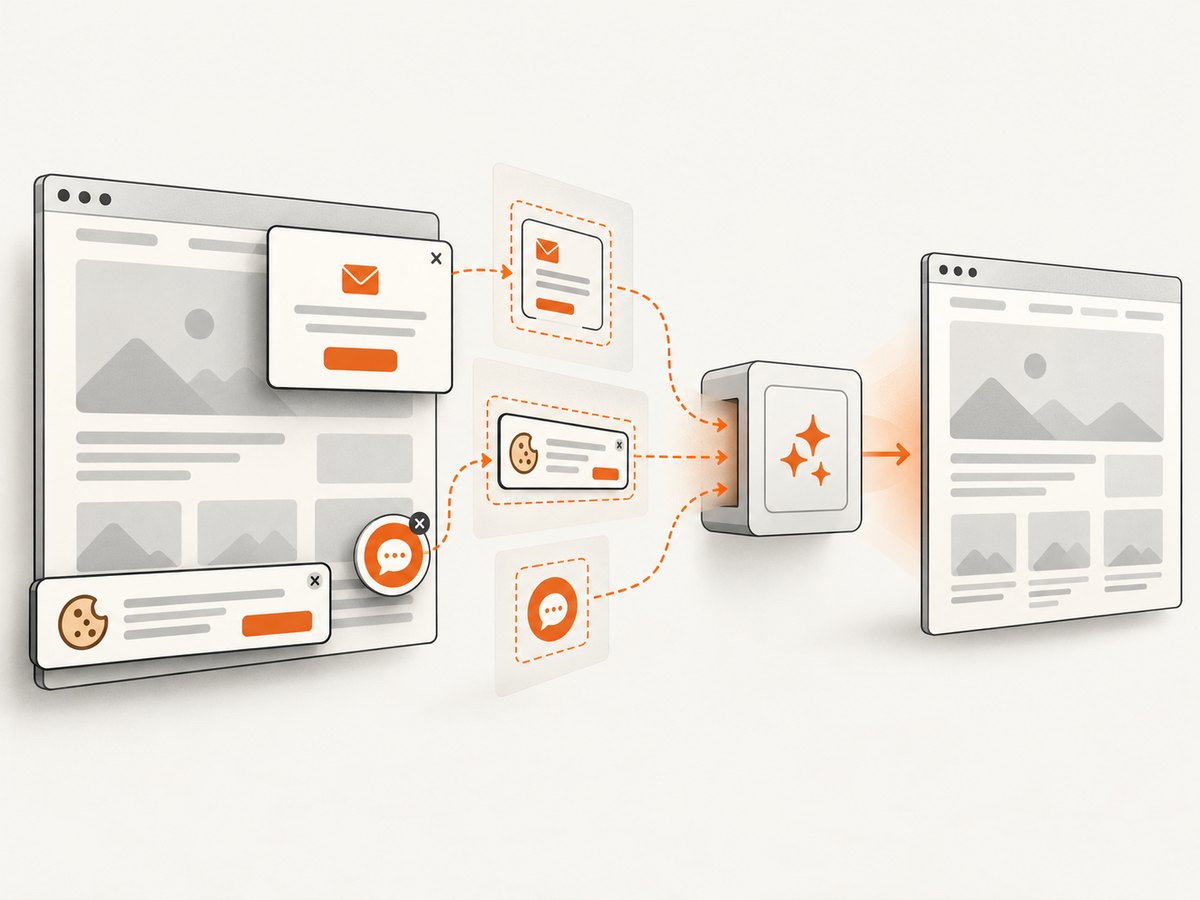
If your goal is a clean image or PDF of a URL rather than an interactive Selenium workflow, ScreenshotNeo provides a single HTTP request. Its capture process accepts cookie or consent banners and removes more than 60 known consent platforms, newsletter popups, and chat widgets before the shot. Bot checks, blank pages, timeouts, failed loads, and cache hits are not billed, and the response identifies the result with X-Page-Verdict and X-Billed headers. It also includes an MCP server with take_screenshot, get_page_info, and capture_pdf tools for Claude, Cursor, and other MCP clients.
See the ScreenshotNeo API documentation for all options.
cURL
curl -G "https://api.screenshotneo.com/v1/shot" -d access_key=YOUR_API_KEY --data-urlencode url=https://stripe.com -o shot.webpPython
import requests
r = requests.get("https://api.screenshotneo.com/v1/shot", params={"access_key": "YOUR_API_KEY", "url": "https://stripe.com"}, timeout=90)
open("shot.webp", "wb").write(r.content)
Node.js
const q = new URLSearchParams({ access_key: 'YOUR_API_KEY', url: 'https://stripe.com' });
const res = await fetch(`https://api.screenshotneo.com/v1/shot?${q}`);
ScreenshotNeo supports full-page and element captures, device presets or custom viewports, dark mode, retina scale, custom CSS and JavaScript, waits, request blocking, headers, cookies, user agents, authorization, geolocation, timezones, resizing, caching, signed links, asynchronous jobs, bulk capture, PDFs, HTML/CSS rendering, and a usage API. Every feature is on every plan. The Free plan includes 1,000 shots each month with no card; paid plans start at $5 for 3,000 shots.
Create a free ScreenshotNeo account and get 1,000 screenshots a month with no card.
FAQ
Does Selenium switch to a newly focused browser tab automatically?
No. Select the new handle explicitly with switchTo().window(...).
Can I use a window handle from a previous test?
No. Handles identify contexts in the current WebDriver session and should be treated as session-scoped.
Should I use close() or quit()?
Use close() for one finished tab or window. Use quit() to end the complete session.
Is a tab different from a window in WebDriver?
Both are top-level browsing contexts and are selected with window handles. Selenium 4 lets you request either with WindowType.TAB or WindowType.WINDOW.
How do I verify that I selected the intended context?
After switching, wait for a distinctive title, URL, or element and assert it before continuing.


