How to Take and Save Screenshots to a File in Intern JavaScript Tests
Capture Intern test screenshots reliably, save data URLs or PNG bytes, and collect failure evidence with Leadfoot.

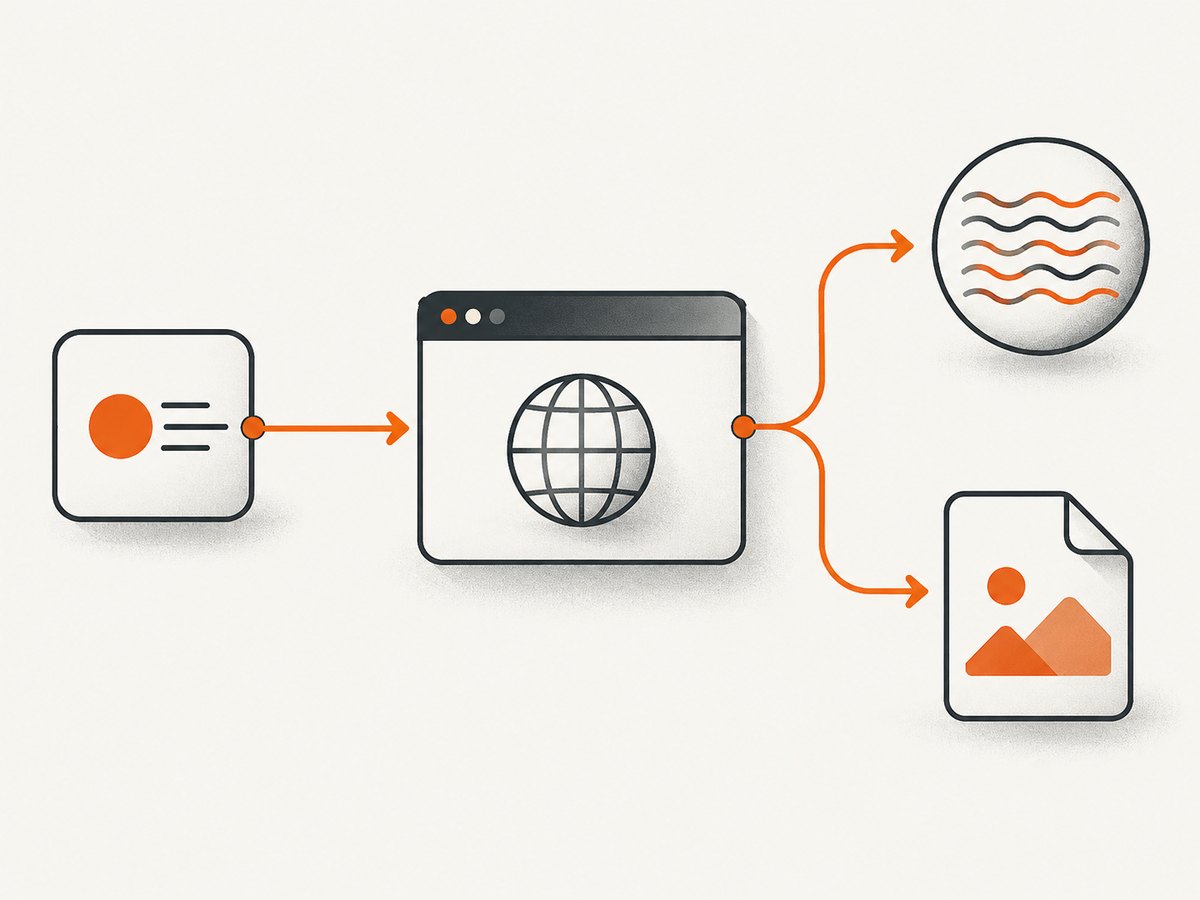
Direct answer: Intern functional tests use Leadfoot through this.remote. Navigate to a page, call takeScreenshot(), return the Promise chain, then write the result as either decoded data-URL content or raw PNG bytes. Drivers do not all return the same type, so check the value before decoding it.
1. Capture a screenshot and save it
This complete suite works with Intern’s AMD loader and Node’s file system module. It creates the destination directory, waits for the browser command to finish, and handles both common return formats.
define([
  'intern!object',
  'intern/dojo/node!fs',
  'intern/dojo/node!path'
], function (registerSuite, fs, path) {
  registerSuite({
    name: 'screenshots',

    'captures a PNG': function () {
      var outputDir = path.resolve('screenshots');
      var outputFile = path.join(outputDir, 'example.png');

      // mkdirSync with recursive support keeps a fresh checkout working.
      if (!fs.existsSync(outputDir)) {
        fs.mkdirSync(outputDir, { recursive: true });
      }

      return this.remote
        .get('https://example.com')
        .takeScreenshot()
        .then(function (data) {
          if (typeof data === 'string') {
            // A data URL contains metadata before the base64 payload.
            var base64 = data.replace(/^data:image\/png;base64,/, '');
            fs.writeFileSync(outputFile, base64, 'base64');
          } else {
            // Buffers and other byte arrays are already binary PNG data.
            fs.writeFileSync(outputFile, data);
          }
        });
    }
  });
});
Leadfoot commands are Promise based. Returning the chain is essential: Intern must wait for navigation, capture, and file writing before it marks the test complete.
Use a deterministic file name
For repeatable CI artifacts, include a suite or test identifier and replace path separators and other unsafe characters.
function safeName(value) {
  return String(value)
    .replace(/[^a-z0-9._-]+/gi, '_')
    .replace(/^\.+/, '')
    .slice(0, 180) || 'test';
}

var file = path.join(outputDir, safeName('checkout / loads home') + '.png');
Do not let a test title become a path such as ../outside.png. Keep all generated files below a known artifact directory.
2. Understand the screenshot return value
The remote driver may return a PNG data URL string or raw PNG bytes. A data URL normally starts with data:image/png;base64,. Strip that prefix and decode the remaining base64 text. A Buffer must be written unchanged.
| Value | Correct action | Common mistake |
|---|---|---|
| String data URL | Remove the prefix and call writeFileSync(file, payload, 'base64') |
Saving the entire data URL as if it were an image |
| Buffer or byte array | Call writeFileSync(file, data) |
Calling .replace() or base64 decoding binary data |
If you need to accept variants such as a different image MIME prefix, remove only the first comma-delimited metadata section:
function writeScreenshot(file, data) {
  if (typeof data === 'string') {
    var comma = data.indexOf(',');
    var payload = comma === -1 ? data : data.slice(comma + 1);
    fs.writeFileSync(file, payload, 'base64');
  } else {
    fs.writeFileSync(file, data);
  }
}
3. Capture screenshots only when a test fails
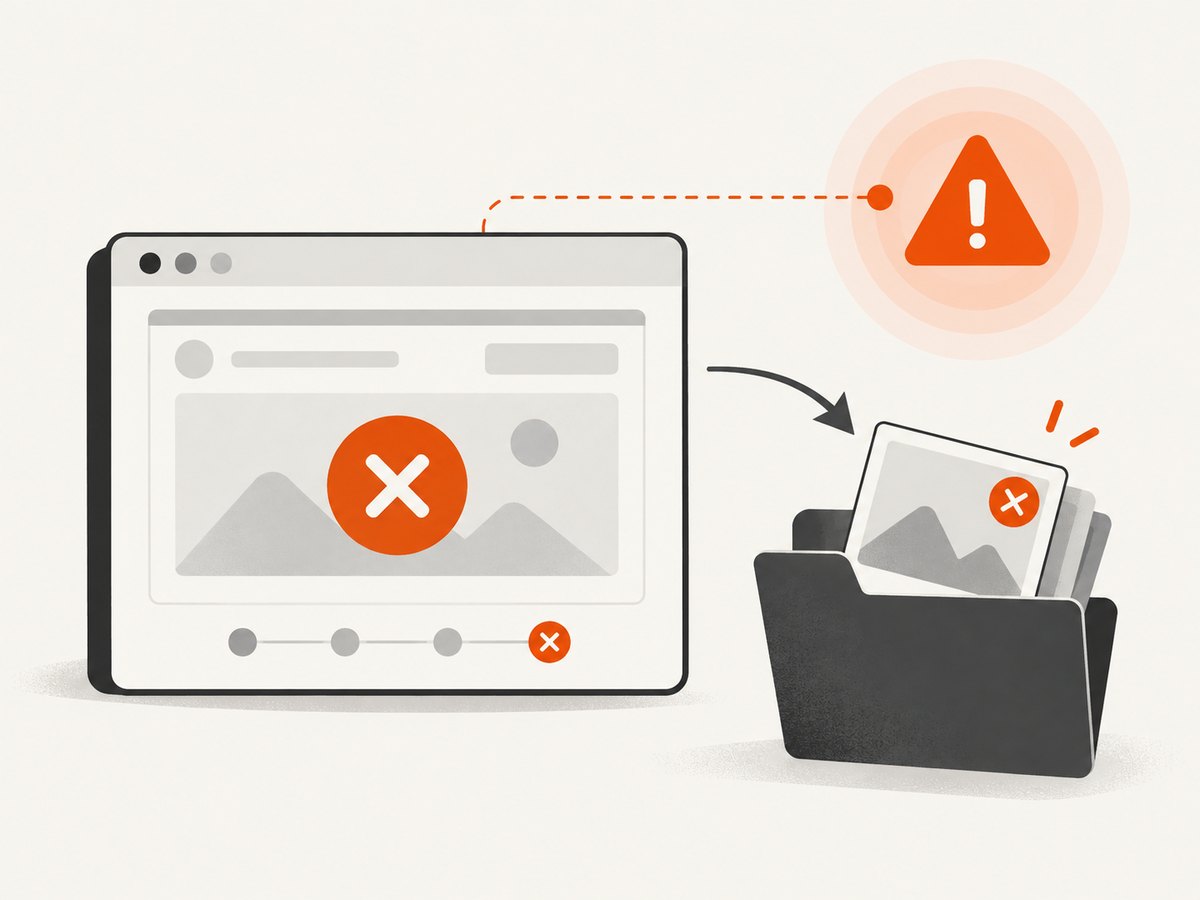
A failure screenshot is most useful when it is taken after Intern has the rejected test error but before the browser session is discarded. A local rejection handler is simple for one test:
'captures evidence on failure': function () {
  var remote = this.remote;
  var outputFile = path.resolve('screenshots/failure.png');

  return remote
    .get('https://example.com/missing')
    .findByCssSelector('#expected')
    .catch(function (error) {
      // Some drivers expose a screenshot on the error object.
      if (error && error.screenshot) {
        writeScreenshot(outputFile, error.screenshot);
        return Promise.reject(error);
      }

      return remote.takeScreenshot()
        .then(function (data) {
          writeScreenshot(outputFile, data);
          return Promise.reject(error);
        });
    });
}
Always rethrow the original error. Otherwise the test can appear green after evidence collection.
Suite-wide afterEach handling
For every test, inspect the current test result in afterEach. Intern versions and reporters expose the current error through the test context differently, so keep the error lookup aligned with your Intern version. The important sequence is: determine that the test failed, call this.remote.takeScreenshot(), write the bytes, then allow the failure to propagate.
define([
  'intern!object',
  'intern/dojo/node!fs',
  'intern/dojo/node!path'
], function (registerSuite, fs, path) {
  function writeScreenshot(file, data) {
    if (typeof data === 'string') {
      fs.writeFileSync(file, data.replace(/^data:image\/png;base64,/, ''), 'base64');
    } else {
      fs.writeFileSync(file, data);
    }
  }

  registerSuite({
    name: 'checkout',

    afterEach: function () {
      var test = this; // Use the test object supplied by your Intern version.
      if (!test.error) {
        return;
      }

      var dir = path.resolve('screenshots');
      if (!fs.existsSync(dir)) {
        fs.mkdirSync(dir, { recursive: true });
      }

      var name = String(test.name || 'failed-test')
        .replace(/[^a-z0-9._-]+/gi, '_');
      var file = path.join(dir, name + '.png');

      return this.remote.takeScreenshot().then(function (data) {
        writeScreenshot(file, data);
      });
    },

    'shows checkout': function () {
      return this.remote
        .get('https://example.com/checkout')
        .findByCssSelector('h1');
    }
  });
});
Check your Intern runner’s test-result property before copying this pattern into a shared helper. If your version does not expose test.error there, use its documented reporter or result object instead of guessing.
Reporter-based capture
Intern 3 supports custom reporter work around test events. A reporter can capture failures centrally and use runnerClientReporter.waitForRunner to synchronize asynchronous work around those events. This is useful when tests are spread across many suites or when you want one artifact naming policy. Keep reporter capture asynchronous and ensure the runner waits for the write to finish.
4. Check whether the driver supports screenshots
Screenshot support is an environment capability, exposed by Leadfoot as takesScreenshot. Remote browsers, WebDriver servers, and mobile targets can differ. Check the capability before relying on screenshots, or handle a rejected takeScreenshot() command explicitly.
return this.remote.getCapabilities().then(function (capabilities) {
  if (capabilities && capabilities.takesScreenshot === false) {
    throw new Error('This WebDriver environment does not support screenshots');
  }
  return this.remote.takeScreenshot();
});
Capability names can be normalized differently by a remote server. Treat an explicit rejection from takeScreenshot() as authoritative and record the browser, platform, and WebDriver endpoint in CI logs.
5. Make captures reliable in CI
- Wait for the state you need. Navigate, then wait for a selector or application condition before capturing. A screenshot taken during a transition can be valid PNG data but still show the wrong state.
- Return every asynchronous operation. Return the Leadfoot chain and return any Promise created in an error or reporter handler.
- Create the directory first. CI workspaces often start empty; a missing directory causes an
ENOENTwrite failure. - Publish the artifact. Configure your CI system to retain the screenshots directory after a failed job.
- Keep names unique. Add browser, shard, suite, and test identifiers when parallel workers write to one artifact directory.
- Clean old files. Use a per-run directory or remove stale images so a green run cannot be mistaken for current failure evidence.
6. Troubleshooting
| Symptom | Cause | Fix |
|---|---|---|
TypeError: data.replace is not a function |
The driver returned binary PNG bytes. | Branch on typeof data and write non-strings unchanged. |
| Image viewer says the file is corrupt | You saved the data-URL prefix or decoded bytes twice. | Decode only the base64 payload of a string; write Buffers directly. |
ENOENT from writeFileSync |
The screenshots directory does not exist. | Create it with mkdirSync(..., { recursive: true }) before capture. |
| No screenshot appears after a failure | The rejection handler was not returned, the session closed first, or the driver has no screenshot capability. | Return the handler Promise, capture before teardown, and check takesScreenshot. |
| Test passes despite an assertion failure | The screenshot handler swallowed the rejection. | Write the evidence, then reject or rethrow the original error. |
| Screenshot shows a loading page | Capture ran before the application reached its stable state. | Wait for a meaningful selector or application-ready condition. |
| Parallel tests overwrite images | Every worker uses the same filename. | Include worker, browser, suite, and sanitized test names. |
| Works locally but fails on a hosted browser | Remote capabilities or driver behavior differ. | Log capabilities, test a small capture first, and handle unsupported environments. |
7. Performance, reliability, and cost considerations
A screenshot adds browser and file-I/O work to a test. Capturing every passing test can make a large suite slower and produce more artifacts to retain. Failure-only capture usually gives the best signal. If you need visual snapshots for every test, use stable waits, write asynchronously where your runner permits it, and store artifacts outside the source tree.
Full-page screenshots can consume more memory than viewport captures, especially on long pages. Keep one capture per failure unless a second image answers a separate diagnostic question. For remote execution, network latency and browser startup time dominate; screenshot encoding itself is rarely the only delay.
Intern and Leadfoot do not charge per screenshot. Your practical costs are browser infrastructure, CI storage, and transfer time. Hosted browser services can add their own plan or usage charges, so verify those terms separately.
8. Or skip the browser setup
If the goal is a clean image of a URL rather than evidence from an Intern session, ScreenshotNeo provides a single HTTP request. Its capture endpoint is documented at the ScreenshotNeo API docs.
curl -G "https://api.screenshotneo.com/v1/shot" -d access_key=YOUR_API_KEY --data-urlencode url=https://stripe.com -o shot.webpimport requests
r = requests.get("https://api.screenshotneo.com/v1/shot", params={"access_key": "YOUR_API_KEY", "url": "https://stripe.com"}, timeout=90)
open("shot.webp", "wb").write(r.content)const q = new URLSearchParams({ access_key: 'YOUR_API_KEY', url: 'https://stripe.com' });
const res = await fetch(`https://api.screenshotneo.com/v1/shot?${q}`);Cookie and consent banners, newsletter popups, and chat widgets are removed before the shot. Bot checks, blank pages, failed loads, timeouts, and cache hits are not billed, and the response identifies the page verdict and billing result in headers. ScreenshotNeo also offers an MCP server so Claude, Cursor, and other MCP clients can take screenshots, inspect page information, and capture PDFs. The free plan includes 1,000 screenshots per month with no card; paid plans start at $5 for 3,000 shots.
Create a free ScreenshotNeo account.
9. FAQ
Can I save JPEG or WebP from takeScreenshot()?
Intern’s Leadfoot screenshot command is documented as returning PNG data. Convert the saved PNG separately if another format is required.
Should I capture before or after an assertion?
Capture in the failure path after the error is available, unless the assertion itself ends the session. For a specific checkpoint, capture immediately after the UI condition you want to document.
Why does the same test return different types on different browsers?
The WebDriver implementation controls the transport representation. Use the string-versus-bytes branch rather than assuming one type.
Can a screenshot prove that the page is correct?
It records rendered evidence at one moment. Keep functional assertions for behavior and use screenshots for diagnosis or visual comparison.


